Get 50% OFF All Premium 3D & STL Models!

“`html
The world of 3D printing offers incredible opportunities, from creating intricate prototypes to building personalized collectibles. For enthusiasts, makers, and engineers alike, the process begins with a digital design, most often saved as an STL file. However, STL files aren’t always perfect. Errors can creep in during the design or conversion process, leading to frustrating print failures. Understanding how to identify and fix these errors is crucial for achieving successful and high-quality 3D prints, especially when working with detailed models like the printable car models available on platforms like 88cars3d.com. This comprehensive guide will walk you through common STL file errors, explain how to diagnose them, and provide practical solutions using a variety of software tools. Learn how to ensure your next 3D printing project goes smoothly, saving you time, filament, and frustration.
The STL file format (Stereolithography) represents a 3D object as a collection of triangles. While simple in concept, its accuracy is paramount for successful 3D printing. Errors in the STL file directly translate to defects in the printed object. These defects can range from minor aesthetic imperfections to structural weaknesses that compromise the entire print. For example, a non-manifold mesh (explained later) could lead to holes or missing sections in your final print. Therefore, meticulous file preparation is an indispensable step in the 3D printing workflow, especially for complex automotive models where intricate details are essential.
Before diving into solutions, it’s vital to recognize the types of errors that commonly plague STL files. These errors can stem from various sources, including design flaws, software glitches, and incorrect export settings.
Non-manifold geometry is a common and critical error in STL files. Manifold geometry refers to a 3D shape that is “watertight” – meaning it completely encloses a volume and has a clear inside and outside. Non-manifold geometry, on the other hand, contains edges shared by more than two faces (creating knife edges) or faces that don’t form a closed volume. Imagine trying to fill a leaky bucket; non-manifold geometry is like that leak, preventing the slicer from correctly interpreting the object. This results in missing sections, holes, or incorrect internal structures during printing. Identifying non-manifold edges often requires specialized software, which will highlight these problem areas for repair.
Each triangle in an STL file has a “normal” – a vector that points outward from the surface. The normal defines which side of the triangle is the “outside” and which is the “inside.” Inverted normals occur when the normal vector points inward. This confuses the slicer, leading it to interpret the inside of the object as the outside, and vice versa. The result is often missing layers or a completely hollow print. In some cases, the object might appear visually correct in the preview but fail during printing due to incorrect slicing instructions. Repairing inverted normals is typically a straightforward process in most mesh editing software.
Holes and gaps in an STL file are exactly what they sound like: missing faces that create openings in the mesh. These can arise from modeling errors, data corruption during file transfer, or incomplete scans. Even small holes can cause significant printing problems, as the slicer may struggle to create a continuous path for the print head. Large gaps often lead to print failures. Identifying holes often requires close visual inspection, or the use of specialized “fill holes” features in mesh editing software. Often, small holes can be automatically repaired, while larger ones require manual patching or remodeling.
Several powerful software tools are available to help you diagnose and fix STL file errors. These range from free and open-source options to commercial-grade solutions. Selecting the right tool depends on the complexity of the errors and your level of experience.
Autodesk Meshmixer is a free and versatile tool ideal for basic STL file repair and manipulation. It offers a range of features, including automatic error detection and repair, mesh smoothing, and sculpting tools. Its user-friendly interface makes it a great choice for beginners. Meshmixer’s “Make Solid” tool is particularly useful for converting non-manifold meshes into printable solids. Its “Inspector” tool can automatically identify and repair common errors, such as holes, inverted normals, and self-intersections. Using Meshmixer is a great starting point before committing to paid software.
Autodesk Netfabb is a professional-grade software package designed for additive manufacturing. It offers advanced tools for STL file repair, optimization, and build preparation. Netfabb’s powerful mesh analysis capabilities can detect even the most subtle errors, and its comprehensive repair tools provide precise control over the repair process. While Netfabb is a paid software, its advanced features make it a worthwhile investment for professionals and serious hobbyists. For automotive models in particular, its build preparation features (such as advanced support generation and nesting) can significantly improve print success rates and reduce material waste.
Blender is a free and open-source 3D creation suite that can also be used for STL file repair. While it has a steeper learning curve than Meshmixer, Blender offers a wide range of modeling and editing tools, providing precise control over the mesh. Blender’s “Edit Mode” allows you to directly manipulate vertices, edges, and faces, enabling you to fix even complex errors manually. Its “Mesh Analysis” tools can help identify non-manifold geometry and other problems. While not specifically designed for 3D printing preparation, Blender’s flexibility and powerful toolset make it a valuable asset for advanced users.
Let’s walk through a practical example of repairing an STL file using Meshmixer. This will provide you with a concrete understanding of the repair process.
First, open Meshmixer and import the problematic STL file. Once loaded, navigate to the “Analysis” tab and select “Inspector.” Meshmixer will automatically analyze the mesh and highlight any errors in red, blue, or green. Red markers typically indicate holes, blue markers indicate inverted normals, and green markers indicate other issues. The number of markers gives you an immediate sense of the severity of the errors.
The simplest approach is to click the “Auto Repair All” button in the Inspector panel. Meshmixer will attempt to automatically fix all detected errors. In many cases, this will resolve most of the issues. However, for complex models, manual intervention may be necessary. After running the auto-repair, re-run the Inspector to check if any errors remain. If errors persist, proceed to manual repair techniques.
For persistent errors, you can use Meshmixer’s sculpting and editing tools to manually correct the mesh. For example, to close a small hole, you can use the “Bridge” tool to connect the edges of the hole with new faces. To fix inverted normals, select the problematic faces and use the “Flip Normals” command. For more complex repairs, you may need to use the “Sculpt” tools to reshape the mesh or the “Edit” tools to add or remove faces. Patience and precision are key when performing manual repairs. This is particularly true for intricate car models where maintaining accurate surface contours is critical. Remember to export the repaired file as STL (Binary) for compatibility with your slicer.
Beyond error repair, optimizing STL files for 3D printing involves several considerations to ensure a smooth and successful print. This includes adjusting resolution, simplifying geometry, and strategically orienting the model on the build plate.
The resolution of an STL file determines the level of detail captured in the mesh. A high-resolution mesh contains more triangles, resulting in a smoother surface but also a larger file size and longer slicing times. A low-resolution mesh has fewer triangles, leading to a faceted appearance but smaller file sizes and faster slicing. The ideal resolution depends on the complexity of the model and the capabilities of your 3D printer. For highly detailed models, such as printable car models from 88cars3d.com, a higher resolution is generally preferred to capture fine details. However, for simpler models, a lower resolution may suffice.
In some cases, an STL file may contain unnecessary geometric detail that doesn’t contribute to the overall appearance of the printed object. Simplifying the geometry can reduce file size and improve slicing performance. This can be achieved using mesh decimation tools, which reduce the number of triangles in the mesh while preserving its overall shape. However, be careful not to over-simplify the geometry, as this can lead to a loss of detail. Simplification should be approached judiciously, balancing file size reduction with detail preservation. Tools like MeshLab offer powerful decimation algorithms that can significantly reduce triangle count with minimal visual impact.
The orientation of your model on the build plate significantly impacts print quality, support structure requirements, and print time. Optimizing the orientation can minimize the need for support structures, reduce overhangs, and improve surface finish. Consider the model’s geometry and identify areas that are prone to failure or require extensive support. Rotate the model to minimize these issues. For example, orienting a car model with its roof facing upwards can reduce the amount of support needed for the roof and windows. Tools in your slicer software, like Cura or PrusaSlicer, allow you to visualize the overhangs and adjust the orientation accordingly. Using the correct orientation can be the difference between a successful print and a pile of wasted filament. Correct orientation of the model is very crucial for models bought on marketplaces such as 88cars3d.com, where complex designs are normal.
Once your STL file is repaired and optimized, the next step is to prepare it for printing using slicing software. Slicing software converts the 3D model into a series of layers that the 3D printer can understand. The settings you choose in your slicing software directly impact the quality, strength, and speed of your prints.
Layer height is a critical parameter that determines the thickness of each layer. A smaller layer height results in smoother surfaces and finer details but also increases print time. A larger layer height results in faster prints but can lead to a more stepped or faceted appearance. The optimal layer height depends on the desired level of detail and the capabilities of your 3D printer. Typically, a layer height of 0.1mm to 0.2mm is a good starting point for FDM printing, while resin printers can achieve much finer layer heights (e.g., 0.025mm to 0.05mm). Print speed also affects print quality. Slower speeds generally result in smoother surfaces and more accurate dimensions, while faster speeds can lead to vibrations and artifacts. Experiment with different layer heights and print speeds to find the optimal balance for your specific model and printer.
Infill refers to the internal structure of the printed object. Infill density determines the amount of material used to fill the interior. A higher infill density results in a stronger but heavier print, while a lower infill density results in a lighter but weaker print. The optimal infill density depends on the intended use of the printed object. For decorative models, a low infill density (e.g., 10-20%) may suffice. For functional parts that need to withstand stress, a higher infill density (e.g., 50-100%) is recommended. The infill pattern also affects print strength and weight. Common infill patterns include grid, honeycomb, and gyroid. Gyroid infill is particularly strong and lightweight, making it a popular choice for demanding applications.
Support structures are temporary structures that support overhangs and bridges during printing. Proper support generation is crucial for preventing print failures and ensuring accurate geometry. Slicing software offers various support options, including tree supports, linear supports, and support interfaces. Experiment with different support types to find the optimal solution for your model. Bed adhesion is also critical for preventing warping and ensuring that the print sticks to the build plate. Techniques for improving bed adhesion include using a heated bed, applying adhesive (e.g., glue stick or hairspray), and using a brim or raft. For filaments like ABS, a heated bed is essential to prevent warping. A brim is a single-layer outline around the base of the print, while a raft is a multi-layer platform that provides a larger surface area for adhesion.
Even with careful STL file preparation and optimized slicing settings, 3D printing issues can still arise. Understanding common problems and their solutions can save you time and frustration.
Warping occurs when the printed object lifts off the build plate, typically due to uneven cooling or poor bed adhesion. To prevent warping, ensure that your build plate is clean and level. Use a heated bed and set the temperature according to the filament manufacturer’s recommendations. Apply an adhesive, such as glue stick or hairspray, to the build plate. Use a brim or raft to increase the surface area for adhesion. Enclosing the printer can also help to maintain a consistent temperature and prevent drafts. Warping is particularly problematic with filaments like ABS, which have a high thermal expansion coefficient.
Stringing occurs when the printer extrudes filament while moving between different parts of the model, leaving thin strands of plastic. Blobs are small accumulations of excess plastic on the surface of the print. To prevent stringing and blobs, reduce the printing temperature, increase retraction distance and speed, and enable coasting or wiping in your slicing software. Coasting stops extrusion just before the end of a movement, allowing the residual pressure in the nozzle to relieve itself. Wiping moves the nozzle slightly over the already printed surface at the end of a movement to remove any remaining plastic. Proper filament storage is also crucial. Moisture absorbed by filament can contribute to stringing and blobs.
Layer shifting occurs when the printer head suddenly shifts position during printing, resulting in misaligned layers. Missed steps occur when the stepper motors that control the movement of the printer head skip steps, leading to dimensional inaccuracies. To prevent layer shifting and missed steps, ensure that the printer belts are properly tensioned, the stepper motor drivers are correctly calibrated, and the printing speed is not too high. Check for any obstructions that may be hindering the movement of the printer head. Loose belts or improperly calibrated stepper drivers can lead to significant inaccuracies, especially when printing detailed models like those available from 88cars3d.com.
Mastering STL file repair is an essential skill for any 3D printing enthusiast. By understanding common STL file errors, utilizing appropriate software tools, and optimizing slicing settings, you can significantly improve the quality and success rate of your 3D prints. Remember to always inspect your STL files for errors before printing, and don’t hesitate to experiment with different settings to find what works best for your specific printer and filament. From simple household items to intricate automotive models, the possibilities of 3D printing are virtually limitless. By following the techniques outlined in this guide, you can unlock the full potential of this exciting technology and bring your digital designs to life. Start practicing these tips, and soon you’ll be printing flawless car models and more, ensuring your creations are top-notch every time.
“`

Texture: Yes
Material: Yes
Download the BMW 8-Series M850i G15 Coupe 2019 3D Model featuring clean geometry, realistic detailing, and a fully modeled interior. Includes .blend, .fbx, .obj, .glb, .stl, .ply, .unreal, and .max formats for rendering, simulation, and game development.
Price: $19.99

Texture: Yes
Material: Yes
Download the BMW Z4 Mk3 G29 Roadster M40i 2019 3D Model featuring clean geometry, realistic detailing, and a fully modeled interior. Includes .blend, .fbx, .obj, .glb, .stl, .ply, .unreal, and .max formats for rendering, simulation, and game development.
Price: $19.99

Texture: Yes
Material: Yes
Download the BMW X6 (Mk3) (G06) M Sport 2020 3D Model featuring clean geometry, realistic detailing, and a fully modeled interior. Includes .blend, .fbx, .obj, .glb, .stl, .ply, .unreal, and .max formats for rendering, simulation, and game development.
Price: $19.99

Texture: Yes
Material: Yes
Download the BMW 8-Series G14 Convertible M850i 2019 3D Model featuring clean geometry, realistic detailing, and a fully modeled interior. Includes .blend, .fbx, .obj, .glb, .stl, .ply, .unreal, and .max formats for rendering, simulation, and game development.
Price: $19.99

Texture: Yes
Material: Yes
Download the BMW 8 Series M850i Coupe 2019 3D Model featuring clean geometry, realistic detailing, and a fully modeled interior. Includes .blend, .fbx, .obj, .glb, .stl, .ply, .unreal, and .max formats for rendering, simulation, and game development.
Price: $19.99

Texture: Yes
Material: Yes
Download the BMW 3 Series M-Sport Sedan 2019 3D Model featuring clean geometry, realistic detailing, and a fully modeled interior. Includes .blend, .fbx, .obj, .glb, .stl, .ply, .unreal, and .max formats for rendering, simulation, and game development.
Price: $19.99
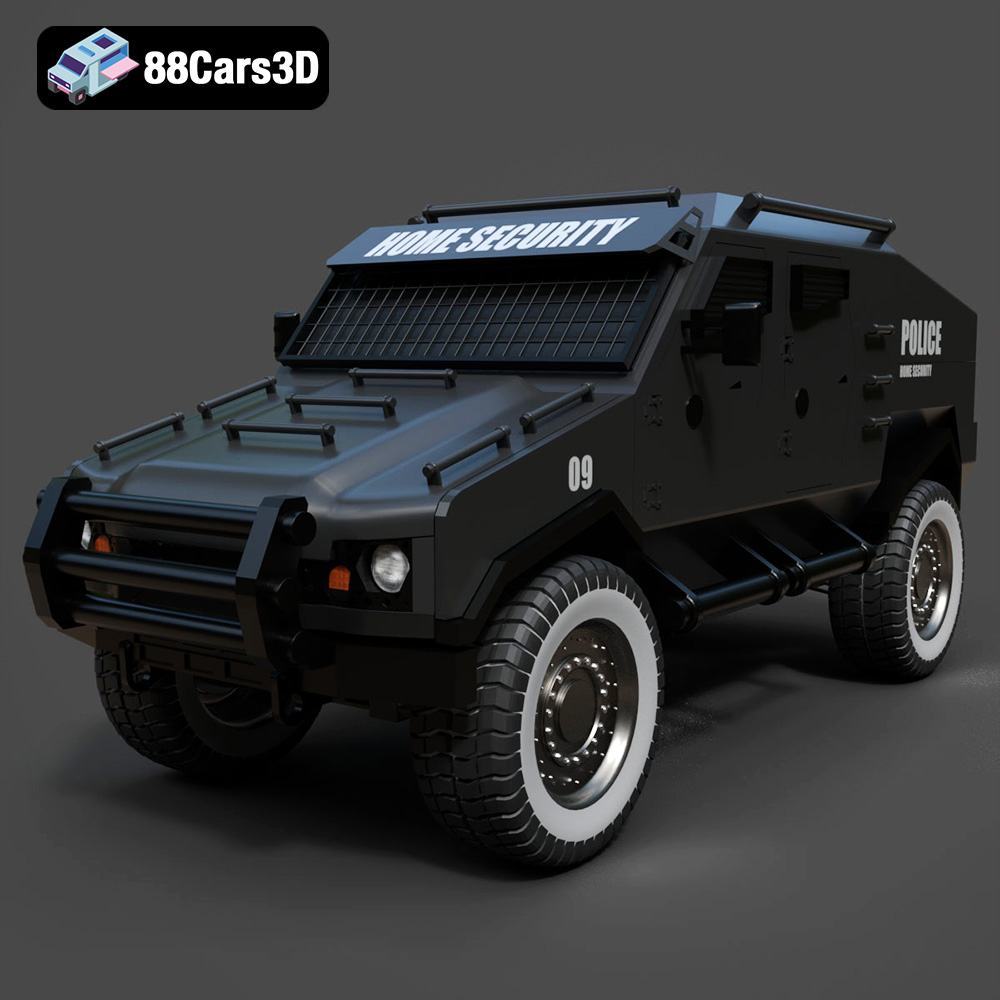
Texture: Yes
Material: Yes
Download the Armoured Vehicle 001 3D Model featuring clean geometry, realistic detailing, and a fully modeled interior. Includes .blend, .fbx, .obj, .glb, .stl, .ply, .unreal, and .max formats for rendering, simulation, and game development.
Price: $19.99
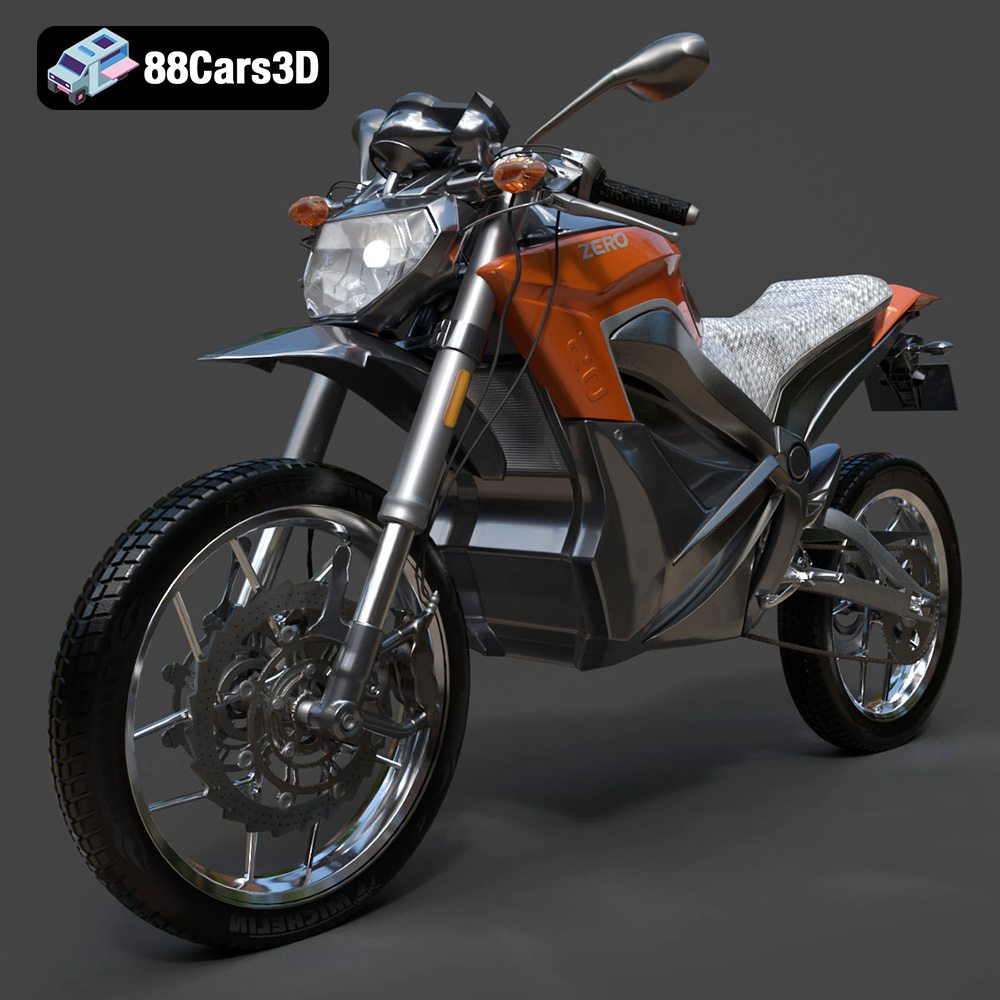
Texture: Yes
Material: Yes
Download the Zero Motorcycles S ZF8.5 3D Model featuring clean geometry, realistic detailing, and a fully modeled interior. Includes .blend, .fbx, .obj, .glb, .stl, .ply, .unreal, and .max formats for rendering, simulation, and game development.
Price: $19.99

Texture: Yes
Material: Yes
Download the Zeekr 001 3D Model featuring clean geometry, realistic detailing, and a fully modeled interior. Includes .blend, .fbx, .obj, .glb, .stl, .ply, .unreal, and .max formats for rendering, simulation, and game development.
Price: $19.99

Texture: Yes
Material: Yes
Download the Volvo Trucks Benz GT-001 3D Model featuring clean geometry, realistic detailing, and a fully modeled interior. Includes .blend, .fbx, .obj, .glb, .stl, .ply, .unreal, and .max formats for rendering, simulation, and game development.
Price: $29.99

