Get 50% OFF All Premium 3D & STL Models!

The Tesla Cybertruck 2024. Its radical design has captivated imaginations and sparked countless debates. Now, thanks to 3D printing, you can hold a piece of the future in your hands. This blog post will guide you through the process of 3D printing a high-quality model of the Cybertruck, focusing on best practices, optimal settings, and post-processing techniques to achieve a stunning result. Whether you’re a seasoned 3D printing enthusiast or a newcomer eager to explore the possibilities, this guide will provide the knowledge you need to successfully bring this iconic vehicle to life. The 3D models available at 88cars3d.com are a fantastic starting point.
Before diving into the printing process, it’s crucial to start with a well-designed 3D model. The Tesla Cybertruck 2024 model offered on 88cars3d.com is a great option, providing a detailed and accurate representation of the vehicle. However, simply downloading the file isn’t enough. You need to prepare it for optimal 3D printing.
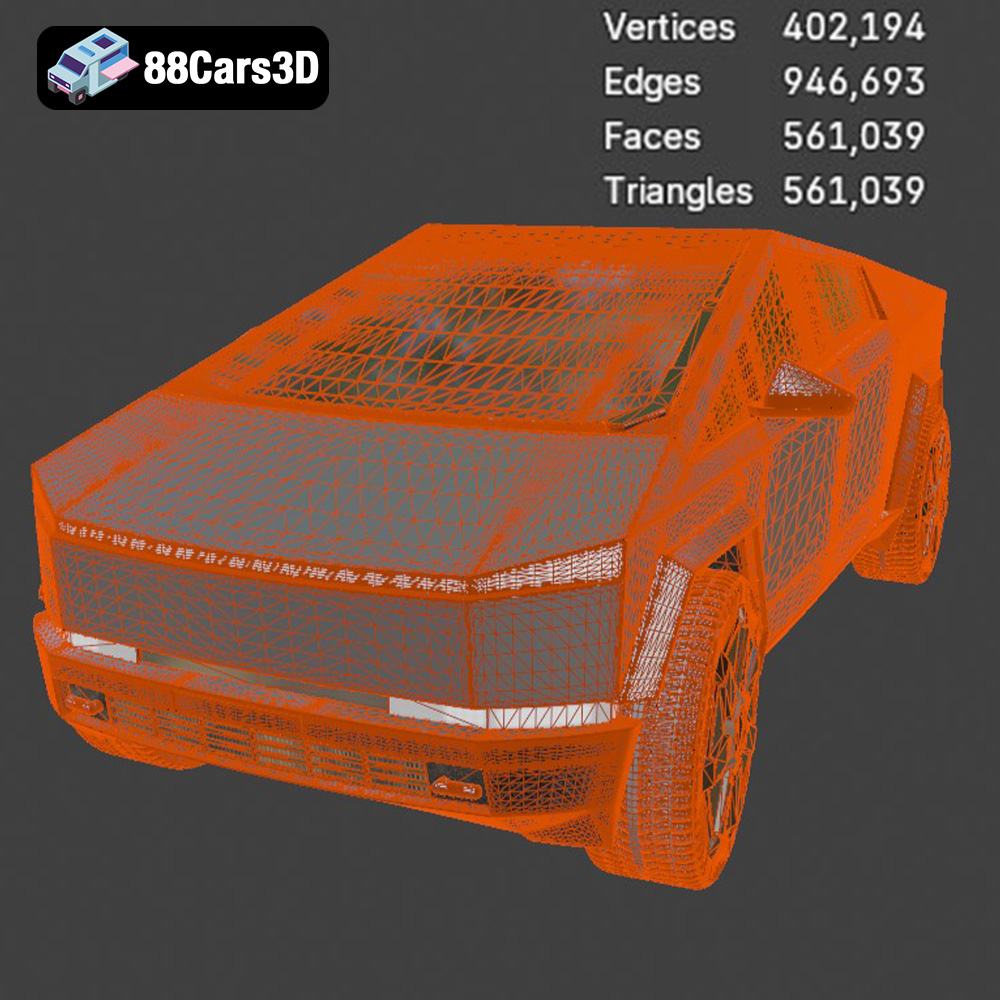
Once you have the model, load it into a 3D viewing or editing software like MeshMixer, Blender, or even your slicer. Look for any obvious errors, such as non-manifold geometry (holes or gaps in the mesh), intersecting faces, or excessive detail that might be difficult for your printer to reproduce. These imperfections can lead to print failures or a poor-quality final product. Check that the STL file is complete and accurate before proceeding.
Consider the desired size of your 3D printed Cybertruck. Scaling the model in your slicer is straightforward, but keep in mind that smaller models will require finer print settings and may be more challenging to post-process. Larger models, while easier to work with, will take significantly longer to print and consume more material. Determine the ideal scale that balances detail, print time, and material usage.
Next, consider the model’s orientation on the print bed. The Cybertruck’s angular design presents some challenges. Printing it “flat” on its wheels might seem intuitive, but it can lead to extensive support structures on the roof and other overhanging areas. Experiment with different orientations, such as tilting the model at an angle, to minimize support requirements and improve surface finish.
The world of 3D modeling involves various file formats, each designed with specific purposes in mind. While some are ideal for design and animation, others are optimized for the intricacies of additive manufacturing. Choosing the right format is paramount to a successful 3D printing endeavor.
The STL (Stereolithography) file format is the undisputed champion of 3D printing. It represents the surface geometry of a 3D object as a collection of triangles. This simplicity makes it universally compatible with virtually all 3D printers and slicing software. However, STL files only contain mesh data, meaning they lack information about color, texture, or materials. This makes them perfect for single-material 3D printing. When exporting to STL, it is critical to select the appropriate resolution. Higher resolution means smaller triangles, resulting in a smoother surface on the printed part, but also larger file sizes and longer processing times. Lower resolution can lead to noticeable facets on curved surfaces. Most slicing software offers options to control STL export resolution.
The OBJ (Object) file format is another widely used format in 3D modeling. Unlike STL, OBJ supports color and texture information, making it suitable for 3D printing with multi-material printers or for models that require post-processing with paint or decals. OBJ files can be more complex than STL files, potentially leading to longer loading and processing times in slicing software. While OBJ supports color, it’s important to note that not all 3D printers can utilize this information directly.
The PLY (Polygon File Format) is designed to store 3D data acquired from 3D scanners. It supports a variety of data types, including color, texture, and normals, and can handle complex geometries with high precision. PLY files are often used in research and engineering applications where accuracy is critical. While PLY can be used for 3D printing, it is less common than STL or OBJ, and compatibility with slicing software may be limited.
The BLEND file format is the native format for Blender, a popular open-source 3D creation suite. BLEND files can contain a wide range of data, including meshes, textures, materials, animations, and lighting setups. While BLEND files cannot be directly 3D printed, they offer the flexibility to customize the model before exporting it to a 3D printable format like STL. If you plan to modify the Tesla Cybertruck 2024 model, using Blender and the .blend file is an ideal approach.
FBX (Filmbox) is a proprietary file format developed by Autodesk. It’s commonly used for exchanging 3D data between different software applications, particularly in game development and animation. FBX supports a wide range of data types, including meshes, textures, materials, animations, and skeletal rigs. While FBX files can be imported into some slicing software, their primary use is in the design and animation workflow rather than direct 3D printing.
GLB (GL Transmission Format Binary) is a file format designed for efficient transmission and loading of 3D models, particularly in web-based and AR/VR applications. GLB files are self-contained, meaning they include all necessary data, such as meshes, textures, and materials, in a single file. While GLB files are not directly 3D printable, they are excellent for previewing the model in augmented reality before committing to printing it.
The .max file format is the native format for Autodesk 3ds Max, a professional 3D modeling, animation, and rendering software. Similar to Blender’s .blend format, .max files contain a complete scene setup, including meshes, textures, materials, lighting, and animation data. You can edit the Tesla Cybertruck 2024 model within 3ds Max and then export a printable STL file.
In conclusion, for 3D printing, **STL remains the most reliable and widely supported format**. Ensure your chosen model, like the Tesla Cybertruck 2024, is available in STL format for optimal results. While other formats offer additional features, STL’s simplicity and compatibility make it the go-to choice for additive manufacturing.
Slicing software is the bridge between your 3D model and your printer. It converts the 3D data into a set of instructions (G-code) that the printer can understand. Selecting the right slicer settings is crucial for achieving a successful and high-quality print.
Layer height is a critical parameter that affects both print time and surface finish. A smaller layer height (e.g., 0.1mm) results in smoother surfaces and finer details but increases print time significantly. A larger layer height (e.g., 0.2mm or 0.3mm) reduces print time but can lead to more visible layer lines. For the Tesla Cybertruck 2024, a layer height of 0.15mm to 0.2mm is a good compromise between detail and speed. This allows for capturing the sharp angles and flat surfaces of the Cybertruck while keeping the print time reasonable.
Infill refers to the internal structure of the 3D printed object. A higher infill density makes the part stronger but also increases print time and material usage. The infill pattern also affects the strength and weight of the part. Common infill patterns include grid, honeycomb, and gyroid. For a display model of the Cybertruck, an infill density of 15% to 20% is usually sufficient. For functional parts or models that need to withstand stress, a higher infill density may be necessary. The gyroid infill pattern offers a good balance of strength and material efficiency.
Support structures are necessary for printing overhanging features. The Cybertruck has several overhanging areas, particularly around the wheel wells and roof. The placement and type of supports can significantly impact the surface finish of the printed part. Consider using tree supports or customizable supports to minimize the contact area with the model. Adhesion refers to how well the first layer of the print sticks to the print bed. Poor adhesion can lead to warping or print failure. Ensure your print bed is clean and level, and consider using a brim or raft to improve adhesion, especially for larger models.
The material you choose for 3D printing your Tesla Cybertruck 2024 model will significantly influence its appearance, strength, and overall durability. There are several popular options, each with its own set of advantages and disadvantages.
PLA (Polylactic Acid) is a biodegradable thermoplastic derived from renewable resources. It’s known for its ease of use, low printing temperature, and minimal warping. PLA is an excellent choice for beginners and for printing models where aesthetic appearance is more important than strength or heat resistance. It is the best option for achieving that clean, futuristic look the Cybertruck is known for. PLA comes in a wide variety of colors, allowing you to print your Cybertruck in the desired shade of silver, grey, or any other custom color. However, PLA is not very heat-resistant and can become brittle over time, so it’s not ideal for functional parts or models that will be exposed to high temperatures.
PETG (Polyethylene Terephthalate Glycol-modified) is a modified version of PET that offers improved strength, flexibility, and temperature resistance compared to PLA. It is more durable and less prone to cracking than PLA. PETG is a good choice for models that need to withstand some stress or for outdoor use. PETG is also more resistant to chemicals than PLA. Printing with PETG can be slightly more challenging than PLA, as it requires higher printing temperatures and may be more prone to stringing.
Resin printing, also known as stereolithography (SLA) or digital light processing (DLP), uses liquid resin that is cured by UV light. Resin printing offers significantly higher detail and smoother surfaces compared to FDM printing. Resin is an excellent choice for printing highly detailed models with intricate features, such as miniature versions of the Cybertruck or models with complex textures. However, resin printers are generally more expensive than FDM printers, and resin materials can be more costly. Resin prints also require post-processing, such as washing and curing, which can add to the overall time and effort involved.
Once your Tesla Cybertruck 2024 model is printed, the real magic begins: post-processing. This stage involves refining the print to achieve a smooth, professional-looking finish. The amount of post-processing required depends on the printing material and desired level of detail.
The first step in post-processing is to carefully remove any support structures. Use a pair of flush cutters or a hobby knife to trim the supports as close to the model as possible. Be careful not to damage the surface of the print. After removing the supports, you may need to sand down any remaining stubs or imperfections. Start with a coarse grit sandpaper (e.g., 220 grit) and gradually move to finer grits (e.g., 400 grit, 600 grit, 800 grit) to achieve a smooth surface. Wet sanding can help to reduce dust and improve the surface finish. For resin prints, you’ll need to wash the model in isopropyl alcohol (IPA) to remove any uncured resin, and then cure it under UV light to fully harden the material.
Painting can transform your 3D printed Cybertruck from a raw print into a realistic replica. Apply a primer coat to the model to create a smooth surface for the paint to adhere to. Then, use acrylic paints or spray paints to apply the desired colors. Consider using masking tape to create clean lines and add details such as the Cybertruck’s signature angular features, windows, and wheels. Apply a clear coat to protect the paint and add a glossy or matte finish.
Even with careful preparation and optimized settings, 3D printing can sometimes present challenges. Here are some common issues and their solutions:
Warping occurs when the corners of the print lift off the print bed. This is often caused by temperature fluctuations or poor bed adhesion. To prevent warping, ensure your print bed is clean and level. Use a heated bed to maintain a consistent temperature during printing. Apply an adhesive such as glue stick, hairspray, or painter’s tape to the print bed to improve adhesion. For larger models, consider using a brim or raft to provide a larger surface area for adhesion.
Stringing occurs when the printer extrudes filament while moving between different parts of the model, leaving thin strands of plastic. Blobs are small clumps of plastic that accumulate on the surface of the print. To prevent stringing and blobs, reduce the printing temperature, increase retraction distance, and adjust the travel speed. Ensure your filament is dry and stored in an airtight container.
Layer separation occurs when the layers of the print do not properly adhere to each other, resulting in a weak or brittle print. This can be caused by low printing temperature, insufficient cooling, or poor layer adhesion. To prevent layer separation, increase the printing temperature, reduce the fan speed, and ensure your filament is properly calibrated.
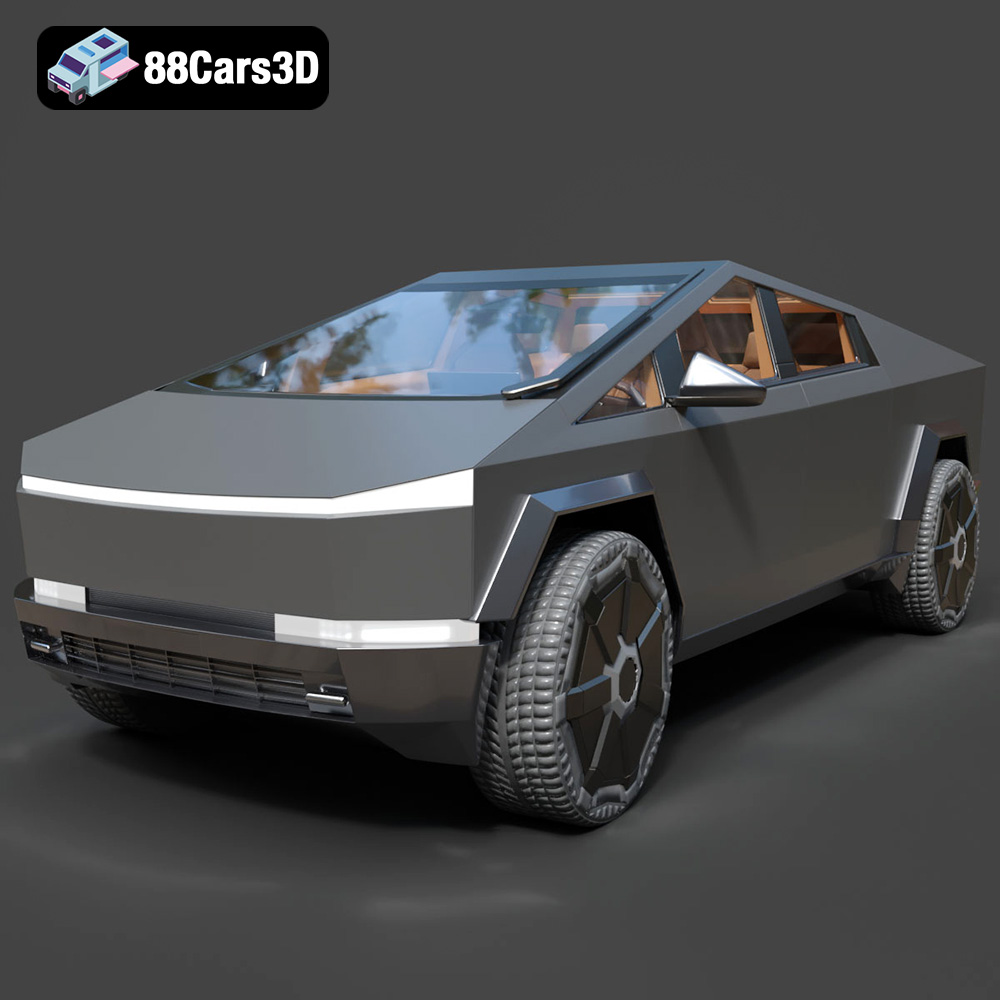
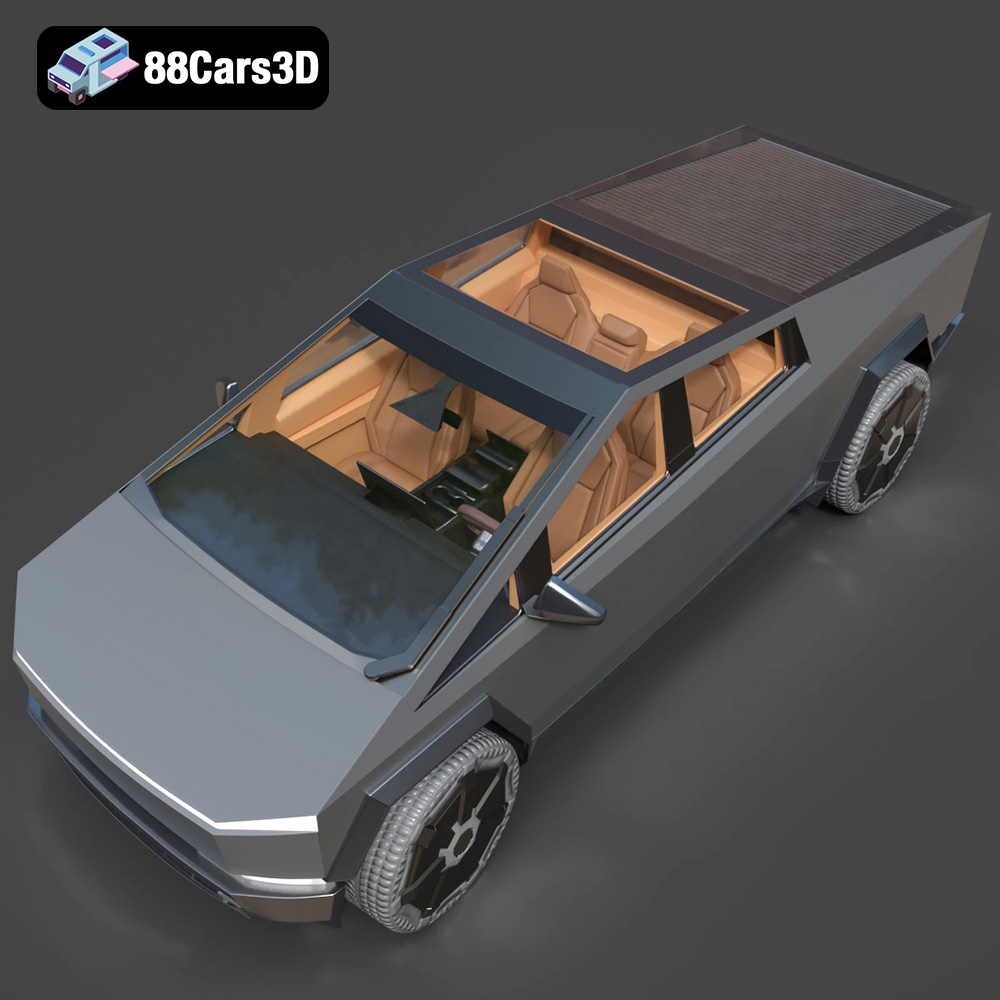
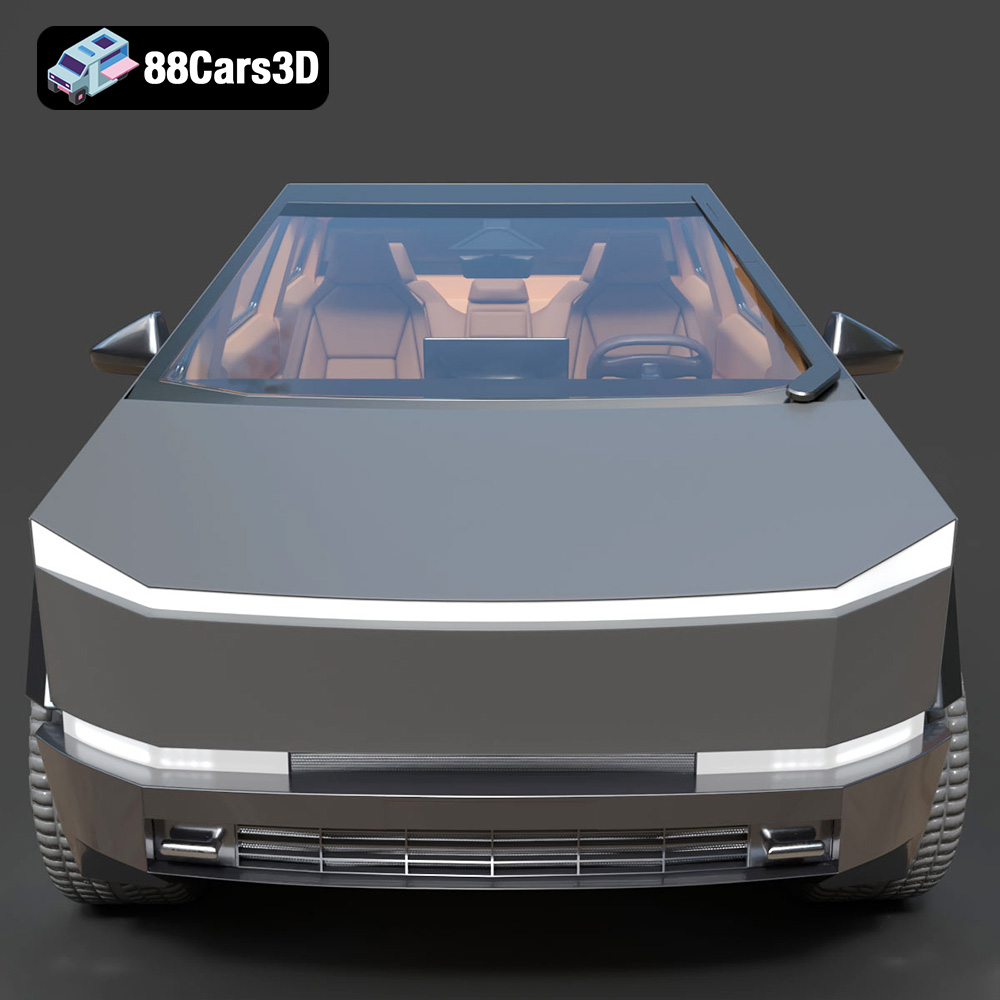
Experience the futuristic design of the Tesla Cybertruck 2024 with this exceptionally realistic 3D model. Built to precise proportions, this asset captures the distinctive angular exoskeleton and advanced aesthetic of the iconic electric pickup truck, ensuring a striking presence in any digital environment.
$19.99
3D printing the Tesla Cybertruck 2024 model is an exciting project that combines technology, creativity, and a passion for cutting-edge design. By carefully preparing the model, optimizing slicer settings, choosing the right filament, and mastering post-processing techniques, you can create a stunning replica of this iconic vehicle. Remember to start with a high-quality STL file, such as the one offered on 88cars3d.com, and experiment with different settings and materials to find what works best for your printer and desired outcome. Happy printing!
.arvr
.blend
.car3dmodel
.cybertruck
.electricvehicle
.fbx
.gameasset
.glb
.max
.obj
.pickup
.ply
.rendering
.simulation
.stl
.tesla
.truck
.unreal