Get 50% OFF All Premium 3D & STL Models!

“`html
The allure of owning a meticulously crafted miniature replica of your dream car is undeniable. Thanks to advancements in 3D printing technology, this dream is now a tangible reality. Whether you’re a seasoned 3D printing enthusiast or just starting out, this comprehensive guide will equip you with the knowledge and techniques to transform digital STL files into stunningly realistic 3D printed car models. We’ll delve into everything from STL file preparation and slicing parameters to printer settings, material selection, and post-processing techniques. Get ready to embark on a journey into the fascinating world of automotive model 3D printing, unlocking the potential to create masterpieces that capture the essence of iconic vehicles.
This guide will cover:
The STL (Stereolithography) file format is the cornerstone of 3D printing, representing a 3D object as a collection of triangles. The quality of your STL file directly impacts the final print’s realism. A well-designed STL file from a reputable source, like those found on platforms like 88cars3d.com, will feature clean geometry, accurate dimensions, and sufficient detail to capture the car’s intricate features.
An STL file essentially defines the surface of a 3D object using a series of interconnected triangles. Each triangle is described by its vertices (three points in 3D space) and its normal vector (a vector perpendicular to the surface, indicating its orientation). The density of the triangle mesh determines the level of detail – a higher density mesh (more triangles) results in a smoother, more accurate representation, but also a larger file size and potentially longer printing times. A poorly designed STL file can suffer from issues like non-manifold geometry (gaps or self-intersections), inverted normals (surfaces facing the wrong way), and excessive triangle counts (unnecessary detail). Understanding these nuances is key to ensuring a successful print. Platforms like 88cars3d.com meticulously check the quality of their STL files to minimize these issues, saving you valuable time and effort.
Before slicing, it’s crucial to inspect and, if necessary, repair your STL file. Software like MeshMixer, Netfabb, and Blender offer powerful tools for mesh analysis and repair. These tools can automatically detect and fix common problems like holes in the mesh, flipped normals, and self-intersections. Additionally, you can use mesh simplification tools to reduce the triangle count without significantly sacrificing detail, which can improve slicing and printing performance. For example, MeshMixer’s “Make Solid” function is invaluable for creating watertight meshes. A recommended workflow involves importing the STL into MeshMixer, using the “Inspector” tool to identify errors, and then applying the appropriate repair functions. Finally, consider using the “Reduce” tool to optimize the mesh for your desired print resolution. Aim for a balance between detail and file size – a good starting point is to reduce the triangle count until you notice a visible degradation in the model’s surface.
Slicing software is the bridge between your 3D model and your 3D printer. It takes the STL file and converts it into a series of instructions (G-code) that the printer can understand. Choosing the right slicer and configuring its settings correctly are paramount for achieving realistic and detailed car models. Popular slicers include Cura, PrusaSlicer, Simplify3D, and IdeaMaker. Each offers a unique set of features and customization options, so experimenting to find the one that best suits your needs is recommended.
Several slicing parameters significantly influence the final print quality. Layer height determines the vertical resolution of the print – lower layer heights (e.g., 0.1mm or 0.05mm) result in smoother surfaces and finer details, but also longer printing times. Infill density affects the internal strength and weight of the model – higher infill densities (e.g., 20% or more) increase strength but also consume more material and time. Print speed affects the overall printing time and can impact surface finish – slower speeds (e.g., 40mm/s or less) generally result in better detail and fewer imperfections. Temperature settings for the nozzle and bed are crucial for proper material adhesion and layer bonding – consult your filament manufacturer’s recommendations for optimal temperature ranges. Experimenting with these parameters is key to finding the sweet spot for your specific printer and material. A good starting point for printing car models is a layer height of 0.1mm, infill density of 15%, and print speed of 50mm/s.
Support structures are often necessary to print overhanging features, such as spoilers, side mirrors, and intricate bodywork details. Slicing software automatically generates these supports based on the model’s geometry and your chosen settings. The key is to generate supports that are strong enough to hold the overhanging features during printing, but also easy to remove without damaging the model. Consider using soluble support materials (e.g., PVA for PLA) for complex geometries where manual removal is difficult. When using standard support materials, experiment with different support densities and interface layer settings to optimize the balance between support strength and ease of removal. A common technique is to use a “support interface” – a thin layer of easily breakable material between the support and the model – to facilitate clean removal. Careful planning and experimentation with support settings are essential for achieving clean and detailed prints, especially when dealing with complex car models. For example, in Cura, you can adjust the “Support Z Distance” and “Support X/Y Distance” to fine-tune the support structure.
The choice of 3D printer and materials is pivotal in determining the level of realism you can achieve in your car models. FDM (Fused Deposition Modeling) printers and resin printers (SLA/DLP/LCD) offer distinct advantages and disadvantages, and the best choice depends on your budget, desired level of detail, and post-processing capabilities.
FDM printers are generally more affordable and versatile, capable of printing a wide range of materials like PLA, PETG, ABS, and nylon. They are well-suited for larger models and functional parts but typically produce prints with visible layer lines, especially at lower layer heights. Resin printers, on the other hand, offer exceptional detail and smooth surfaces, making them ideal for intricate and highly detailed car models. However, resin printers are generally more expensive, have smaller build volumes, and require more post-processing (e.g., washing and curing). The choice between FDM and resin depends on your priorities. If you prioritize affordability and larger prints, FDM is a good choice. If you prioritize detail and surface finish, resin is the way to go. For example, an FDM printer with a 0.4mm nozzle and 0.1mm layer height can produce reasonable car models, while a resin printer can achieve significantly finer details with layer heights of 0.025mm or even less.
For FDM printing, PLA is a popular choice due to its ease of use and biodegradability. PETG offers improved strength and temperature resistance compared to PLA. ABS is known for its high strength and heat resistance, making it suitable for functional parts, but it requires a heated bed and proper ventilation to prevent warping. For resin printing, there are various types of resins available, including standard resins, tough resins, and flexible resins. Standard resins are suitable for most visual models, while tough resins offer improved impact resistance. Flexible resins can be used for parts that require some degree of flexibility. When selecting a material, consider its properties, printing requirements, and intended use. For car models, PLA or PETG are good starting points for FDM printing, while standard or tough resins are suitable for resin printing. Experimenting with different materials can help you find the perfect balance of properties for your specific project. For example, when downloading models from marketplaces such as 88cars3d.com, consider the scale and intended use of the model to determine the best material.
Fine-tuning your 3D printer settings is crucial for achieving the desired level of realism in your car models. This involves calibrating your printer, adjusting temperature settings, and optimizing print speed and acceleration.
Before embarking on a complex car model print, ensure your printer is properly calibrated. This includes leveling the build plate, calibrating the extruder, and adjusting the Z-offset. A properly leveled build plate ensures consistent first-layer adhesion, which is critical for preventing warping and ensuring a successful print. Extruder calibration ensures that the printer is extruding the correct amount of filament, which affects dimensional accuracy and surface finish. The Z-offset adjusts the distance between the nozzle and the build plate, which is crucial for proper first-layer adhesion. Regularly cleaning and maintaining your printer is also essential for consistent performance. This includes cleaning the nozzle, lubricating moving parts, and checking for loose connections. A well-maintained and calibrated printer will produce more accurate and reliable prints, saving you time and frustration in the long run. A common calibration test is printing a calibration cube and measuring its dimensions to ensure accuracy. Additionally, checking the first layer adhesion by printing a large, flat surface is recommended before attempting a complex print.
Optimizing temperature settings for both the nozzle and the bed is crucial for proper material adhesion and layer bonding. Consult your filament or resin manufacturer’s recommendations for optimal temperature ranges. Print speed and acceleration settings affect the overall printing time and can impact surface finish. Slower speeds generally result in better detail and fewer imperfections, but also increase printing time. Acceleration settings control how quickly the printer can change its speed, which can affect the sharpness of corners and fine details. Experimenting with these settings is key to finding the sweet spot for your specific printer and material. A good starting point for printing car models is a nozzle temperature of 200-220°C for PLA, 230-250°C for PETG, and 240-260°C for ABS, with a bed temperature of 60-70°C for PLA, 70-80°C for PETG, and 100-110°C for ABS. Print speeds of 40-60mm/s are generally recommended for achieving good detail. Adjust acceleration settings to minimize ringing or ghosting artifacts. Platforms like 88cars3d.com offer print-ready STL files designed to work well with a wide range of printer settings, minimizing the need for extensive adjustments.
Post-processing is the final step in the 3D printing process, transforming a raw print into a polished and realistic car model. This involves removing support structures, sanding surfaces, filling gaps, and applying paint and clear coat.
Carefully remove support structures using pliers, cutters, or a sharp knife. Take your time and avoid applying excessive force, which can damage the model. For soluble support materials, simply dissolve them in water or a suitable solvent. Once the supports are removed, sand the surfaces to smooth out layer lines and imperfections. Start with coarse sandpaper (e.g., 220 grit) and gradually move to finer grits (e.g., 400 grit, 600 grit, and 800 grit) to achieve a smooth finish. For larger gaps or imperfections, use a filler material like spot putty or Bondo. Apply the filler to the affected areas, let it dry, and then sand it smooth. Pay particular attention to areas where supports were attached, as these often require more extensive sanding and filling. A smooth and even surface is essential for achieving a professional-looking paint job.
Before painting, prime the model with a plastic primer to improve adhesion and create a uniform surface. Apply multiple thin coats of paint, allowing each coat to dry completely before applying the next. Use high-quality automotive paints for realistic colors and finishes. Once the paint is dry, apply a clear coat to protect the paint and add gloss. Again, apply multiple thin coats for best results. After the clear coat is dry, you can optionally polish the model to further enhance the shine. Finally, assemble any separate parts, such as wheels, tires, and windows, using glue or fasteners. Pay attention to alignment and fit to ensure a seamless final product. Consider using masking tape to protect painted surfaces during assembly. With patience and attention to detail, you can transform a 3D printed car model into a stunning replica that captures the essence of the original vehicle.
Even with careful preparation and optimized settings, 3D printing can sometimes present challenges. Understanding common printing problems and their solutions is essential for achieving successful results.
Warping occurs when the corners of the print lift off the build plate due to uneven cooling. This is more common with materials like ABS that have a high thermal expansion coefficient. To prevent warping, ensure your build plate is properly leveled, use a heated bed, and apply a bed adhesion aid like glue stick or hairspray. Bed adhesion problems can also be caused by a dirty or oily build plate. Clean the build plate with isopropyl alcohol before each print. Layer delamination occurs when layers fail to bond properly, resulting in weak or separated prints. This can be caused by insufficient nozzle temperature, poor layer adhesion, or drafts. Increase the nozzle temperature, ensure proper bed adhesion, and enclose the printer to prevent drafts. Experimenting with different settings and materials can help you overcome these common challenges. For example, printing a brim or raft can improve bed adhesion for parts prone to warping.
Stringing occurs when the nozzle oozes filament during travel moves, leaving thin strands of plastic between parts. This can be caused by excessive nozzle temperature, slow retraction speed, or insufficient retraction distance. Lower the nozzle temperature, increase the retraction speed, and increase the retraction distance. Blobs and zits are small imperfections on the surface of the print caused by inconsistent extrusion or nozzle movements. These can be caused by fluctuating nozzle temperature, inconsistent filament diameter, or abrupt changes in print speed. Calibrate your extruder, use high-quality filament, and adjust your print speed and acceleration settings to minimize these artifacts. For example, enabling coasting or wipe settings in your slicer can reduce stringing and blobs. By understanding the causes of these problems and implementing the appropriate solutions, you can improve the quality and appearance of your 3D printed car models.
3D printing realistic car models from STL files is a rewarding and achievable endeavor with the right knowledge and techniques. By understanding STL file structure, mastering slicing software, choosing the appropriate 3D printer and materials, optimizing printer settings, implementing effective post-processing techniques, and troubleshooting common printing problems, you can transform digital designs into stunningly realistic replicas. Remember to start with high-quality STL files, such as those offered by 88cars3d.com, and to experiment with different settings and materials to find what works best for your specific printer and project.
Now that you’re equipped with this comprehensive guide, take the leap and begin your journey into the world of 3D printed car models. Start with a simple model, practice your skills, and gradually tackle more complex projects. With patience, persistence, and a passion for automotive artistry, you’ll be creating masterpieces that capture the essence of iconic vehicles in no time. Happy printing!
“`
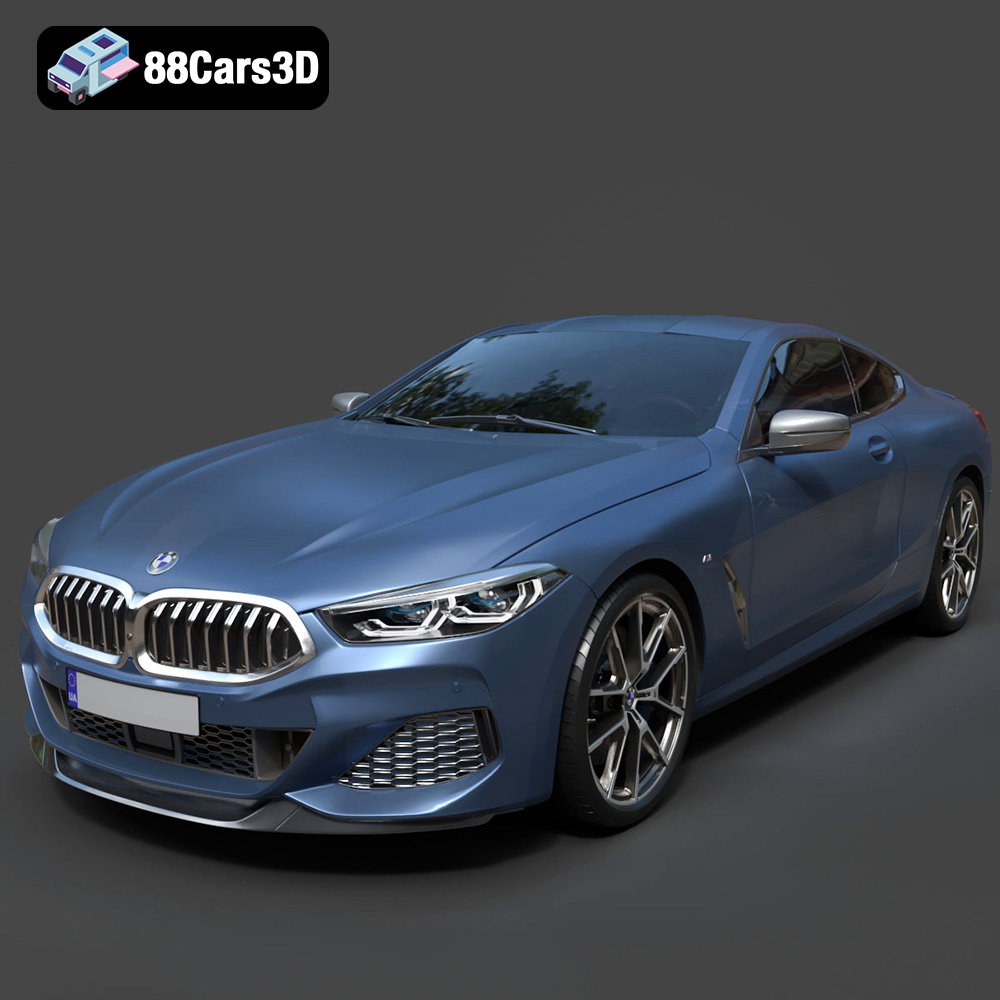
Texture: Yes
Material: Yes
Download the BMW 8-Series M850i G15 Coupe 2019 3D Model featuring clean geometry, realistic detailing, and a fully modeled interior. Includes .blend, .fbx, .obj, .glb, .stl, .ply, .unreal, and .max formats for rendering, simulation, and game development.
Price: $19.99
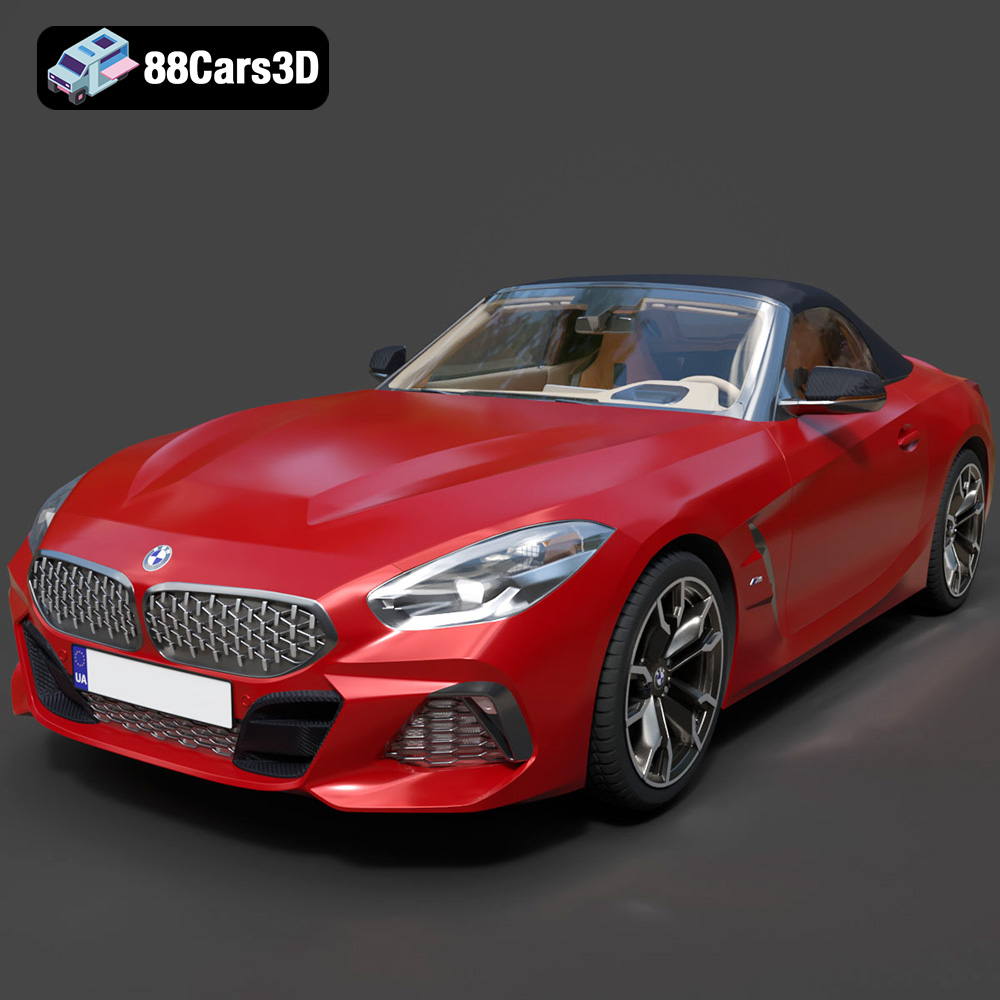
Texture: Yes
Material: Yes
Download the BMW Z4 Mk3 G29 Roadster M40i 2019 3D Model featuring clean geometry, realistic detailing, and a fully modeled interior. Includes .blend, .fbx, .obj, .glb, .stl, .ply, .unreal, and .max formats for rendering, simulation, and game development.
Price: $19.99
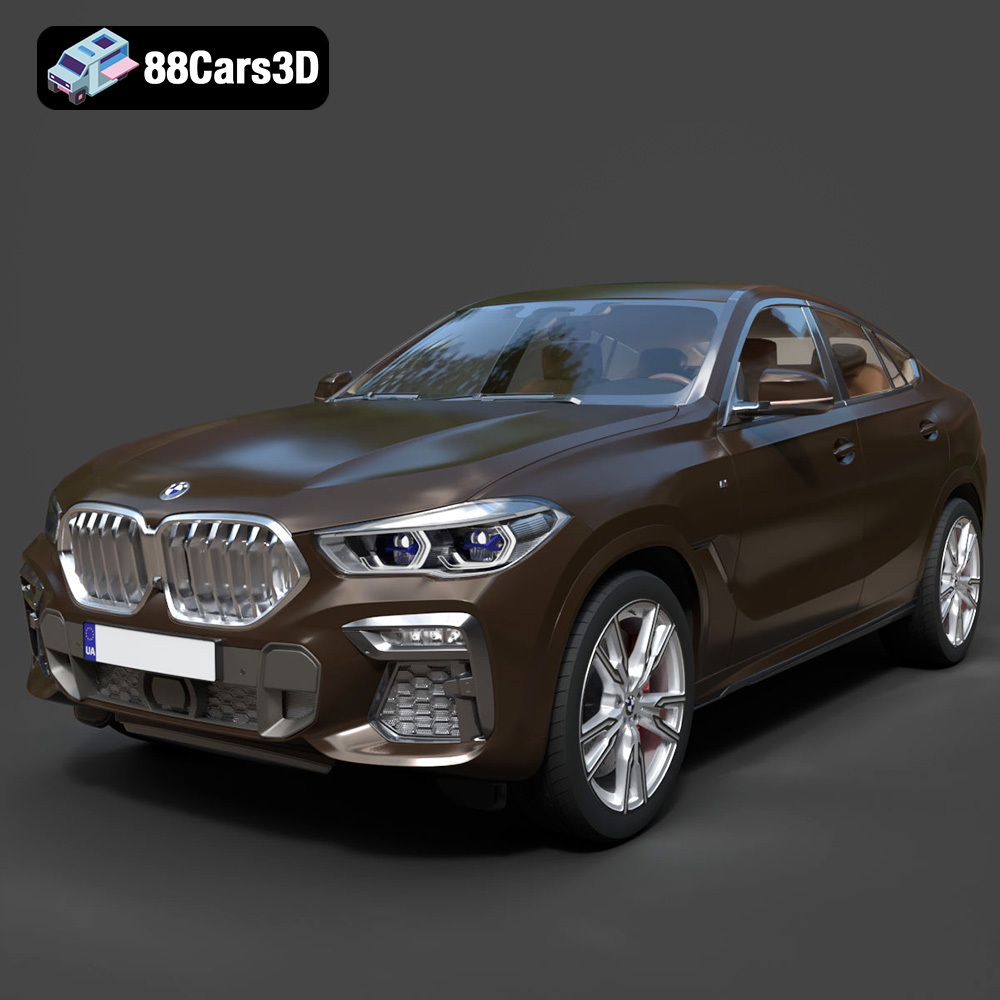
Texture: Yes
Material: Yes
Download the BMW X6 (Mk3) (G06) M Sport 2020 3D Model featuring clean geometry, realistic detailing, and a fully modeled interior. Includes .blend, .fbx, .obj, .glb, .stl, .ply, .unreal, and .max formats for rendering, simulation, and game development.
Price: $19.99
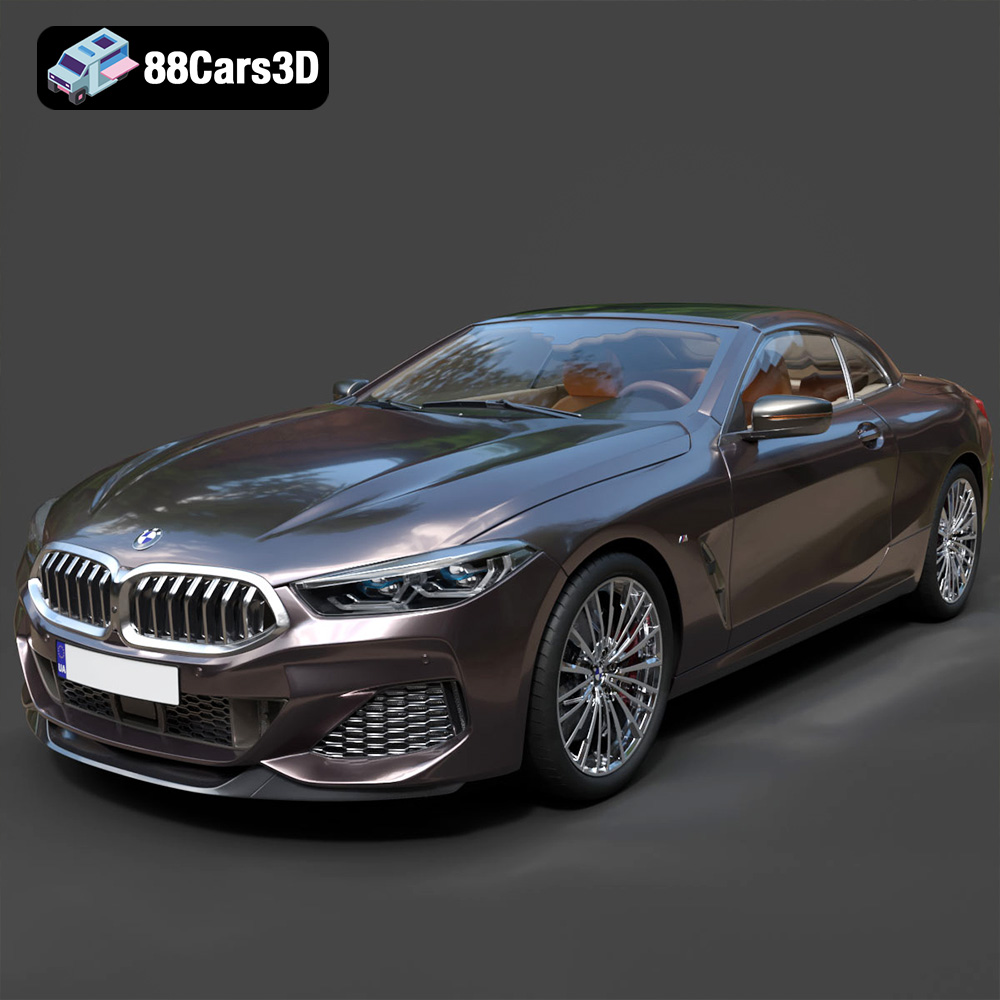
Texture: Yes
Material: Yes
Download the BMW 8-Series G14 Convertible M850i 2019 3D Model featuring clean geometry, realistic detailing, and a fully modeled interior. Includes .blend, .fbx, .obj, .glb, .stl, .ply, .unreal, and .max formats for rendering, simulation, and game development.
Price: $19.99
Texture: Yes
Material: Yes
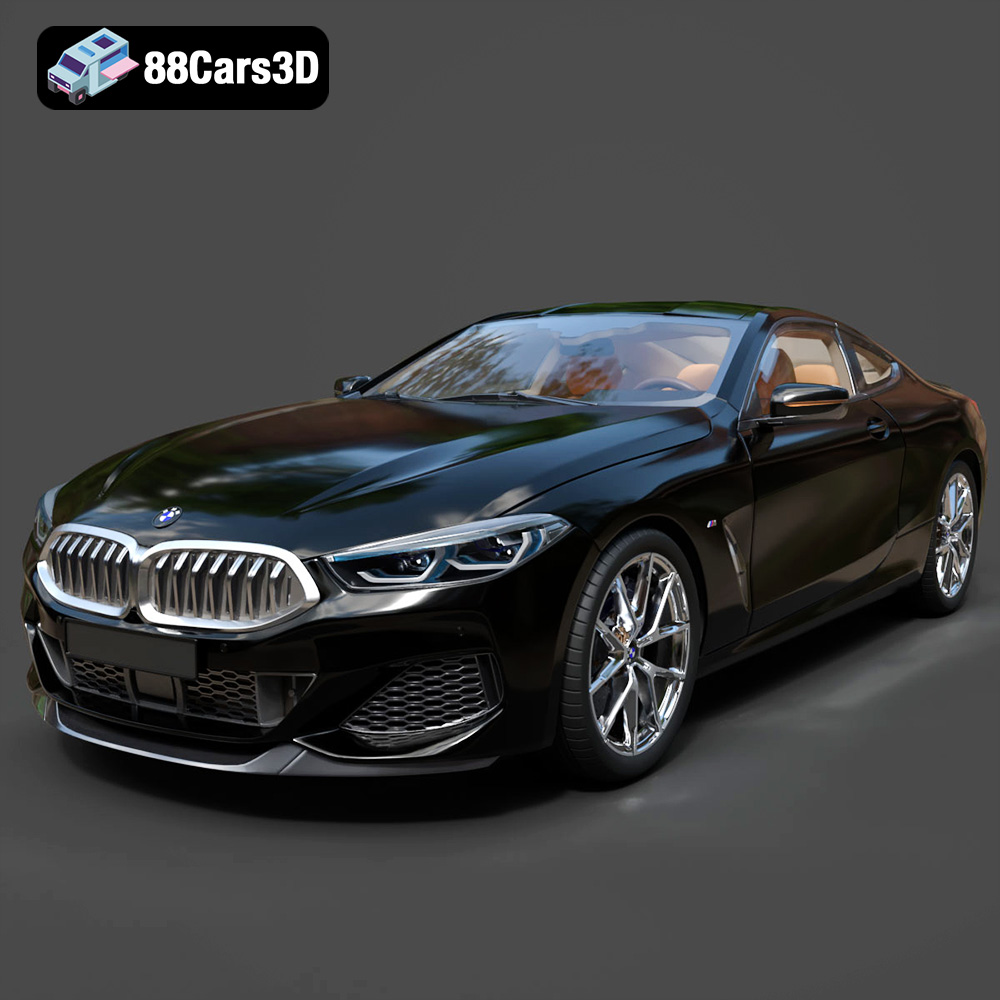
Download the BMW 8 Series M850i Coupe 2019 3D Model featuring clean geometry, realistic detailing, and a fully modeled interior. Includes .blend, .fbx, .obj, .glb, .stl, .ply, .unreal, and .max formats for rendering, simulation, and game development.
Price: $19.99
Texture: Yes
Material: Yes
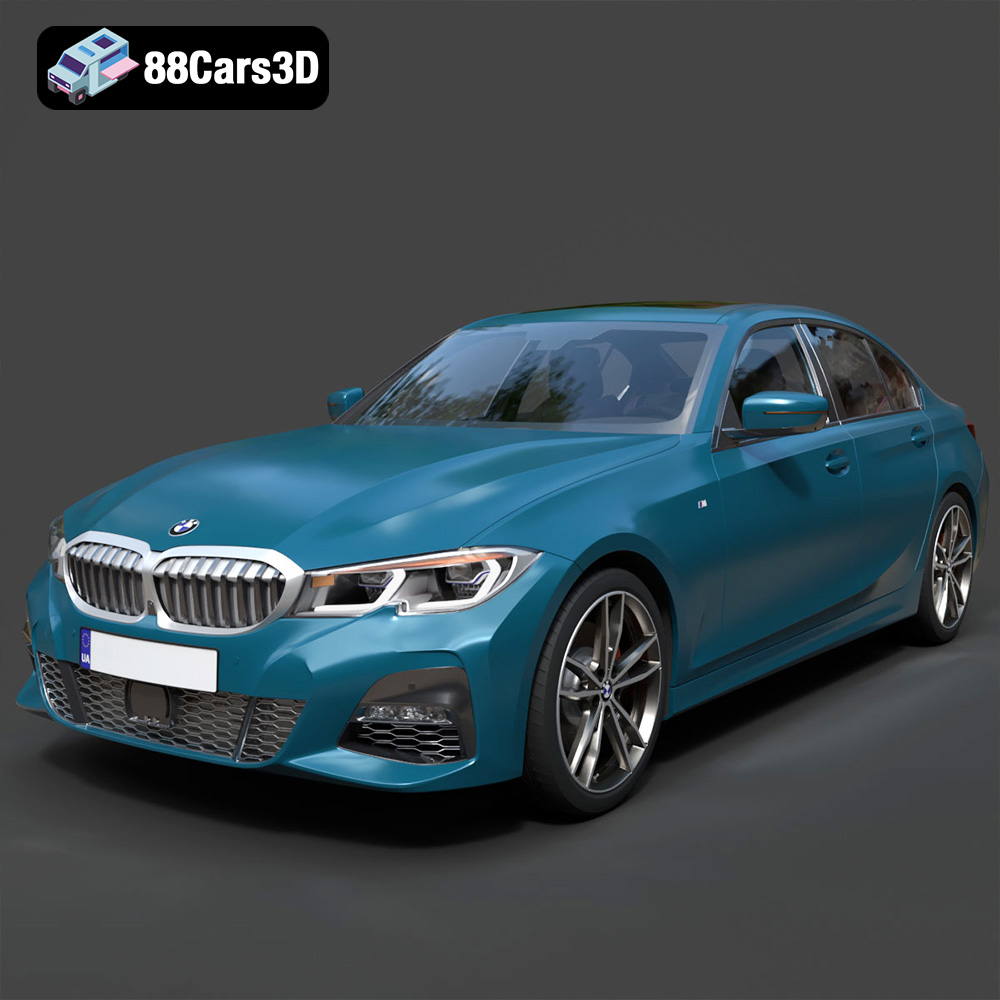
Download the BMW 3 Series M-Sport Sedan 2019 3D Model featuring clean geometry, realistic detailing, and a fully modeled interior. Includes .blend, .fbx, .obj, .glb, .stl, .ply, .unreal, and .max formats for rendering, simulation, and game development.
Price: $19.99
Texture: Yes
Material: Yes
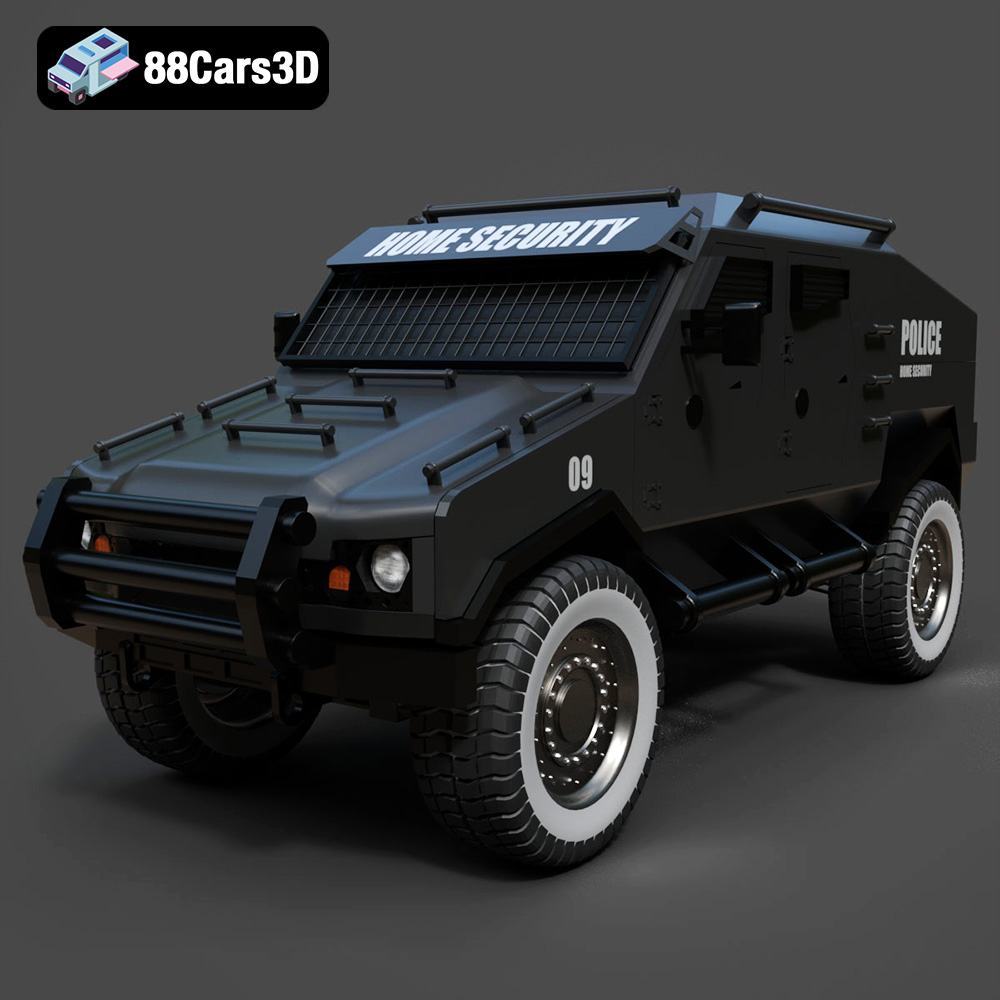
Download the Armoured Vehicle 001 3D Model featuring clean geometry, realistic detailing, and a fully modeled interior. Includes .blend, .fbx, .obj, .glb, .stl, .ply, .unreal, and .max formats for rendering, simulation, and game development.
Price: $19.99
Texture: Yes
Material: Yes
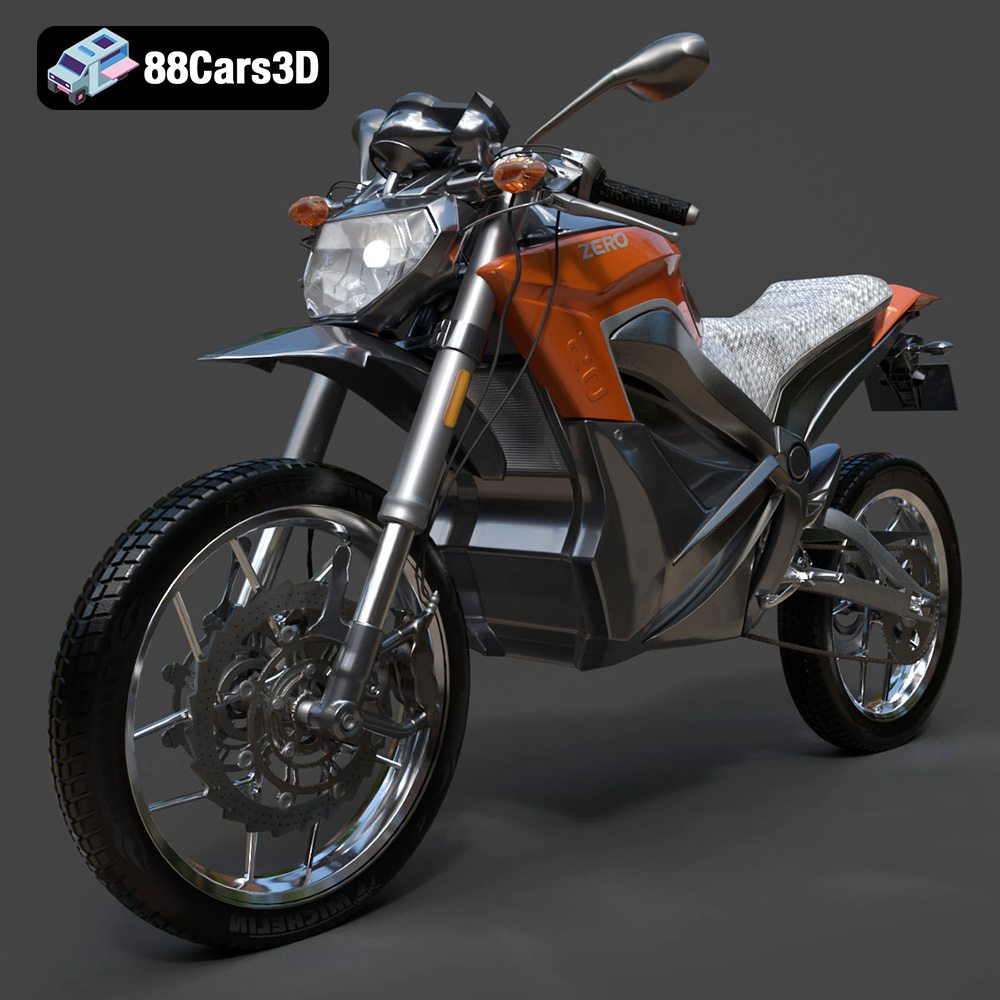
Download the Zero Motorcycles S ZF8.5 3D Model featuring clean geometry, realistic detailing, and a fully modeled interior. Includes .blend, .fbx, .obj, .glb, .stl, .ply, .unreal, and .max formats for rendering, simulation, and game development.
Price: $19.99

Texture: Yes
Material: Yes
Download the Zeekr 001 3D Model featuring clean geometry, realistic detailing, and a fully modeled interior. Includes .blend, .fbx, .obj, .glb, .stl, .ply, .unreal, and .max formats for rendering, simulation, and game development.
Price: $19.99

Texture: Yes
Material: Yes
Download the Volvo Trucks Benz GT-001 3D Model featuring clean geometry, realistic detailing, and a fully modeled interior. Includes .blend, .fbx, .obj, .glb, .stl, .ply, .unreal, and .max formats for rendering, simulation, and game development.
Price: $29.99

