Get 50% OFF All Premium 3D & STL Models!

“`html
The world of 3D printing offers incredible possibilities, from prototyping complex mechanical parts to creating detailed miniature car models. Many enthusiasts and professionals utilize STL files, the standard format for representing 3D surfaces. However, not all STL files are created equal. Often, downloaded or converted models contain imperfections that can lead to printing failures or subpar results. Blender, a powerful and free open-source 3D creation suite, provides a robust toolset for cleaning and repairing these STL files. This guide will walk you through the essential techniques for preparing your STL files in Blender, ensuring successful and high-quality 3D prints, especially when working with detailed models such as printable car models from platforms like 88cars3d.com.
In this comprehensive guide, we’ll cover the intricacies of STL file structure, common issues encountered, and practical steps for using Blender to fix them. You’ll learn about mesh topology, non-manifold geometry, dealing with holes and gaps, and optimizing your model for specific 3D printer settings. Whether you’re a seasoned 3D printing veteran or just starting out, this guide will equip you with the knowledge to confidently prepare your STL files for optimal printing results. We’ll also touch upon advanced techniques for smoothing surfaces, reducing file size without sacrificing detail, and orienting your model for the best possible print.
STL (Stereolithography) files represent 3D surfaces as a collection of triangles. Each triangle is defined by its three vertices and a normal vector, indicating its orientation. While seemingly simple, this representation can be prone to several issues that can negatively impact 3D printing. These issues range from minor visual artifacts to critical errors that prevent successful printing.
The basic structure of an STL file consists of a header, followed by a series of triangles. Each triangle is defined by the coordinates of its three vertices (x, y, z) and the normal vector of the triangle face. The normal vector is crucial for determining the “outside” of the model and for proper rendering and slicing. The coordinates are typically stored as floating-point numbers. Understanding this structure is essential for comprehending the potential sources of errors in STL files.
Several common problems can arise with STL files. These include non-manifold geometry (edges shared by more than two faces, or faces that don’t form a closed volume), holes and gaps in the mesh, intersecting faces, reversed normals, and excessive triangle count. Non-manifold geometry is a particularly problematic issue, as it violates the fundamental assumption that the model represents a solid object. Holes and gaps can lead to printing failures, especially in enclosed volumes. Intersecting faces can confuse the slicer software, resulting in unexpected behavior. Reversed normals cause surfaces to appear inside-out, which can also lead to printing problems. An excessively high triangle count can make the file difficult to process and increase printing time without necessarily improving print quality. When downloading models from marketplaces such as 88cars3d.com, while quality is generally high, it’s still a good practice to check for these issues.
Before you can fix any problems, you need to import your STL file into Blender and thoroughly inspect it. Blender provides several tools for examining the mesh and identifying potential issues. This section outlines the import process and key inspection techniques.
To import an STL file into Blender, go to File > Import > Stl (.stl). Choose your STL file from the file browser and click “Import STL”. Blender will then load the model into the 3D viewport. Depending on the size and complexity of the model, this process may take a few seconds or longer. Once imported, the model may appear small or large, depending on the units used when the STL file was created. You can use the zoom controls to adjust the view.
Once the STL file is imported, you can use several Blender tools to inspect the mesh. Switch to Edit Mode by selecting the object and pressing the Tab key, or by selecting “Edit Mode” from the mode dropdown menu in the top left corner of the Blender interface. With the mesh in Edit Mode, you can examine the individual vertices, edges, and faces. To check for non-manifold geometry, go to Select > Select All by Trait > Non Manifold. Blender will highlight any non-manifold edges or faces. You can also use the Mesh Analysis tools, accessible from the Overlays menu in the 3D viewport header, to visualize issues such as overhangs and thickness problems. Enable “Statistics” in the Overlays menu to see the number of vertices, edges, and faces in the mesh, which can give you an idea of its complexity.
Non-manifold geometry and holes are among the most common and problematic issues in STL files. Blender provides several tools for addressing these problems, allowing you to create a clean and printable mesh. The key is to understand the different types of non-manifold geometry and choose the appropriate repair methods.
As mentioned earlier, non-manifold geometry refers to edges shared by more than two faces or faces that don’t form a closed volume. Blender’s “Select Non Manifold” tool is invaluable for identifying these issues. After selecting the problematic edges or faces, you can use various tools to fix them. The Fill command (press F) can often close small gaps between selected edges. For more complex issues, the Bridge Edge Loops tool (Ctrl+E > Bridge Edge Loops) can connect two edge loops to create a new face. The Make Edge/Face tool (F) is also useful for creating faces between selected vertices or edges. For severe cases of non-manifold geometry, you may need to manually delete and recreate faces to ensure that all edges are shared by exactly two faces and that the model forms a closed volume. Using the Knife tool (K) can also help redefine edge connections to create manifold geometry.
Holes and gaps in the mesh can also lead to printing failures. Blender offers several methods for closing these holes. The Fill command (F) can close simple holes defined by a single edge loop. For more complex holes, the Grid Fill tool (Ctrl+F > Grid Fill) can create a grid of faces within the hole. You may need to adjust the span and offset parameters to achieve the desired result. The Bridge Edge Loops tool can also be used to connect edge loops across a gap. In some cases, you may need to manually create faces to fill the hole, ensuring that the new faces are properly connected to the existing mesh. After filling a hole, it’s important to check the normals of the new faces to ensure that they are oriented correctly. If necessary, you can flip the normals using the Flip command (Shift+N) in Edit Mode.
Often, STL files can have faceted surfaces or unnecessarily high triangle counts, leading to suboptimal print quality and large file sizes. Blender provides tools for smoothing surfaces and reducing the polygon count while preserving important details.
The Subdivision Surface modifier is a powerful tool for smoothing surfaces in Blender. Applying this modifier increases the number of polygons in the mesh, creating a smoother appearance. However, it’s crucial to strike a balance between smoothness and polygon count. Too many subdivisions can result in an excessively dense mesh, which can be difficult to process and may not significantly improve print quality. Generally, a subdivision level of 1 or 2 is sufficient for most 3D printing applications. After applying the Subdivision Surface modifier, you can use the Shade Smooth option (right-click in Object Mode and select “Shade Smooth”) to further enhance the smoothness of the surface. Note that the Subdivision Surface modifier can increase the file size significantly, so it’s important to optimize the mesh afterwards.
The Decimate modifier is used to reduce the polygon count of a mesh while preserving its overall shape. This can significantly reduce file size and improve processing time without sacrificing important details. The Decimate modifier offers several reduction methods, including Collapse, Unsubdivide, and Planar. The Collapse method reduces the number of faces by collapsing edges. The Unsubdivide method reverses the effect of a Subdivision Surface modifier. The Planar method simplifies planar regions of the mesh. It’s important to experiment with the different methods and parameters to find the optimal balance between polygon count and detail preservation. For example, you might use the Planar method to simplify large flat surfaces, while using the Collapse method to reduce the polygon count in more complex areas. When decimating, keep an eye out for any artifacts or distortions that may be introduced by the simplification process. After decimating the mesh, it’s a good practice to check for non-manifold geometry and holes, as these issues can sometimes arise during the decimation process.
The orientation of your model on the 3D printer bed significantly affects print quality, print time, and the amount of support material required. Blender can be used to determine the optimal print orientation and to add custom support structures.
The optimal print orientation depends on several factors, including the geometry of the model, the desired surface finish, and the printer’s capabilities. Generally, it’s best to orient the model to minimize the need for support structures. Overhanging features require support, which can be difficult to remove and can leave behind imperfections on the printed surface. Orienting the model to minimize the overhang area can reduce the amount of support required and improve the surface finish. Another factor to consider is the layer lines. Orienting the model so that the most visible surfaces are parallel to the print bed can minimize the visibility of layer lines. Blender’s rotation tools (press R) can be used to easily rotate the model to the desired orientation. When determining the optimal print orientation, it’s helpful to visualize the printing process. You can use the slicer software to simulate the printing process and identify potential issues, such as overhanging features or areas that may require excessive support.
While minimizing support is ideal, some models will inevitably require support structures. Blender can be used to create custom support structures, giving you more control over the support generation process than you would have with automatic support generation in slicer software. To add custom supports, you can create simple geometric shapes, such as cylinders or cubes, and position them to support overhanging features. Use the Boolean Modifier to fuse these shapes to the model, or to subtract them from the model to create more complex support structures. The Boolean modifier allows you to perform union, difference, and intersection operations on meshes. When creating custom supports, it’s important to consider the ease of removal. You can add small gaps between the supports and the model to make them easier to break away after printing. You can also use a raft or brim to improve bed adhesion and prevent warping, especially when printing with materials that are prone to warping, such as ABS. Platforms like 88cars3d.com offer print-ready STL files, but even with these, understanding support optimization can further enhance your printing results.
After cleaning and optimizing your STL file in Blender, the final step is to export it for 3D printing. Before exporting, it’s crucial to perform a final check to ensure that the mesh is clean, manifold, and properly oriented.
To export the cleaned STL file, go to File > Export > Stl (.stl). Choose a file name and location for the exported file. In the export settings, ensure that the Selection Only option is disabled, unless you only want to export a selected portion of the model. The Apply Modifiers option should be enabled to apply any modifiers that you have added to the mesh. You can also adjust the scale of the exported file if necessary. Click “Export STL” to save the file. After exporting, it’s a good practice to open the exported file in a slicer software to verify that it has been exported correctly and that there are no unexpected issues.
Before sending the STL file to your 3D printer, perform a final check to ensure that everything is in order. Open the file in your slicer software (Cura, PrusaSlicer, Simplify3D, etc.) and verify that the model appears as expected. Check the orientation, scale, and position of the model on the print bed. Generate the toolpaths and examine them closely to identify any potential issues, such as overhanging features that may require additional support. Pay attention to the infill settings, layer height, and print speed, and adjust them as necessary to optimize the print quality and print time. Use the slicer’s preview mode to simulate the printing process and identify any areas where the printer may struggle. If you find any issues, go back to Blender and make the necessary adjustments, then re-export the STL file and repeat the final check process. Ensure your printer is correctly calibrated and that you are using appropriate settings for the material you’ve selected. This iterative process ensures that your 3D print will be successful and that you’ll achieve the desired results.
Cleaning up STL files in Blender is a critical step in the 3D printing workflow. By understanding the common issues that can arise in STL files and by utilizing Blender’s powerful tools for mesh repair, smoothing, and optimization, you can ensure that your 3D prints are successful and of high quality. From identifying non-manifold geometry and holes to smoothing surfaces and reducing file size, the techniques outlined in this guide will equip you with the knowledge and skills necessary to prepare your STL files for optimal printing results. Remember to always perform a final check of the exported file in your slicer software before printing, and to iterate on the cleaning and optimization process as needed. With practice and patience, you’ll be able to master the art of STL file preparation and unlock the full potential of your 3D printer. So, whether you are printing detailed car models or complex mechanical parts, take the time to clean and optimize your STL files, and you’ll be rewarded with stunning and reliable 3D prints.
Now that you understand the process of cleaning up STL files using Blender, the next step is to practice! Download some STL files, including printable car models from 88cars3d.com, and experiment with the techniques described in this guide. Pay attention to the specific challenges that arise with different types of models and develop your own workflow for addressing them. The more you practice, the more proficient you’ll become at STL file preparation, and the better your 3D prints will be. Happy printing!
“`

Texture: Yes
Material: Yes
Download the BMW X7 G07 2019 3D Model featuring clean geometry, realistic detailing, and a fully modeled interior. Includes .blend, .fbx, .obj, .glb, .stl, .ply, .unreal, and .max formats for rendering, simulation, and game development.
Price: $19.99

Texture: Yes
Material: Yes
Download the BMW 8-Series M850i G15 Coupe 2019 3D Model featuring clean geometry, realistic detailing, and a fully modeled interior. Includes .blend, .fbx, .obj, .glb, .stl, .ply, .unreal, and .max formats for rendering, simulation, and game development.
Price: $19.99

Texture: Yes
Material: Yes
Download the BMW Z4 Mk3 G29 Roadster M40i 2019 3D Model featuring clean geometry, realistic detailing, and a fully modeled interior. Includes .blend, .fbx, .obj, .glb, .stl, .ply, .unreal, and .max formats for rendering, simulation, and game development.
Price: $19.99

Texture: Yes
Material: Yes
Download the BMW X6 (Mk3) (G06) M Sport 2020 3D Model featuring clean geometry, realistic detailing, and a fully modeled interior. Includes .blend, .fbx, .obj, .glb, .stl, .ply, .unreal, and .max formats for rendering, simulation, and game development.
Price: $19.99

Texture: Yes
Material: Yes
Download the BMW 8-Series G14 Convertible M850i 2019 3D Model featuring clean geometry, realistic detailing, and a fully modeled interior. Includes .blend, .fbx, .obj, .glb, .stl, .ply, .unreal, and .max formats for rendering, simulation, and game development.
Price: $19.99

Texture: Yes
Material: Yes
Download the BMW 8 Series M850i Coupe 2019 3D Model featuring clean geometry, realistic detailing, and a fully modeled interior. Includes .blend, .fbx, .obj, .glb, .stl, .ply, .unreal, and .max formats for rendering, simulation, and game development.
Price: $19.99

Texture: Yes
Material: Yes
Download the BMW 3 Series M-Sport Sedan 2019 3D Model featuring clean geometry, realistic detailing, and a fully modeled interior. Includes .blend, .fbx, .obj, .glb, .stl, .ply, .unreal, and .max formats for rendering, simulation, and game development.
Price: $19.99
Texture: Yes
Material: Yes
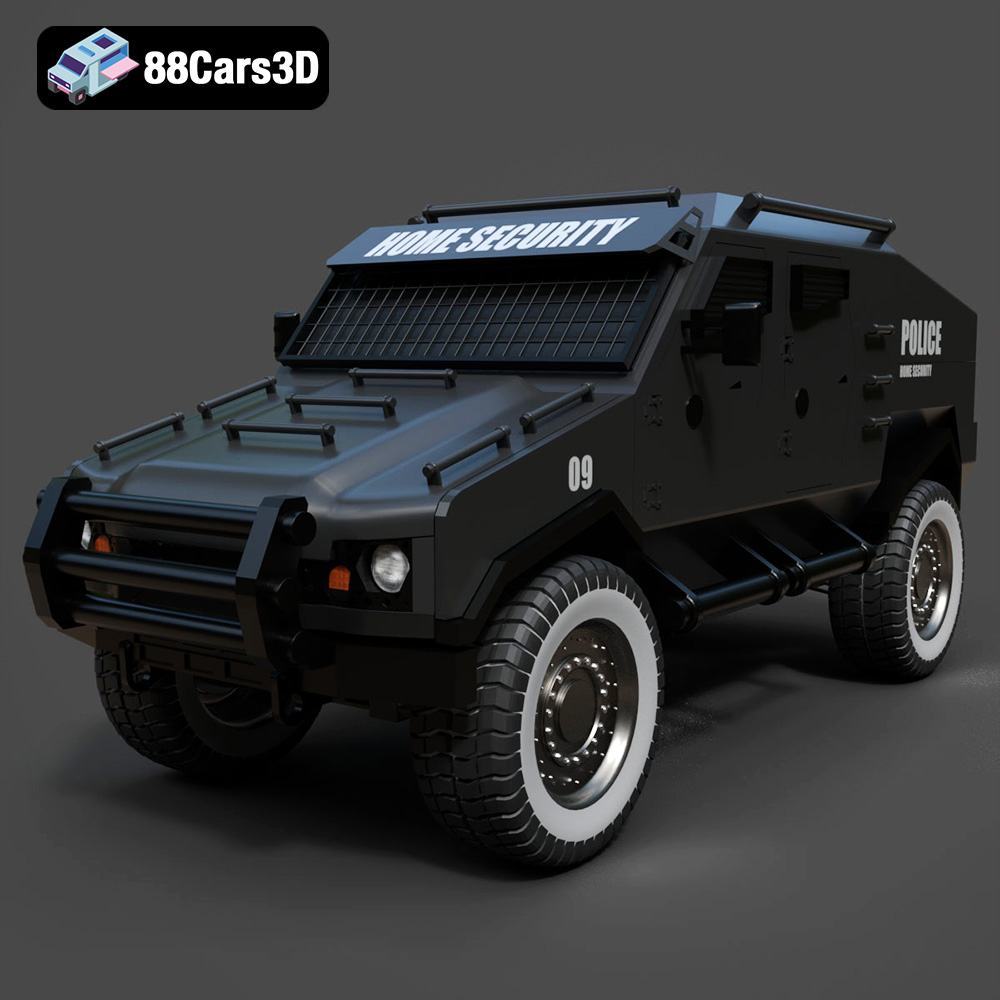
Download the Armoured Vehicle 001 3D Model featuring clean geometry, realistic detailing, and a fully modeled interior. Includes .blend, .fbx, .obj, .glb, .stl, .ply, .unreal, and .max formats for rendering, simulation, and game development.
Price: $19.99
Texture: Yes
Material: Yes
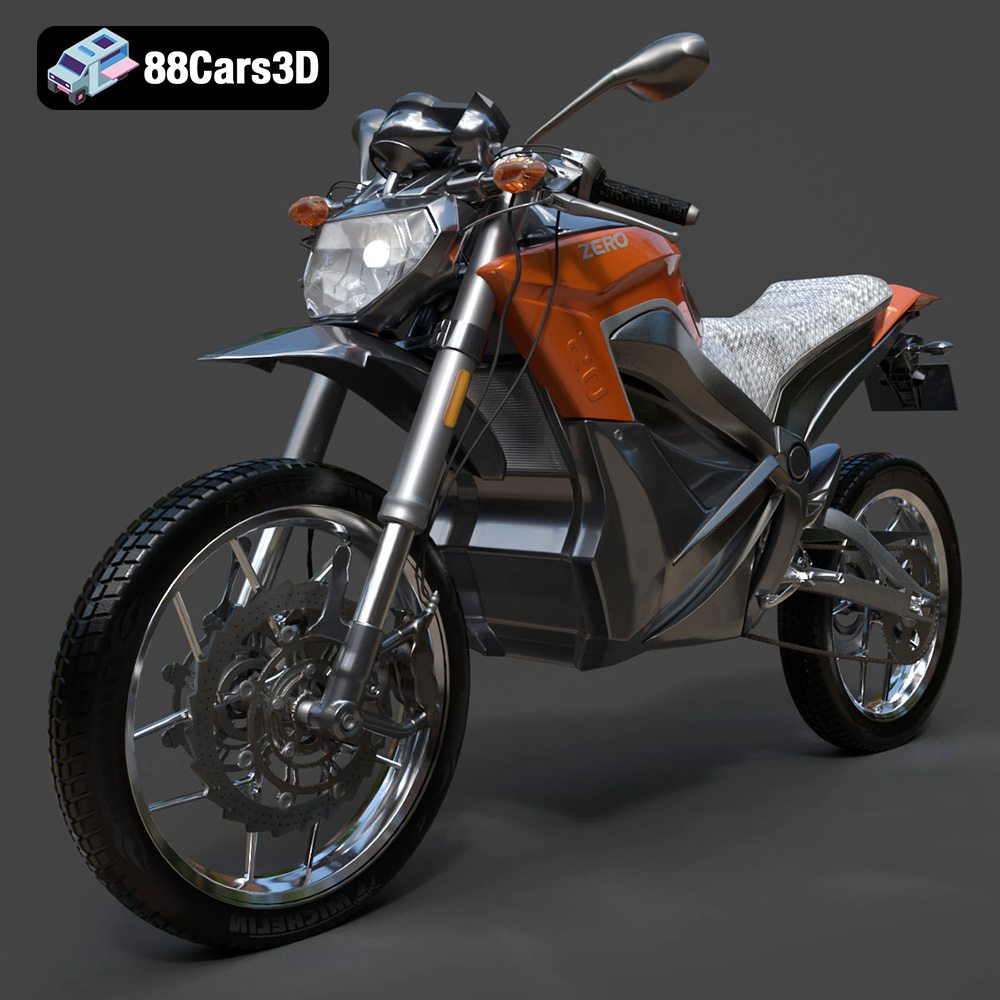
Download the Zero Motorcycles S ZF8.5 3D Model featuring clean geometry, realistic detailing, and a fully modeled interior. Includes .blend, .fbx, .obj, .glb, .stl, .ply, .unreal, and .max formats for rendering, simulation, and game development.
Price: $19.99

Texture: Yes
Material: Yes
Download the Zeekr 001 3D Model featuring clean geometry, realistic detailing, and a fully modeled interior. Includes .blend, .fbx, .obj, .glb, .stl, .ply, .unreal, and .max formats for rendering, simulation, and game development.
Price: $19.99

