Get 50% OFF All Premium 3D & STL Models!

“`html
3D printing opens up incredible possibilities for automotive enthusiasts, allowing you to create highly detailed and personalized car models. One of the most impactful ways to enhance these models is by adding accurate car logos, emblems, and other custom details. This comprehensive guide will walk you through the technical aspects of incorporating these elements into your STL files, ensuring successful 3D prints every time. Whether you’re a seasoned 3D printing expert or just starting, this guide provides valuable insights and practical techniques.
We’ll cover everything from understanding STL file structures to advanced mesh manipulation techniques. You’ll learn how to select the right software, prepare your models for printing, optimize printer settings, and troubleshoot common issues. By the end of this article, you’ll have the knowledge and skills to create stunning, personalized car models that capture the essence of your favorite vehicles. We’ll also touch upon sourcing high-quality STL files, such as those found on platforms like 88cars3d.com, and how to best prepare them for customization.
The STL (Stereolithography) file format is the standard for 3D printing. It represents a 3D object’s surface as a collection of triangles. Understanding the basics of STL file structure and mesh topology is crucial for successful model customization. A well-defined mesh will result in cleaner prints and easier post-processing.
An STL file essentially contains a list of triangles, each defined by three vertices (coordinates in 3D space) and a normal vector (indicating the triangle’s orientation). The more triangles used to represent a curve or complex shape, the smoother it will appear. However, increasing the triangle count also increases file size and processing time. When downloading models from marketplaces such as 88cars3d.com, pay attention to the triangle count as it impacts print quality and processing power required.
Key considerations regarding STL file structure include:
Mesh topology refers to the arrangement of triangles in the mesh. A good mesh topology is essential for smooth surfaces, accurate details, and efficient editing. Issues like non-manifold geometry (edges shared by more than two triangles) or self-intersecting faces can cause slicing errors and printing failures. Tools like Netfabb and Meshmixer can identify and repair these issues. A clean mesh with evenly distributed triangles will greatly improve the final print quality.
Here are some tips for ensuring good mesh topology:
Choosing the right software is essential for effectively adding logos, emblems, and custom details to your STL files. Different software packages offer various strengths, and the best choice depends on your experience level and the complexity of the desired modifications. Popular options include Meshmixer, Blender, Tinkercad, and professional CAD software like Fusion 360.
Meshmixer, a free software from Autodesk, is a powerful tool for editing and repairing STL files. It offers a wide range of features, including mesh smoothing, sculpting, hole filling, and Boolean operations. Meshmixer excels at merging different meshes together, making it ideal for adding logos or emblems as separate STL files onto a base model. The “Sculpt” tools allow for fine-tuning the integration of the added details.
Here’s a simple workflow for adding a logo using Meshmixer:
Blender is a free and open-source 3D creation suite offering comprehensive modeling, sculpting, and rendering tools. While it has a steeper learning curve than Meshmixer, Blender provides unparalleled control over mesh manipulation. It’s suitable for creating intricate details from scratch or modifying existing models with precision. Blender’s sculpting tools are particularly useful for creating organic shapes and fine-tuning complex geometries.
For adding emblems in Blender, consider the following workflow:
Proper preparation of your STL files is crucial for achieving high-quality 3D prints. This involves checking for errors, optimizing the mesh, and selecting the appropriate slicing settings. A well-prepared STL file will minimize printing failures and ensure accurate reproduction of the desired details.
Before slicing, it’s essential to check your STL file for errors such as non-manifold geometry, holes, and self-intersections. These errors can lead to slicing problems and printing failures. Software like Netfabb and Meshmixer can automatically detect and repair these issues. Netfabb, while a paid software, is considered an industry standard for mesh repair, providing comprehensive analysis and repair tools.
Key steps for mesh repair include:
The orientation of your model on the print bed significantly affects print quality, support structure requirements, and printing time. Choose an orientation that minimizes the need for supports, especially in areas with fine details like logos and emblems. Experiment with different orientations to find the optimal balance between support usage and surface finish. Consider the layer lines and how they will affect the visibility of the added details. Orient the model so that the layer lines run parallel to the most important features. When adding car logos, emblems, and custom details in STL format, remember to orient for optimal printing resolution of these elements. This step is critical for high-quality results.
Tips for optimizing orientation and supports:
The 3D printer settings you choose significantly impact the final quality of your printed car models, especially when incorporating intricate details like logos and emblems. Careful adjustment of layer height, print speed, temperature, and infill density is essential for achieving optimal results. Understanding the tradeoffs between these settings is key to striking the right balance between print time and quality.
Layer height is one of the most critical settings for detail resolution. Lower layer heights (e.g., 0.1mm or lower) produce smoother surfaces and finer details, but they also increase printing time. Higher layer heights (e.g., 0.2mm or higher) result in faster prints, but they can sacrifice detail and surface finish. Print speed affects both print time and quality. Slower print speeds generally produce better results, especially for intricate details. Faster print speeds can lead to vibrations, artifacts, and reduced adhesion between layers. A good starting point is a layer height of 0.1mm and a print speed of 40-50mm/s, adjusting as needed based on the specific printer and material.
Recommendations:
Infill is the internal structure of a 3D printed object. The infill pattern and density affect the model’s strength, weight, and printing time. For car models, a moderate infill density (15-25%) is usually sufficient for structural integrity. Common infill patterns include grid, honeycomb, and gyroid. Gyroid infill offers a good balance between strength and material usage. Choose an infill pattern that provides sufficient support for the outer layers, especially for areas with overhanging details like emblems.
Tips for optimizing infill:
The choice of material and post-processing techniques significantly impact the final appearance and durability of your 3D printed car models. Understanding the properties of different materials and mastering post-processing methods are essential for achieving professional-looking results.
PLA (Polylactic Acid) is a biodegradable thermoplastic known for its ease of printing and wide availability. It’s a good choice for beginners and for models that don’t require high heat resistance. ABS (Acrylonitrile Butadiene Styrene) is a stronger and more heat-resistant thermoplastic than PLA, but it’s more prone to warping and requires a heated bed. PETG (Polyethylene Terephthalate Glycol) combines the ease of printing of PLA with the strength and heat resistance of ABS. It’s a versatile material suitable for a wide range of applications. Resin printing offers exceptional detail and smooth surfaces, making it ideal for intricate models like car emblems. However, resin prints are generally more brittle and require post-curing. The selection of material greatly affects the appearance of car logos, emblems, and custom details in STL format after printing.
Here’s a comparison of common 3D printing materials:
Post-processing is the final step in creating professional-looking 3D printed car models. Sanding removes layer lines and imperfections, creating a smooth surface for painting. Start with coarse sandpaper (e.g., 220 grit) and gradually move to finer grits (e.g., 400, 600, 800) for a polished finish. Painting adds color and realism to your models. Use primer to prepare the surface for paint and apply multiple thin coats of acrylic or enamel paint for best results. Clear coat protects the paint and adds a glossy finish. Assembly involves joining multiple printed parts together to create a complete model. Use glue or mechanical fasteners to securely attach the parts. Take the time to carefully sand and finish each piece for a seamless final product.
Tips for post-processing:
Even with careful preparation and optimized settings, 3D printing can sometimes present challenges. Understanding common issues and knowing how to troubleshoot them is essential for achieving successful prints. This section covers some of the most frequent problems encountered when printing car models with intricate details and offers practical solutions.
Warping occurs when the corners of a print lift off the print bed, especially when using materials like ABS. This is caused by uneven cooling and thermal contraction. Poor bed adhesion can also lead to warping or complete print failure. To prevent warping, ensure that your print bed is properly leveled and heated. Use a bed adhesive such as glue stick, hairspray, or specialized bed adhesion products. Enclosing the printer can also help to maintain a consistent temperature and prevent warping. For ABS printing, a heated bed temperature of 100-110°C is recommended, while PLA typically requires 60-70°C.
Troubleshooting tips:
Stringing and blobbing are common issues caused by excessive material extrusion during travel moves. Stringing refers to thin strands of plastic that form between different parts of the print, while blobbing refers to small blobs of plastic that appear on the surface. To reduce stringing and blobbing, adjust the retraction settings in your slicing software. Retraction pulls the filament back into the nozzle during travel moves, preventing material from oozing out. Increase the retraction distance and speed until the stringing and blobbing are minimized. Also, ensure that the nozzle temperature is properly calibrated. Too high of a temperature can make the filament too runny, leading to these issues. Experiment with different nozzle temperatures to find the optimal setting for your material. Properly configured printer settings for 3D printing car logos, emblems, and custom details in STL format will make the post processing steps easier.
Tips for reducing stringing and blobbing:
Adding car logos, emblems, and custom details to your 3D printed models unlocks a new level of personalization and realism. By understanding the intricacies of STL files, selecting the right software, optimizing printer settings, and mastering post-processing techniques, you can create stunning, professional-looking models that capture the essence of your favorite vehicles. Remember to pay close attention to mesh topology, support structure planning, material selection, and troubleshooting common printing issues. Sites like 88cars3d.com offer a great starting point with high-quality STL files for a wide variety of car models.
Take the knowledge you’ve gained from this guide and experiment with different techniques and settings. Don’t be afraid to try new things and learn from your mistakes. The world of 3D printing is constantly evolving, and there’s always something new to discover. So, fire up your 3D printer, unleash your creativity, and start building your dream car collection today!
“`
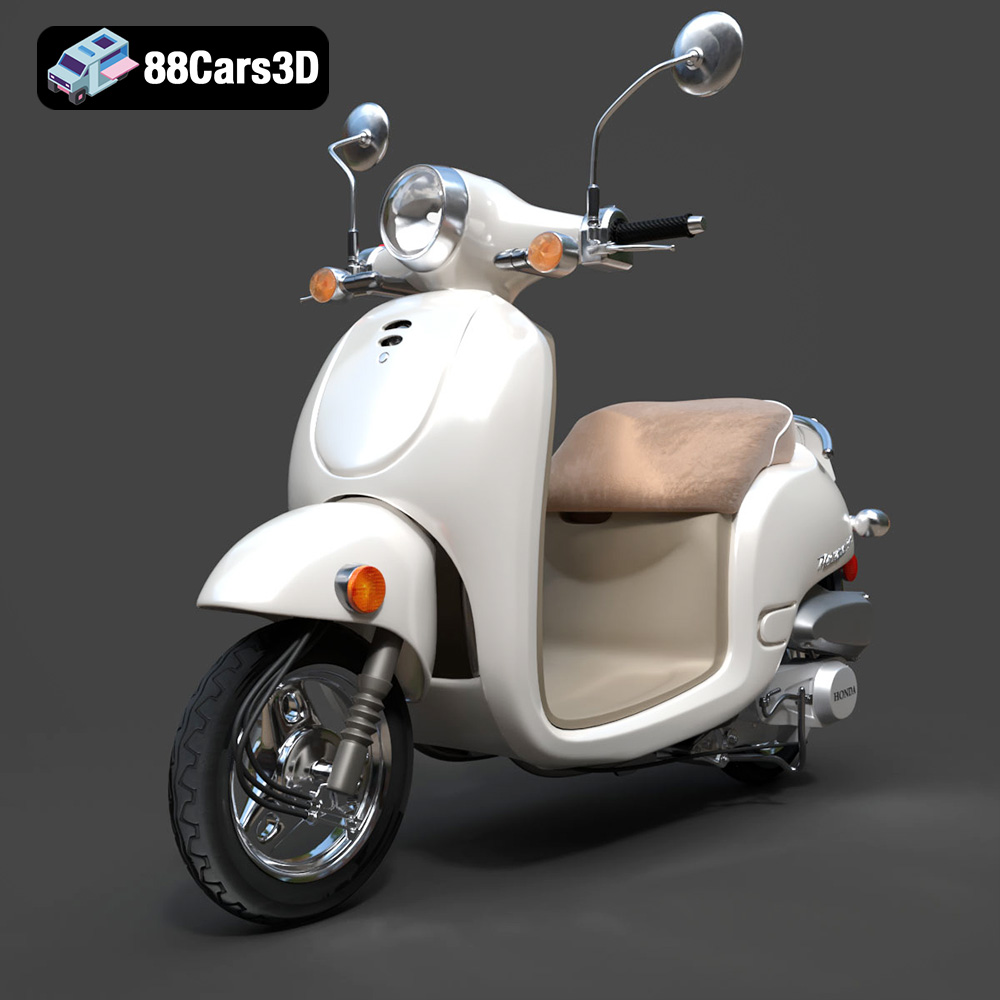
Texture: Yes
Material: Yes
Download the Honda Metropolitan 2013 3D Model featuring clean geometry, realistic detailing, and a fully modeled interior. Includes .blend, .fbx, .obj, .glb, .stl, .ply, .unreal, and .max formats for rendering, simulation, and game development.
Price: $19.99

Texture: Yes
Material: Yes
Download the Honda Civic Si Sedan 2017 3D Model featuring clean geometry, realistic detailing, and a fully modeled interior. Includes .blend, .fbx, .obj, .glb, .stl, .ply, .unreal, and .max formats for rendering, simulation, and game development.
Price: $19.99

Texture: Yes
Material: Yes
Download the Helicopter UH-40 3D Model featuring clean geometry, realistic detailing, and a fully modeled interior. Includes .blend, .fbx, .obj, .glb, .stl, .ply, .unreal, and .max formats for rendering, simulation, and game development.
Price: $19.99
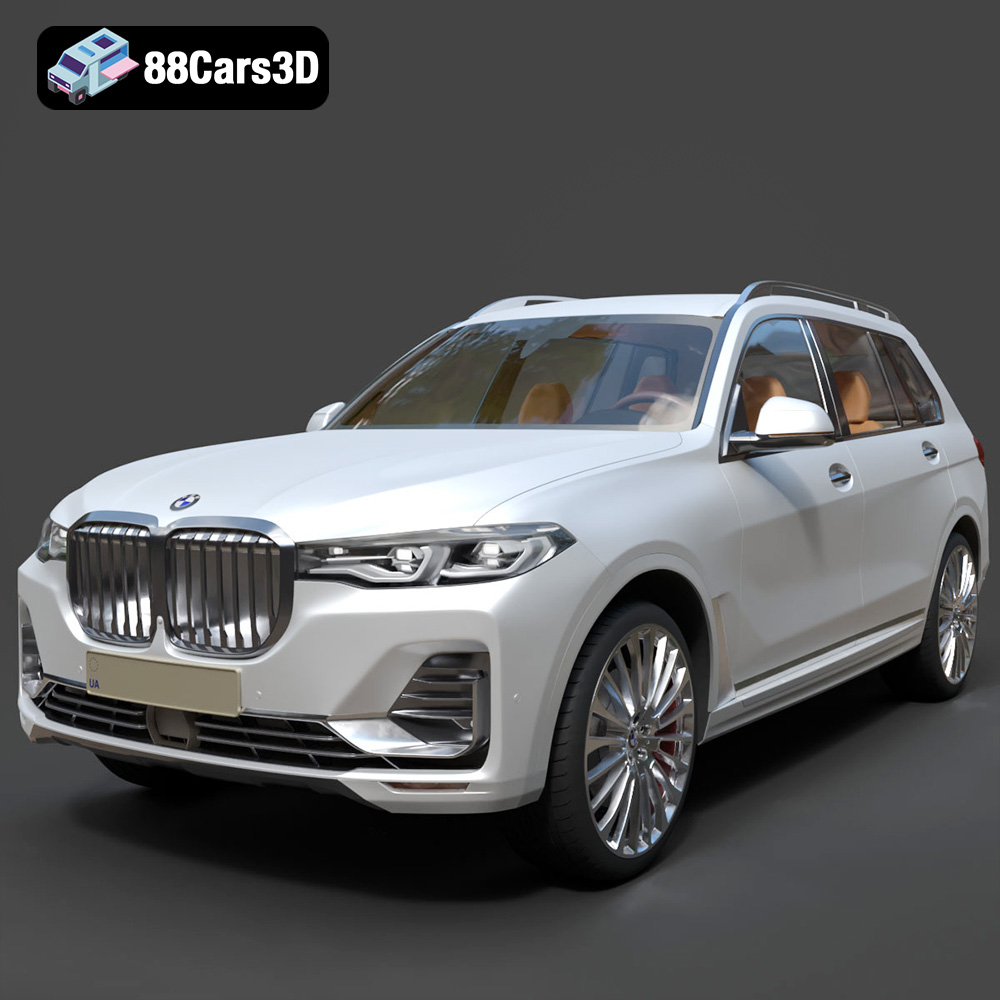
Texture: Yes
Material: Yes
Download the BMW X7 G07 2019 3D Model featuring clean geometry, realistic detailing, and a fully modeled interior. Includes .blend, .fbx, .obj, .glb, .stl, .ply, .unreal, and .max formats for rendering, simulation, and game development.
Price: $19.99
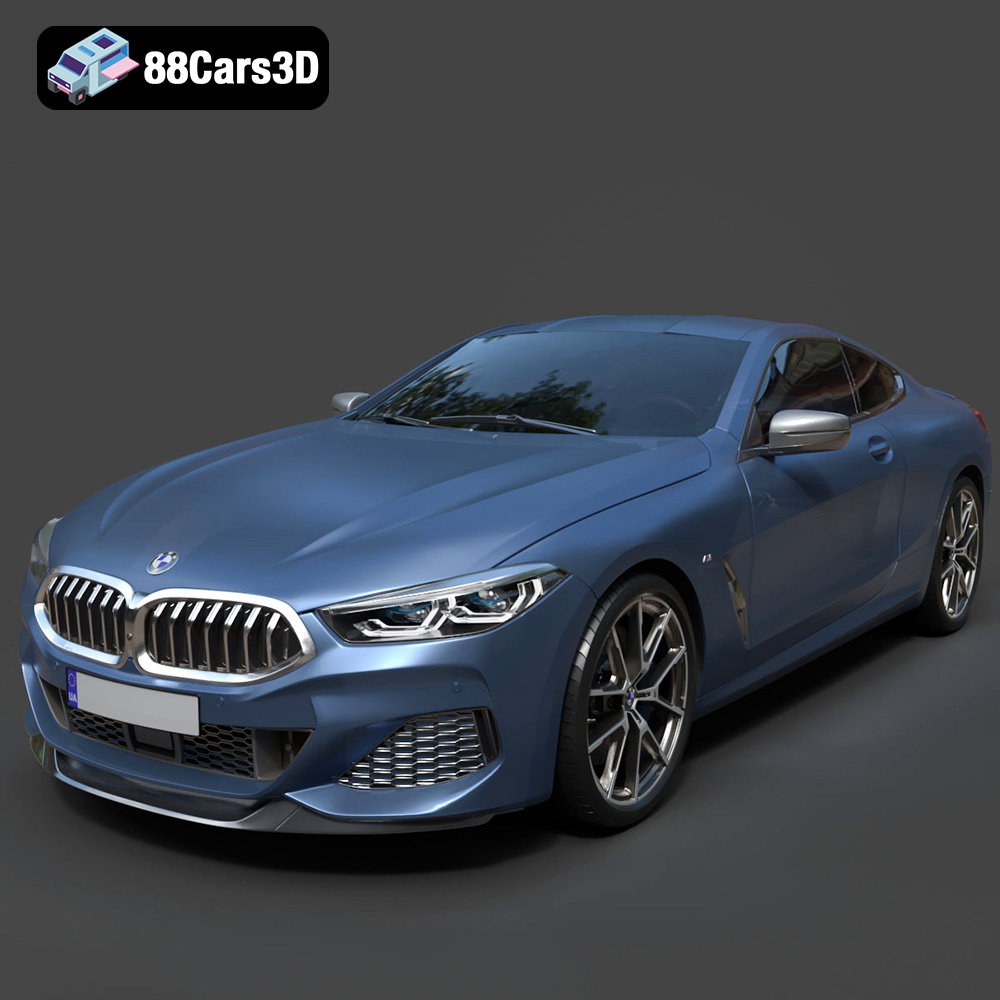
Texture: Yes
Material: Yes
Download the BMW 8-Series M850i G15 Coupe 2019 3D Model featuring clean geometry, realistic detailing, and a fully modeled interior. Includes .blend, .fbx, .obj, .glb, .stl, .ply, .unreal, and .max formats for rendering, simulation, and game development.
Price: $19.99
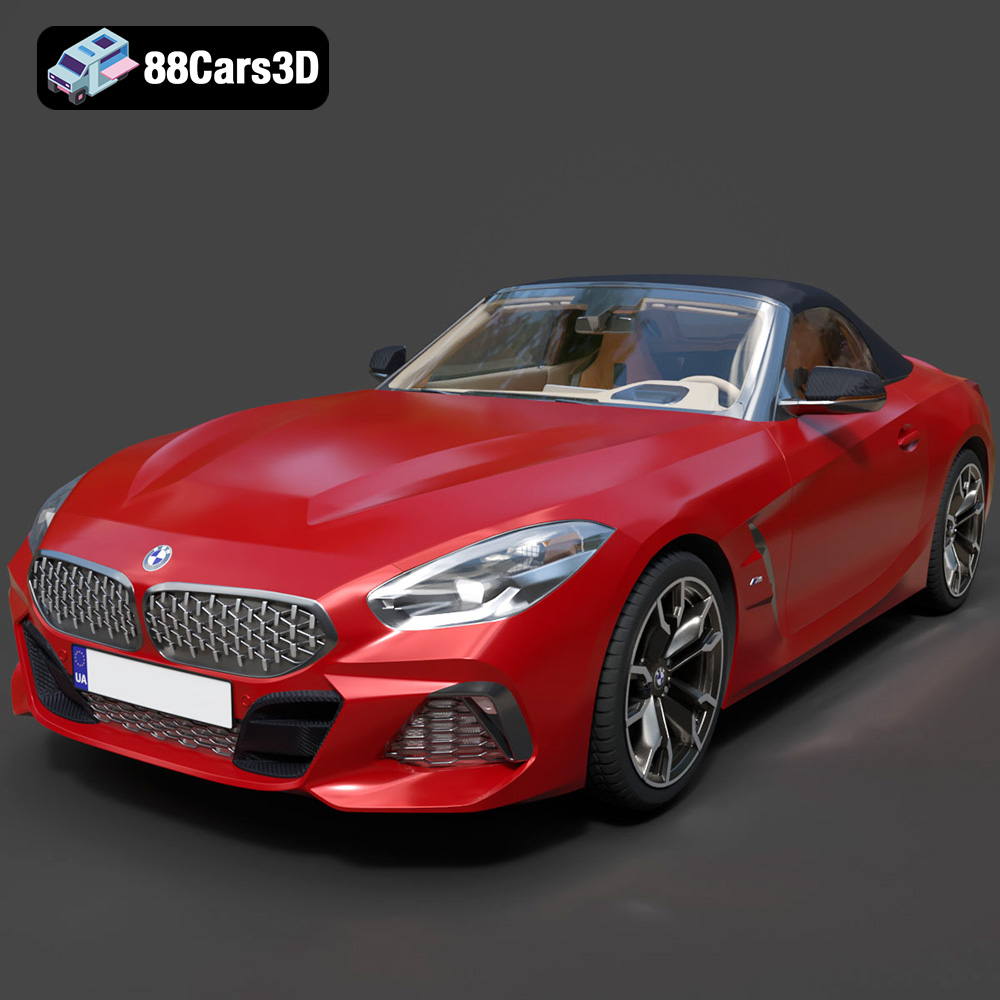
Texture: Yes
Material: Yes
Download the BMW Z4 Mk3 G29 Roadster M40i 2019 3D Model featuring clean geometry, realistic detailing, and a fully modeled interior. Includes .blend, .fbx, .obj, .glb, .stl, .ply, .unreal, and .max formats for rendering, simulation, and game development.
Price: $19.99
Texture: Yes
Material: Yes
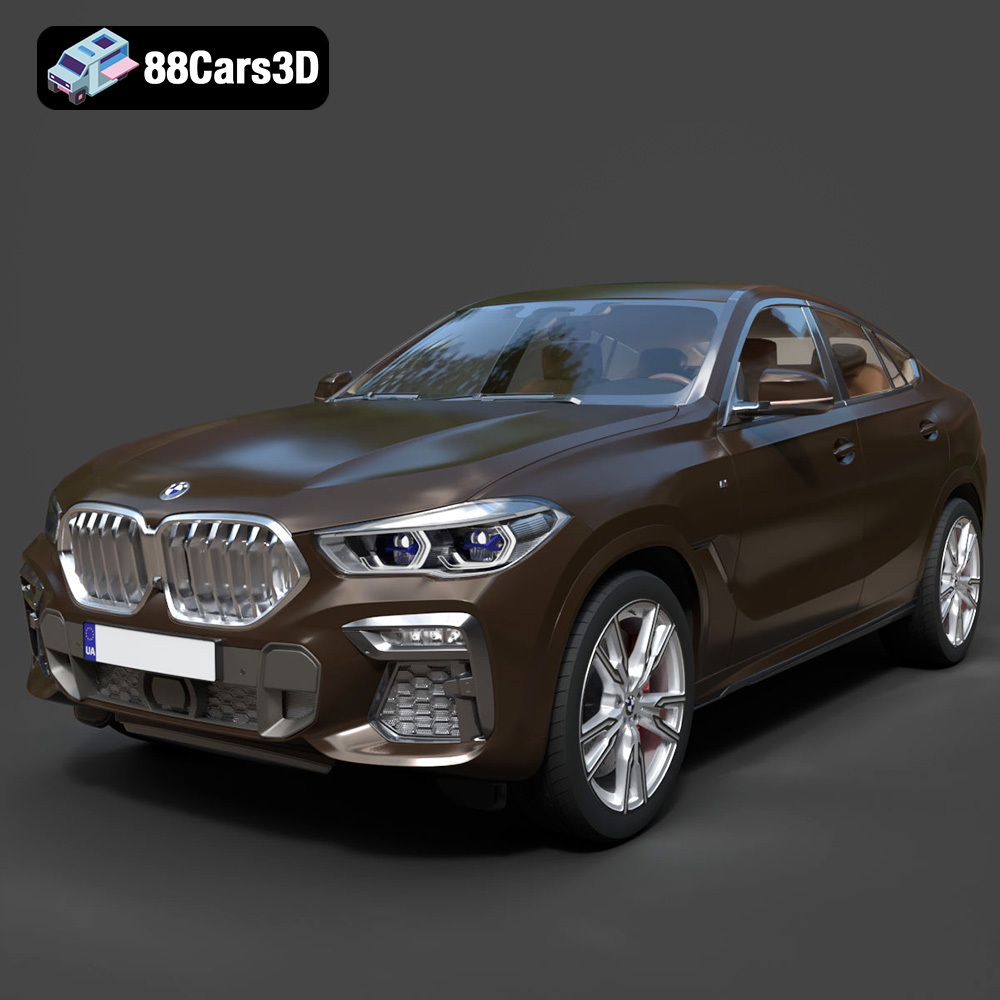
Download the BMW X6 (Mk3) (G06) M Sport 2020 3D Model featuring clean geometry, realistic detailing, and a fully modeled interior. Includes .blend, .fbx, .obj, .glb, .stl, .ply, .unreal, and .max formats for rendering, simulation, and game development.
Price: $19.99
Texture: Yes
Material: Yes
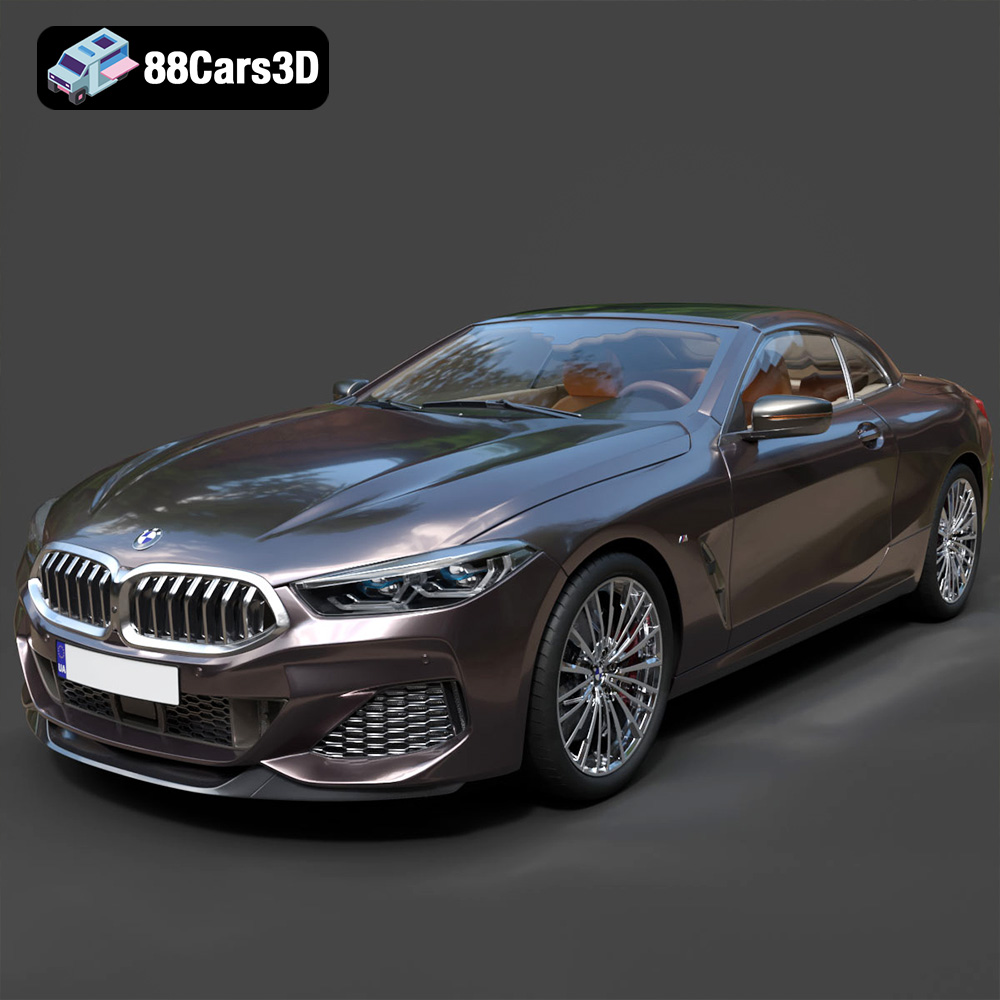
Download the BMW 8-Series G14 Convertible M850i 2019 3D Model featuring clean geometry, realistic detailing, and a fully modeled interior. Includes .blend, .fbx, .obj, .glb, .stl, .ply, .unreal, and .max formats for rendering, simulation, and game development.
Price: $19.99
Texture: Yes
Material: Yes
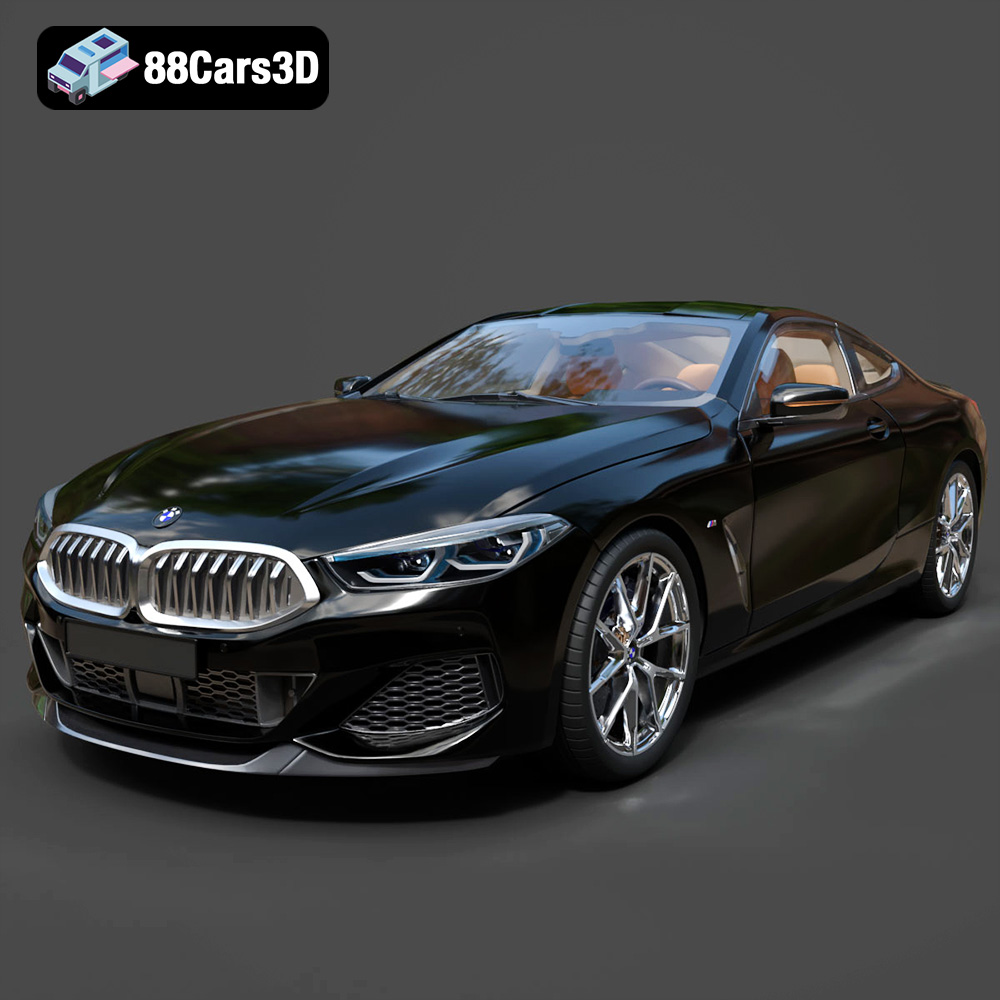
Download the BMW 8 Series M850i Coupe 2019 3D Model featuring clean geometry, realistic detailing, and a fully modeled interior. Includes .blend, .fbx, .obj, .glb, .stl, .ply, .unreal, and .max formats for rendering, simulation, and game development.
Price: $19.99
Texture: Yes
Material: Yes
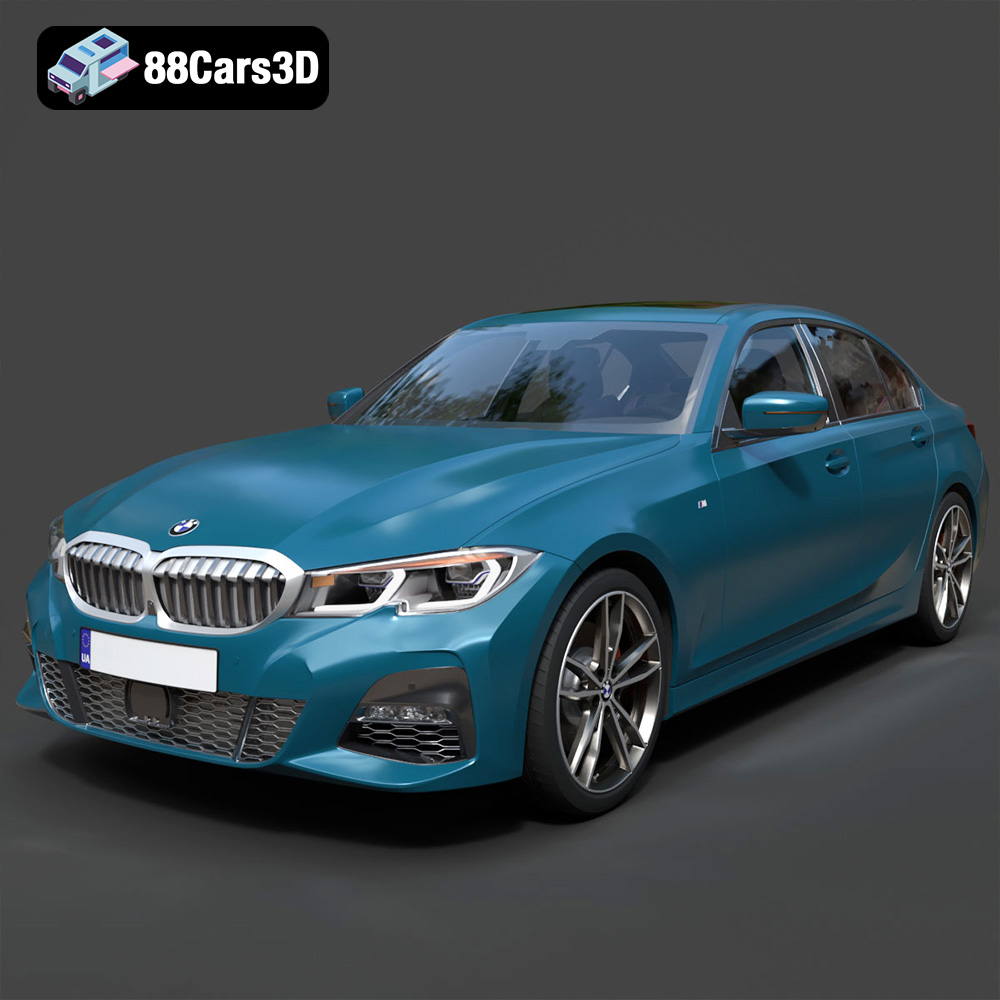
Download the BMW 3 Series M-Sport Sedan 2019 3D Model featuring clean geometry, realistic detailing, and a fully modeled interior. Includes .blend, .fbx, .obj, .glb, .stl, .ply, .unreal, and .max formats for rendering, simulation, and game development.
Price: $19.99

