Get 50% OFF All Premium 3D & STL Models!

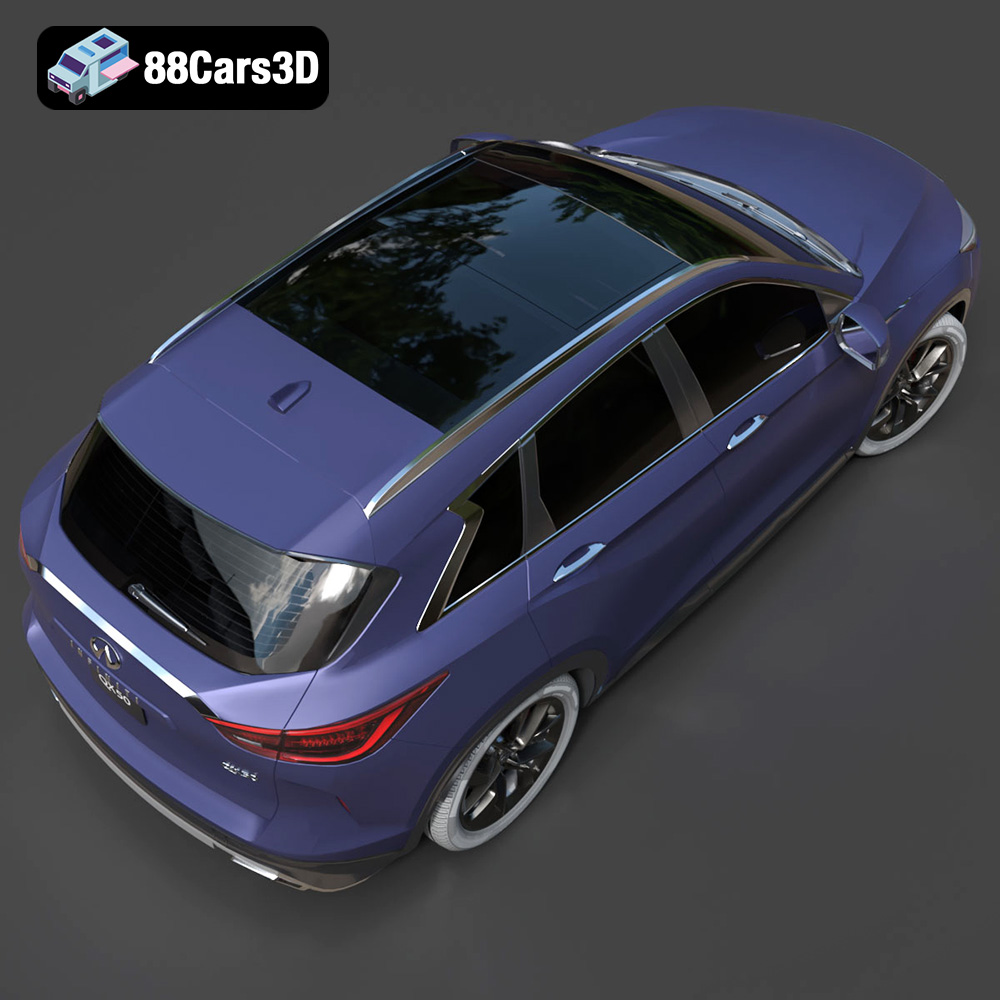
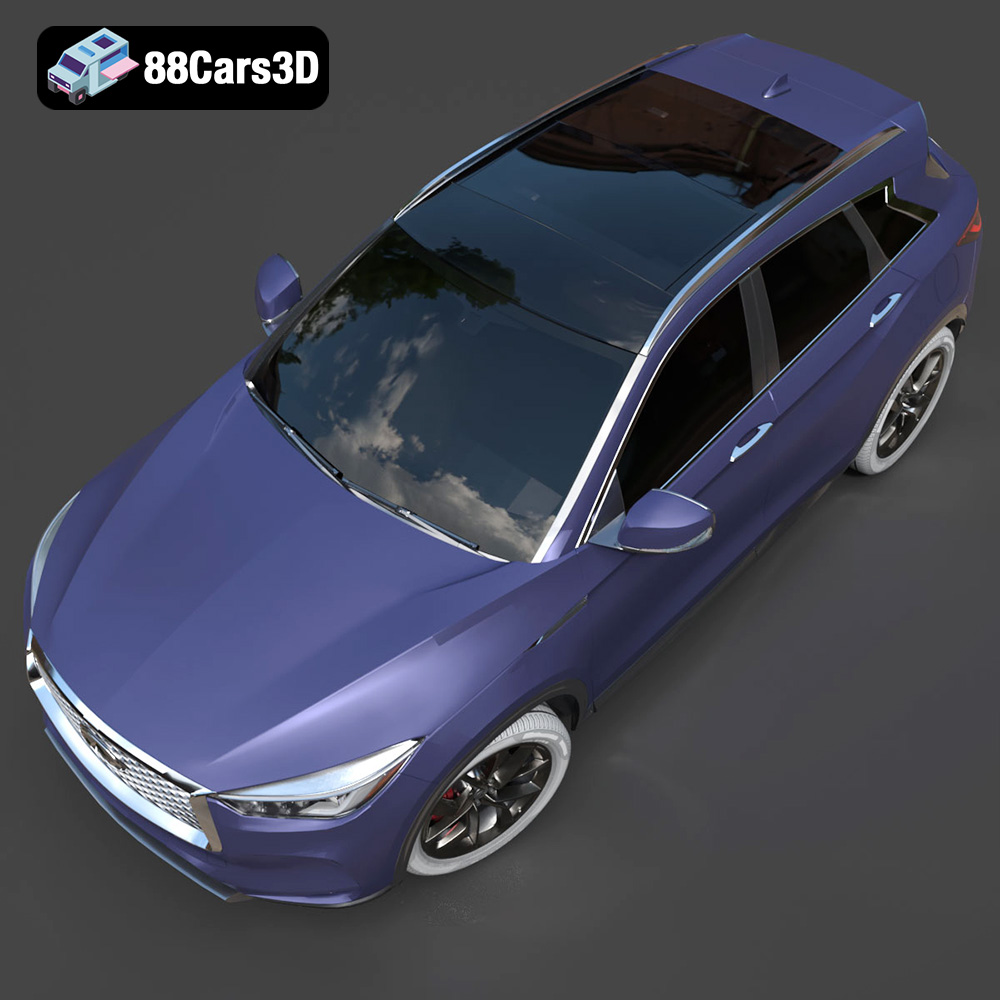
The Infiniti QX50 2019 is a stunning luxury crossover SUV, and bringing its detailed design to life through 3D printing is a rewarding project. This guide will walk you through the entire process, from preparing the STL files to post-processing your finished 3D printed model. Whether you’re a seasoned additive manufacturing enthusiast or just starting out, this article will provide the technical insights you need to create a high-quality replica of this iconic vehicle. The 3D model available at 88cars3d.com is optimized for various applications, including 3D printing, so let’s dive into how to make the most of it!
Choosing the correct file format is the crucial first step in successful 3D printing. While several formats exist, each with its strengths and weaknesses, some are better suited for additive manufacturing than others. The Infiniti QX50 2019 3D model from 88cars3d.com includes a variety of file formats, giving you flexibility depending on your specific needs. Let’s explore the common formats and their suitability for 3D printing.
The STL (Stereolithography) format is the undisputed king of 3D printing. It represents the surface geometry of a 3D object as a collection of triangles. It’s a simple and widely supported format, making it compatible with almost every 3D printer and slicing software package. However, STL files only store the mesh data; they don’t contain information about color, texture, or materials. For printing the Infiniti QX50 2019, the STL file is the primary choice, offering a straightforward pathway to creating a physical model. When working with STL files, always check for errors like non-manifold edges or flipped normals and repair them using software like MeshMixer or Netfabb before slicing.
OBJ is a more versatile format than STL, as it can store color and texture information along with the 3D geometry. While STL relies on a monochrome representation, OBJ files can be used for multi-material 3D printing, if your printer supports it. However, OBJ files can be larger and more complex than STL files, potentially slowing down the slicing process. For the Infiniti QX50 2019 model, if you intend to experiment with color gradients or custom textures after printing (through painting), understanding the original texture layout from the OBJ file may be helpful in your post-processing workflow.
PLY (Polygon File Format) is designed to store 3D data acquired from 3D scanners. It can represent color, transparency, surface normals, and other properties, resulting in higher precision models. This high detail comes at a cost; PLY files are often larger than STL files, and not all slicing software packages support them natively. The detailed polygon mesh of the Infiniti QX50 2019 available in PLY format allows for a deeper inspection of the original model’s surface, useful when identifying areas that require meticulous attention during printing.
The .blend format is the native file format for Blender, a free and open-source 3D creation suite. Using the .blend file for the Infiniti QX50 2019 allows for complete customization of the model before exporting to a printable format like STL. You can modify the geometry, add details, separate parts for easier printing, or adjust the scale. This format provides maximum flexibility for advanced users comfortable with Blender. When exporting to STL, ensure you apply any modifiers and decimate the mesh if necessary to reduce the triangle count for smoother printing.
FBX (Filmbox) is a proprietary file format developed by Autodesk commonly used in game development and animation. It supports storing scene information, including geometry, textures, materials, animations, and more. While not typically used directly for 3D printing, it can be useful for transferring the model with its associated materials into certain slicing software packages that support advanced visualization or material settings, particularly if you intend to apply specific materials to different parts of the Infiniti QX50 2019 model before printing.
.glb is a binary file format representing 3D models, often used for Augmented Reality (AR) and Virtual Reality (VR) applications. It’s designed to be compact and efficient for real-time rendering. While not directly used for 3D printing, the .glb file for the Infiniti QX50 2019 model lets you preview the model in an AR environment using compatible apps on your smartphone or tablet. This gives you a sense of the model’s size and detail in a real-world context before committing to a print.
.max is the native file format for Autodesk 3ds Max, a professional 3D modeling, animation, rendering, and visualization software. If you have access to 3ds Max, this format offers the highest level of control over the Infiniti QX50 2019 model. You can make extensive modifications to the geometry, add custom details, or optimize the model for specific rendering or animation purposes. Like Blender files, ensure proper export settings are used when converting to STL, including applying modifiers and checking mesh integrity.
Before sending the Infiniti QX50 2019 STL file to your 3D printer, you need to prepare it using slicing software. Slicing software converts the 3D model into a series of layers that the printer can understand. This section covers essential pre-printing steps, including model repair, scaling, orientation, and support generation.
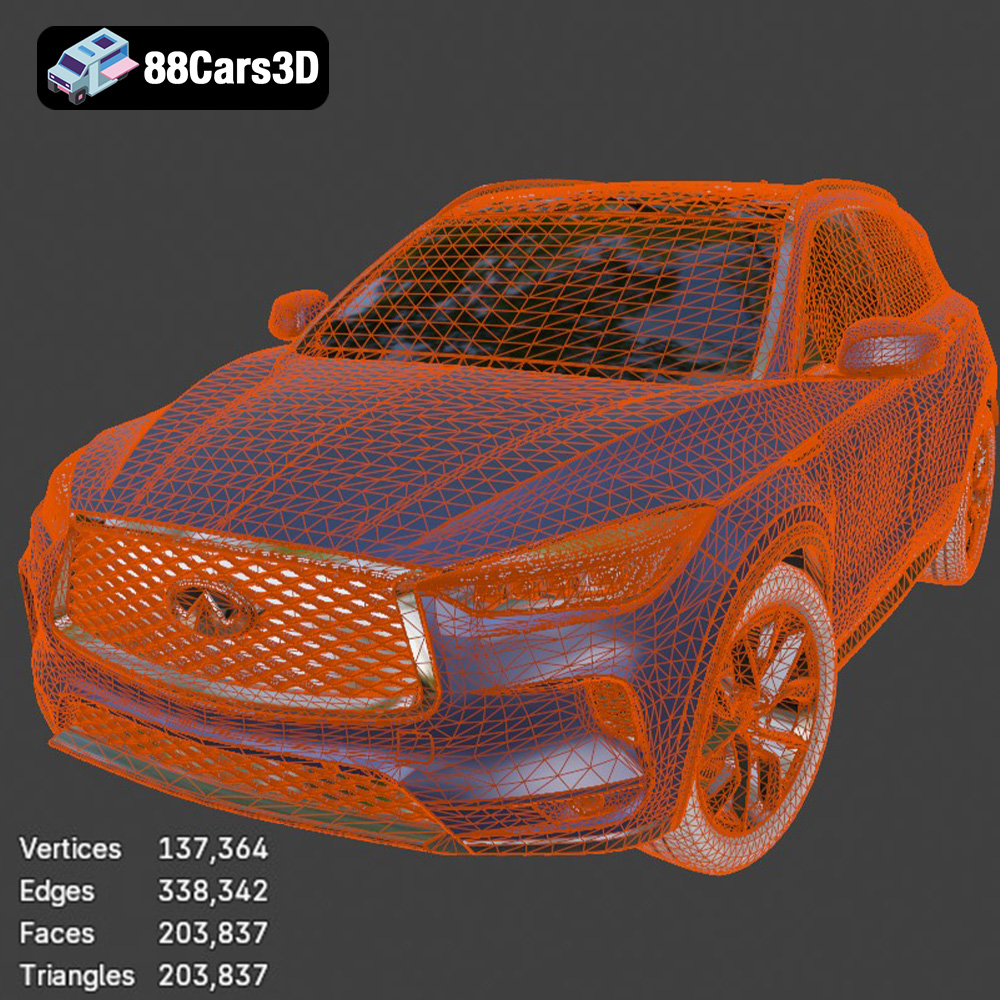
Even high-quality 3D models can have minor imperfections that can cause issues during 3D printing. Before slicing, it’s crucial to inspect and repair the STL file. Common issues include non-manifold edges, flipped normals, and holes in the mesh. Software like MeshMixer, Netfabb, or even the built-in repair tools in some slicers can automatically detect and fix these problems. For the Infiniti QX50 2019, pay close attention to areas with intricate details, such as the grille, headlights, and wheel wells. Ensuring a clean and error-free mesh will improve the print quality and reduce the likelihood of failed prints. Using a mesh analysis tool can highlight areas where the triangle density is unusually high, which might cause slowdowns in the slicing process. Consider simplifying these areas if necessary, while preserving the overall shape.
Choosing the right scale for your 3D printed Infiniti QX50 2019 model depends on your printer’s build volume and desired level of detail. Consider the trade-offs between size, print time, and material consumption. A larger model will showcase the finer details but will also take longer to print and use more material. Once you’ve determined the scale, carefully consider the print orientation. The orientation affects the surface finish, support requirements, and structural integrity of the printed part. Orient the model to minimize the need for supports, especially on visible surfaces. For the Infiniti QX50 2019, try printing the body with the roof facing up to avoid support marks on the more detailed areas. The wheels might be best printed vertically to maximize detail on the rims, but this will require more supports.
Supports are temporary structures that prop up overhanging features during 3D printing. Generating effective supports is crucial for complex models like the Infiniti QX50 2019. Slicing software offers various support settings, including support density, overhang angle, and support type. Experiment with different settings to find the optimal balance between support strength and ease of removal. For complex overhangs, consider using tree supports, which are more efficient and leave fewer marks than traditional linear supports. A raft or brim can also be beneficial, especially for models with small footprints or when printing with materials prone to warping. A raft provides a larger surface area for the first layer to adhere to, while a brim is a single-layer outline that helps prevent corner lifting.
The choice of material significantly impacts the appearance, durability, and functionality of your 3D printed Infiniti QX50 2019 model. Different materials offer varying properties, printability, and aesthetics. Here are some common materials and their suitability for this project.
PLA is a popular choice for 3D printing due to its ease of use, biodegradability, and wide availability. It prints at relatively low temperatures and doesn’t require a heated bed on some printers. PLA is ideal for creating aesthetically pleasing models with fine details, making it suitable for the Infiniti QX50 2019. However, PLA is not particularly strong or heat-resistant, so it’s not recommended for functional parts or models that will be exposed to high temperatures. PLA is a great starting point for beginners to learn 3D printing basics while creating a detailed visual representation of the vehicle. The final model might benefit from a protective coating if it will be handled frequently.
PETG combines the ease of printing of PLA with increased strength, flexibility, and temperature resistance. It’s a great all-around material for 3D printing and is well-suited for the Infiniti QX50 2019 model if you need a more durable part. PETG offers good layer adhesion and is less prone to warping than ABS. It also has a glossy finish, which can enhance the visual appeal of the printed model. Consider PETG if you plan to handle the model frequently or want to showcase it in an environment where it might experience some wear and tear. It offers a good balance between printability and robustness.
Resin 3D printing, using technologies like SLA (Stereolithography) or DLP (Digital Light Processing), offers the highest level of detail and accuracy. Resin is ideal for creating intricate and complex models like the Infiniti QX50 2019, especially if you want to capture fine details like the panel lines, badges, and interior components. Resin prints have a smooth surface finish and require minimal post-processing. However, resin printing is more complex than FDM (Fused Deposition Modeling) printing, requires more safety precautions, and can be more expensive. If you are aiming for the highest possible level of detail and have experience with resin printing, it’s an excellent choice.
Fine-tuning your printer settings is crucial for achieving optimal print quality for the Infiniti QX50 2019 model. These settings will depend on the material you choose and your specific printer, but here are some general guidelines.
Layer height determines the resolution and print time. A lower layer height (e.g., 0.1mm) results in smoother surfaces and finer details but increases print time. A higher layer height (e.g., 0.2mm) prints faster but may result in more visible layer lines. For the Infiniti QX50 2019, a layer height of 0.1-0.15mm is a good balance between quality and speed. Print speed also affects print quality. A slower print speed allows the material to cool properly and reduces the likelihood of warping or stringing. Start with a moderate print speed (e.g., 40-60mm/s) and adjust as needed. If you are using resin, layer height is even more critical. Aim for layer heights between 0.025mm to 0.05mm.
Infill density determines the internal solidity of the 3D printed model. A higher infill density increases strength and weight but also increases print time and material consumption. For the Infiniti QX50 2019, an infill density of 15-20% is usually sufficient for aesthetic models. Choose an infill pattern that provides adequate support for the outer layers. Common infill patterns include grid, honeycomb, and gyroid. Gyroid infill is particularly effective for providing strength in all directions. When using resin, infill isn’t typically a concern as parts are generally printed solid or with very thin walls.
Proper temperature control is crucial for successful 3D printing. Set the nozzle temperature according to the material manufacturer’s recommendations. PLA typically prints between 190-220°C, while PETG prints between 230-250°C. Use a heated bed to improve bed adhesion and prevent warping. PLA benefits from a bed temperature of 50-60°C, while PETG requires 70-80°C. Adequate cooling is essential for preventing warping and ensuring sharp details. Use a part cooling fan to cool the extruded material as it’s being deposited. Adjust the fan speed based on the material and the complexity of the model. Some slicers also have adaptive cooling strategies to cool more aggressively where needed.
After 3D printing the Infiniti QX50 2019, post-processing can significantly enhance its appearance and bring it closer to the original design. This section covers common post-processing techniques, including support removal, sanding, filling, priming, and painting.
Carefully remove supports from the 3D printed model using pliers, cutters, or a specialized support removal tool. Be gentle to avoid damaging the model’s surface. After removing the supports, sand down any remaining support marks with progressively finer grit sandpaper, starting with 220 grit and working your way up to 400 or 600 grit. For resin prints, clean the model thoroughly with isopropyl alcohol to remove any uncured resin. Pay special attention to crevices and details. If the model has noticeable layer lines, consider using a filler primer to smooth the surface further. Apply several thin coats of primer, allowing each coat to dry completely before sanding lightly.
Priming provides a smooth and uniform surface for painting. Choose a primer that is compatible with your chosen material. Apply several thin coats of primer, allowing each coat to dry completely before sanding lightly. Once the primer is dry, you can begin painting the model. Use high-quality acrylic paints designed for models. Apply multiple thin coats of paint, allowing each coat to dry completely before applying the next. For the Infiniti QX50 2019, consider using automotive paints for a more realistic finish. You can also use masking tape to create clean lines and multi-tone effects. After painting, apply a clear coat to protect the paint and add a glossy or matte finish.
The Infiniti QX50 2019 3D model may consist of multiple parts that need to be assembled after printing. Use glue or epoxy to join the parts together securely. Pay attention to alignment and ensure that the seams are smooth. Add additional details to the model using fine-tipped brushes, decals, or other modeling accessories. For example, you can paint the interior details, add chrome accents, or apply decals to represent the badges and logos. Consider using weathering techniques to add realism and depth to the model. These can include dry brushing, washes, and pigment powders.
Even with careful preparation, 3D printing can sometimes present challenges. This section addresses common issues and provides troubleshooting tips for the Infiniti QX50 2019 model.
Warping occurs when the corners of the 3D printed model lift off the build plate during printing. This is often caused by insufficient bed adhesion or uneven cooling. To prevent warping, ensure that the build plate is clean and level. Use a heated bed to improve bed adhesion, and apply a bed adhesion agent, such as glue stick or hairspray. Increase the brim or raft size to provide a larger surface area for the first layer to adhere to. Enclose the printer to create a more stable and controlled environment. Reduce the print speed for the first few layers to improve adhesion. If you’re using resin, ensure proper calibration of the Z-axis and use a strong initial layer exposure time.
Stringing occurs when the 3D printer extrudes filament while moving between parts, leaving thin strands of plastic behind. Blobs are small accumulations of plastic that appear on the surface of the model. To prevent stringing and blobs, reduce the nozzle temperature, increase retraction distance and speed, and decrease print speed. Ensure that the filament is dry and stored properly. Use a filament dryer to remove moisture from the filament. Adjust the coasting settings in your slicer to reduce pressure in the nozzle before travel moves. If you’re using resin, blobs can sometimes be caused by overexposure. Try reducing the exposure time slightly.
Layer shifting occurs when the 3D printer suddenly shifts position during printing, resulting in misaligned layers. This can be caused by loose belts, stepper motor issues, or problems with the Z-axis. Ensure that all belts are properly tightened and that the stepper motors are functioning correctly. Lubricate the Z-axis lead screws to ensure smooth movement. Check for any obstructions or binding in the Z-axis mechanism. Reduce the print speed to reduce the load on the motors. If you’re using resin, ensure that the build platform is securely attached to the Z-axis and that the Z-axis movement is smooth and consistent.
The print time and material cost for the Infiniti QX50 2019 model will vary depending on the size of the model, the material used, the printer settings, and whether you are printing the model as a single piece or multiple parts.
These are rough estimates, and it is advisable to run a test print or use the slicing software’s estimate tool to get a more precise calculation before committing to the full print.
Discover the exceptional realism and precision of the Infiniti QX50 2019 3D Model. Crafted with meticulous attention to detail, this premium digital asset accurately reflects the stunning aesthetics and sophisticated design of the renowned luxury crossover SUV.
$19.99
3D printing the Infiniti QX50 2019 is an exciting project that allows you to create a tangible representation of this luxury vehicle. By carefully preparing the STL files, selecting the right material, fine-tuning your printer settings, and applying post-processing techniques, you can achieve stunning results. While challenges may arise, this guide provides the knowledge and troubleshooting tips needed to overcome them. Remember to explore the diverse range of high-quality 3D car models available at 88cars3d.com for your next additive manufacturing endeavor.
.2019
.arvr
.blend
.car3dmodel
.crossover
.fbx
.gameasset
.glb
.infiniti
.max
.obj
.ply
.qx50
.rendering
.simulation
.stl
.unreal
SUV