Get 50% OFF All Premium 3D & STL Models!

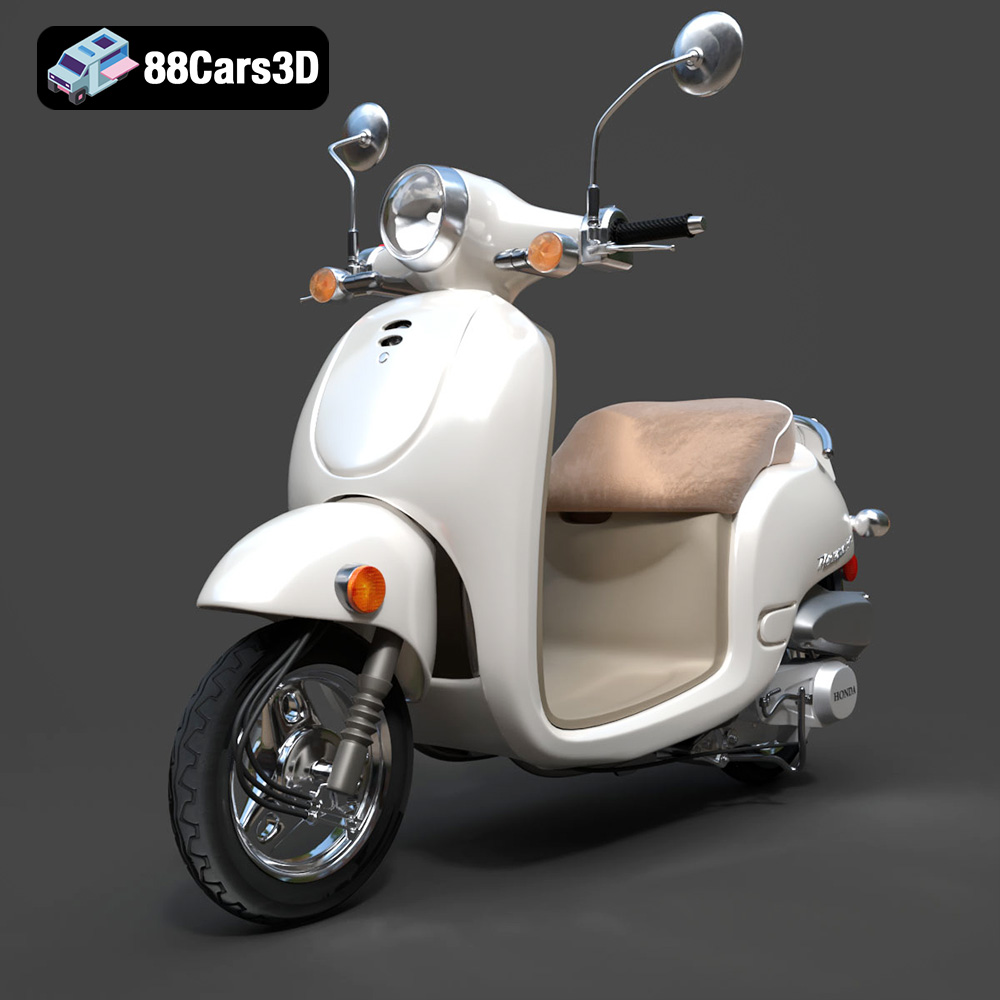
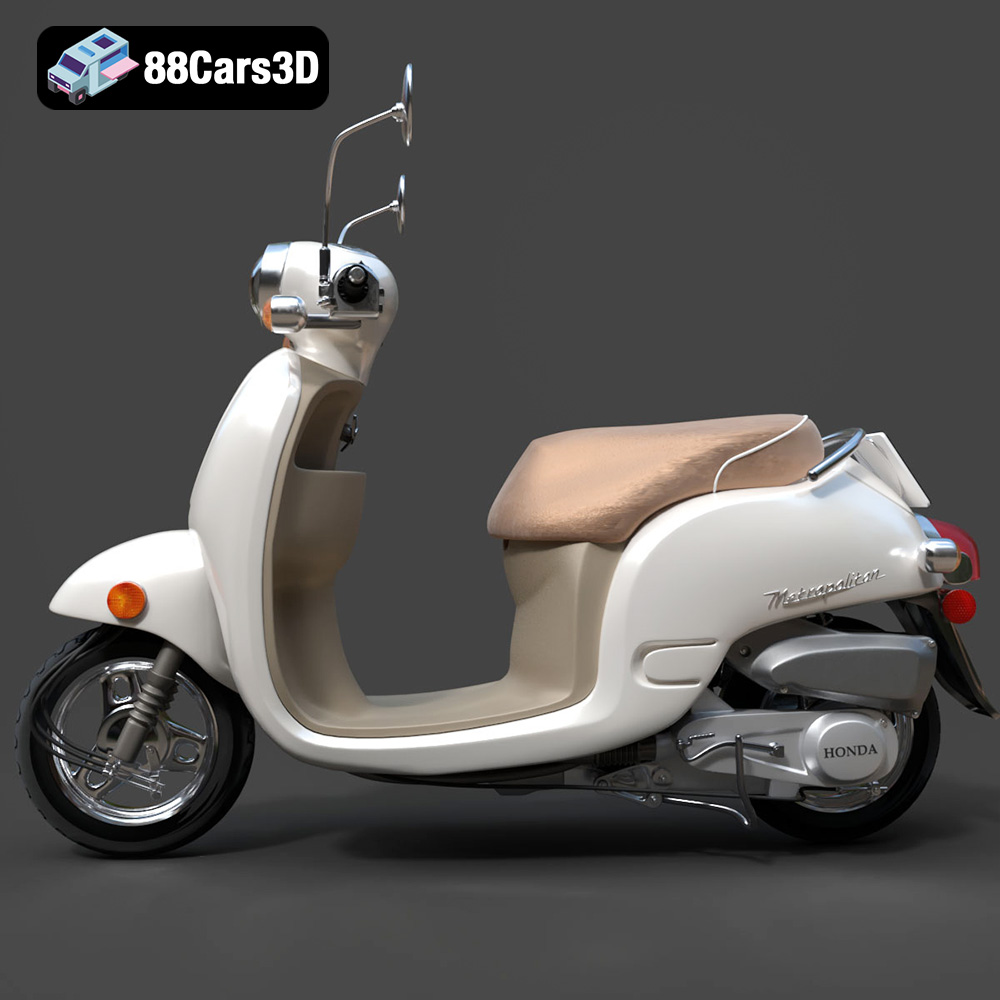
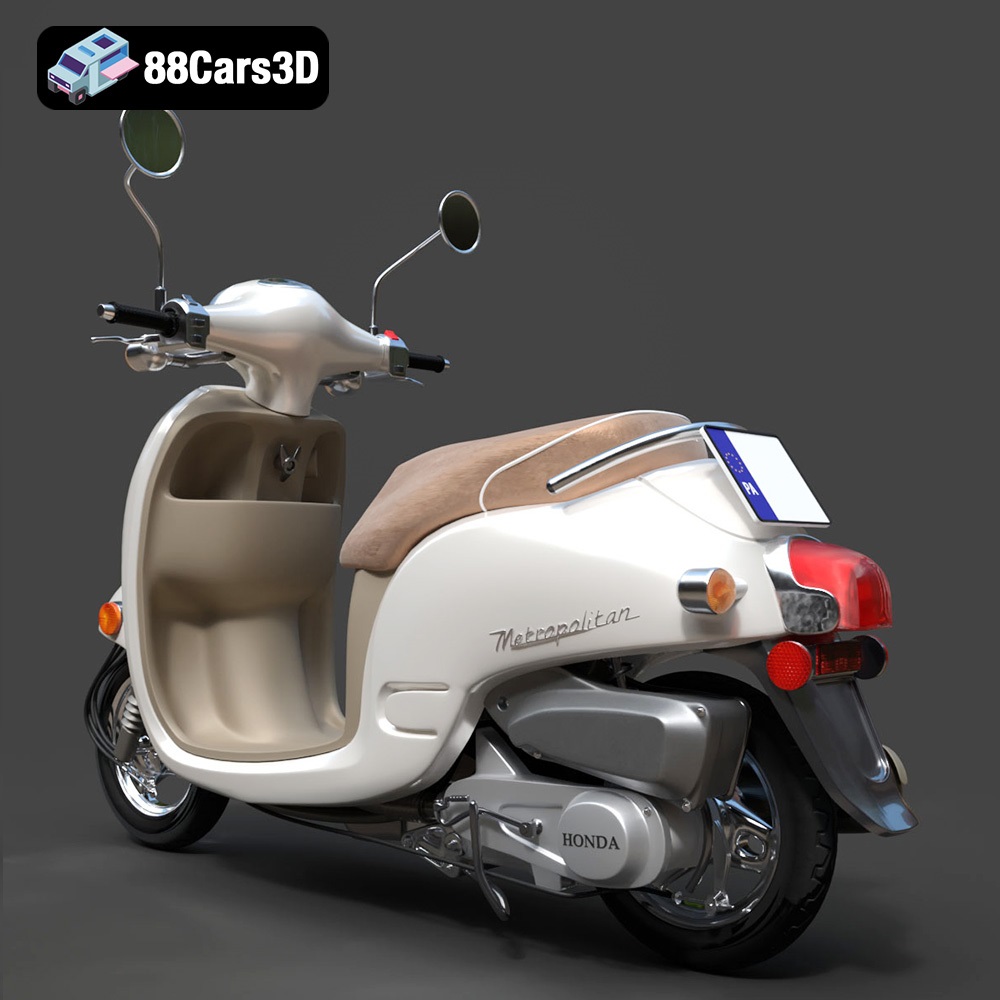
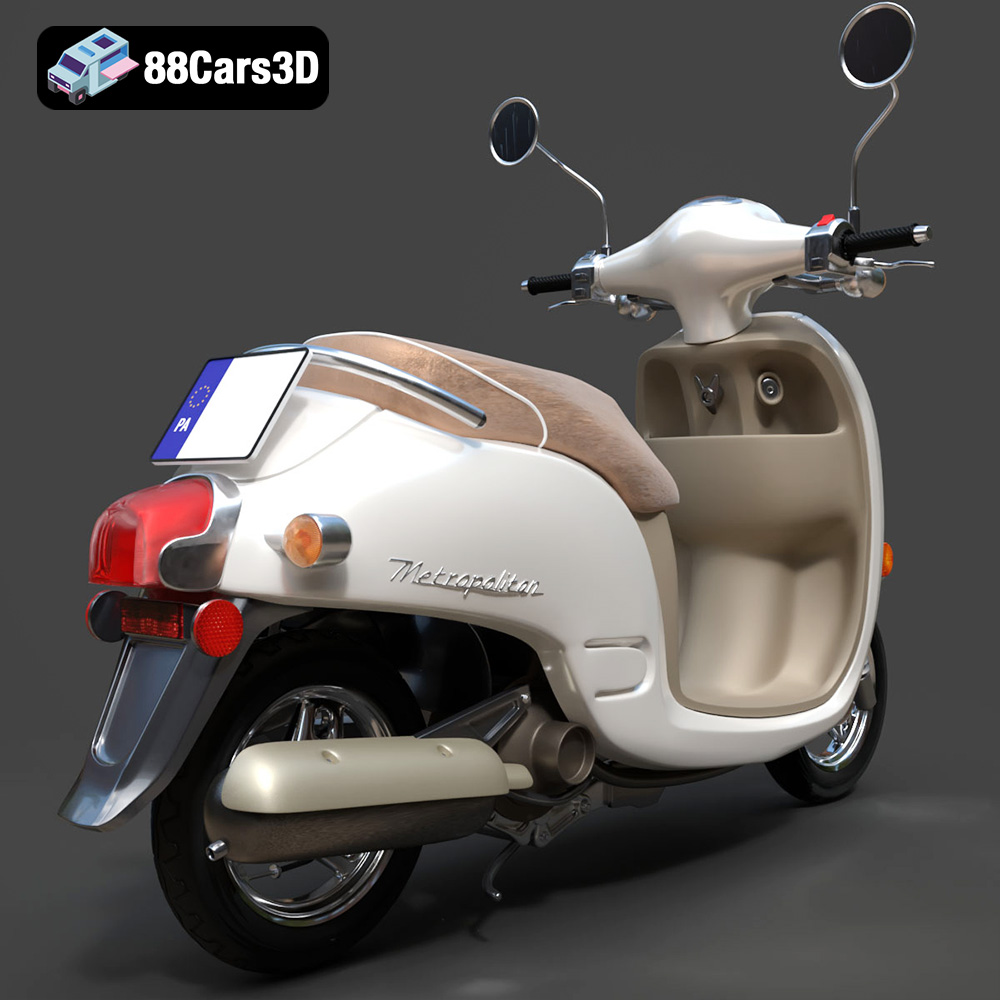
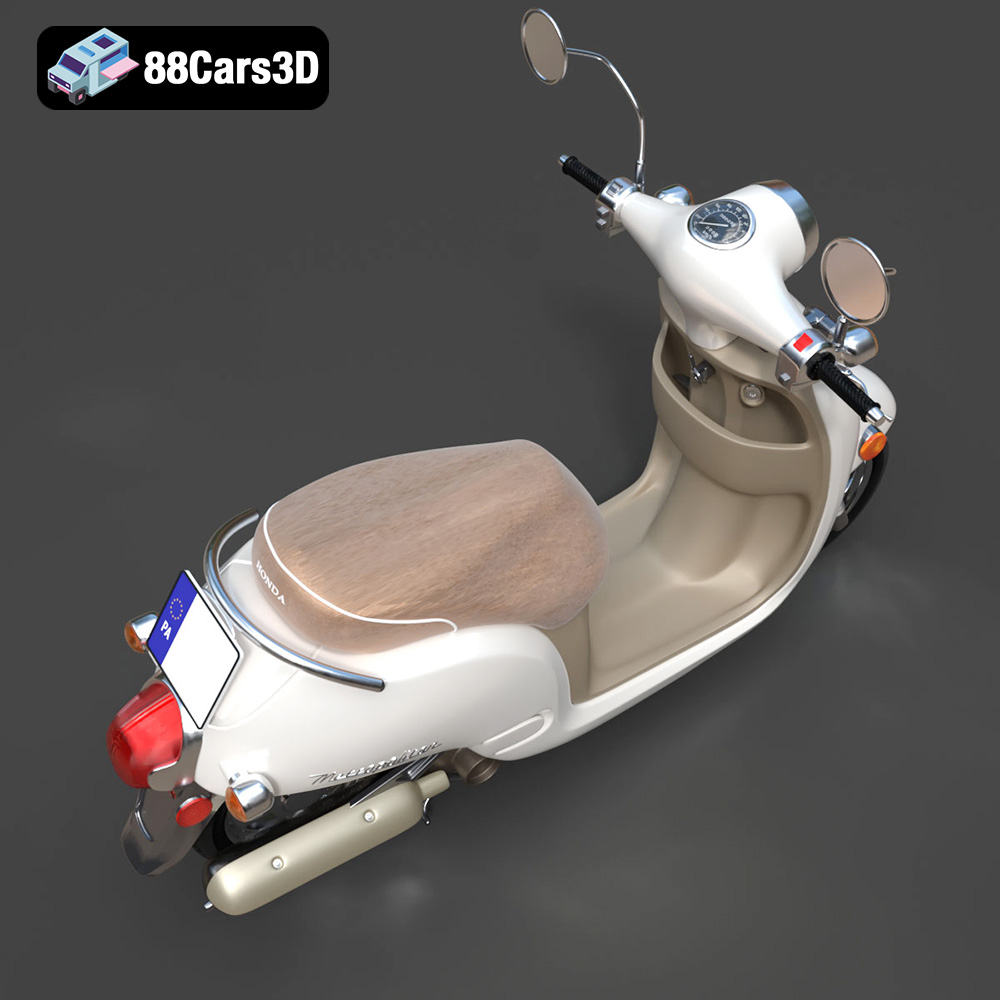
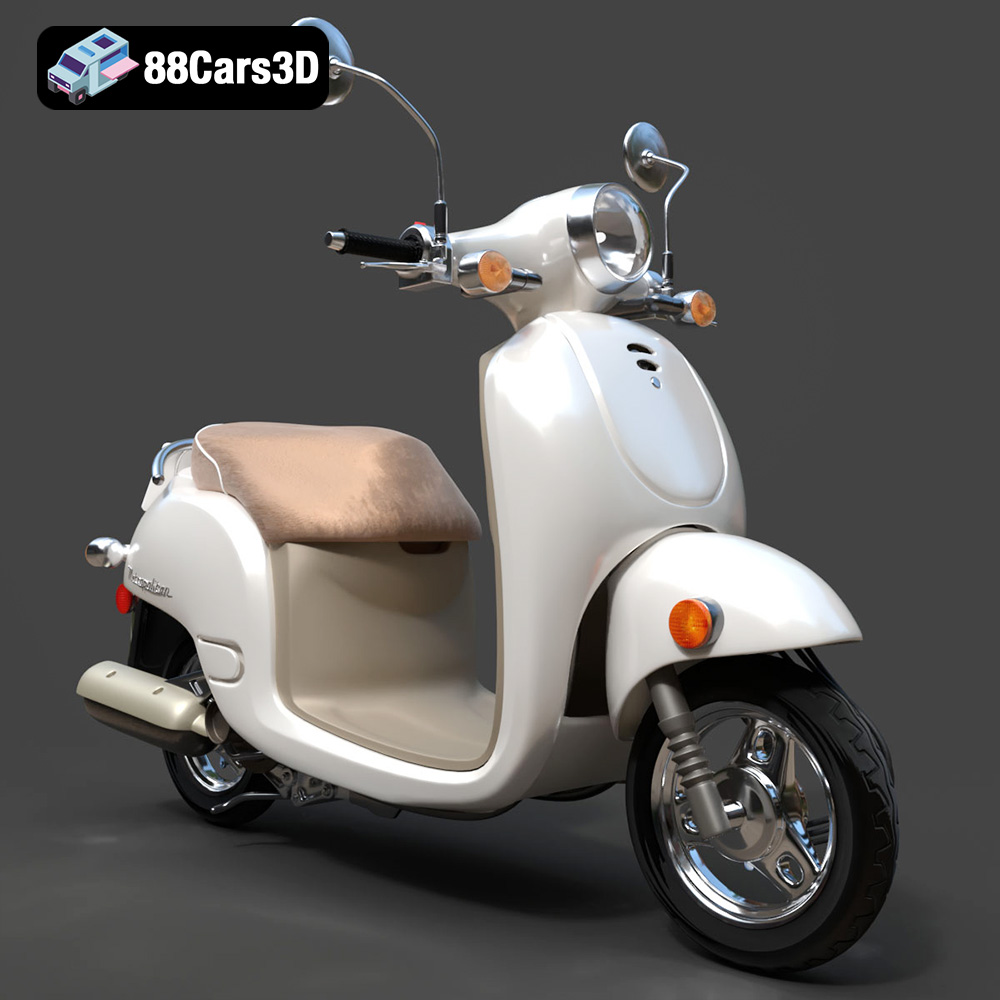
The Honda Metropolitan 2013, a stylish and iconic scooter, can now be brought to life through the magic of 3D printing. This blog post will serve as a comprehensive guide to successfully 3D printing the Honda Metropolitan 2013 model, available at 88cars3d.com. Whether you’re a seasoned 3D printing enthusiast or a beginner, this article will cover everything from choosing the right materials and printer settings to post-processing techniques, ensuring a fantastic final result. Imagine having a miniature replica of this scooter on your desk, a testament to the power of additive manufacturing!
The success of any 3D print hinges on choosing the right tools and materials. For the Honda Metropolitan 2013 model, both FDM (Fused Deposition Modeling) and SLA (Stereolithography) printing technologies are viable options, each with its own strengths and weaknesses.
* Printer Choice: An FDM printer with a heated bed and a nozzle diameter of 0.4mm is recommended. Printers like the Ender 3 V2 or Prusa i3 MK3S+ are excellent choices for their reliability and print quality.
* Material Recommendations: PLA (Polylactic Acid) is a great starting point due to its ease of use, biodegradability, and wide availability. For increased durability and heat resistance, consider PETG (Polyethylene Terephthalate Glycol). ABS (Acrylonitrile Butadiene Styrene) can also be used but requires a more controlled printing environment to prevent warping.
* Printer Choice: An SLA printer like the Anycubic Photon Mono or Elegoo Mars series will provide superior detail and a smoother surface finish, ideal for capturing the intricate curves of the Honda Metropolitan 2013.
* Resin Recommendations: Standard resin is suitable for general display purposes. For increased strength and durability, consider using a tough resin or a blend of standard and flexible resins. Clear resin can be used for specific components like the windshield, adding a touch of realism.
Before diving into the specifics of 3D printing, it’s crucial to understand the various file formats commonly used and their implications for the printing process. The Honda Metropolitan 2013 3D model from 88cars3d.com is available in several formats, each catering to different applications. However, when it comes to 3D printing, the STL format is king.
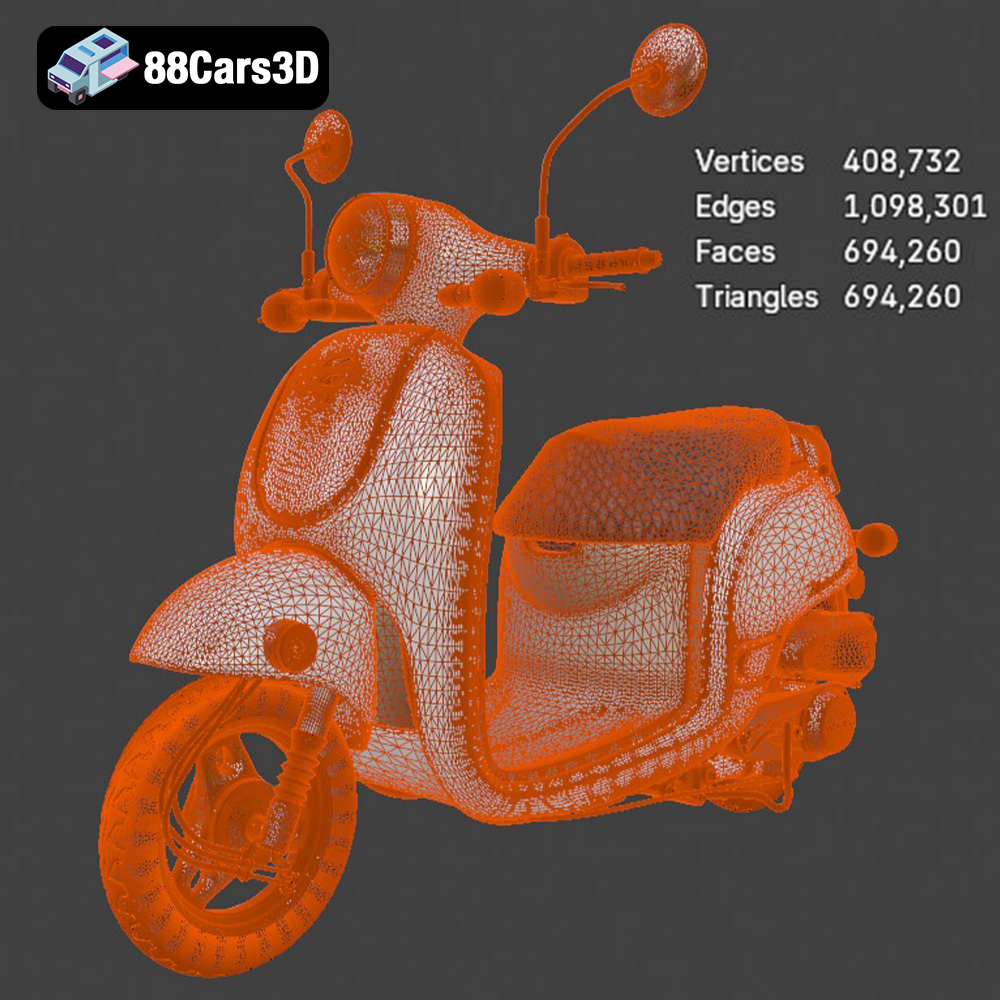
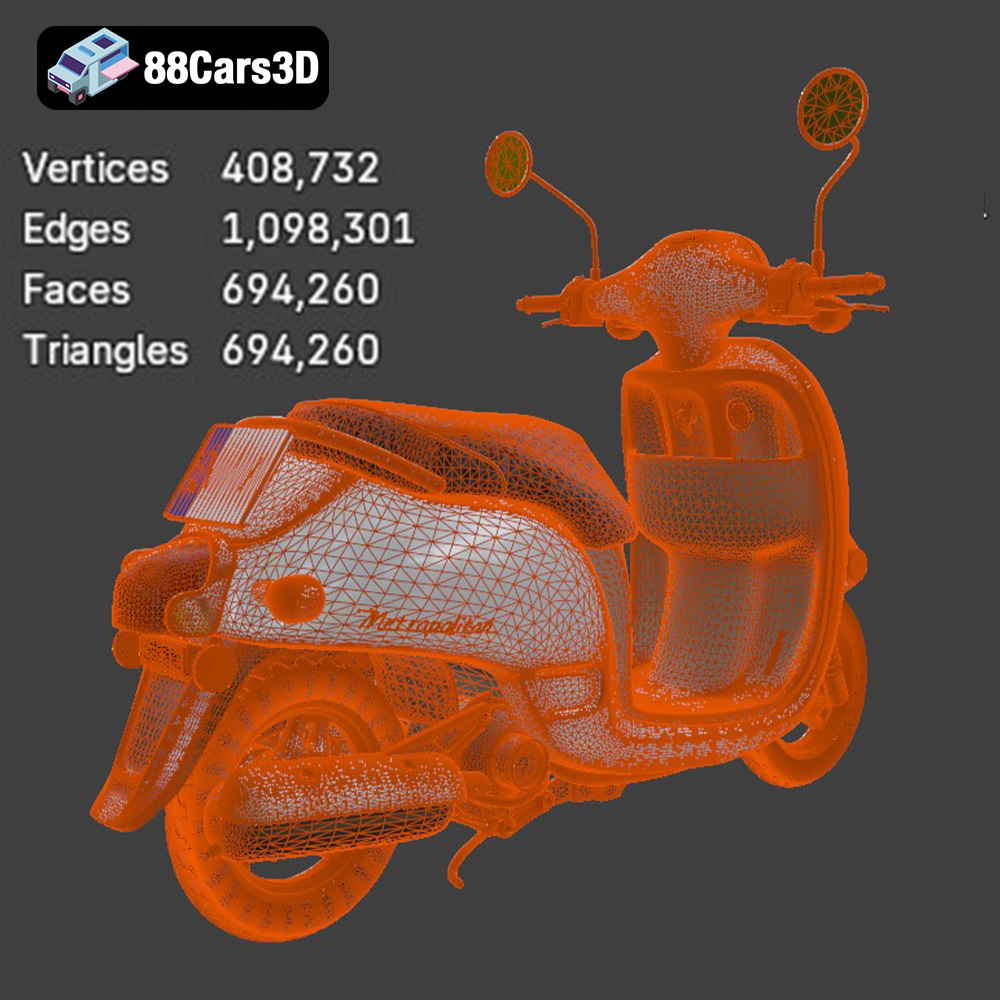
The STL (Stereolithography) file format is the workhorse of 3D printing. It represents a 3D model as a collection of triangles, forming a mesh that defines the object’s surface. This simplicity is its strength, making it universally compatible with virtually all 3D printing software and printers. However, STL files only store geometric data; they do not contain information about color, texture, or materials.
When preparing an STL file for printing, it’s crucial to ensure the mesh is “watertight,” meaning there are no holes or gaps in the surface. Non-watertight meshes can lead to errors during slicing and result in incomplete or faulty prints. Most slicing software includes tools to automatically repair minor mesh issues, but for complex models, manual repair using software like MeshMixer or Blender might be necessary. The quality of the STL file directly impacts the final print quality. A higher triangle count results in a smoother surface but also increases file size and processing time. Balancing detail and performance is key. 88cars3d.com ensures their STL models are optimized for 3D printing, minimizing the need for extensive pre-processing.
OBJ files are more versatile than STL files, as they can store color and texture information in addition to geometric data. This makes them suitable for colored 3D printing, although colored 3D printing is less common than standard monochrome printing. While some slicing software can import OBJ files, they are typically converted to STL format before printing.
PLY files are designed to store 3D data acquired from 3D scanners. They can represent surfaces as polygons or point clouds and can also store color and texture information. PLY files are often used in applications where high-precision scanning data needs to be processed and visualized. While less common for direct 3D printing, they can be converted to STL if the level of detail is required.
Blender is a popular open-source 3D modeling software. A .blend file is a native Blender file that contains the entire scene, including the model, materials, lighting, and animation. While .blend files cannot be directly 3D printed, they are invaluable for customizing the model before exporting it to a printable format like STL.
FBX (Filmbox) is a proprietary file format developed by Autodesk. It is widely used for exchanging 3D data between different software applications, particularly in the game development and animation industries. FBX files can store geometric data, textures, materials, and animation data. While some advanced slicing software may be able to import FBX files with material information, the primary use case for 3D printing is to extract the geometry and convert it to STL.
GLB (GL Transmission Format Binary) is a file format designed for efficient transmission and loading of 3D models in web browsers and AR/VR applications. GLB files are self-contained, meaning they include all the necessary data (geometry, textures, materials) in a single file. They are not directly used for 3D printing but are useful for previewing the model in augmented reality before committing to a print.
Similar to .blend files, .max files are native to Autodesk 3ds Max, a professional 3D modeling and rendering software. These files contain the entire project, including the model, materials, lighting, and animation setup. They cannot be directly 3D printed but provide a high level of control for advanced customization before exporting to a printable format like STL.
Once you’ve chosen your printer and material, the next crucial step is preparing the 3D model for printing using slicing software. Slicing software takes the 3D model (typically in STL format) and divides it into thin layers, generating the G-code instructions that the 3D printer will follow.
* Cura: A free and open-source slicing software with a user-friendly interface and extensive customization options. It’s a popular choice for beginners and experienced users alike.
* PrusaSlicer: Another excellent open-source option, known for its advanced features and precise control over printing parameters. It’s particularly well-suited for Prusa printers but can be used with other printers as well.
* Simplify3D: A commercial slicing software offering advanced features, such as customizable support structures and multi-process printing.
* Orientation: The orientation of the Honda Metropolitan 2013 model on the print bed significantly affects the print quality and the amount of support material needed. Generally, orienting the model with the flattest side down will provide better adhesion and stability. Consider tilting the model slightly to minimize the need for supports on visible surfaces.
* Support Structures: Support structures are necessary to support overhanging features of the model during printing. In Cura or PrusaSlicer, experiment with different support types (e.g., tree supports, linear supports) and densities to find the optimal balance between support strength and ease of removal.
* Adhesion: Bed adhesion is critical to prevent warping, especially with materials like ABS. Use a brim or raft to increase the contact area between the model and the print bed.
Achieving a high-quality 3D print of the Honda Metropolitan 2013 requires careful attention to printer settings. These settings will vary depending on the printer, material, and desired level of detail.
* Layer Height: A layer height of 0.1mm to 0.2mm is recommended for FDM printing to capture the fine details of the model. For SLA printing, a layer height of 0.025mm to 0.05mm will yield even finer detail.
* Infill Density: An infill density of 15% to 20% is generally sufficient for structural integrity without adding excessive weight or print time. Adjust the infill pattern (e.g., gyroid, honeycomb) for optimal strength and material usage.
* Print Speed: A print speed of 40mm/s to 60mm/s is recommended for most FDM printers. Reduce the speed for intricate details and overhangs.
* Temperature: Follow the manufacturer’s recommendations for the printing temperature of your chosen material. Typically, PLA prints at 200°C to 220°C, PETG at 230°C to 250°C, and ABS at 230°C to 260°C.
* Retraction: Adjust the retraction settings to minimize stringing and oozing, especially with flexible filaments.
* Cooling: Proper cooling is essential for PLA to prevent warping and improve surface finish. Use a cooling fan at 100% speed for PLA. PETG and ABS require less cooling to maintain layer adhesion.
* Support Settings: Experiment with different support settings, such as support density, overhang angle, and support placement, to optimize support removal and minimize surface blemishes.
Once the 3D print is complete, post-processing techniques can enhance the appearance and functionality of the Honda Metropolitan 2013 model.
* Support Removal: Carefully remove the support structures using pliers or a sharp knife. Take your time to avoid damaging the model.
* Sanding: Sand the surface of the model with progressively finer grits of sandpaper to smooth out any imperfections and layer lines. Start with a coarse grit (e.g., 220 grit) and gradually move to finer grits (e.g., 400 grit, 600 grit, 800 grit). Wet sanding can help to reduce dust and improve the surface finish.
* Priming: Apply a primer coat to the model to provide a smooth and uniform surface for painting.
* Painting: Use acrylic paints or spray paints to add color and detail to the model. Consider using stencils or masking tape to create intricate designs.
* Clear Coating: Apply a clear coat to protect the paint and add a glossy or matte finish.
* The Honda Metropolitan 2013 model may consist of multiple parts that need to be assembled after printing. Use adhesive or glue to securely attach the parts together.
Even with careful preparation and optimized settings, 3D printing can sometimes present challenges. Here are some common issues and their solutions:
* Cause: Uneven cooling or poor bed adhesion.
* Solution: Use a heated bed, increase bed adhesion with a brim or raft, and ensure proper ventilation to prevent drafts.
* Cause: Excessive oozing of filament during travel moves.
* Solution: Adjust retraction settings, lower printing temperature, and increase travel speed.
* Cause: Poor layer adhesion due to insufficient temperature or cooling.
* Solution: Increase printing temperature, reduce cooling fan speed, and ensure proper bed leveling.
* Cause: The first layer is too squished.
* Solution: Adjust Z-offset, reduce initial layer flow, and ensure proper bed leveling.
The print time and material cost for the Honda Metropolitan 2013 model will depend on the size of the model, the chosen material, and the printer settings. As a rough estimate, a model printed at 150mm in length with 20% infill might take 10-15 hours and use approximately 100-150 grams of filament. Resin printing will generally be faster but can be more expensive per print depending on the size of the model.
3D printing the Honda Metropolitan 2013 model is a rewarding project that combines technical skill with creative expression. By carefully selecting the right printer and material, optimizing the print settings, and mastering post-processing techniques, you can create a stunning replica of this iconic scooter. Whether you’re a hobbyist, a designer, or a maker, 3D printing offers a unique way to bring your ideas to life. And with resources like 88cars3d.com providing high-quality 3D models, the possibilities are endless. Happy printing!
Experience realistic visualization with the Honda Metropolitan 2013 3D Model. This exceptionally detailed asset brings true-to-life precision to your projects, featuring accurate proportions and refined curves that capture the essence of the original vehicle. Built with clean geometry and professional-grade construction, this model is designed for seamless integration into various pipelines. It features realistic materials and expertly crafted surfaces, ensuring striking results under diverse lighting conditions. Every component has been meticulously modeled to provide top-tier realism without compromising performance.
$19.99
.arvr
.blend
.car3dmodel
.fbx
.gameasset
.glb
.honda
.max
.metropolitan
.moped
.obj
.ply
.rendering
.scooter
.simulation
.stl
.unreal