Get 50% OFF All Premium 3D & STL Models!

“`html
So, you’ve got a fantastic STL file of a classic car, perhaps downloaded from a platform like 88cars3d.com, and you’re ready to bring it to life with your 3D printer. But hold on! Before you hit that “print” button, it’s crucial to ensure your STL file is clean, watertight, and optimized for printing. Imperfections in the mesh can lead to failed prints, weak structures, and a whole lot of frustration. Blender, a powerful and free 3D modeling software, is an invaluable tool for cleaning up STL files before sending them to your slicer. In this comprehensive guide, we’ll walk you through the essential steps to prepare your STL files in Blender for flawless 3D printing, covering everything from importing and analyzing the mesh to fixing common errors and exporting a print-ready file.
This article will equip you with the knowledge to:
The STL (Stereolithography) file format is the workhorse of 3D printing. It represents the surface geometry of a 3D object using a collection of triangles. However, not all STL files are created equal. A well-formed STL file should be “watertight,” meaning it has no holes, gaps, or self-intersections. The mesh should also be “manifold,” meaning that every edge in the mesh is shared by exactly two triangles. Non-manifold geometry can cause significant problems during slicing and printing, leading to errors and unexpected results.
A good STL mesh for 3D printing has several key characteristics:
Many STL files, especially those generated from reverse engineering or complex CAD models, may contain errors. Common issues include:
Before you can fix any issues, you need to import the STL file into Blender and thoroughly inspect it. Blender’s interface can seem daunting at first, but focusing on the essential tools for STL cleanup will make the process manageable. After opening Blender, delete the default cube and import your STL file by going to “File” -> “Import” -> “STL (.stl)”. Once imported, you can use the mouse wheel to zoom, middle mouse button to pan, and right mouse button to rotate the view.
Start with a visual inspection to identify obvious problems. Look for:
Blender’s “Statistics” overlay provides valuable information about the mesh’s structure. To enable it, go to “Viewport Overlays” (the two overlapping circles icon in the top right corner of the 3D Viewport) and check the “Statistics” box. This overlay will display information such as the number of vertices, edges, faces, and triangles in your mesh. A very high number of triangles can indicate an overly complex mesh that could benefit from simplification.
Once you have visually inspected your STL file, it’s time to use Blender’s tools to identify and correct any errors. Blender provides several built-in tools and modifiers specifically designed for mesh cleanup. We’ll focus on the most useful techniques for preparing STL files for 3D printing.
Flipped normals can cause significant issues during slicing. To check the normals, go to “Viewport Overlays” and enable “Face Orientation.” Blue faces indicate correct normals pointing outwards, while red faces indicate flipped normals. To fix flipped normals, select the problematic faces in Edit Mode (Tab key) and then go to “Mesh” -> “Normals” -> “Flip.” Alternatively, you can try “Mesh” -> “Normals” -> “Recalculate Outside” which will attempt to automatically correct the normal orientation.
Blender’s “Mesh Analysis” tool can help identify non-manifold edges and other issues. Enter Edit Mode (Tab Key), select the entire mesh (A key), and then go to “Mesh” -> “Clean Up” -> “Make Manifold.” This tool attempts to automatically fix non-manifold geometry by removing duplicate vertices, merging faces, and filling small gaps. If the tool can’t automatically fix the issues, it will often highlight the problematic areas, allowing you to manually address them.
Sometimes, even after cleaning up the mesh, you might find small imperfections or jagged edges on the surface of your STL model. Blender’s sculpting tools offer a powerful way to smooth out these imperfections and create a more refined surface. While sculpting is more commonly associated with creating organic shapes, it can be equally useful for subtle adjustments to improve the print quality of your car model.
Blender offers a variety of sculpting brushes, but for STL cleanup, you’ll primarily use the following:
Complex STL files with a high polygon count can be challenging to 3D print. They require more processing power from your slicer and can result in longer print times. Simplifying the mesh, while preserving the important details, is crucial for optimizing the file for 3D printing. Blender provides several methods for reducing the polygon count of your mesh, including the Decimate modifier.
The Decimate modifier is a powerful tool for reducing the polygon count of a mesh. To use it:
Before exporting your cleaned STL file, there are a few final steps to consider to ensure a successful print. These steps include setting the origin point, considering the print orientation, and verifying the scale of the model. When downloading models from marketplaces such as 88cars3d.com, the scale is usually correct, but it’s always a good idea to double-check.
The origin point of the model determines its position on the 3D printer’s build plate. To set the origin, select the mesh, go to “Object” -> “Set Origin” -> “Origin to Geometry.” Next, consider the optimal print orientation. The orientation affects the amount of support material required and the overall print quality. Rotate the model in Blender to minimize the overhangs and maximize the surface area in contact with the build plate. For car models, printing with the wheels facing down often results in better surface finish on the car’s body.
Finally, export the cleaned STL file. Go to “File” -> “Export” -> “STL (.stl).” In the export settings, make sure the “Selection Only” box is unchecked if you want to export the entire scene. Choose a descriptive filename and click “Export STL.” Your cleaned and optimized STL file is now ready to be sliced and 3D printed!
Cleaning up STL files in Blender is an essential step in the 3D printing workflow, especially when working with downloaded models. By understanding the basics of mesh topology, identifying and correcting common errors, and utilizing Blender’s powerful sculpting and optimization tools, you can significantly improve the quality and success rate of your 3D prints. Remember to always inspect your STL files thoroughly, correct any flipped normals, and simplify the mesh when possible. By following these guidelines, you’ll be well on your way to creating stunning 3D printed car models from platforms like 88cars3d.com.
Next Steps:
“`

Texture: Yes
Material: Yes
Download the Jaguar XFR-S 2014 3D Model featuring clean geometry, realistic detailing, and a fully modeled interior. Includes .blend, .fbx, .obj, .glb, .stl, .ply, .unreal, and .max formats for rendering, simulation, and game development.
Price: $19.99

Texture: Yes
Material: Yes
Download the Infiniti QX50 2019 3D Model featuring clean geometry, realistic detailing, and a fully modeled interior. Includes .blend, .fbx, .obj, .glb, .stl, .ply, .unreal, and .max formats for rendering, simulation, and game development.
Price: $19.99

Texture: Yes
Material: Yes
Download the Hyundai i40 Wagon 2015 3D Model featuring clean geometry, realistic detailing, and a fully modeled interior. Includes .blend, .fbx, .obj, .glb, .stl, .ply, .unreal, and .max formats for rendering, simulation, and game development.
Price: $19.99

Texture: Yes
Material: Yes
Download the Honda NSX 2017 3D Model featuring clean geometry, realistic detailing, and a fully modeled interior. Includes .blend, .fbx, .obj, .glb, .stl, .ply, .unreal, and .max formats for rendering, simulation, and game development.
Price: $19.99
Texture: Yes
Material: Yes
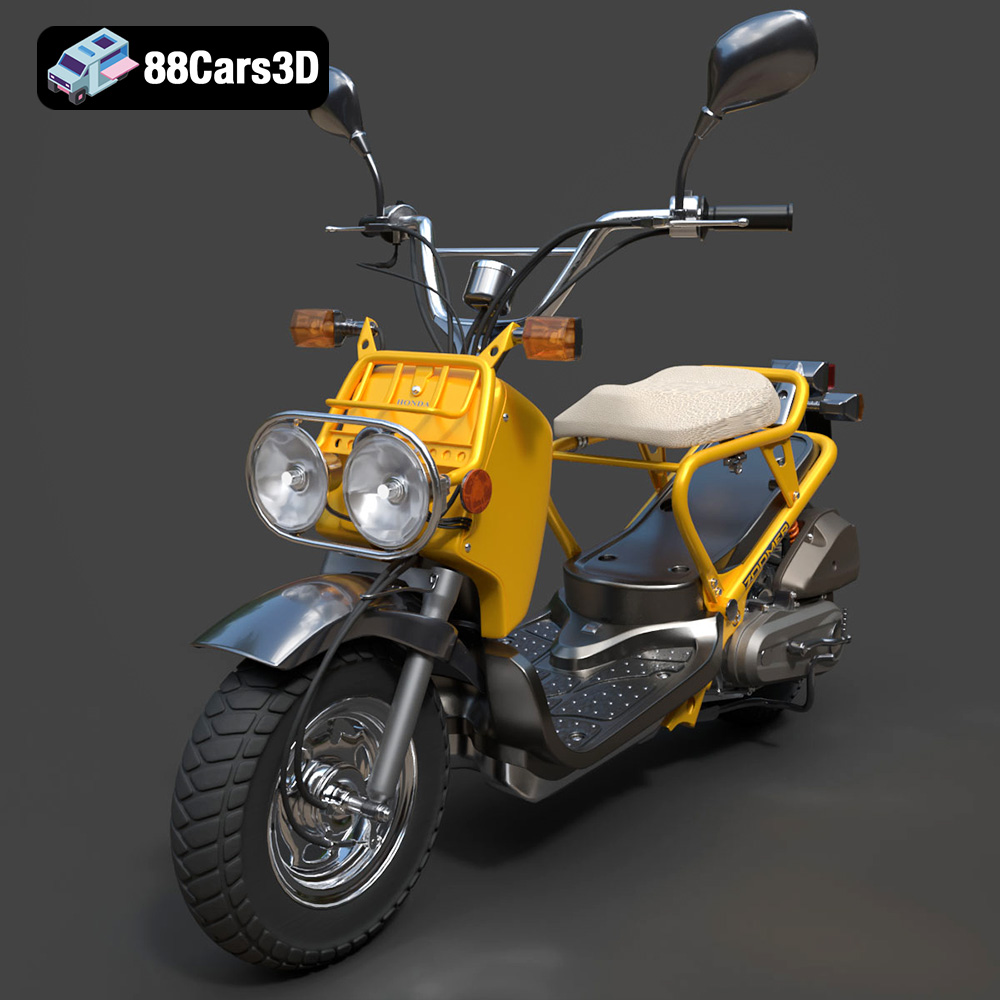
Download the Honda Zoomer 50 2005 3D Model featuring clean geometry, realistic detailing, and a fully modeled interior. Includes .blend, .fbx, .obj, .glb, .stl, .ply, .unreal, and .max formats for rendering, simulation, and game development.
Price: $19.99

Texture: Yes
Material: Yes
Download the Honda Valkyrie GL1800C 2015 3D Model featuring clean geometry, realistic detailing, and a fully modeled interior. Includes .blend, .fbx, .obj, .glb, .stl, .ply, .unreal, and .max formats for rendering, simulation, and game development.
Price: $19.99
Texture: Yes
Material: Yes
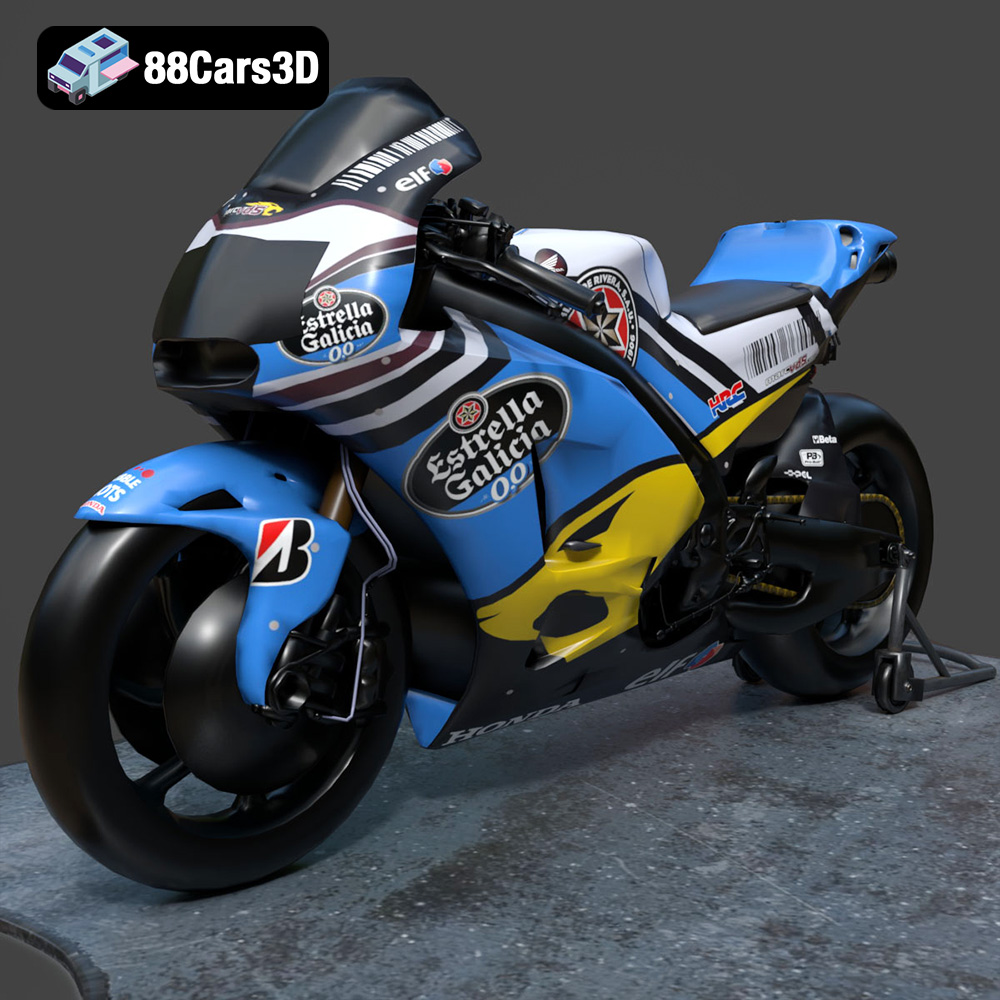
Download the Honda RCV-213-001 3D Model featuring clean geometry, realistic detailing, and a fully modeled interior. Includes .blend, .fbx, .obj, .glb, .stl, .ply, .unreal, and .max formats for rendering, simulation, and game development.
Price: $19.99
Texture: Yes
Material: Yes
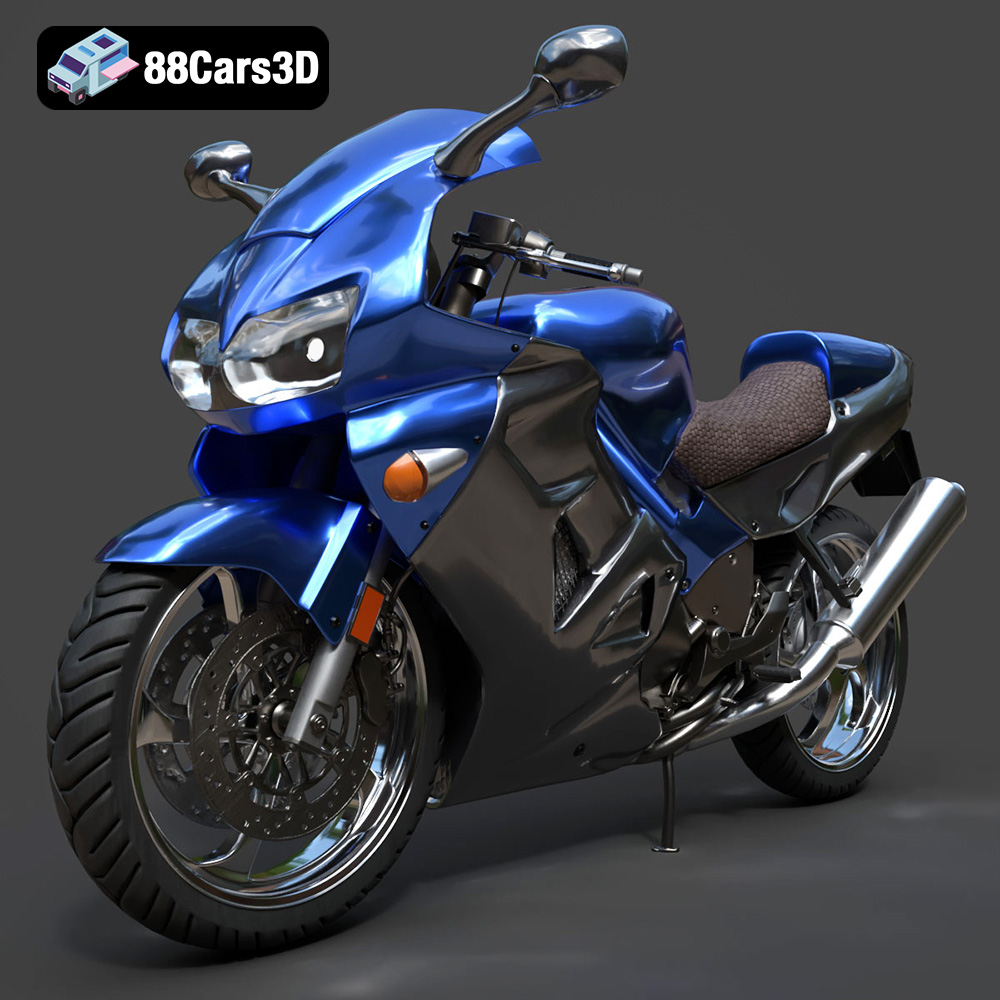
Download the Honda VFR 801-002 3D Model featuring clean geometry, realistic detailing, and a fully modeled interior. Includes .blend, .fbx, .obj, .glb, .stl, .ply, .unreal, and .max formats for rendering, simulation, and game development.
Price: $19.99
Texture: Yes
Material: Yes
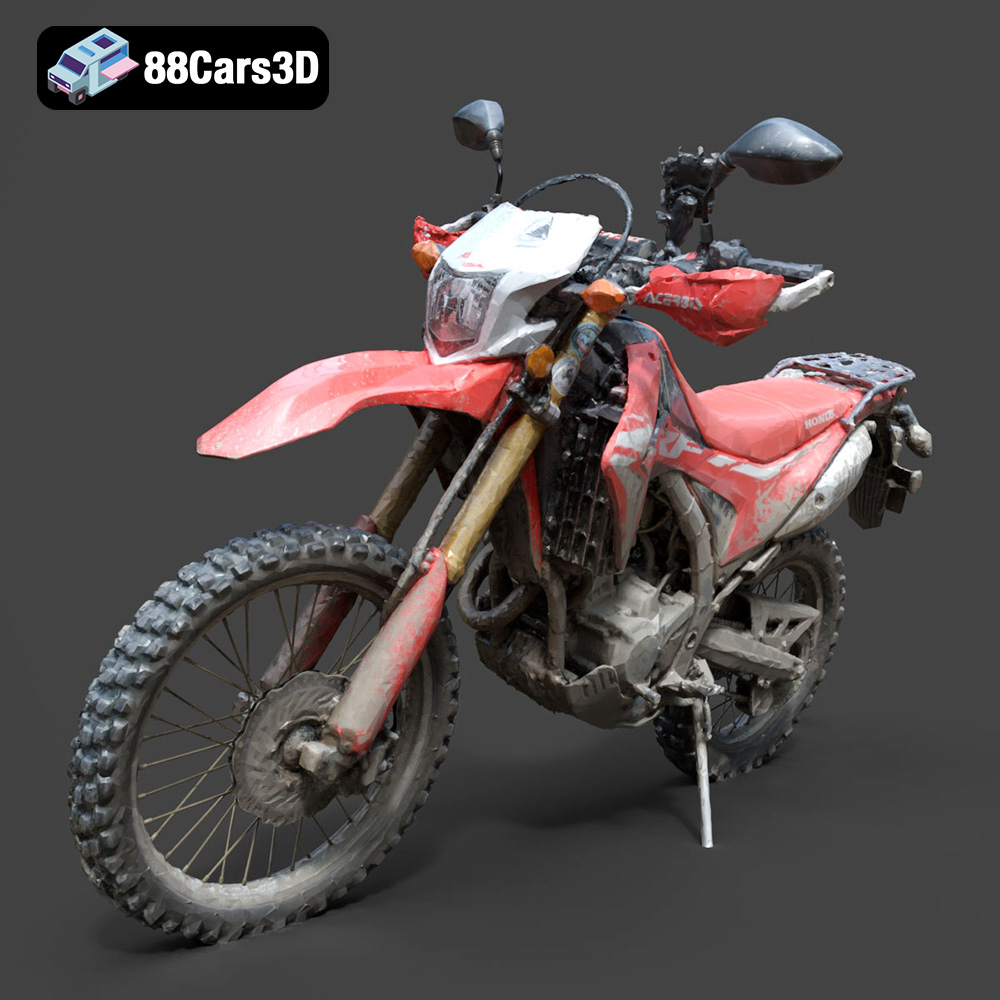
Download the Honda Motorcycle-001 3D Model featuring clean geometry, realistic detailing, and a fully modeled interior. Includes .blend, .fbx, .obj, .glb, .stl, .ply, .unreal, and .max formats for rendering, simulation, and game development.
Price: $19.99

Texture: Yes
Material: Yes
Download the Honda Monkey 125 2019 3D Model featuring clean geometry, realistic detailing, and a fully modeled interior. Includes .blend, .fbx, .obj, .glb, .stl, .ply, .unreal, and .max formats for rendering, simulation, and game development.
Price: $19.99

