Get 50% OFF All Premium 3D & STL Models!

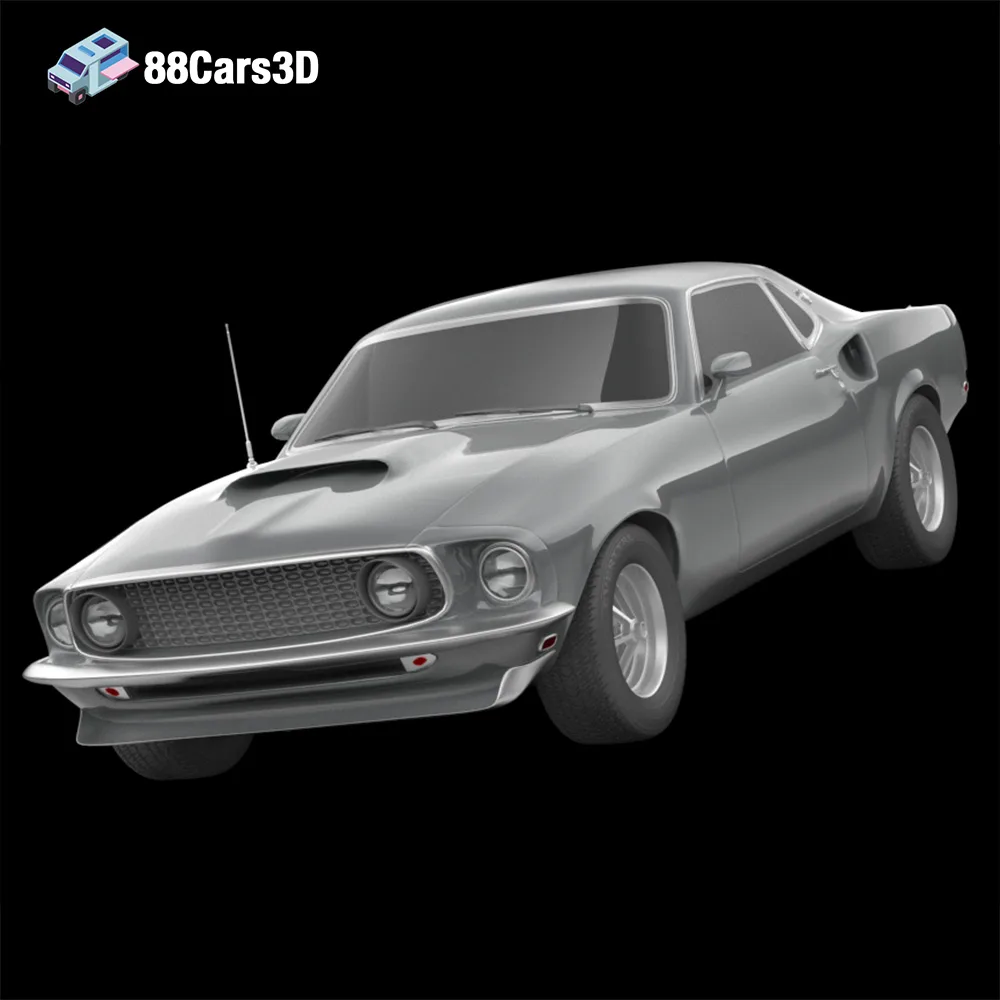
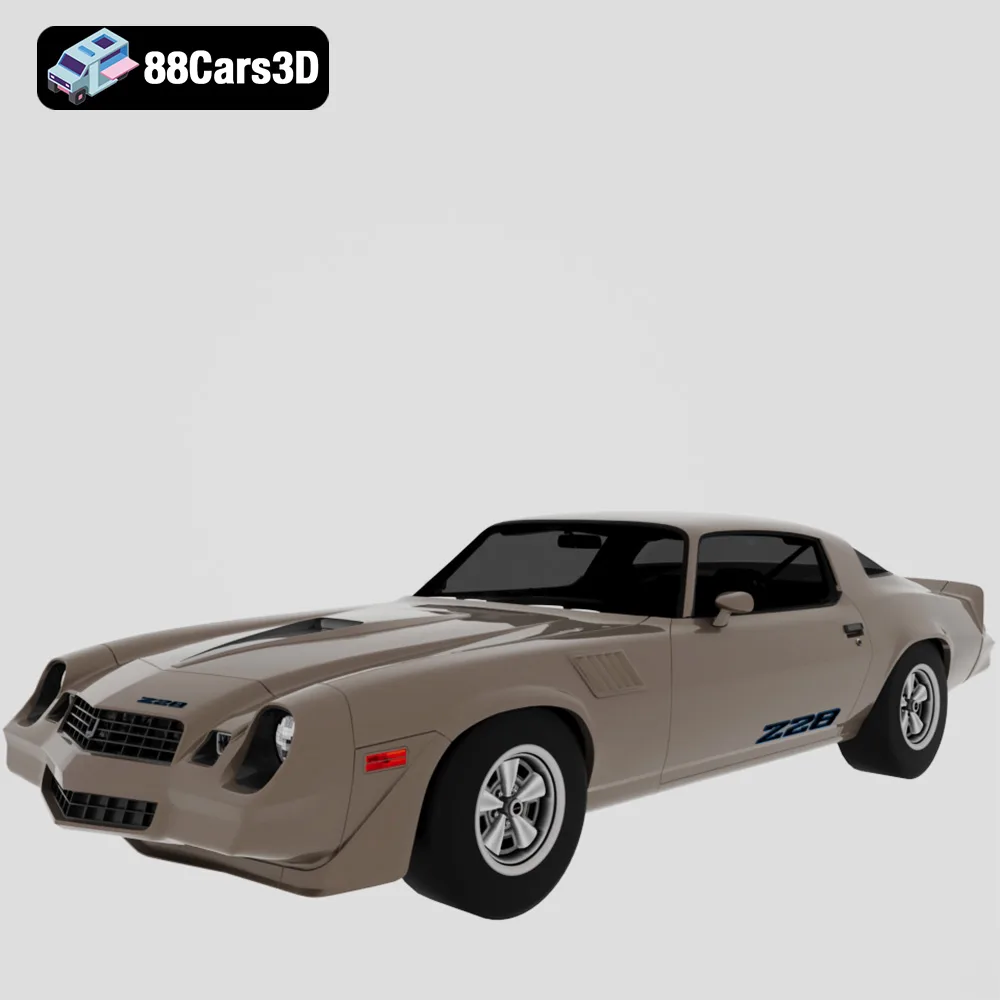
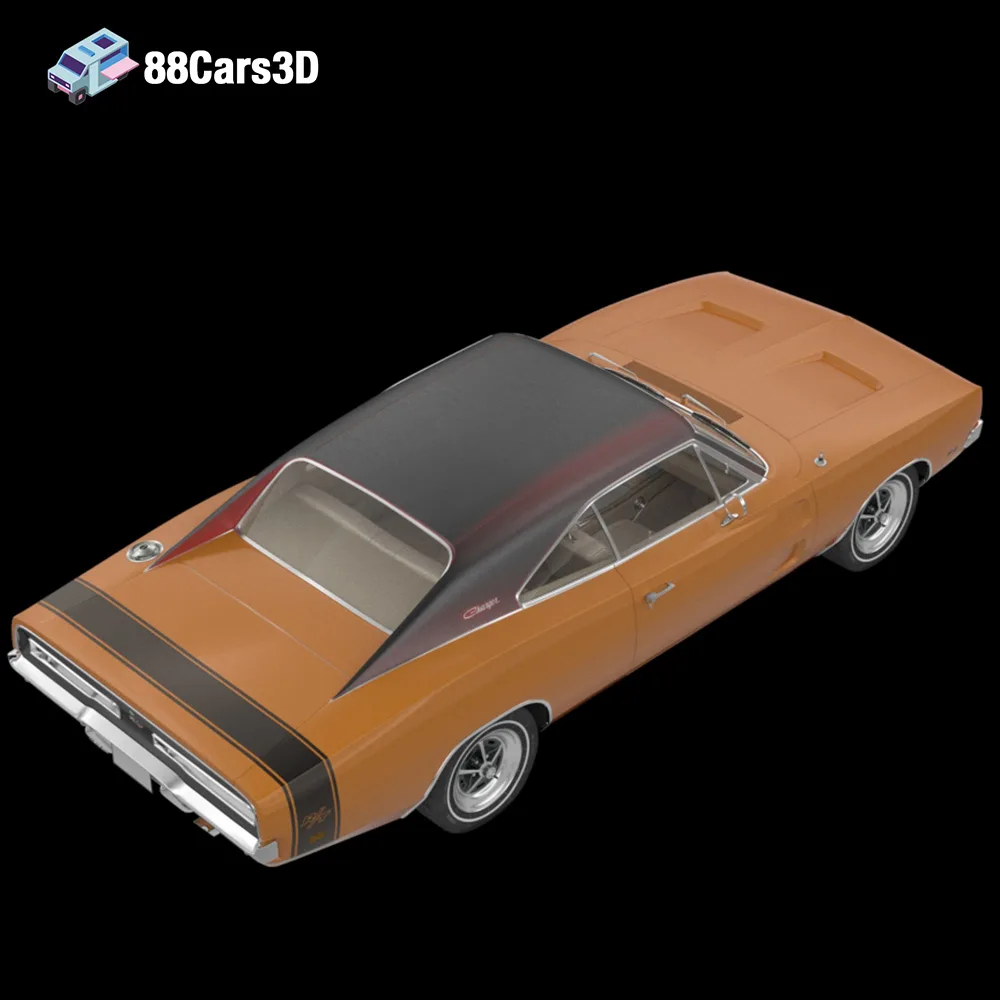
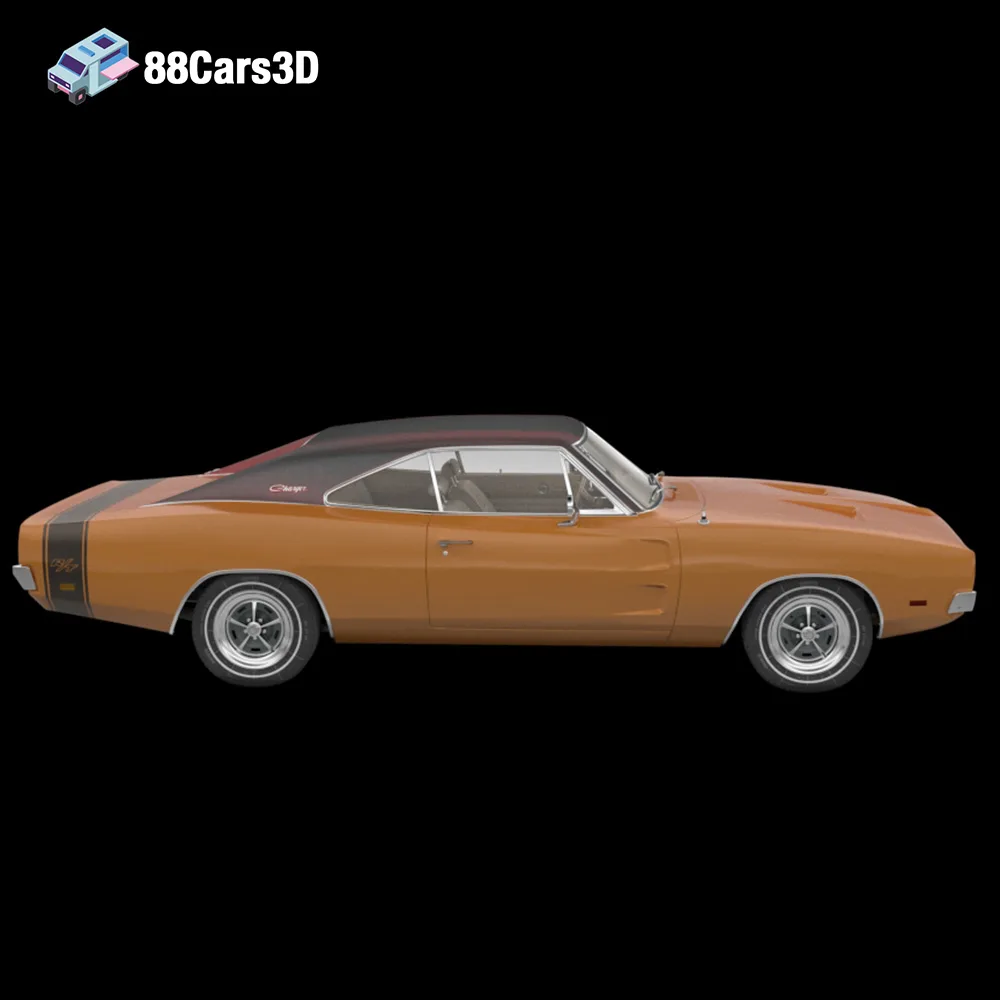
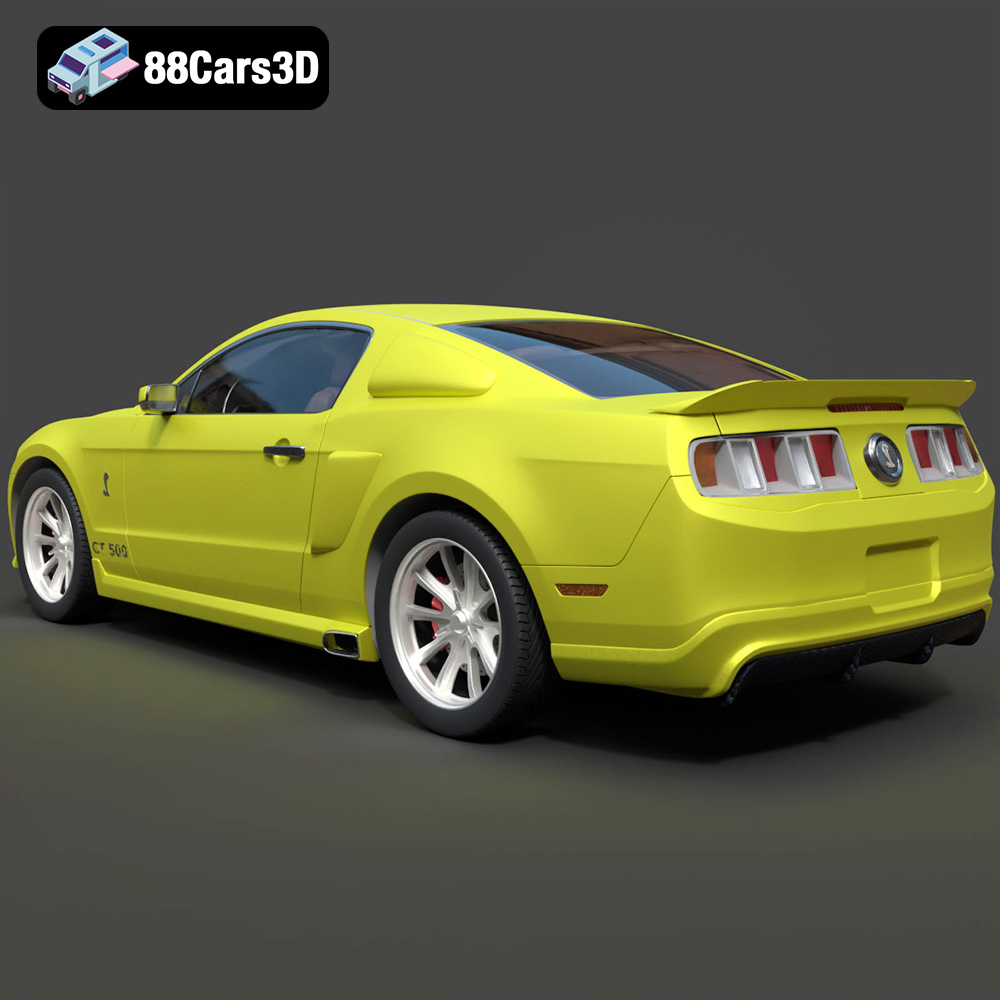
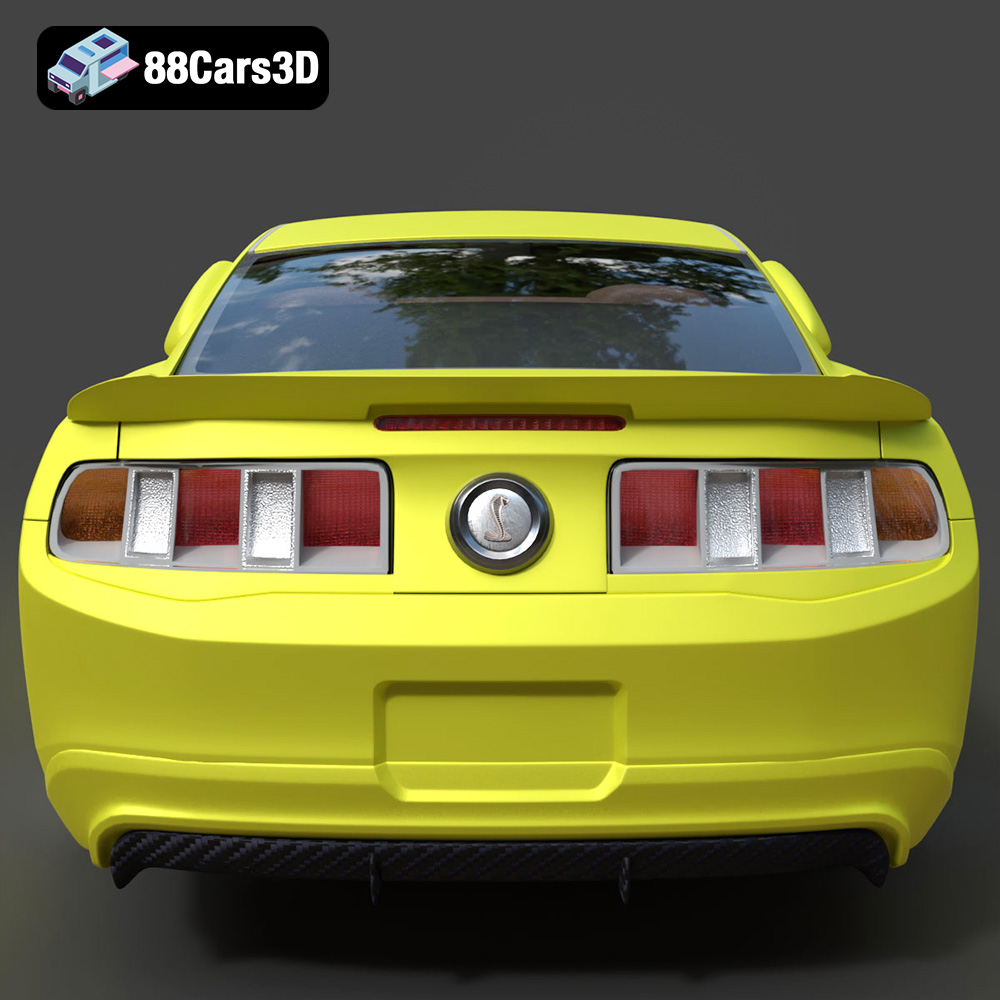
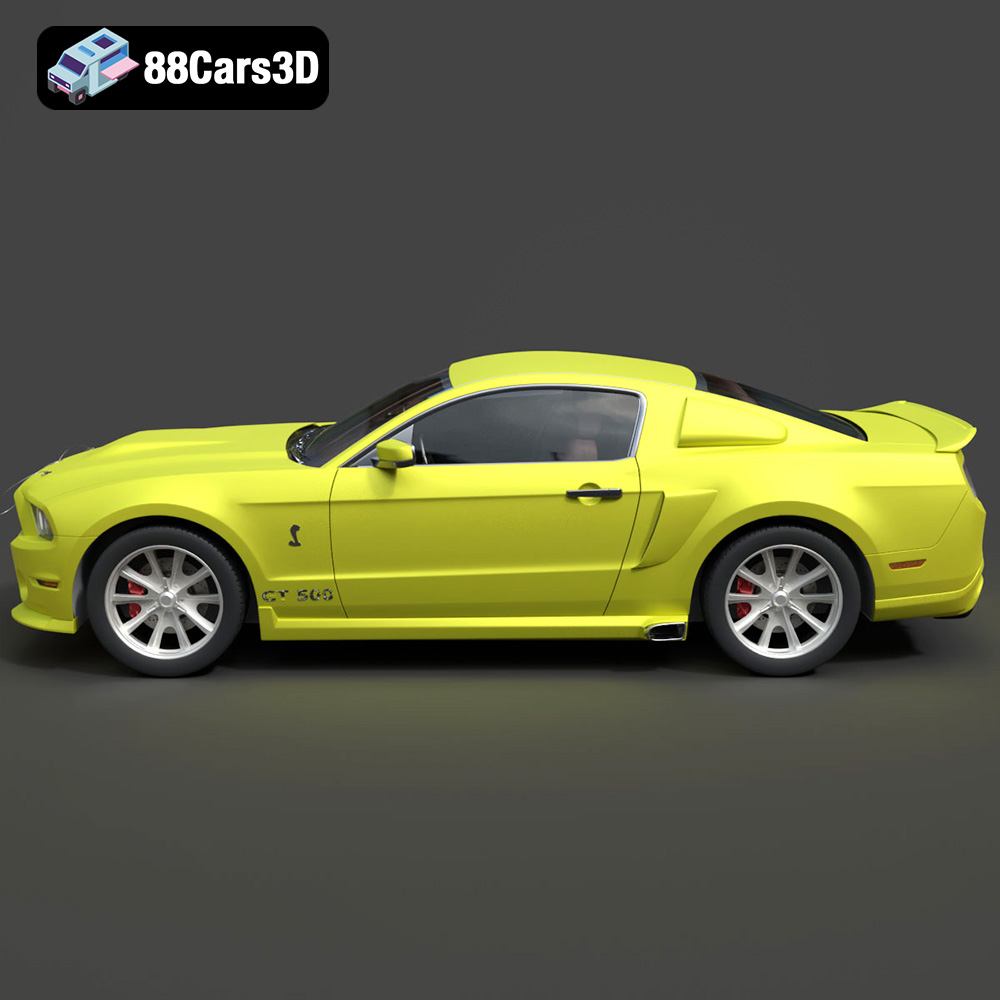
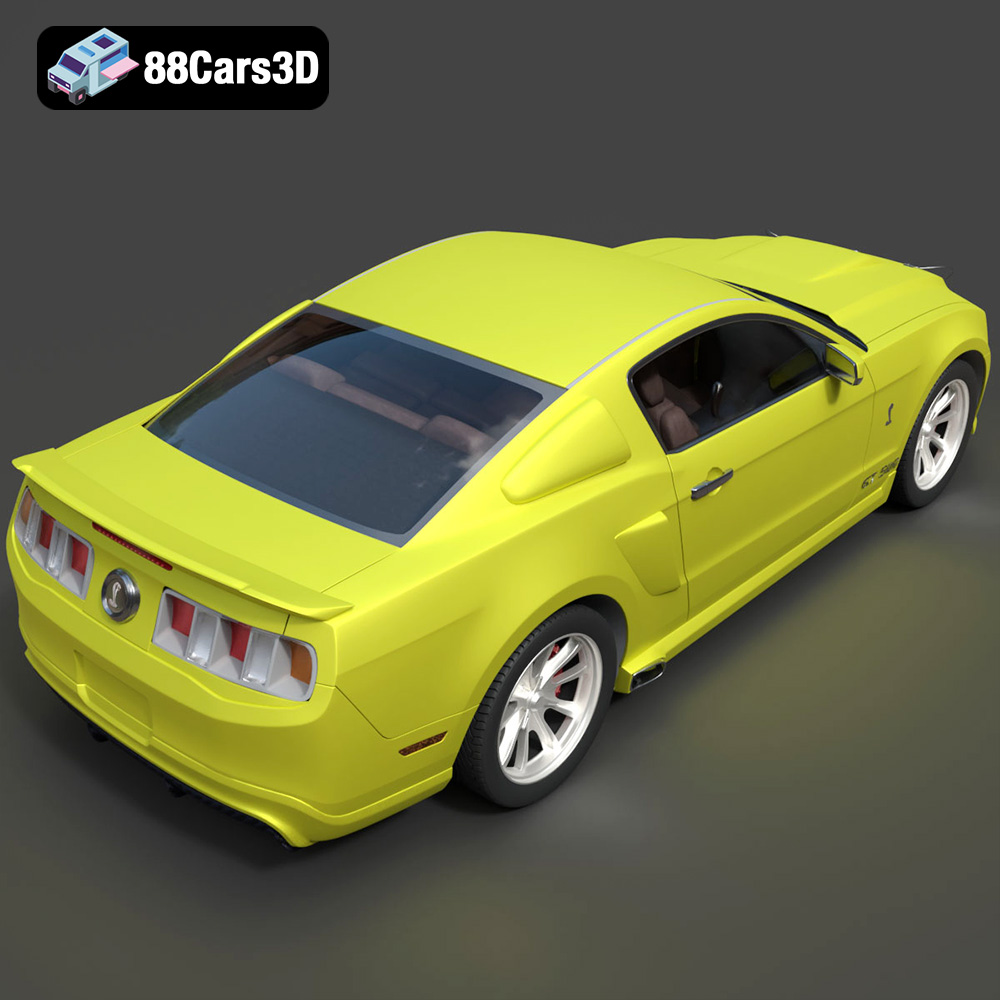
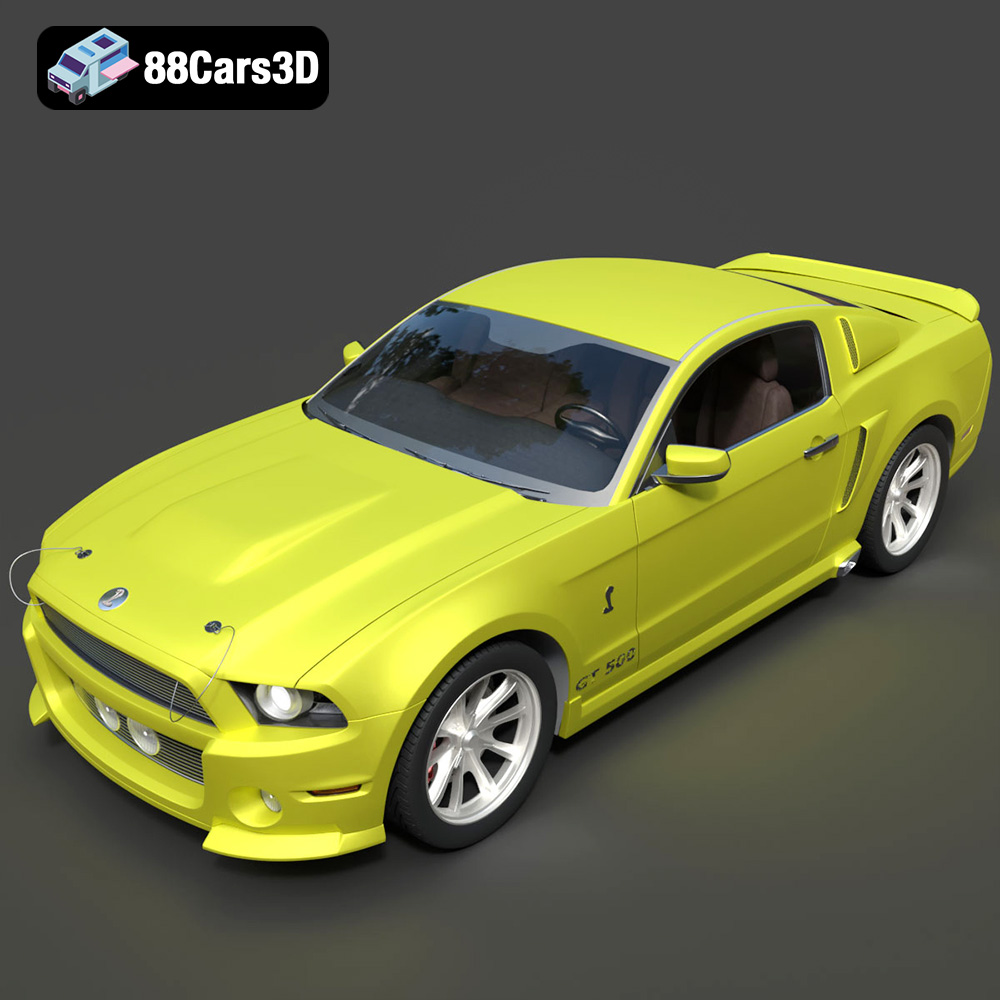
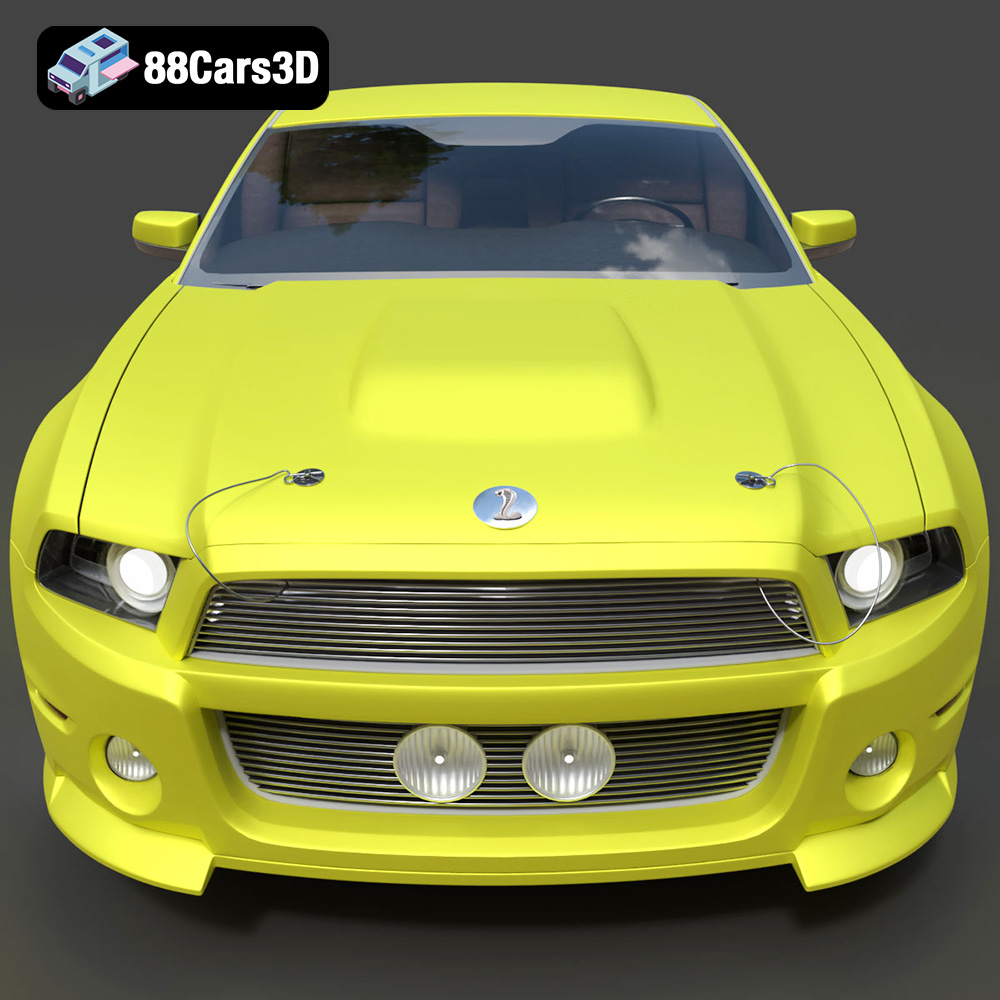
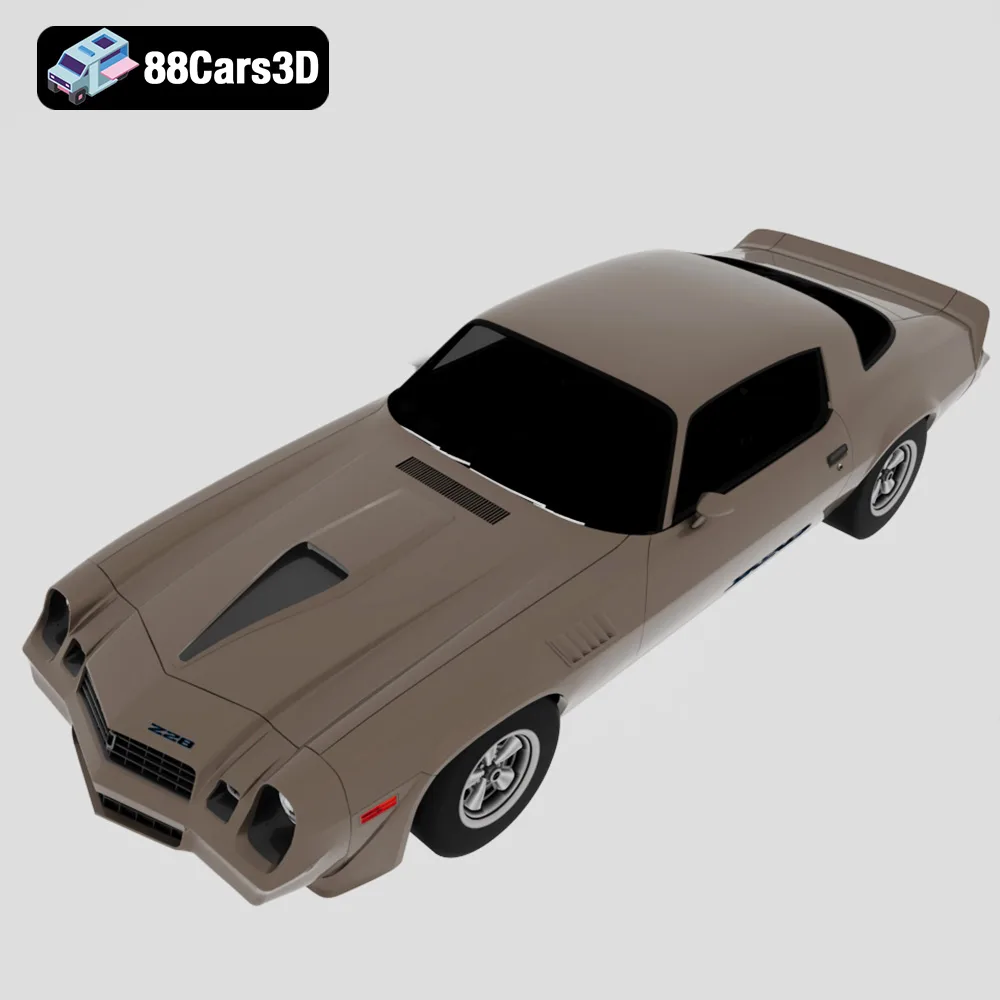
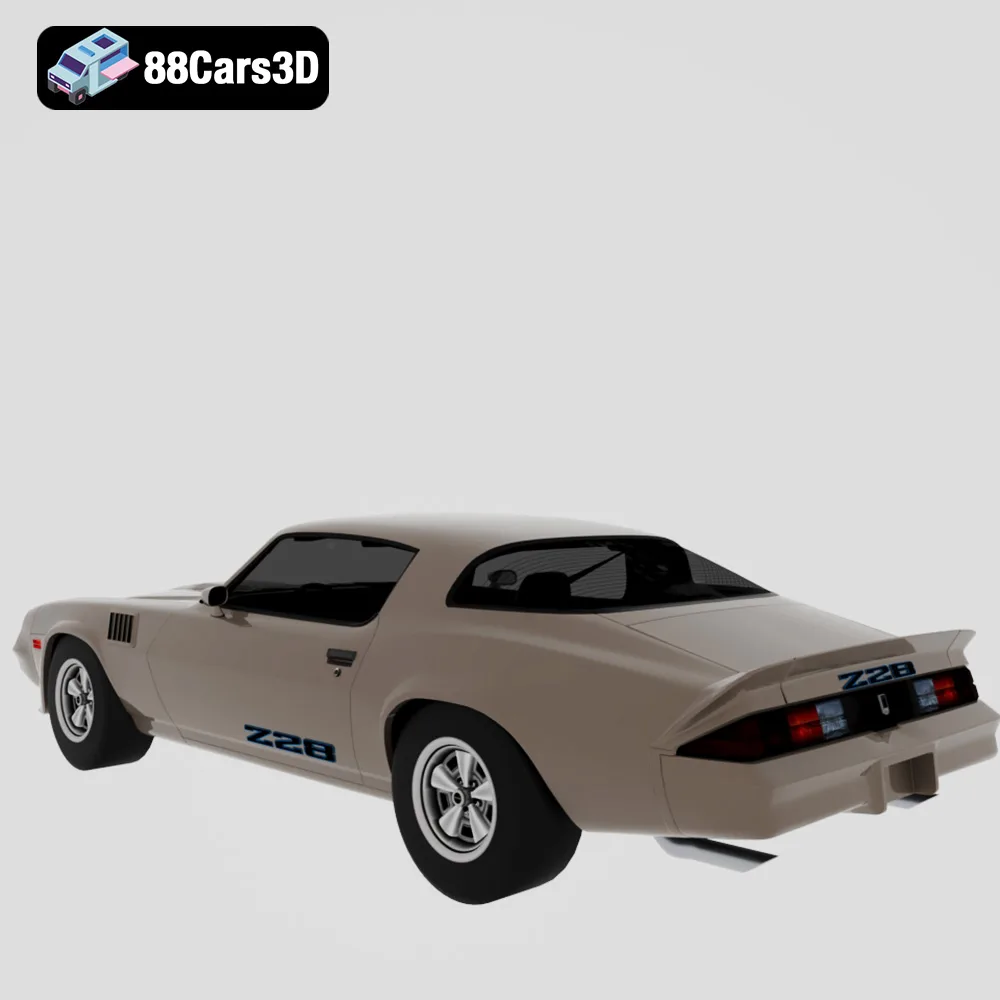
The roar of a V8 engine, the gleam of chrome, the iconic silhouettes – American muscle cars are more than just vehicles; they’re symbols of an era. Now, thanks to 88cars3d.com and their American Muscle & Classics Pack 4 in 1, you can bring these legends to life with 3D printing. This comprehensive guide will walk you through every step of the process, from selecting the right materials to achieving a flawless finish on your 3D printed Dodge Charger ’68, Ford Mustang Eleanor GT500, Chevrolet Camaro Z28 ’79, and custom ’69 Mustang. Prepare to transform digital STL files into tangible tributes to automotive history.
The American Muscle & Classics Pack from 88cars3d.com is designed for a variety of 3D printing technologies, but the level of detail dictates the optimal choices. The intricate grilles, sleek body lines, and detailed wheels of these classic cars demand precision.
For the highest level of detail, especially when printing at smaller scales like 1:24 or 1:18 (as recommended in the product description), resin printing is the superior choice. SLA (Stereolithography) and DLP (Digital Light Processing) printers use liquid resin cured by light, resulting in exceptionally smooth surfaces and the ability to capture fine features.
FDM printing, which uses melted plastic filament, is a more affordable option. While it may not capture the same level of detail as resin, careful selection of materials and printer settings can still yield impressive results, especially for larger scale models.
The American Muscle & Classics Pack from 88cars3d.com includes several file formats to ensure compatibility with various software and hardware. Understanding these formats is crucial for a successful 3D printing experience.
The .stl (Stereolithography) file format is the industry standard for 3D printing. It represents the surface geometry of a 3D object as a collection of triangles. This format is widely supported by slicing software, making it the most reliable choice for preparing your models for printing. STL files contain no color or texture information; they are purely geometric. This means that any color or surface finish must be added during post-processing. When exporting to STL, it’s crucial to choose an appropriate resolution. A higher resolution STL will result in a smoother surface but will also increase the file size. Lower resolution STL files will have noticeable facets. For the detailed models in the American Muscle & Classics Pack, ensure that you use a high enough resolution to capture the intricate details of the grilles, lights, and body panels. Most slicing software offers options to control the STL export resolution.
The .obj (Wavefront Object) file format is another widely used format that, unlike STL, can store color and texture information along with the geometry. This makes it suitable for models intended for rendering or visualization where color accuracy is important. However, not all 3D printers support color printing directly from OBJ files. OBJ files are compatible with most slicing software, but you may need to ensure that the software is configured to handle the texture information if it exists. If you plan to print the model in a single color, you can typically ignore the texture data.
The .ply (Polygon File Format) is designed for storing 3D data acquired from 3D scanners. It can represent data as a collection of polygons, similar to STL, but can also store additional properties like color, normals, and texture coordinates. .ply files are useful for high-detail scans but may not be as universally supported as STL or OBJ. Some slicing software may require plugins or specific configurations to import .ply files correctly. Ensure that the mesh quality is suitable for 3D printing, as scanned data can sometimes contain imperfections that need to be addressed before printing.
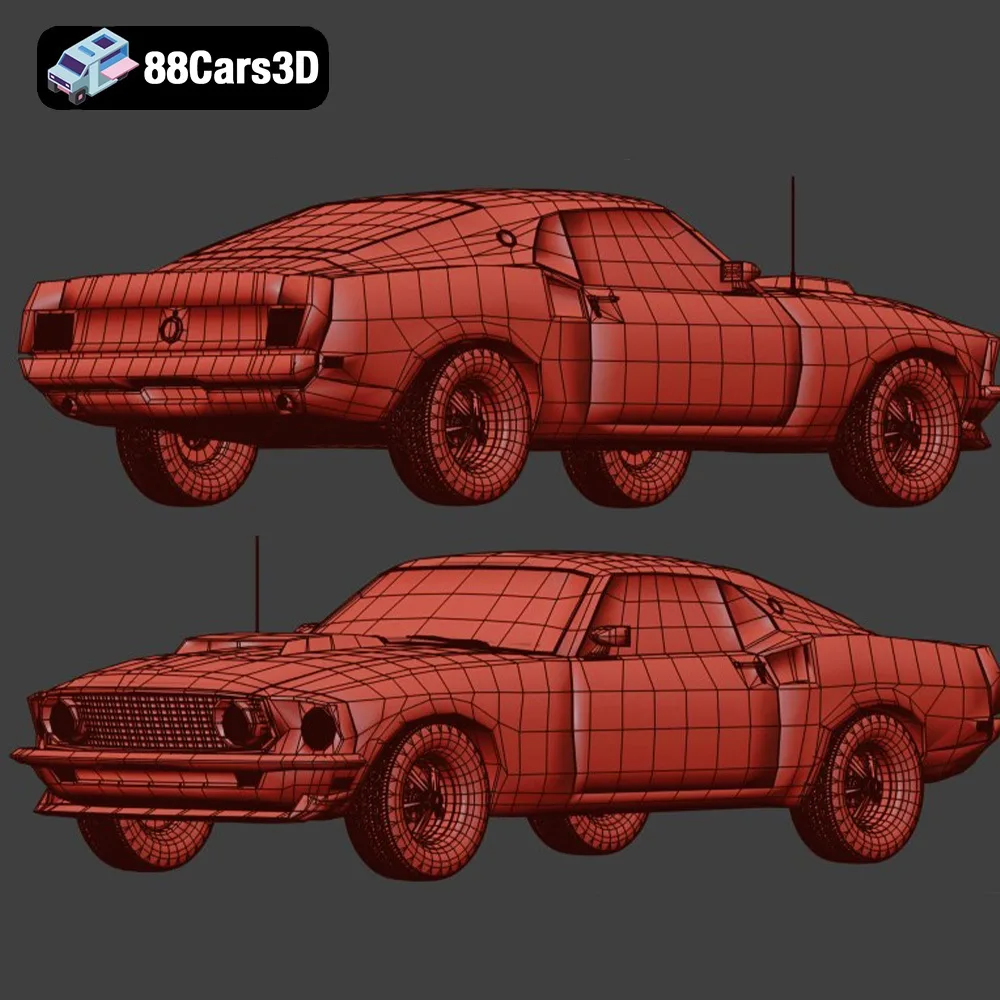
The .blend file format is the native format for Blender, a popular open-source 3D modeling software. This format contains the entire Blender scene, including the model geometry, textures, materials, lighting, and animation data. If you are familiar with Blender, using the .blend file allows you to make modifications to the model before exporting it to a 3D printable format like STL. This can be useful for optimizing the model for printing, such as adding supports, hollowing out the model to save material, or simplifying complex geometries. Once you have made the necessary changes, you can export the model to STL for slicing and printing.
The .fbx (Filmbox) file format is a proprietary format developed by Autodesk for interoperability between 3D software packages. It supports the transfer of geometry, textures, materials, and animations. FBX files are commonly used in game development and animation workflows. While some slicing software can import FBX files, it’s primarily intended for transferring models between different software applications rather than directly for 3D printing. You can use FBX to import the model into a 3D modeling program, make any necessary adjustments, and then export it as an STL file for printing.
The .glb (GL Transmission Format Binary) is a binary file format that represents 3D models in a compact and efficient way. It is commonly used for displaying 3D models in web browsers and augmented reality (AR) applications. GLB files can contain geometry, textures, materials, and animations. While not directly used for 3D printing, GLB files are useful for previewing the model in AR before printing to ensure that it meets your expectations in terms of size and appearance. This can help you identify any potential issues with the model before committing to the printing process.
.max is the native file format for Autodesk 3ds Max, a professional 3D modeling, animation, and rendering software. This format, like .blend, contains the entire scene setup, allowing for comprehensive editing and modification. While not directly used for 3D printing, it’s incredibly useful for users of 3ds Max who want to customize the models before exporting them to a printable format like STL. This includes tasks such as refining details, adjusting geometry for optimal printability, and adding custom supports. After modifications, export the model as an STL for slicing and printing.
Focus on STL for 3D Printing: For 3D printing, the .stl format is generally the most reliable and widely supported option. When working with the American Muscle & Classics Pack, start with the STL files to ensure compatibility with your slicing software. If you need to make modifications, use the .blend or .max files (if you have the corresponding software) and then export the modified model as an STL. Ensure that the STL file has a high enough resolution to capture the details of the model without creating an excessively large file.
Before you can send your 3D model to the printer, you need to process it using slicing software. This software converts the 3D model into a series of instructions (G-code) that the printer can understand. The slicing software also allows you to adjust various settings that affect the print quality, strength, and speed.
Popular slicing software options include Cura, Simplify3D, PrusaSlicer, and Chitubox (for resin printing). Each software has its own strengths and weaknesses, so experiment to find the one that best suits your needs. Key settings to configure include:
The orientation of the model on the build plate significantly affects print quality and support requirements. The product description recommends printing the car bodies angled backwards to ensure flawless hoods. This reduces the need for supports on the front of the car and helps to create a smoother surface finish. Wheels and spoilers should be printed separately to optimize their individual printing parameters.
To get the best results when 3D printing the American Muscle & Classics Pack from 88cars3d.com, consider these specific settings:
3D printing is just the first step. Post-processing is crucial for achieving a professional-looking finish on your American muscle car models.
Carefully remove the support structures using cutters or pliers. For resin prints, soak the parts in isopropyl alcohol (IPA) to remove any uncured resin. Use a soft brush to clean hard-to-reach areas. For FDM prints, a deburring tool can help remove small imperfections.
Sand the surfaces to remove layer lines and imperfections. Start with a coarse grit sandpaper (e.g., 220 grit) and gradually move to finer grits (e.g., 400, 600, 800 grit). Apply filler primer to fill in any remaining gaps or imperfections. Sand the primer smooth before painting. Use automotive-grade paints and clear coats for a durable and realistic finish. Consider using stencils or masking tape to create intricate details.
Even with careful preparation, 3D printing can sometimes present challenges. Here are some common issues and their solutions:
Cause: Uneven cooling or poor bed adhesion.
Solution: Use a heated bed, apply a bed adhesion aid (e.g., glue stick, hairspray), or enclose the printer to maintain a consistent temperature.
Cause: Insufficient layer adhesion or underexposure (resin).
Solution: Increase nozzle temperature (FDM), increase exposure time (resin), or reduce print speed.
Cause: Filament oozing from the nozzle during travel moves.
Solution: Increase retraction distance and speed, decrease nozzle temperature, or reduce travel speed.
Cause: Supports failing to adhere to the model or build plate.
Solution: Increase support density, adjust support placement, or increase support contact diameter.
The American Muscle & Cinematic Classics 3D Models Bundle is a high-octane, premium collection built for automotive rendering artists, game developers, and cinematic VFX studios. This 4-in-1 bundle gives you an irresistible opportunity to own four of the most iconic, highly detailed American muscle cars in digital history at a massive discount.
$149.99
american-muscle-bundle
camaro-z28
car-pack
classic-car-3d
dodge-charger-1968
ford-mustang-69
game-ready-cars
muscle-car-3d-model
mustang-eleanor
retro-cars
vfx-vehicles