Get 50% OFF All Premium 3D & STL Models!

“`html
3D printing has revolutionized prototyping, manufacturing, and hobbyist projects, providing the power to bring digital designs into the physical world. At the heart of this process lies slicing – the crucial step that transforms a 3D model into a set of instructions a 3D printer can understand. Properly slicing your STL files is the key to achieving high-quality prints, whether you’re creating intricate car models from platforms like 88cars3d.com, functional parts, or artistic sculptures. This guide will delve into the intricacies of slicing, covering essential parameters, software options, and techniques to optimize your 3D printing workflow and consistently produce exceptional results. We will explore everything from understanding STL file structure to mastering support generation and post-processing.
In this comprehensive guide, you will learn:
Whether you’re a beginner just starting your 3D printing journey or an experienced maker looking to refine your techniques, this guide provides valuable insights and actionable tips to elevate the quality of your 3D prints. Let’s dive in!
The STL (Stereolithography) file format is the de facto standard for 3D printing. It represents a 3D model as a collection of triangles, approximating the surface geometry. The density and arrangement of these triangles directly impact the accuracy and smoothness of the printed object. A poorly constructed STL file can lead to slicing errors, print artifacts, and overall poor quality. Therefore, understanding the nuances of STL files is paramount for successful 3D printing.
The resolution of an STL file refers to the number of triangles used to represent the model. A higher triangle count results in a more detailed and accurate representation of the curved surfaces, but also increases the file size and processing time during slicing. Conversely, a low triangle count can lead to faceted or blocky appearances, especially on curved surfaces. A good balance is crucial. Most CAD software allows you to control the export resolution when saving as STL. For detailed car models from 88cars3d.com, consider using a medium-to-high resolution setting to capture fine details without overburdening your slicer.
A “manifold” mesh is a closed, watertight surface – essential for 3D printing. Non-manifold geometry includes issues like holes, overlapping faces, and self-intersections. These errors can confuse the slicer, leading to incorrect toolpath generation and print failures. Before slicing, it’s crucial to inspect your STL file for such errors using mesh repair software like Meshmixer, Netfabb Basic, or even some built-in repair tools within slicers like Cura. These tools can automatically identify and fix common mesh issues, ensuring a printable model. Many online services also exist for mesh repair.
Common mesh repair techniques:
Slicing software is the bridge between your 3D model and your 3D printer. It takes the STL file as input and generates G-code, a machine language that instructs the printer on how to move, extrude material, and build the object layer by layer. The choice of slicing software significantly impacts the quality, efficiency, and reliability of your 3D prints. Numerous options are available, each with its own strengths and weaknesses.
Several popular slicing software options exist, each catering to different user needs and printer types. Cura, developed by Ultimaker, is a widely used open-source slicer known for its ease of use, comprehensive features, and active community support. PrusaSlicer, created by Prusa Research, offers advanced features like variable layer height and adaptive infill, making it a favorite among experienced users. Simplify3D is a paid slicer known for its advanced control over print settings and support generation, often preferred by professionals. Other notable options include IdeaMaker, Chitubox (for resin printers), and Lychee Slicer (also for resin printers).
When choosing a slicing software, consider the following features:
For example, Cura is a great choice for beginners due to its user-friendly interface and extensive online resources. PrusaSlicer is excellent for users who want more control over their print settings and access to advanced features. Simplify3D is suitable for professionals who need highly customizable support structures and advanced G-code manipulation capabilities.
The key to achieving high-quality 3D prints lies in mastering the crucial slicing parameters. These settings dictate how the slicer interprets the STL file and generates the G-code instructions for your printer. Understanding and optimizing these parameters allows you to control the print’s strength, surface finish, accuracy, and overall appearance. Neglecting these settings can result in weak, distorted, or failed prints.
Layer height is arguably the most important slicing parameter. It determines the thickness of each layer of material deposited by the printer. A lower layer height results in a smoother surface finish and higher resolution, but also increases the print time significantly. A higher layer height results in a faster print time but reduces the surface quality and resolution. A common starting point is 0.2mm for FDM printing, but you can go as low as 0.1mm for finer details or as high as 0.3mm for faster prototypes. Resin printing offers significantly finer layer heights, often ranging from 0.025mm to 0.1mm.
Example: Printing a car model at 0.1mm layer height will capture intricate details like panel lines and emblems, but it will take considerably longer than printing at 0.2mm.
Infill refers to the internal structure of the 3D printed object. It’s typically a sparse pattern of material that provides strength and support while minimizing material usage. Infill density is the percentage of the object’s interior that is filled with material. A higher infill density results in a stronger and more rigid print, but also increases the print time and material consumption. A lower infill density results in a faster and more lightweight print, but reduces the strength and rigidity. Common infill densities range from 15% to 25% for general-purpose prints and up to 100% for parts requiring maximum strength. Infill patterns also affect the print’s properties. Common patterns include grid, lines, triangles, and gyroid. Gyroid infill is particularly strong for its weight.
Print speed determines how fast the printer moves while extruding material. A slower print speed generally results in better layer adhesion, smoother surfaces, and more accurate dimensions. A faster print speed can save time but may compromise the print quality. The optimal print speed depends on the material, printer, and layer height. Start with the manufacturer’s recommended settings and adjust as needed. Temperature control is also critical. The extrusion temperature determines how well the plastic melts and bonds to previous layers. The bed temperature ensures proper adhesion to the build platform. Incorrect temperature settings can lead to warping, delamination, and poor layer adhesion. For PLA, typical nozzle temperatures range from 200-220°C and bed temperatures from 60-70°C. ABS requires higher temperatures, typically 230-250°C for the nozzle and 80-110°C for the bed.
Support structures are temporary scaffolding used to support overhanging features and bridges during 3D printing. They prevent these features from collapsing or warping due to gravity. Generating effective and easily removable support structures is a critical aspect of slicing, especially for complex geometries like car models with intricate curves and overhangs. Poorly designed supports can be difficult to remove, leaving unsightly marks on the finished print, or can fail during printing, ruining the entire model.
Several types of support structures are available in most slicing software, each with its own advantages and disadvantages. Tree supports are branching structures that minimize material usage and are relatively easy to remove. Linear supports are simple vertical structures that provide strong support but can be more difficult to remove and may leave larger marks. Hybrid supports combine different types of structures to optimize both support strength and removability. The best choice depends on the specific geometry of the model and the desired print quality.
Proper support placement is crucial for ensuring successful prints and minimizing post-processing effort. Focus support generation on areas with significant overhangs (typically angles greater than 45 degrees). Avoid placing supports on critical surfaces that require a smooth finish, as removing supports from these areas can be challenging without leaving marks. Adjust support density, interface layers, and support angle to optimize the balance between support strength and removability. Support interface layers create a smoother transition between the support and the printed part, making removal easier and reducing the risk of damage. When downloading models from marketplaces such as 88cars3d.com, carefully consider the intended print orientation to minimize the need for excessive support structures.
The method of support removal depends on the material and the type of support structure. For PLA and PETG, supports can typically be snapped off or cut away with pliers or a sharp knife. For more delicate models or stubborn supports, consider using specialized support removal tools, such as small chisels or dissolving support material (for dual-extrusion printers). After removing the supports, use sandpaper or files to smooth any remaining marks and improve the surface finish.
Even with careful slicing and optimal printer settings, problems can still arise during the 3D printing process. Understanding common slicing and printing issues and knowing how to troubleshoot them is essential for a smooth and successful 3D printing experience. Many issues can be traced back to the slicing stage, highlighting the importance of careful preparation.
Slicing errors can manifest in various ways, including:
Warping occurs when the printed object detaches from the build plate during printing, often due to uneven cooling or poor bed adhesion. To prevent warping, ensure the build plate is clean and level, use a heated bed, apply an adhesion aid (such as glue stick or hairspray), and enclose the printer to maintain a consistent temperature. Bed adhesion problems can also be caused by incorrect Z-offset, which is the distance between the nozzle and the build plate. Adjust the Z-offset to ensure the first layer is properly squished onto the build plate. Consider using a brim or raft to increase the surface area of the first layer and improve adhesion.
Different 3D printing materials have different properties and require specific settings. PLA is generally easy to print but can be brittle and prone to warping in large prints. PETG is stronger and more flexible than PLA but can be more stringy and require careful temperature control. ABS is a strong and durable material but requires a heated bed and an enclosed printer to prevent warping. Resin printing requires careful calibration of exposure times and support settings to ensure proper curing and adhesion.
Post-processing is the final stage in the 3D printing workflow, involving techniques to refine the surface finish, improve the aesthetic appeal, and enhance the overall quality of the printed object. While slicing parameters play a significant role in the initial print quality, post-processing can elevate the final product to a whole new level of professionalism and detail.
Sanding is a common post-processing technique used to smooth the surface of 3D printed objects and remove layer lines and imperfections. Start with coarse sandpaper (e.g., 120 grit) to remove larger imperfections and gradually move to finer grits (e.g., 400 grit, 600 grit, 800 grit) to achieve a smooth finish. Filling is used to repair gaps, holes, and imperfections that cannot be removed by sanding alone. Use a suitable filler, such as epoxy putty or body filler, to fill the gaps and then sand smooth. Priming is applied after sanding and filling to create a uniform surface for painting and improve the adhesion of the paint. Choose a primer that is compatible with the printing material and apply several thin coats, sanding lightly between coats.
Painting is used to add color and detail to 3D printed objects. Choose paints that are compatible with the printing material, such as acrylic paints or enamel paints. Apply several thin coats, allowing each coat to dry completely before applying the next. Use masking tape to create clean lines and intricate designs. Finishing techniques include applying a clear coat to protect the paint and add a glossy or matte finish, and using weathering techniques to create a realistic or aged appearance.
Pro Tip: For car models, consider using automotive-grade paints and clear coats for a durable and professional finish. Platforms like 88cars3d.com offer print-ready STL files that can be transformed into stunning replicas with proper post-processing.
Many 3D printed projects involve multiple parts that need to be assembled. Use appropriate adhesives, such as super glue or epoxy, to join the parts together securely. Pay attention to alignment and ensure the parts fit together properly. Detailing techniques include adding small details, such as decals, stickers, or custom-made parts, to enhance the realism and visual appeal of the finished object. Use fine brushes and precision tools to apply these details with accuracy and care.
Mastering the art of slicing STL models is a crucial step in achieving high-quality 3D prints. By understanding the intricacies of STL files, choosing the right slicing software, optimizing key parameters, generating effective support structures, and implementing post-processing techniques, you can transform your digital designs into stunning physical realities. Remember to experiment with different settings, learn from your mistakes, and continuously refine your workflow to achieve the best possible results. Whether you are printing functional prototypes, intricate art pieces, or detailed car models, the knowledge and techniques outlined in this guide will empower you to unlock the full potential of your 3D printer. The world of 3D printing is constantly evolving, so stay curious, keep learning, and enjoy the journey of creation.
Actionable Next Steps:
“`
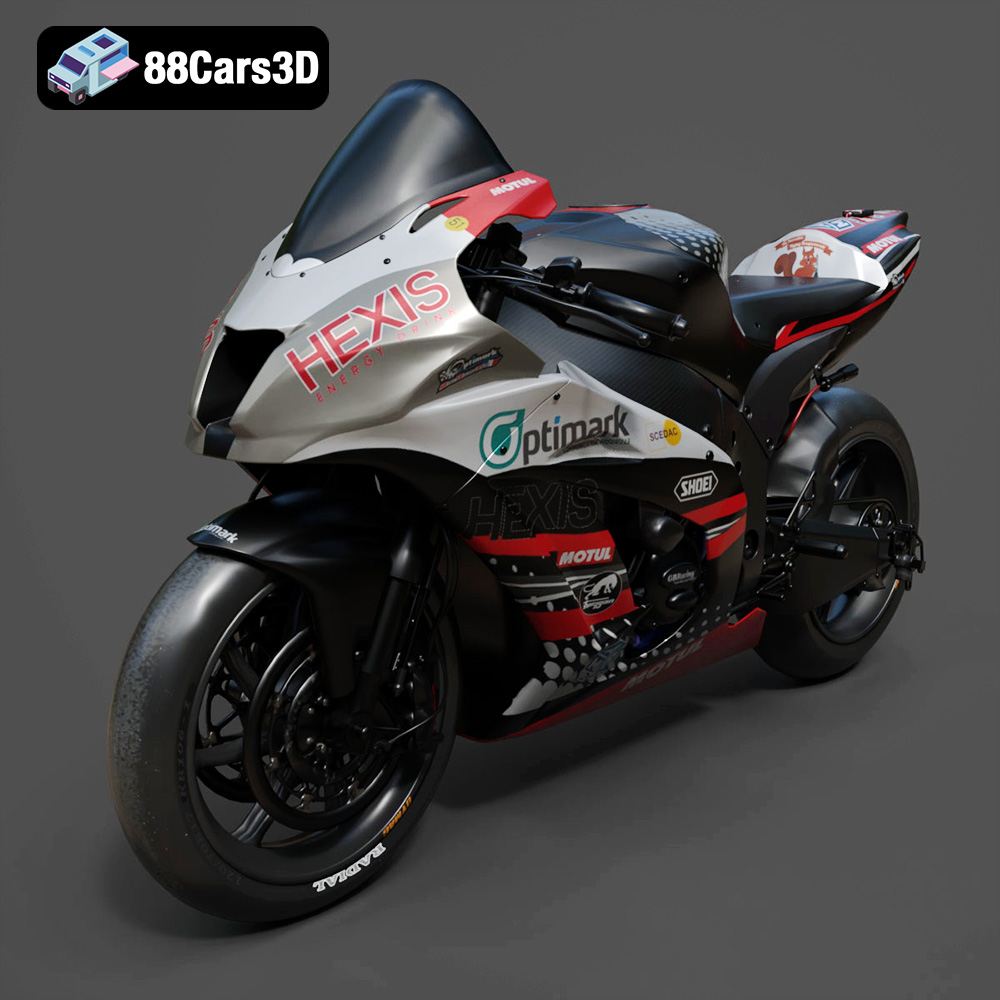
Texture: Yes
Material: Yes
Download the Kawasaki ZX-10R 3D Model featuring clean geometry, realistic detailing, and a fully modeled interior. Includes .blend, .fbx, .obj, .glb, .stl, .ply, .unreal, and .max formats for rendering, simulation, and game development.
Price: $19.99

Texture: Yes
Material: Yes
Download the Jeep Grand Cherokee Limited 2017 3D Model featuring clean geometry, realistic detailing, and a fully modeled interior. Includes .blend, .fbx, .obj, .glb, .stl, .ply, .unreal, and .max formats for rendering, simulation, and game development.
Price: $19.99
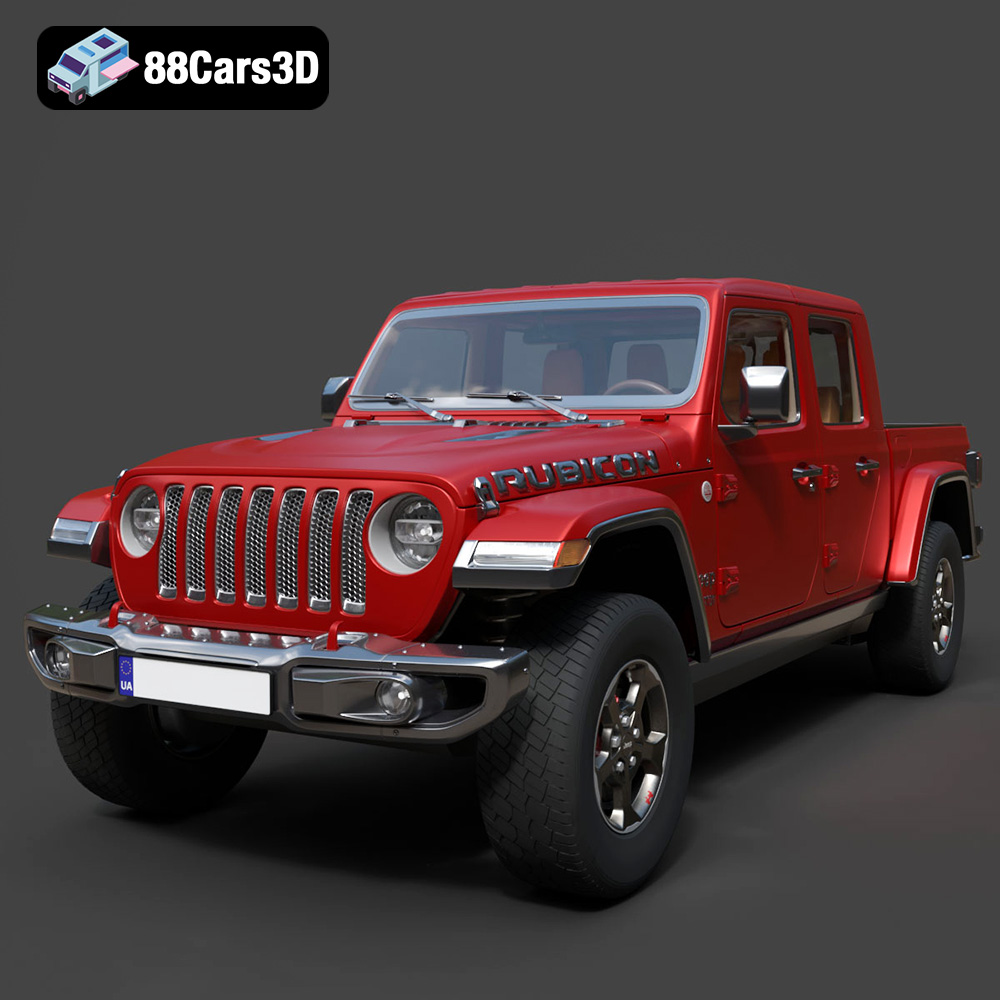
Texture: Yes
Material: Yes
Download the Jeep Gladiator Rubicon 2020 3D Model featuring clean geometry, realistic detailing, and a fully modeled interior. Includes .blend, .fbx, .obj, .glb, .stl, .ply, .unreal, and .max formats for rendering, simulation, and game development.
Price: $19.99

Texture: Yes
Material: Yes
Download the Jaguar C-X75 2014 3D Model featuring clean geometry, realistic detailing, and a fully modeled interior. Includes .blend, .fbx, .obj, .glb, .stl, .ply, .unreal, and .max formats for rendering, simulation, and game development.
Price: $19.99

Texture: Yes
Material: Yes
Download the Jaguar XFR-S 2014 3D Model featuring clean geometry, realistic detailing, and a fully modeled interior. Includes .blend, .fbx, .obj, .glb, .stl, .ply, .unreal, and .max formats for rendering, simulation, and game development.
Price: $19.99

Texture: Yes
Material: Yes
Download the Infiniti QX50 2019 3D Model featuring clean geometry, realistic detailing, and a fully modeled interior. Includes .blend, .fbx, .obj, .glb, .stl, .ply, .unreal, and .max formats for rendering, simulation, and game development.
Price: $19.99

Texture: Yes
Material: Yes
Download the Hyundai i40 Wagon 2015 3D Model featuring clean geometry, realistic detailing, and a fully modeled interior. Includes .blend, .fbx, .obj, .glb, .stl, .ply, .unreal, and .max formats for rendering, simulation, and game development.
Price: $19.99

Texture: Yes
Material: Yes
Download the Honda NSX 2017 3D Model featuring clean geometry, realistic detailing, and a fully modeled interior. Includes .blend, .fbx, .obj, .glb, .stl, .ply, .unreal, and .max formats for rendering, simulation, and game development.
Price: $19.99
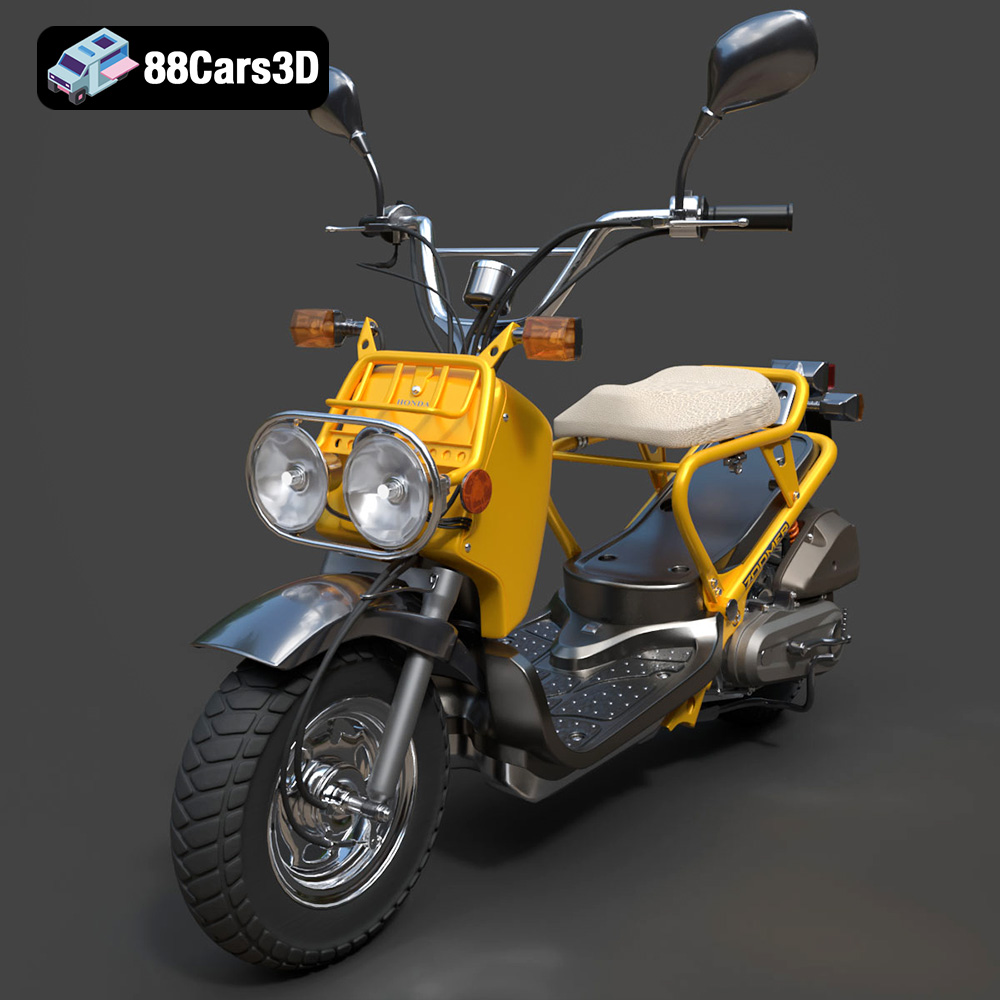
Texture: Yes
Material: Yes
Download the Honda Zoomer 50 2005 3D Model featuring clean geometry, realistic detailing, and a fully modeled interior. Includes .blend, .fbx, .obj, .glb, .stl, .ply, .unreal, and .max formats for rendering, simulation, and game development.
Price: $19.99

Texture: Yes
Material: Yes
Download the Honda Valkyrie GL1800C 2015 3D Model featuring clean geometry, realistic detailing, and a fully modeled interior. Includes .blend, .fbx, .obj, .glb, .stl, .ply, .unreal, and .max formats for rendering, simulation, and game development.
Price: $19.99

