Get 50% OFF All Premium 3D & STL Models!

“`html
The world of 3D printing offers incredible possibilities, from creating intricate prototypes to bringing your favorite automotive designs to life. Whether you’re a seasoned enthusiast or just starting out, the quality of your printed model heavily depends on the integrity of the STL file you’re using. Imperfections, non-manifold geometry, and other issues can lead to printing failures, wasted filament, and frustrating results. Thankfully, Blender, a powerful and free open-source 3D modeling software, provides a robust suite of tools for cleaning up and optimizing STL files before sending them to your 3D printer. This guide will walk you through the process of identifying and fixing common problems in STL files using Blender, ensuring a smoother and more successful 3D printing experience. We’ll cover everything from importing and inspecting your STL to applying modifiers and exporting a print-ready file, giving you the knowledge and confidence to tackle even the most challenging models. For high-quality, pre-cleaned STL files, consider exploring platforms like 88cars3d.com, where models are designed with printability in mind.
STL files describe the surface geometry of a 3D model using a collection of triangles. However, these files can often contain errors such as gaps, overlapping faces, inverted normals, and non-manifold geometry (edges connected to more than two faces). These errors can confuse your slicer software, leading to incorrect toolpaths, missing features, and ultimately, a failed print. Cleaning up these issues ensures that your slicer can accurately interpret the model and generate a valid printing process.
In this guide, we will cover the following key topics:
The first step in cleaning up an STL file is to import it into Blender and carefully inspect it for potential problems. Blender offers several tools to help you visualize and analyze the mesh geometry.
To import your STL file into Blender, follow these steps:
Your model should now be visible in the Blender viewport. You might need to adjust the view to see the entire model by zooming out or using the “View Selected” function (press the period key “.” on the numpad while the object is selected).
Blender provides various ways to navigate and interact with the 3D scene. Understanding these controls is crucial for effective inspection and editing. Here’s a summary:
Once your model is imported, take the time to visually inspect it from all angles. Pay close attention to the following:
Also, remember that while models available on platforms like 88cars3d.com are typically pre-vetted for common issues, performing your own check is always a good practice.
Blender offers several tools to help you identify specific types of errors in your STL file. These tools can automatically detect non-manifold geometry, overlapping faces, and other issues that might not be immediately apparent through visual inspection.
Blender’s “Mesh Analysis” tools provide a quick way to highlight potential problems in your mesh. To access these tools, follow these steps:
Some important options include:
The “Statistics” panel in Blender provides information about the mesh, including the number of vertices, edges, and faces. This information can be helpful in identifying overly complex or inefficient meshes. To view the “Statistics” panel:
Pay attention to the number of faces. A very high face count can indicate an overly detailed model that might be difficult to print. Consider using remeshing techniques (discussed later) to simplify the mesh if necessary.
Non-manifold geometry is a common cause of 3D printing problems. It refers to edges that are connected to more than two faces, or faces that are oriented in inconsistent directions. To check for non-manifold geometry:
Blender will highlight any non-manifold edges or faces in orange. These areas need to be addressed to ensure a successful print.
Once you’ve identified areas of non-manifold geometry, you can use Blender’s editing tools to correct them. This typically involves deleting problematic faces, merging vertices, and filling gaps.
Sometimes, the easiest way to fix non-manifold geometry is to simply delete the offending faces. This is particularly effective for small, isolated errors.
After deleting the faces, you might need to fill the resulting holes using Blender’s “Fill” tool (described below).
Merging vertices can help to close small gaps and resolve overlapping geometry. Blender’s “Merge by Distance” tool is particularly useful for this purpose.
After deleting faces or merging vertices, you might need to fill in the resulting gaps. Blender provides several tools for this purpose.
If the gap is complex, you might need to manually create new faces using the “Polygon” tool. To use the polygon tool:
For models intended for FDM printing, ensuring sufficient wall thickness is crucial. The “Solidify” modifier adds thickness to your model, making it printable.
Overly complex models with a very high polygon count can be difficult to print and can bog down your slicer software. Remeshing is the process of creating a new, simplified mesh with a lower polygon count.
The “Decimate” modifier is a powerful tool for reducing the polygon count of a mesh while preserving its overall shape.
The “Remesh” modifier can be used to completely reconstruct the mesh with a more uniform topology. This can be helpful for fixing complex geometry and creating a more print-friendly model.
Remember to experiment with different settings to find the optimal balance between simplification and detail preservation. Clean models sourced from places like 88cars3d.com are already optimized, so remeshing might not be necessary, but it’s a good tool to know.
Before exporting your cleaned STL file, it’s important to optimize the model for your specific 3D printer and printing parameters. This includes considering print orientation, support structures, and material properties.
The orientation of your model on the print bed can significantly impact print quality, support requirements, and print time. Consider the following factors when choosing a print orientation:
Support structures are necessary for printing overhanging features and bridging gaps. Most slicer software packages can automatically generate support structures, but you might need to manually adjust the support settings to optimize them for your specific model and printer.
Different 3D printing materials have different properties that can affect the printability of your model. Consider the following material properties when optimizing your model:
Once you’ve cleaned up and optimized your model, you’re ready to export it as an STL file for 3D printing. To export the STL file from Blender, follow these steps:
Your cleaned STL file is now ready to be imported into your slicer software and printed on your 3D printer. When downloading models from marketplaces such as 88cars3d.com, you can be confident that the files have already been prepared with 3D printing in mind, minimizing the need for extensive cleanup.
Cleaning up STL files is an essential step in the 3D printing workflow. By using Blender’s powerful tools and techniques, you can identify and fix common errors, simplify complex meshes, and optimize your models for your specific 3D printer. Taking the time to clean up your STL files will result in higher-quality prints, fewer printing failures, and a more enjoyable 3D printing experience. Remember to inspect your models carefully, use Blender’s analysis tools to identify potential problems, and experiment with different editing techniques to achieve the best possible results. Remember to take advantage of resources like 88cars3d.com for reliable, print-ready car models.
Key Takeaways:
Next Steps:
“`
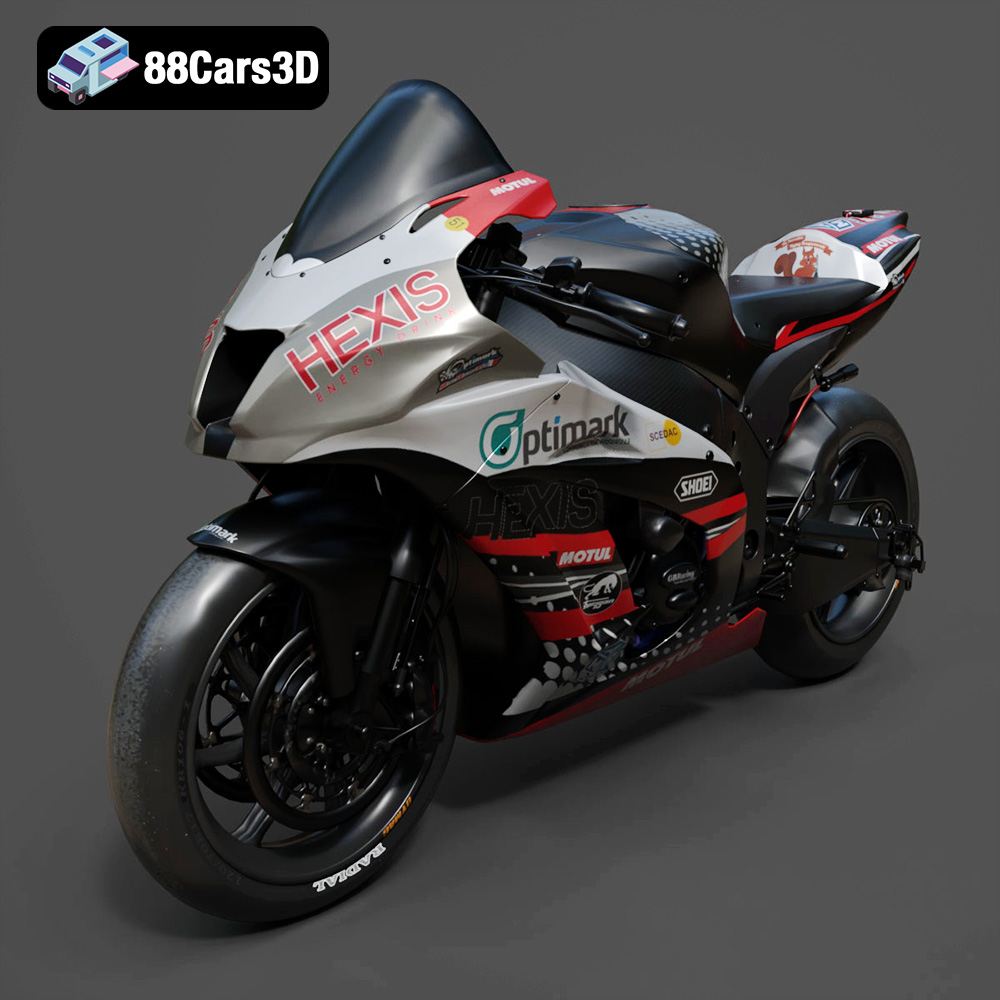
Texture: Yes
Material: Yes
Download the Kawasaki ZX-10R 3D Model featuring clean geometry, realistic detailing, and a fully modeled interior. Includes .blend, .fbx, .obj, .glb, .stl, .ply, .unreal, and .max formats for rendering, simulation, and game development.
Price: $19.99
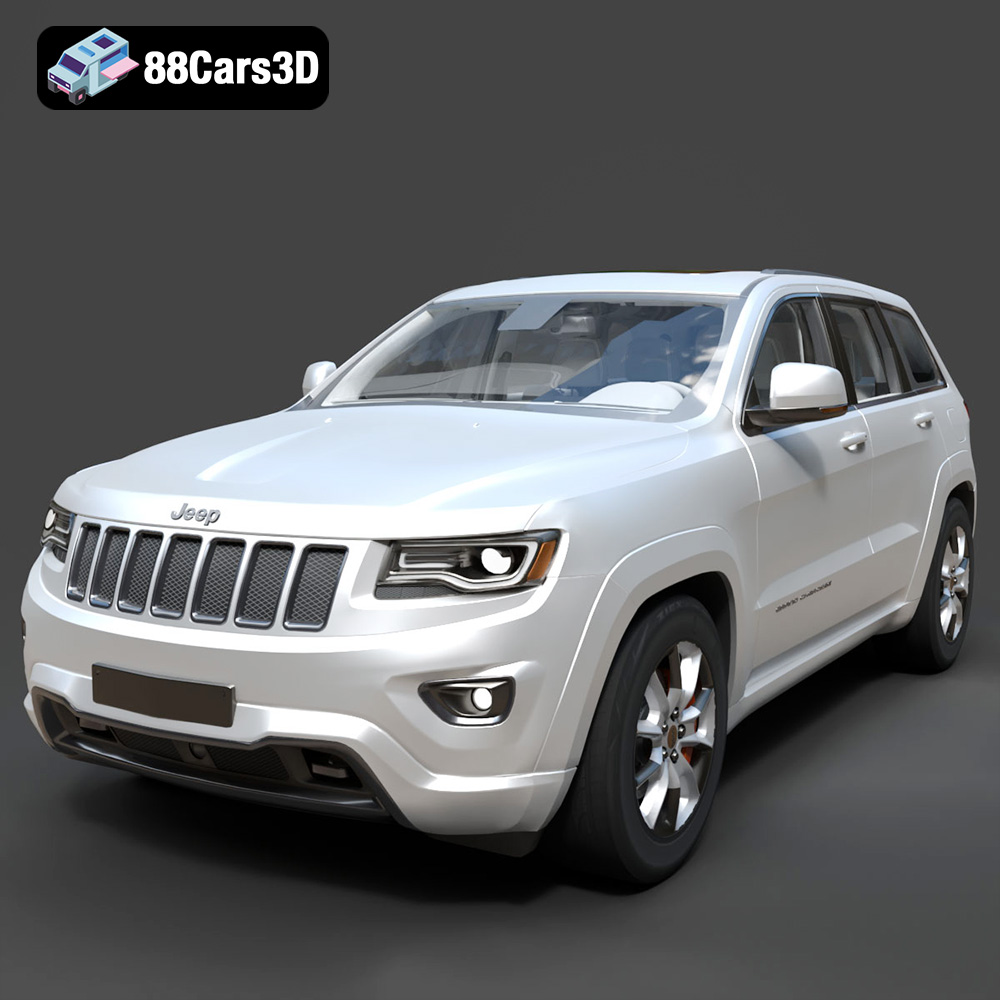
Texture: Yes
Material: Yes
Download the Jeep Grand Cherokee Limited 2017 3D Model featuring clean geometry, realistic detailing, and a fully modeled interior. Includes .blend, .fbx, .obj, .glb, .stl, .ply, .unreal, and .max formats for rendering, simulation, and game development.
Price: $19.99
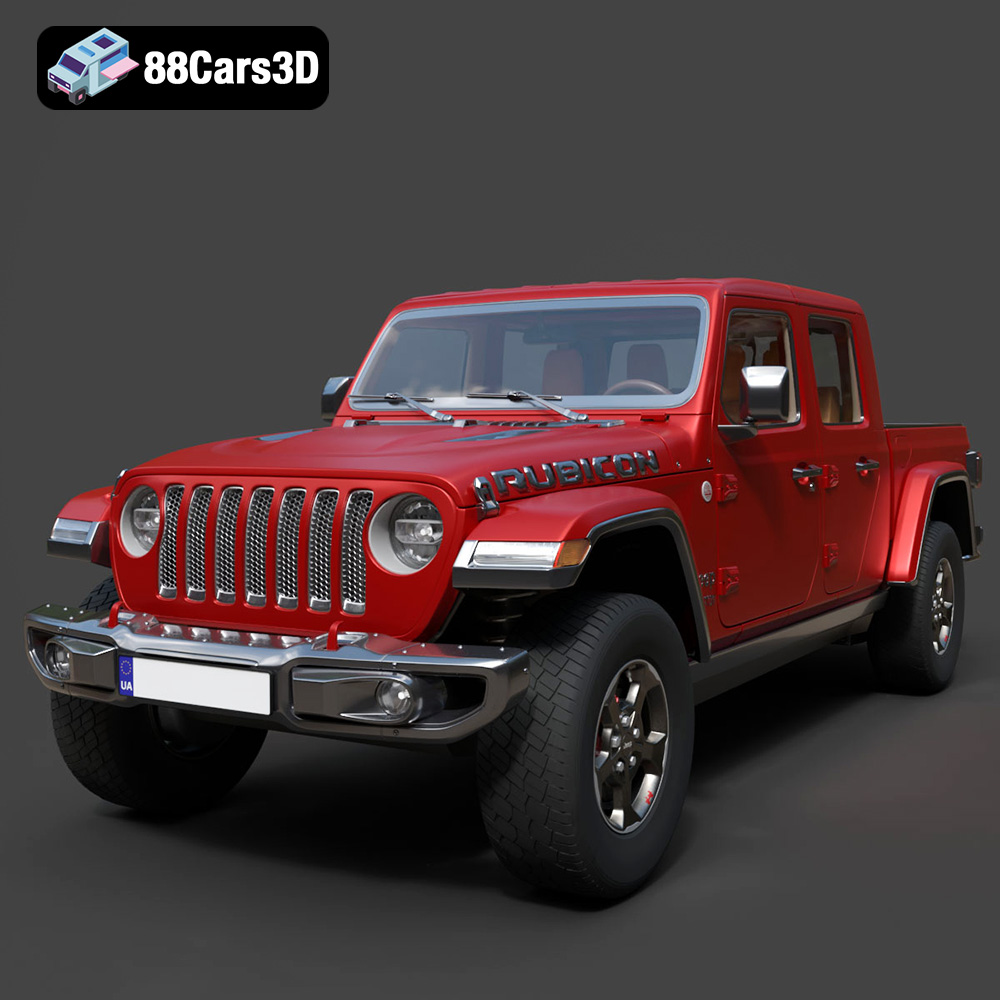
Texture: Yes
Material: Yes
Download the Jeep Gladiator Rubicon 2020 3D Model featuring clean geometry, realistic detailing, and a fully modeled interior. Includes .blend, .fbx, .obj, .glb, .stl, .ply, .unreal, and .max formats for rendering, simulation, and game development.
Price: $19.99

Texture: Yes
Material: Yes
Download the Jaguar C-X75 2014 3D Model featuring clean geometry, realistic detailing, and a fully modeled interior. Includes .blend, .fbx, .obj, .glb, .stl, .ply, .unreal, and .max formats for rendering, simulation, and game development.
Price: $19.99

Texture: Yes
Material: Yes
Download the Jaguar XFR-S 2014 3D Model featuring clean geometry, realistic detailing, and a fully modeled interior. Includes .blend, .fbx, .obj, .glb, .stl, .ply, .unreal, and .max formats for rendering, simulation, and game development.
Price: $19.99

Texture: Yes
Material: Yes
Download the Infiniti QX50 2019 3D Model featuring clean geometry, realistic detailing, and a fully modeled interior. Includes .blend, .fbx, .obj, .glb, .stl, .ply, .unreal, and .max formats for rendering, simulation, and game development.
Price: $19.99

Texture: Yes
Material: Yes
Download the Hyundai i40 Wagon 2015 3D Model featuring clean geometry, realistic detailing, and a fully modeled interior. Includes .blend, .fbx, .obj, .glb, .stl, .ply, .unreal, and .max formats for rendering, simulation, and game development.
Price: $19.99

Texture: Yes
Material: Yes
Download the Honda NSX 2017 3D Model featuring clean geometry, realistic detailing, and a fully modeled interior. Includes .blend, .fbx, .obj, .glb, .stl, .ply, .unreal, and .max formats for rendering, simulation, and game development.
Price: $19.99
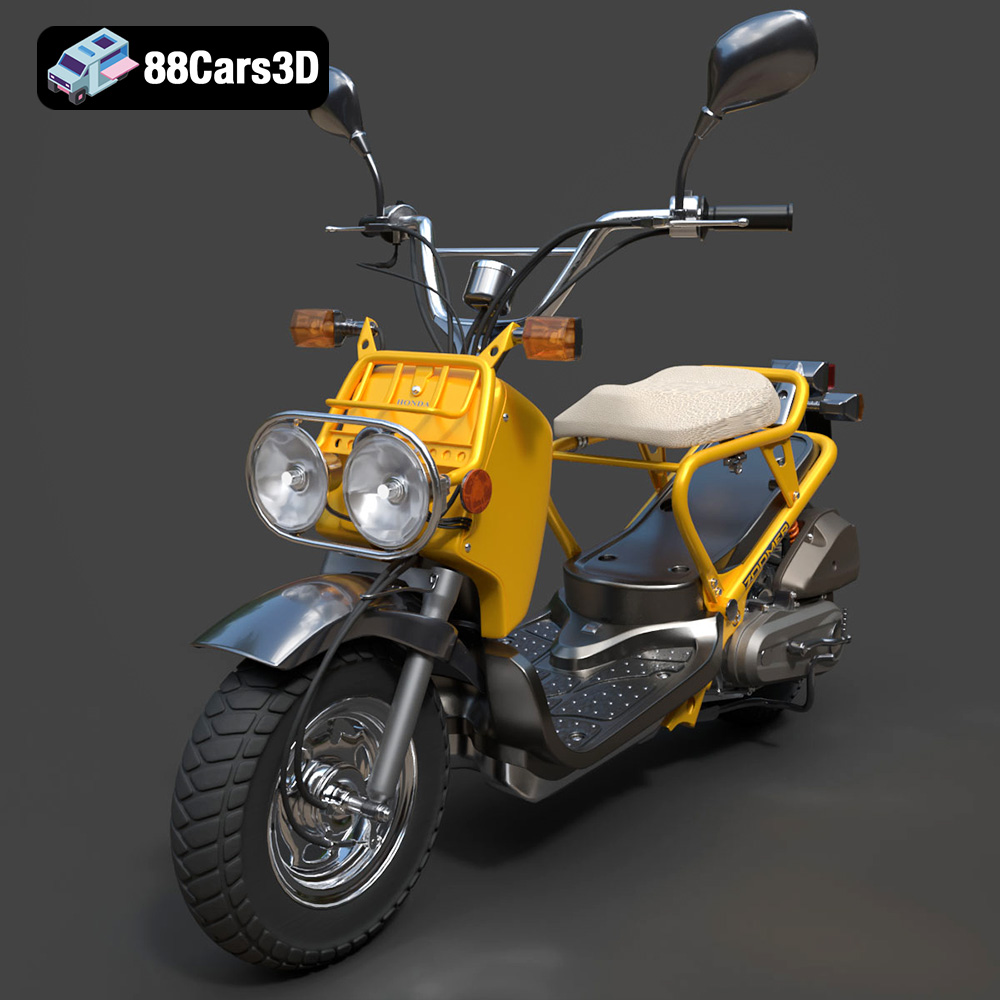
Texture: Yes
Material: Yes
Download the Honda Zoomer 50 2005 3D Model featuring clean geometry, realistic detailing, and a fully modeled interior. Includes .blend, .fbx, .obj, .glb, .stl, .ply, .unreal, and .max formats for rendering, simulation, and game development.
Price: $19.99

Texture: Yes
Material: Yes
Download the Honda Valkyrie GL1800C 2015 3D Model featuring clean geometry, realistic detailing, and a fully modeled interior. Includes .blend, .fbx, .obj, .glb, .stl, .ply, .unreal, and .max formats for rendering, simulation, and game development.
Price: $19.99

