Get 50% OFF All Premium 3D & STL Models!

“`html
For 3D printing enthusiasts and automotive model aficionados, the ability to personalize and customize 3D printable car models is a game-changer. Adding car logos, emblems, and custom details elevates a simple print into a unique masterpiece. This comprehensive guide delves into the technical aspects of modifying STL files to incorporate these elements, ensuring a seamless and professional final product. We’ll cover everything from software selection to detailed workflows, offering practical tips and tricks for achieving stunning results. Whether you’re looking to replicate a classic emblem or add a completely custom design, this guide will equip you with the knowledge and skills to bring your vision to life. Learn how to enhance your 3D printed car models with precision and flair, transforming them into bespoke collectibles.
In this guide, you will learn:
The foundation of any successful STL modification project lies in selecting the appropriate software. Different software packages offer varying degrees of functionality and ease of use. Understanding the strengths and weaknesses of each option is crucial for making an informed decision. The choice depends largely on your existing skill set and the complexity of the desired modifications.
Meshmixer, from Autodesk, is a free and incredibly versatile tool perfect for basic to intermediate STL modifications. Its intuitive interface and powerful sculpting tools make it ideal for adding logos, emblems, and other details. It excels at tasks like smoothing surfaces, adding custom supports, and boolean operations (combining or subtracting meshes). Meshmixer is particularly useful for preparing models for 3D printing due to its mesh analysis and repair capabilities. For instance, you can import an STL file from platforms like 88cars3d.com, use the “Sculpt” tool to create subtle body modifications, or use the “Edit -> Add Primitive” to create a raised platform for an emblem.
A practical example would involve downloading a model of a classic car, such as a Mustang, and using Meshmixer to add a custom side vent. This would involve importing the STL, creating a suitable vent shape, and then using the boolean operation to subtract the vent shape from the car’s body.
Blender is a free and open-source 3D creation suite, offering a comprehensive range of tools for modeling, sculpting, texturing, and animation. While it has a steeper learning curve compared to Meshmixer, its capabilities are virtually limitless. For complex modifications, such as creating intricate emblems or completely reshaping parts of a car model, Blender provides the necessary precision and control. Its non-destructive workflow allows for iterative design and easy adjustments. Many advanced users find that Blender’s precise control over mesh topology is essential for achieving professional-quality results. The ability to create custom textures and materials in Blender also allows for a higher degree of realism in the final printed model.
Imagine designing a completely new front grill for a Porsche 911. Blender allows you to meticulously model each element, ensuring perfect alignment and seamless integration with the existing body. You can then export the modified STL for 3D printing.
Before diving into the modification process, it’s crucial to ensure that your STL files are clean, manifold (watertight), and properly oriented. These steps will significantly reduce the risk of printing errors and ensure a higher-quality final product. Addressing these issues early on can save you considerable time and frustration later.
Non-manifold geometry, such as holes, self-intersections, and flipped normals, can cause significant problems during slicing and printing. Software like Netfabb Basic (free) and MeshLab (free) are excellent for identifying and repairing these issues. Netfabb, in particular, is known for its automated repair functions, which can quickly fix common mesh errors. MeshLab offers more manual control and advanced analysis tools, allowing for precise correction of complex issues. Using these tools before attempting any modifications is a best practice for ensuring a successful print. This is especially important when working with STL files from various sources, as their quality can vary significantly. If you are downloading from marketplaces such as 88cars3d.com, you can usually expect the models to be pre-checked but it’s always good practice to verify.
The orientation of your model on the print bed plays a crucial role in print quality, support generation, and overall structural integrity. Consider factors such as minimizing support structures, reducing overhangs, and aligning layers for optimal strength. For car models, orienting the body with the roof facing upwards often reduces the need for extensive supports on the body panels. However, this might require more supports for the chassis and wheels. Experimenting with different orientations and analyzing the resulting support structures in your slicing software is essential. Different orientations can also affect the visibility of layer lines. For example, orienting a curved surface vertically can result in more noticeable stepping.
This is where the customization truly comes to life. There are several methods for adding logos and emblems to your 3D car models. The best approach will depend on the complexity of the logo and the level of detail you want to achieve. Whether you’re adding a simple brand logo or a complex emblem with intricate details, these techniques will guide you through the process.
Boolean operations, such as union, difference, and intersection, are powerful tools for adding or subtracting shapes from a mesh. This technique is particularly effective for creating simple logos or recessed details. In Meshmixer, you can easily import a logo as an STL file (or create one from a SVG using online converters), position it on the car model, and then use the “Boolean” function to subtract the logo shape from the surface. This creates a clean, recessed impression of the logo. For raised logos, you would use the “Union” operation to merge the logo mesh with the car model. This method is relatively straightforward and suitable for logos with sharp edges and minimal complexity.
For more complex logos with intricate details or gradients, texture mapping is a better approach. This involves creating a 2D image of the logo and then applying it to the surface of the 3D model. Blender is particularly well-suited for this technique. You can unwrap the relevant part of the car model’s surface, import the logo image, and then use Blender’s material and texture tools to map the logo onto the surface. This method allows for a higher level of detail and realism, as you can incorporate color gradients, shadows, and other visual effects. However, it’s important to ensure that the texture resolution is high enough to avoid pixelation.
Beyond logos and emblems, you might want to add completely custom details to your 3D printed car models. This could include adding vents, spoilers, custom wheels, or even completely reshaping parts of the body. This level of customization requires a deeper understanding of 3D modeling techniques and a more sophisticated software package. Let’s explore how to approach these modifications.
Sculpting tools, available in software like Meshmixer and Blender, allow you to directly manipulate the mesh of your 3D model, creating organic shapes and intricate details. This is particularly useful for adding things like flared fenders, custom body kits, or unique aerodynamic elements. In Meshmixer, the “Sculpt” tool offers a variety of brushes for pushing, pulling, smoothing, and pinching the mesh. In Blender, the “Sculpt Mode” provides even more advanced sculpting options, including dynamic topology and brush customization. Experimenting with different brushes and techniques is essential for mastering this skill. For example, you might use the “Inflate” brush to create a subtle bulge in a fender or the “Smooth” brush to refine the edges of a custom body kit.
For modifications that require precise dimensions and engineering considerations, CAD software like Fusion 360 (Autodesk) or SolidWorks (Dassault Systèmes) is the preferred choice. These programs allow you to create parametric models with defined dimensions and constraints. This is particularly useful for designing custom wheels, suspension components, or intricate mechanical parts. While CAD software has a steeper learning curve than sculpting tools, it offers unparalleled precision and control. Many automotive engineers and designers use CAD software for creating and modifying car parts, making it a valuable skill for serious 3D printing enthusiasts. You can design a custom wheel in Fusion 360, export it as an STL file, and then integrate it with your 3D printed car model.
The success of your customized 3D printed car model depends not only on the quality of the STL file but also on the appropriate 3D printer settings and material selection. Choosing the right material and configuring your printer correctly can significantly impact the final outcome, especially when dealing with intricate details and delicate features.
Layer height directly affects the resolution and surface finish of your print. Lower layer heights (e.g., 0.1mm or 0.05mm) result in smoother surfaces and finer details but also increase print time significantly. Higher layer heights (e.g., 0.2mm or 0.3mm) are faster but produce more visible layer lines. For car models with complex curves and intricate details, a lower layer height is generally recommended. Print speed should be adjusted accordingly, as printing too fast can lead to poor layer adhesion and print defects. A good starting point is around 40-60mm/s, but this may need to be adjusted depending on your printer and material. Remember that platforms like 88cars3d.com offer print-ready STL files that are optimized for these considerations.
The choice of material depends on the desired properties of your 3D printed car model. PLA is a popular choice for its ease of printing and biodegradability. PETG offers improved strength and heat resistance compared to PLA. ABS is a more durable and heat-resistant option but requires a heated bed and enclosure to prevent warping. Resin printing, using materials like standard resin or ABS-like resin, offers the highest level of detail and surface finish, making it ideal for intricate emblems and small parts. However, resin prints are generally more brittle and require post-processing, such as washing and curing. For example, you might use PLA for the main body of the car and resin for the wheels and emblems to achieve a balance of strength and detail.
Once your 3D printed car model is complete, post-processing techniques can significantly enhance its appearance and durability. This includes removing support structures, sanding, painting, and assembling multiple parts. The specific techniques required will depend on the material used and the level of detail you want to achieve.
Removing support structures carefully is essential for preserving the integrity of your 3D printed car model. Use pliers, cutters, or specialized support removal tools to gently detach the supports from the model. For PLA and PETG, supports can often be snapped off cleanly. ABS supports may require more careful removal due to their stronger adhesion. Resin prints typically have delicate support structures that can be easily removed with tweezers. After removing supports, sanding is often necessary to smooth any remaining blemishes and prepare the surface for painting. Start with coarse sandpaper (e.g., 220 grit) and gradually move to finer grits (e.g., 400 grit, 600 grit, 800 grit) to achieve a smooth finish. Wet sanding can help to reduce dust and improve the smoothness of the surface.
Painting is a crucial step for adding color and realism to your 3D printed car model. Primer is essential for creating a smooth and uniform surface for the paint to adhere to. Apply several thin coats of primer, allowing each coat to dry completely before applying the next. Automotive spray paint is a good choice for achieving a durable and glossy finish. Apply the paint in thin, even coats to avoid runs and drips. For intricate details, use masking tape to protect areas you don’t want to paint. After the paint has dried completely, consider applying a clear coat to protect the paint and add extra gloss. Decals and waterslide transfers can be used to add logos, emblems, and other details that are too difficult to paint by hand. Remember to allow each layer to fully dry before applying the next. Proper ventilation is important when working with spray paints and solvents.
Adding car logos, emblems, and custom details to your 3D printed car models is a rewarding process that allows you to create unique and personalized pieces. By selecting the right software, preparing your STL files carefully, choosing appropriate printer settings and materials, and mastering post-processing techniques, you can achieve stunning results. Remember that patience and experimentation are key to success. Don’t be afraid to try different approaches and learn from your mistakes. With practice, you’ll be able to create truly exceptional 3D printed car models that reflect your passion and creativity.
Next steps:
“`

Texture: Yes
Material: Yes
Download the Ural Solo sT 3D Model featuring clean geometry, realistic detailing, and a fully modeled interior. Includes .blend, .fbx, .obj, .glb, .stl, .ply, .unreal, and .max formats for rendering, simulation, and game development.
Price: $19.99

Texture: Yes
Material: Yes
Download the Lexus GX460 2014 3D Model featuring clean geometry, realistic detailing, and a fully modeled interior. Includes .blend, .fbx, .obj, .glb, .stl, .ply, .unreal, and .max formats for rendering, simulation, and game development.
Price: $19.99
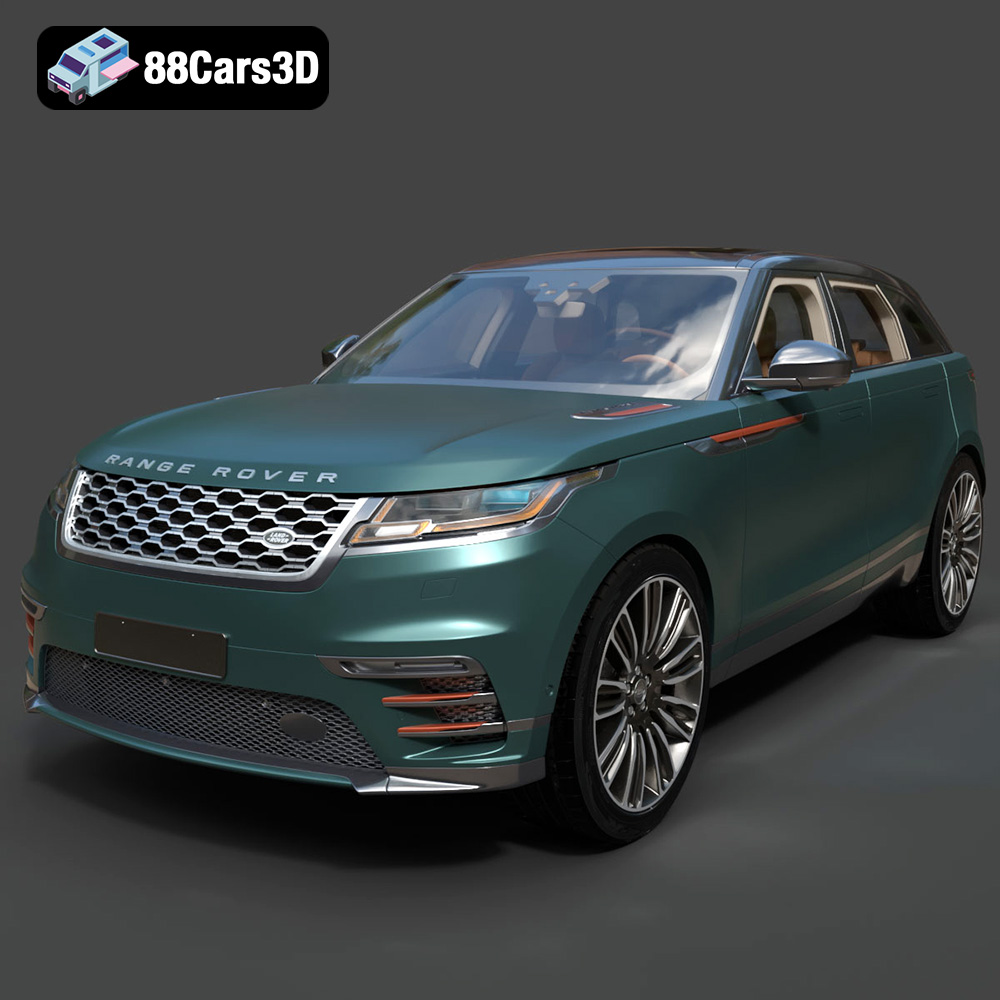
Texture: Yes
Material: Yes
Download the Land Rover Range Rover Velar 2018 3D Model featuring clean geometry, realistic detailing, and a fully modeled interior. Includes .blend, .fbx, .obj, .glb, .stl, .ply, .unreal, and .max formats for rendering, simulation, and game development.
Price: $19.99

Texture: Yes
Material: Yes
Download the Land Rover Range Rover Sport SVR 2015 3D Model featuring clean geometry, realistic detailing, and a fully modeled interior. Includes .blend, .fbx, .obj, .glb, .stl, .ply, .unreal, and .max formats for rendering, simulation, and game development.
Price: $19.99
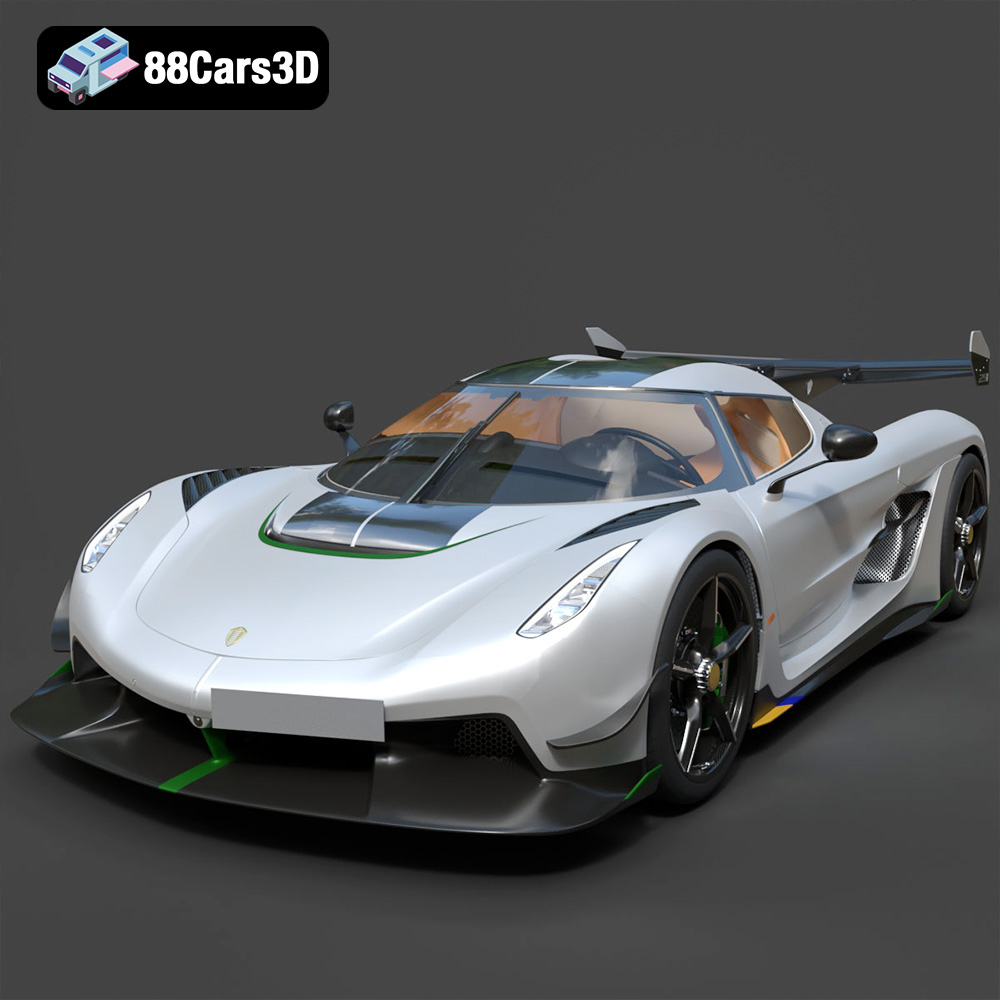
Texture: Yes
Material: Yes
Download the Koenigsegg Jesko 2020 3D Model featuring clean geometry, realistic detailing, and a fully modeled interior. Includes .blend, .fbx, .obj, .glb, .stl, .ply, .unreal, and .max formats for rendering, simulation, and game development.
Price: $19.99
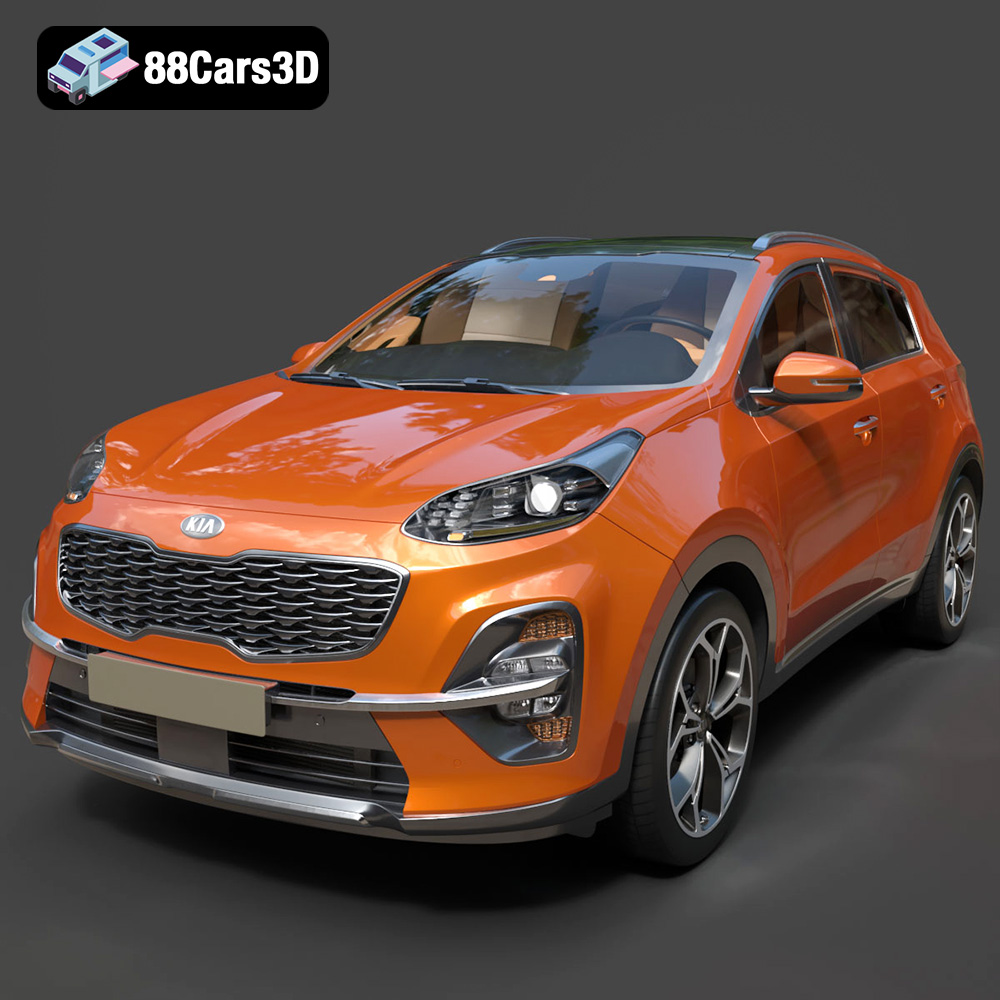
Texture: Yes
Material: Yes
Download the Kia Sportage 2019 3D Model featuring clean geometry, realistic detailing, and a fully modeled interior. Includes .blend, .fbx, .obj, .glb, .stl, .ply, .unreal, and .max formats for rendering, simulation, and game development.
Price: $19.99
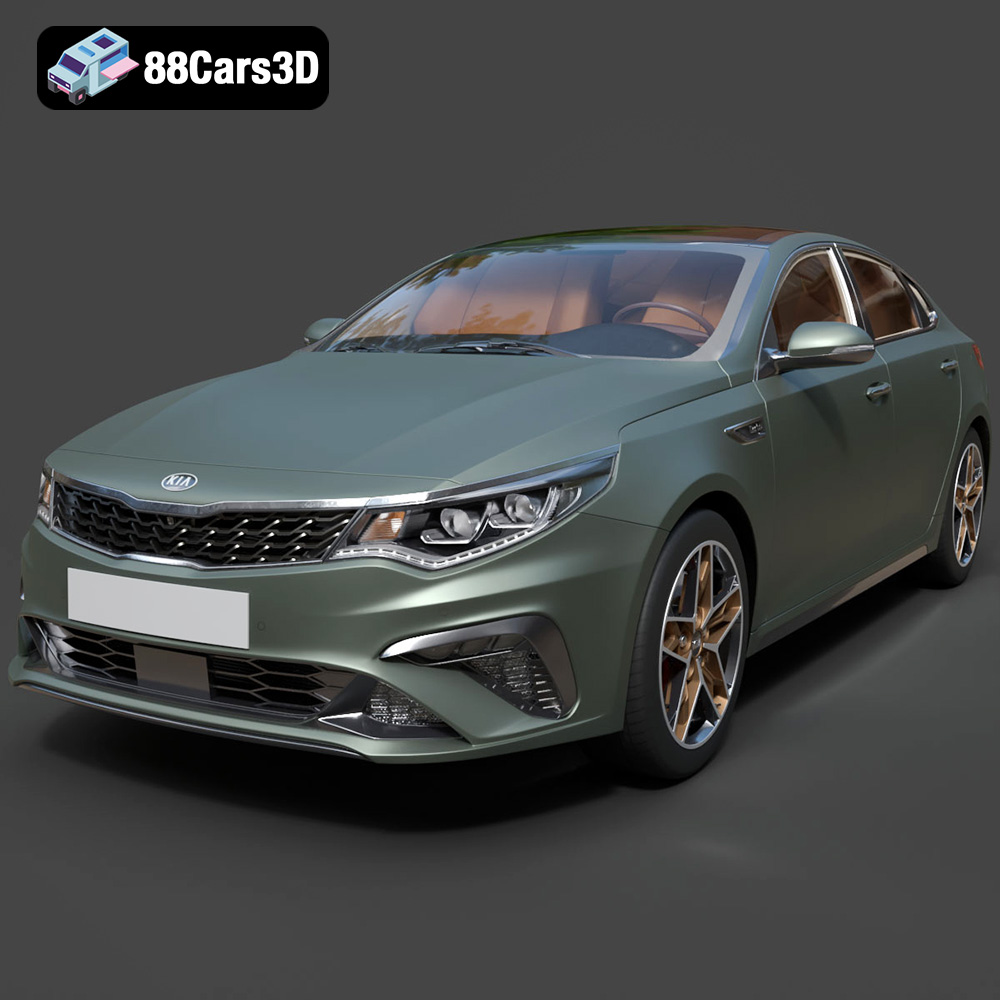
Texture: Yes
Material: Yes
Download the Kia Optima 2019 3D Model featuring clean geometry, realistic detailing, and a fully modeled interior. Includes .blend, .fbx, .obj, .glb, .stl, .ply, .unreal, and .max formats for rendering, simulation, and game development.
Price: $19.99
Texture: Yes
Material: Yes
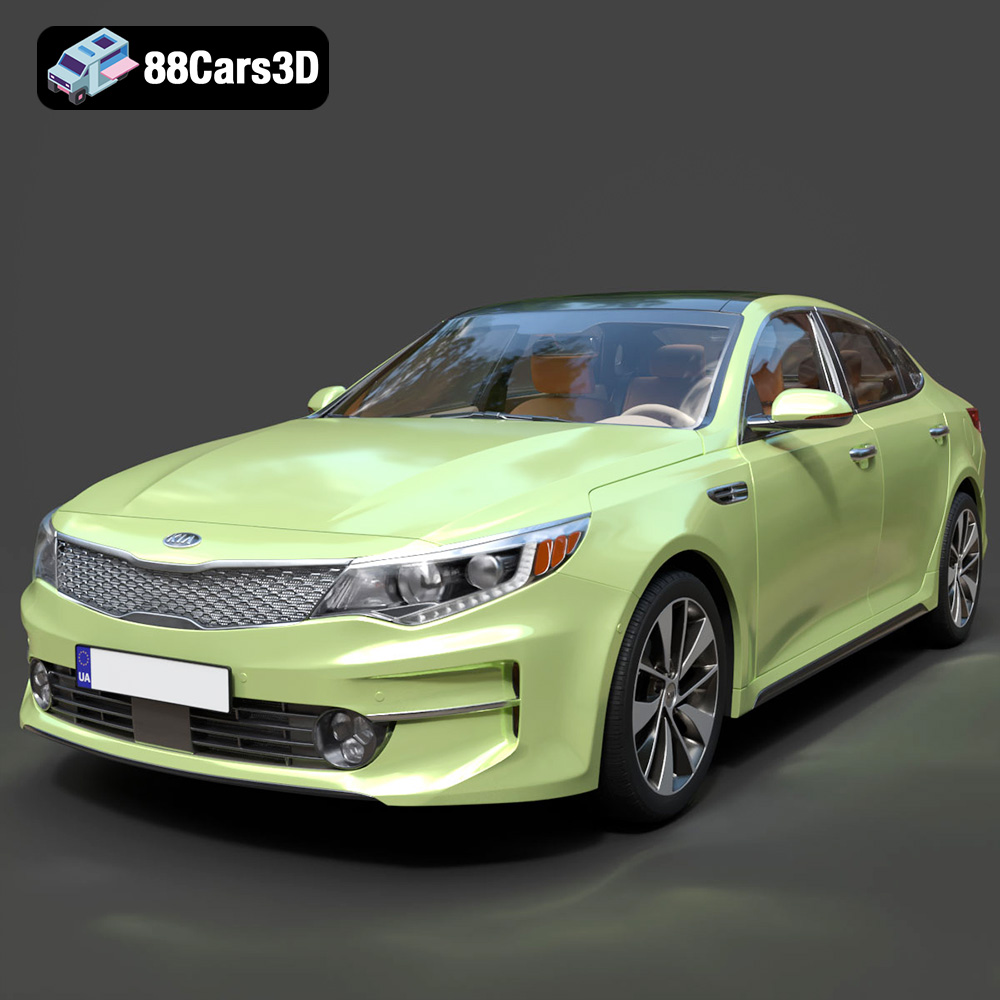
Download the Kia K5 MX 2016 3D Model featuring clean geometry, realistic detailing, and a fully modeled interior. Includes .blend, .fbx, .obj, .glb, .stl, .ply, .unreal, and .max formats for rendering, simulation, and game development.
Price: $19.99
Texture: Yes
Material: Yes
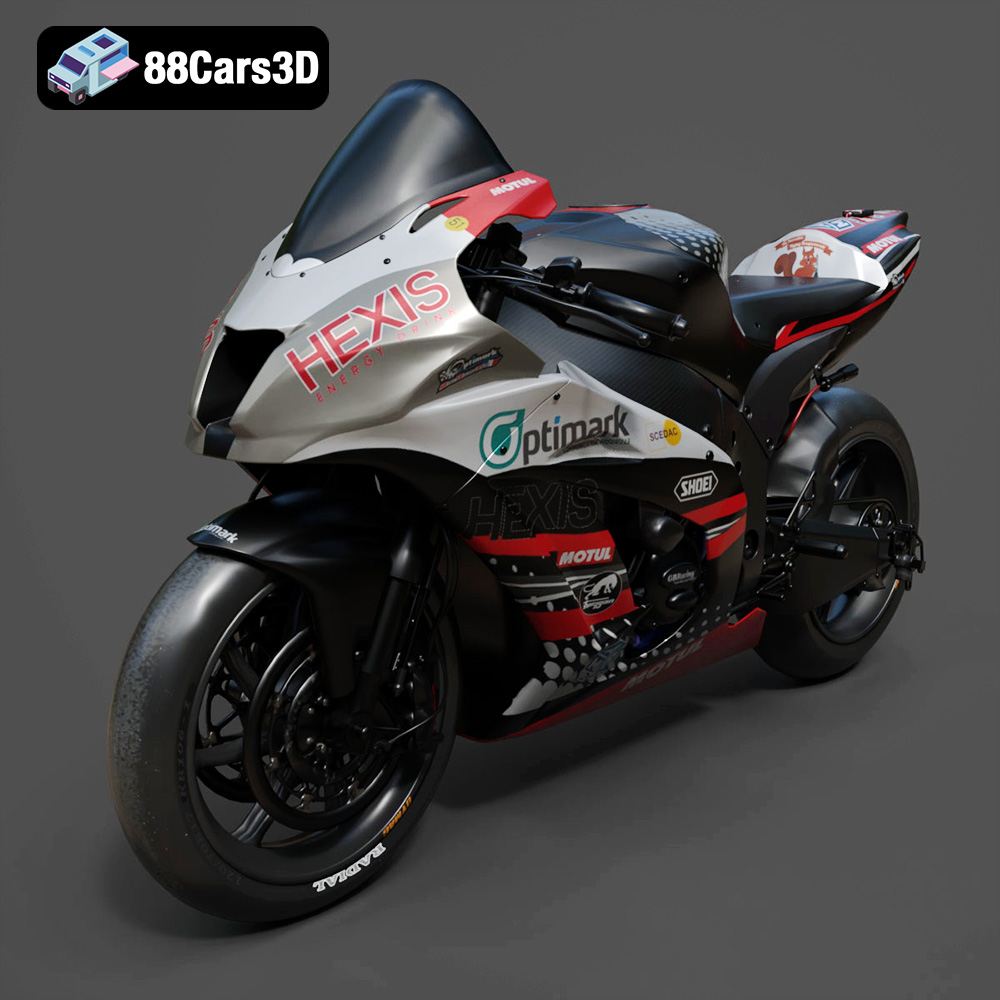
Download the Kawasaki ZX-10R 3D Model featuring clean geometry, realistic detailing, and a fully modeled interior. Includes .blend, .fbx, .obj, .glb, .stl, .ply, .unreal, and .max formats for rendering, simulation, and game development.
Price: $19.99
Texture: Yes
Material: Yes
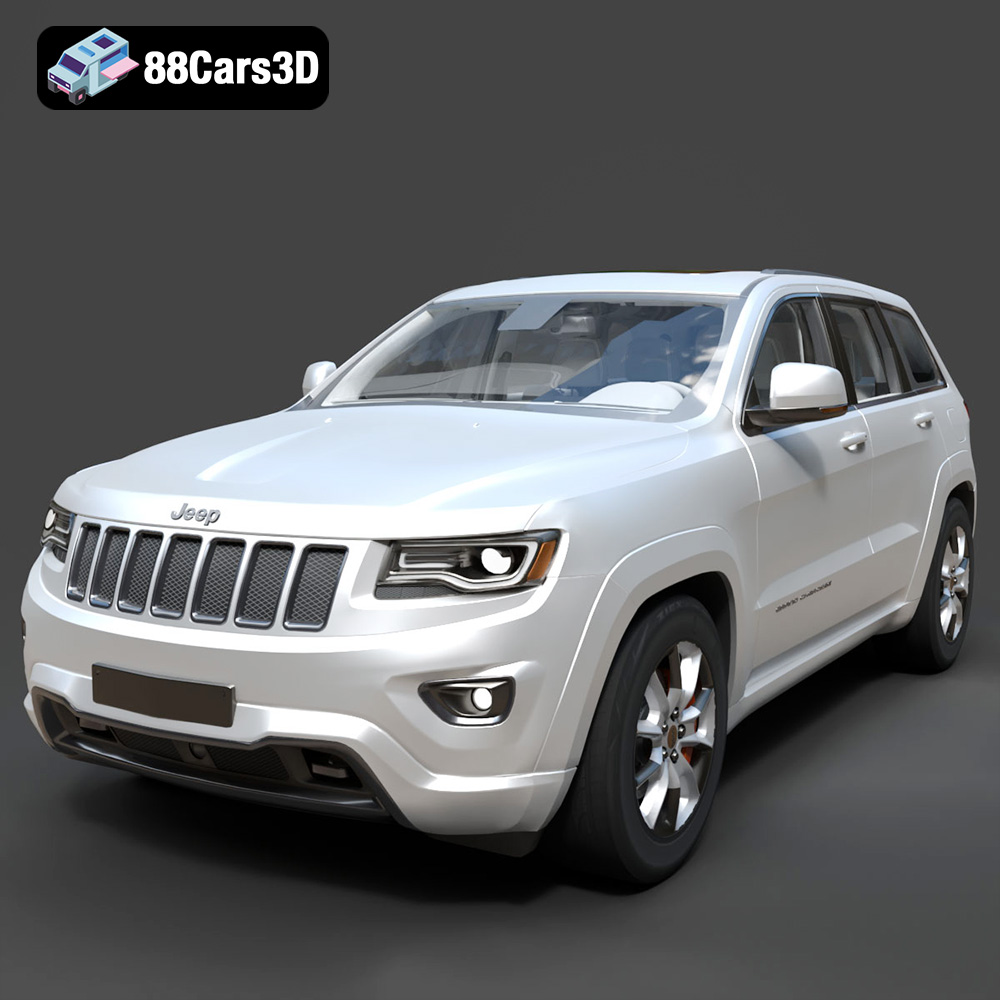
Download the Jeep Grand Cherokee Limited 2017 3D Model featuring clean geometry, realistic detailing, and a fully modeled interior. Includes .blend, .fbx, .obj, .glb, .stl, .ply, .unreal, and .max formats for rendering, simulation, and game development.
Price: $19.99

