Get 50% OFF All Premium 3D & STL Models!

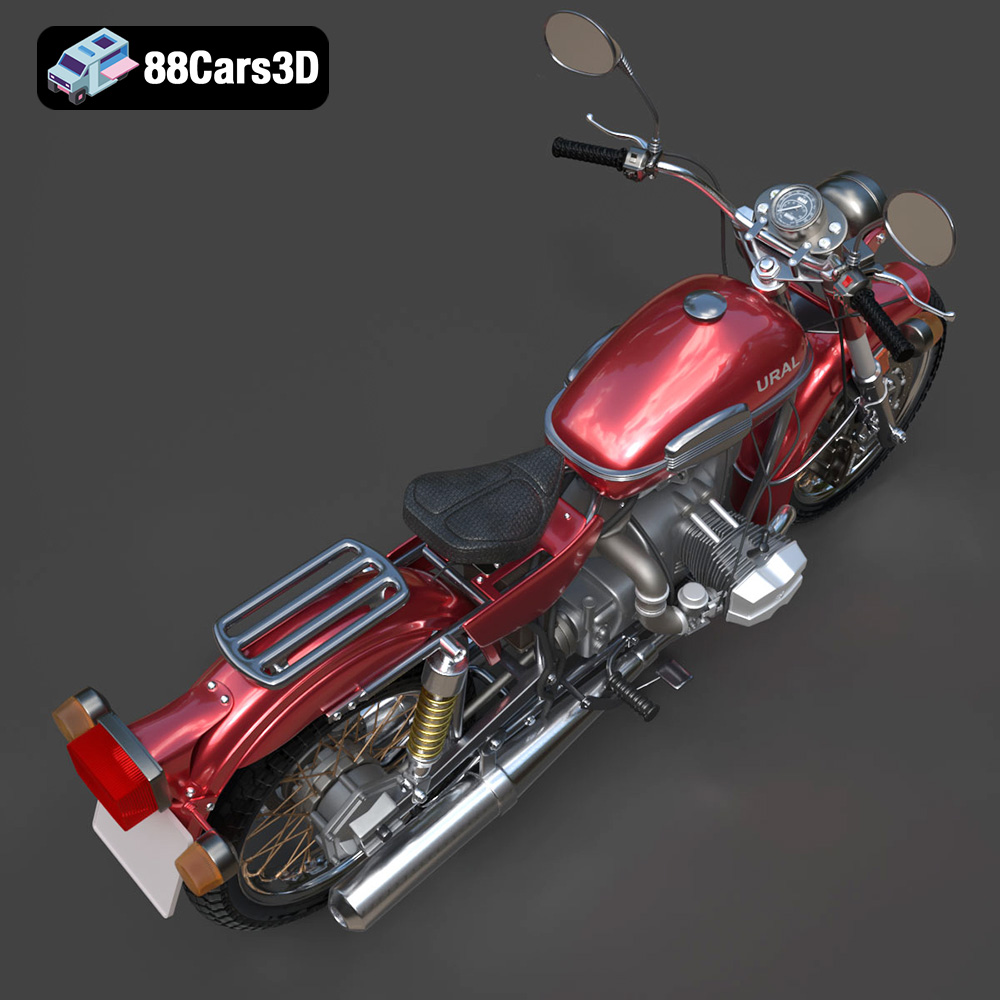
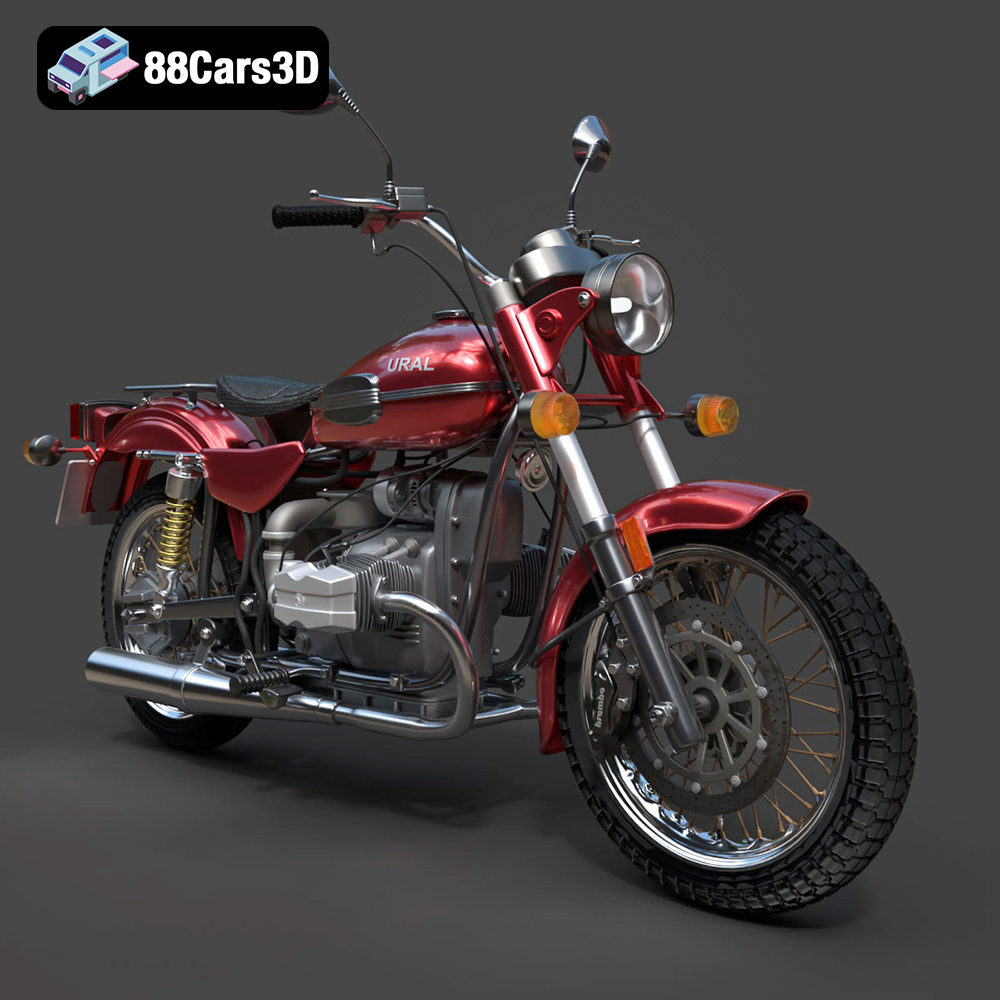
The Ural Solo sT, a motorcycle known for its rugged charm and unique design, is a fantastic subject for 3D printing. Whether you’re a motorcycle enthusiast, a model collector, or simply looking for an interesting 3D printing project, this guide will walk you through the process of successfully 3D printing the Ural Solo sT 3D model, available on 88cars3d.com. We’ll cover everything from selecting the right materials and printer settings to pre-print preparation and post-processing techniques, ensuring you achieve a stunning final product.
Before diving into the specifics of printing the Ural Solo sT, it’s crucial to understand the different file formats available and their suitability for 3D printing. The model comes in several formats, but some are better suited for printing than others.
The STL (Stereolithography) file format is the de facto standard for 3D printing. It represents the surface geometry of a 3D object as a collection of triangles. This simplicity makes it universally compatible with virtually all slicing software and 3D printers. However, STL files only store the mesh data; they don’t include information about color, texture, or materials. For 3D printing, this is generally not an issue, as color and finish are typically added during post-processing.
For the Ural Solo sT, the STL file is the primary choice for printing. When exporting to STL, ensure you select a resolution that balances detail and file size. A higher resolution will result in a smoother surface but a larger file, potentially increasing slicing time and printer memory usage.
OBJ (Object) files are another common 3D model format, often used for storing more complex information than STL. OBJ files can include color and texture data, making them suitable for colored 3D printing (if your printer supports it). However, OBJ files can be more complex to process and may not be as universally supported by all slicing software as STL files are.
While the Ural Solo sT model may include an OBJ version, for standard 3D printing, the STL format is usually preferred due to its simplicity and wide compatibility.
PLY (Polygon) files are designed to store 3D data acquired from 3D scanners. They can capture detailed mesh information, including color and texture. However, PLY files are less common in the 3D printing world compared to STL and OBJ, and compatibility with slicing software might be limited.
The PLY format is likely overkill for printing the Ural Solo sT, unless you’re aiming for incredibly high detail and your software supports it.
BLEND files are native to Blender, a free and open-source 3D creation suite. If you’re familiar with Blender, the BLEND file allows you to modify the Ural Solo sT model before exporting it for printing. You can adjust the mesh, add details, or even create custom variations of the design.
The BLEND file is extremely useful for advanced users who want to customize the Ural Solo sT before 3D printing it.
FBX (Filmbox) is a proprietary file format developed by Autodesk, widely used in game development and animation. It supports storing complex scene data, including meshes, materials, textures, and animations. While some slicing software can import FBX files, the material and texture information is typically not used for standard 3D printing.
For the Ural Solo sT, you would primarily use the FBX file for integrating the model into game engines or animation software, rather than directly for 3D printing.
GLB is a binary file format representing 3D models, designed for efficient transmission and loading in web-based applications, AR (Augmented Reality), and VR (Virtual Reality) environments. It’s a compact and self-contained format that includes all necessary elements like textures, animations, and meshes.
The GLB file for the Ural Solo sT allows you to preview the model in AR or VR environments, giving you a sense of its scale and appearance before committing to a 3D print.
.max files are the native project files for 3ds Max, a professional 3D modeling, animation, and rendering software. These files contain all the information about the scene, including the geometry, textures, lighting, and animation settings. Using the .max file allows for extensive modifications and customizations to the Ural Solo sT model within 3ds Max before exporting for 3D printing.
This format is ideal for users who are proficient in 3ds Max and want to fine-tune the model to meet specific requirements before generating the final .stl file for 3D printing.
Once you’ve chosen the STL file (or modified the model using the BLEND file), the next step is to prepare it for printing. This involves inspecting the model for errors, choosing the correct orientation, and generating support structures.
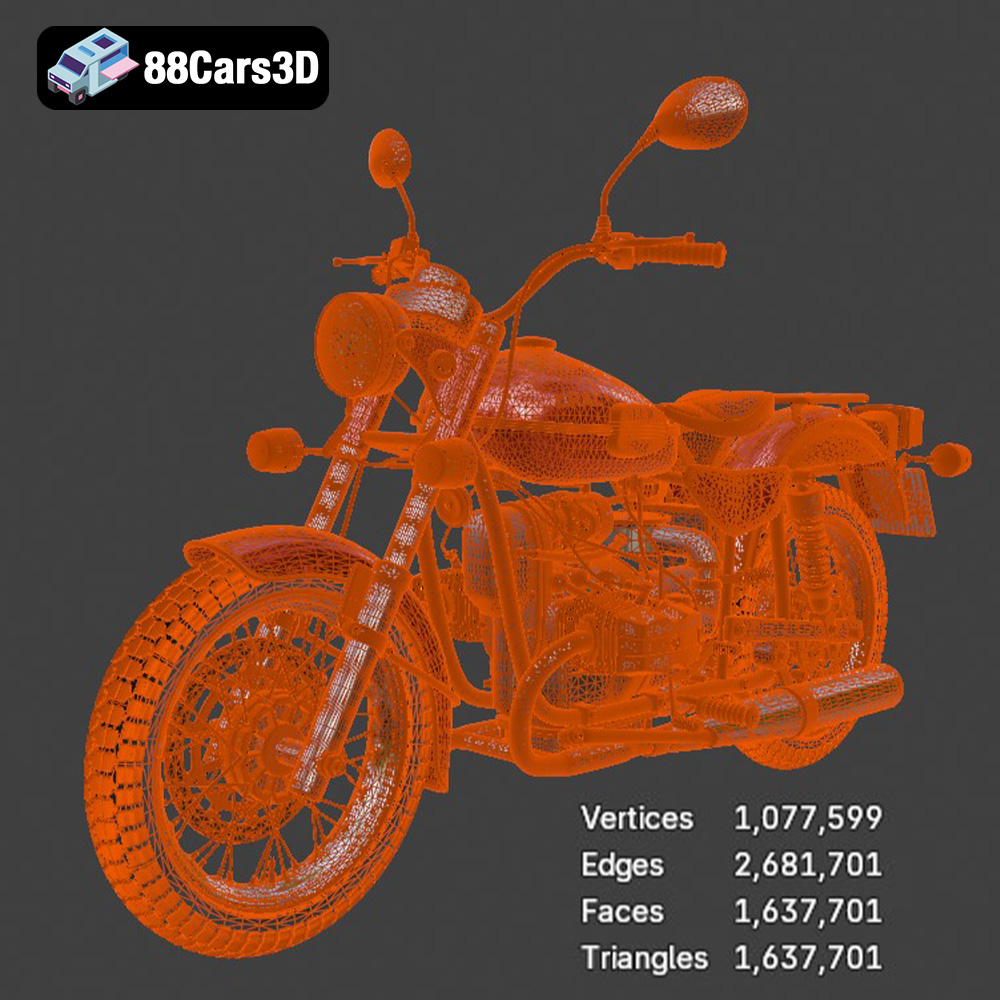
Before slicing, it’s crucial to inspect the STL file for any potential issues, such as non-manifold geometry, holes, or flipped normals. These errors can cause problems during slicing and printing, leading to failed prints. Several free and paid software options are available for model repair, including Meshmixer, Netfabb Basic, and online services like MakePrintable.
Load the Ural Solo sT STL file into your chosen repair software and run a diagnostic analysis. The software will identify and often automatically fix any detected errors. Pay close attention to the areas with fine details or intricate geometry, as these are more prone to errors.
The orientation of the model on the print bed significantly affects the print quality, support structure requirements, and overall print time. Consider the following factors when choosing the orientation for the Ural Solo sT:
Experiment with different orientations in your slicing software to find the optimal balance between these factors.
Slicing is the process of converting the 3D model into a series of layers that the 3D printer can understand. Choosing the right slicing software and configuring the appropriate settings are crucial for achieving a successful print.
Numerous slicing software options are available, both free and paid. Popular choices include Cura, PrusaSlicer, Simplify3D, and IdeaMaker. Cura and PrusaSlicer are excellent free options with a wide range of features and a large user community. Simplify3D is a paid option known for its advanced customization options and support generation capabilities.
Select a slicing software that you’re comfortable with and that is compatible with your 3D printer.
The printer settings will depend on your chosen material and printer capabilities. However, here are some general recommendations for printing the Ural Solo sT:
The choice of material will affect the appearance, strength, and durability of the printed Ural Solo sT model. Here are some popular options:
PLA is a biodegradable thermoplastic derived from renewable resources. It’s easy to print, has low warping, and is available in a wide range of colors. PLA is a good choice for beginners and for models that don’t require high strength or heat resistance.
Pros: Easy to print, low warping, wide range of colors, biodegradable.
Cons: Low heat resistance, not as strong as other materials.
PETG is a strong and durable thermoplastic that is more heat-resistant than PLA. It’s also more flexible, making it less prone to cracking. PETG is a good choice for models that require higher strength and durability.
Pros: Strong, durable, heat-resistant, flexible.
Cons: Can be more difficult to print than PLA, more prone to stringing.
Resin printing offers incredibly high detail and smooth surfaces, making it ideal for display models. However, resin prints are typically more brittle than filament prints and require more post-processing.
Pros: High detail, smooth surfaces.
Cons: Brittle, requires more post-processing, can be expensive.
Once the print is complete, you’ll need to perform some post-processing steps to remove support structures, smooth the surface, and add any desired finishing touches.
Carefully remove the support structures using pliers, a hobby knife, or other suitable tools. Take your time to avoid damaging the model. If the supports are difficult to remove, you can try soaking the model in warm water or using a heat gun to soften the support material.
Sand the surface of the model to remove any imperfections and smooth the layer lines. Start with coarse sandpaper (e.g., 220 grit) and gradually move to finer grits (e.g., 400 grit, 600 grit, 800 grit). Wet sanding can help to reduce dust and improve the surface finish.
Once the model is sanded smooth, you can paint it to add color and detail. Use a primer to prepare the surface for painting. Apply multiple thin coats of paint, allowing each coat to dry completely before applying the next. You can use masking tape to create clean lines and patterns. Once the paint is dry, apply a clear coat to protect the finish and add shine.
Even with careful preparation, you may encounter some common 3D printing issues. Here are some tips for troubleshooting:
Warping occurs when the corners of the model lift off the print bed. This is often caused by poor bed adhesion or uneven cooling. To prevent warping, ensure that your print bed is clean and level, use a brim or raft, and adjust the bed temperature.
Stringing occurs when thin strands of plastic are left between different parts of the model. This is often caused by excessive nozzle temperature or retraction settings. To prevent stringing, lower the nozzle temperature, increase the retraction distance, and increase the retraction speed.
Layer shifting occurs when the layers of the model are misaligned. This can be caused by loose belts, a wobbly print bed, or stepper motor issues. To prevent layer shifting, tighten the belts, stabilize the print bed, and check the stepper motor drivers.
By following these guidelines, you can successfully 3D print the Ural Solo sT 3D model and create a stunning replica of this iconic motorcycle. Remember to experiment with different settings and materials to find what works best for your printer and your desired outcome. You can find a great Ural Solo sT 3D model, ready for 3D printing, at 88cars3d.com.
Experience true realism with the Ural Solo sT 3D Model. This carefully crafted digital asset captures the rugged design and iconic presence of the Ural Solo sT, delivering exceptional detail for your projects. Ideal for both close-up shots and expansive environments, this model brings authentic structural precision to any scene.
$19.99
.arvr
.blend
.car3dmodel
.cruiser
.fbx
.gameasset
.glb
.max
.motorcycle
.obj
.ply
.rendering
.simulation
.solost
.stl
.unreal
.ural