Get 50% OFF All Premium 3D & STL Models!

“`html
So, you’re ready to dive into the exciting world of 3D printing! Perhaps you’ve been admiring the intricate car models available on platforms like 88cars3d.com and envisioning bringing them to life. But where do you start without breaking the bank? Choosing the right 3D printer as a beginner can be daunting, especially with the vast array of options available. This comprehensive guide will walk you through the top budget-friendly 3D printers perfect for beginners looking to print high-quality STL files, focusing on factors like ease of use, print quality, build volume, and community support. We’ll also delve into essential 3D printer settings, slicing techniques, and crucial file preparation steps to ensure your first prints are a resounding success. Get ready to turn your digital dreams into tangible realities!
Before we dive into specific printer recommendations, it’s crucial to understand the two primary types of 3D printing technology available in the budget range: Fused Deposition Modeling (FDM) and Resin printing (Stereolithography – SLA or Digital Light Processing – DLP/MSLA). Each has its pros and cons, directly influencing the type of models you can create and the post-processing required.
FDM printers work by melting a thermoplastic filament (typically PLA or PETG) and extruding it layer by layer onto a build platform. This method is known for its simplicity, relatively low cost, and availability of a wide range of materials. FDM printers are excellent for larger models, functional parts, and projects where fine detail isn’t paramount. For printing larger car models from 88cars3d.com, an FDM printer might be the better starting point.
Resin printers use liquid resin cured by UV light to create objects. This technology allows for incredibly fine details and smooth surfaces, making it ideal for intricate miniatures, jewelry, and models requiring high precision. However, resin printing typically involves a smaller build volume, requires more careful handling of materials (resin can be toxic), and necessitates post-processing steps like washing and curing the printed parts.
Let’s explore some of the best budget-friendly FDM 3D printers that offer a great balance of affordability, ease of use, and print quality for beginners eager to print STL files. Remember to check online reviews and compare prices before making a final decision.
The Creality Ender 3 series is arguably the most popular entry-level 3D printer. Known for its affordability and large community support, the Ender 3 V2 and Ender 3 S1 offer excellent value for money. The Ender 3 V2 features a silent motherboard, a carborundum glass bed for improved bed adhesion, and a user-friendly interface. The Ender 3 S1 boasts a direct drive extruder, making it easier to print flexible filaments like TPU. For printing car models, consider a layer height of 0.15mm to 0.2mm, an infill density of 15-20%, and a print speed of 50-60mm/s for optimal results. You can use Cura or PrusaSlicer to prepare your STL files.
The Anycubic Mega S is another excellent option for beginners. It features a sturdy metal frame, a large build volume (210 x 210 x 205mm), and a user-friendly touchscreen interface. The heated bed ensures good adhesion for a variety of materials. This printer is known for its reliability and ease of assembly. When downloading models from marketplaces such as 88cars3d.com, ensure the STL files are properly oriented for optimal printing on the Mega S. Consider using support structures in areas with significant overhangs.
If you’re looking for incredibly detailed prints and are willing to handle the extra steps and precautions associated with resin printing, these budget-friendly resin printers are a great starting point.
The Elegoo Mars series, including the Mars 3 and Mars 4, are popular choices for resin printing enthusiasts. These printers offer high resolution, a user-friendly interface, and a relatively affordable price point. The Mars 3 features a 4K monochrome LCD screen, enabling faster printing speeds and higher detail. The Mars 4 builds upon this with improvements to stability and user experience. When printing car models with intricate details, consider a layer height of 0.025-0.05mm and experiment with different resin exposure times to achieve optimal results. Use Chitubox or Lychee Slicer for slicing and support generation.
The Anycubic Photon Mono series provides another excellent entry point into resin printing. These printers feature monochrome LCD screens for faster printing, a user-friendly interface, and a sturdy build. The Photon Mono 4K, for example, offers excellent resolution and detail for printing intricate models. Remember that resin printing requires post-processing, including washing the prints in isopropyl alcohol (IPA) and curing them under UV light. Platforms like 88cars3d.com offer print-ready STL files, but careful slicing and support generation are still crucial for successful resin printing.
Once you’ve chosen your printer, mastering the art of slicing is paramount. Slicing software takes your STL file and converts it into a series of instructions (G-code) that your printer can understand. Understanding key settings is crucial for achieving high-quality prints.
Layer height is the thickness of each individual layer of plastic. Lower layer heights result in smoother surfaces and more detail but significantly increase print time. Higher layer heights print faster but can result in more visible layer lines. For FDM printing of car models, a layer height of 0.15-0.2mm is a good starting point. For resin printing, a layer height of 0.025-0.05mm is recommended for achieving fine details.
Infill density refers to the amount of material inside the print. Higher infill densities increase strength but also increase print time and material usage. The infill pattern also affects strength and print time. Common infill patterns include rectilinear, grid, honeycomb, and gyroid. For most car models, an infill density of 15-25% is sufficient. Choose an infill pattern that provides adequate strength without excessive material usage.
Support structures are temporary structures that support overhanging features during printing. These structures are essential for printing complex geometries and preventing sagging or deformation. Slicing software automatically generates support structures based on the model’s geometry. Consider the type of support (linear, tree) and support density. Properly placed and generated supports are essential for accurately printing STL files with overhangs.
Before slicing your STL file, it’s essential to ensure that the mesh is clean, manifold (watertight), and properly oriented. Non-manifold meshes can cause slicing errors and print failures. Several software tools can help you repair and optimize STL files.
MeshMixer is a free software from Autodesk that allows you to repair, edit, and optimize STL files. It can automatically fix common mesh errors, such as holes, flipped normals, and non-manifold edges. Simply import your STL file into MeshMixer, use the “Analysis” tool to identify errors, and then use the “Make Solid” tool to repair the mesh. For more advanced repairs, you can manually edit the mesh using the sculpting tools.
Netfabb Basic is another powerful tool for mesh repair and optimization. It offers more advanced features than MeshMixer, including the ability to automatically repair complex mesh errors and optimize the mesh for 3D printing. Netfabb Basic is a paid software, but a free trial is available. Repairing models before slicing ensures fewer errors occur during printing.
The orientation of your model on the build plate can significantly impact print quality, print time, and support structure requirements. Choose an orientation that minimizes overhangs and maximizes bed adhesion. A large, flat surface in contact with the build plate ensures better adhesion. If you’re having trouble with bed adhesion, try using a brim or raft. A brim is a single-layer outline around the base of the model, while a raft is a thicker layer that provides a larger surface area for adhesion. Adjusting the Z offset can also improve first layer adhesion.
Once your print is complete, post-processing is often necessary to achieve a polished and professional finish. This may involve removing support structures, sanding, painting, and assembly.
Carefully remove support structures using pliers, cutters, or a deburring tool. Take your time and avoid damaging the model. For FDM prints, you can use a heat gun to soften the supports before removal. For resin prints, soak the model in warm water to make the supports more brittle. Be gentle when removing supports from delicate parts.
Sanding is essential for removing layer lines and achieving a smooth surface finish. Start with a coarse grit sandpaper (e.g., 220 grit) and gradually work your way up to a finer grit (e.g., 400, 600, 800 grit). Wet sanding can help prevent dust and improve the surface finish. Once the model is sanded smooth, you can apply a primer and then paint it with acrylic or enamel paints. Multiple thin coats of paint are better than one thick coat.
Choosing your first 3D printer is a significant step into a world of creativity and innovation. By understanding the differences between FDM and resin printing, exploring budget-friendly printer options, and mastering essential slicing and post-processing techniques, you’re well-equipped to bring your digital designs to life. Remember to start with simple models, experiment with different settings, and learn from your mistakes. The car models on 88cars3d.com are a fantastic source of inspiration and projects to hone your skills. Don’t be afraid to ask for help from the online 3D printing community – there’s a wealth of knowledge and experience available. So, go ahead, choose your printer, download your first STL file, and start printing! Good luck, and happy making!
“`
Texture: Yes | Material: Yes
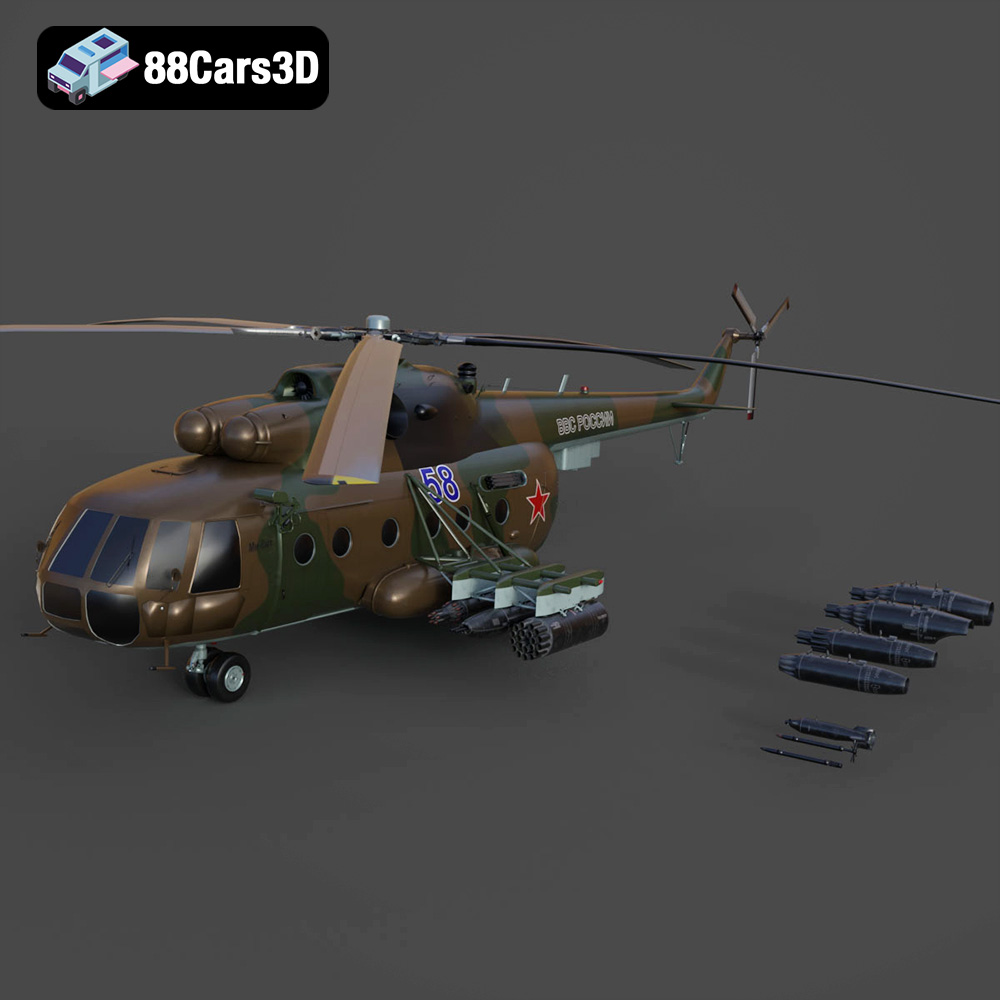
Download the highly detailed, game-ready Mil Mi-8MT Helicopter 3D Model. Features twin-turbine engine housings, a detailed 5-blade main rotor, and authentic cockpit instrumentation. Includes .blend, .fbx, .obj, .glb, .stl, .ply, .unreal, and .max formats for game development, AR/VR, and rendering.
Price: $19.99

Texture: Yes | Material: Yes
Download the highly detailed, game-ready Mercedes-Maybach Vision 6 2018 3D Model. Features an elongated aero coupe design, iconic gullwing doors, and striking 24-inch aerodynamic wheels. Includes .blend, .fbx, .obj, .glb, .stl, .ply, .unreal, and .max formats for game development, AR/VR, and rendering.
Price: $19.99
Texture: Yes | Material: Yes
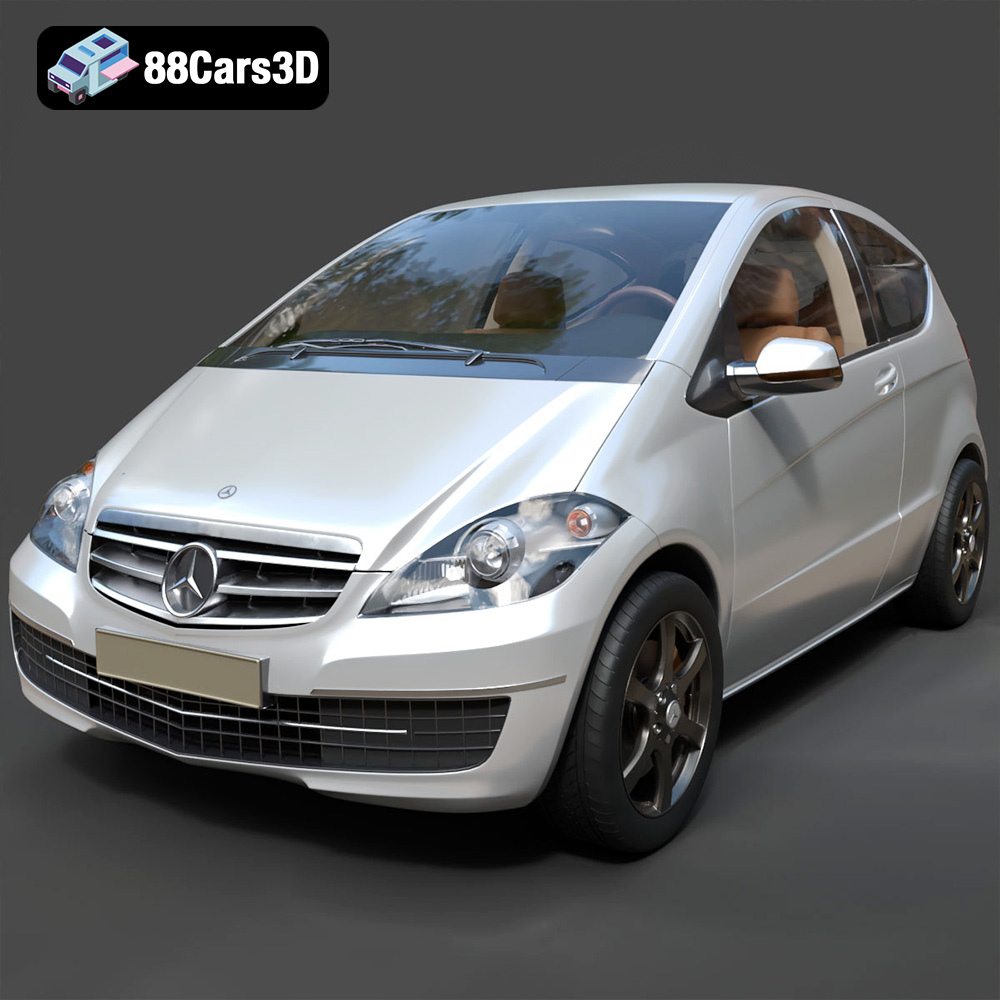
Download the highly detailed, game-ready Mercedes-Benz A-Class 3-Door 2010 3D Model. Features an accurate compact luxury exterior, detailed interior, and optimized topology. Includes .blend, .fbx, .obj, .glb, .stl, .ply, .unreal, and .max formats for game development, AR/VR, and rendering.
Price: $19.99
Texture: Yes | Material: Yes
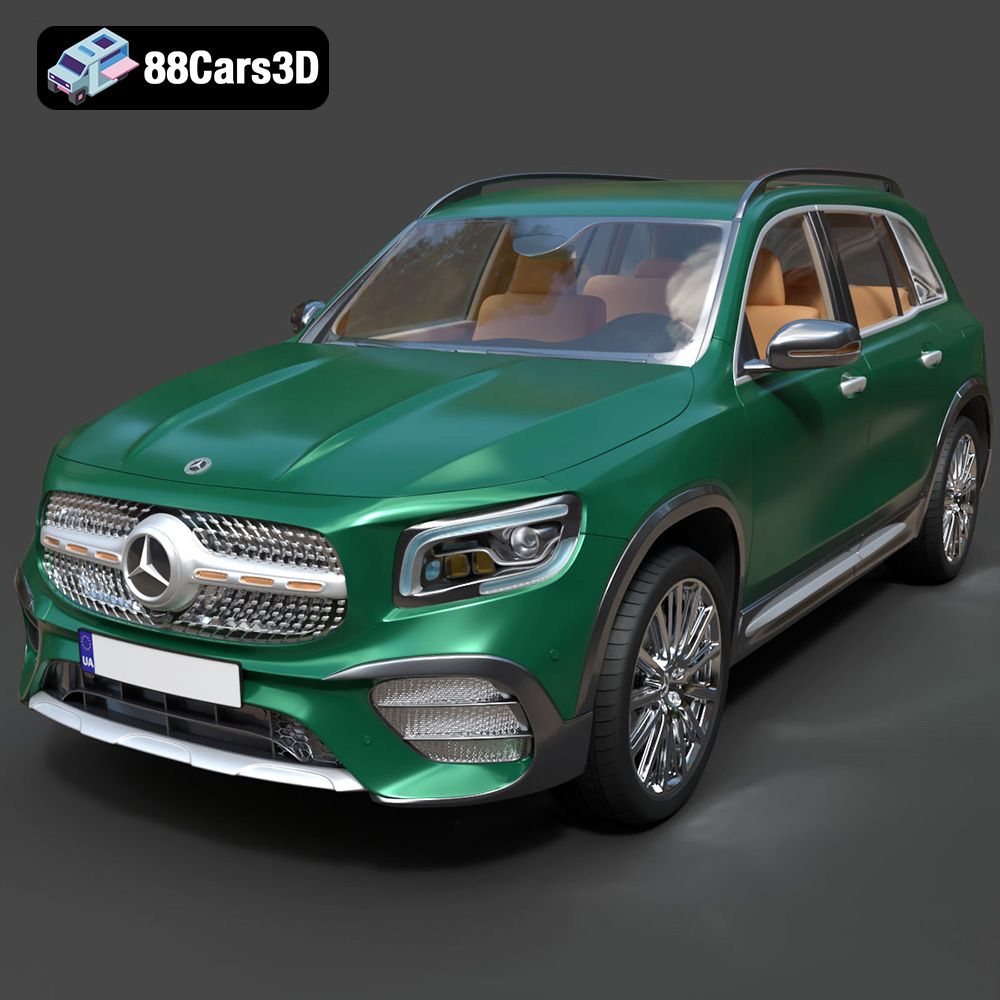
Download the highly detailed, game-ready Mercedes-Benz GLB-Class (Mk1) AMG Line 2019 3D Model. Features sporty AMG Line exterior styling, accurate LED lighting, and premium interior details. Includes .blend, .fbx, .obj, .glb, .stl, .ply, .unreal, and .max formats for game development, AR/VR, and rendering.
Price: $19.99
Texture: Yes | Material: Yes
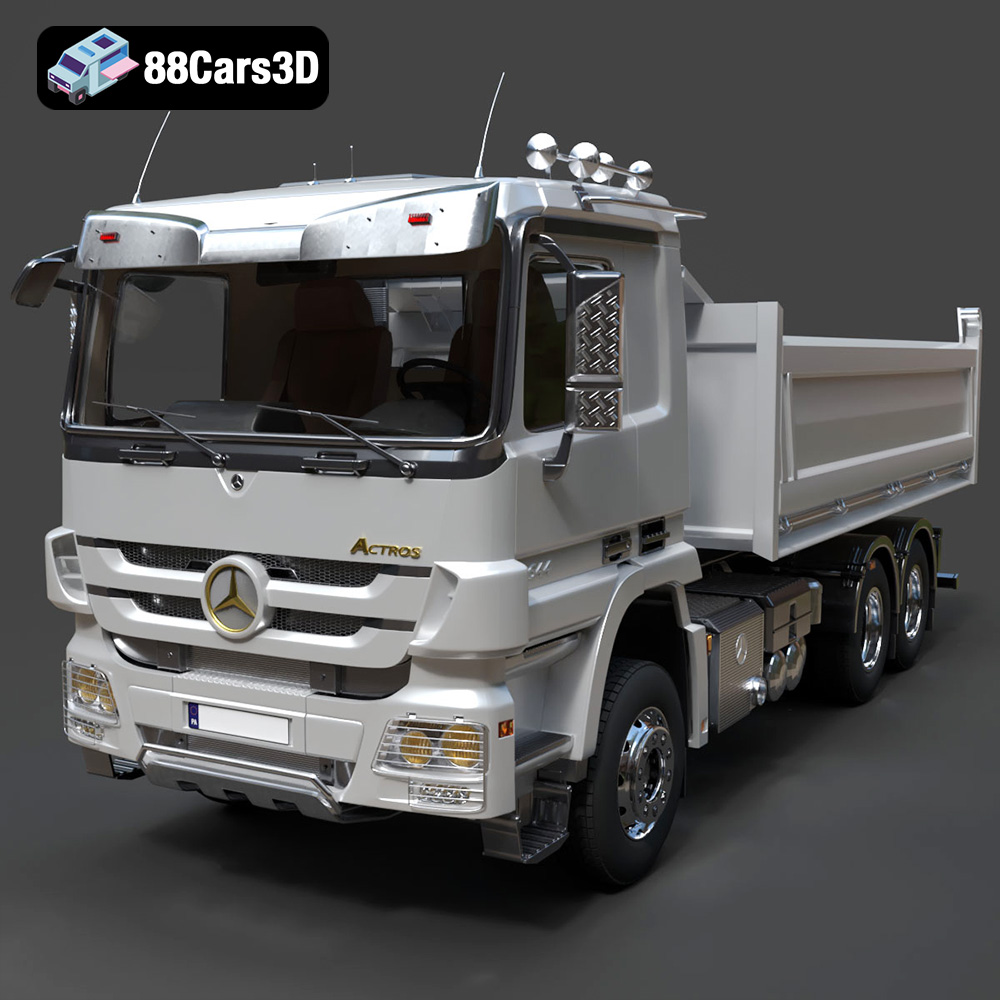
Download the highly detailed, game-ready Mercedes-Benz Actros Tipper 3-Axle 2011 3D Model. Features a functional hydraulic tipper bed, detailed multi-axle chassis, and an accurate commercial cab. Includes .blend, .fbx, .obj, .glb, .stl, .ply, .unreal, and .max formats for game development, AR/VR, and rendering.
Price: $19.99

Texture: Yes | Material: Yes
Download the highly detailed, game-ready Lexus LX Mk3f J200 2016 3D Model. Features the iconic spindle grille, sharp L-shaped LED lighting, and a premium luxury interior. Includes .blend, .fbx, .obj, .glb, .stl, .ply, .unreal, and .max formats for game development, AR/VR, and rendering.
Price: $19.99

Texture: Yes | Material: Yes
Download the highly detailed, game-ready Lexus RX350 2010 3D Model. Features sleek crossover styling, distinctive L-finesse design cues, and an accurate interior layout. Includes .blend, .fbx, .obj, .glb, .stl, .ply, .unreal, and .max formats for game development, AR/VR, and rendering.
Price: $19.99

Texture: Yes | Material: Yes
Download the highly detailed, game-ready Lexus LS 500 2018 3D Model. Features the signature spindle grille, elegant flowing silhouette, and intricate Z-shaped LED lighting. Includes .blend, .fbx, .obj, .glb, .stl, .ply, .unreal, and .max formats for game development, AR/VR, and rendering.
Price: $19.99

Texture: Yes | Material: Yes
Download the highly detailed, game-ready Kawasaki Ninja 3D Model. Features an aggressive aerodynamic fairing, detailed inline-four engine, and racing-inspired ergonomics. Includes .blend, .fbx, .obj, .glb, .stl, .ply, .unreal, and .max formats for game development, AR/VR, and rendering.
Price: $19.99
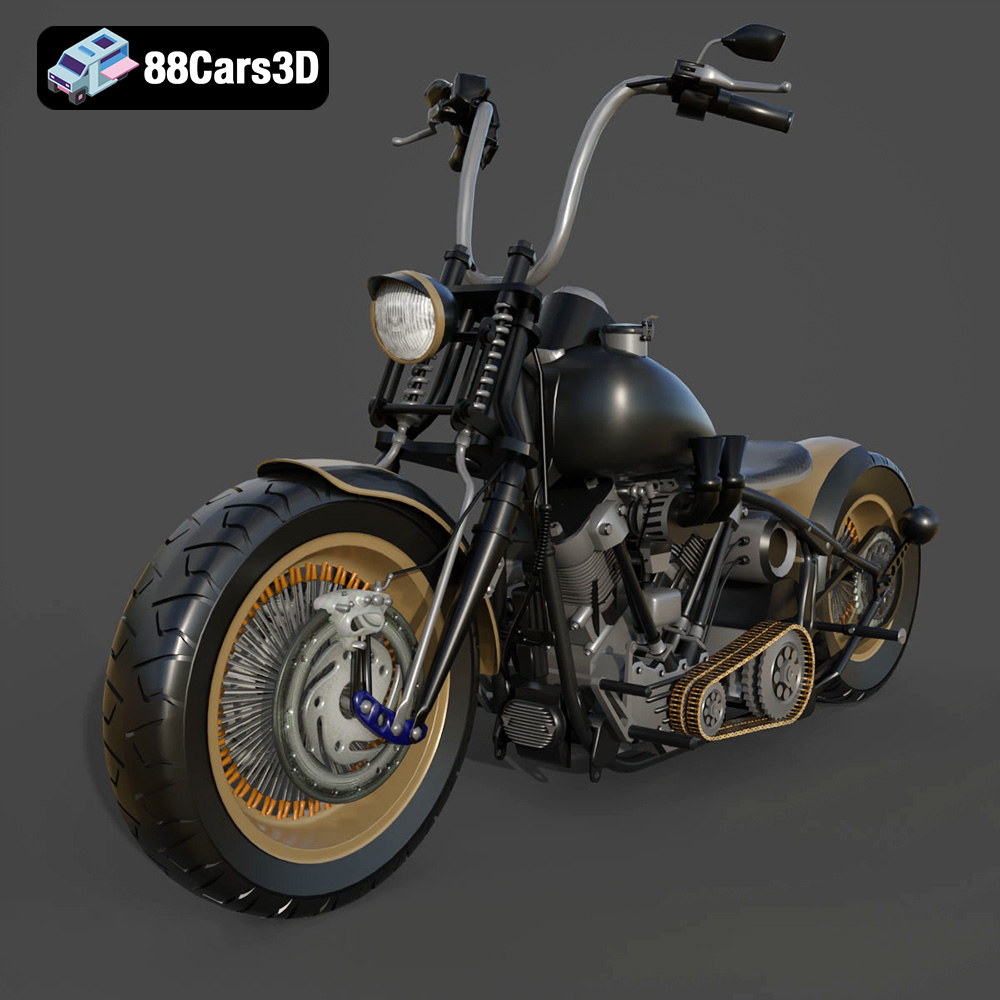
Texture: Yes
Material: Yes
Download the Harley Davidson Knucklehead 3D Model featuring clean geometry, realistic detailing, and a fully modeled interior. Includes .blend, .fbx, .obj, .glb, .stl, .ply, .unreal, and .max formats for rendering, simulation, and game development.
Price: $19.99

