Get 50% OFF All Premium 3D & STL Models!

“`html
3D printing car models has become an incredibly popular hobby, allowing enthusiasts to create detailed replicas of their favorite vehicles. However, achieving truly realistic results often requires adding intricate details like car logos, emblems, and other custom features. This process, while rewarding, demands a good understanding of STL file manipulation, 3D modeling software, and printing techniques. This comprehensive guide will walk you through the process of adding these details to your 3D printable car models in STL format, ensuring professional-looking results every time. Whether you’re aiming to replicate a classic car’s intricate badging or adding a personalized touch to your design, this article will provide the knowledge and skills you need.
We will cover various methods, from simple boolean operations to more advanced techniques using 3D modeling software. We’ll also delve into the best practices for preparing your STL files for printing, including optimizing mesh density and ensuring proper support structures. Finally, we’ll explore common pitfalls and troubleshooting tips to help you avoid common printing errors and achieve the best possible results. So, buckle up and get ready to take your 3D printed car models to the next level!
Before diving into adding logos and emblems, it’s crucial to understand the fundamentals of STL (Stereolithography) files and mesh topology. STL is the most common file format for 3D printing, representing the surface geometry of a 3D object using a collection of triangles. The density and arrangement of these triangles directly impact the detail and accuracy of the printed model. Platforms like 88cars3d.com offer print-ready STL files designed with clean geometry and optimal mesh density for high-quality prints.
STL files contain information about each triangle’s vertices (corners) and surface normal (direction the triangle is facing). There are two main types of STL files: ASCII and Binary. Binary STL files are more compact and generally preferred for 3D printing. However, both formats store the same fundamental information about the triangular mesh. The quality of the mesh is determined by the number of triangles used to represent the surface. A higher triangle count results in a smoother, more detailed surface but also increases file size and processing time.
The topology of the mesh is crucial for successful 3D printing. A “manifold” mesh is one that is closed, without any holes, self-intersections, or non-contiguous edges. Non-manifold meshes can cause errors during slicing and printing. When adding details to an STL file, it’s essential to ensure that the resulting mesh remains manifold. Tools like Netfabb or Meshmixer can be used to identify and repair non-manifold errors, such as:
Selecting the right software is paramount for effectively adding logos, emblems, and custom details to your 3D car models. Several options are available, each with its strengths and weaknesses. Common choices include Meshmixer, Blender, and CAD software like Fusion 360 or SolidWorks. The best choice depends on your experience level, the complexity of the desired details, and the specific tools required. When downloading models from marketplaces such as 88cars3d.com, you’ll want to ensure your chosen software is compatible with the STL format and capable of making the necessary modifications without compromising the integrity of the model.
Meshmixer is a free and powerful tool from Autodesk ideal for modifying existing STL files. Its intuitive interface and sculpting tools make it easy to add basic shapes, smooth surfaces, and perform boolean operations. Meshmixer’s boolean tools allow you to easily subtract or add shapes to your car model, creating recesses for emblems or adding raised logos. However, Meshmixer is less suitable for creating complex, parametric designs from scratch.
Blender is a free and open-source 3D creation suite that offers a vast array of tools for modeling, sculpting, and texturing. It provides greater control over mesh topology and allows for creating intricate details with precision. Blender’s sculpting tools are particularly useful for adding organic shapes and refining the appearance of logos and emblems. While Blender has a steeper learning curve than Meshmixer, its versatility makes it a valuable tool for advanced users. Blender can handle complex meshes and is excellent for creating custom details from scratch.
Boolean operations are a fundamental technique for adding logos and emblems to STL files. These operations involve combining two or more 3D objects using logical operations like union (addition), difference (subtraction), and intersection. By carefully selecting the right operation, you can create recesses for emblems or add raised logos seamlessly. This process is particularly effective when working with models from 88cars3d.com as the existing geometry is generally clean and well-defined.
To create a recess for an emblem, you’ll need a 3D model of the emblem itself. Import both the car model and the emblem model into your chosen software (e.g., Meshmixer or Blender). Position the emblem model where you want the recess to be located on the car model. Then, use the boolean difference operation to subtract the emblem model from the car model. This will create a cavity that matches the shape of the emblem.
To add a raised logo, import both the car model and the logo model into your software. Position the logo model on the car body where you want it to appear. Use the boolean union operation to combine the logo model with the car model. This will merge the two meshes into a single object, creating a raised logo. After the boolean operation, be sure to smooth the transition between the logo and the car body for a seamless look.
Sculpting tools offer a more organic and artistic approach to adding details to your car models. Software like Blender provides a wide range of sculpting brushes that allow you to push, pull, smooth, and refine the surface of your model with precise control. This technique is particularly useful for adding subtle curves, intricate patterns, or custom shapes that are difficult to achieve with boolean operations alone. It’s also useful when needing to seamlessly integrate added details to existing car models.
Blender’s sculpting mode offers a variety of brushes with different effects. The Smooth brush is essential for blending the added details into the existing surface of the car model. The Grab brush can be used to subtly deform the mesh and create custom shapes. The Crease brush allows you to define sharp edges and creases, while the Inflate/Deflate brush can be used to add or remove volume. Experiment with different brushes and settings to achieve the desired effect.
In addition to sculpting, you can add fine details to your car model using textures. Textures are images that are mapped onto the surface of the model to simulate surface details like bumps, grooves, or patterns. Blender supports various types of textures, including bump maps, normal maps, and displacement maps. Bump maps simulate surface irregularities by modifying the way light reflects off the surface. Normal maps provide more detailed surface information and can create the illusion of more complex geometry. Displacement maps actually deform the mesh based on the texture, adding real geometric detail. Keep in mind that displacement maps can significantly increase the polygon count of your model, so use them sparingly.
After adding logos, emblems, and custom details, it’s crucial to optimize your STL file for 3D printing. This involves ensuring that the mesh is manifold, has sufficient resolution for the desired level of detail, and is properly oriented for printing. Neglecting these steps can lead to printing errors, poor surface quality, and wasted filament. Before exporting your final STL, always perform a thorough check for potential issues.
The resolution of your STL file directly impacts the level of detail that can be achieved in the printed model. A higher resolution (more triangles) results in a smoother surface and more accurate representation of fine details. However, a higher resolution also increases file size and processing time. It’s important to strike a balance between detail and efficiency. For car models, a triangle size of around 0.1-0.2mm is generally sufficient for capturing most details. For very fine details, you may need to increase the resolution further. Tools like Meshmixer and Blender allow you to control the mesh density through remeshing and decimation tools.
The orientation of your car model on the print bed can significantly affect the print quality and the amount of support material required. Orienting the model to minimize overhangs reduces the need for support structures, which can be time-consuming to remove and may leave blemishes on the surface of the model. Consider the shape of the car and identify areas that are likely to require support. Rotate the model to minimize these areas or to orient them in a way that allows for easier support removal. Use your slicing software (Cura, PrusaSlicer) to add custom support structures to provide extra support to critical areas, such as overhangs or delicate features. Optimize support settings like density, interface layers, and support placement to balance support strength with ease of removal.
Slicing is the process of converting your optimized STL file into a series of instructions that your 3D printer can understand. Slicing software like Cura or PrusaSlicer takes your 3D model and divides it into thin horizontal layers, generating a G-code file that contains the precise movements of the printer’s extruder or laser. The slicing parameters you choose significantly impact the quality, strength, and printing time of your car model. Careful consideration of these settings is essential for achieving the best possible results. Always refer to your printer’s manual for recommended settings for specific materials.
Layer height is the thickness of each layer of plastic deposited by the printer. A smaller layer height results in a smoother surface and finer details but increases printing time. A larger layer height prints faster but may result in a more visible layer lines and reduced detail. A layer height of 0.1-0.2mm is a good starting point for most car models. Print speed also affects print quality and printing time. Slower print speeds generally result in better adhesion and more accurate layer placement but increase printing time. Faster print speeds can reduce printing time but may lead to warping, poor adhesion, and reduced detail. Experiment with different print speeds to find the optimal balance between speed and quality. A print speed of 40-60mm/s is a good starting point.
Infill is the internal structure of your 3D printed car model. Infill density determines how solid the inside of the model is. A higher infill density results in a stronger, heavier model but also increases printing time and material usage. A lower infill density results in a lighter, faster-printing model but may be less durable. An infill density of 15-25% is generally sufficient for car models. Infill pattern affects the strength and weight distribution of the model. Common infill patterns include grid, honeycomb, and gyroid. Gyroid infill provides a good balance of strength and weight, while honeycomb infill is strong in specific directions.
The choice of 3D printing material is crucial for the final appearance and durability of your 3D printed car model. Common materials include PLA, ABS, PETG, and various types of resin. Each material has its own properties, advantages, and disadvantages. Furthermore, even with optimized printing parameters, post-processing is often necessary to achieve a professional finish. This can include sanding, painting, and clear coating.
Sanding is used to remove layer lines and smooth the surface of your 3D printed car model. Start with coarse sandpaper (e.g., 220 grit) and gradually move to finer grits (e.g., 400, 600, 800) to achieve a smooth finish. Painting is used to add color and detail to your car model. Use automotive-grade paints for a durable and realistic finish. Apply primer before painting to ensure good adhesion and a uniform color. Clear coating is used to protect the paint and add a glossy finish. Apply several thin coats of clear coat for the best results. If your car model consists of multiple parts, you’ll need to assemble them after printing. Use glue or epoxy to bond the parts together. Consider using small pins or pegs to align the parts and provide additional strength.
By following these steps and tips, you can add car logos, emblems, and custom details to your 3D printed car models with confidence. Experiment with different techniques and materials to find what works best for you. Don’t be afraid to try new things and push the boundaries of what’s possible with 3D printing.
Adding car logos, emblems, and custom details to STL files is a challenging but rewarding process that can dramatically enhance the realism and personalization of your 3D printed car models. By understanding the fundamentals of STL files, choosing the right software, mastering boolean operations and sculpting techniques, optimizing your STL files for printing, and carefully selecting your slicing and printer settings, you can achieve professional-looking results that will impress your friends and fellow enthusiasts. Remember to pay close attention to material selection and post-processing techniques to ensure that your car model not only looks great but is also durable and long-lasting.
The world of 3D printing is constantly evolving, with new materials, techniques, and software emerging all the time. Stay curious, keep learning, and don’t be afraid to experiment. Resources like 88cars3d.com are invaluable for sourcing high-quality models and inspiration. With patience, practice, and a little creativity, you can create truly unique and stunning 3D printed car models that reflect your passion for automotive design.
“`
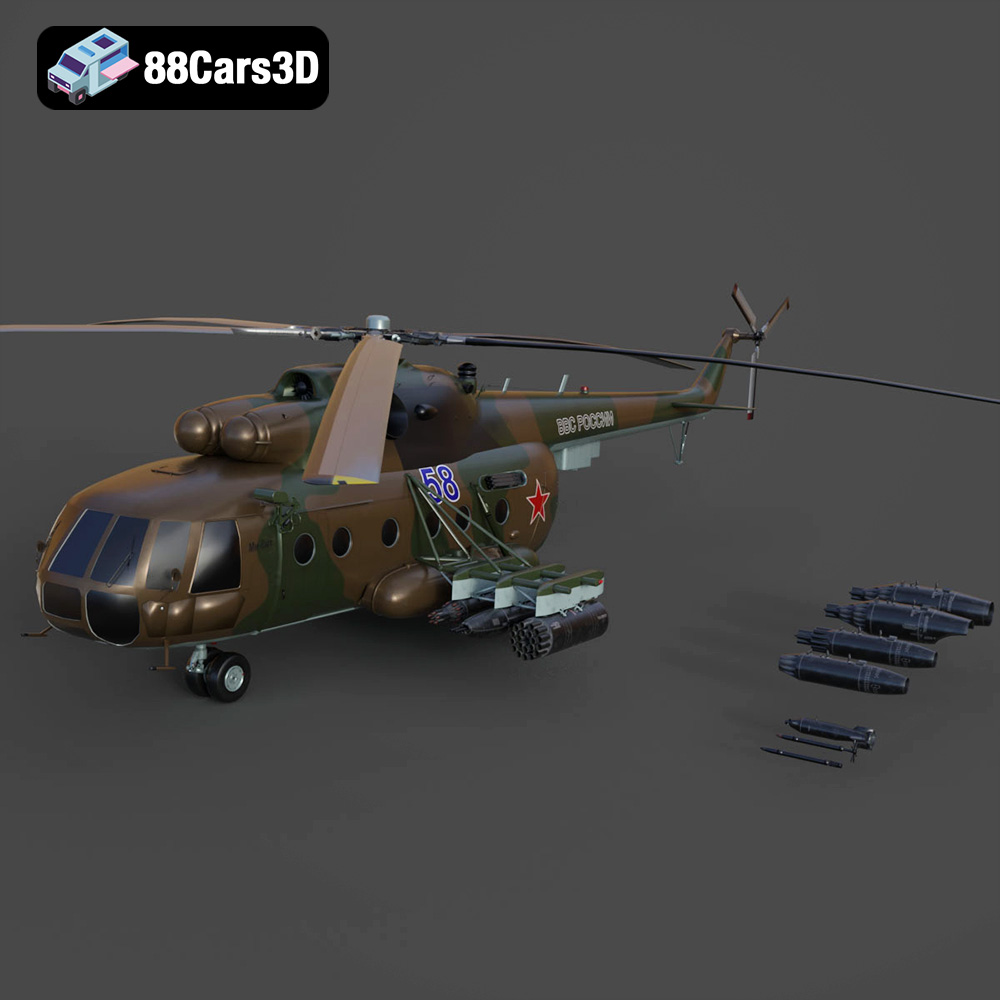
Texture: Yes | Material: Yes
Download the highly detailed, game-ready Mil Mi-8MT Helicopter 3D Model. Features twin-turbine engine housings, a detailed 5-blade main rotor, and authentic cockpit instrumentation. Includes .blend, .fbx, .obj, .glb, .stl, .ply, .unreal, and .max formats for game development, AR/VR, and rendering.
Price: $19.99

Texture: Yes | Material: Yes
Download the highly detailed, game-ready Mercedes-Maybach Vision 6 2018 3D Model. Features an elongated aero coupe design, iconic gullwing doors, and striking 24-inch aerodynamic wheels. Includes .blend, .fbx, .obj, .glb, .stl, .ply, .unreal, and .max formats for game development, AR/VR, and rendering.
Price: $19.99
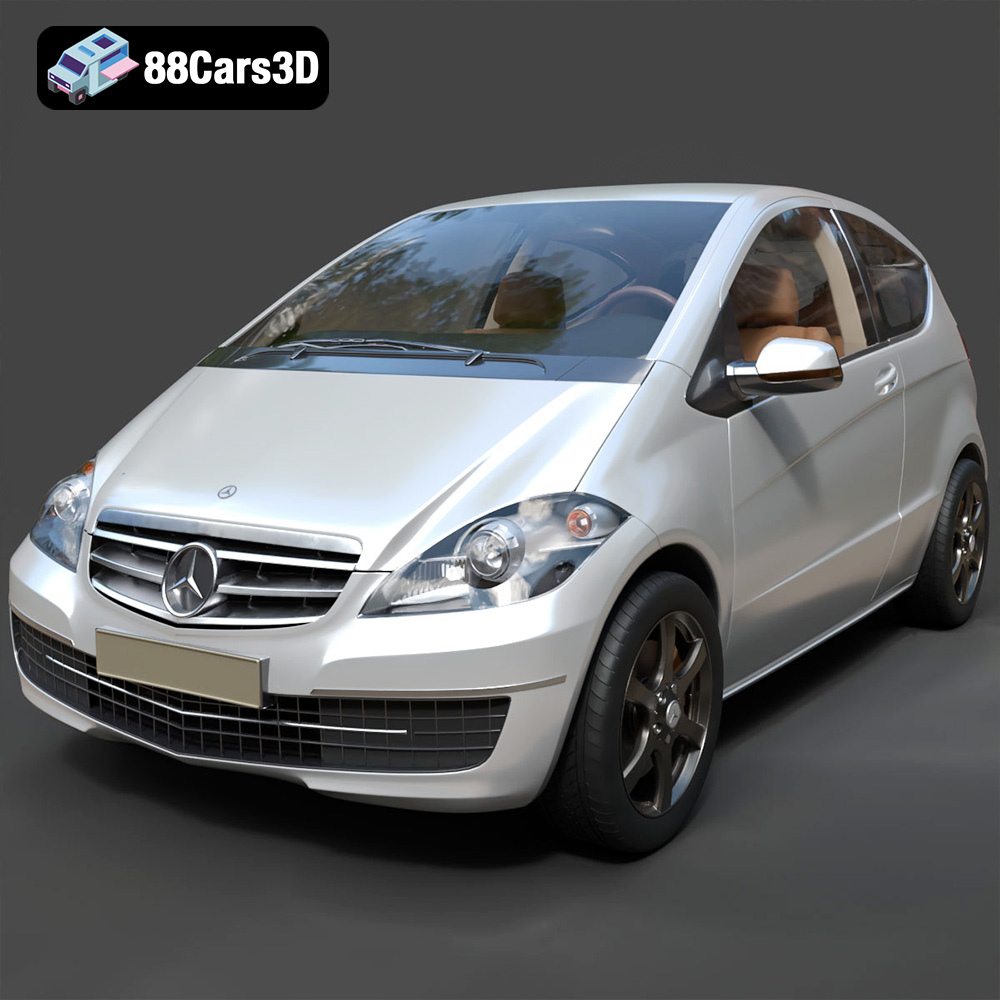
Texture: Yes | Material: Yes
Download the highly detailed, game-ready Mercedes-Benz A-Class 3-Door 2010 3D Model. Features an accurate compact luxury exterior, detailed interior, and optimized topology. Includes .blend, .fbx, .obj, .glb, .stl, .ply, .unreal, and .max formats for game development, AR/VR, and rendering.
Price: $19.99
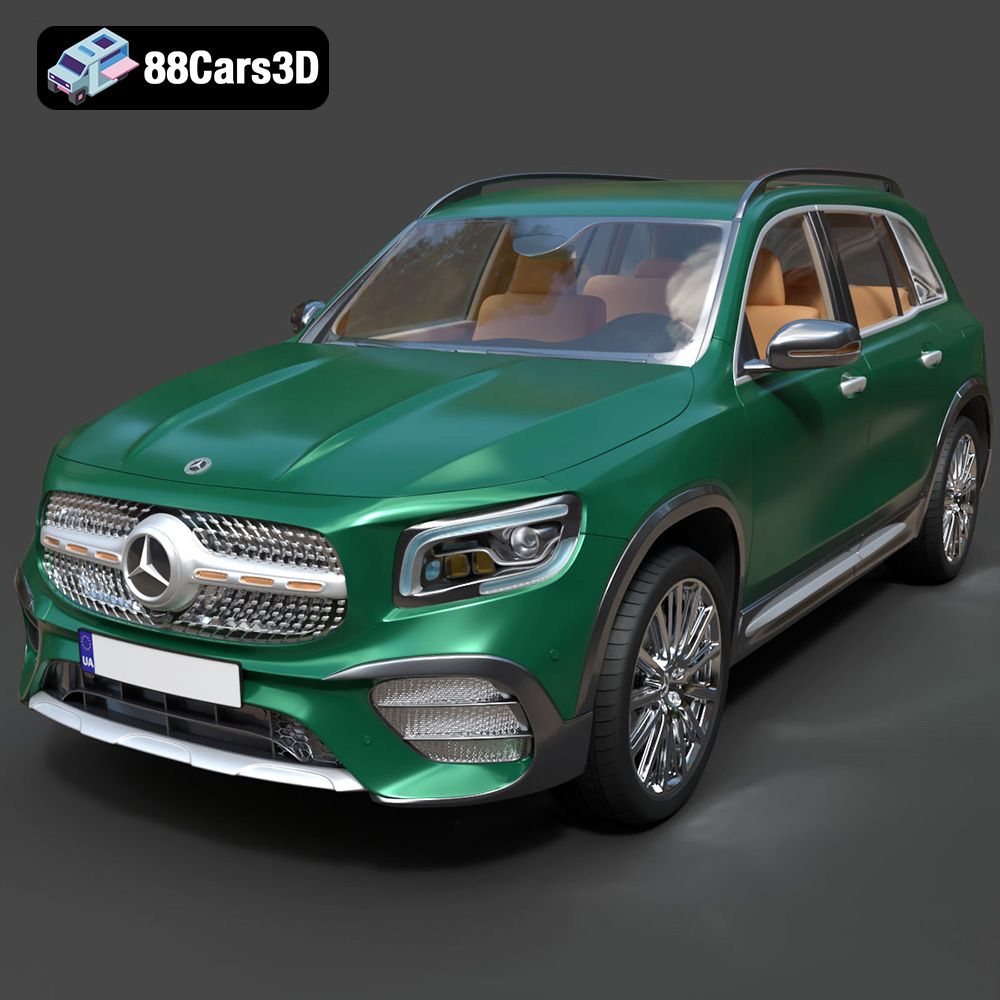
Texture: Yes | Material: Yes
Download the highly detailed, game-ready Mercedes-Benz GLB-Class (Mk1) AMG Line 2019 3D Model. Features sporty AMG Line exterior styling, accurate LED lighting, and premium interior details. Includes .blend, .fbx, .obj, .glb, .stl, .ply, .unreal, and .max formats for game development, AR/VR, and rendering.
Price: $19.99
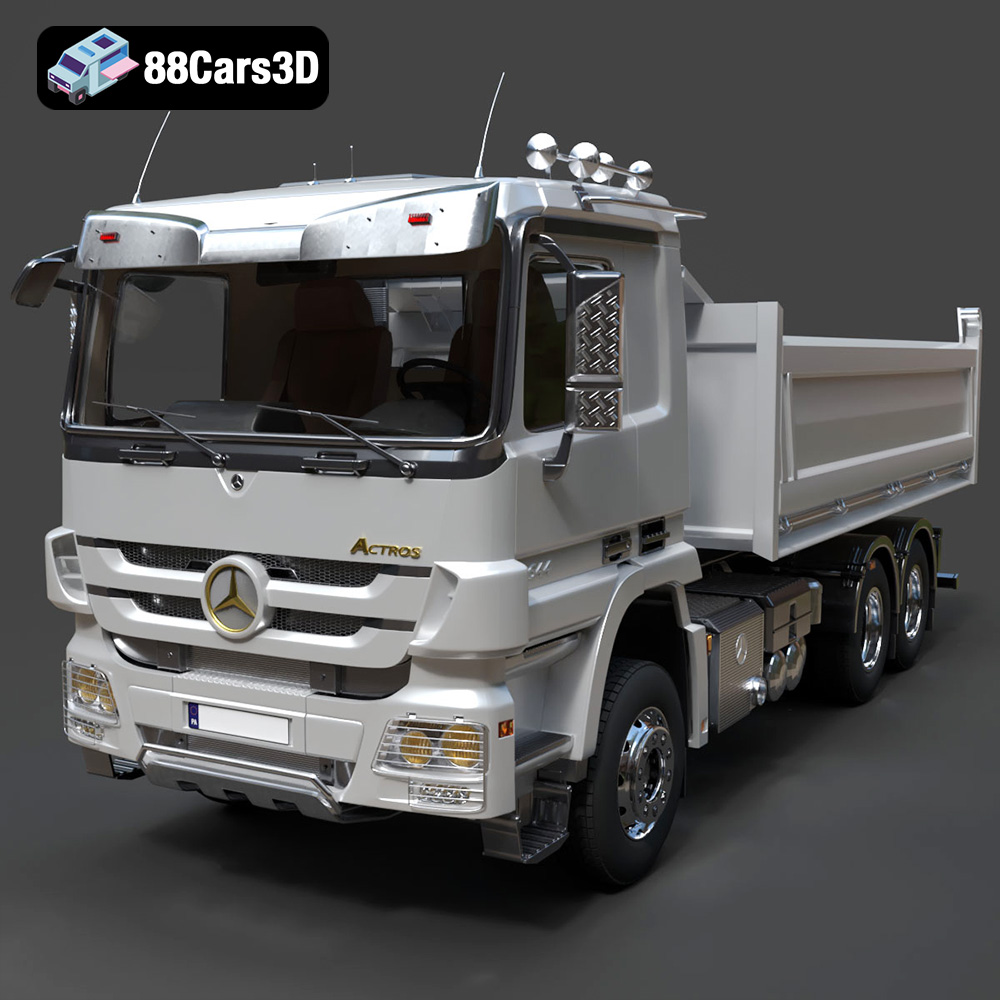
Texture: Yes | Material: Yes
Download the highly detailed, game-ready Mercedes-Benz Actros Tipper 3-Axle 2011 3D Model. Features a functional hydraulic tipper bed, detailed multi-axle chassis, and an accurate commercial cab. Includes .blend, .fbx, .obj, .glb, .stl, .ply, .unreal, and .max formats for game development, AR/VR, and rendering.
Price: $19.99

Texture: Yes | Material: Yes
Download the highly detailed, game-ready Lexus LX Mk3f J200 2016 3D Model. Features the iconic spindle grille, sharp L-shaped LED lighting, and a premium luxury interior. Includes .blend, .fbx, .obj, .glb, .stl, .ply, .unreal, and .max formats for game development, AR/VR, and rendering.
Price: $19.99

Texture: Yes | Material: Yes
Download the highly detailed, game-ready Lexus RX350 2010 3D Model. Features sleek crossover styling, distinctive L-finesse design cues, and an accurate interior layout. Includes .blend, .fbx, .obj, .glb, .stl, .ply, .unreal, and .max formats for game development, AR/VR, and rendering.
Price: $19.99

Texture: Yes | Material: Yes
Download the highly detailed, game-ready Lexus LS 500 2018 3D Model. Features the signature spindle grille, elegant flowing silhouette, and intricate Z-shaped LED lighting. Includes .blend, .fbx, .obj, .glb, .stl, .ply, .unreal, and .max formats for game development, AR/VR, and rendering.
Price: $19.99

Texture: Yes | Material: Yes
Download the highly detailed, game-ready Kawasaki Ninja 3D Model. Features an aggressive aerodynamic fairing, detailed inline-four engine, and racing-inspired ergonomics. Includes .blend, .fbx, .obj, .glb, .stl, .ply, .unreal, and .max formats for game development, AR/VR, and rendering.
Price: $19.99
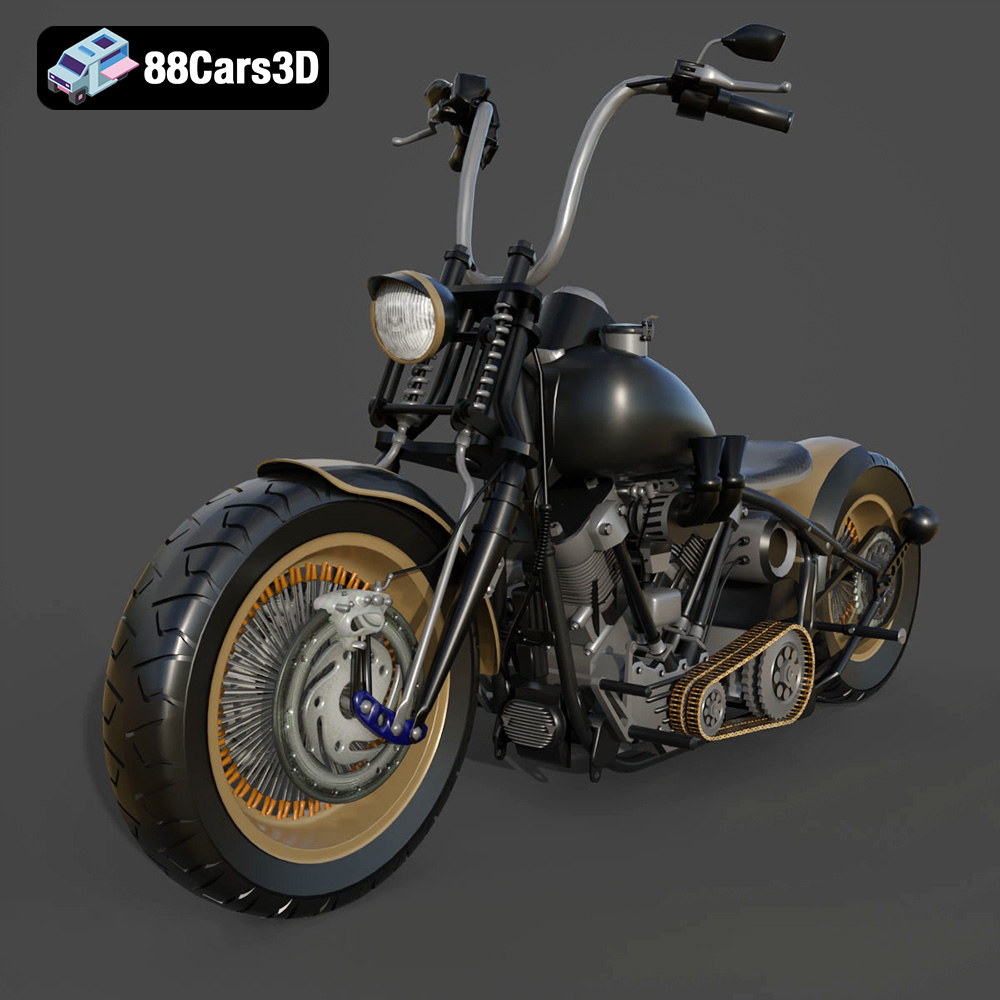
Texture: Yes
Material: Yes
Download the Harley Davidson Knucklehead 3D Model featuring clean geometry, realistic detailing, and a fully modeled interior. Includes .blend, .fbx, .obj, .glb, .stl, .ply, .unreal, and .max formats for rendering, simulation, and game development.
Price: $19.99

