Get 50% OFF All Premium 3D & STL Models!

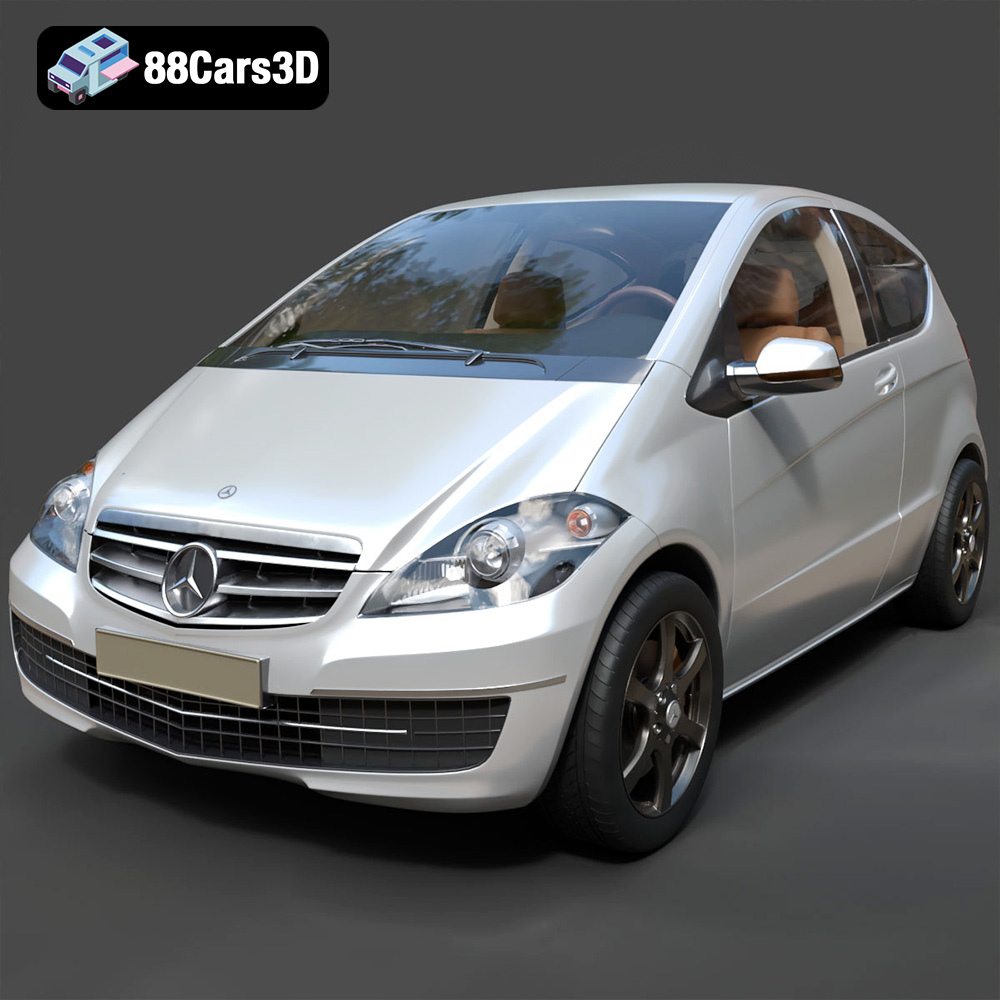
The Mercedes-Benz A-Class 3-Door 2010 is a stylish and practical compact car, and now you can bring it to life through the magic of 3D printing! This detailed guide will walk you through every step of the process, from selecting the right materials and settings to post-processing and finishing touches. Whether you’re a seasoned 3D printing enthusiast or just starting out, this article will provide you with the knowledge and techniques needed to create a stunning 3D printed replica of this iconic vehicle. With the STL files available at 88cars3d.com, you can get started today!
Selecting the appropriate 3D printing technology is the first crucial step in bringing your Mercedes-Benz A-Class model to life. The two most common technologies for detailed models are Fused Deposition Modeling (FDM) and Stereolithography (SLA) or resin printing.
FDM printing is known for its versatility and affordability. It works by extruding molten plastic filament layer by layer to build the model.
* **Advantages:** FDM printers are generally more affordable, easier to maintain, and can use a wider range of materials like PLA, PETG, and ABS. These materials offer different properties such as strength, flexibility, and temperature resistance.
* **Disadvantages:** FDM prints typically have visible layer lines, which may require more post-processing to achieve a smooth finish, especially for a detailed model like the Mercedes-Benz A-Class. Fine details, like the intricate grille or thin body panels, may also be challenging to reproduce accurately.
Resin printing, particularly SLA and DLP, uses liquid resin that is cured by a UV light source.
* **Advantages:** Resin printing offers exceptional detail and smooth surfaces, making it ideal for replicating the complex geometry and fine features of the Mercedes-Benz A-Class. Layer lines are virtually invisible, resulting in a high-quality finish straight off the printer.
* **Disadvantages:** Resin printers tend to be more expensive, and the resin materials can be more costly than FDM filaments. Post-processing also requires careful handling of uncured resin and proper ventilation. Models printed with resin are also typically more brittle than FDM prints, which may be a consideration depending on the intended use.
For the Mercedes-Benz A-Class, resin printing is generally recommended to capture the intricate details and achieve a professional-looking finish, although FDM can still produce acceptable results with careful calibration and post-processing.
The 3D model world is populated with a variety of file formats, each designed with specific purposes in mind. When it comes to 3D printing, the choice of file format can significantly impact the success and quality of your print. For the Mercedes-Benz A-Class model from 88cars3d.com, understanding these formats is crucial.
The STL (Stereolithography) file format is the workhorse of 3D printing. It represents the surface geometry of a 3D object as a collection of triangles.
* **Why it works:** STL is simple, widely supported by slicing software, and efficient at describing complex shapes. It’s the format most 3D printers natively understand. The Mercedes-Benz A-Class model is available in STL, making it directly compatible with almost any 3D printer.
* **Slicing compatibility:** All major slicing software, like Cura, Simplify3D, and PrusaSlicer, can import and process STL files. This makes it easy to prepare the model for printing by setting parameters like layer height, infill, and support structures.
* **Mesh Quality:** The resolution of an STL file is determined by the number of triangles used to represent the surface. A higher triangle count results in a smoother, more accurate representation of the original model, but also a larger file size. When preparing the Mercedes-Benz A-Class STL for printing, ensure the mesh quality is sufficient to capture the fine details, especially for smaller-scale prints. Tools within slicing software can help simplify or refine the mesh as needed.
The OBJ (Object) file format is another common format for 3D models. Unlike STL, OBJ supports color and texture information, allowing for more visually rich models.
* **Use cases:** While OBJ can be used for 3D printing, it’s more commonly employed in rendering and visualization, especially when color information is important. For example, if you plan to paint your 3D printed Mercedes-Benz A-Class model, the OBJ file can be useful as a visual reference for color placement.
PLY (Polygon File Format) is designed for storing 3D data acquired from 3D scanners. It can represent models with high precision and supports various data types, including color, normals, and texture coordinates.
* **High-detail prints:** If you have access to specialized software that can process and convert PLY files for 3D printing, it can be used to create highly detailed prints. However, STL remains the more practical and widely supported option.
The BLEND file is the native format for Blender, a popular open-source 3D modeling software. This format contains the entire Blender scene, including the model, materials, textures, lighting, and camera settings.
* **Customization before export:** The .blend file allows you to make modifications to the Mercedes-Benz A-Class model before exporting it to a 3D printable format like STL. You can adjust the geometry, add details, or split the model into separate parts for easier printing and assembly.
FBX (Filmbox) is a proprietary file format developed by Autodesk. It’s commonly used for exchanging 3D data between different software applications, especially in game development and animation.
* **Limited printing advantage:** While FBX can store material information, it’s not directly used for 3D printing. The material data is typically lost during the slicing process. However, you might use it as visual guide to paint your 3D printed model.
GLB (GL Transmission Format Binary) is a binary file format that represents 3D models in a compact and efficient way. It’s commonly used for displaying 3D models on the web and in augmented reality (AR) applications.
* **AR Preview:** Before committing to a 3D print, use the GLB file to preview the Mercedes-Benz A-Class model in AR on your smartphone or tablet. This allows you to visualize the model in real-world scale and see how it will look in your environment.
Similar to .blend, the .max file is the native format for 3ds Max, another professional 3D modeling software. It contains the entire 3ds Max project, allowing for extensive modifications and customization of the model.
* **Advanced Editing:** Use the .max file to access the full editing capabilities of 3ds Max and tailor the Mercedes-Benz A-Class model to your specific needs before exporting it for 3D printing.
For 3D printing the Mercedes-Benz A-Class model from 88cars3d.com, the **STL** file format is your primary choice. Ensure the mesh quality is adequate, and use slicing software to prepare the model with the appropriate settings for your printer and material. The other formats can be valuable for customization, visualization, and reference, but STL is the key to a successful print.
Once you’ve chosen your 3D printing technology and file format, pre-print preparation is essential. This involves using slicing software to convert the 3D model into a series of instructions that the printer can understand, as well as optimizing the model’s orientation for the best possible print quality.
Slicing software acts as a translator between the 3D model and the 3D printer. It takes the STL file and slices it into thin layers, generating a toolpath that the printer will follow to create each layer. Popular slicing software options include:
* **Cura:** A free and open-source slicer with a user-friendly interface and a wide range of customizable settings.
* **Simplify3D:** A commercial slicer known for its advanced features and precise control over the printing process.
* **PrusaSlicer:** Another excellent free slicer, offering a balance of ease of use and advanced customization options.
When slicing the Mercedes-Benz A-Class model, pay close attention to the following settings:
* **Layer Height:** This determines the thickness of each layer. Lower layer heights (e.g., 0.1mm or less) result in smoother surfaces and finer details but increase print time. Higher layer heights (e.g., 0.2mm or more) print faster but may sacrifice surface quality. For resin printing, layer heights can go even lower, down to 0.02mm or even 0.01mm for incredibly detailed prints.
* **Infill Density:** This controls the amount of material used inside the model. Higher infill densities increase strength and rigidity but also increase print time and material usage. A good starting point for the Mercedes-Benz A-Class is 20-30% infill.
* **Support Structures:** Support structures are necessary to support overhanging parts of the model during printing. The Mercedes-Benz A-Class model may require supports for the exhaust system, mirrors, and other protruding features. Choose a support pattern that is easy to remove after printing.
* **Print Speed:** This determines how fast the printer moves during printing. Slower print speeds generally result in better print quality but increase print time. Experiment with different print speeds to find the optimal balance between quality and speed for your printer and material.
The orientation of the model on the print bed can significantly impact print quality, strength, and the amount of support material required. For the Mercedes-Benz A-Class, consider the following:
* **Minimize Overhangs:** Orient the model to minimize the number of overhanging parts that require support structures. This will reduce the amount of support material needed and improve surface quality.
* **Structural Integrity:** Consider the structural integrity of the printed model. Orient the model so that the layers are aligned in a way that maximizes strength, especially in areas that will be subjected to stress.
* **Frame Printing:** The recommendation suggests printing the frame angled for structural integrity. Experiment with different angles to find the optimal orientation for your printer. A slight angle (e.g., 30-45 degrees) can often improve layer adhesion and reduce the need for supports.
* **Wheels Printing:** The wheels should be printed separately to allow for proper detailing and rotation (if desired). Orient the wheels so that the outer surface is facing up, minimizing the need for supports on the visible part of the wheel.
The choice of material greatly influences the final look, feel, and functionality of your 3D printed Mercedes-Benz A-Class. Each material offers distinct properties, making it suitable for different applications.
PLA (Polylactic Acid) is a thermoplastic polymer derived from renewable resources like cornstarch or sugarcane.
* **Pros:** PLA is easy to print, biodegradable, and available in a wide range of colors. It’s a great option for beginners and for models where strength and temperature resistance are not critical.
* **Cons:** PLA is relatively brittle and has a low melting point, making it unsuitable for parts that will be exposed to high temperatures or stress.
PETG (Polyethylene Terephthalate Glycol-modified) is a thermoplastic polymer that offers a good balance of strength, flexibility, and temperature resistance.
* **Pros:** PETG is stronger and more durable than PLA, with better impact resistance and a higher melting point. It’s also relatively easy to print and offers good layer adhesion.
* **Cons:** PETG can be more prone to stringing than PLA, requiring careful adjustment of printing settings. It’s also not as widely available in as many colors as PLA.
Resin materials, used in SLA and DLP printing, offer exceptional detail and smooth surfaces.
* **Pros:** Resin printing produces models with virtually invisible layer lines and can capture intricate details that are impossible to achieve with FDM printing.
* **Cons:** Resin printers and materials are generally more expensive than FDM alternatives. Resin materials can also be brittle and require careful handling due to their toxicity. Post-processing involves washing and curing the printed parts, which can be messy and time-consuming.
Other materials, such as ABS, Nylon, and Polycarbonate, offer specialized properties like high strength, temperature resistance, or flexibility. However, these materials are generally more difficult to print and require specialized equipment and expertise.
For the Mercedes-Benz A-Class model, PLA or PETG are good choices for FDM printing, offering a balance of ease of use and decent print quality. If you prioritize detail and surface finish, resin printing is the way to go.
Post-processing is the final stage in the 3D printing process, where you refine the printed model to achieve the desired look and feel. This may involve removing support structures, sanding rough surfaces, painting, and assembling multiple parts.
The first step is to carefully remove any support structures from the printed model. Use a sharp knife or pliers to gently detach the supports, being careful not to damage the model. Once the supports are removed, use sandpaper or a file to clean up any remaining residue.
Sanding is essential for achieving a smooth surface finish, especially on FDM prints where layer lines are visible. Start with coarse sandpaper (e.g., 200 grit) to remove major imperfections, then gradually move to finer grits (e.g., 400, 600, 800 grit) to smooth the surface. For resin prints, less sanding is typically required due to the smoother initial surface.
Priming is an important step before painting, as it helps to create a uniform surface and improve paint adhesion. Apply a thin coat of primer to the model and let it dry completely. Once the primer is dry, you can begin painting.
* **Authentic Factory Colors:** The product description suggests using authentic factory colors with metallic finishes for the Mercedes-Benz A-Class. Research the available colors for the 2010 model and choose paints that accurately match the original finishes.
* **Airbrushing:** For the best results, use an airbrush to apply thin, even coats of paint. This will help to avoid drips and runs and create a smooth, professional-looking finish.
* **Detail Painting:** Use small brushes and steady hands to paint fine details like the emblems, headlights, and taillights.
If the model was printed in multiple parts (e.g., wheels, doors, steering components), carefully assemble the parts using glue or fasteners. Ensure that the parts are aligned correctly and that the joints are strong and secure.
Even with careful planning and preparation, 3D printing can sometimes present challenges. Here are some common issues and their solutions:
* **Warping:** This occurs when the printed part lifts off the print bed during printing. To prevent warping, ensure that the print bed is clean and level, use a heated bed, and apply an adhesive like glue stick or hairspray to the bed.
* **Stringing:** This is when thin strands of plastic are left between different parts of the model. To reduce stringing, adjust the retraction settings in your slicing software, decrease the printing temperature, and increase the travel speed.
* **Layer Shifting:** This happens when the layers of the print are misaligned. This can be caused by loose belts, a wobbly print bed, or excessive printing speed. Check and tighten all belts and screws, ensure that the print bed is stable, and reduce the printing speed if necessary.
* **Support Structure Problems:** Supports may fail to adhere properly or may be difficult to remove. Try adjusting the support density, pattern, and interface settings in your slicing software. Experiment with different support materials to find one that works well with your printer and material.
* **Elephant Foot:** The bottom layers are wider than the rest of the print. To fix this, reduce the initial layer height and increase the bed temperature.
The print time and material cost for the Mercedes-Benz A-Class model will depend on several factors, including the size of the model, the layer height, the infill density, and the material used.
* **Print Time:** A typical 1:24 scale model printed with FDM could take anywhere from 8 to 24 hours, depending on the settings. A resin print of the same size could take 4 to 12 hours.
* **Material Cost:** The material cost will vary depending on the type of material and the amount used. A small PLA print might cost only a few dollars, while a larger PETG or resin print could cost $20 or more.
Use your slicing software to generate accurate print time and material cost estimates before starting the print.
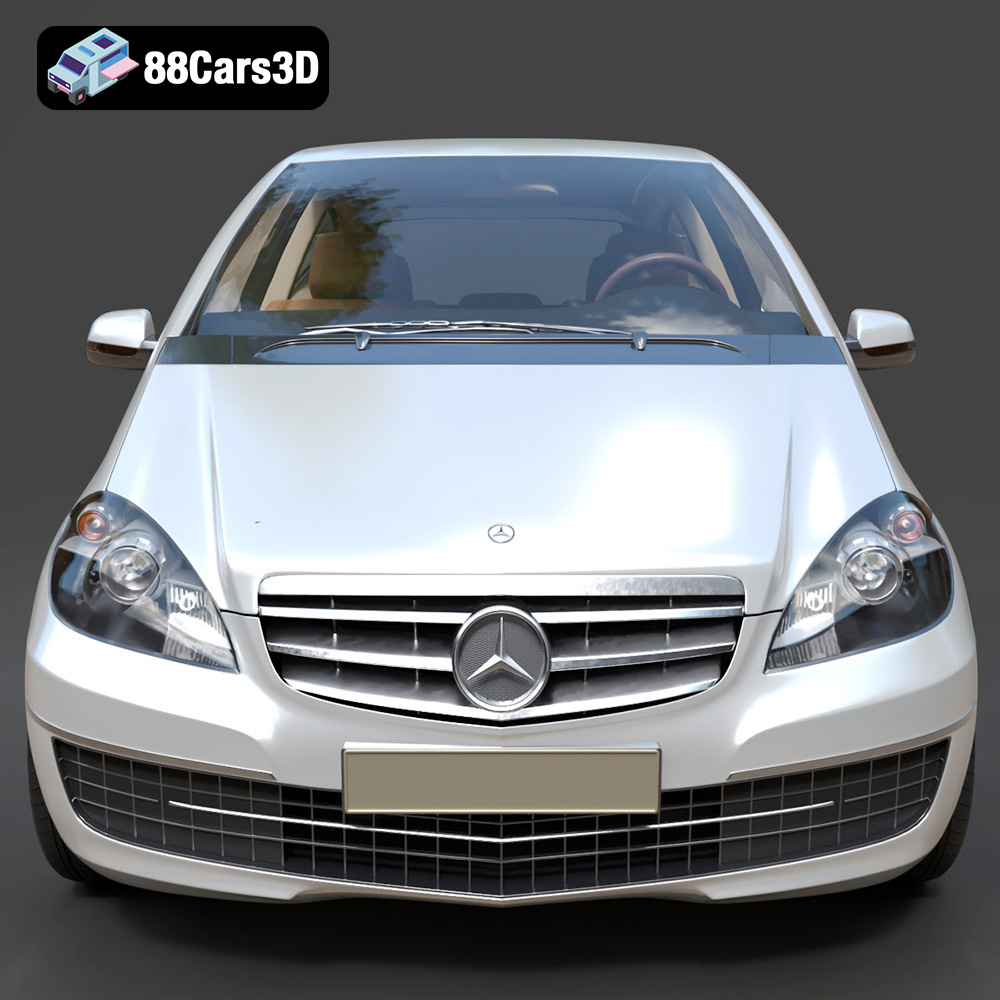
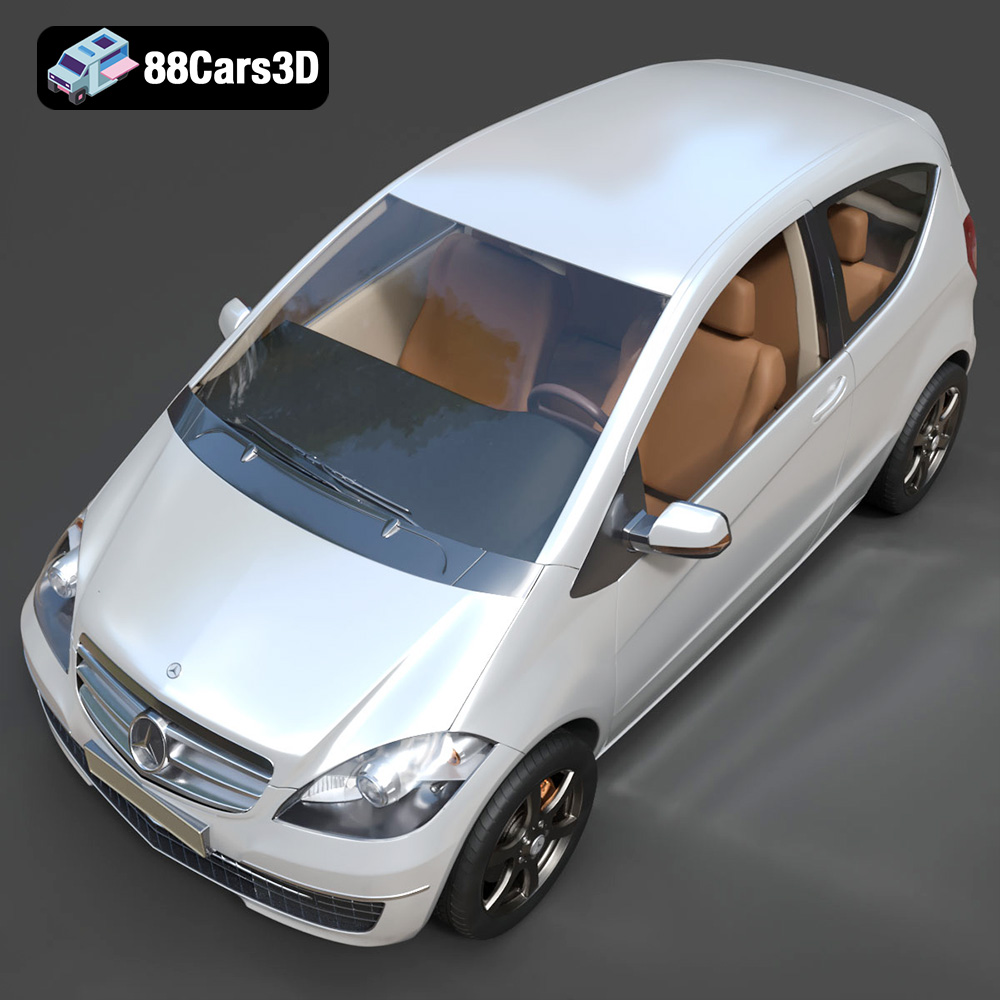
The Mercedes-Benz A-Class 3-Door (2010) represents a defining era of compact luxury, blending urban practicality with premium German engineering. This 3D model captures the distinctive wedge-shaped silhouette and sleek 3-door configuration. Expertly crafted with game-ready optimization, this model features a highly efficient topology while maintaining exceptional visual fidelity. Convertible to .stl format for display-scale hobbyists.
$19.99
3D printing the Mercedes-Benz A-Class 3-Door 2010 model is a rewarding project that combines technical skills with creative expression. By carefully selecting the right 3D printing technology, preparing the model with appropriate slicing settings, choosing the best material for your needs, and mastering post-processing techniques, you can create a stunning replica of this iconic vehicle. Remember to visit 88cars3d.com for high-quality STL files and other 3D models to fuel your passion for additive manufacturing. Embrace the challenges, experiment with different techniques, and enjoy the satisfaction of bringing your digital creations to life.
.2010
.blend
.fbx
.glb
.hatchback
.max
.obj
.ply
.rendering
.stl
.unreal
3-door
a-class
car-3d-model
compact-car
game asset
game-ready
low-poly
mercedes-benz
optimized
VR/AR