Get 50% OFF All Premium 3D & STL Models!

“`html
3D printing, especially when dealing with intricate designs like those found in printable car models, can be a thrilling yet challenging endeavor. Successfully printing complex geometries in STL files requires a deep understanding of the process, from file preparation to printer calibration and post-processing. This guide provides a comprehensive overview of the techniques and best practices necessary to minimize failures and achieve stunning results, particularly when working with detailed car models available on platforms like 88cars3d.com. Whether you’re a seasoned 3D printing enthusiast or a newcomer eager to explore the possibilities, this article will equip you with the knowledge to confidently tackle complex 3D printing projects.
We’ll delve into the intricacies of STL file structure, explore optimal slicing parameters, discuss support generation and removal, analyze material selection, and troubleshoot common printing problems. By the end of this guide, you’ll be well-equipped to print complex STL car models with confidence, maximizing your chances of success and minimizing frustrating failures.
The STL (Stereolithography) file format is the backbone of 3D printing. It represents the surface geometry of a 3D object using a collection of triangles. The quality of the STL file directly impacts the print quality. A well-constructed STL file will have a clean, manifold mesh, while a poorly constructed one can lead to significant printing issues.
A manifold mesh is essential for successful 3D printing. A manifold mesh is watertight, meaning it encloses a single, continuous volume. Non-manifold meshes, on the other hand, contain errors like holes, self-intersections, and unconnected edges. These errors can confuse slicing software and lead to print failures. Slicing software interprets the STL file and generates the toolpath for the 3D printer. If the file contains errors, the slicer may misinterpret the geometry, resulting in incorrect layer deposition and a failed print.
Mesh resolution determines the level of detail captured in the STL file. Higher resolution meshes contain more triangles, resulting in smoother surfaces but also larger file sizes. Lower resolution meshes have fewer triangles, leading to faceted surfaces and potentially sacrificing detail. Finding the right balance between resolution and file size is crucial. For printable car models with curved surfaces, a higher resolution is generally preferred to accurately represent the design. However, excessively high resolution can strain your computer’s processing power and increase slicing time. Consider optimizing the mesh resolution to capture the necessary details without creating an unnecessarily large file. Many mesh editing tools allow you to selectively refine areas requiring greater detail while simplifying less critical regions.
Slicing is the process of converting a 3D model into a series of layers that the 3D printer can understand. The slicing software generates a toolpath that dictates the movement of the printer’s nozzle or laser. Choosing the correct slicing parameters is paramount for achieving successful prints of complex geometries. When working with intricate designs, it is imperative to carefully consider settings such as layer height, print speed, temperature, and infill density.
Layer height significantly impacts print quality and print time. Smaller layer heights result in smoother surfaces and finer details, but they also increase print time. Larger layer heights lead to faster prints but can compromise surface finish. For complex car models with intricate details, a smaller layer height is often preferred. For example, a layer height of 0.1mm or 0.15mm can capture fine details and reduce the staircase effect on curved surfaces. However, if print time is a major concern, consider increasing the layer height to 0.2mm or 0.25mm, especially for less critical sections of the model. It’s essential to find a balance that meets both quality and time constraints.
Infill is the internal structure of the 3D printed object. The infill pattern and density affect the strength, weight, and print time of the model. For functional parts requiring high strength, a higher infill density and a robust infill pattern like gyroid or cubic are recommended. For purely aesthetic models, a lower infill density and a simpler pattern like rectilinear or concentric can suffice. When printing car models, consider the intended use. If the model is purely for display, a lower infill density (10-15%) will suffice. If the model will be handled frequently or subjected to stress, a higher infill density (20-30%) is recommended. Experiment with different infill patterns to find the best balance between strength, weight, and print time. Some slicers offer adaptive infill, which adjusts the infill density based on the geometry of the model, providing increased strength in critical areas while minimizing material usage in less stressed regions.
Support structures are essential for printing overhanging features. Overhangs are portions of the model that are not directly supported by the layer below. Without support structures, these features would collapse during printing. Generating and removing supports effectively is a critical skill for 3D printing complex geometries. The placement, type, and density of support structures all influence the success of the print and the ease of post-processing.
There are several types of support structures, each with its advantages and disadvantages. Linear supports are simple vertical columns that support overhanging features. They are easy to generate but can leave noticeable marks on the surface of the print. Tree supports, on the other hand, are more complex and branch out like a tree to support overhanging features. They use less material than linear supports and are easier to remove, but they can be more difficult to generate and may not be suitable for all geometries. For car models with complex curves and intricate details, tree supports are often the preferred choice. They provide adequate support while minimizing the impact on the surface finish. Experiment with different support types to find the best solution for your specific model.
The placement and density of support structures are crucial for successful printing. Supports should be placed strategically to adequately support overhanging features while minimizing their impact on the surface finish. Avoid placing supports on critical surfaces or areas that will be visible in the final model. The support density determines the spacing between the support structures. Higher density supports provide more support but can be more difficult to remove. Lower density supports are easier to remove but may not provide adequate support for all overhanging features. Most slicing software allows you to manually adjust support placement and density. Take advantage of these features to fine-tune the support structures for your specific model. Carefully inspect the model in the slicer to identify areas that require additional support and adjust the placement accordingly. When downloading models from marketplaces such as 88cars3d.com, you might find pre-supported models that are optimized for specific printing parameters, which can save you time and effort.
Choosing the right material is crucial for achieving successful prints. Different materials have different properties, such as strength, flexibility, and temperature resistance. Selecting the appropriate material for your specific application is essential. Printer calibration ensures that the printer is operating correctly and producing accurate prints. A properly calibrated printer will extrude the correct amount of material, maintain the correct temperature, and move accurately along the X, Y, and Z axes.
PLA (Polylactic Acid) is a biodegradable thermoplastic that is easy to print and produces good surface finishes. It is a good choice for aesthetic models and prototypes. PETG (Polyethylene Terephthalate Glycol) is a more durable and heat-resistant thermoplastic than PLA. It is a good choice for functional parts and parts that will be exposed to higher temperatures. ABS (Acrylonitrile Butadiene Styrene) is a strong and heat-resistant thermoplastic that is commonly used in automotive applications. It is more difficult to print than PLA and PETG and requires a heated bed and enclosure to prevent warping. For printing car models, PLA is a good choice for beginners due to its ease of printing. PETG is a good choice for models that will be handled frequently or subjected to stress. ABS is a good choice for models that require high strength and heat resistance. When printing with ABS, ensure proper ventilation to avoid inhaling harmful fumes.
Printer calibration involves adjusting various settings to ensure that the printer is operating correctly. This includes calibrating the extruder, leveling the bed, and adjusting the temperature settings. Extruder calibration ensures that the printer is extruding the correct amount of material. Bed leveling ensures that the print bed is level, which is essential for good bed adhesion. Temperature calibration ensures that the nozzle and bed are heated to the correct temperatures. A well-calibrated printer will produce accurate and consistent prints. Regularly check and adjust the calibration settings of your printer to maintain optimal performance. Many online resources and tutorials provide detailed instructions on how to calibrate your specific 3D printer model. Pay close attention to the manufacturer’s recommendations and follow the calibration procedures carefully.
Even with careful planning and execution, 3D printing failures can occur. Understanding the common causes of these failures and knowing how to troubleshoot them is essential for minimizing wasted time and materials. Identifying the root cause of the problem is the first step towards finding a solution. Common issues include warping, layer adhesion problems, stringing, and nozzle clogging.
Warping occurs when the corners of the print lift off the bed. This is often caused by poor bed adhesion or uneven cooling. To prevent warping, ensure that the bed is clean and level, use a bed adhesive such as glue stick or hairspray, and enclose the printer to maintain a consistent temperature. Layer adhesion problems occur when the layers of the print do not adhere to each other properly. This can be caused by insufficient nozzle temperature, incorrect layer height, or poor bed adhesion. To improve layer adhesion, increase the nozzle temperature, decrease the layer height, and ensure that the bed is clean and level. Stringing occurs when the printer extrudes material while moving between different parts of the print. This is often caused by excessive nozzle temperature or retraction settings. To reduce stringing, decrease the nozzle temperature, increase the retraction distance, and adjust the retraction speed. Proper material storage is also key. Keep filaments in a dry environment to prevent moisture absorption, which can lead to printing defects.
Nozzle clogging occurs when the nozzle becomes blocked with filament. This can be caused by debris in the filament, incorrect temperature settings, or a worn-out nozzle. To prevent nozzle clogging, use high-quality filament, filter the filament before printing, and clean the nozzle regularly. Filament issues can include brittle filament, tangled filament, or filament that is too thick or too thin. To prevent filament issues, store the filament in a dry environment, use a filament spool holder to prevent tangling, and ensure that the filament diameter is compatible with your printer. Regularly inspect your filament for signs of damage or contamination. A well-maintained printer with quality filament will significantly reduce the likelihood of nozzle clogs and other filament-related problems.
Post-processing techniques can significantly enhance the aesthetics of 3D printed car models. These techniques include sanding, painting, and assembly. Sanding smooths the surface of the print and removes any imperfections. Painting adds color and detail to the model. Assembly involves assembling multiple parts of the model to create a final product.
Sanding is the process of removing imperfections and smoothing the surface of the print. Start with coarse grit sandpaper (e.g., 220 grit) to remove larger imperfections and then gradually move to finer grit sandpaper (e.g., 400 grit, 600 grit, 800 grit) to achieve a smooth finish. Filling is the process of filling in any remaining imperfections with a filler material such as putty or Bondo. Apply the filler material to the imperfections and then sand it smooth. Priming is the process of applying a primer coat to the model to prepare it for painting. The primer coat helps the paint adhere to the surface of the model and provides a uniform surface for painting. When sanding, use a wet sanding technique to reduce dust and prevent the sandpaper from clogging. Wear a mask to protect yourself from inhaling dust particles. After sanding, thoroughly clean the model to remove any sanding residue before applying filler or primer.
Painting is the process of adding color and detail to the model. Use high-quality paints designed for plastic models. Apply multiple thin coats of paint to avoid drips and runs. Use masking tape to create clean lines and patterns. Detailing involves adding small details to the model, such as panel lines, rivets, and decals. Use fine-tipped brushes and detailing tools to add these details. Consider using an airbrush for a smoother and more even paint finish. Experiment with different painting techniques, such as dry brushing and weathering, to add realism to your car models. High-quality paints and detailing tools can significantly elevate the final appearance of your 3D printed creations. Many 3D printing enthusiasts find inspiration and techniques online on platforms and forums dedicated to model building.
Successfully 3D printing complex geometries in STL files, especially intricate car models, requires a combination of technical knowledge, careful planning, and meticulous execution. From understanding the nuances of STL file structure and optimizing slicing parameters to mastering support structures and selecting the right materials, each step plays a crucial role in achieving high-quality prints. Remember to calibrate your printer regularly, troubleshoot common printing failures, and employ post-processing techniques to enhance the final appearance of your models. Platforms like 88cars3d.com offer print-ready STL files that can significantly streamline your workflow, but understanding the underlying principles of 3D printing will empower you to tackle any challenge and unlock the full potential of this exciting technology.
By following the guidelines and best practices outlined in this article, you can minimize printing failures, maximize your chances of success, and create stunning 3D printed car models that showcase your skill and creativity. Embrace the learning process, experiment with different settings and techniques, and don’t be afraid to tackle challenging projects. The world of 3D printing is constantly evolving, and continuous learning is the key to mastering this innovative technology. Now, go forth and bring your digital designs to life!
“`
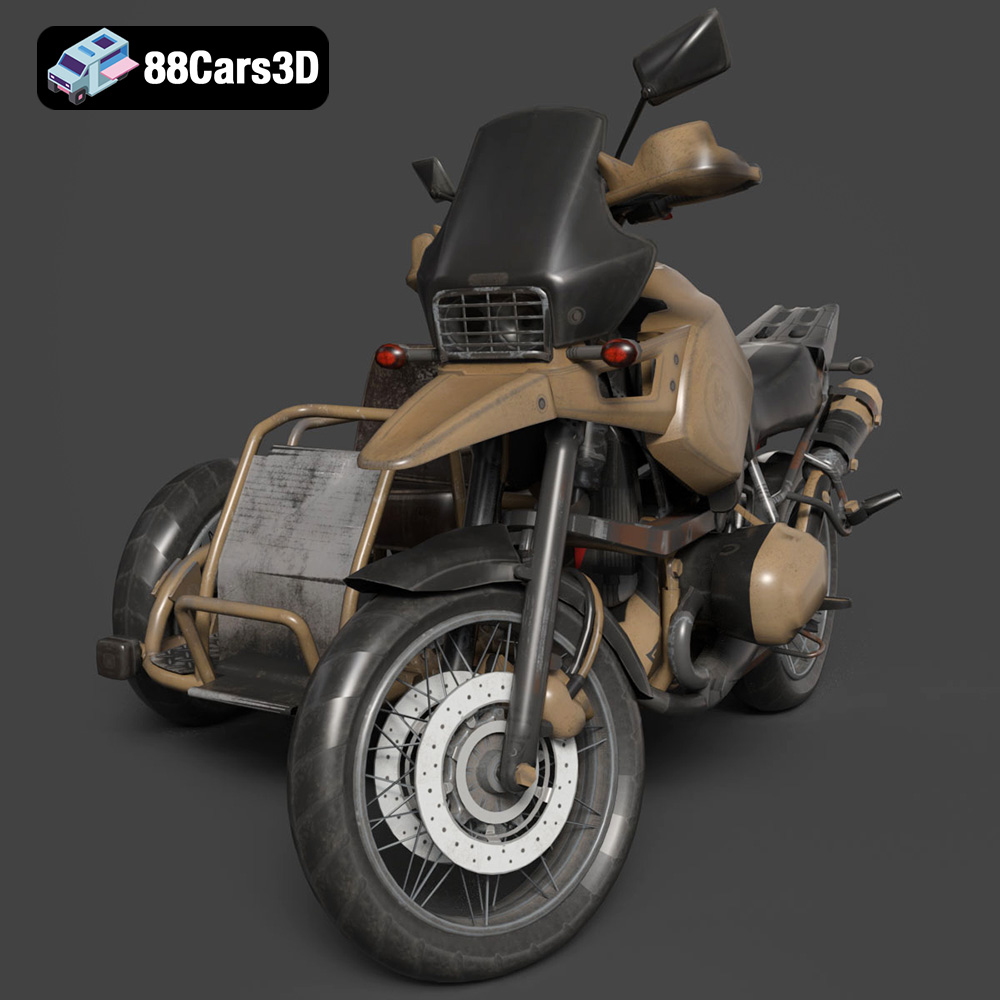
Texture: Yes | Material: Yes
Download the highly detailed, game-ready Custom Off-Road BMW R1150GS Adventure Sidecar 3D Model. Features rugged all-terrain suspension, an attached passenger sidecar, and off-road knobby tires. Includes .blend, .fbx, .obj, .glb, .stl, .ply, .unreal, and .max formats for game development, AR/VR, and rendering.
Price: $19.99

Texture: Yes | Material: Yes
Download the highly detailed, game-ready Mitsubishi Outlander GT 2010 3D Model. Features the aggressive Lancer-inspired front grille, accurate exterior styling, and high-fidelity alloy wheels. Includes .blend, .fbx, .obj, .glb, .stl, .ply, .unreal, and .max formats for game development, AR/VR, and rendering.
Price: $19.99
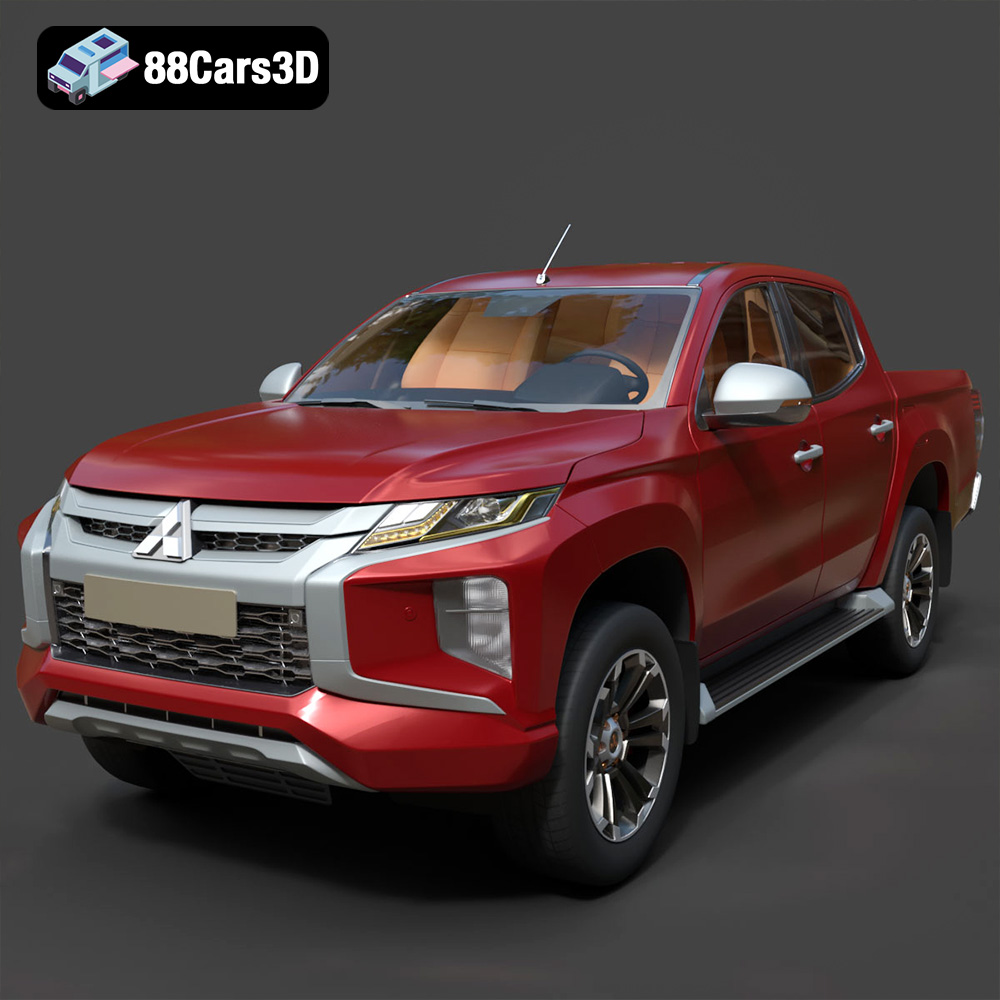
Texture: Yes | Material: Yes
Download the highly detailed, game-ready Mitsubishi L200 Crew Cab 2019 3D Model. Features the iconic Dynamic Shield front fascia, rugged cargo bed, and a spacious crew cab interior. Includes .blend, .fbx, .obj, .glb, .stl, .ply, .unreal, and .max formats for game development, AR/VR, and rendering.
Price: $19.99
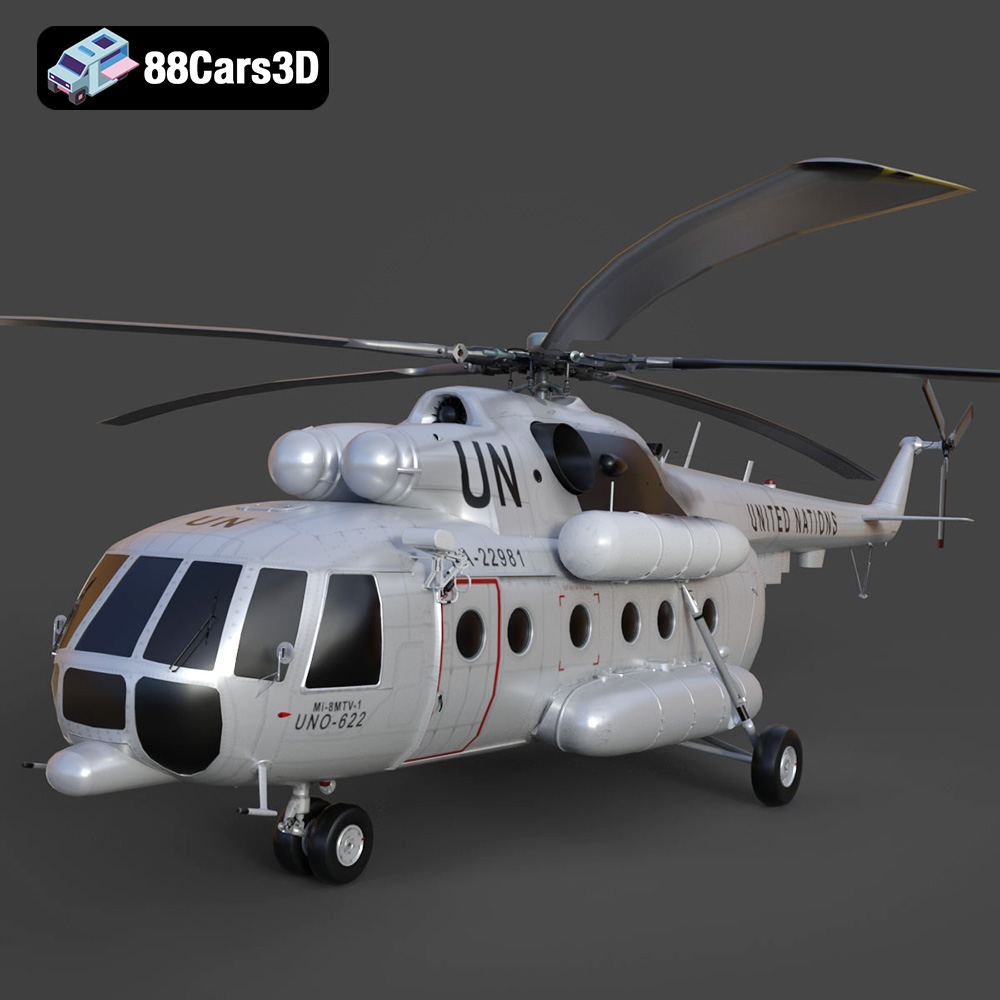
Texture: Yes | Material: Yes
Download the highly detailed, game-ready Mil Mi-8MTV-UN 3D Model. Features the iconic United Nations white livery, detailed twin turboshaft engines, and fully articulated rotor assemblies. Includes .blend, .fbx, .obj, .glb, .stl, .ply, .unreal, and .max formats for game development, AR/VR, and rendering.
Price: $19.99
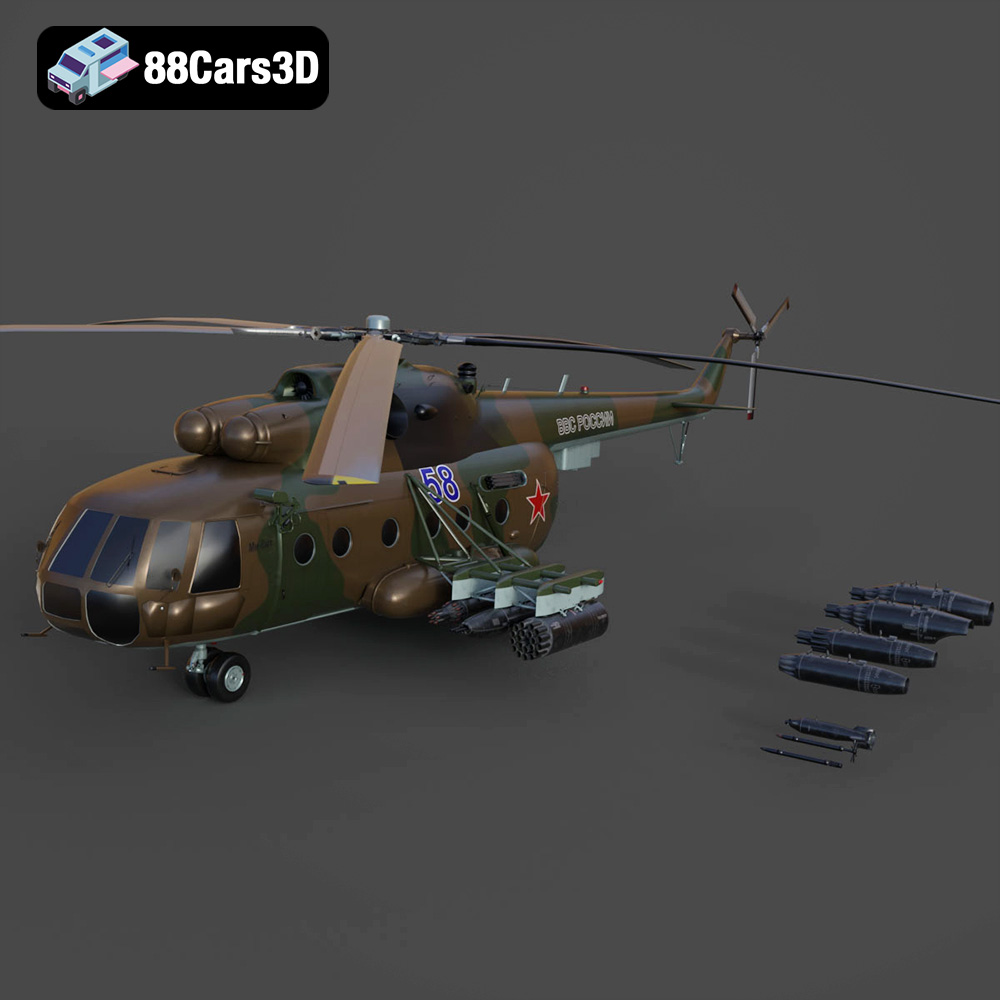
Texture: Yes | Material: Yes
Download the highly detailed, game-ready Mil Mi-8MT Helicopter 3D Model. Features twin-turbine engine housings, a detailed 5-blade main rotor, and authentic cockpit instrumentation. Includes .blend, .fbx, .obj, .glb, .stl, .ply, .unreal, and .max formats for game development, AR/VR, and rendering.
Price: $19.99

Texture: Yes | Material: Yes
Download the highly detailed, game-ready Mercedes-Maybach Vision 6 2018 3D Model. Features an elongated aero coupe design, iconic gullwing doors, and striking 24-inch aerodynamic wheels. Includes .blend, .fbx, .obj, .glb, .stl, .ply, .unreal, and .max formats for game development, AR/VR, and rendering.
Price: $19.99
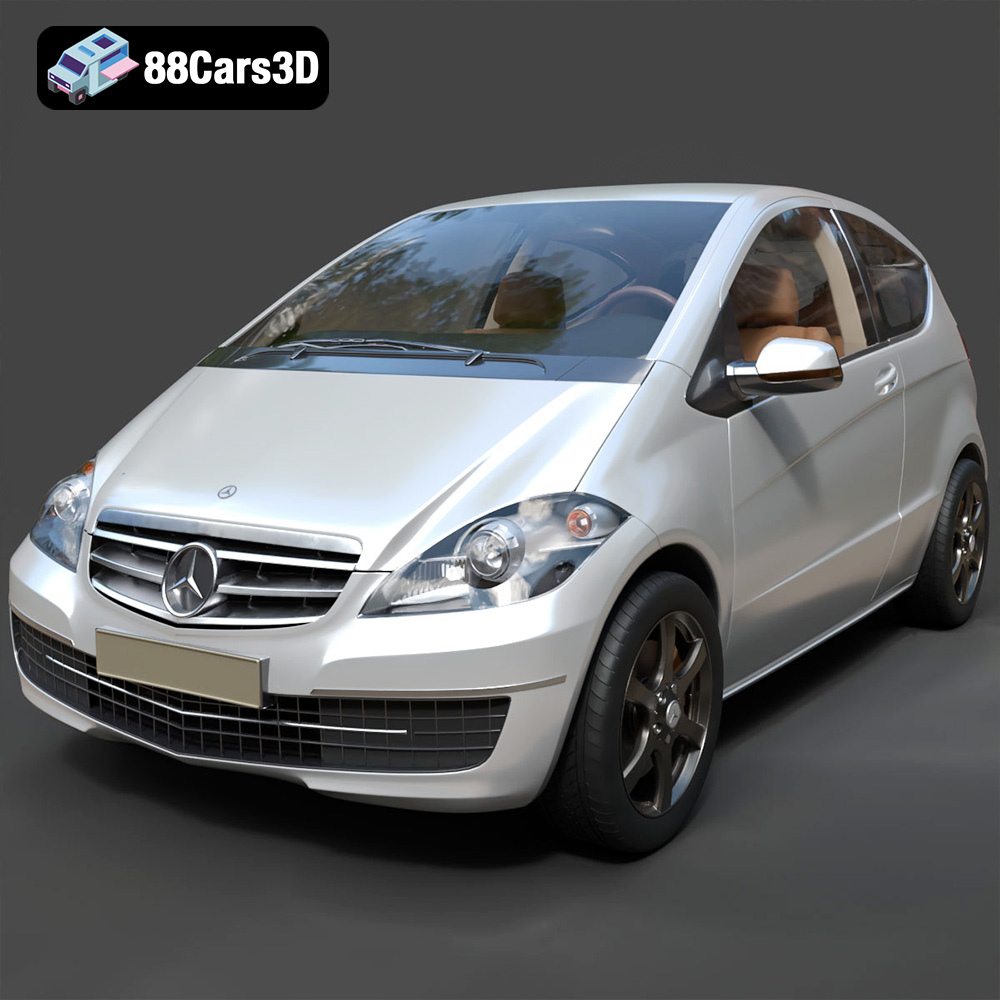
Texture: Yes | Material: Yes
Download the highly detailed, game-ready Mercedes-Benz A-Class 3-Door 2010 3D Model. Features an accurate compact luxury exterior, detailed interior, and optimized topology. Includes .blend, .fbx, .obj, .glb, .stl, .ply, .unreal, and .max formats for game development, AR/VR, and rendering.
Price: $19.99
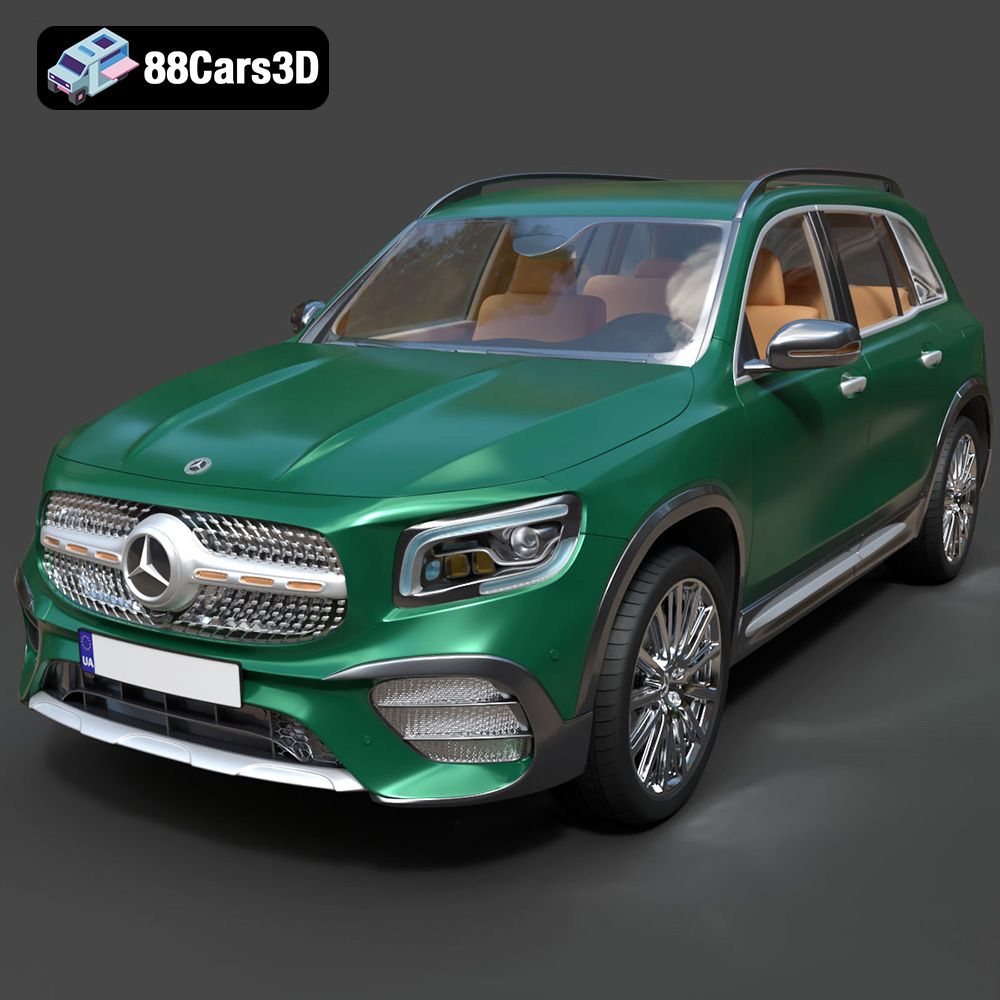
Texture: Yes | Material: Yes
Download the highly detailed, game-ready Mercedes-Benz GLB-Class (Mk1) AMG Line 2019 3D Model. Features sporty AMG Line exterior styling, accurate LED lighting, and premium interior details. Includes .blend, .fbx, .obj, .glb, .stl, .ply, .unreal, and .max formats for game development, AR/VR, and rendering.
Price: $19.99
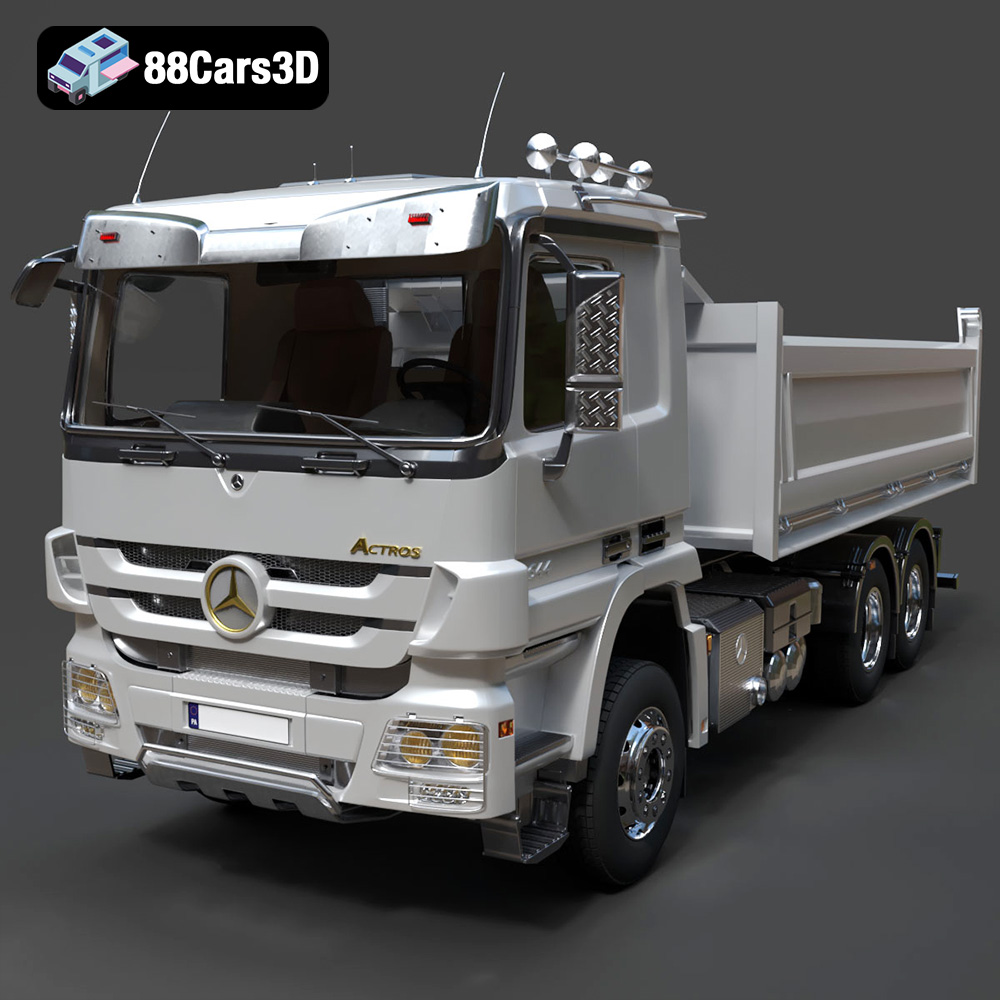
Texture: Yes | Material: Yes
Download the highly detailed, game-ready Mercedes-Benz Actros Tipper 3-Axle 2011 3D Model. Features a functional hydraulic tipper bed, detailed multi-axle chassis, and an accurate commercial cab. Includes .blend, .fbx, .obj, .glb, .stl, .ply, .unreal, and .max formats for game development, AR/VR, and rendering.
Price: $19.99

Texture: Yes | Material: Yes
Download the highly detailed, game-ready Lexus LX Mk3f J200 2016 3D Model. Features the iconic spindle grille, sharp L-shaped LED lighting, and a premium luxury interior. Includes .blend, .fbx, .obj, .glb, .stl, .ply, .unreal, and .max formats for game development, AR/VR, and rendering.
Price: $19.99

