Get 50% OFF All Premium 3D & STL Models!

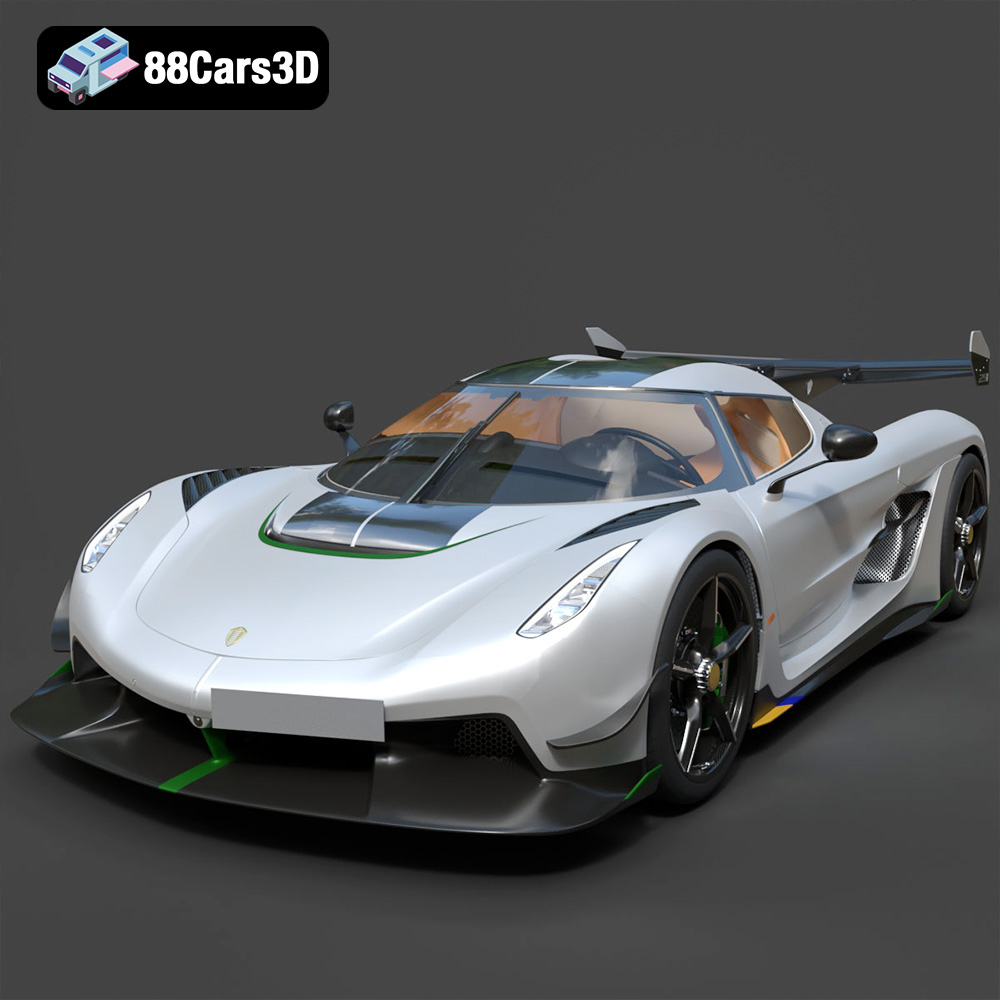
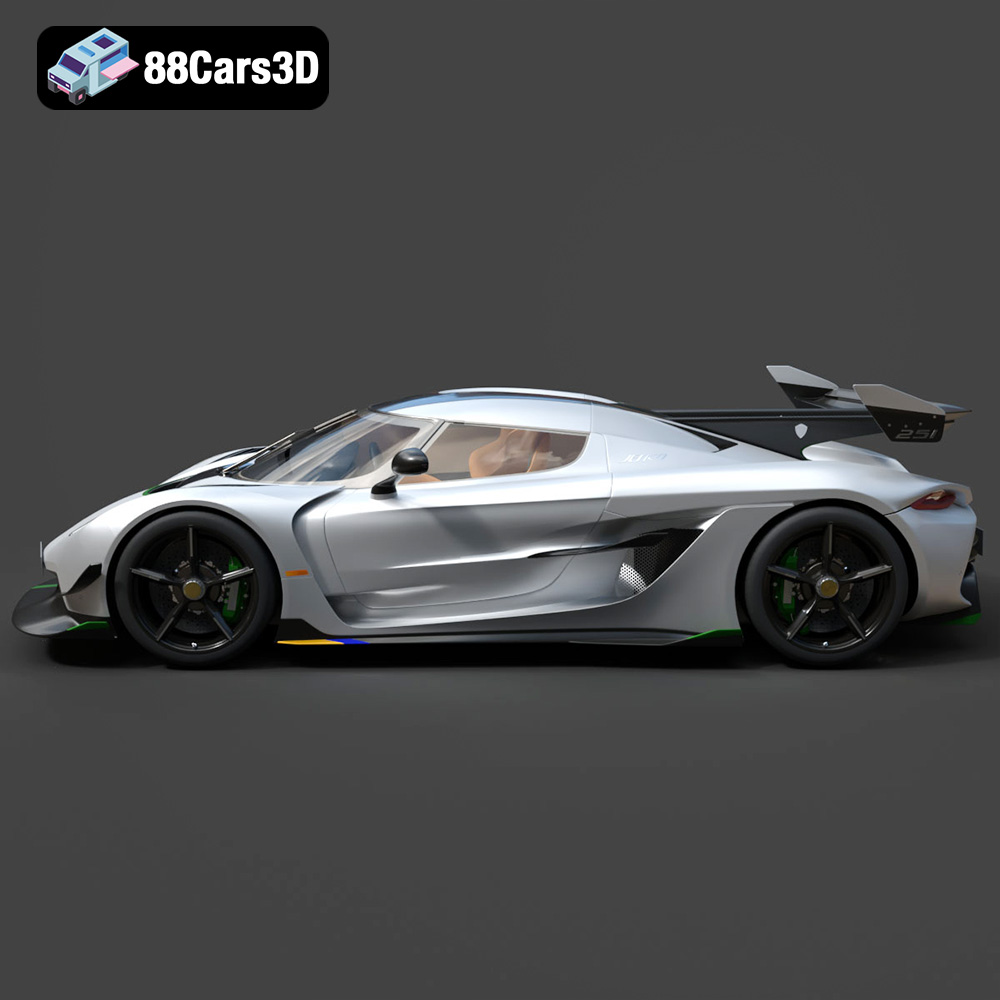
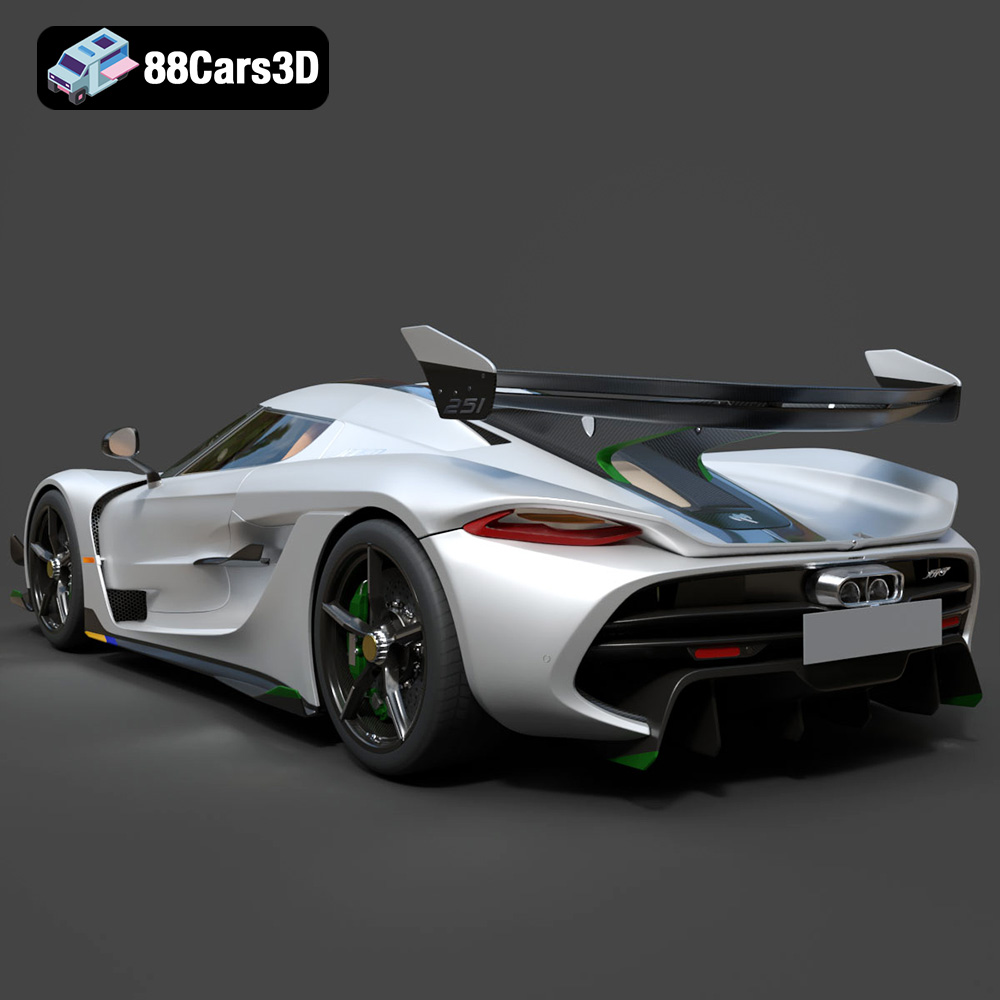
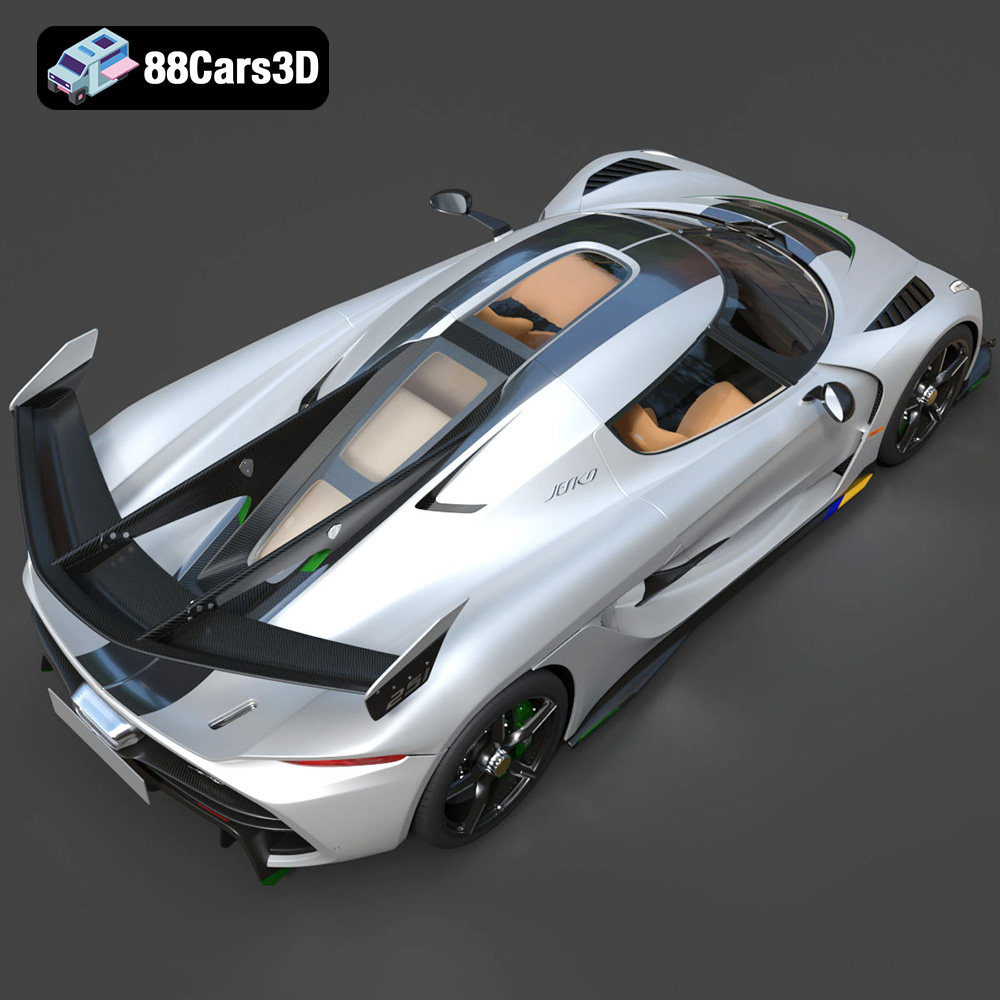
The Koenigsegg Jesko 2020 – a hypercar pushing the boundaries of automotive engineering. Now, thanks to advancements in 3D printing, you can bring a piece of this engineering marvel into your own home. This article provides a comprehensive guide to 3D printing the Koenigsegg Jesko 2020 model, focusing on the technical aspects necessary for achieving a high-quality result. We’ll explore material choices, printer settings, pre-printing preparation, and post-processing techniques to help you create a stunning replica. With the meticulously crafted STL files available (like those you can find at 88cars3d.com), a successful 3D print is within reach, offering a tangible representation of this incredible machine.
Before diving into the specifics of printing the Koenigsegg Jesko, it’s crucial to understand the different file formats you might encounter, especially since the product includes several. While many formats are useful for rendering or game development, some are better suited for 3D printing than others.
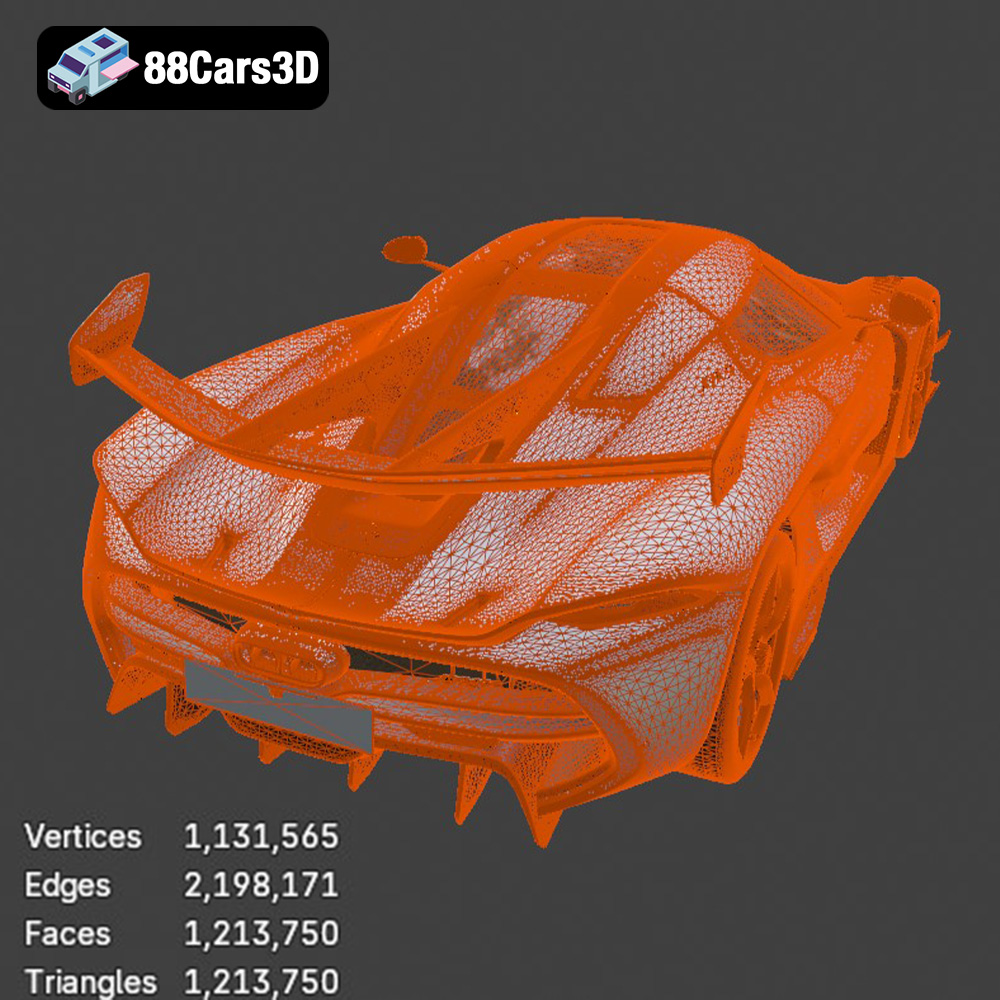
The STL (Stereolithography) file format is the workhorse of 3D printing. It represents a 3D object’s surface geometry using a collection of triangles. The higher the number of triangles, the smoother and more detailed the final print will be. However, a higher triangle count also increases file size and processing time. The .STL format offered with the Koenigsegg Jesko 2020 model from 88cars3d.com is specifically designed for 3D printing. This means it should already be optimized for the process, with a balance between detail and printability.
Because the .STL format only contains mesh data (geometry), it doesn’t include color or texture information. This means your print will be a single color based on the filament you choose. The lack of color information, however, allows the slicer software to easily interpret the model. Most 3D printing software programs are designed to work seamlessly with .STL files.
When working with .STL files, it’s important to check for errors such as non-manifold geometry (edges that don’t connect properly, resulting in holes), inverted normals (surfaces facing the wrong way), and intersecting triangles. These errors can lead to print failures. Fortunately, many slicing software packages have built-in repair tools that can automatically fix these common issues.
OBJ is a more versatile format than STL, as it can store color and texture information alongside the geometry. This is particularly useful for full-color 3D printing, if your printer supports it. However, the added complexity of storing color and texture data can make OBJ files larger and potentially more difficult to process, sometimes leading to slower slicing times.
The PLY format (Polygon File Format or Stanford Triangle Format) is designed for storing 3D data acquired from 3D scanners. It can store color, transparency, surface normals, and other properties per vertex. PLY files are less common in consumer 3D printing but can be useful when dealing with highly detailed, scanned models.
A .blend file is the native format for Blender, a free and open-source 3D creation suite. This file contains the entire scene, including the 3D model, materials, textures, lighting, and camera settings. While you can’t directly 3D print a .blend file, it’s incredibly useful for making modifications to the Koenigsegg Jesko 2020 model before exporting it to a printable format like STL. This allows for customization, such as adding mounting points for electronics or creating separate parts for easier printing.
FBX (Filmbox) is a proprietary file format developed by Autodesk. It is commonly used for exchanging data between different 3D software applications, especially in the game development and animation industries. FBX supports geometry, materials, textures, animations, and more. While some advanced slicing software may support importing FBX files, it’s generally recommended to convert them to STL for 3D printing to ensure compatibility and avoid potential issues.
GLB is a binary file format that represents 3D models in the glTF (GL Transmission Format) standard. It’s designed to be a compact, efficient format for delivering 3D content on the web and in augmented reality (AR) applications. While GLB isn’t directly used for 3D printing, it’s handy for previewing the Koenigsegg Jesko 2020 model in AR before committing to a print. This allows you to visualize the model in your real-world environment and get a better sense of its size and appearance.
.max is the native file format for Autodesk 3ds Max, a professional 3D modeling, animation, and rendering software. Similar to .blend files, .max files contain the entire scene, including the model, materials, textures, lighting, and other settings. This format allows for in-depth modification and customization of the Koenigsegg Jesko 2020 model before exporting for printing.
**Recommendation:** For 3D printing the Koenigsegg Jesko 2020, the **STL** file format is the recommended choice. It provides the best balance of compatibility, simplicity, and printability. Before printing, always inspect the STL file in your slicing software to ensure it’s free of errors and properly oriented.
The material you choose dramatically impacts the final look, feel, and durability of your 3D printed Koenigsegg Jesko 2020. Here’s a breakdown of popular options:
* Pros: PLA is biodegradable, easy to print with, and offers a wide range of colors. It’s ideal for beginners due to its low printing temperature and minimal warping.
* Cons: PLA is relatively brittle and not heat-resistant. It’s not suitable for parts that will be exposed to high temperatures or stress.
* Recommendation: PLA is a great choice for a display model, especially if you’re new to 3D printing.
* Pros: PETG is stronger and more heat-resistant than PLA. It’s also more flexible, making it less prone to cracking. PETG prints are generally more durable and can withstand moderate stress.
* Cons: PETG can be slightly more challenging to print than PLA, requiring higher temperatures and careful calibration. It can also be more prone to stringing (thin strands of plastic between parts).
* Recommendation: PETG is a good all-around choice for the Koenigsegg Jesko 2020 model, offering a balance of strength, durability, and ease of printing.
* Pros: ABS is a strong, heat-resistant plastic commonly used in automotive parts. It’s a good choice for parts that will be exposed to high temperatures or stress.
* Cons: ABS is more difficult to print than PLA or PETG. It requires a heated bed and an enclosure to prevent warping. ABS also emits fumes during printing, so good ventilation is essential.
* Recommendation: ABS is best left to experienced 3D printer users. If you’re confident in your ability to control warping and ventilation, ABS can provide a very durable Koenigsegg Jesko 2020.
* Pros: Resin 3D printing (SLA/DLP) can produce incredibly detailed prints with smooth surfaces. This is ideal for capturing the intricate details of the Koenigsegg Jesko 2020.
* Cons: Resin printing is more expensive than FDM (filament-based) printing. It also requires post-processing, including washing and curing. Resin can be brittle, and some resins emit strong odors.
* Recommendation: If you prioritize detail above all else, and are willing to invest in resin printing equipment and post-processing, resin can produce a stunning Koenigsegg Jesko 2020 model.
Proper preparation is critical for achieving a successful 3D print. This involves inspecting the STL file, choosing the right orientation, adding supports (if needed), and configuring your slicing software.
* **Mesh Analysis:** Use your slicing software to inspect the STL file for errors such as non-manifold geometry, inverted normals, and intersecting triangles. Many slicers have built-in repair tools that can automatically fix these issues.
* **Scaling:** Determine the desired size of your Koenigsegg Jesko 2020 model. Consider the limitations of your printer’s build volume. Scaling the model too large may result in it not fitting on the build plate.
* **Part Separation:** Depending on the complexity of the model, it may be beneficial to separate it into smaller parts. This can make printing easier and reduce the need for supports. For instance, you might print the body, wheels, and interior separately. Use Blender or another 3D modeling program to split the model, if necessary.
* **Orientation:** Choosing the right orientation is crucial for minimizing support material and maximizing print quality. Consider the shape of the Koenigsegg Jesko 2020 and orient it to reduce overhangs. Generally, orienting the model with the flattest side down is a good starting point.
* **Supports:** Supports are necessary for printing overhangs and bridging gaps. Your slicing software can automatically generate supports, but you may need to adjust the settings to optimize them for your specific printer and material.
* **Support Settings:** Experiment with support density, pattern, and interface layer settings to find the best balance between support strength and ease of removal. Consider using tree supports for complex geometries.
* **Layer Height:** Layer height affects the print resolution and print time. A lower layer height (e.g., 0.1mm) will produce a smoother surface but will take longer to print. A higher layer height (e.g., 0.2mm) will print faster but with less detail.
* **Infill:** Infill is the internal structure of the print. A higher infill percentage will make the print stronger but will also increase print time and material usage. For a display model, a lower infill percentage (e.g., 15-20%) may be sufficient. For parts that will be subjected to stress, a higher infill percentage (e.g., 50-75%) is recommended.
* **Print Speed:** Print speed affects the print quality and the likelihood of errors. A slower print speed will generally produce better results but will take longer. Experiment with different print speeds to find the optimal setting for your printer and material.
* **Temperature:** Set the appropriate printing temperature for your chosen material. Refer to the filament manufacturer’s recommendations.
* **Adhesion:** Ensure good bed adhesion to prevent warping and print failures. Use a heated bed and consider using a bed adhesive such as glue stick or hairspray.
These settings are a starting point; fine-tune them based on your printer, material, and desired level of detail.
* Layer Height: 0.15mm
* Infill: 20% (Gyroid or Triangles)
* Print Speed: 50mm/s
* Nozzle Temperature: 200°C
* Bed Temperature: 60°C
* Supports: Enabled (Tree Supports recommended)
* Adhesion: Brim
* Layer Height: 0.2mm
* Infill: 25% (Gyroid or Triangles)
* Print Speed: 40mm/s
* Nozzle Temperature: 235°C
* Bed Temperature: 75°C
* Supports: Enabled (Tree Supports recommended)
* Adhesion: Brim
* Layer Height: 0.05mm
* Exposure Time: Varies by resin (consult manufacturer data)
* Bottom Layer Exposure Time: Varies by resin (consult manufacturer data)
* Supports: Enabled (Manually placed for optimal results)
Once the print is complete, post-processing is necessary to remove supports, smooth surfaces, and add finishing touches.
* Carefully remove the supports using pliers, cutters, or a hobby knife. Take your time to avoid damaging the model.
* For PLA and PETG, supports can be softened with hot water to make them easier to remove.
* For resin prints, supports are typically removed after washing but before curing.
* Start with coarse sandpaper (e.g., 220 grit) to remove any imperfections or support marks.
* Gradually move to finer grits (e.g., 400, 600, 800 grit) to smooth the surface.
* Wet sanding can help to reduce dust and produce a smoother finish.
* For resin prints, sanding can be more challenging due to the material’s hardness. Consider using specialized resin sanding tools.
* Apply a primer to the model to create a smooth, even surface for painting.
* Use acrylic paints or spray paints to add color and detail.
* Consider using masking tape to create clean lines and separate colors.
* Apply a clear coat to protect the paint and add a glossy or matte finish.
* For a more realistic look, consider using weathering techniques such as dry brushing and washes.
Even with careful preparation, problems can arise during the printing process. Here are some common issues and their solutions:
* **Warping:** This occurs when the corners of the print lift off the build plate. Ensure good bed adhesion by using a heated bed and a bed adhesive. Enclosing the printer can also help to prevent warping.
* **Stringing:** This is caused by excessive filament oozing from the nozzle during travel moves. Reduce the printing temperature, increase retraction settings, and adjust travel speed.
* **Layer Shifting:** This occurs when the layers of the print become misaligned. Check the belts and pulleys on your printer to ensure they are properly tightened. Also, reduce the printing speed and ensure the bed is stable.
* **Under-Extrusion:** This happens when not enough filament is being extruded from the nozzle. Increase the printing temperature, check the extruder for clogs, and adjust the flow rate.
* **Over-Extrusion:** This occurs when too much filament is being extruded from the nozzle. Reduce the printing temperature, decrease the flow rate, and calibrate the extruder.
* **Support Issues:** If supports are too difficult to remove, reduce the support density and interface layer thickness. If supports are failing, increase the support density and layer thickness.
With careful planning and execution, you can successfully 3D print a stunning Koenigsegg Jesko 2020 model. Remember to experiment with different materials, settings, and post-processing techniques to find what works best for your printer and desired results. Don’t be afraid to iterate and learn from your mistakes. Resources like 88cars3d.com provide high-quality STL files to get you started on your additive manufacturing journey.
Experience unparalleled realism with the Koenigsegg Jesko 2020 3D Model. This meticulously crafted asset captures every intricate detail of the iconic hypercar, providing a professional-grade solution for advanced digital projects.
$19.99
.arvr
.blend
.car3dmodel
.fbx
.gameasset
.glb
.hypercar
.jesko
.koenigsegg
.max
.obj
.ply
.rendering
.simulation
.sportsCar
.stl
.unreal