Get 50% OFF All Premium 3D & STL Models!

“`html
3D printing opens up a world of possibilities, from prototyping complex designs to creating custom objects. For automotive enthusiasts and model collectors, platforms like 88cars3d.com offer a treasure trove of high-quality 3D printable car models in STL format. However, simply downloading an STL file doesn’t guarantee a successful and efficient print. Scaling, hollowing, and optimizing your STL files are crucial steps to reduce print time, conserve material, and ensure structural integrity. This comprehensive guide will walk you through the essential techniques and tools to prepare your models for optimal 3D printing performance, covering everything from basic principles to advanced workflows.
In this guide, you’ll discover how to:
Whether you’re using FDM or resin printing, these techniques will empower you to create stunning, efficiently printed models from marketplaces such as 88cars3d.com.
Before diving into scaling and optimization, it’s essential to understand the underlying structure of STL files. STL (Stereolithography) is a file format that represents 3D surfaces as a collection of triangles. The density and arrangement of these triangles define the model’s shape and detail. A higher triangle count results in a smoother surface but also increases file size and processing time during slicing. Understanding mesh topology is crucial for successful STL manipulation and printing.
Each triangle in an STL file is defined by three vertices (points in 3D space) and a normal vector, which indicates the direction the triangle is facing. The normal vector is crucial for defining the “outside” of the model and ensuring that the slicer correctly interprets the geometry. Inconsistent or flipped normals can lead to printing errors. Tools like MeshLab and Netfabb can help identify and correct normal issues.
A manifold mesh is a “watertight” surface, meaning it has a clear inside and outside. For 3D printing, a manifold mesh is essential. Non-manifold meshes have errors like holes, self-intersections, or edges shared by more than two triangles. These errors can cause slicing failures and print defects. Mesh repair tools are designed to automatically detect and fix these issues, ensuring a printable model. Think of it like trying to fill a bucket with holes in it – it just won’t hold water!
Best Practice: Always inspect your STL files for manifold errors before attempting to print. Use mesh repair tools to resolve any issues.
Scaling is a fundamental step in preparing STL files for 3D printing. Whether you want to create a miniature replica of a classic car or a large-scale display model, accurate scaling is essential to maintain proportions and ensure that the printed object matches your desired dimensions. Most slicing software and mesh editing tools offer scaling functionalities, but understanding the underlying principles is crucial for accurate results.
Uniform scaling applies the same scale factor to all three axes (X, Y, and Z), preserving the model’s proportions. This is generally the preferred method for scaling models downloaded from platforms like 88cars3d.com, as it ensures that the overall appearance remains consistent. Non-uniform scaling, on the other hand, allows you to scale each axis independently, which can be useful for correcting minor dimensional inaccuracies or creating distorted effects. However, non-uniform scaling should be used with caution, as it can significantly alter the model’s appearance.
Slicing software like Cura, PrusaSlicer, and Simplify3D provide built-in scaling tools. Simply import your STL file, select the object, and enter the desired scale factor. Most software allows you to specify the scale factor as a percentage or by entering the target dimension for one of the axes. When scaling, pay attention to the units of measurement (mm or inches) to avoid errors. Also, consider the printer’s build volume limitations when scaling up a model.
Example: If you want to scale a car model to half its original size, enter a scale factor of 50% or 0.5 in your slicing software. Remember to lock the aspect ratio to ensure uniform scaling.
Hollowing is a powerful technique for reducing material consumption and print time, especially for large or solid models. By creating an internal cavity within the model, you can significantly decrease the amount of plastic or resin needed, making the printing process more cost-effective and environmentally friendly. Hollowing also reduces the weight of the printed object, which can be beneficial for certain applications. However, hollowing requires careful planning and execution to maintain structural integrity.
Several software tools offer hollowing functionalities, including Meshmixer, Blender, and specialized resin printing software like Chitubox. The basic principle involves creating an offset of the model’s surface to define the internal cavity. You can then specify the wall thickness, which determines the strength and stability of the hollowed object. A thicker wall will provide more support but also increase material usage. Experimentation is key to finding the optimal balance between strength and material savings.
When hollowing a model, it’s crucial to add drainage holes to allow excess resin or plastic to escape during printing and cleaning. Without drainage holes, trapped resin or plastic can lead to print failures, structural weaknesses, or even explosions (in the case of resin printing). Position the drainage holes strategically in inconspicuous areas of the model, and ensure they are large enough to allow for efficient drainage. Consider the orientation of the model during printing when determining the placement of drainage holes. For FDM printing, these holes also allow for the escape of trapped air, reducing internal pressure during printing.
Tip: For resin printing, add multiple drainage holes and orient the model to minimize resin pooling. Use a small brush or syringe to thoroughly clean the internal cavity after printing.
The complexity of an STL file directly impacts slicing time and print speed. High-resolution models with excessive detail can bog down the slicing process and result in longer print times. Optimizing mesh density and simplifying geometry are essential for achieving faster slicing and printing without sacrificing visual quality. This involves reducing the number of triangles in the mesh while preserving the model’s essential features.
Decimation algorithms reduce the number of triangles in a mesh by selectively removing triangles that contribute minimally to the overall shape. Mesh simplification tools, such as those found in Meshmixer and Blender, offer various decimation methods that allow you to control the level of simplification. You can specify a target triangle count or a percentage reduction. It’s important to visually inspect the simplified model to ensure that no significant details are lost. A good rule of thumb is to start with a moderate simplification level and gradually increase it until you notice a noticeable reduction in quality.
When simplifying a mesh, it’s crucial to preserve important features, such as sharp edges, curves, and fine details. Some mesh simplification tools offer feature preservation options that prioritize the retention of these features. By enabling these options, you can significantly reduce the triangle count without sacrificing the visual fidelity of the model. For example, in Blender, the “Edge Split” modifier can be used to preserve sharp edges during mesh simplification.
Example: When printing a car model with intricate grilles or logos, use feature preservation techniques to ensure that these details are not lost during mesh simplification. Experiment with different decimation algorithms and settings to find the optimal balance between simplification and detail retention.
Support structures are essential for printing models with overhangs, bridges, or complex geometries. These temporary structures provide support for the model during printing, preventing sagging or collapse. However, generating and removing support structures can be time-consuming and can sometimes leave blemishes on the printed surface. Mastering support structure generation and removal is crucial for achieving high-quality prints.
Most slicing software offers automatic support generation, which automatically analyzes the model and generates support structures where needed. Automatic support generation is a convenient option for simple models, but it often produces excessive or poorly placed supports. Manual support generation, on the other hand, allows you to precisely control the placement and type of support structures. This gives you more flexibility to optimize support structures for specific geometries and minimize material usage and post-processing effort. For complex models from platforms like 88cars3d.com, manual supports often yield better results.
Various support structure types are available, each with its own advantages and disadvantages. Linear supports are simple and efficient but can be difficult to remove. Tree supports provide more support with less material but can be more challenging to generate. Customizable support structures allow you to fine-tune the support parameters, such as density, overhang angle, and support interface. Experiment with different support structure types and settings to find the optimal configuration for your model and printer.
Best Practice: Optimize support settings to minimize material usage and facilitate easy removal. Consider using a support interface layer with a slightly larger gap to the model to prevent the support from fusing to the surface.
The choice of material and printer settings significantly impacts print speed and quality. Different materials have different printing requirements, and optimizing printer settings for each material is essential for achieving the best results. Understanding the trade-offs between speed and quality is crucial for finding the optimal balance for your specific needs.
PLA (Polylactic Acid) is a popular material for FDM printing due to its ease of use and biodegradability. It prints at relatively low temperatures and is less prone to warping. PETG (Polyethylene Terephthalate Glycol) is a more durable and heat-resistant material than PLA. It offers good layer adhesion and is less brittle. ABS (Acrylonitrile Butadiene Styrene) is a strong and impact-resistant material that is commonly used for functional parts. However, it requires higher printing temperatures and is more prone to warping. Consider the application of your printed object when choosing a material. For example, PLA is suitable for decorative models, while ABS is better for functional parts that require high strength.
Layer height, infill density, and print speed are key parameters that affect print time and quality. Lower layer heights result in smoother surfaces but increase print time. Higher layer heights reduce print time but can lead to visible layer lines. Infill density determines the internal strength and weight of the printed object. Lower infill densities reduce material usage and print time but can compromise strength. Higher infill densities increase strength but also increase material usage and print time. Print speed directly affects the overall printing time. Increasing the print speed can significantly reduce print time, but it can also lead to print defects if the material is not able to cool and solidify properly. Experiment with different layer heights, infill densities, and print speeds to find the optimal settings for your material and printer. A good starting point is a layer height of 0.2mm, an infill density of 20%, and a print speed of 50mm/s.
Tip: Use a temperature tower and retraction test to calibrate your printer for each material and optimize print settings for speed and quality.
Even with careful preparation, 3D printing can sometimes be challenging. Common issues like warping, bed adhesion problems, and layer separation can lead to print failures and wasted material. Understanding the causes of these issues and implementing preventative measures is crucial for achieving consistent and reliable printing results.
Warping occurs when the printed object detaches from the build plate during printing, often due to temperature differences between the object and the surrounding environment. Bed adhesion problems occur when the first layer of the print does not stick properly to the build plate. To prevent warping and bed adhesion problems, ensure that your build plate is clean and level. Use a heated bed and set the bed temperature according to the material requirements. Apply an adhesive substance, such as glue stick or hairspray, to the build plate to improve adhesion. Enclose the printer to maintain a stable temperature and prevent drafts.
Layer separation occurs when the layers of the print do not adhere properly to each other, resulting in weak or broken prints. Overhang issues occur when unsupported sections of the model sag or collapse during printing. To prevent layer separation, ensure that your printing temperature is high enough and that your cooling fan is not set too high. Increase the layer height slightly to improve layer adhesion. Use support structures to support overhangs and bridges.
Tip: Regularly calibrate your printer and maintain its components to ensure optimal performance. Clean the nozzle, lubricate the lead screws, and tighten any loose belts or screws.
By mastering the techniques of scaling, hollowing, and optimizing STL files, you can significantly reduce print time, conserve material, and achieve higher-quality results. Remember to always inspect your STL files for errors, scale models accurately to your desired size, hollow out solid models to reduce material usage, optimize mesh density for faster slicing, and generate appropriate support structures for complex geometries. With the right knowledge and tools, you can transform your 3D printing experience and bring your creative visions to life with speed and precision. Whether you’re downloading models from 88cars3d.com or creating your own designs, these techniques will empower you to unlock the full potential of 3D printing.
Actionable Next Steps:
Continue exploring the world of 3D printing, and don’t be afraid to experiment and learn from your experiences. With dedication and practice, you’ll become a true master of the art of efficient 3D printing.
“`
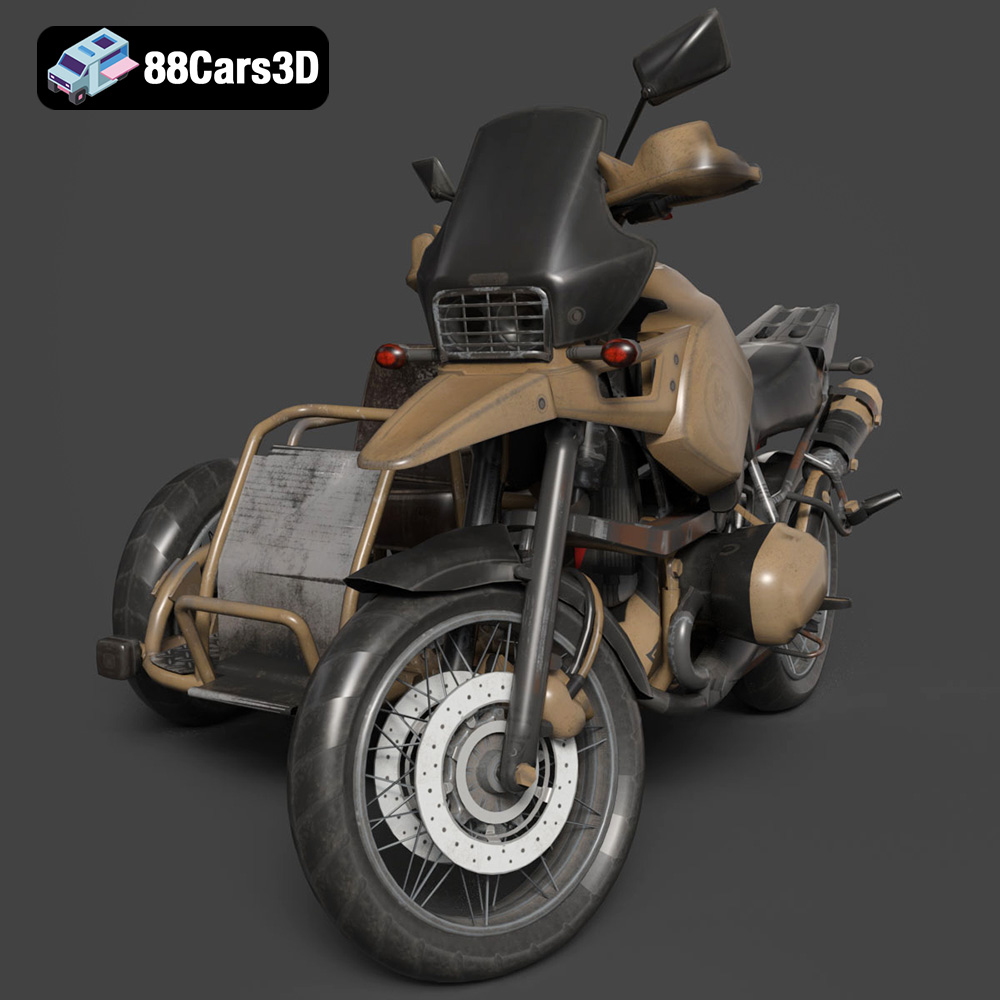
Texture: Yes | Material: Yes
Download the highly detailed, game-ready Custom Off-Road BMW R1150GS Adventure Sidecar 3D Model. Features rugged all-terrain suspension, an attached passenger sidecar, and off-road knobby tires. Includes .blend, .fbx, .obj, .glb, .stl, .ply, .unreal, and .max formats for game development, AR/VR, and rendering.
Price: $19.99

Texture: Yes | Material: Yes
Download the highly detailed, game-ready Mitsubishi Outlander GT 2010 3D Model. Features the aggressive Lancer-inspired front grille, accurate exterior styling, and high-fidelity alloy wheels. Includes .blend, .fbx, .obj, .glb, .stl, .ply, .unreal, and .max formats for game development, AR/VR, and rendering.
Price: $19.99

Texture: Yes | Material: Yes
Download the highly detailed, game-ready Mitsubishi L200 Crew Cab 2019 3D Model. Features the iconic Dynamic Shield front fascia, rugged cargo bed, and a spacious crew cab interior. Includes .blend, .fbx, .obj, .glb, .stl, .ply, .unreal, and .max formats for game development, AR/VR, and rendering.
Price: $19.99
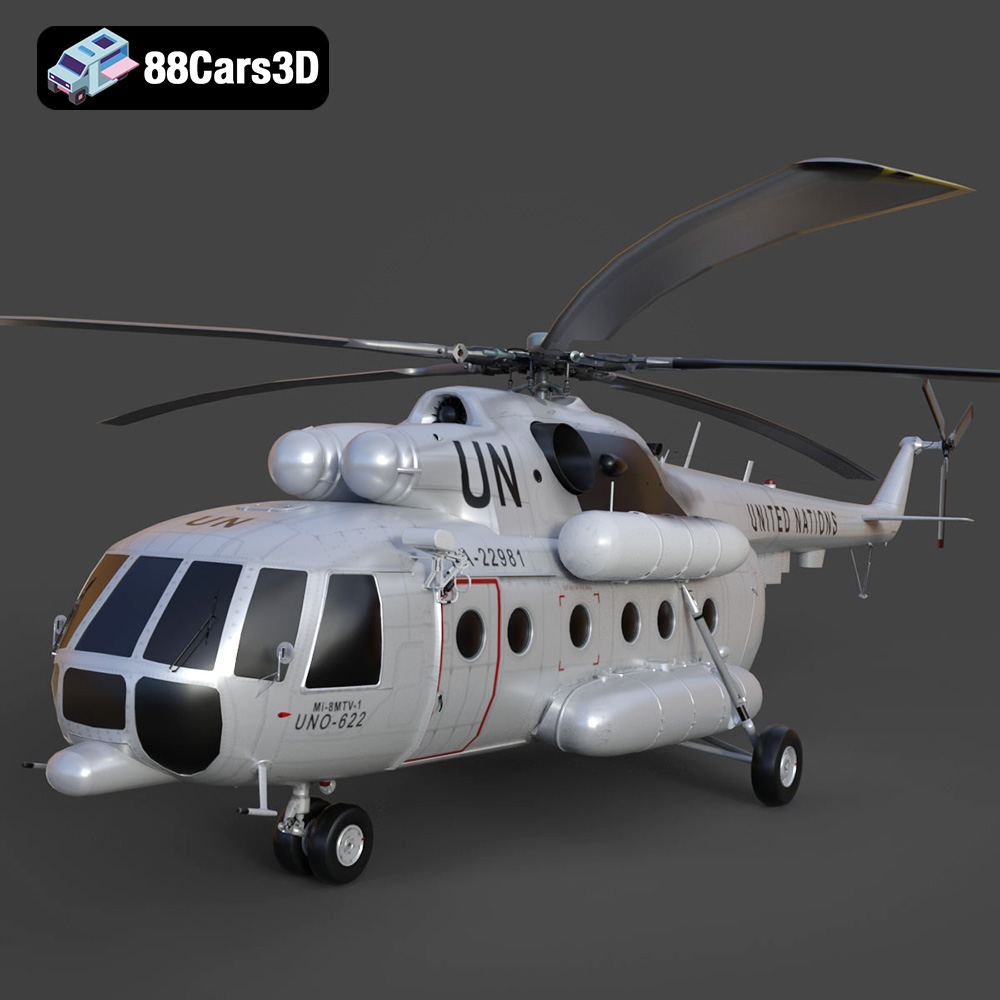
Texture: Yes | Material: Yes
Download the highly detailed, game-ready Mil Mi-8MTV-UN 3D Model. Features the iconic United Nations white livery, detailed twin turboshaft engines, and fully articulated rotor assemblies. Includes .blend, .fbx, .obj, .glb, .stl, .ply, .unreal, and .max formats for game development, AR/VR, and rendering.
Price: $19.99
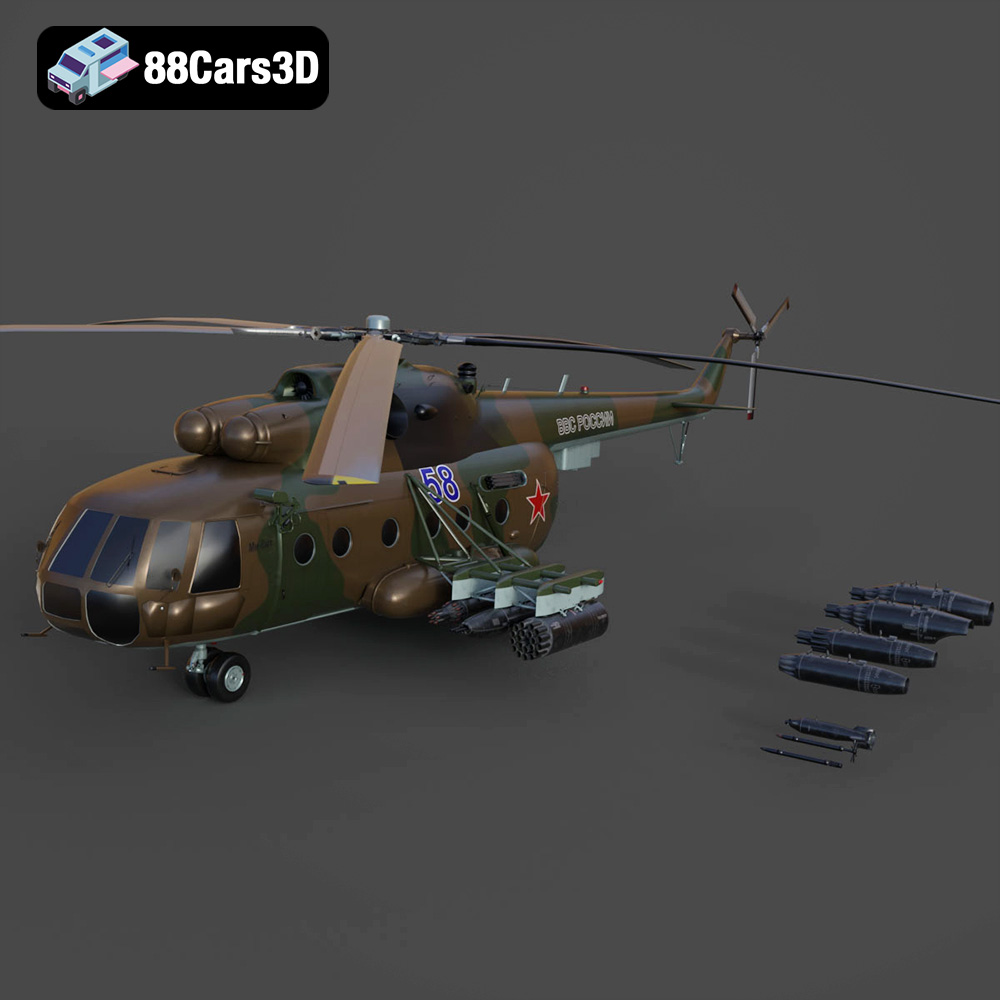
Texture: Yes | Material: Yes
Download the highly detailed, game-ready Mil Mi-8MT Helicopter 3D Model. Features twin-turbine engine housings, a detailed 5-blade main rotor, and authentic cockpit instrumentation. Includes .blend, .fbx, .obj, .glb, .stl, .ply, .unreal, and .max formats for game development, AR/VR, and rendering.
Price: $19.99

Texture: Yes | Material: Yes
Download the highly detailed, game-ready Mercedes-Maybach Vision 6 2018 3D Model. Features an elongated aero coupe design, iconic gullwing doors, and striking 24-inch aerodynamic wheels. Includes .blend, .fbx, .obj, .glb, .stl, .ply, .unreal, and .max formats for game development, AR/VR, and rendering.
Price: $19.99

Texture: Yes | Material: Yes
Download the highly detailed, game-ready Mercedes-Benz A-Class 3-Door 2010 3D Model. Features an accurate compact luxury exterior, detailed interior, and optimized topology. Includes .blend, .fbx, .obj, .glb, .stl, .ply, .unreal, and .max formats for game development, AR/VR, and rendering.
Price: $19.99

Texture: Yes | Material: Yes
Download the highly detailed, game-ready Mercedes-Benz GLB-Class (Mk1) AMG Line 2019 3D Model. Features sporty AMG Line exterior styling, accurate LED lighting, and premium interior details. Includes .blend, .fbx, .obj, .glb, .stl, .ply, .unreal, and .max formats for game development, AR/VR, and rendering.
Price: $19.99
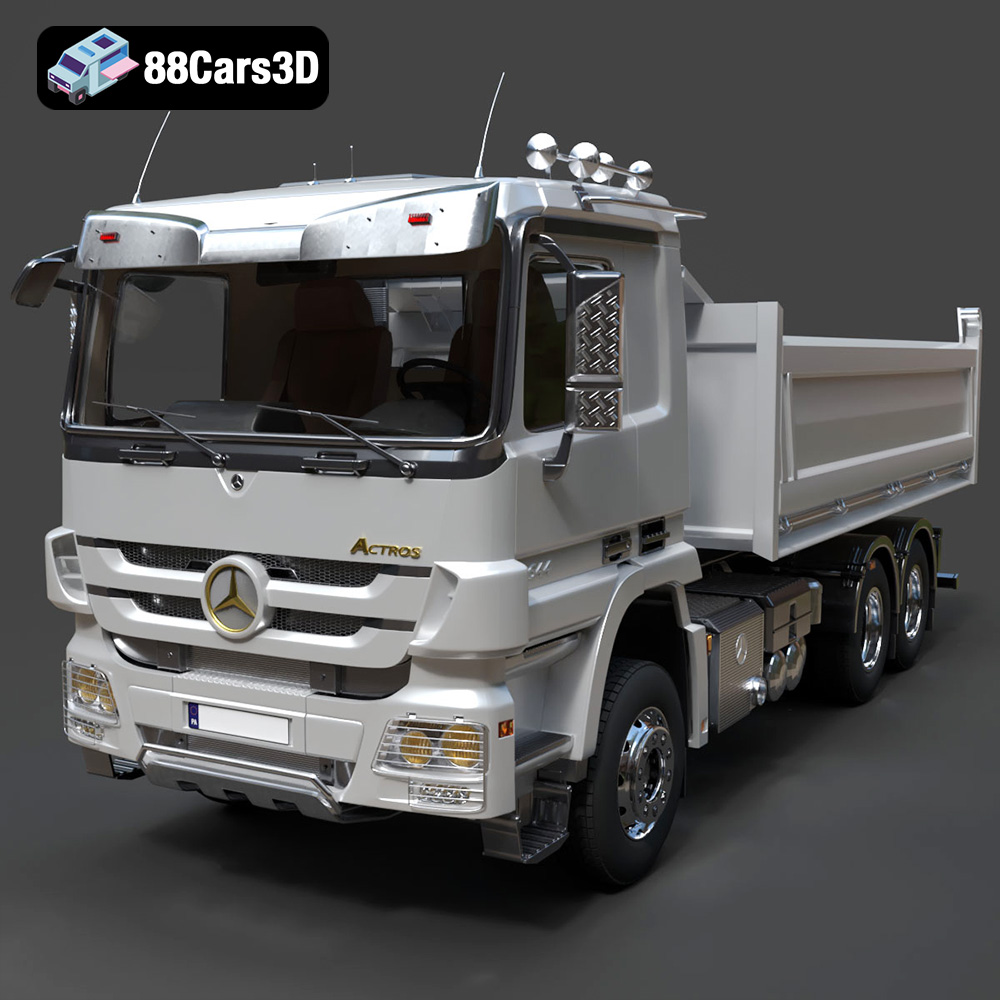
Texture: Yes | Material: Yes
Download the highly detailed, game-ready Mercedes-Benz Actros Tipper 3-Axle 2011 3D Model. Features a functional hydraulic tipper bed, detailed multi-axle chassis, and an accurate commercial cab. Includes .blend, .fbx, .obj, .glb, .stl, .ply, .unreal, and .max formats for game development, AR/VR, and rendering.
Price: $19.99

Texture: Yes | Material: Yes
Download the highly detailed, game-ready Lexus LX Mk3f J200 2016 3D Model. Features the iconic spindle grille, sharp L-shaped LED lighting, and a premium luxury interior. Includes .blend, .fbx, .obj, .glb, .stl, .ply, .unreal, and .max formats for game development, AR/VR, and rendering.
Price: $19.99

