Get 50% OFF All Premium 3D & STL Models!

The Tesla Cybertruck 2024 has captivated the world with its radical design and promises of innovation. Now, thanks to the detailed 3D model available at 88cars3d.com, you can bring this futuristic vehicle to life with your 3D printer. This comprehensive guide will walk you through every step of the process, from preparing the STL files to post-processing your finished 3D printed model. We’ll cover material recommendations, printer settings, and troubleshooting tips to ensure a successful and rewarding 3D printing experience. This guide assumes you are familiar with basic 3D printing concepts. Let’s dive in and transform this digital dream into a tangible reality!
Before you even think about loading filament into your printer, it’s crucial to understand the different file formats available and how they impact the 3D printing process. The Tesla Cybertruck 2024 3D model from 88cars3d.com comes with a variety of formats, each tailored for different applications. However, for 3D printing, the .stl format reigns supreme. Let’s examine why, along with a look at other relevant formats:
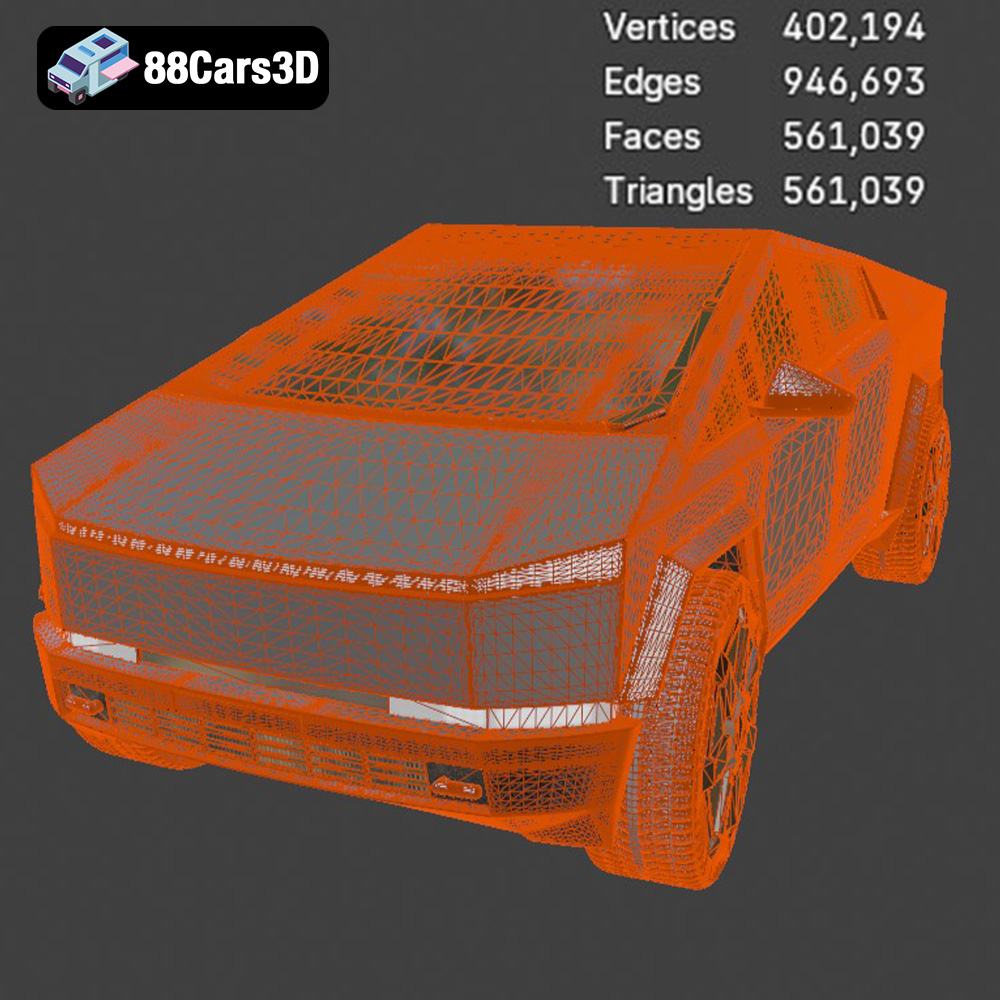
.stl (Stereolithography) is the industry standard for 3D printing. It represents the 3D model’s surface geometry as a collection of triangles. This simplicity makes it universally compatible with slicing software, which converts the 3D model into a set of instructions (G-code) that your 3D printer can understand. The quality of an STL file directly impacts the final print. High-resolution STL files, containing a larger number of smaller triangles, will capture more detail and result in smoother surfaces. However, they also require more processing power and can increase print times. Conversely, low-resolution STL files will print faster but may exhibit noticeable faceting, compromising the model’s appearance. When preparing the Tesla Cybertruck 2024 STL, ensure it’s adequately detailed to capture the iconic angular design.
.obj is a more versatile format than STL, supporting both geometry and color/texture information. While most 3D printers are limited to single-color printing, .obj files are essential if you plan to use multi-material or full-color 3D printing technologies (like PolyJet or some binder jetting processes). If you intend to paint your 3D printed Cybertruck, the .obj can be useful for visualizing your color scheme beforehand in your 3D modeling software. Keep in mind that not all slicing software fully supports .obj with texture data, so be prepared to convert textures to a printable format or handle the texturing manually after printing.
.ply is designed to store 3D data acquired from 3D scanners. It can represent not only surface geometry but also vertex colors, normals, and texture coordinates. This makes it suitable for high-detail models where preserving every nuance is crucial. While not as universally supported as STL, .ply is increasingly used in additive manufacturing for applications where accuracy is paramount. For the Cybertruck, the .ply format could be useful if you require extremely precise dimensions, such as when using the printed model as a master for mold making.
The remaining formats (.blend, .fbx, .glb, .max) are primarily intended for editing and visualization, not direct 3D printing. .blend is the native file format for Blender, a popular open-source 3D modeling software. .max is for Autodesk 3ds Max. .fbx is commonly used in game development and animation due to its ability to store complex scene data, including animations and materials. .glb is optimized for AR/VR applications. These formats allow you to modify the Cybertruck model before exporting it as an STL for 3D printing. For example, you might use Blender to add custom features, split the model into smaller, more printable parts, or optimize the mesh for 3D printing.
In summary, while the Tesla Cybertruck 2024 3D model is available in multiple formats, the .stl file is your go-to choice for 3D printing. Ensure its resolution is appropriate for your desired level of detail, and use other formats for editing and visualization purposes before converting to STL.
Once you have your STL file, the next step is pre-print preparation, which involves slicing the model and optimizing it for your specific 3D printer. This stage is crucial for achieving a successful print.
Slicing software takes your 3D model and divides it into thin layers, generating the G-code that your printer follows. Popular slicing software options include Cura, PrusaSlicer, Simplify3D, and IdeaMaker. Each slicer has its own strengths and weaknesses, so experiment to find the one that best suits your needs and printer. Key settings to configure include layer height, infill density, print speed, support structures, and bed adhesion. For the Tesla Cybertruck 2024, consider these starting points:
The orientation of the model on the build plate can significantly impact print quality, support requirements, and print time. For the Cybertruck, consider printing it with the roof facing upwards. This minimizes the need for supports on the flat surfaces and preserves the crisp lines of the vehicle’s design. However, this orientation might require more supports underneath the truck bed. Experiment with different orientations to find the optimal balance. Scaling the model is another important consideration. A larger model will showcase more detail but require more material and time. A smaller model will print faster and cheaper but might lose some of the finer features. Choose a scale that aligns with your printer’s build volume and your desired level of detail. The model from 88cars3d.com should come pre-scaled to reasonable dimensions, but always double check within your slicing software.
Before slicing, it’s essential to ensure the 3D model is watertight and free of errors. Non-manifold geometry, holes, and intersecting faces can cause problems during slicing and printing. Many slicing software programs have built-in mesh repair tools that can automatically fix common issues. Alternatively, you can use dedicated mesh editing software like MeshLab or Blender to manually repair the model. Reducing the polygon count can also improve slicing performance and reduce file size, especially for complex models. However, be careful not to oversimplify the model, as this can result in a loss of detail.
The choice of material will significantly impact the appearance, strength, and durability of your 3D printed Tesla Cybertruck 2024. Here’s a breakdown of popular options:
PLA (Polylactic Acid) is a biodegradable thermoplastic derived from renewable resources like cornstarch or sugarcane. It’s easy to print, exhibits good adhesion, and produces relatively low odor. PLA is an excellent choice for beginners and for models where high strength and heat resistance are not required. However, PLA is brittle and prone to warping in high-temperature environments. For the Cybertruck, PLA is suitable for display models that won’t be subjected to excessive stress or heat. Consider using a high-quality PLA filament to achieve a smooth surface finish.
PETG (Polyethylene Terephthalate Glycol-modified) offers a good balance of strength, flexibility, and ease of printing. It’s more durable and heat-resistant than PLA, making it a better choice for functional parts or models that will be exposed to sunlight. PETG can be slightly more challenging to print than PLA, requiring higher temperatures and slower print speeds. Stringing can also be an issue, so experiment with retraction settings to minimize it. PETG is a good option for a Cybertruck model that you want to be more robust and resistant to wear and tear.
ABS (Acrylonitrile Butadiene Styrene) is a strong, heat-resistant thermoplastic commonly used in automotive parts and other demanding applications. It’s more difficult to print than PLA or PETG, requiring a heated bed and an enclosed printer to prevent warping and cracking. ABS also emits fumes during printing, so good ventilation is essential. If you want to create a Cybertruck model that can withstand high temperatures and impacts, ABS is a good choice. However, be prepared for a steeper learning curve and the need for more advanced printing equipment.
Resin 3D printing (SLA/DLP/LCD) offers unparalleled detail and surface finish compared to FDM (Fused Deposition Modeling) printing. Resin printers use liquid photopolymers that are cured by UV light. This allows for extremely fine layer heights and intricate designs. However, resin printing is more expensive, requires post-processing (washing and curing), and uses potentially hazardous materials. If you want to create a Cybertruck model with exceptional detail and a smooth, glossy finish, resin printing is the way to go. The fine details of the angular body will be beautifully captured. Remember to choose a resin that is suitable for your printer and application.
Achieving a high-quality 3D print of the Cybertruck requires fine-tuning your printer settings. Here are some specific recommendations:
The optimal temperature and speed settings will depend on the material you choose. For PLA, a nozzle temperature of 200-220°C and a bed temperature of 60°C are generally recommended. For PETG, increase the nozzle temperature to 230-250°C and the bed temperature to 70-80°C. ABS requires even higher temperatures, typically around 230-260°C for the nozzle and 80-110°C for the bed. Print speed should be adjusted based on the complexity of the model and the desired level of detail. Slower speeds (40-50mm/s) will generally result in better print quality, especially for intricate features like the Cybertruck’s sharp edges. Experiment with different speeds to find the sweet spot for your printer and material.
The Tesla Cybertruck 2024 has several overhanging features that will require support structures. These supports provide a temporary platform for the printer to build upon. Choose a support structure pattern that is easy to remove without damaging the model. Zig-zag or tree-like supports are often good options. Experiment with support density to find a balance between stability and ease of removal. Proper bed adhesion is crucial to prevent warping and print failures. Use a brim or raft to increase the surface area in contact with the build plate. Ensure the bed is level and clean before starting the print. Applying a layer of adhesive (such as glue stick or hairspray) can also improve adhesion.
Retraction settings control how much filament is pulled back into the nozzle when the printer moves between different parts of the model. Proper retraction settings are essential to prevent stringing and blobs. Experiment with retraction distance and speed to find the optimal values for your printer and material. Adequate cooling is also important to prevent warping and improve surface finish. Use a part cooling fan to quickly cool each layer as it is printed. Adjust the fan speed based on the material and the complexity of the model. For PLA, use a high fan speed. For PETG and ABS, reduce the fan speed to prevent warping.
Once the 3D printing is complete, the real fun begins! Post-processing is the art of refining your 3D printed model to achieve a professional-looking finish.
The first step is to carefully remove the support structures. Use pliers, a hobby knife, or specialized support removal tools to gently detach the supports from the model. Take care not to damage the surface of the print. Once the supports are removed, use sandpaper to smooth out any rough edges or imperfections. Start with a coarse grit sandpaper (e.g., 220 grit) and gradually work your way up to finer grits (e.g., 400, 600, 800 grit) to achieve a smooth, polished surface. Wet sanding (using sandpaper with water) can help to prevent clogging and produce a finer finish.
Priming is an essential step before painting, as it helps to create a uniform surface and improve paint adhesion. Apply several thin coats of primer, allowing each coat to dry completely before applying the next. Use a spray primer specifically designed for plastics. After the primer has dried, sand it lightly with fine-grit sandpaper to remove any imperfections. Now you’re ready to paint your Cybertruck! Use acrylic paints designed for models. Apply several thin coats, allowing each coat to dry completely before applying the next. Consider using masking tape to create sharp lines and details. Once the paint has dried, you can apply a clear coat to protect the paint and add a glossy or matte finish.
If the Cybertruck model consists of multiple parts, you’ll need to assemble them using glue or fasteners. Use a strong adhesive designed for plastics. Apply the glue sparingly and carefully align the parts before clamping them together. Allow the glue to dry completely before handling the model. To add extra detail to your Cybertruck, consider using aftermarket parts like wheels, lights, or decals. You can also use weathering techniques to create a more realistic and worn appearance. Look online for inspiration and tutorials.
Even with careful preparation, 3D printing can sometimes present challenges. Here are some common issues and how to address them:
Warping occurs when the corners of the print lift off the build plate. This is often caused by uneven cooling or poor bed adhesion. To prevent warping, ensure the bed is level and clean. Use a brim or raft to increase the surface area in contact with the build plate. Increase the bed temperature and reduce the fan speed. Enclosing the printer can also help to maintain a consistent temperature and prevent warping. If warping persists, try using a different bed adhesive or a different material.
Stringing occurs when thin strands of filament are left behind as the printer moves between different parts of the model. Blobs are small lumps of filament that accumulate on the surface of the print. Both stringing and blobs are often caused by excessive retraction or incorrect temperature settings. To prevent stringing and blobs, adjust the retraction distance and speed. Lower the nozzle temperature and increase the travel speed. Make sure your filament is dry, as moisture can contribute to these issues.
Layer shifting occurs when the print suddenly shifts horizontally. This can be caused by loose belts, stepper motor issues, or obstructions on the build plate. To prevent layer shifting, tighten the belts and check the stepper motors for proper operation. Ensure the build plate is free of obstructions. Under-extrusion occurs when the printer is not extruding enough filament. This can be caused by a clogged nozzle, insufficient temperature, or a faulty extruder. To fix under-extrusion, clean or replace the nozzle. Increase the nozzle temperature and check the extruder for proper operation.
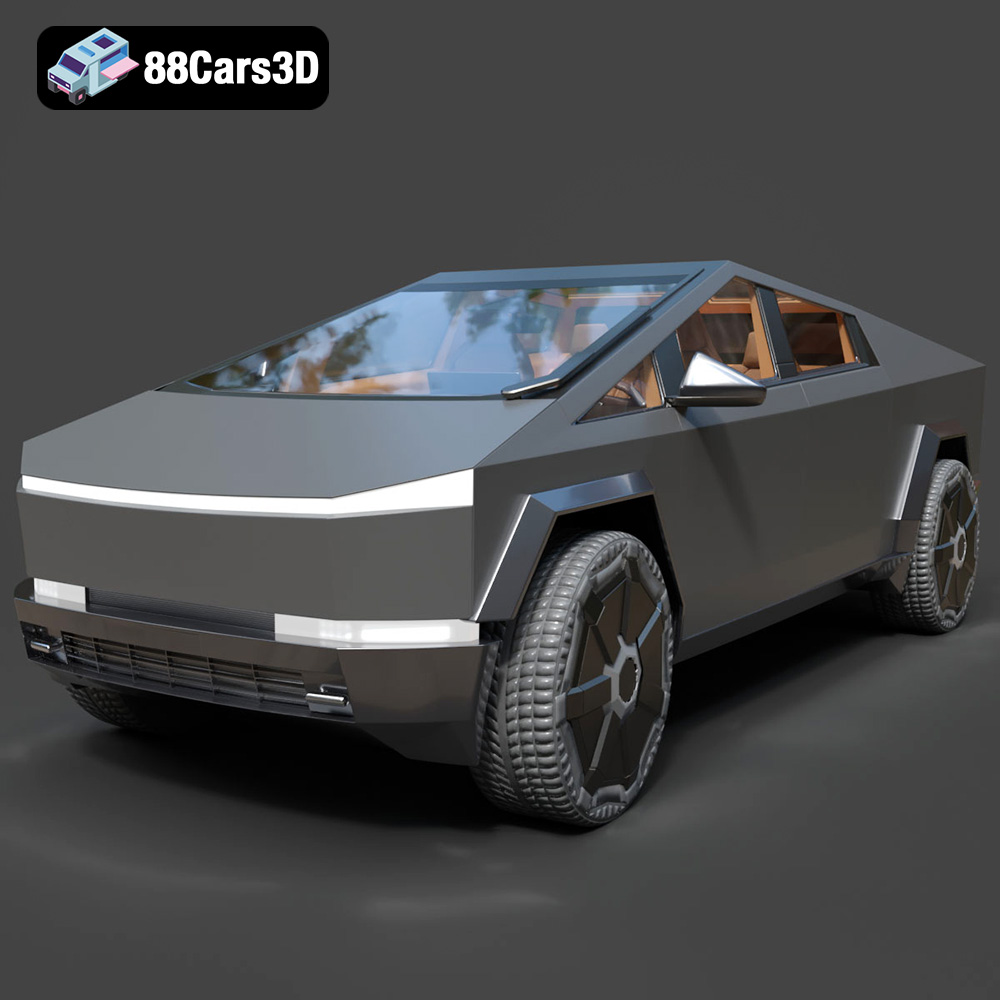
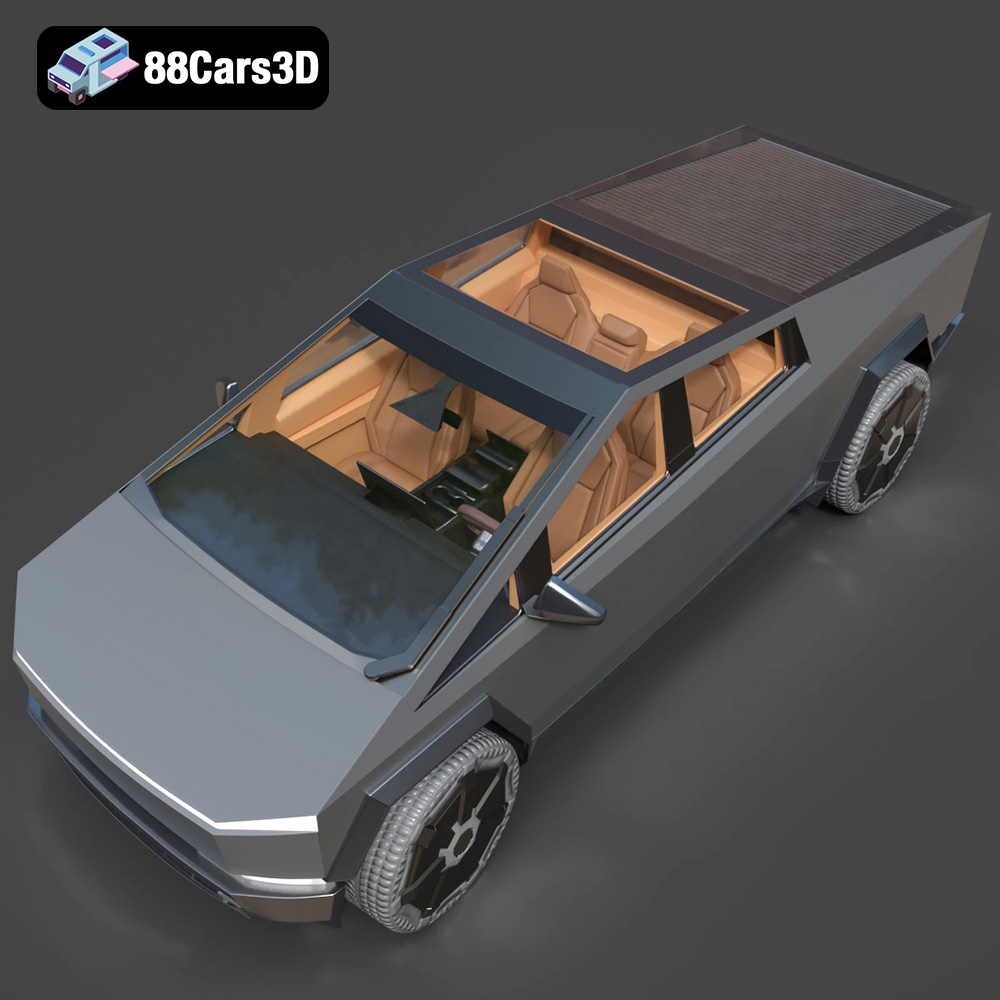
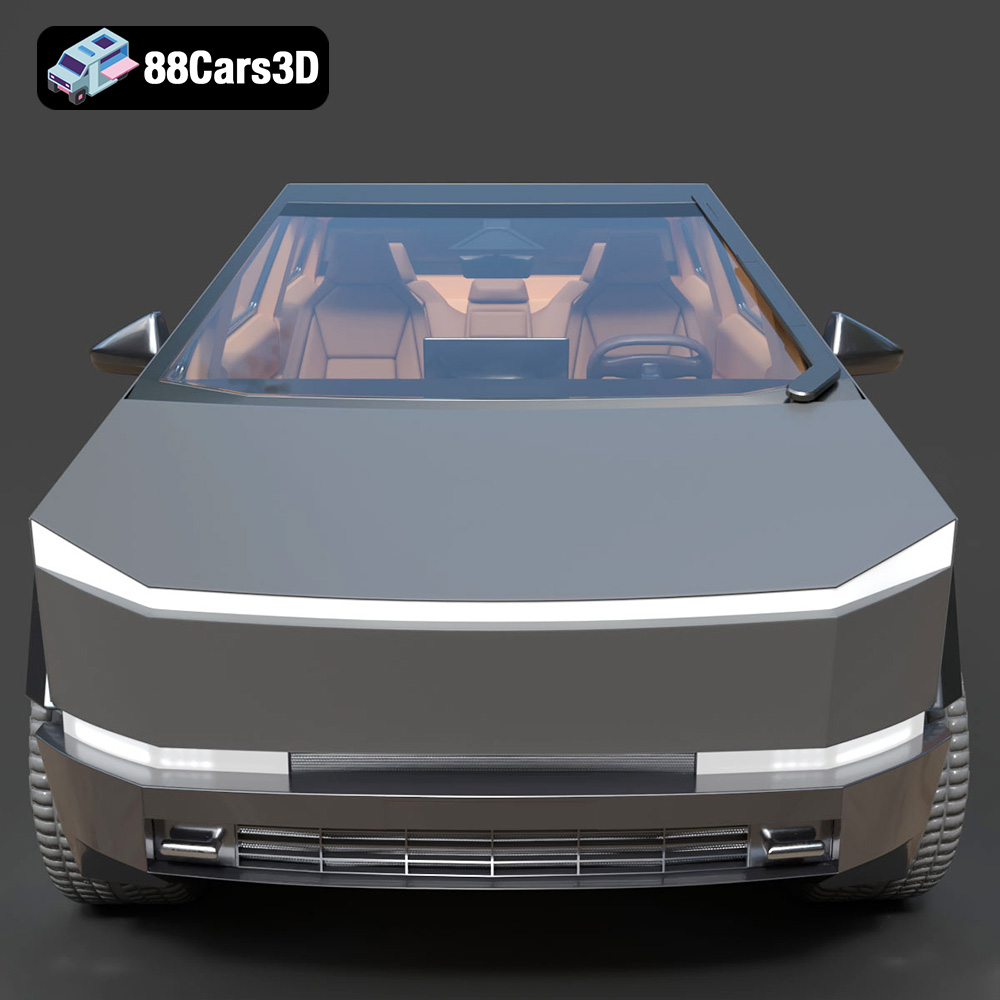
Experience the futuristic design of the Tesla Cybertruck 2024 with this exceptionally realistic 3D model. Built to precise proportions, this asset captures the distinctive angular exoskeleton and advanced aesthetic of the iconic electric pickup truck, ensuring a striking presence in any digital environment.
$19.99
3D printing the Tesla Cybertruck 2024 is a rewarding project that combines futuristic design with the capabilities of additive manufacturing. By understanding the different file formats, carefully preparing your model for printing, choosing the right material and printer settings, and mastering post-processing techniques, you can create a stunning replica of this iconic vehicle. Remember to visit 88cars3d.com for high-quality 3D models optimized for 3D printing. With patience and persistence, you’ll be showcasing your own 3D printed Cybertruck in no time! Happy printing!
.arvr
.blend
.car3dmodel
.cybertruck
.electricvehicle
.fbx
.gameasset
.glb
.max
.obj
.pickup
.ply
.rendering
.simulation
.stl
.tesla
.truck
.unreal