Get 20% OFF All Premium 3D & STL Models!

“`html
3D printing has revolutionized manufacturing, prototyping, and hobbyist projects. One essential aspect of successful 3D printing is ensuring the quality of your STL files. STL (Stereolithography) is a widely used file format for 3D printing, but it’s not uncommon to encounter issues like non-manifold geometry, flipped normals, or excessive polygon counts. These imperfections can lead to failed prints, poor surface finishes, and wasted filament. Blender, a powerful and free 3D modeling software, offers a range of tools for cleaning up and optimizing STL files before sending them to your 3D printer. This guide will provide you with a step-by-step approach to using Blender for STL file repair, preparing your models for flawless 3D printing. We’ll cover importing, inspecting, repairing common errors, and exporting the optimized file. Whether you’re printing intricate car models sourced from platforms like 88cars3d.com or designing your own creations, mastering these techniques is crucial. Let’s dive in!
The first step in cleaning up an STL file is to import it into Blender and thoroughly inspect it for potential issues. A careful examination can save you time and resources by identifying problems before they reach the 3D printer.
To import an STL file into Blender, navigate to File > Import > Stl (.stl). Select your desired STL file and click “Import STL.” Once imported, the model will appear in Blender’s 3D viewport. It’s recommended to adjust Blender’s unit settings before importing. Under Scene Properties, set the units to millimeters to align with typical 3D printing scales. This can prevent scaling issues later in the workflow.
Begin with a visual inspection of the model. Rotate and zoom to examine the surface for any obvious defects, holes, or distortions. Use Blender’s shading options (Solid, Wireframe, Material Preview) to gain different perspectives. Enable “Backface Culling” under Viewport Overlays. This option hides faces whose normals are pointing away from the viewer, immediately revealing any flipped normals which appear as transparent areas. Additionally, enable “Face Orientation” in the same Viewport Overlays menu. This colors the faces of your model: blue indicates the faces are pointing outwards (correct orientation), and red indicates they are pointing inwards (flipped normals). Flipped normals can cause significant printing problems.
The Statistics overlay, found in the Viewport Overlays panel, provides valuable information about the model’s complexity. Pay attention to the number of vertices, edges, and faces. A high polygon count can slow down slicing and printing. Keep this in mind for optimization later. A simple car model from 88cars3d.com, for instance, may have a vertex count of 50,000 – 150,000. More detailed models can have counts exceeding 500,000. If your system struggles to render the model smoothly, it’s a strong indicator that simplification might be necessary. This is especially important if your 3D printer’s control board has limited processing power.
Non-manifold geometry is one of the most common issues in STL files and a major cause of 3D printing failures. It refers to situations where the mesh has edges that are shared by more than two faces, or faces that don’t properly connect to form a closed volume. These errors violate the fundamental requirement that a 3D printable model must be a closed, watertight surface.
Imagine trying to fill a leaky bucket with water – non-manifold geometry is like having holes and cracks in your digital 3D model. Common types of non-manifold errors include: loose edges (edges not connected to any face), internal faces (faces inside the model that shouldn’t be there), and zero-area faces (faces with no surface area). These errors confuse slicer software and can result in missing sections, unexpected holes, or even complete printing failures. For example, if printing a car body, a non-manifold error in the roof might cause that section to be completely absent in the printed object.
Blender provides a handy tool for automatically selecting non-manifold edges and faces. Switch to Edit Mode (Tab key), then go to Select > Select All by Trait > Non Manifold. This will highlight all the problematic areas in your mesh. Once the non-manifold edges are selected, you can use various tools to correct them. A common approach is to use the “Fill” command (Alt+F) to create a new face that closes the gap. For more complex cases, you might need to manually create new faces or bridge edges using the “Bridge Edge Loops” command (Ctrl+E > Bridge Edge Loops).
For a more comprehensive analysis and automated repair, consider using the MeshLint add-on. This add-on can be installed through Blender’s preferences (Edit > Preferences > Add-ons > Search for “MeshLint”). MeshLint provides a detailed report of mesh errors, including non-manifold geometry, flipped normals, and degenerate faces. It also offers options for automatic repair, such as filling holes and welding nearby vertices. To use MeshLint, select your object, go to the “MeshLint” tab in the Properties panel, and click “Analyze.” Review the report and use the “Fix” buttons to automatically correct the identified errors. Remember to always manually inspect the results to ensure the repairs didn’t introduce new issues.
Normals are vectors that define the direction a face is pointing. In 3D modeling, and especially for 3D printing, it’s crucial that all normals point outwards. Flipped normals can cause a variety of problems, from rendering artifacts to printing errors. Blender offers several tools to diagnose and correct normal orientation issues.
Imagine each face of your 3D model has a tiny arrow sticking out of it. That arrow represents the surface normal. For a 3D printer to understand the model correctly, all these arrows need to point outwards, away from the object’s interior. If a normal is flipped inwards, the slicer might interpret that face as part of the interior, leading to incorrect infill, missing walls, or even holes in the printed object. This is particularly critical for models where watertightness is essential, such as when printing containers or fluid-containing parts. For example, a flipped normal on the underside of a car chassis could cause the slicer to ignore that surface, resulting in a structurally weak or incomplete print.
Blender provides a quick and easy way to recalculate normals: Select your object, switch to Edit Mode (Tab key), then go to Mesh > Normals > Recalculate Outside. This command attempts to automatically flip normals to point outwards based on the surrounding geometry. However, it’s not always perfect, especially for complex models with intricate details. After recalculating, always double-check the normals using the “Face Orientation” overlay (Viewport Overlays > Face Orientation) to ensure everything is correct. Blue faces indicate correct orientation; red faces indicate flipped normals.
In cases where the automatic recalculation fails, you’ll need to manually flip normals. Select the face with the incorrect normal, then go to Mesh > Normals > Flip. This will reverse the direction of the selected face’s normal. For larger areas with flipped normals, you can select multiple faces and flip them all at once. Alternatively, you can use the “Average” option (Mesh > Normals > Average) to align the normals of selected faces with their neighbors. This can be helpful for smoothing out inconsistencies in normal orientation. For highly detailed models, like those available on platforms such as 88cars3d.com, meticulous attention to normal orientation is crucial for achieving optimal print quality.
While high-resolution models can capture intricate details, they also come with a significant performance cost. A model with an excessively high polygon count can slow down Blender, increase slicing times, and even overwhelm your 3D printer’s control board. Reducing the polygon count, also known as decimation, can improve performance without sacrificing too much visual fidelity.
Imagine a sphere. It can be represented with just a few polygons, resulting in a blocky, faceted appearance. Or, it can be represented with thousands of polygons, creating a smooth, curved surface. The more polygons you use, the more detailed the representation, but also the higher the computational cost. Finding the right balance between detail and performance is key. A good rule of thumb is to reduce the polygon count to the point where you can no longer perceive a significant difference in visual quality at the intended printing size. For example, when 3D printing a car model, the curvature of the hood and the sharpness of the edges are important details. However, the underside of the chassis might not require the same level of detail, allowing for more aggressive decimation in that area.
Blender’s Decimate modifier is a powerful tool for reducing polygon count. Select your object, go to the Modifiers tab in the Properties panel, and add a Decimate modifier. The modifier offers several decimation methods: Ratio, Collapse, and Planar. The “Ratio” method reduces the number of faces by a specified percentage. The “Collapse” method collapses edges based on a specified angle limit. The “Planar” method simplifies flat surfaces by merging coplanar faces. Experiment with different methods and settings to find the best balance between polygon reduction and detail preservation. For car models, using the “Ratio” method with a value between 0.3 and 0.7 can often achieve a significant reduction in polygon count without noticeable loss of detail.
For more precise control over polygon reduction, consider using selective decimation or retopology. Selective decimation involves manually reducing the polygon count in specific areas of the model. This allows you to preserve detail in important areas while simplifying less critical regions. Retopology is the process of creating a completely new, lower-polygon mesh that closely follows the shape of the original high-polygon model. This is a more time-consuming process but offers the greatest control over the final result. Blender’s sculpting tools and snapping features can be used to create a clean, optimized mesh. When working with models from online marketplaces like 88cars3d.com, carefully consider which areas require the highest level of detail before applying any decimation techniques.
Support structures are temporary scaffolds that provide support for overhanging features during 3D printing. They prevent parts from collapsing or warping due to gravity. While some models can be printed without supports, complex geometries with significant overhangs often require them.
An overhang is any part of the model that extends outwards beyond the layer below it. 3D printers build models layer by layer, so if a layer has nothing to support it, it’s likely to sag or collapse. The critical angle for overhangs is typically around 45 degrees. Any feature that extends beyond this angle will likely require support. For example, printing the curved roof of a car model without supports could result in a droopy, misshapen roof. The need for supports also depends on the printing material and printer settings. Materials like ABS and PETG are more prone to warping and may require more support than PLA. Lower layer heights and slower printing speeds can also reduce the need for supports. It’s always best to err on the side of caution and add supports where necessary.
While Blender doesn’t have built-in support generation tools, several add-ons provide this functionality. Popular options include CuraEngine and Meshmixer. CuraEngine allows you to use Cura’s powerful slicing and support generation algorithms directly within Blender. Meshmixer, a free software from Autodesk, offers advanced support generation features, including tree-like supports and customizable support density. To use these add-ons, you typically need to install them and configure them to point to the respective software’s executable file. Once configured, you can generate supports directly within Blender and export the model with the supports intact.
For greater control over support placement, you can manually create supports using Blender’s modeling tools. This involves creating simple geometric shapes, such as cubes, cylinders, or cones, and positioning them under the overhanging features. Manual support creation can be more time-consuming but allows you to optimize support placement for minimal material usage and easy removal. Consider using thin, easily breakable connections between the supports and the model to facilitate removal. It’s crucial to check your STL file, particularly models downloaded from platforms such as 88cars3d.com, for potential overhangs before printing.
Once you’ve completed all the necessary cleanup and optimization steps, the final step is to export the STL file for 3D printing. Proper export settings are crucial to ensure that your slicer software interprets the model correctly.
To export the STL file, go to File > Export > Stl (.stl). In the export settings, pay attention to the following: Scale: Ensure the scale is set correctly to match your intended printing size. If you set the units to millimeters earlier, leave the scale at 1.0. Apply Modifiers: Enable this option to apply all modifiers (such as the Decimate modifier) before exporting. This ensures that the exported file reflects the changes you made in Blender. Selection Only: If you only want to export a specific part of the scene, select it and enable this option. ASCII vs. Binary: STL files can be saved in ASCII or binary format. Binary is generally preferred as it results in smaller file sizes and faster loading times. However, some older slicer software may only support ASCII. If you encounter compatibility issues, try exporting in ASCII format.
Before sending the STL file to your slicer, it’s a good practice to verify that the export was successful. Re-import the exported STL file into Blender and inspect it for any unexpected changes or errors. Check the dimensions, surface quality, and overall integrity of the model. If you notice any issues, review your export settings and repeat the process. You can also use a dedicated STL viewer to examine the file. Many free STL viewers are available online. This is a crucial step to minimize wasted printing material.
With the cleaned and optimized STL file in hand, you’re now ready to import it into your slicer software (such as Cura, PrusaSlicer, or Simplify3D). Adjust the slicer settings according to your printer, material, and desired print quality. Pay attention to settings such as layer height, infill density, print speed, and temperature. For car models, a layer height of 0.1mm to 0.2mm is generally recommended for a good balance between print quality and print time. Infill density depends on the structural requirements of the model; 15% to 25% is usually sufficient for decorative models. Remember to consult your printer and material documentation for recommended settings. By following these steps, you can ensure that your STL files are properly prepared for 3D printing, resulting in high-quality prints and successful projects.
Cleaning up STL files in Blender is an essential skill for any 3D printing enthusiast. By mastering the techniques outlined in this guide, you can ensure that your models are free of errors, optimized for performance, and ready for flawless 3D printing. From identifying and correcting non-manifold geometry to fixing flipped normals and reducing polygon count, Blender offers a comprehensive suite of tools for STL file repair. Whether you’re printing intricate car models from online marketplaces or designing your own creations, taking the time to properly prepare your STL files will save you time, resources, and frustration. And remember, platforms like 88cars3d.com offer print-ready STL files, but even these might benefit from a quick cleanup using the techniques discussed in this guide. So, download Blender, grab your favorite STL file, and start experimenting! Happy printing!
“`

Texture: Yes | Material: Yes
Download the highly detailed, game-ready Porsche 718 Cayman GT4 2020 3D Model. Features an aggressive fixed rear wing, distinctive side air intakes, and a track-focused stance. Includes .blend, .fbx, .obj, .glb, .stl, .ply, .unreal, and .max formats for game development, AR/VR, and rendering.
Price: $19.99

Texture: Yes | Material: Yes
Download the highly detailed, game-ready Polestar 2 2020 3D Model. Features minimalist Scandinavian fastback styling, pixel LED lighting, and an accurate electric vehicle profile. Includes .blend, .fbx, .obj, .glb, .stl, .ply, .unreal, and .max formats for game development, AR/VR, and rendering.
Price: $19.99
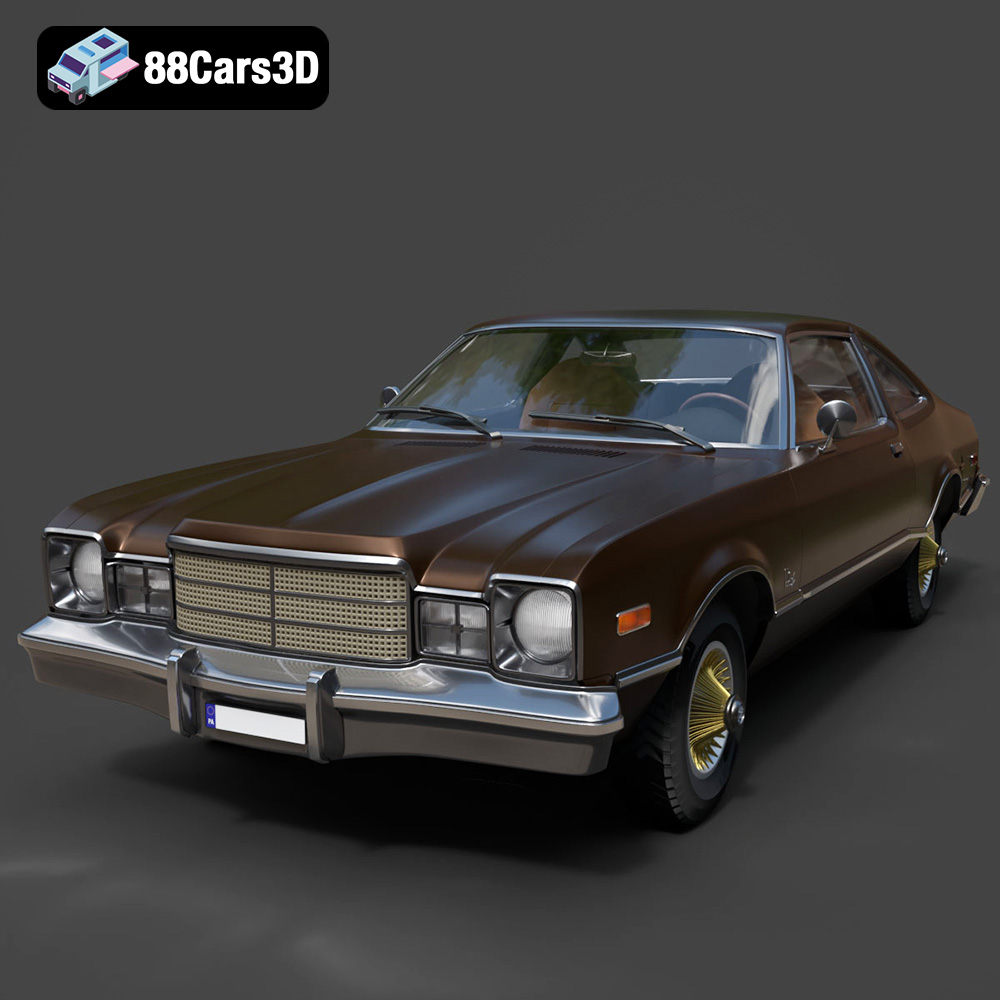
Texture: Yes | Material: Yes
Download the highly detailed, game-ready Plymouth Volare Coupe 1977 3D Model. Features classic F-body styling, detailed chrome trim, and an accurate vintage interior. Includes .blend, .fbx, .obj, .glb, .stl, .ply, .unreal, and .max formats for game development, AR/VR, and rendering.
Price: $19.99

Texture: Yes | Material: Yes
Download the highly detailed, game-ready Peugeot 208 2020 3D Model. Features aggressive ‘fang’ LED DRLs, sporty hatchback proportions, and aerodynamic alloy wheels. Includes .blend, .fbx, .obj, .glb, .stl, .ply, .unreal, and .max formats for game development, AR/VR, and rendering.
Price: $19.99

Texture: Yes | Material: Yes
Download the highly detailed, game-ready MV Agusta Brutale 1090 R 3D Model. Features an exposed trellis frame, distinctive teardrop headlight, and muscular naked bike styling. Includes .blend, .fbx, .obj, .glb, .stl, .ply, .unreal, and .max formats for game development, AR/VR, and rendering.
Price: $19.99
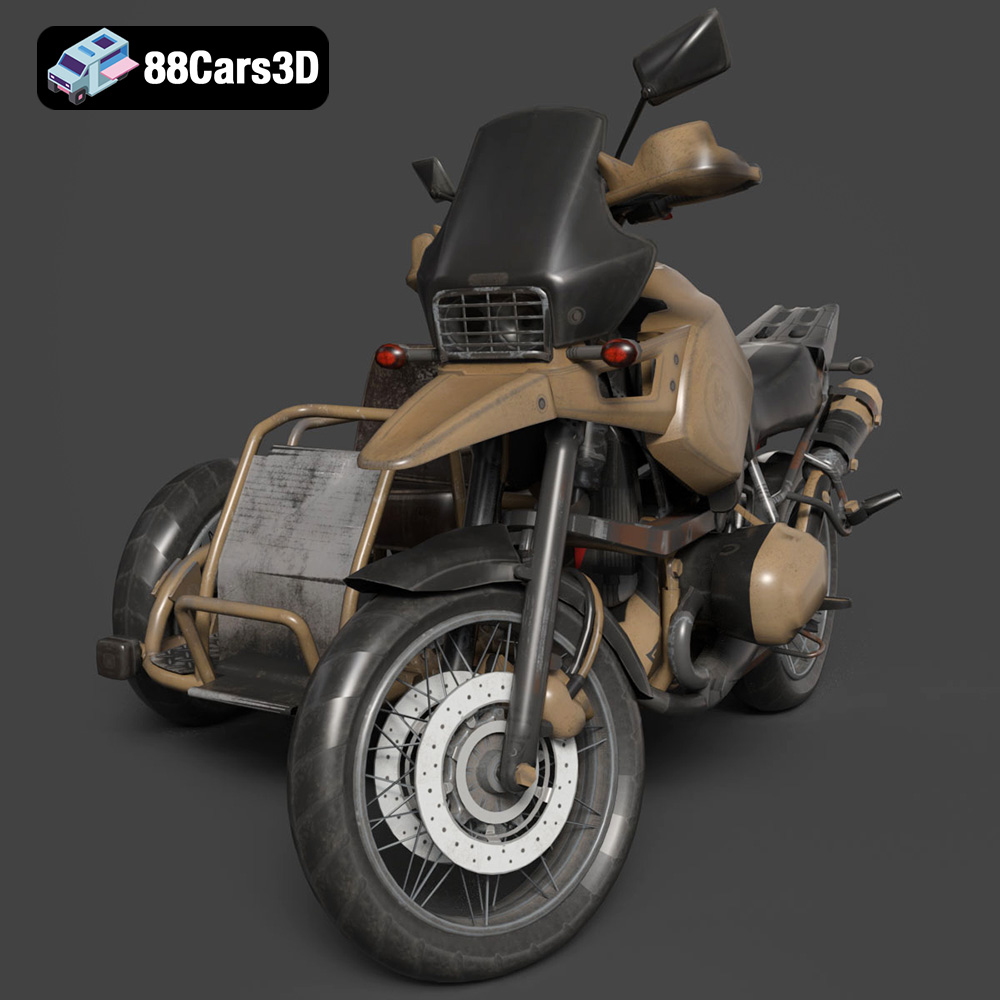
Texture: Yes | Material: Yes
Download the highly detailed, game-ready Custom Off-Road BMW R1150GS Adventure Sidecar 3D Model. Features rugged all-terrain suspension, an attached passenger sidecar, and off-road knobby tires. Includes .blend, .fbx, .obj, .glb, .stl, .ply, .unreal, and .max formats for game development, AR/VR, and rendering.
Price: $19.99

Texture: Yes | Material: Yes
Download the highly detailed, game-ready Mitsubishi Outlander GT 2010 3D Model. Features the aggressive Lancer-inspired front grille, accurate exterior styling, and high-fidelity alloy wheels. Includes .blend, .fbx, .obj, .glb, .stl, .ply, .unreal, and .max formats for game development, AR/VR, and rendering.
Price: $19.99

Texture: Yes | Material: Yes
Download the highly detailed, game-ready Mitsubishi L200 Crew Cab 2019 3D Model. Features the iconic Dynamic Shield front fascia, rugged cargo bed, and a spacious crew cab interior. Includes .blend, .fbx, .obj, .glb, .stl, .ply, .unreal, and .max formats for game development, AR/VR, and rendering.
Price: $19.99
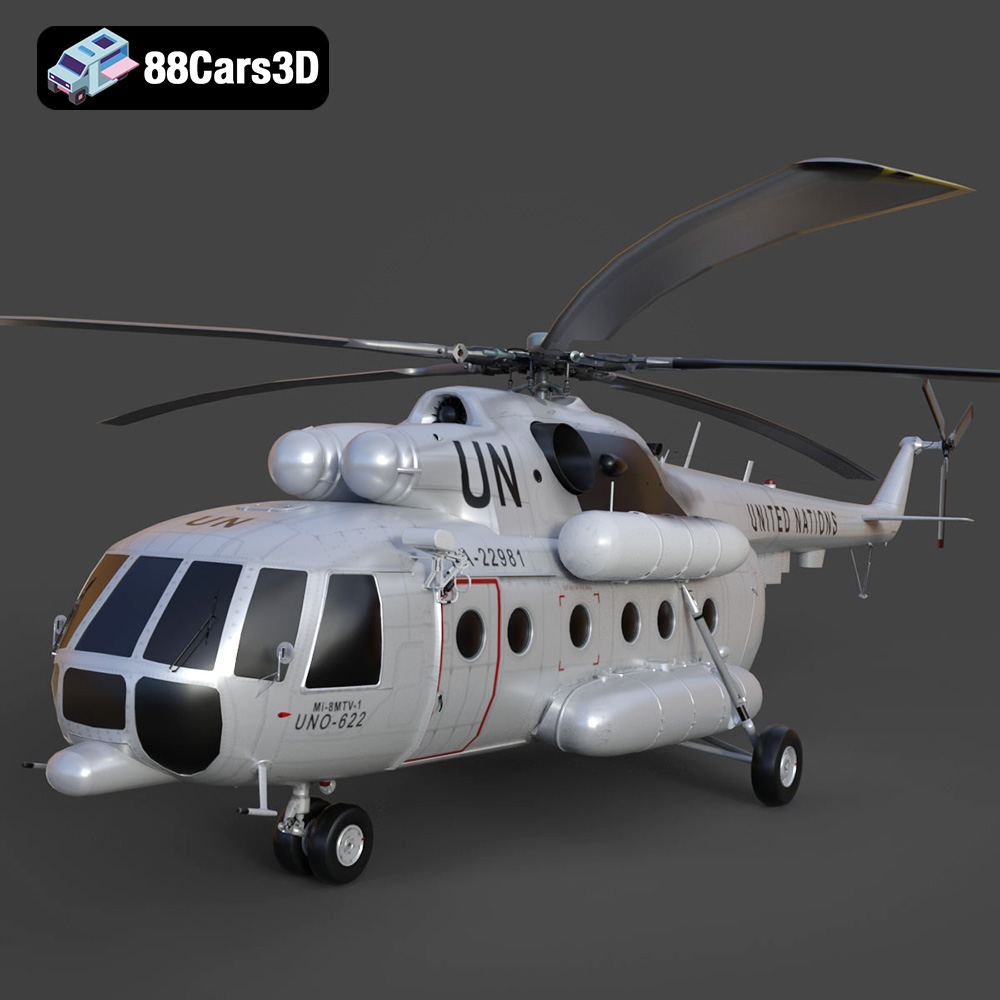
Texture: Yes | Material: Yes
Download the highly detailed, game-ready Mil Mi-8MTV-UN 3D Model. Features the iconic United Nations white livery, detailed twin turboshaft engines, and fully articulated rotor assemblies. Includes .blend, .fbx, .obj, .glb, .stl, .ply, .unreal, and .max formats for game development, AR/VR, and rendering.
Price: $19.99
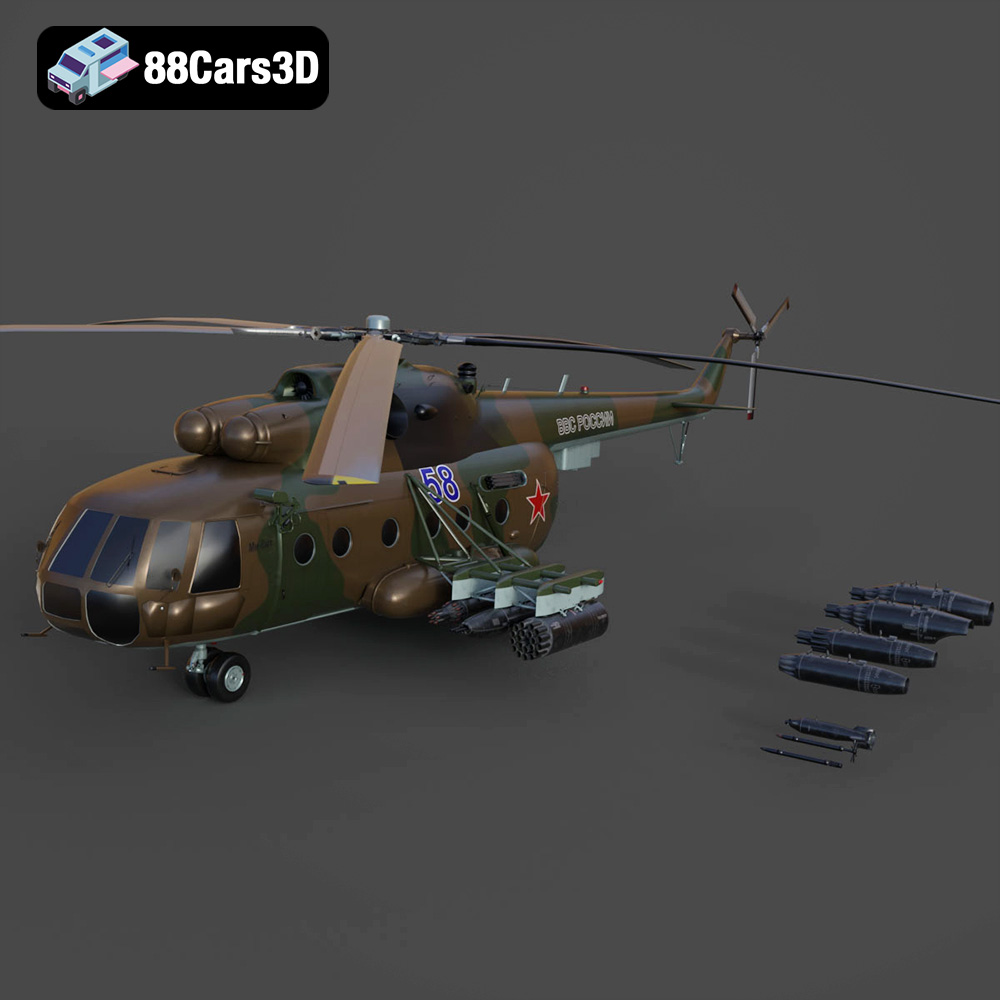
Texture: Yes | Material: Yes
Download the highly detailed, game-ready Mil Mi-8MT Helicopter 3D Model. Features twin-turbine engine housings, a detailed 5-blade main rotor, and authentic cockpit instrumentation. Includes .blend, .fbx, .obj, .glb, .stl, .ply, .unreal, and .max formats for game development, AR/VR, and rendering.
Price: $19.99

