Get 20% OFF All Premium 3D & STL Models!

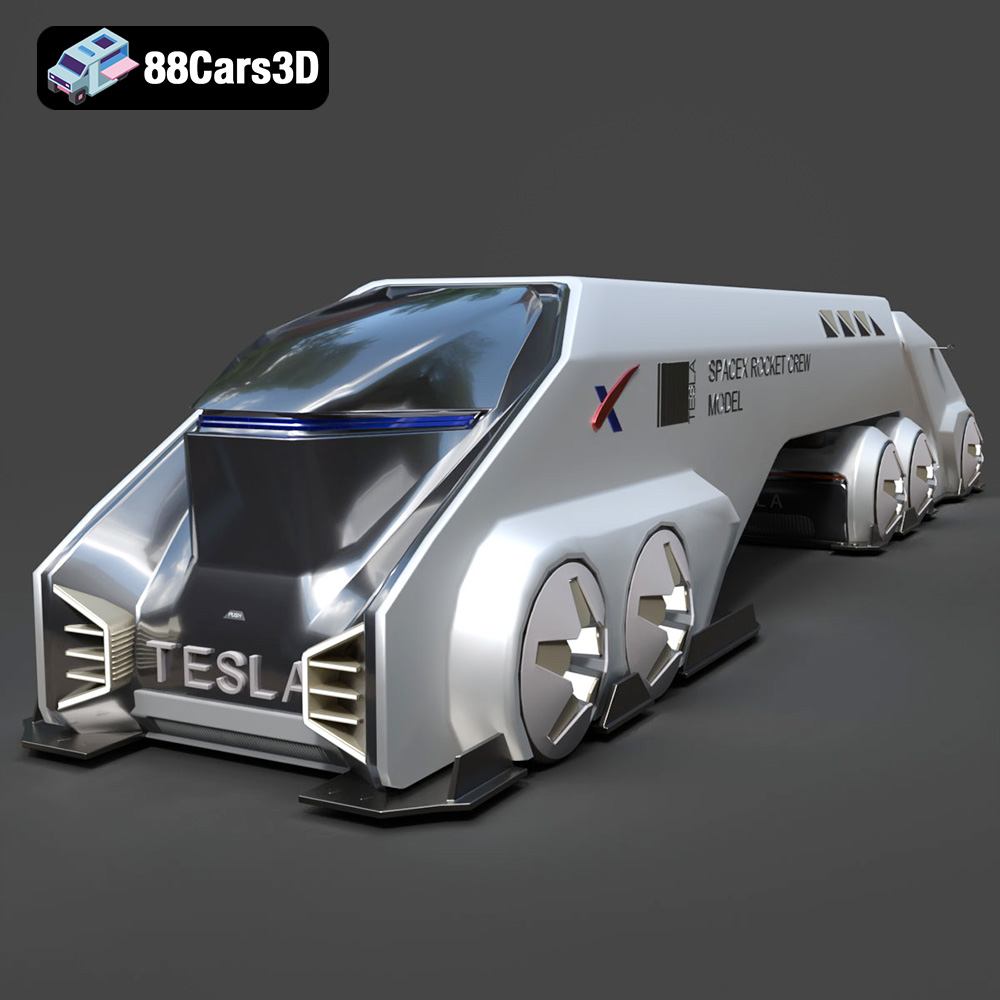
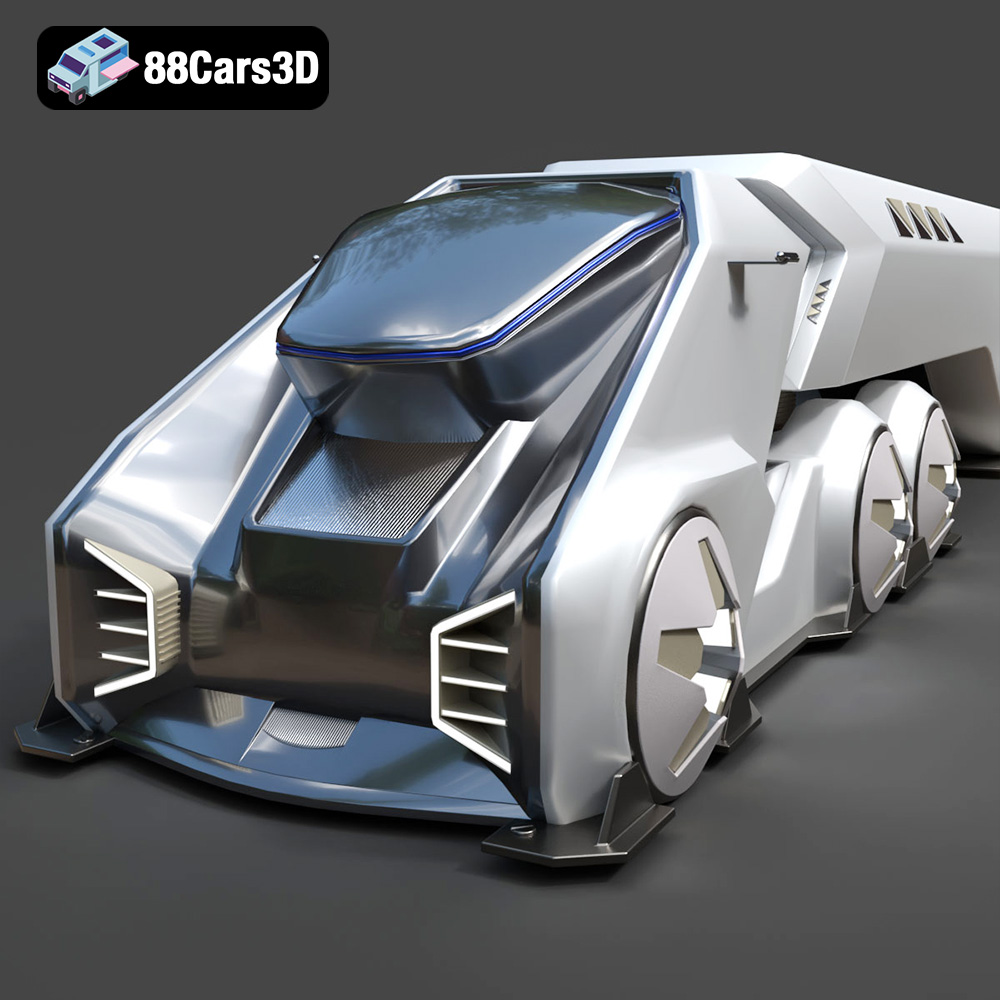
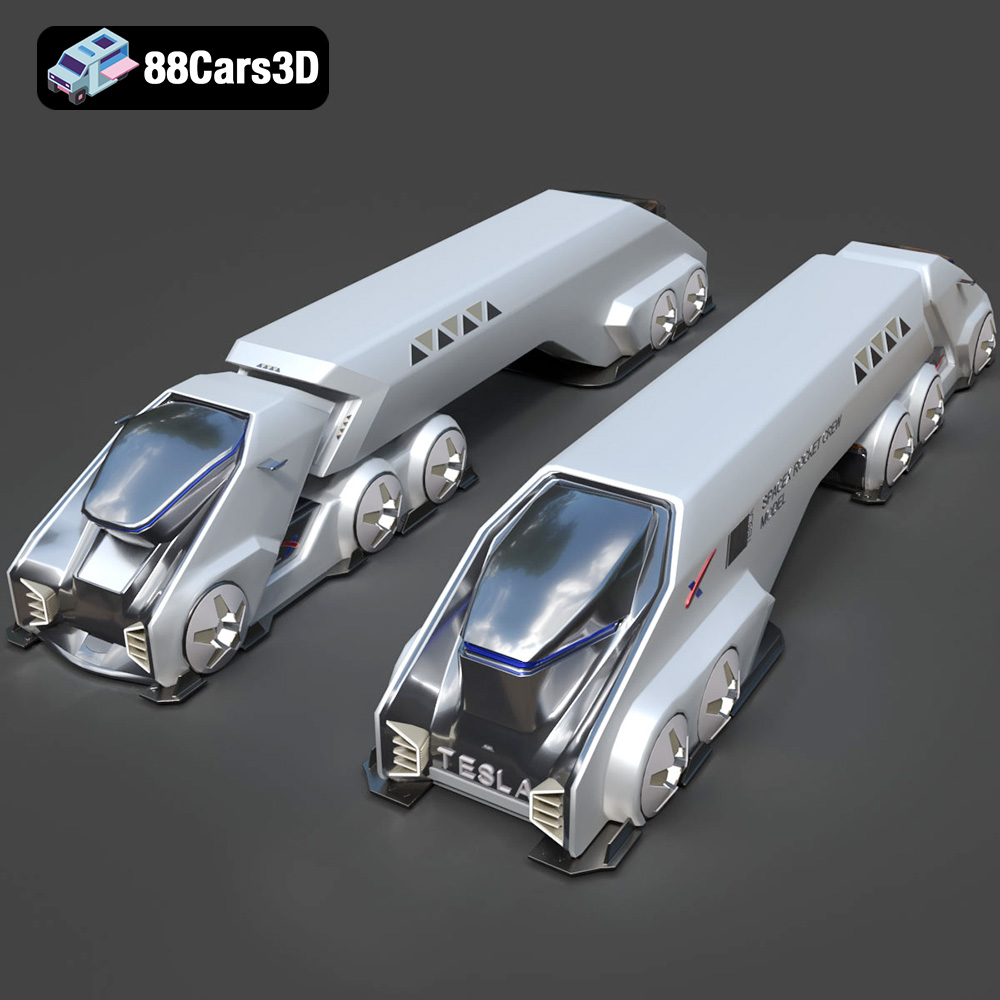
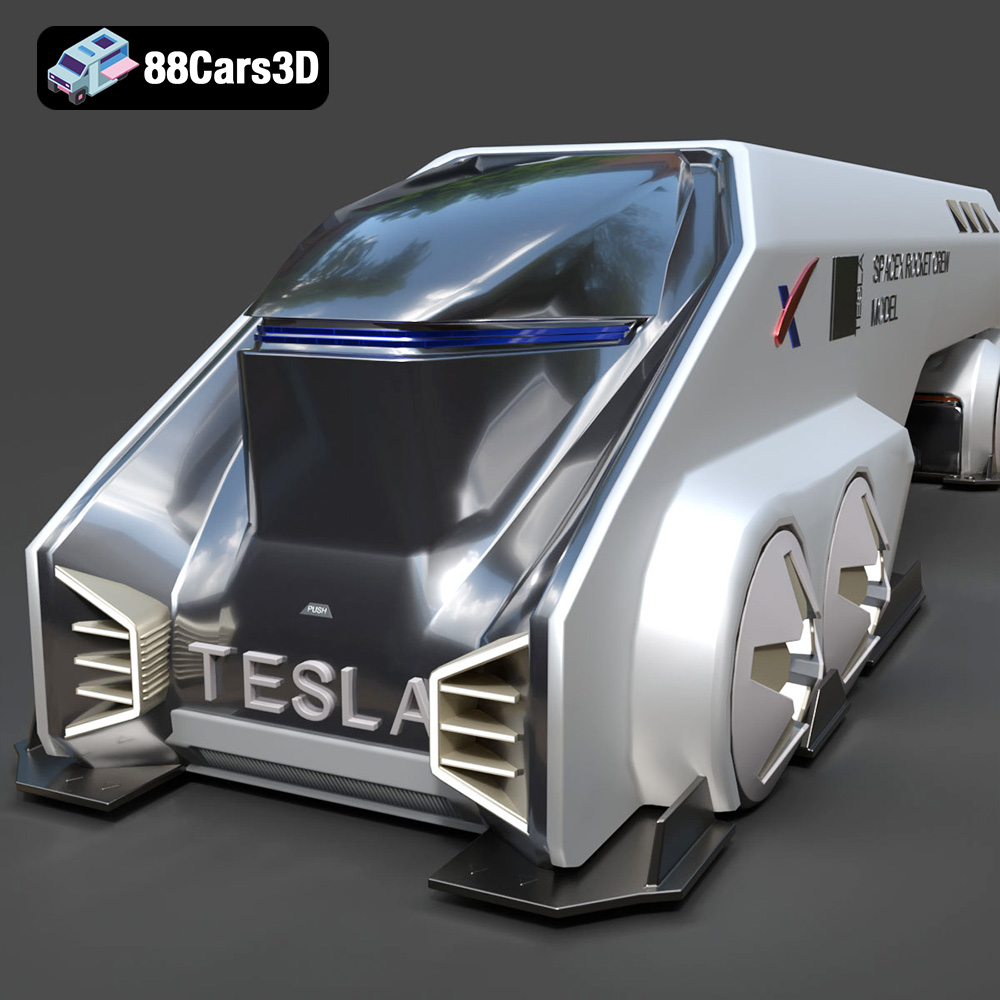
The Tesla Space Rocket-001 3D Model from 88cars3d.com offers a fantastic opportunity to explore the intersection of futuristic design and additive manufacturing. This model, available in multiple formats including the crucial STL, allows makers, hobbyists, and professionals to create a tangible representation of this innovative spacecraft. This blog post will guide you through the process of 3D printing the Tesla Space Rocket-001, covering everything from selecting the right materials and printer settings to post-processing techniques that will ensure a stunning final product. Whether you’re a seasoned 3D printing enthusiast or a beginner eager to embark on a new project, this guide will provide the knowledge and insights needed to successfully 3D print this captivating model.
Choosing the right file format is crucial for successful 3D printing. While the Tesla Space Rocket-001 3D Model is available in various formats on 88cars3d.com, understanding their nuances is key to optimizing your printing experience. Here’s a breakdown of common 3D model file formats and their suitability for 3D printing:
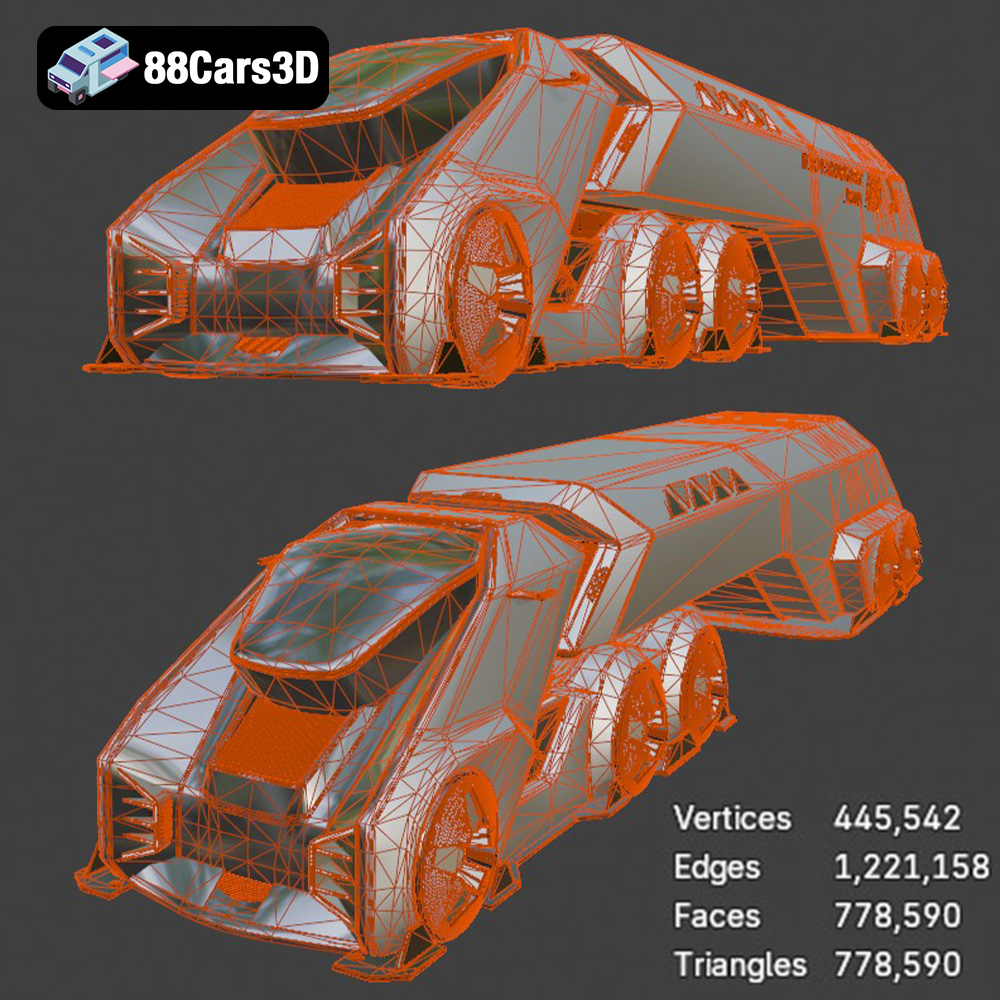
.stl (Stereolithography) is the industry-standard file format for 3D printing. It represents the surface geometry of a 3D object using a mesh of triangles. Because it solely focuses on the surface geometry without color or texture information, it’s lightweight and universally compatible with almost all 3D printing software and hardware. The quality of an STL file directly impacts the final print quality. Higher resolution STL files, generated with more triangles, capture finer details but can increase file size and processing time in slicing software.
.obj is a more versatile format than STL, capable of storing color and texture information alongside the geometric data. This makes it suitable for models intended for full-color 3D printing or rendering purposes. However, many 3D printers and slicing software packages are primarily optimized for STL files. To use an OBJ file for 3D printing, you might need to convert it to STL or ensure your slicing software fully supports OBJ format. This conversion might lead to some loss of color information unless you have a dedicated full-color 3D printer.
.ply (Polygon File Format) is designed to store 3D data acquired from 3D scanners. It’s known for its ability to capture high-resolution mesh data with precise vertex information, including color and normal data. This makes it ideal for complex models requiring a high degree of accuracy. Like OBJ, .ply files might require conversion to STL for optimal 3D printing, and not all slicing software readily supports this format.
Formats like .blend (Blender), .fbx, .glb, and .max (3ds Max) are primarily used within their respective design and animation software. .blend files are complete Blender project files, while .fbx is commonly used for game engine integration. .glb is excellent for AR/VR applications. These formats are not directly compatible with 3D printers. To print models in these formats, they must be exported to a compatible format like .stl or .obj. This export process involves converting the model into a printable mesh format, potentially requiring adjustments to ensure the model is manifold (watertight) and suitable for 3D printing.
When preparing the Tesla Space Rocket-001 3D Model for printing, prioritize the .stl file provided by 88cars3d.com. If you intend to modify the model or require color information, consider using the .obj file. Regardless of the initial format, always ensure the final file used for slicing is a clean, manifold STL to achieve the best 3D printing results. Verify the mesh quality and resolution in your chosen slicing software before printing to avoid unexpected artifacts or errors in the final print.
The material you choose will greatly affect the final look, feel, and functionality of your 3D printed Tesla Space Rocket-001. Here’s a breakdown of popular 3D printing materials and their suitability for this project:
PLA is a biodegradable thermoplastic polymer derived from renewable resources like corn starch or sugarcane. It’s easy to print with, has a low printing temperature, and doesn’t require a heated bed on many printers. PLA is a good choice for beginners and for creating aesthetically pleasing models. However, it’s less durable and heat-resistant than other materials, so it might not be ideal if you plan to display your rocket in direct sunlight or subject it to high temperatures.
PETG is a modified version of PET, the plastic used in water bottles. It offers a good balance of strength, flexibility, and ease of printing. PETG is more heat-resistant and durable than PLA, making it a better choice for models that need to withstand some wear and tear. It also has good layer adhesion, resulting in stronger prints.
For intricate details and a smooth surface finish, resin 3D printing is an excellent option. Resin printers use liquid photopolymer resin that is cured by UV light. This allows for much higher resolution prints compared to FDM (Fused Deposition Modeling) printers that use filament. If you want to capture every fine detail of the Tesla Space Rocket-001, especially smaller versions of the model, resin is the way to go. However, resin printing requires more post-processing, including washing and curing the prints, and the resins themselves can be more expensive and require careful handling.
Before you hit the print button, proper preparation is essential. This involves using slicing software to convert the 3D model into instructions your printer can understand and optimizing the model for successful printing.
Slicing software is the key to 3D printing. It takes the 3D model file (STL) and slices it into layers, generating a G-code file that contains instructions for your 3D printer, including movement, temperature, and speed settings. Popular slicing software options include Cura, Simplify3D, PrusaSlicer, and Chitubox (for resin printing). Each software offers different features and settings, so experiment to find the one that best suits your printer and needs.
The orientation of the Tesla Space Rocket-001 on the print bed can significantly impact the print quality, strength, and the amount of support material needed. Choose an orientation that minimizes overhangs and maximizes the surface area in contact with the build plate. If overhangs are unavoidable, use support structures generated by the slicing software. Carefully consider the placement and density of supports to ensure they adequately support the model without being too difficult to remove later. For a model like the Tesla Space Rocket-001, printing it vertically might seem intuitive, but consider printing it horizontally, potentially in multiple parts, to minimize the need for supports on the main body.
Before slicing, it’s good practice to check the 3D model for any errors, such as non-manifold geometry or inverted normals. Many slicing software programs have built-in repair tools that can automatically fix these issues. If you need to scale the model up or down, do so before slicing. Scaling can affect the print time, material usage, and the level of detail that can be captured. Be mindful of the printer’s build volume and ensure the scaled model fits within the printable area.
Achieving a successful 3D print of the Tesla Space Rocket-001 requires careful consideration of various printing parameters. Experimentation is key to finding the optimal settings for your specific printer and material.
Layer height determines the thickness of each printed layer. A smaller layer height results in finer details and a smoother surface finish but increases the print time. A larger layer height reduces the print time but sacrifices some detail. For the Tesla Space Rocket-001, a layer height of 0.1-0.2 mm is a good starting point for FDM printing. For resin printing, layer heights can be even smaller, typically in the range of 0.025-0.05 mm.
Infill density refers to the amount of material inside the 3D printed object. A higher infill density makes the model stronger but uses more material. For a display model like the Tesla Space Rocket-001, an infill density of 15-25% is generally sufficient. Consider increasing the infill density for areas that require more strength, such as the base or any load-bearing components.
Print speed affects both the print quality and the overall print time. Printing too fast can lead to poor layer adhesion, warping, and other issues. Printing too slow can unnecessarily extend the print time. The optimal print speed depends on the material and printer being used. Start with a moderate print speed (40-60 mm/s for FDM) and adjust as needed. Resin printing speeds are generally much slower, depending on the resin and printer.
Once the 3D printing is complete, post-processing is often necessary to achieve the desired final look and feel. This may involve removing supports, sanding, painting, and assembling multiple parts.
Carefully remove any support structures from the 3D printed Tesla Space Rocket-001. Use tools like pliers, cutters, or a deburring tool to avoid damaging the model. After removing the supports, sanding is crucial to smooth out any remaining imperfections and layer lines. Start with coarse-grit sandpaper and gradually move to finer grits to achieve a smooth surface. Wet sanding can also help to reduce dust and improve the surface finish.
Painting can add color and realism to your 3D printed Tesla Space Rocket-001. Use acrylic paints or spray paints specifically designed for plastics. Apply multiple thin coats of paint for a smooth and even finish. Consider using a primer to improve paint adhesion. After painting, you can apply a clear coat to protect the paint and add a glossy or matte finish. Weathering techniques, such as dry brushing or washes, can further enhance the realism of the model.
If the Tesla Space Rocket-001 was printed in multiple parts, assembly is required. Use glue or epoxy to join the parts together. Ensure the parts are properly aligned before the adhesive sets. Consider using clamps or tape to hold the parts in place while the adhesive cures. Once the adhesive is fully cured, you can sand any seams and touch up the paint to create a seamless final product.
3D printing can be challenging, and you may encounter issues such as warping, poor layer adhesion, stringing, or failed prints. Here are some tips for troubleshooting these common problems:
Warping occurs when the corners of the print lift off the print bed. This is often caused by poor bed adhesion or temperature fluctuations. To prevent warping, ensure the print bed is clean and level. Use a bed adhesive, such as glue stick or hairspray, to improve adhesion. Enclosing the printer can help to maintain a consistent temperature and reduce warping.
Poor layer adhesion occurs when the layers of the print don’t properly bond together, resulting in weak or delaminated prints. This can be caused by low nozzle temperature, high print speed, or poor cooling. Increase the nozzle temperature, reduce the print speed, and ensure adequate cooling to improve layer adhesion.
Stringing occurs when the printer extrudes material while moving between different parts of the print, resulting in unwanted threads or strings. This can be caused by high nozzle temperature, slow retraction speed, or excessive travel moves. Lower the nozzle temperature, increase the retraction speed, and optimize the travel moves to reduce stringing.
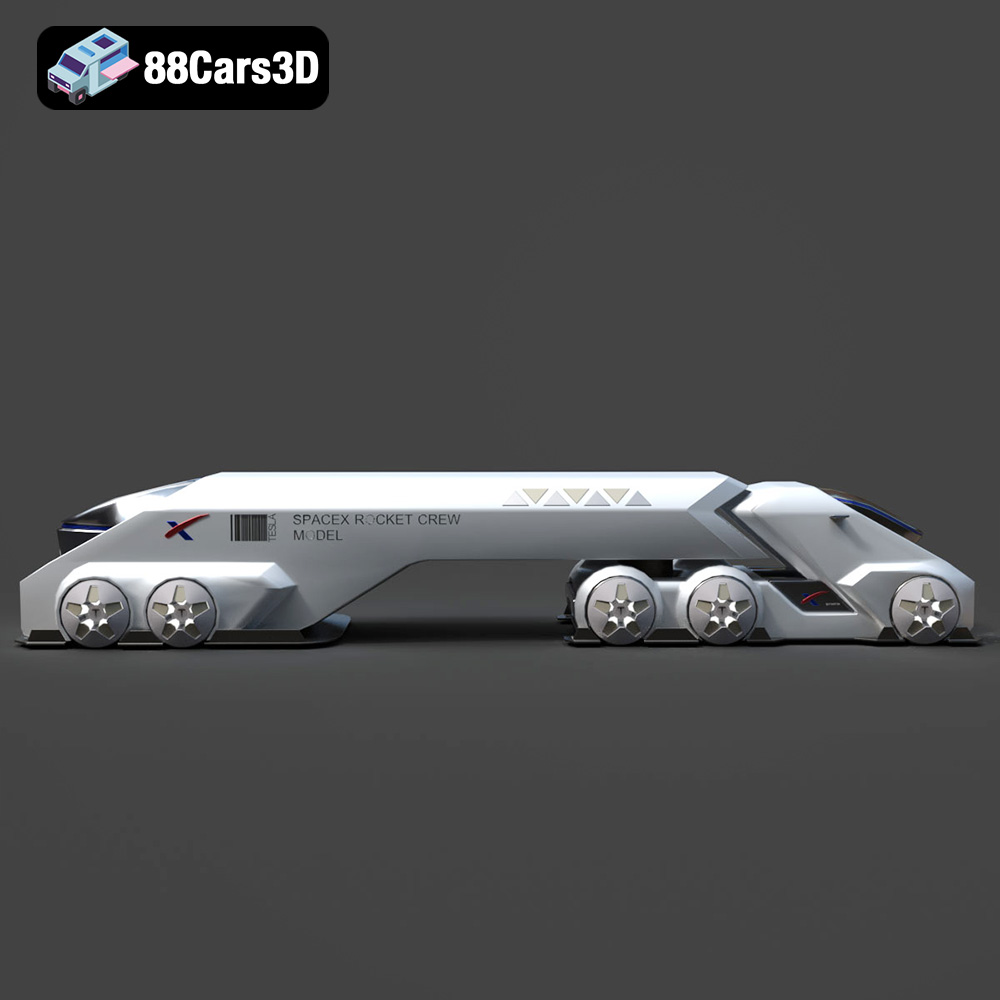
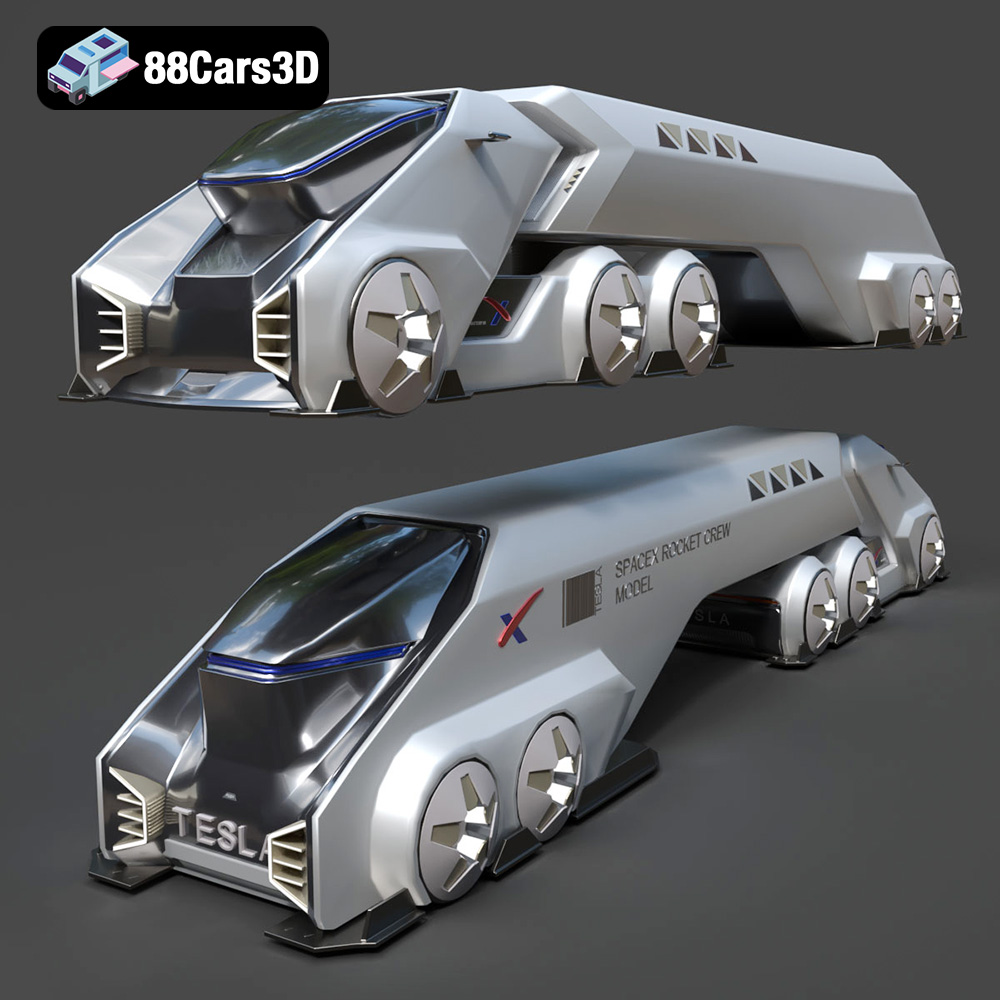
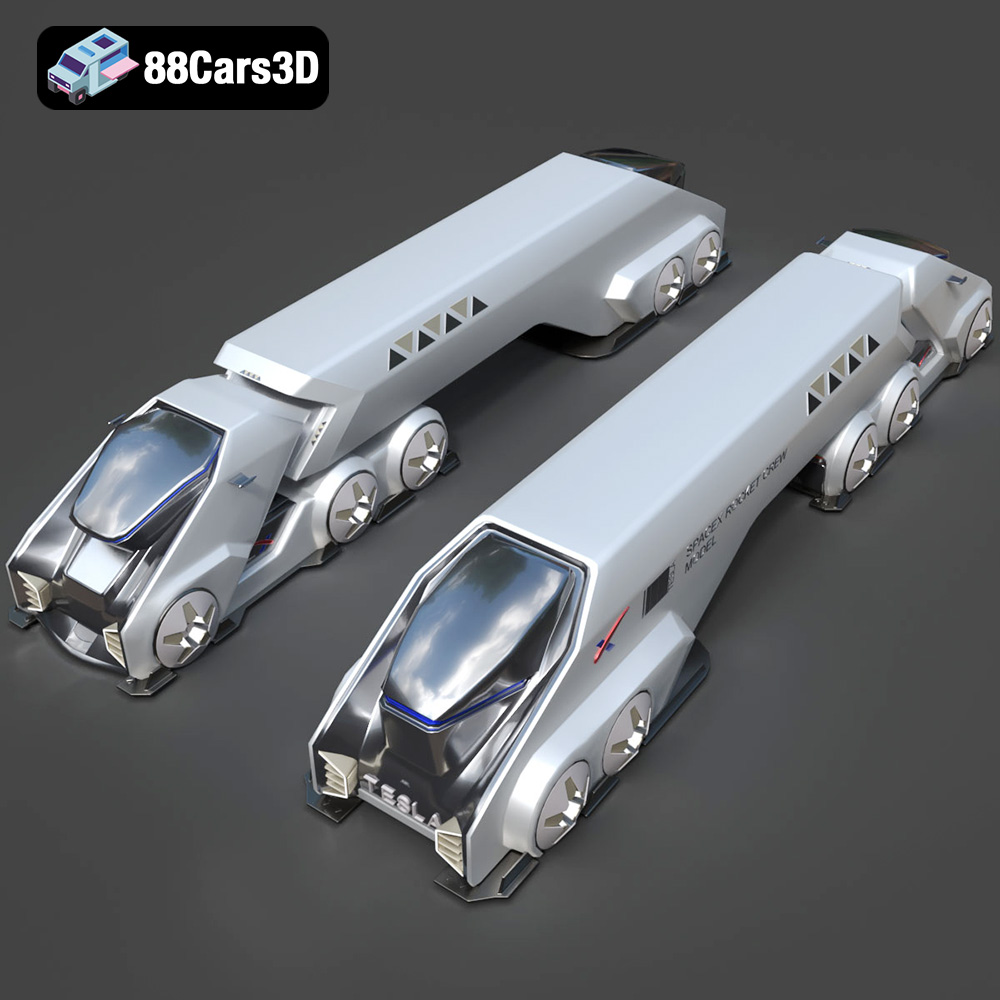
Discover the Tesla Space Rocket-001 3D Model, a highly detailed digital asset crafted for professional visual projects. This model accurately captures the futuristic design and structural elements of the Tesla Space Rocket-001, providing a robust foundation for dynamic rendering and interactive environments.
$19.99
3D printing the Tesla Space Rocket-001 3D Model from 88cars3d.com is a rewarding project that allows you to create a tangible representation of futuristic technology. By carefully selecting the right materials, optimizing your printer settings, and employing appropriate post-processing techniques, you can achieve stunning results. Remember to start with the STL file, choose the right material for your needs (PLA for beginners, PETG for durability, resin for ultimate detail), and fine-tune your slicing software settings. With a little patience and experimentation, you can successfully 3D print this captivating model and add a unique piece to your collection. Happy printing!
.arvr
.blend
.car3dmodel
.concept
.fbx
.gameasset
.glb
.max
.obj
.ply
.rendering
.rocket
.simulation
.spacecraft
.spacerocket
.stl
.tesla
.unreal