Get 20% OFF All Premium 3D & STL Models!

“`html
3D printing has revolutionized the way we create, allowing us to materialize digital designs into physical objects. For automotive enthusiasts and model makers, this means the ability to produce intricate and detailed 3D printed car models. However, printing large models, especially complex car designs, often exceeds the build volume of many desktop 3D printers. This is where the art of splitting models into manageable parts comes into play. This comprehensive guide will walk you through the process of effectively splitting large STL files of car models, optimizing them for 3D printing, and seamlessly assembling them afterward. We’ll cover everything from selecting the right software and techniques to understanding the nuances of slicing parameters and post-processing. By the end of this article, you’ll be equipped with the knowledge and skills necessary to tackle even the most ambitious 3D printing projects, ensuring successful prints of your favorite car models from platforms like 88cars3d.com.
The primary reason to split a 3D model is to overcome the size limitations of your 3D printer. But there are other compelling reasons. Splitting can allow for different print orientations, optimizing surface finish on critical parts. It also provides the opportunity to use different materials for different sections of the model, perhaps a rigid material for the chassis and a flexible material for the tires. Furthermore, splitting a complex model simplifies the printing process, reducing the risk of print failure and making it easier to manage support structures. Think of it like this: you wouldn’t bake a giant cake in one go if your oven was too small; you’d bake it in layers.
Several software options are available for splitting 3D models, each with its own strengths and weaknesses. The ideal choice depends on your experience level and the complexity of the model. We’ll focus on three popular choices: Meshmixer, Blender, and Netfabb. Meshmixer is a free and user-friendly option, excellent for basic splitting and hollowing. Blender, a powerful and open-source 3D modeling software, offers advanced splitting capabilities and sculpting tools. Netfabb, a professional-grade software, provides comprehensive tools for mesh repair, optimization, and splitting, ideal for complex and intricate car models. The key is to understand the features of each software and choose the one that best suits your needs and technical proficiency.
Meshmixer is a free software from Autodesk that’s great for basic model manipulation. It’s intuitive and easy to learn, making it perfect for beginners. To split a model in Meshmixer, import your STL file, select the “Edit” menu, and choose “Separate Shells” if the model is already composed of separate parts. For a single-shell model, use the “Plane Cut” tool to create a cutting plane. Adjust the plane’s position and angle to define the split. You can choose to “Fill Cut Edges” to create closed meshes for each part, which is crucial for successful 3D printing. Once you’re satisfied, accept the cut, and Meshmixer will create two separate objects. Export each object as an individual STL file.
Blender offers more sophisticated splitting capabilities. After importing your STL file, enter “Edit Mode.” You can use various selection tools (face, edge, vertex) to define the areas you want to separate. The “Knife” tool is particularly useful for creating custom cuts. Once you’ve selected the geometry for a part, press “P” to separate it into a new object. Repeat this process for each section of the model. Blender also allows you to create precise cuts using Boolean modifiers with custom-designed cutting objects. This is useful for creating interlocking parts or adding registration features. Export each object as a separate STL file when finished.
Before you start splitting your model, it’s crucial to ensure it’s “watertight” and free of errors. A watertight model has a closed surface with no holes or gaps, which is essential for successful slicing and printing. Use mesh repair tools in Meshmixer, Netfabb, or even online services like MakePrintable to identify and fix any issues. These tools can automatically close holes, fill gaps, and fix inverted normals. Also, consider the scale of your model and adjust it accordingly before splitting. Ensure that the wall thickness is sufficient for 3D printing, typically at least 1-2mm, especially for FDM printing. Insufficient wall thickness can lead to weak or fragile parts. Many printable car models available at online marketplaces such as 88cars3d.com, are designed with printability in mind, but it’s always wise to double-check.
Mesh repair is a critical step. Tools like “Make Solid” in Meshmixer can help convert non-manifold meshes into printable solids. In Netfabb, the “Automatic Repair” function can fix a wide range of errors. Look for issues like “holes,” “flipped normals,” “degenerate faces,” and “self-intersections.” Aim for a clean, error-free mesh before proceeding with the split. A good starting point is to target less than 0.1% of errors, and aim to have 0% if possible.
Scaling your model appropriately is crucial. If you plan to print a 1:24 scale model, ensure the overall dimensions match that scale relative to the real car. Wall thickness is directly affected by scaling. A thin wall at one scale might be too fragile at a smaller scale. As a general rule, aim for a wall thickness of at least 1.2mm for FDM printing and 0.8mm for resin printing. This will ensure structural integrity and prevent warping during printing.
Now comes the core process of splitting the model. There are several approaches you can take, depending on the shape and complexity of the car model. A common technique is to split along natural seams or panel lines. This can make the assembly process easier and hide the seams more effectively. Another approach is to split the model into geometrically simpler parts, such as the body, chassis, wheels, and interior. This can simplify the printing process and reduce the need for complex support structures. When creating the cuts, consider adding registration features like pegs and holes to ensure proper alignment during assembly. The goal is to create parts that are easy to print, easy to assemble, and aesthetically pleasing.
Identifying natural seams and panel lines is key to creating visually appealing splits. Use these lines as guides for your cuts, as they will naturally conceal the joints between parts. In Blender, the “Knife Project” tool can be particularly useful for tracing these lines and creating precise cuts. When splitting along seams, consider adding a slight bevel or chamfer to the edges to create a more defined and visually appealing joint.
Interlocking parts can significantly improve the strength and stability of the assembled model. Design pegs and holes that fit snugly together, providing a mechanical connection between the parts. Ensure that the tolerances are tight enough to prevent wobble but loose enough to allow for easy assembly. A tolerance of 0.1-0.2mm is generally sufficient for 3D printed parts. Consider the print orientation when designing interlocking features to minimize the need for support structures.
Once you’ve split your model into parts, you need to prepare each part for 3D printing using slicing software like Cura, PrusaSlicer, or Simplify3D. The optimal slicing parameters will vary depending on the material, printer type (FDM or resin), and the specific geometry of each part. Generally, aim for a layer height of 0.1-0.2mm for FDM printing and 0.025-0.05mm for resin printing. Adjust the infill density based on the desired strength and weight of the part. Consider using different infill patterns for different parts, such as a rectilinear infill for structural components and a gyroid infill for lightweight parts. Also, pay close attention to support structure generation, ensuring that supports are placed strategically to provide adequate support without being too difficult to remove.
For FDM printing, material choice is critical. PLA is a good starting point due to its ease of use and low warping tendency. PETG offers increased strength and heat resistance. ABS provides even greater strength and temperature resistance but is more prone to warping. Optimal printing temperatures vary by material, typically around 200-220°C for PLA, 230-250°C for PETG, and 230-260°C for ABS. Bed adhesion is crucial, especially for larger parts. Use a heated bed (60°C for PLA, 70-80°C for PETG, and 100-110°C for ABS) and consider using adhesion aids like glue stick or hairspray. For small parts, a brim can enhance bed adhesion and prevent warping. Printing speed typically between 40-60 mm/s for optimal quality.
For resin printing, layer height significantly impacts detail. Lower layer heights (0.025-0.05mm) produce finer details but increase print time. Exposure time is crucial for proper curing. Calibrate your resin and printer to determine the optimal exposure time for each layer. Support structures are essential for resin printing, especially for overhanging features. Use a combination of light and medium supports to minimize damage to the part surface during removal. Hollow out larger parts to reduce resin consumption and prevent warping. Add drain holes to allow resin to escape during printing. It’s also recommended to tilt the parts at a 45-degree angle to minimize the cross-sectional area of each layer, reducing the stress on the build plate and support structures.
Support structures are often necessary to print overhanging features and complex geometries. However, supports can also mar the surface finish and require careful removal. The key is to generate supports strategically, minimizing their contact with visible surfaces. In slicing software, you can adjust support density, overhang angle, and support placement. Consider using tree supports or light supports, which are easier to remove than traditional grid supports. After printing, carefully remove the supports using specialized tools like tweezers, pliers, and hobby knives. Take your time to avoid damaging the part surface. Sanding and polishing can help smooth out any imperfections left by support removal. When downloading models from marketplaces such as 88cars3d.com, check to see if the models have been pre-supported to save you time.
Different support types are suited for different situations. Grid supports provide robust support for large overhangs but can be difficult to remove and leave marks on the surface. Tree supports are more delicate and easier to remove, making them ideal for complex geometries and delicate features. Linear supports are suitable for supporting simple overhangs. Experiment with different support types and settings to find the best balance between support strength and ease of removal. Cura’s “Support Blocker” tool allows you to selectively prevent support generation in specific areas, minimizing support usage and improving surface finish.
Even with careful support removal, some marks may remain on the part surface. Sanding is an effective way to smooth out these imperfections. Start with a coarse grit sandpaper (e.g., 220 grit) and gradually move to finer grits (e.g., 400, 600, 800 grit) to achieve a smooth finish. For resin prints, wet sanding is recommended to prevent dust and improve the sanding process. Polishing compounds can further enhance the surface finish, creating a glossy and professional look. Consider using specialized tools like rotary tools or polishing wheels for larger areas.
After printing and removing supports, the final step is to assemble the individual parts and finish the model. Use glue to join the parts together, ensuring proper alignment using the registration features you designed earlier. Cyanoacrylate (CA) glue, also known as super glue, is a popular choice due to its fast drying time and strong bond. Epoxy glue provides a more durable and heat-resistant bond. After the glue has dried, sand the seams to create a smooth and seamless finish. Apply primer to the model to create a uniform surface for painting. Use automotive-grade paints for a realistic and durable finish. Consider using stencils and masking tape to create intricate paint schemes. Finally, apply a clear coat to protect the paint and add a glossy sheen.
Apply glue sparingly to avoid excess runoff. Use clamps or tape to hold the parts together while the glue dries. For larger gaps or imperfections, use a filler like Bondo or automotive putty to fill the seams. Sand the filler smooth after it has dried. Multiple layers of filler may be needed to achieve a perfectly seamless finish. Consider using a flexible filler for parts that will be subjected to stress or movement.
Before painting, thoroughly clean the model with isopropyl alcohol to remove any dust or grease. Apply several thin coats of primer to create a uniform surface. Use an airbrush for a smooth and even paint application. Allow each coat of paint to dry completely before applying the next coat. Use masking tape to create clean lines and intricate paint schemes. Consider using weathering techniques to add realism to the model, such as dry brushing, washes, and pigments. Apply a clear coat to protect the paint and add a glossy or matte finish.
Splitting large 3D car models into parts for printing is a rewarding process that opens up a world of possibilities for automotive enthusiasts and model makers. By understanding the techniques and best practices outlined in this guide, you can overcome the limitations of your 3D printer and create stunning, detailed models of your favorite cars. Remember to choose the right software, prepare your models carefully, optimize slicing parameters, and pay attention to support structures and post-processing. With practice and patience, you’ll be able to master the art of splitting models and achieve professional-quality results. Take your new skills and browse the vast selection of printable car models on 88cars3d.com to find your next project, and start printing!
“`
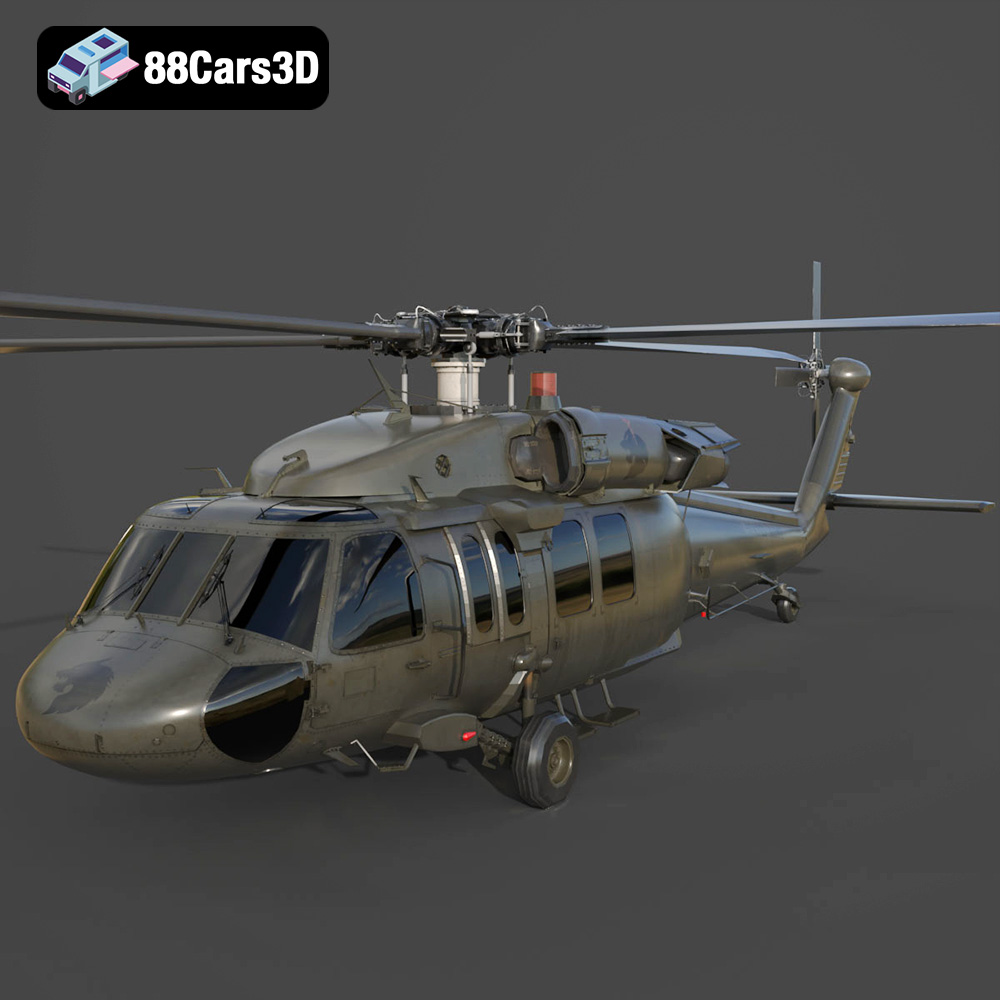
Texture: Yes | Material: Yes
Download the highly detailed, game-ready Sikorsky UH-60 Black Hawk US 3D Model. Features an accurate four-blade rotor system, detailed military fuselage, and realistic twin-engine housing. Includes .blend, .fbx, .obj, .glb, .stl, .ply, .unreal, and .max formats for game development, AR/VR, and rendering.
Price: $19.99
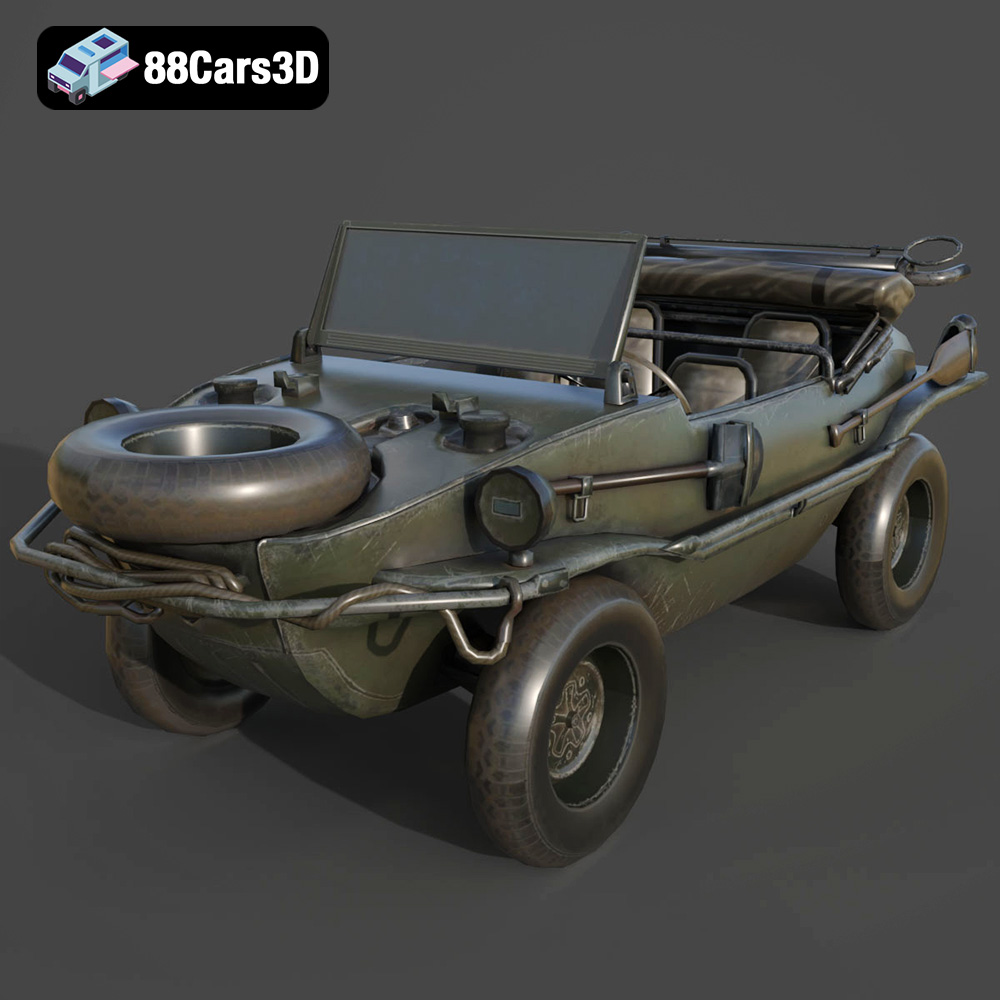
Texture: Yes | Material: Yes
Download the highly detailed, game-ready Volkswagen Schwimmwagen Typ 166 3D Model. Features an authentic boat-like watertight hull, fold-down propeller mechanism, and accurate military styling. Includes .blend, .fbx, .obj, .glb, .stl, .ply, .unreal, and .max formats for game development, AR/VR, and rendering.
Price: $19.99
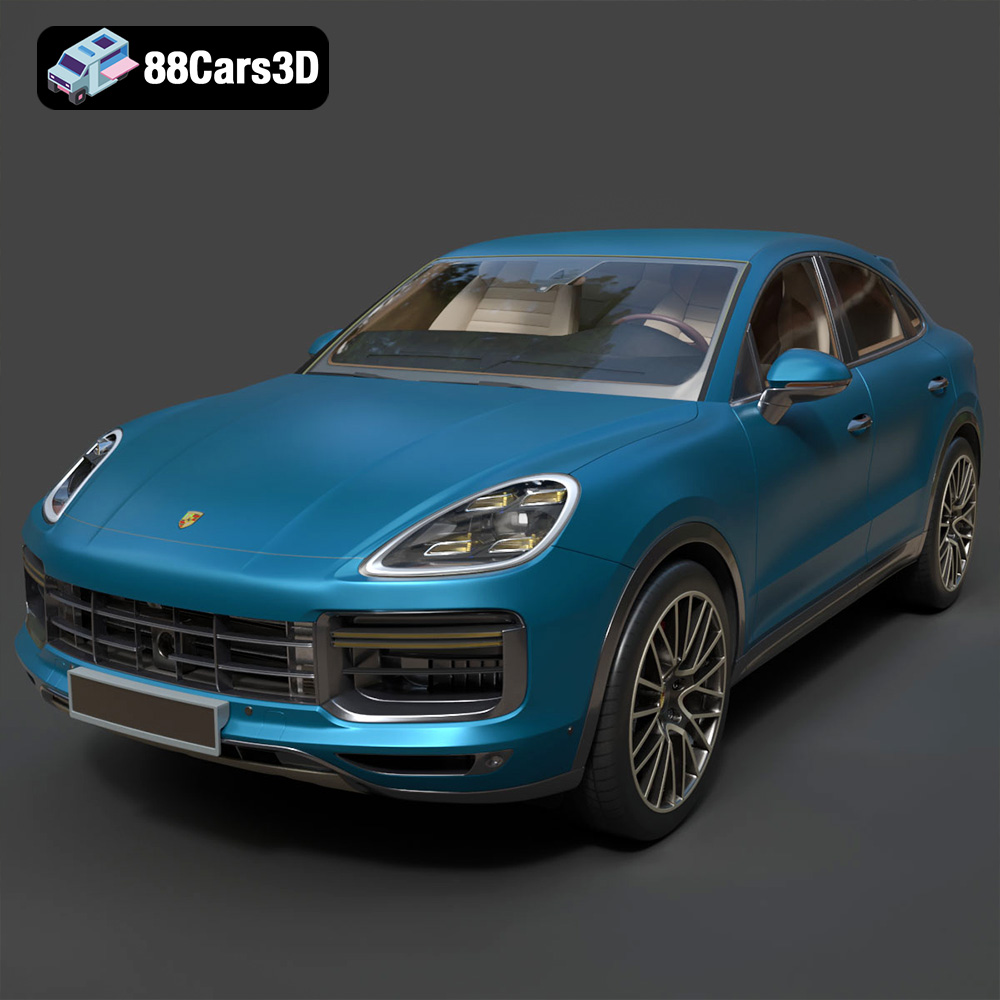
Texture: Yes | Material: Yes
Download the highly detailed, game-ready Porsche Cayenne Turbo Coupe 2020 3D Model. Features an aggressive coupe roofline, detailed quad exhaust, and a meticulously crafted luxury sport interior. Includes .blend, .fbx, .obj, .glb, .stl, .ply, .unreal, and .max formats for game development, AR/VR, and rendering.
Price: $19.99
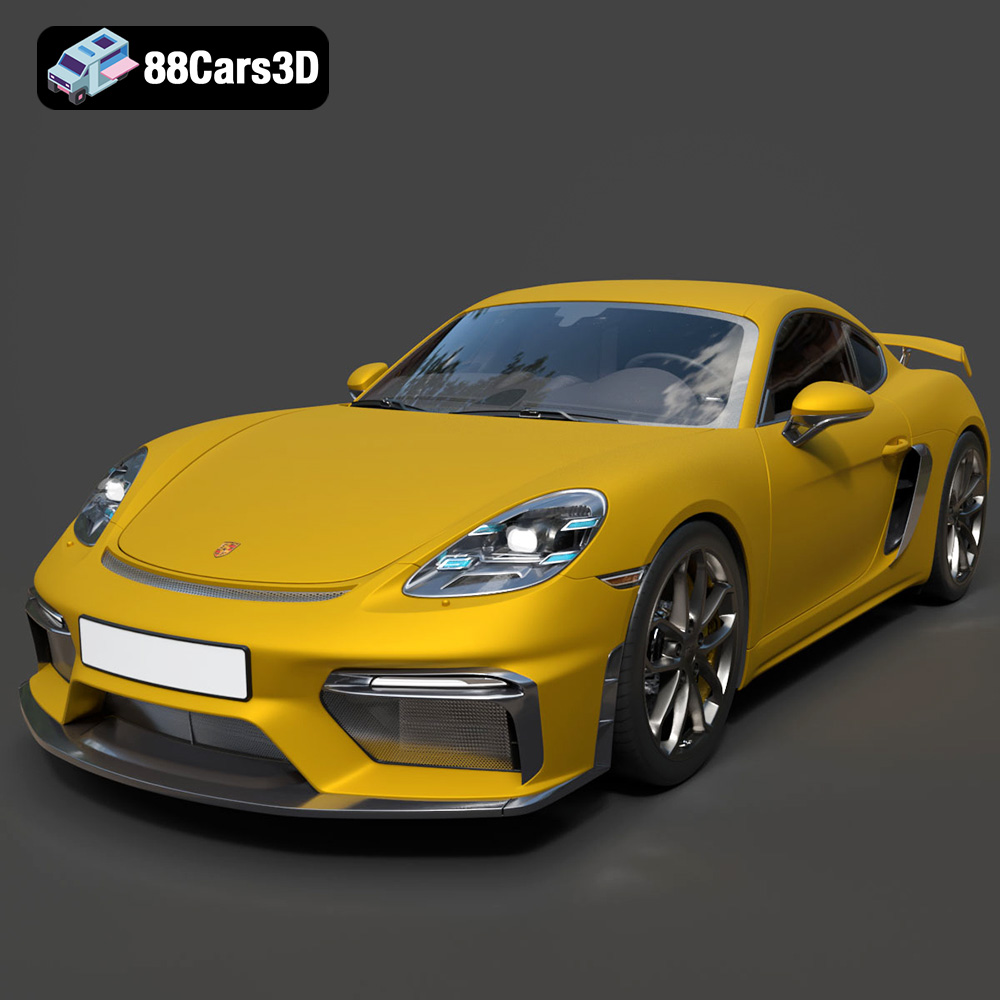
Texture: Yes | Material: Yes
Download the highly detailed, game-ready Porsche 718 Cayman GT4 2020 3D Model. Features an aggressive fixed rear wing, distinctive side air intakes, and a track-focused stance. Includes .blend, .fbx, .obj, .glb, .stl, .ply, .unreal, and .max formats for game development, AR/VR, and rendering.
Price: $19.99

Texture: Yes | Material: Yes
Download the highly detailed, game-ready Polestar 2 2020 3D Model. Features minimalist Scandinavian fastback styling, pixel LED lighting, and an accurate electric vehicle profile. Includes .blend, .fbx, .obj, .glb, .stl, .ply, .unreal, and .max formats for game development, AR/VR, and rendering.
Price: $19.99
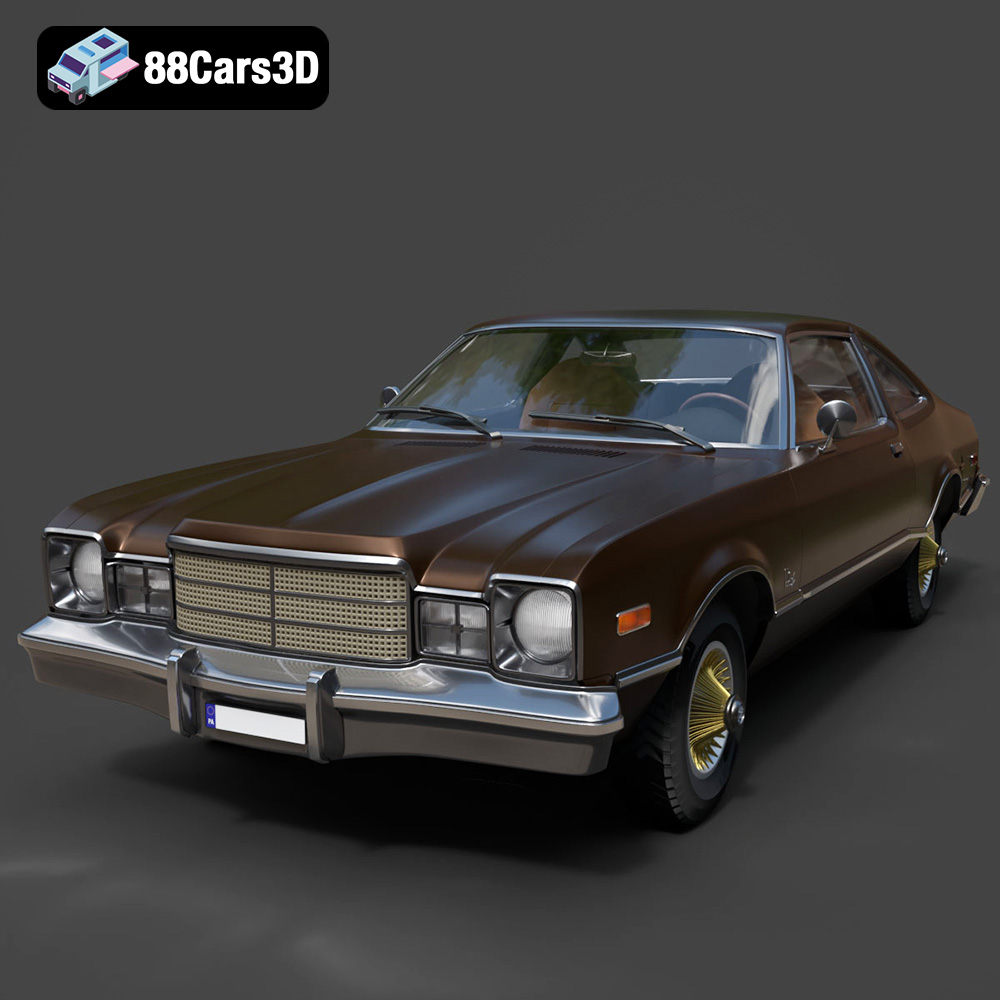
Texture: Yes | Material: Yes
Download the highly detailed, game-ready Plymouth Volare Coupe 1977 3D Model. Features classic F-body styling, detailed chrome trim, and an accurate vintage interior. Includes .blend, .fbx, .obj, .glb, .stl, .ply, .unreal, and .max formats for game development, AR/VR, and rendering.
Price: $19.99

Texture: Yes | Material: Yes
Download the highly detailed, game-ready Peugeot 208 2020 3D Model. Features aggressive ‘fang’ LED DRLs, sporty hatchback proportions, and aerodynamic alloy wheels. Includes .blend, .fbx, .obj, .glb, .stl, .ply, .unreal, and .max formats for game development, AR/VR, and rendering.
Price: $19.99

Texture: Yes | Material: Yes
Download the highly detailed, game-ready MV Agusta Brutale 1090 R 3D Model. Features an exposed trellis frame, distinctive teardrop headlight, and muscular naked bike styling. Includes .blend, .fbx, .obj, .glb, .stl, .ply, .unreal, and .max formats for game development, AR/VR, and rendering.
Price: $19.99
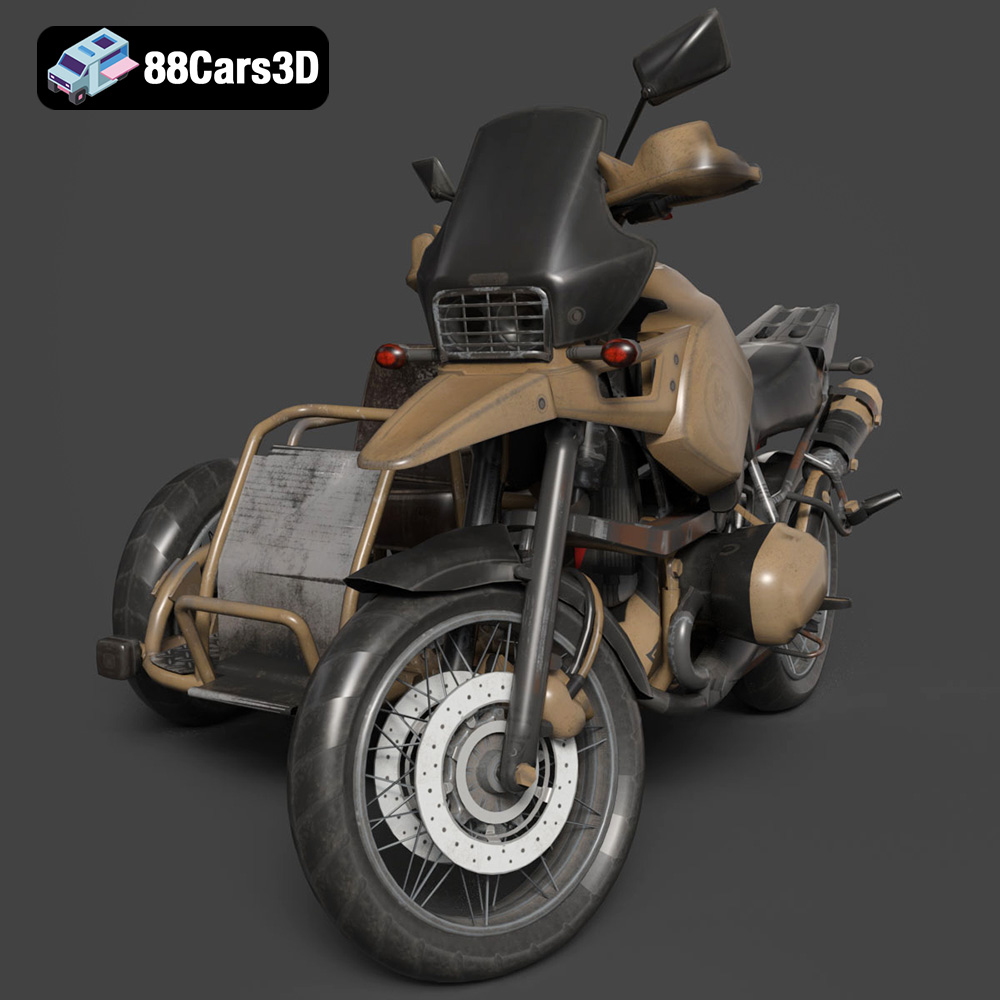
Texture: Yes | Material: Yes
Download the highly detailed, game-ready Custom Off-Road BMW R1150GS Adventure Sidecar 3D Model. Features rugged all-terrain suspension, an attached passenger sidecar, and off-road knobby tires. Includes .blend, .fbx, .obj, .glb, .stl, .ply, .unreal, and .max formats for game development, AR/VR, and rendering.
Price: $19.99

Texture: Yes | Material: Yes
Download the highly detailed, game-ready Mitsubishi Outlander GT 2010 3D Model. Features the aggressive Lancer-inspired front grille, accurate exterior styling, and high-fidelity alloy wheels. Includes .blend, .fbx, .obj, .glb, .stl, .ply, .unreal, and .max formats for game development, AR/VR, and rendering.
Price: $19.99

