Get 20% OFF All Premium 3D & STL Models!

“`html
3D printing offers incredible opportunities for hobbyists and professionals alike, particularly when it comes to creating intricate models like cars. At 88cars3d.com, we pride ourselves on providing high-quality, print-ready STL files. However, even with the best source material, you might occasionally encounter issues with your STL files that prevent successful printing. These issues often manifest as errors in the mesh, leaving you with incomplete or distorted prints. This guide will walk you through the process of repairing broken STL meshes using two powerful software tools: Meshmixer and Netfabb. You’ll learn how to identify common mesh errors, implement effective repair strategies, and ensure your 3D printed car models come out perfectly every time. We’ll cover practical techniques applicable to various 3D printing technologies, from FDM to resin printing, ensuring you have the knowledge to tackle any mesh repair challenge. By the end of this article, you’ll be equipped to diagnose and fix common STL file problems, leading to successful and satisfying 3D printing outcomes.
Before diving into the repair process, it’s crucial to understand the types of errors that can plague STL files. These errors stem from how the surface of a 3D model is represented in the STL format. The STL format approximates the geometry using a collection of triangles, and imperfections in this triangulation can lead to various problems during slicing and printing.
Non-manifold geometry is a common issue where the mesh contains edges that are shared by more than two triangles or edges that are connected to only one triangle. This violates the fundamental principle that a valid surface should be consistently defined. Imagine trying to create a closed container where some of the edges are missing or doubled – the container would be incomplete. In Meshmixer or Netfabb, non-manifold geometry can cause slicing errors, leading to holes in your printed model or unexpected artifacts. When downloading models from marketplaces such as 88cars3d.com, ensure to check for reviews or community feedback regarding mesh integrity. Look for phrases like “print-ready” or “watertight mesh” in the product description.
Holes and gaps are precisely what they sound like: areas in the mesh where the surface is incomplete, leaving openings in the model. These can occur during the model creation process, file conversion, or even due to data corruption. These issues are especially problematic for 3D printing, as they can result in the printer attempting to print in thin air, leading to failed prints or structural weaknesses in the final object. Large holes require manual patching, while smaller gaps can sometimes be automatically filled by repair tools. The slicing software will often attempt to compensate, but these compensations are usually not ideal and may lead to visible defects.
Self-intersections occur when triangles in the mesh intersect with each other. This is a serious issue because it creates ambiguity about which side of the surface is “inside” and which is “outside.” Slicing software can struggle to interpret these areas, resulting in unpredictable printing behavior. Imagine a car model where the hood inexplicably passes through the engine block – this would be a self-intersection. Repairing self-intersections often involves removing or modifying the overlapping triangles to create a clean and consistent surface. Both Meshmixer and Netfabb have tools specifically designed to detect and resolve these types of issues.
Meshmixer is a free and powerful software tool from Autodesk, specifically designed for manipulating and repairing 3D meshes. It offers a range of tools for detecting and fixing common STL errors, making it an excellent choice for preparing your 3D printable car models.
The first step is to import your STL file into Meshmixer. Once loaded, navigate to the “Analysis” section in the left-hand toolbar and select “Inspector.” The Inspector tool automatically detects and highlights potential errors in the mesh, such as non-manifold edges, holes, and disconnected components. Errors are marked with different colored spheres, allowing you to quickly identify problem areas. Clicking on a sphere will attempt to automatically repair the error. Meshmixer’s automatic repair is often effective for simple issues, but more complex problems may require manual intervention. It’s crucial to visually inspect the model after the automatic repair to ensure that the corrections haven’t introduced any new issues.
For more complex errors, Meshmixer provides several manual repair tools. The “Edit” menu offers options like “Make Solid,” which attempts to convert a non-solid mesh into a solid one by filling gaps and resolving inconsistencies. The “Sculpt” tools can be used to smooth out rough areas or manually fill small holes. For larger holes, the “Bridge” tool allows you to connect edges to create new faces, effectively patching the surface. When using these tools, it’s essential to work carefully and pay attention to the surrounding geometry to avoid creating new errors. A useful technique is to use the “Smooth” brush after making manual edits to blend the new faces seamlessly with the existing mesh.
Before exporting the repaired STL file, it’s a good idea to optimize the mesh for 3D printing. The “Reduce” tool in the “Edit” menu allows you to decrease the number of triangles in the mesh without significantly altering its appearance. This can reduce file size and improve slicing performance, especially for complex models. A reduction of 20-30% is usually a good starting point. Also, consider the orientation of the model for printing. Rotate the model in Meshmixer to minimize the need for support structures during printing. After optimization, export the repaired STL file and import it into your slicing software.
Netfabb, now part of Autodesk, is a professional-grade software package that provides a comprehensive suite of tools for STL mesh repair, optimization, and build preparation. While it’s a paid software, its advanced features make it a worthwhile investment for serious 3D printing enthusiasts and professionals.
Import your STL file into Netfabb and navigate to the “Analysis” tab. Netfabb offers a more detailed and sophisticated analysis than Meshmixer, providing precise information about the types and locations of errors in the mesh. The “Inspect” function highlights errors such as holes, flipped triangles, and shell intersections. Netfabb also provides detailed statistics about the mesh, including the number of triangles, edges, and vertices. This information can be helpful for assessing the overall quality of the mesh and identifying potential problem areas. The software’s ability to pinpoint exact locations of errors makes the repair process more efficient.
Netfabb’s strength lies in its automated repair scripts. These scripts can automatically fix a wide range of mesh errors with a single click. Navigate to the “Repair” tab and select “Automatic Repair.” Netfabb offers several repair script options, each designed to address different types of errors. For example, the “Standard Repair” script fixes common issues like holes, flipped triangles, and non-manifold edges. The “Shell Repair” script focuses on repairing issues related to the overall shell structure of the model. Experimenting with different repair scripts can often yield better results than relying solely on a single script. After running the automatic repair, carefully inspect the model to ensure that the corrections have not introduced any new problems.
For complex mesh errors that cannot be resolved automatically, Netfabb provides a range of advanced mesh editing tools. These tools allow you to manually modify the mesh by adding, deleting, or moving triangles. The “Cutting” tools can be used to remove problematic sections of the mesh, while the “Joining” tools can be used to connect separate components. Netfabb also offers powerful “Remesh” tools that can completely rebuild the mesh with a more uniform triangle distribution. This can be particularly useful for repairing heavily damaged meshes. When using these advanced tools, it’s important to have a solid understanding of 3D modeling principles and mesh topology. Start with smaller, localized edits and gradually work towards more extensive repairs.
The ideal STL file preparation can vary based on the 3D printing technology you are using. FDM (Fused Deposition Modeling) and Resin (SLA/DLP) printing have different requirements and limitations.
For FDM printing, it’s crucial to ensure that your STL file has sufficient wall thickness to provide structural integrity. A wall thickness of at least 0.8mm is generally recommended for most FDM printers with a 0.4mm nozzle. Also, consider the orientation of the model to minimize the need for support structures. Orient the model so that the largest flat surface is on the build plate. Infill density is another important parameter for FDM printing. A higher infill density will result in a stronger but heavier and slower print. A density of 15-25% is usually sufficient for most car models. When slicing for FDM, pay attention to the bridging settings, as this can significantly impact the quality of overhangs and unsupported areas. Platforms like 88cars3d.com often provide recommendations for optimal FDM printing settings for their models.
Resin printing generally requires a different approach to STL file preparation. Support structures are almost always necessary for resin printing, as the models are printed upside down. Ensure that the supports are strategically placed to provide adequate support to all overhanging features. Hollow out the model to reduce material usage and printing time. However, be sure to include drainage holes to allow the resin to escape during the printing process. A wall thickness of 1.5-2mm is usually sufficient for resin-printed car models. Pay attention to the layer height, as this can significantly impact the surface finish. A lower layer height will result in a smoother surface but will also increase printing time. Consider the resin shrinkage factor and compensate for it in the slicing software to ensure dimensional accuracy. Proper calibration of the resin printer is crucial for achieving accurate and consistent results.
Even with a perfectly repaired STL file, 3D printing failures can still occur. Understanding the root causes of these failures and implementing appropriate solutions is essential for achieving successful prints.
Layer delamination, where the printed layers separate from each other, can be caused by several factors, including insufficient bed adhesion, incorrect temperature settings, or a poorly repaired STL file. Ensure that the bed is properly leveled and that the first layer is adhering well to the build plate. Increase the printing temperature to improve layer adhesion. If the STL file contains internal stresses or weak points, it can also contribute to layer delamination. In such cases, reinforcing the model with internal supports or increasing the wall thickness may be necessary.
Warping, where the corners of the print lift off the build plate, is a common issue, especially with materials like ABS. This is often caused by uneven cooling, which creates stresses in the print. Ensure that the build plate is heated to the recommended temperature for the material being used. Enclosing the printer can help to maintain a more consistent temperature and reduce warping. Applying an adhesive, such as glue stick or hairspray, to the build plate can also improve bed adhesion and prevent warping. If warping persists, consider adding a brim to the print to increase the surface area in contact with the build plate.
Problems with support structures, such as insufficient support or difficult removal, can lead to print failures. Ensure that the support structures are strong enough to support the overhanging features of the model. Increase the support density or add more support pillars if necessary. Experiment with different support patterns to find the optimal balance between support strength and ease of removal. Consider using soluble support materials, such as PVA or HIPS, for complex prints with intricate support structures. When removing support structures, be careful not to damage the printed model. Use appropriate tools, such as pliers or cutters, to carefully detach the supports.
Repairing broken STL meshes is a crucial step in the 3D printing workflow, particularly when dealing with complex models like cars. By understanding the common types of mesh errors and mastering the tools and techniques for repairing them, you can significantly improve your printing success rate. Both Meshmixer and Netfabb offer powerful capabilities for detecting and fixing STL file problems. Meshmixer provides a free and accessible solution for basic repairs, while Netfabb offers advanced features for more complex issues. Remember to optimize your STL files for the specific 3D printing technology you are using, whether it’s FDM or resin printing. Pay attention to factors such as wall thickness, support structures, and material settings. Finally, be prepared to troubleshoot common 3D printing failures related to STL files, such as layer delamination, warping, and support structure issues. By following the guidelines outlined in this article, you’ll be well-equipped to tackle any STL mesh repair challenge and achieve flawless 3D printed car models. Now, take your newfound knowledge and try repairing some models from 88cars3d.com!
“`
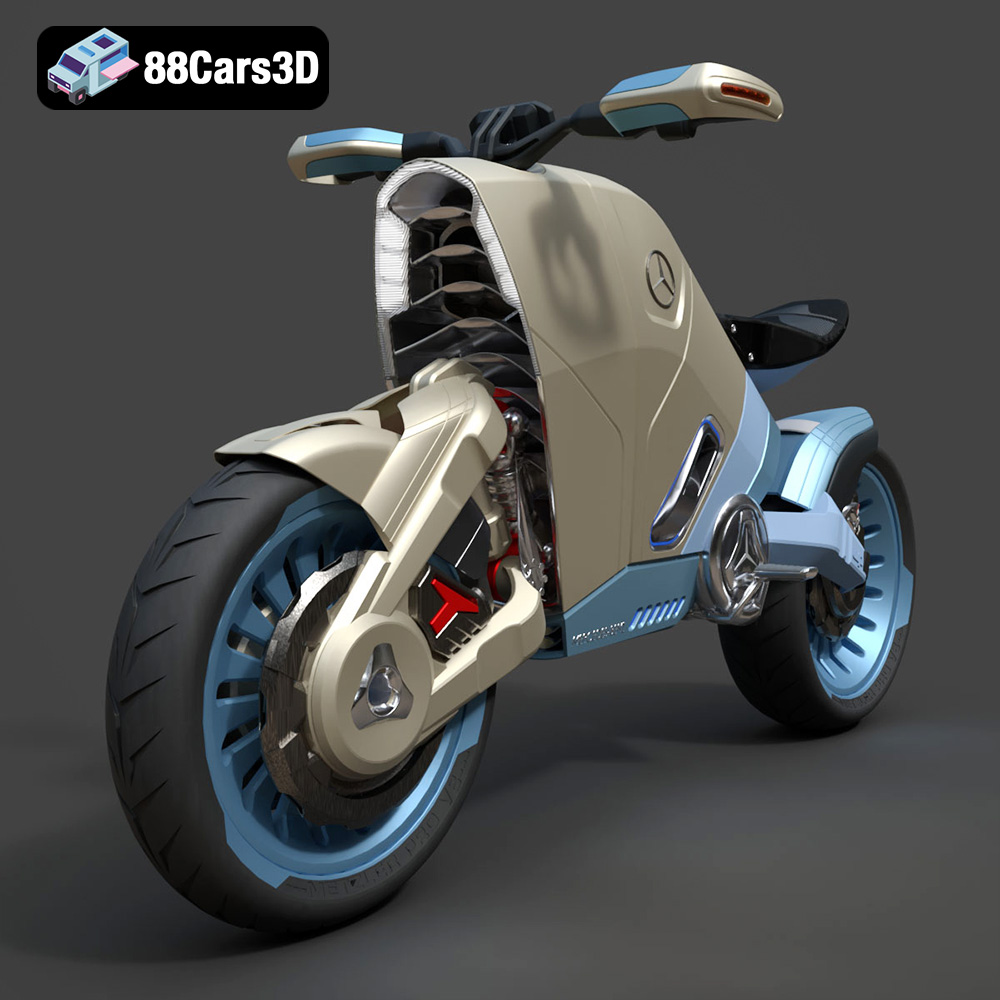
Texture: Yes | Material: Yes
Download the highly detailed, game-ready SMARANZA Mercedes Concept Electrical Motorcycle 3D Model. Features futuristic aerodynamic styling and an advanced electric drivetrain. Includes .blend, .fbx, .obj, .glb, .stl, .ply, .unreal, and .max formats for game development, AR/VR, and rendering.
Price: $19.99
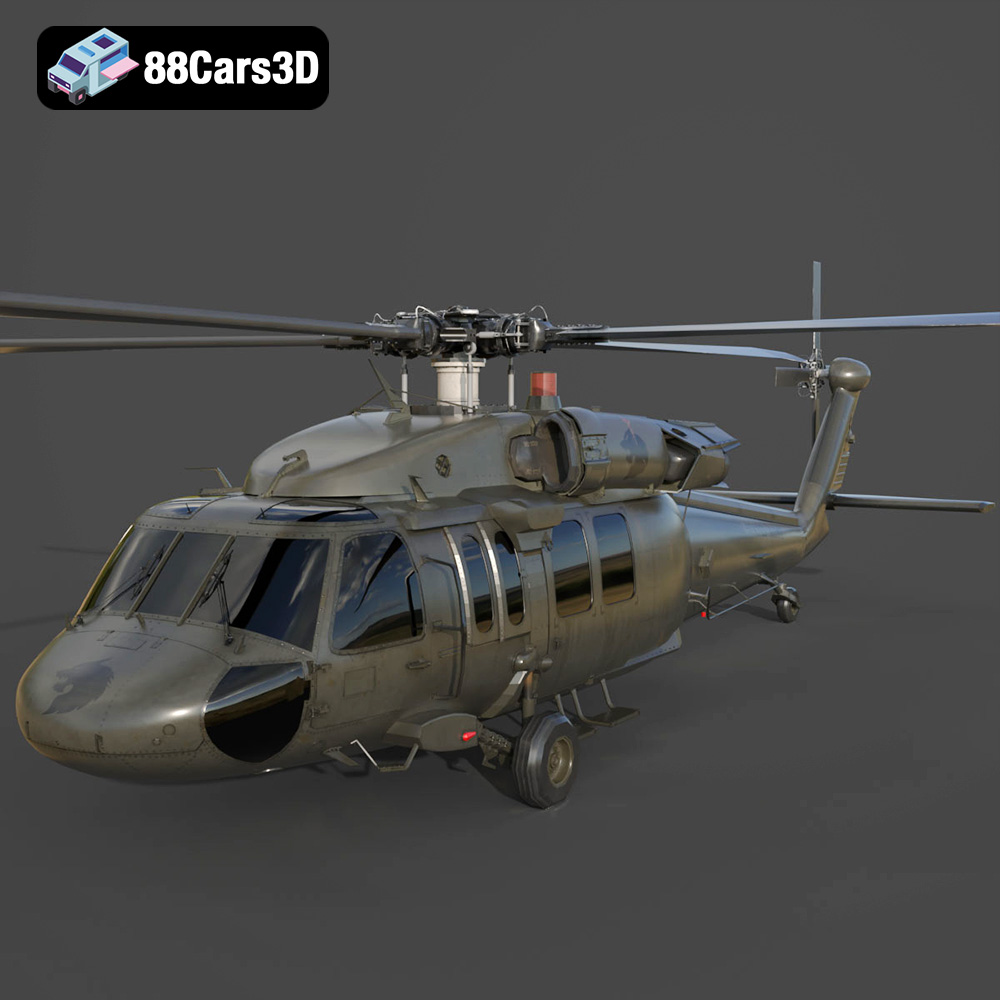
Texture: Yes | Material: Yes
Download the highly detailed, game-ready Sikorsky UH-60 Black Hawk US 3D Model. Features an accurate four-blade rotor system, detailed military fuselage, and realistic twin-engine housing. Includes .blend, .fbx, .obj, .glb, .stl, .ply, .unreal, and .max formats for game development, AR/VR, and rendering.
Price: $19.99
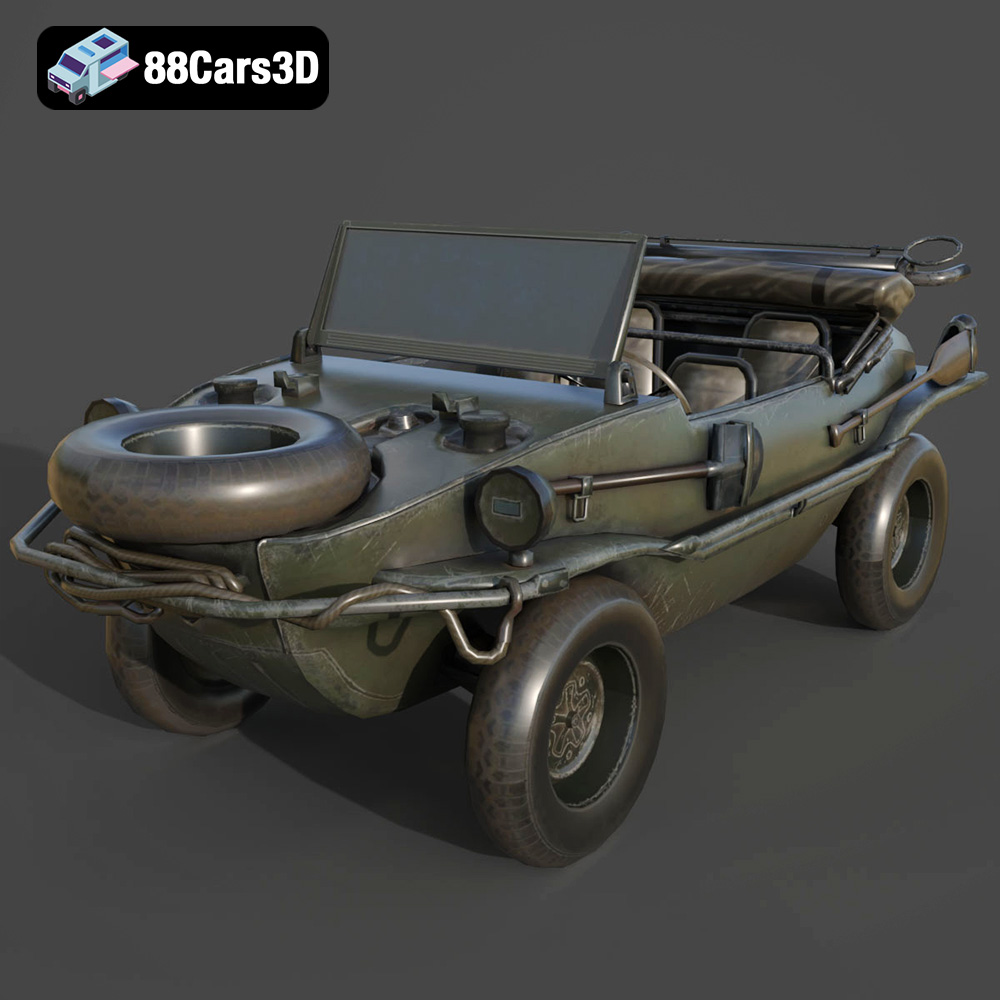
Texture: Yes | Material: Yes
Download the highly detailed, game-ready Volkswagen Schwimmwagen Typ 166 3D Model. Features an authentic boat-like watertight hull, fold-down propeller mechanism, and accurate military styling. Includes .blend, .fbx, .obj, .glb, .stl, .ply, .unreal, and .max formats for game development, AR/VR, and rendering.
Price: $19.99

Texture: Yes | Material: Yes
Download the highly detailed, game-ready Porsche Cayenne Turbo Coupe 2020 3D Model. Features an aggressive coupe roofline, detailed quad exhaust, and a meticulously crafted luxury sport interior. Includes .blend, .fbx, .obj, .glb, .stl, .ply, .unreal, and .max formats for game development, AR/VR, and rendering.
Price: $19.99

Texture: Yes | Material: Yes
Download the highly detailed, game-ready Porsche 718 Cayman GT4 2020 3D Model. Features an aggressive fixed rear wing, distinctive side air intakes, and a track-focused stance. Includes .blend, .fbx, .obj, .glb, .stl, .ply, .unreal, and .max formats for game development, AR/VR, and rendering.
Price: $19.99

Texture: Yes | Material: Yes
Download the highly detailed, game-ready Polestar 2 2020 3D Model. Features minimalist Scandinavian fastback styling, pixel LED lighting, and an accurate electric vehicle profile. Includes .blend, .fbx, .obj, .glb, .stl, .ply, .unreal, and .max formats for game development, AR/VR, and rendering.
Price: $19.99
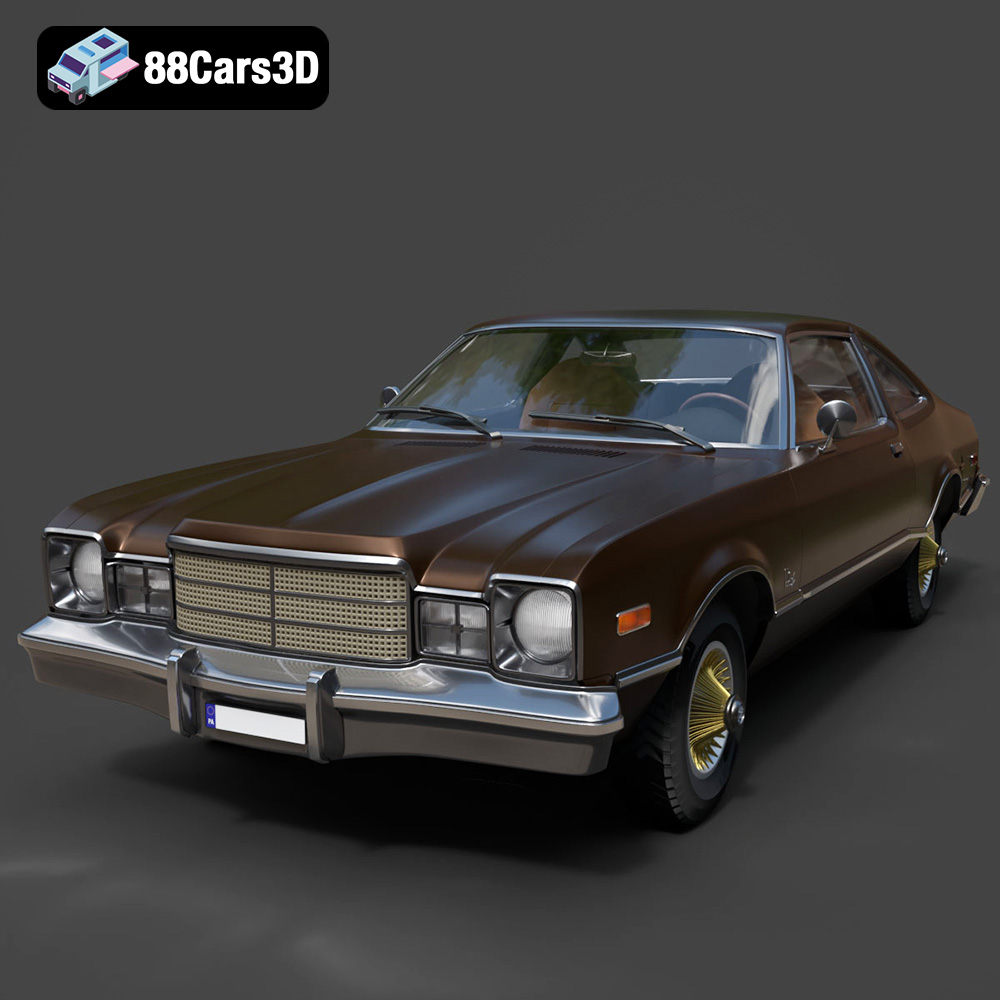
Texture: Yes | Material: Yes
Download the highly detailed, game-ready Plymouth Volare Coupe 1977 3D Model. Features classic F-body styling, detailed chrome trim, and an accurate vintage interior. Includes .blend, .fbx, .obj, .glb, .stl, .ply, .unreal, and .max formats for game development, AR/VR, and rendering.
Price: $19.99

Texture: Yes | Material: Yes
Download the highly detailed, game-ready Peugeot 208 2020 3D Model. Features aggressive ‘fang’ LED DRLs, sporty hatchback proportions, and aerodynamic alloy wheels. Includes .blend, .fbx, .obj, .glb, .stl, .ply, .unreal, and .max formats for game development, AR/VR, and rendering.
Price: $19.99

Texture: Yes | Material: Yes
Download the highly detailed, game-ready MV Agusta Brutale 1090 R 3D Model. Features an exposed trellis frame, distinctive teardrop headlight, and muscular naked bike styling. Includes .blend, .fbx, .obj, .glb, .stl, .ply, .unreal, and .max formats for game development, AR/VR, and rendering.
Price: $19.99
Texture: Yes | Material: Yes
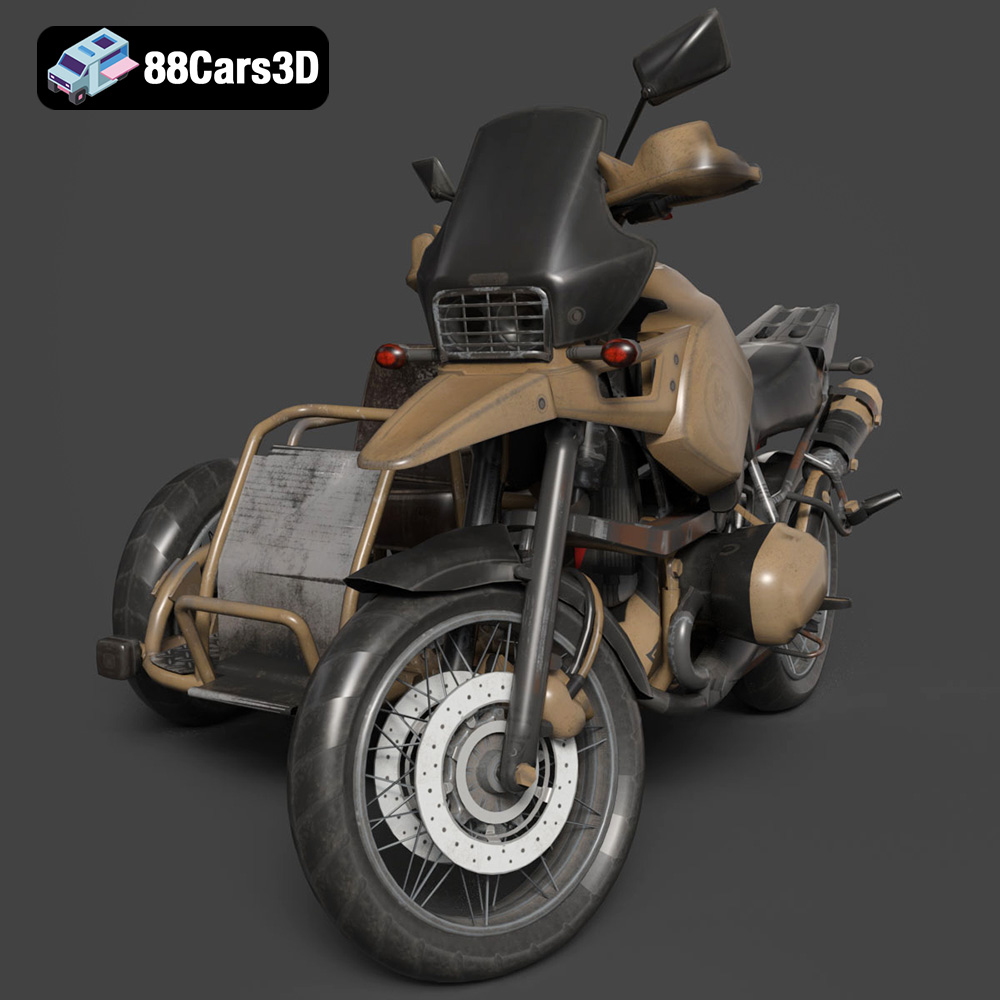
Download the highly detailed, game-ready Custom Off-Road BMW R1150GS Adventure Sidecar 3D Model. Features rugged all-terrain suspension, an attached passenger sidecar, and off-road knobby tires. Includes .blend, .fbx, .obj, .glb, .stl, .ply, .unreal, and .max formats for game development, AR/VR, and rendering.
Price: $19.99

