Get 20% OFF All Premium 3D & STL Models!

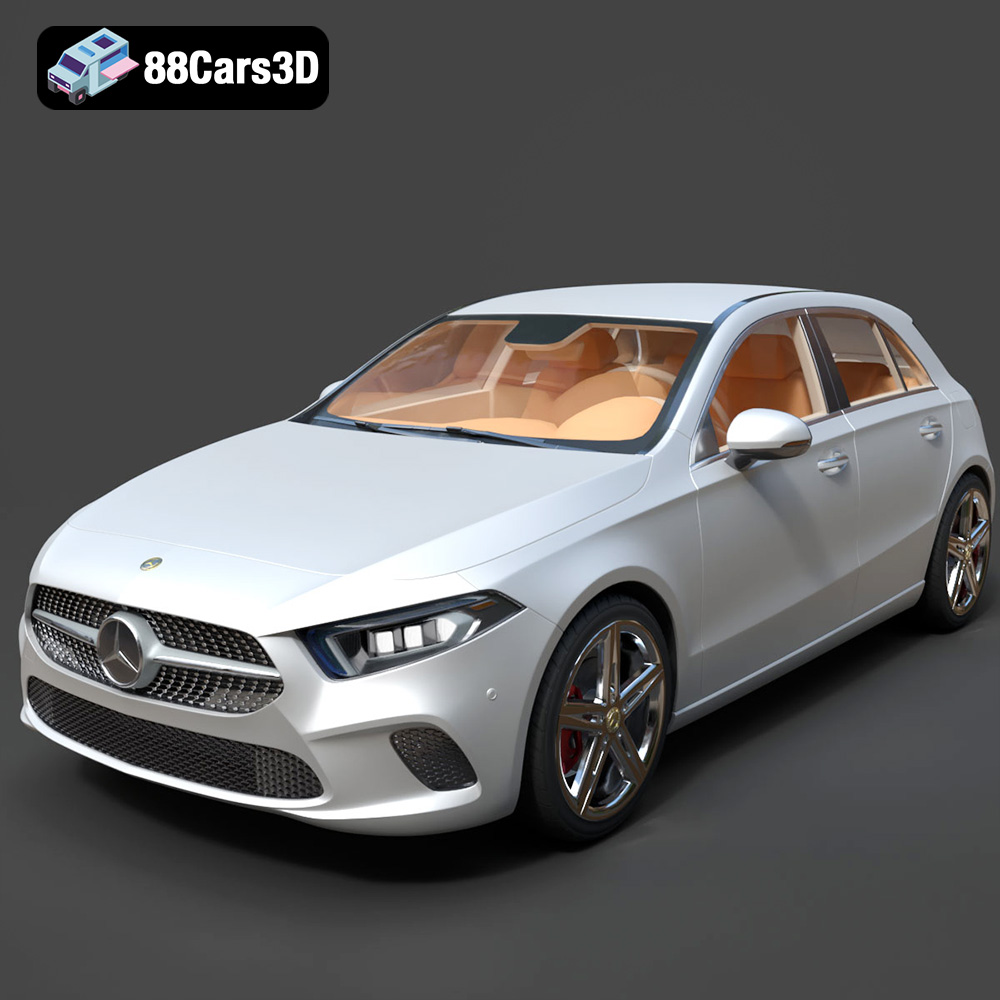
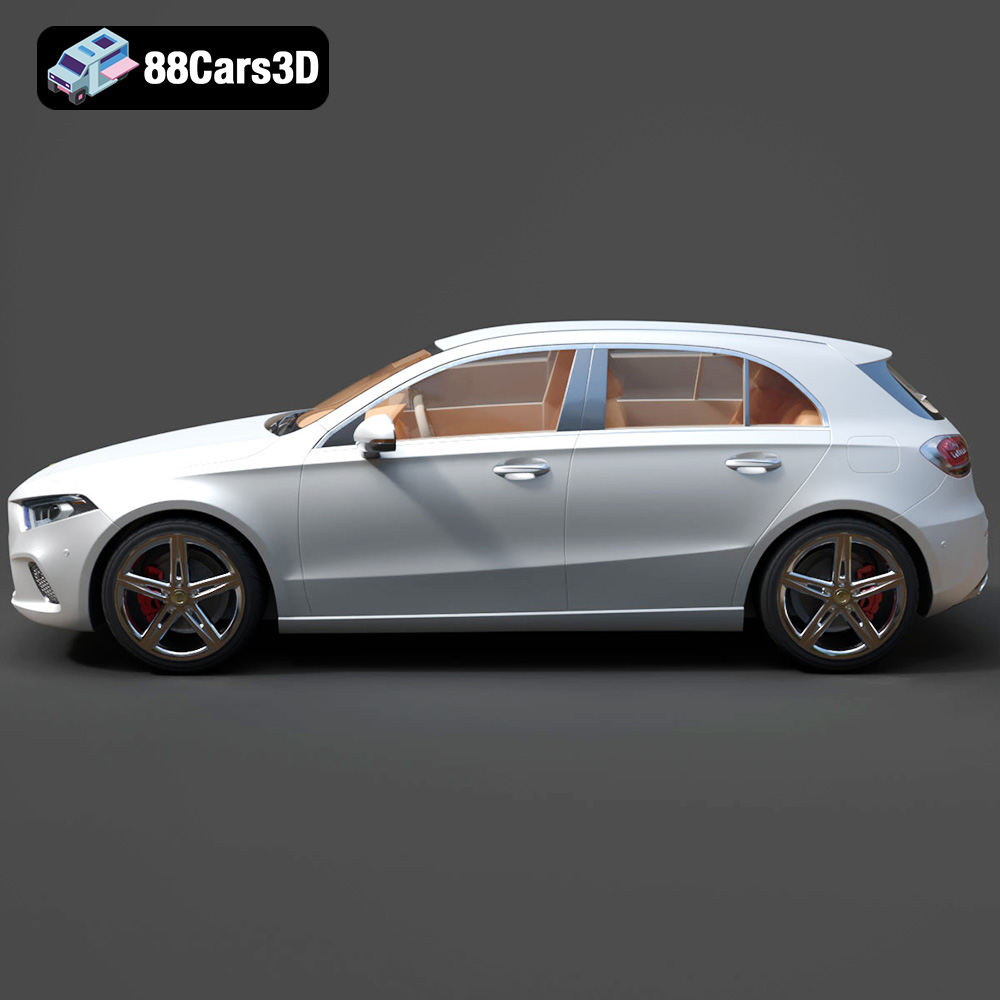
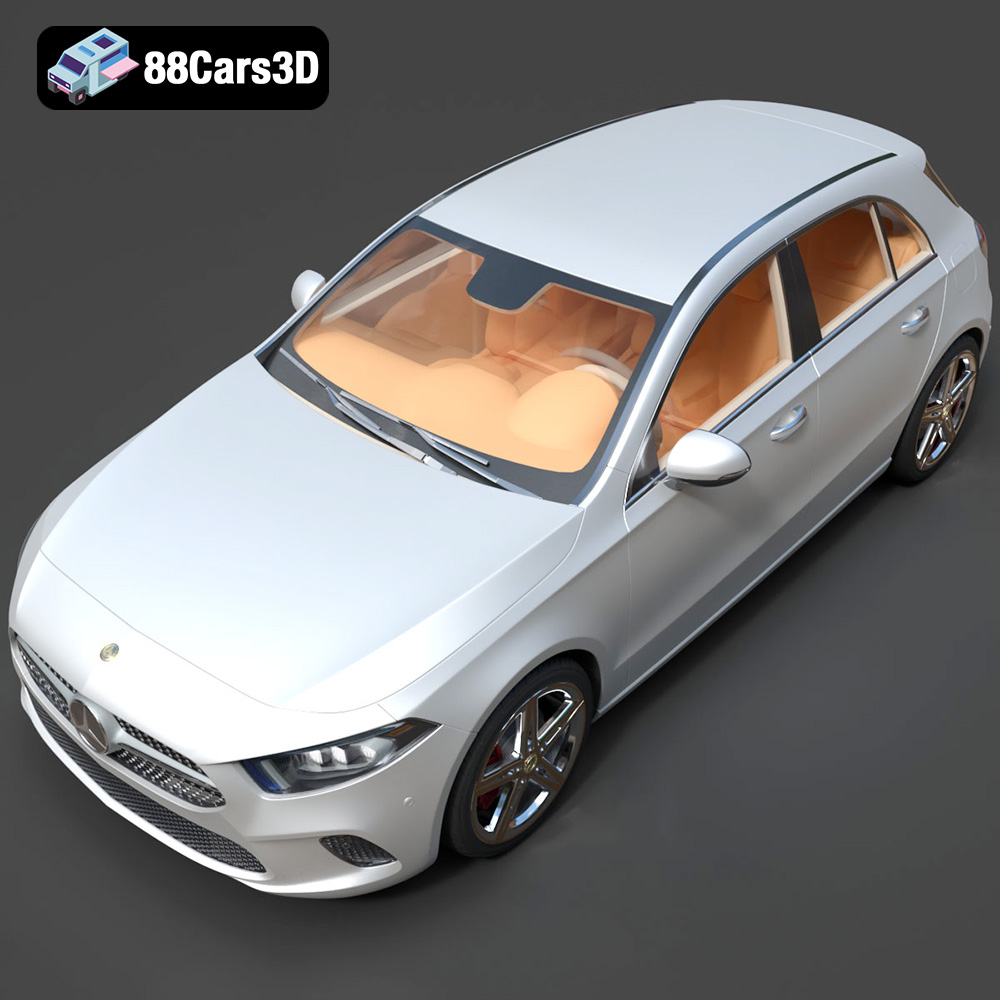
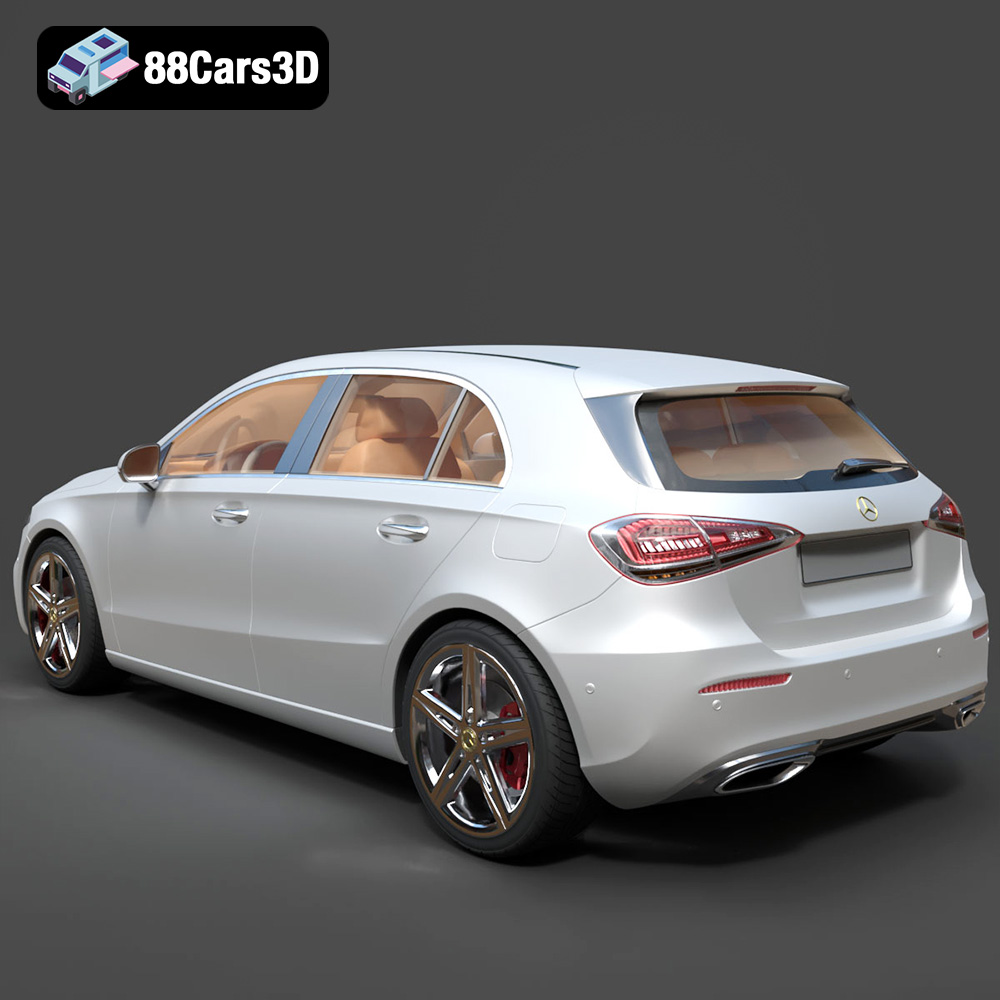
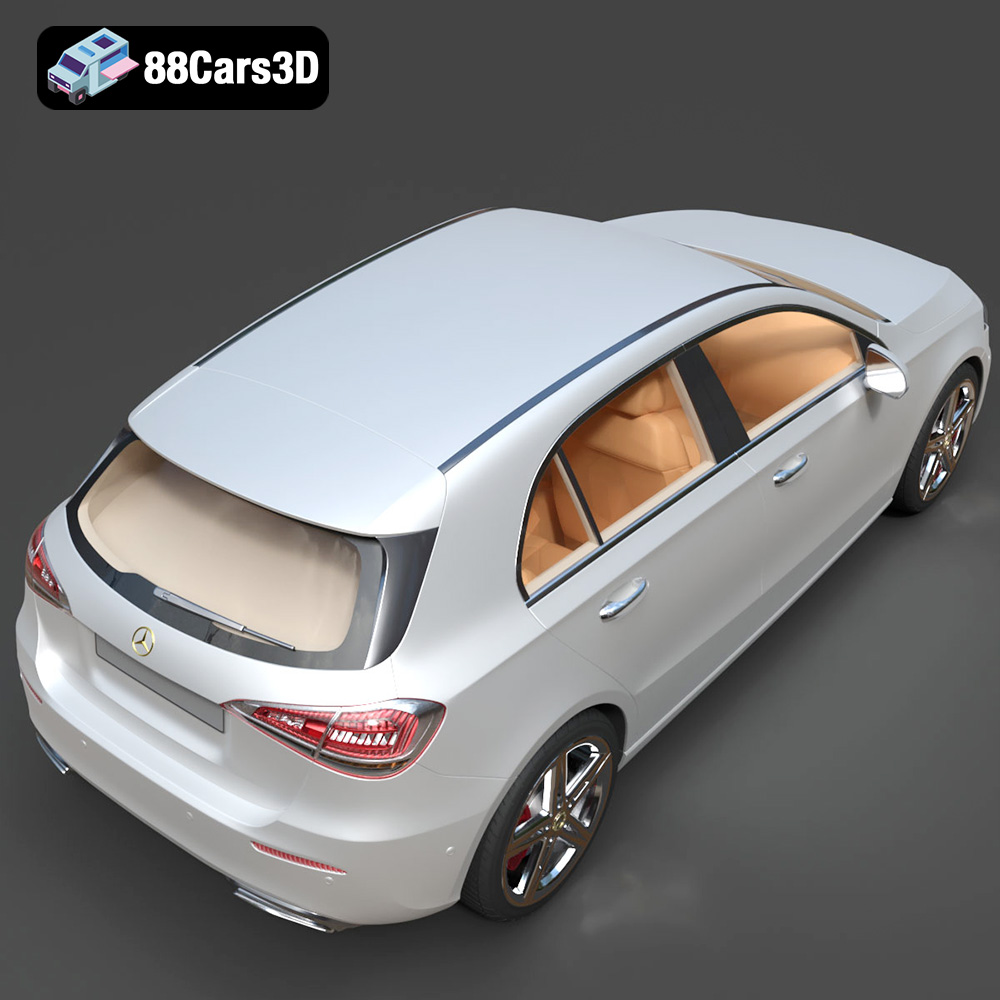
The Mercedes-Benz A-Class (W177) is a modern marvel of automotive design, blending aggressive styling with luxurious features. Now, thanks to 88cars3d.com, you can bring this iconic hatchback to life with 3D printing. This guide provides a deep dive into the world of 3D printing the A-Class (W177) 3D model, covering everything from pre-print preparation to post-processing techniques, ensuring a successful and satisfying 3D printing experience. The model available on 88cars3d.com is specifically designed for optimal rendering, visualization, and 3D printing.
Choosing the right file format is a crucial first step in any 3D printing project. While several formats exist, not all are equally suited for additive manufacturing. The Mercedes-Benz A-Class (W177) 3D model from 88cars3d.com comes in a variety of formats, but understanding their nuances is key to achieving the best possible print.
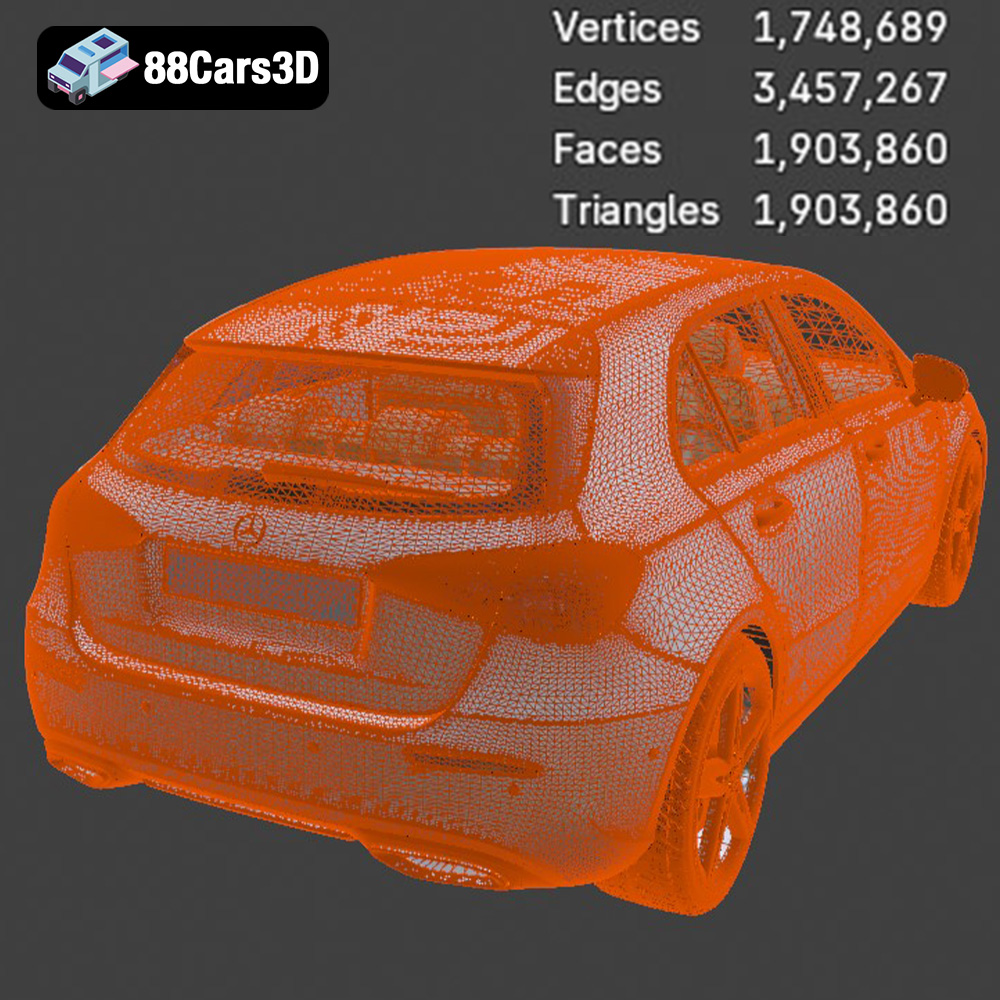
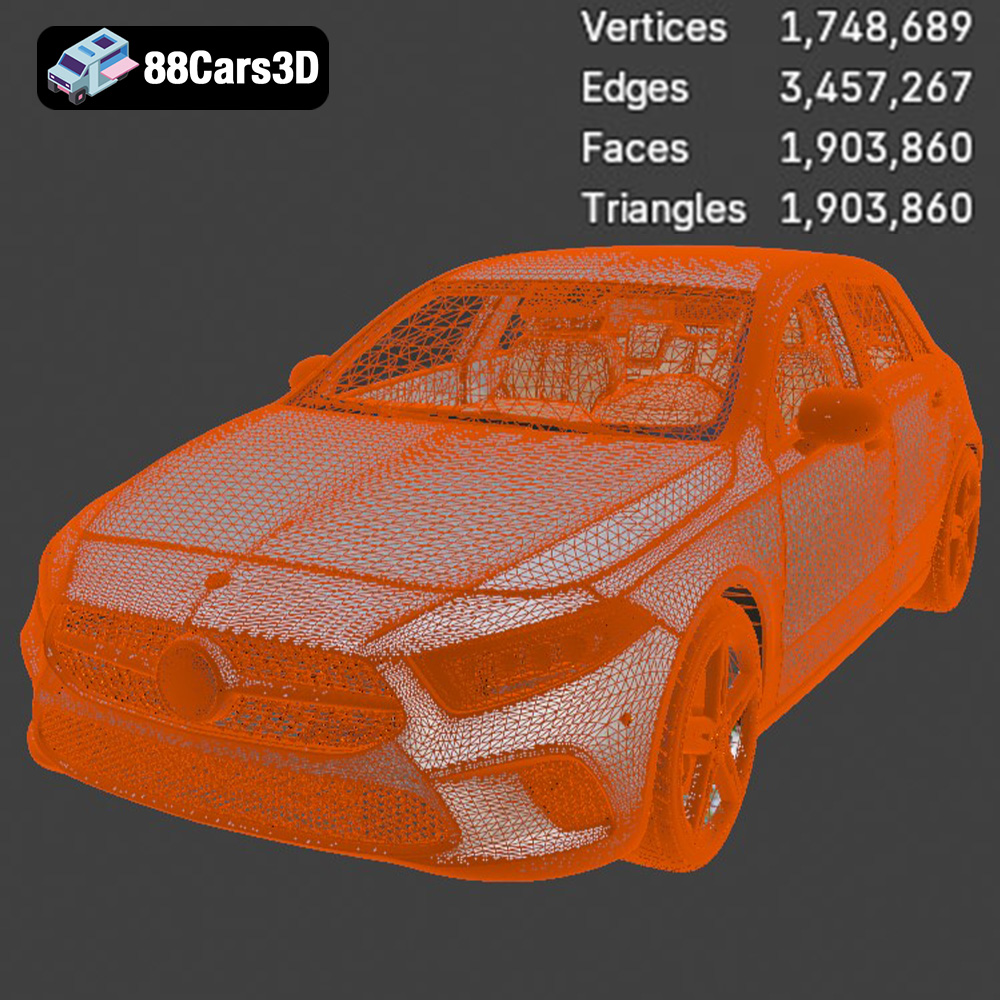
The .stl (Stereolithography) format is the undisputed industry standard for 3D printing. It represents the surface geometry of a 3D object as a collection of triangles. This simplicity makes it universally compatible with slicing software and 3D printers. However, .stl files only store the mesh data, lacking information about color, texture, or materials. For 3D printing, especially for a detailed model like the A-Class (W177), a high-resolution STL file is essential to capture fine details.
The .obj (Object) format is a more versatile format that, unlike .stl, can store color and texture information. This makes it suitable for models intended for colored 3D printing. While .obj files can be used for 3D printing, they are primarily designed for rendering and animation. The slicing process might require additional steps to convert the texture information into printable layers or to ignore the color data and treat the model as a single-color object.
The .ply (Polygon File Format) is designed for storing 3D data acquired from 3D scanners. It offers excellent precision and is capable of representing highly detailed meshes. While not as universally supported as .stl, .ply can be a good choice for printing intricate models. However, ensure your slicing software supports .ply files, and be prepared for potentially larger file sizes due to the high level of detail.
The .blend format is the native file format for Blender, a popular open-source 3D modeling software. It contains the entire Blender scene, including the model’s geometry, materials, textures, and lighting. While you can’t directly 3D print a .blend file, it offers the ultimate flexibility for customizing the Mercedes-Benz A-Class (W177) model before exporting it to a printable format like .stl.
The .fbx (Filmbox) format is commonly used for exchanging 3D data between different software applications. It supports geometry, materials, textures, and animations. While some advanced slicing software may be able to import .fbx files, it’s often best to export the model to .stl for 3D printing to ensure compatibility and avoid potential issues with material interpretation.
The .glb format is a binary file format that represents 3D models in a compact and efficient way. It’s often used for displaying 3D models on websites and in augmented reality (AR) applications. While not directly printable, .glb files are useful for previewing the Mercedes-Benz A-Class (W177) model in a real-world context before committing to printing it.
.max is the native file format for Autodesk 3ds Max, a professional 3D modeling, animation, rendering, and visualization software package. Much like the .blend file format, you will need to export to a printable format such as .stl to 3D print.
For 3D printing the Mercedes-Benz A-Class (W177), the .stl format is the recommended choice due to its widespread compatibility and suitability for additive manufacturing. Ensure that the .stl file you use is of high resolution to capture the intricate details of the model. Before printing, always check the mesh quality in your slicing software to identify and repair any potential issues, such as non-manifold edges or holes.
The choice of material significantly impacts the final look and feel of your 3D printed Mercedes-Benz A-Class (W177). Each material has its strengths and weaknesses, influencing everything from detail resolution to structural integrity.
PLA (Polylactic Acid) is a popular thermoplastic known for its ease of use and biodegradability. It’s an excellent choice for beginners due to its low printing temperature, minimal warping, and wide availability. PLA is suitable for creating visually appealing models, but it’s less durable and heat-resistant than other materials. For the A-Class (W177), PLA can be used for the main body and interior components, but it might not be ideal for parts requiring high strength or temperature resistance.
ABS (Acrylonitrile Butadiene Styrene) is a more robust thermoplastic that offers superior durability and heat resistance compared to PLA. It’s commonly used in automotive applications, making it a fitting choice for the A-Class (W177) model. However, ABS is more challenging to print than PLA, requiring higher printing temperatures and an enclosed build chamber to prevent warping. If you plan to handle or display your 3D printed A-Class frequently, ABS might be a better option.
PETG (Polyethylene Terephthalate Glycol-modified) combines the ease of printing of PLA with the durability and heat resistance of ABS. It’s a versatile material that offers good layer adhesion, minimal warping, and decent impact resistance. PETG is a solid all-around choice for 3D printing the Mercedes-Benz A-Class (W177), providing a balance of printability and performance.
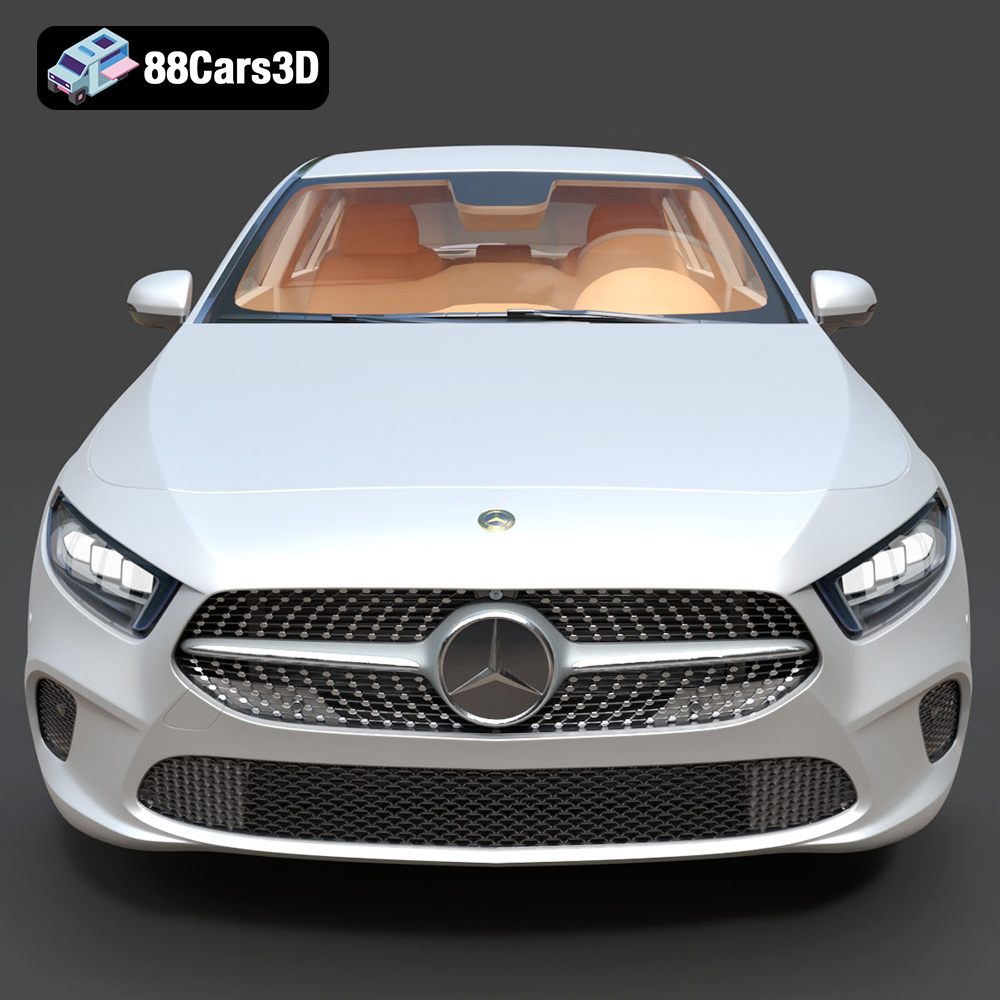
For those seeking the highest level of detail, resin printing is the way to go. Resin printers use liquid photopolymer resins that are cured by UV light, resulting in incredibly smooth surfaces and fine details. Resin is particularly well-suited for capturing the intricate features of the A-Class (W177), such as the diamond-block radiator grille and turbine-style air vents. However, resin printing requires more post-processing, including washing and curing, and the resins themselves can be more expensive and require careful handling.
The cost of 3D printing materials varies depending on the type, brand, and quantity. PLA is typically the most affordable, followed by PETG and ABS. Resin tends to be the most expensive option. Consider your budget and the desired properties of your 3D printed A-Class (W177) when making your material selection.
Before sending the Mercedes-Benz A-Class (W177) 3D model to your printer, it’s crucial to prepare it properly using slicing software. This involves configuring printer settings, generating support structures, and optimizing the model for successful printing.
Slicing software takes your 3D model and converts it into a series of layers that the printer can understand. Popular slicing software options include Cura, PrusaSlicer, Simplify3D, and Chitubox (for resin printing). Each software has its own strengths and weaknesses, so choose one that aligns with your printer and experience level.
Key slicing settings to configure for the A-Class (W177) model include:
* **Layer Height:** A lower layer height (e.g., 0.1mm – 0.04mm) results in smoother surfaces and finer details, but it also increases print time.
* **Infill Density:** Infill determines the internal structure of the model. A higher infill density (e.g., 20-25%) increases strength but also uses more material.
* **Wall Thickness:** A thicker wall (e.g., 1.5mm – 2.5mm) provides greater structural integrity and improves the model’s overall appearance.
* **Print Speed:** Optimizing print speed can help minimize printing artifacts and improve the surface quality of your print. Experiment to find the best balance between speed and quality for your printer and material.
* **Temperature:** Adhere to the recommended temperature ranges for your chosen filament.
Support structures are necessary to prop up overhanging features during printing. The Mercedes-Benz A-Class (W177) model will likely require supports for the side mirrors, wheels, and front bumper overhangs. Most slicing software can automatically generate supports, but you may need to manually adjust their placement and density for optimal results. Consider using tree supports or light supports to minimize material usage and make removal easier.
Before slicing, it’s essential to check the model for any errors, such as non-manifold edges or holes. Slicing software often includes tools to automatically repair these issues. Properly orienting the model on the build plate can also significantly impact print quality and support requirements. Experiment with different orientations to minimize overhangs and maximize surface finish. For the A-Class (W177), printing the body angled can help achieve a smoother surface finish, while printing the wheels separately can simplify support removal.
Achieving a high-quality 3D printed Mercedes-Benz A-Class (W177) relies heavily on fine-tuning your printer settings. These parameters dictate how the printer deposits material and ultimately determine the accuracy and aesthetic appeal of the final product.
As mentioned earlier, layer height is a critical setting that affects both print time and detail resolution. A smaller layer height (0.04mm – 0.08mm) is highly recommended, especially if you are using a resin printer, as it ensures the intricate details like the diamond grille and turbine air vents are accurately reproduced. However, keep in mind that reducing layer height will significantly increase print time. Find a balance that suits your desired level of detail and your time constraints.
Print speed determines how quickly the printer head moves while depositing material. A slower print speed generally results in better surface quality and fewer printing artifacts. Experiment with different speeds to find the optimal setting for your printer and material. Acceleration settings control how quickly the printer head accelerates and decelerates. Lowering acceleration can help reduce vibrations and improve print accuracy, especially for intricate models like the A-Class (W177).
Maintaining the correct temperature is crucial for successful 3D printing. Follow the recommended temperature ranges for your chosen material. For PLA, this typically means a nozzle temperature of 180-220°C and a bed temperature of 60-70°C. ABS requires higher temperatures, typically 220-250°C for the nozzle and 80-110°C for the bed. PETG usually prints well at 220-245°C for the nozzle and 70-85°C for the bed. Precise settings depend on your particular filament so consult the manufacturer’s recommendations.
Appropriate support structure is critical for parts of the model that have large overhangs and aren’t directly connected to the print bed, such as the side mirrors and front bumper overhangs of the Mercedes-Benz A-Class (W177) model. Ensure your supports are adequately attached to the model but also designed for easy removal to prevent damage to the printed part.
Good bed adhesion is equally important, especially for larger prints, preventing warping and ensuring that the model remains firmly attached to the print bed throughout the printing process. A clean and level print bed is essential for bed adhesion, along with the correct bed temperature and the application of adhesive aids like glue stick or hairspray.
Once the 3D printing process is complete, post-processing is necessary to refine the surface finish, add color, and assemble any separate components. This stage is where you can truly bring your 3D printed Mercedes-Benz A-Class (W177) to life.
The first step in post-processing is carefully removing the support structures. Use specialized tools like pliers, cutters, and scrapers to gently detach the supports without damaging the model. Take your time and work methodically to avoid breaking delicate features. After removing the supports, clean the model thoroughly to remove any remaining support material or residue.
Sanding is essential for smoothing out the layer lines and imperfections on the surface of your 3D printed A-Class (W177). Start with a coarse grit sandpaper (e.g., 220 grit) and gradually work your way up to finer grits (e.g., 400, 600, 800 grit) to achieve a smooth, paintable surface. Wet sanding can help reduce dust and improve the sanding process.
Before painting, apply a primer coat to the model. Primer helps to fill in any remaining imperfections, provides a uniform surface for the paint to adhere to, and improves the overall finish. Choose a primer that is compatible with your chosen paint.
Select modern Mercedes-Benz paint finishes (e.g., Jupiter Red, Mountain Grey, or Polar White) to match the authentic look of the A-Class (W177). Apply multiple thin coats of paint, allowing each coat to dry completely before applying the next. Consider using an airbrush for a more professional-looking finish.
If you printed the wheels and other components separately, carefully assemble them according to the model’s design. Use adhesive or small screws to secure the parts together. Add any final details, such as decals, badges, or custom accents, to personalize your 3D printed Mercedes-Benz A-Class (W177).
Even with careful preparation and optimized settings, 3D printing can sometimes present challenges. Here are some common issues you might encounter when printing the Mercedes-Benz A-Class (W177) and how to address them.
Warping occurs when the corners of the print lift off the build plate due to uneven cooling. To prevent warping, ensure your print bed is level, use a heated bed, and apply an adhesive like glue stick or hairspray. An enclosed build chamber can also help maintain a consistent temperature and reduce warping.
Poor layer adhesion can cause the print to split or delaminate. Increase the printing temperature, reduce print speed, and ensure the first layer is properly adhered to the build plate. Also, check the filament diameter and adjust the flow rate in your slicing software if necessary.
Stringing and blobs are caused by excess material oozing from the nozzle during travel moves. Reduce the printing temperature, increase retraction distance and speed, and enable travel avoidance in your slicing software.
Support structures can sometimes be difficult to remove or can leave behind unsightly marks on the model. Use tree supports or light supports to minimize material usage and improve removal. Experiment with different support densities and placements to find the optimal settings for the A-Class (W177) model.
The Mercedes-Benz A-Class (W177) 3D Model is a highly accurate, premium digital recreation of the fourth-generation luxury compact hatchback. Showcasing the brand’s “Sensual Purity” design language, the W177 redefined the premium compact segment by combining a fiercely aggressive exterior with an incredibly luxurious, tech-forward interior previously reserved for the flagship S-Class.
$19.99
.archviz
.automotive
.blend
.fbx
.hatchback
.mercedes
.obj
.rendering
a-class
car-3d-model
hero-car
high poly
luxury car
mercedes-benz
premium-compact
vfx
w177