Get 20% OFF All Premium 3D & STL Models!

“`html
3D printing has revolutionized the way we create and prototype, offering unprecedented design freedom and customization. For enthusiasts looking to bring their favorite cars to life, 3D printing opens up a world of possibilities. Whether you’re a seasoned maker or just starting, understanding the intricacies of preparing 3D models for printing is crucial for achieving high-quality results. This comprehensive guide will walk you through the essential steps, from selecting the right STL files to optimizing printer settings, ensuring your 3D-printed car models are showstoppers. We’ll delve into file formats, slicing software, support structures, and troubleshooting techniques, empowering you to confidently navigate the 3D printing process. From understanding mesh topology to mastering post-processing, this guide covers it all.
In this guide, you will learn:
The STL (Stereolithography) file format is the industry standard for 3D printing. It represents the surface geometry of a 3D object as a collection of triangles. While simple, its impact is profound. A well-prepared STL file is the foundation of a successful 3D print. When downloading models from marketplaces such as 88cars3d.com, ensuring the STL files are optimized for printing will save you time and filament. A poorly constructed STL file can lead to print failures, artifacts, and a generally disappointing final product.
An STL file consists of a list of triangles, each defined by its vertices (x, y, z coordinates) and a normal vector (direction the triangle faces). The resolution of the STL file (the number of triangles used to represent the object) directly impacts the print quality. A higher resolution STL file contains more triangles, resulting in a smoother surface finish but also a larger file size. Conversely, a low-resolution STL file has fewer triangles, leading to a faceted appearance. Find the right balance. For car models from platforms like 88cars3d.com, a medium to high resolution is generally recommended to capture the fine details of the bodywork. Aim for a maximum deviation of 0.05mm in your STL export settings. This dictates how closely the triangulated mesh conforms to the original CAD geometry.
Mesh topology refers to the structure and connectivity of the triangles in the STL file. For successful 3D printing, the mesh must be “manifold,” meaning it is watertight and has no holes or self-intersections. Non-manifold geometry is a common cause of printing errors, as the slicer software struggles to interpret the model correctly. Software like Netfabb or Meshmixer can be used to analyze and repair STL files with non-manifold geometry. These tools can identify and fix issues such as:
Always check and repair your STL files before sending them to the slicer. This step is crucial to avoid wasted filament and failed prints.
Slicing software acts as the bridge between your 3D model and your 3D printer. It converts the STL file into a series of instructions (G-code) that the printer can understand. The slicing process involves dividing the 3D model into thin horizontal layers and defining the printing parameters for each layer. Choosing the right slicing software and optimizing its settings are critical for achieving the desired print quality and efficiency. Popular slicing software options include Cura, PrusaSlicer, Simplify3D, and ideaMaker.
Several key parameters in the slicing software significantly influence the outcome of the 3D print. These include:
Cura is a popular and free slicing software that offers a wide range of customization options. Here’s an example of how to optimize settings in Cura for printing a car model:
Support structures are temporary scaffolding used to support overhanging parts of the 3D model during printing. Without supports, these overhanging areas would collapse or deform, resulting in a failed print. Generating and managing support structures effectively is essential for printing complex geometries, especially in car models with intricate details like spoilers, mirrors, and wheel wells. Both FDM and resin printing require different support strategies.
There are several types of support structures, each with its own advantages and disadvantages:
Proper support placement is crucial for minimizing material usage, ensuring adequate support, and facilitating easy removal. Consider the following tips for optimizing support structures:
Removing support structures carefully is essential to avoid damaging the printed part. Here are some common techniques:
The choice of material significantly impacts the strength, appearance, and functionality of the 3D-printed car model. Different materials require different printer settings, such as temperature, print speed, and bed adhesion techniques. Understanding the properties of various materials and their compatibility with your 3D printer is crucial for achieving optimal results. The two main types of 3D printing for this application are FDM (Fused Deposition Modeling) and Resin printing.
FDM printing uses a filament of thermoplastic material that is heated and extruded through a nozzle to build the object layer by layer. Common FDM materials include:
For printing car models, PETG is a good all-around choice due to its balance of strength, durability, and ease of printing. ABS is suitable for parts that require high heat resistance.
Resin printing uses a liquid resin that is cured by a UV light source to create the object layer by layer. Resin printing offers superior detail and surface finish compared to FDM printing, making it ideal for intricate car models with fine details. Common resin types include:
Resin printing requires careful post-processing, including washing the parts in isopropyl alcohol (IPA) and curing them under UV light. Resin prints are generally more brittle than FDM prints and may not be suitable for parts that are subjected to high stress.
Proper printer calibration and maintenance are essential for consistent and reliable 3D printing. Regularly calibrate your printer’s bed leveling, extrusion multiplier, and temperature settings. Clean the nozzle and bed regularly to prevent clogs and adhesion issues. Lubricate moving parts to ensure smooth operation. These actions ensure your models from 88cars3d.com print perfectly every time.
Despite careful preparation, 3D printing is not without its challenges. Common printing issues include warping, layer adhesion problems, stringing, and elephant’s foot. Understanding the causes of these issues and how to address them is crucial for successful 3D printing.
Warping occurs when the corners of the print lift off the bed, causing the part to deform. Common causes of warping include:
Layer adhesion problems occur when the layers of the print do not bond together properly, resulting in a weak or delaminated part. Common causes of layer adhesion problems include:
Stringing occurs when the nozzle oozes filament during travel moves, leaving thin strands of plastic between parts of the print. Common causes of stringing include:
Elephant’s foot occurs when the first layer of the print is squished outward, creating a flared base. Common causes of elephant’s foot include:
Print orientation and bed adhesion are critical factors influencing the success of a 3D print, especially for car models with complex geometries. The orientation of the model on the print bed affects the need for support structures, the surface finish, and the overall strength of the printed part. Proper bed adhesion ensures that the print stays firmly attached to the bed throughout the printing process, preventing warping and other issues.
Consider the following factors when choosing the print orientation:
For car models, it’s often best to print the body with the roof facing upward to achieve the best surface finish. However, this may require extensive support structures. Experiment with different orientations to find the optimal balance between surface finish, support requirements, and strength.
Poor bed adhesion is a common cause of print failures. Here are some techniques to improve bed adhesion:
A brim is often sufficient for PLA and PETG, while a raft may be necessary for ABS or other materials that are prone to warping.
Post-processing refers to the steps taken after printing to improve the appearance, strength, and functionality of the 3D-printed part. Common post-processing techniques include support removal, sanding, filling, painting, and assembly. Mastering these techniques is essential for achieving a professional finish on your 3D-printed car models. Platforms like 88cars3d.com provide high-quality models that, when combined with these post-processing skills, will yield outstanding results.
Sanding is used to smooth the surface of the print and remove layer lines. Start with a coarse grit sandpaper (e.g., 120 grit) and gradually move to finer grits (e.g., 220, 400, 600 grit). Wet sanding can help to reduce dust and improve the finish. For deeper imperfections, use a filler (e.g., spot putty, Bondo) to fill the gaps. Sand the filler smooth after it has dried. For larger areas, consider using a spray-on filler primer.
Painting is used to add color and protect the surface of the print. Start with a primer to improve adhesion and provide a smooth base for the paint. Apply several thin coats of paint, allowing each coat to dry completely before applying the next. Use a clear coat to protect the paint and add a glossy or matte finish. Consider using automotive-grade paints and clear coats for a durable and professional finish.
Many car models consist of multiple parts that need to be assembled after printing. Use glue (e.g., super glue, epoxy) to join the parts together. Clean up any excess glue with a damp cloth. Add details such as decals, mirrors, and lights to enhance the realism of the model. Use small tools and tweezers to handle delicate parts. Consider using metal or resin parts for added realism and durability.
Here’s a simplified workflow for post-processing:
Preparing 3D models for printing is a multifaceted process that requires attention to detail and a solid understanding of the underlying principles. From mastering the STL file format to optimizing slicing software settings and selecting the right materials, each step plays a crucial role in the success of your 3D printing projects. By following the guidelines outlined in this comprehensive guide, you’ll be well-equipped to tackle even the most complex 3D-printed car models. Remember to experiment with different settings and techniques to find what works best for your printer and your specific projects. Whether you’re a hobbyist, a designer, or an engineer, 3D printing offers a powerful tool for bringing your ideas to life. Embrace the process, learn from your mistakes, and enjoy the rewarding experience of creating your own 3D-printed masterpieces. With a little practice and dedication, you’ll be amazed at what you can achieve.
Here are some actionable next steps:
“`

Texture: Yes | Material: Yes
Download the highly detailed, game-ready Toyota Supra 2020 3D Model. Features aggressive aerodynamic styling, a distinctive double-bubble roof, and accurate B58 engine components. Includes .blend, .fbx, .obj, .glb, .stl, .ply, .unreal, and .max formats for game development, AR/VR, and rendering.
Price: $19.99
Texture: Yes | Material: Yes
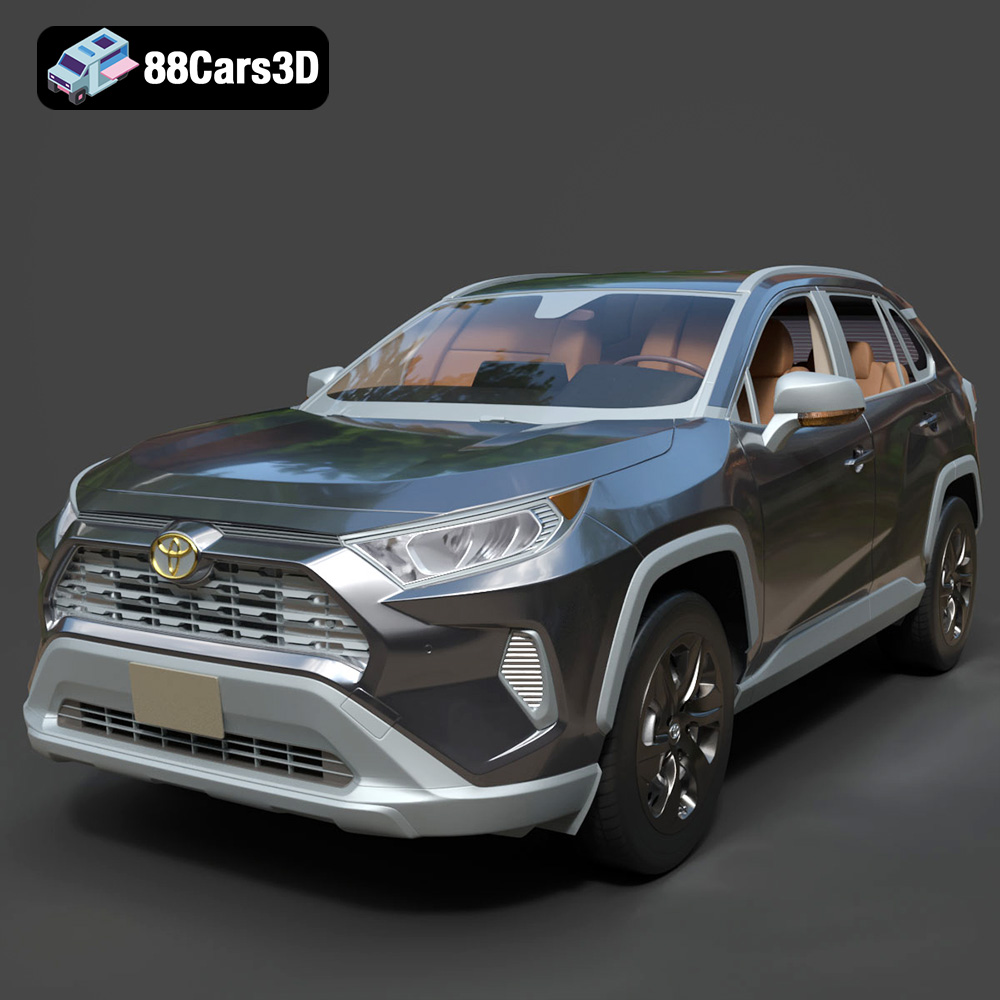
Download the highly detailed, game-ready Toyota RAV4 LE 2019 3D Model. Features rugged exterior styling, signature polygonal motif, and a detailed interior. Includes .blend, .fbx, .obj, .glb, .stl, .ply, .unreal, and .max formats for game development, AR/VR, and rendering.
Price: $19.99

Texture: Yes | Material: Yes
Download the highly detailed, game-ready Suzuki King B 2008 3D Model. Features its massive 1340cc engine block, signature dual under-seat exhausts, and aggressive streetfighter bodywork. Includes .blend, .fbx, .obj, .glb, .stl, .ply, .unreal, and .max formats for game development, AR/VR, and rendering.
Price: $19.99
Texture: Yes | Material: Yes
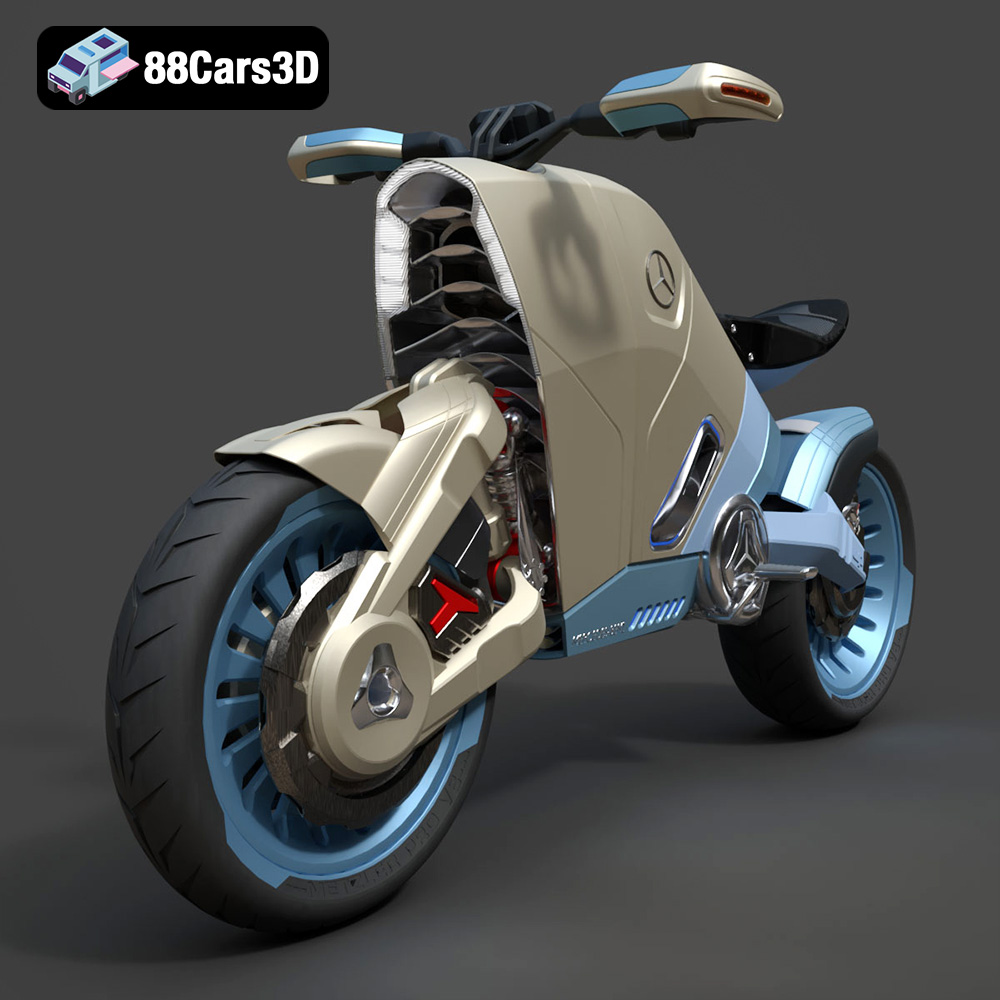
Download the highly detailed, game-ready SMARANZA Mercedes Concept Electrical Motorcycle 3D Model. Features futuristic aerodynamic styling and an advanced electric drivetrain. Includes .blend, .fbx, .obj, .glb, .stl, .ply, .unreal, and .max formats for game development, AR/VR, and rendering.
Price: $19.99
Texture: Yes | Material: Yes
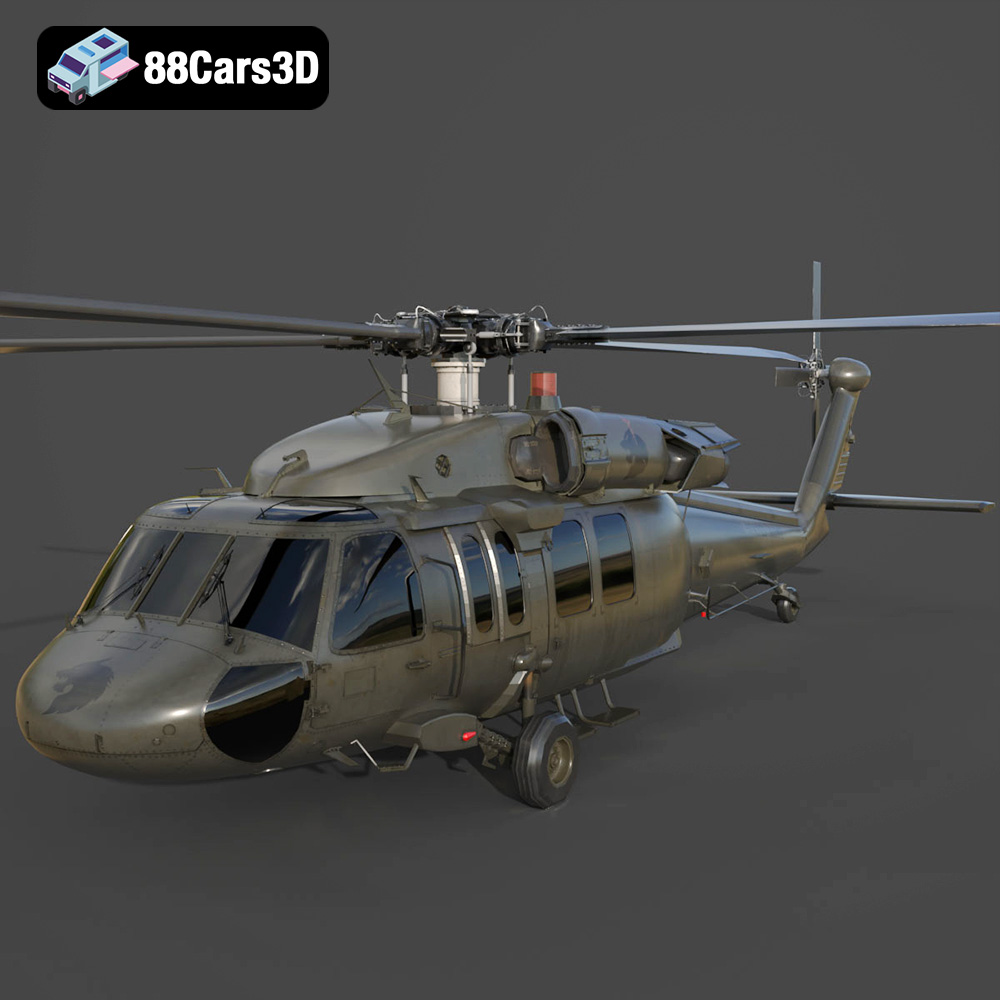
Download the highly detailed, game-ready Sikorsky UH-60 Black Hawk US 3D Model. Features an accurate four-blade rotor system, detailed military fuselage, and realistic twin-engine housing. Includes .blend, .fbx, .obj, .glb, .stl, .ply, .unreal, and .max formats for game development, AR/VR, and rendering.
Price: $19.99
Texture: Yes | Material: Yes
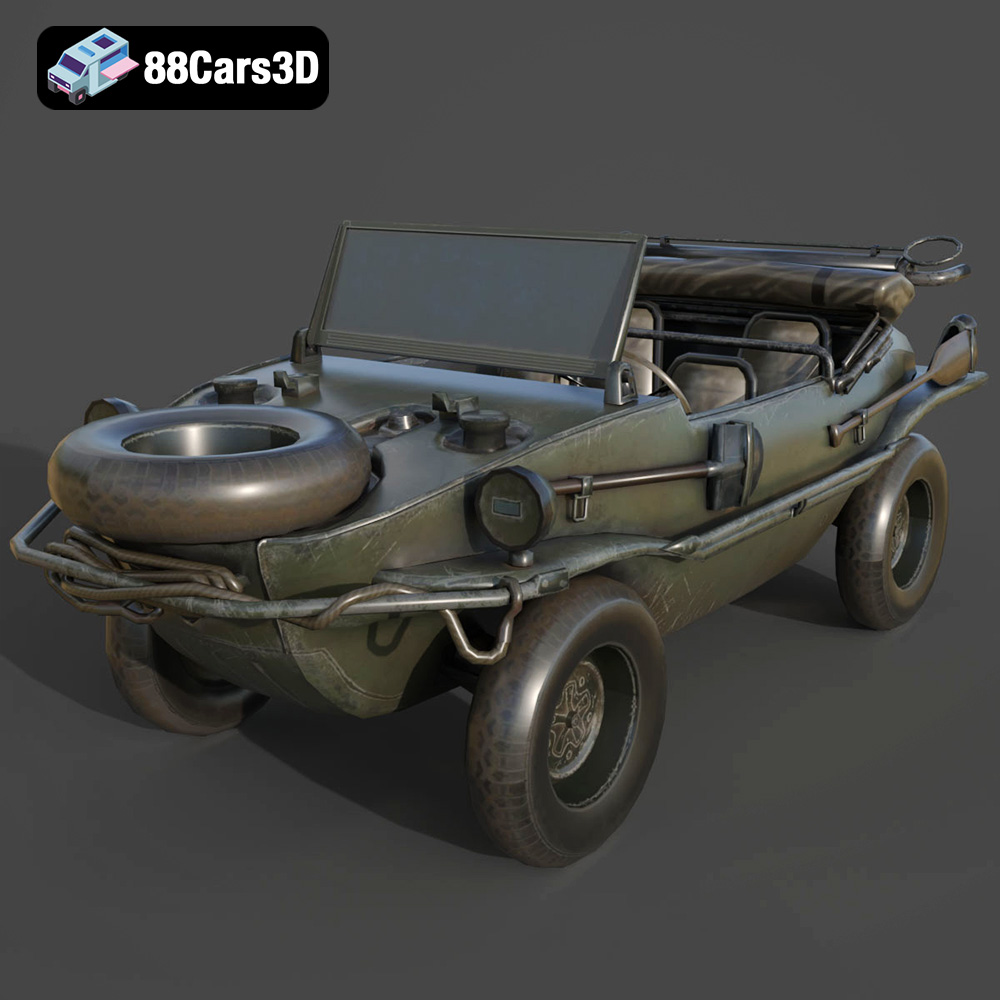
Download the highly detailed, game-ready Volkswagen Schwimmwagen Typ 166 3D Model. Features an authentic boat-like watertight hull, fold-down propeller mechanism, and accurate military styling. Includes .blend, .fbx, .obj, .glb, .stl, .ply, .unreal, and .max formats for game development, AR/VR, and rendering.
Price: $19.99
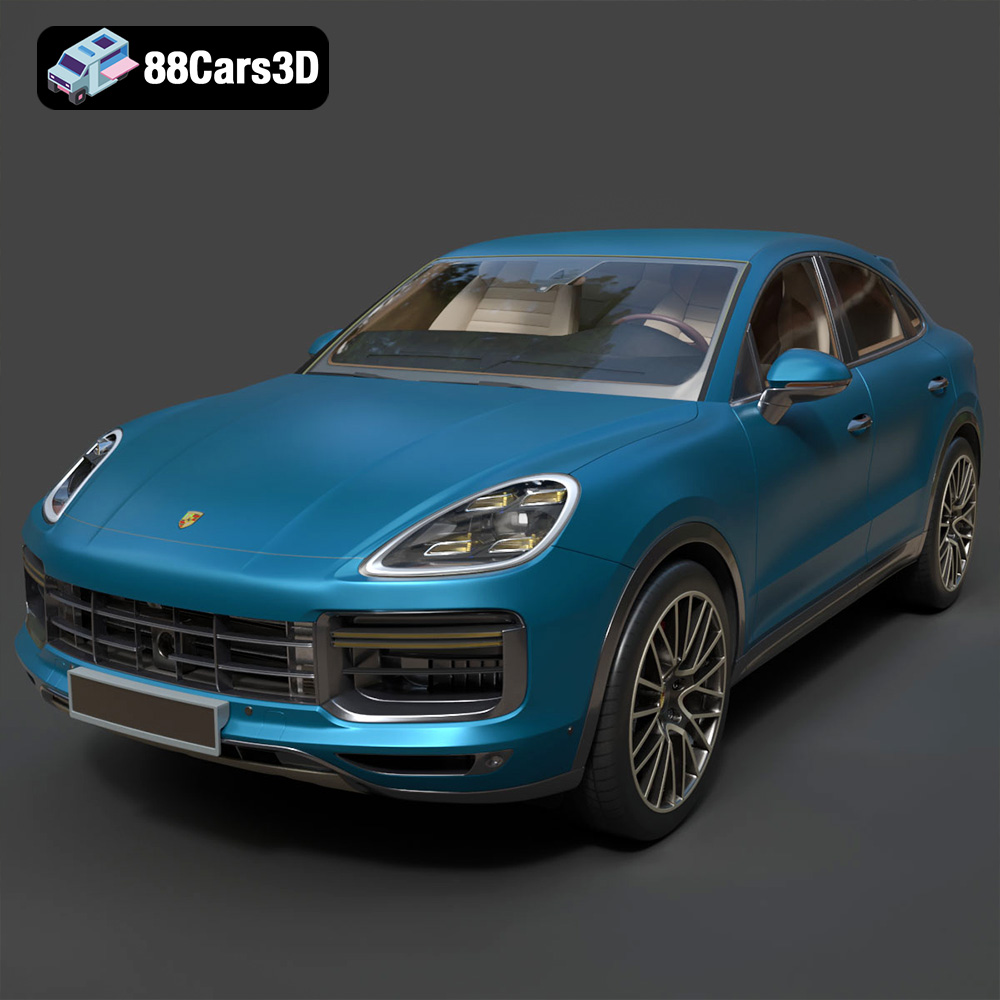
Texture: Yes | Material: Yes
Download the highly detailed, game-ready Porsche Cayenne Turbo Coupe 2020 3D Model. Features an aggressive coupe roofline, detailed quad exhaust, and a meticulously crafted luxury sport interior. Includes .blend, .fbx, .obj, .glb, .stl, .ply, .unreal, and .max formats for game development, AR/VR, and rendering.
Price: $19.99
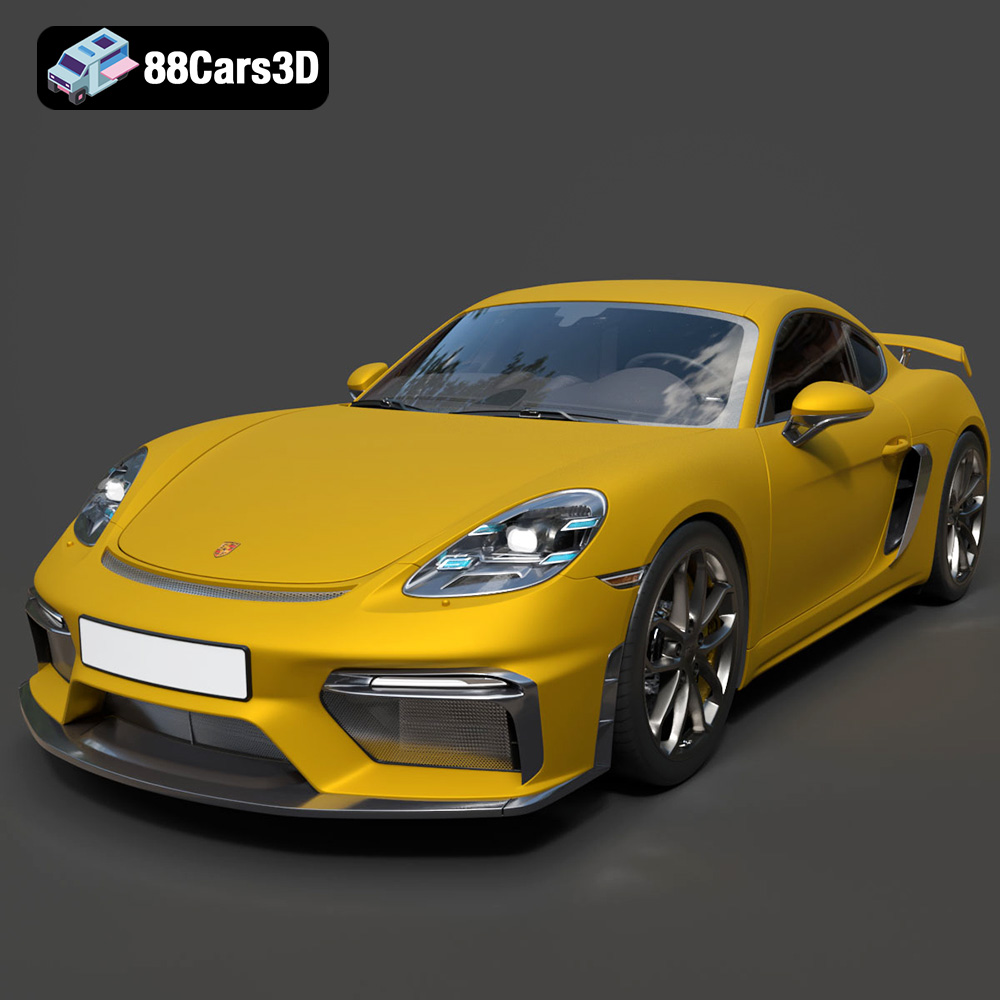
Texture: Yes | Material: Yes
Download the highly detailed, game-ready Porsche 718 Cayman GT4 2020 3D Model. Features an aggressive fixed rear wing, distinctive side air intakes, and a track-focused stance. Includes .blend, .fbx, .obj, .glb, .stl, .ply, .unreal, and .max formats for game development, AR/VR, and rendering.
Price: $19.99

Texture: Yes | Material: Yes
Download the highly detailed, game-ready Polestar 2 2020 3D Model. Features minimalist Scandinavian fastback styling, pixel LED lighting, and an accurate electric vehicle profile. Includes .blend, .fbx, .obj, .glb, .stl, .ply, .unreal, and .max formats for game development, AR/VR, and rendering.
Price: $19.99
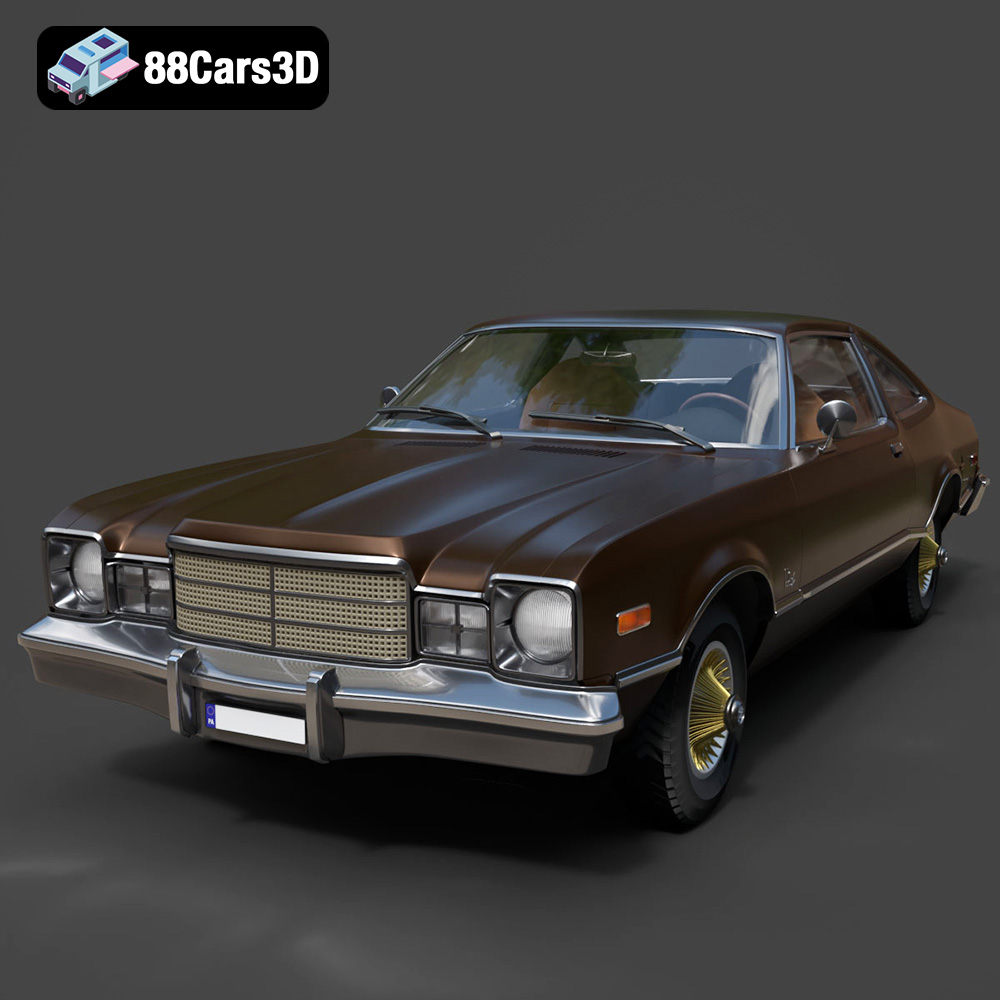
Texture: Yes | Material: Yes
Download the highly detailed, game-ready Plymouth Volare Coupe 1977 3D Model. Features classic F-body styling, detailed chrome trim, and an accurate vintage interior. Includes .blend, .fbx, .obj, .glb, .stl, .ply, .unreal, and .max formats for game development, AR/VR, and rendering.
Price: $19.99

