Get 20% OFF All Premium 3D & STL Models!

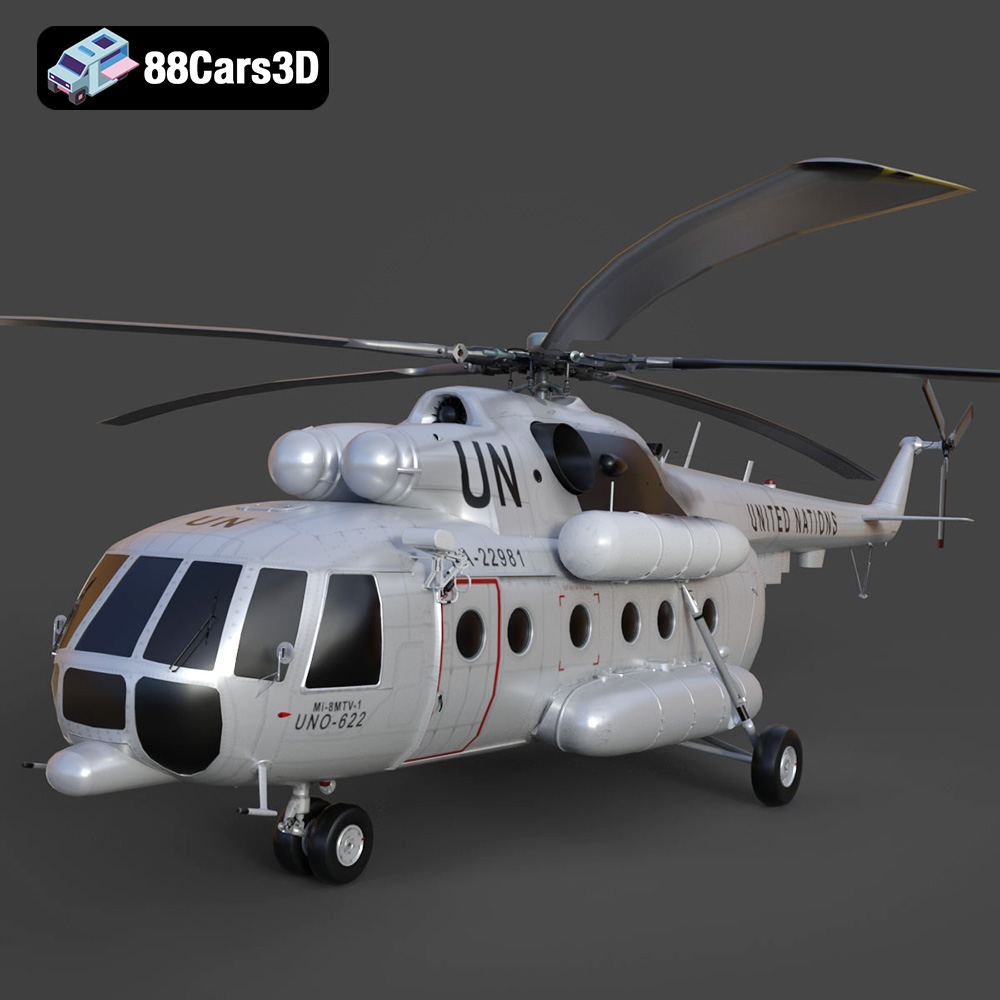
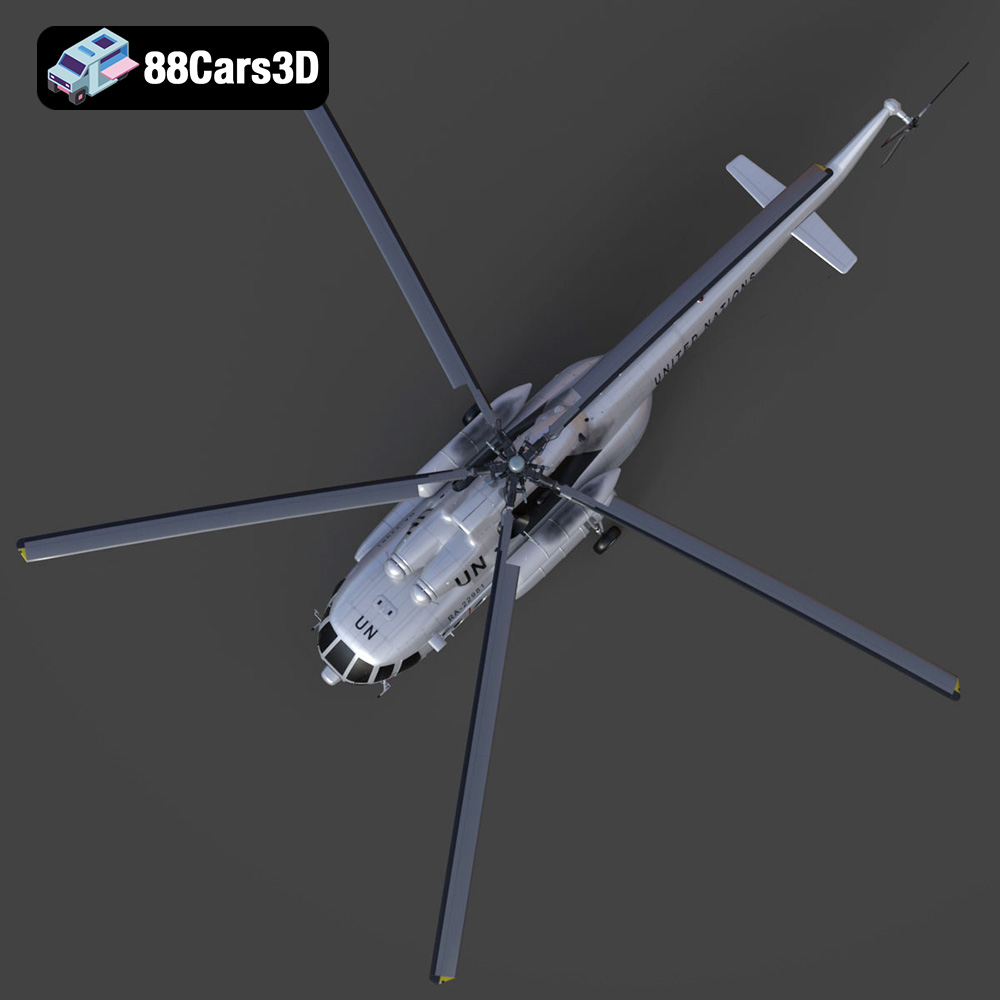
The Mil Mi-8MTV-UN helicopter, a symbol of humanitarian aid and peacekeeping missions, can now grace your desk or diorama thanks to the power of 3D printing. With a detailed 3D model like the one available at 88cars3d.com, you can create a stunning replica of this versatile aircraft. This article will guide you through the entire 3D printing process, from selecting the right materials and settings to post-processing techniques that will bring your Mi-8MTV-UN model to life. This detailed model offers a fantastic opportunity for hobbyists and modelers alike.
Before diving into the printing process, it’s crucial to understand the different file formats used to represent 3D models. The Mil Mi-8MTV-UN 3D model from 88cars3d.com comes in various formats, each with its strengths and weaknesses. Knowing which format to use and how to handle it is key to a successful 3D print.
The STL (Stereolithography) format is the workhorse of 3D printing. It represents the surface geometry of a 3D object as a collection of triangles. This simplicity makes it universally compatible with almost all 3D printers and slicing software. However, STL files only store geometric data; they don’t contain information about color, texture, or materials. For 3D printing, this isn’t usually a limitation, as color is typically applied during post-processing. The .stl format will work well for printing the Mi-8MTV-UN due to the level of detail included in the model, and will allow for printing the model with high accuracy.
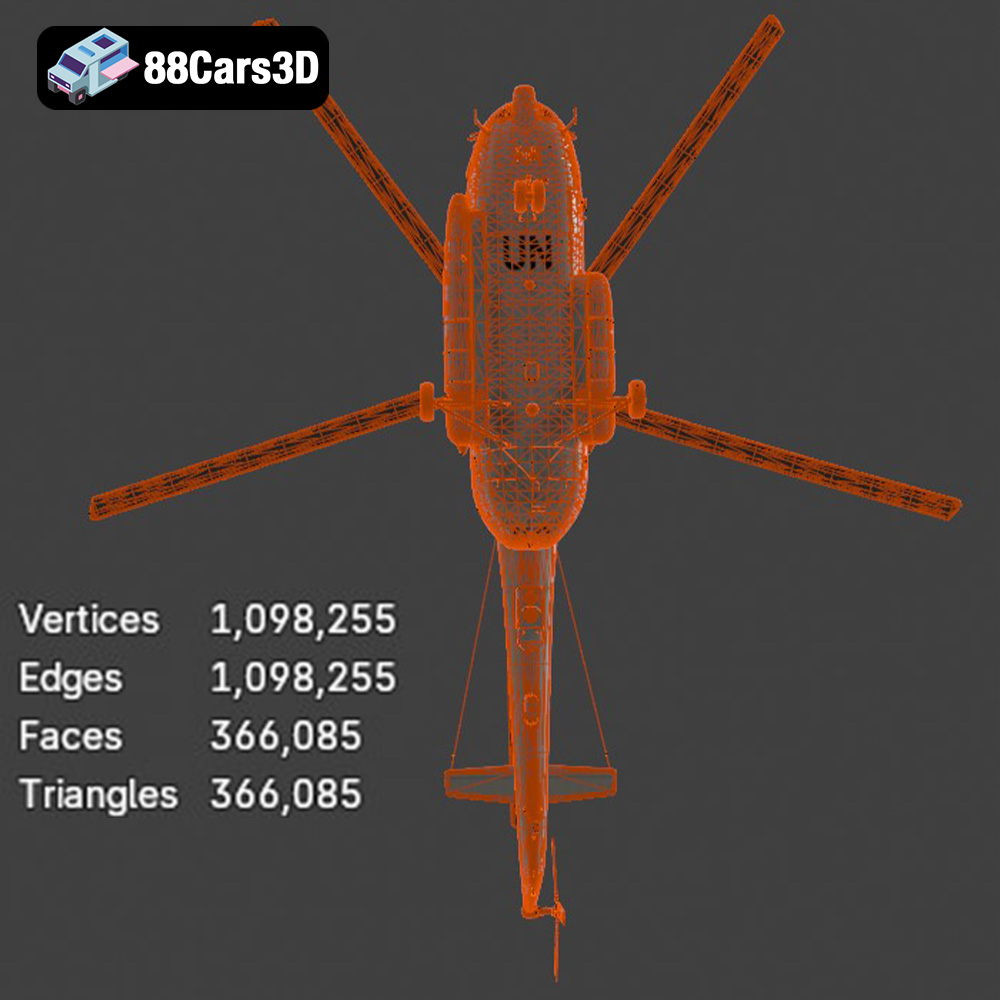
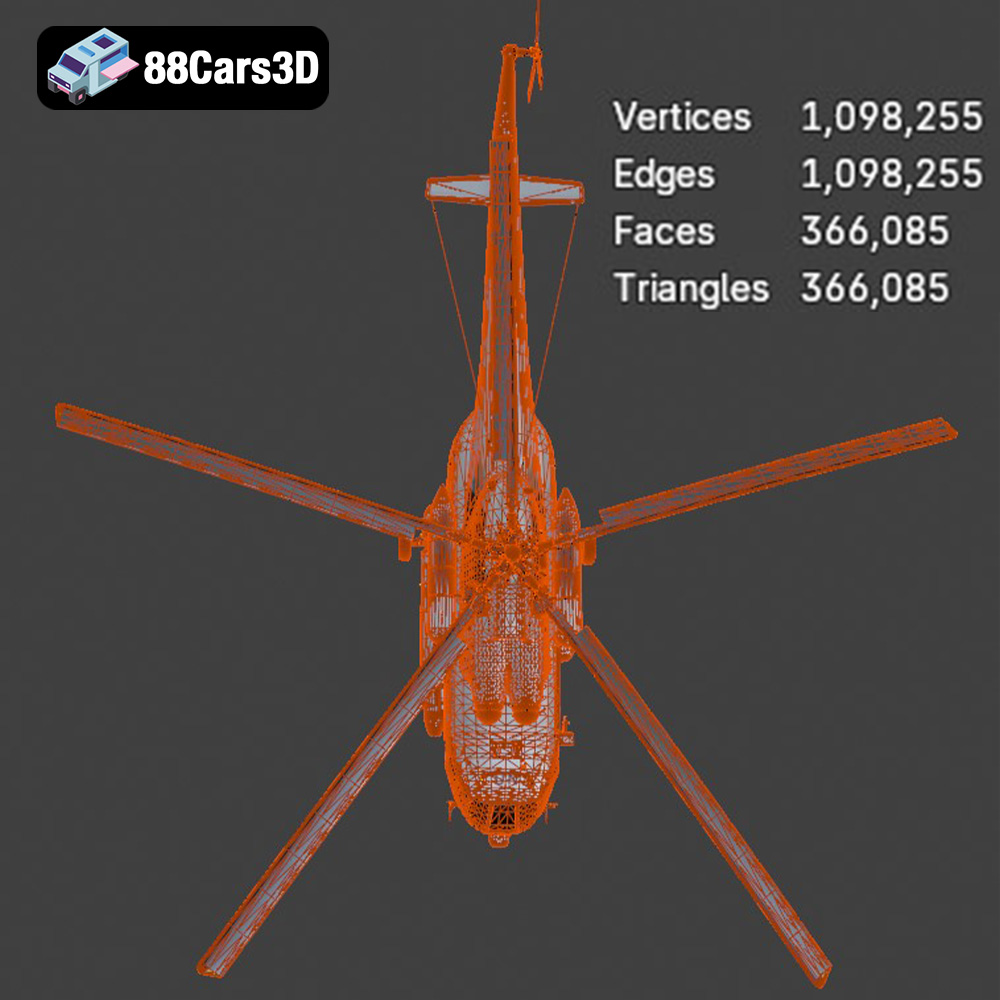
When working with STL files, it’s important to check the mesh quality. A low-resolution STL file will result in a blocky or faceted print, while an excessively high-resolution file can be computationally expensive to process and may not offer a significant improvement in print quality. Most slicing software includes tools to adjust the mesh resolution of an STL file. Aim for a balance between detail and file size. For the Mil Mi-8MTV-UN model, which boasts approximately 150,000 triangles, the provided STL should already be optimized, but it’s always a good practice to verify.
While STL is the primary format for 3D printing, other formats offer different capabilities and may be useful in specific scenarios:
* **.obj:** A more versatile format than STL, OBJ files can store color and texture information, making them suitable for colored prints (if your printer supports multi-material printing). However, OBJ files can be more complex to handle than STL files.
* **.ply:** The Polygon File Format (PLY) is designed to store 3D data acquired from 3D scanners. It can represent color and texture information and often supports more complex geometry than STL. However, it’s not as universally supported by slicing software as STL.
* **.blend:** This is the native file format for Blender, a popular open-source 3D modeling software. It’s ideal if you want to modify the model before printing. You can adjust the geometry, add details, or split the model into smaller parts for easier printing.
* **.fbx:** The Filmbox (FBX) format is commonly used for exchanging 3D data between different software packages. It supports animation, materials, and textures. It’s less relevant for basic 3D printing but can be useful if you’re importing the model into a slicing software that supports advanced material properties.
* **.glb:** GLB files are binary versions of the glTF (GL Transmission Format), designed for efficient delivery and loading of 3D models. They are often used for previewing models in AR applications. While not directly used for 3D printing, they can provide a quick visual reference before printing.
* **.max:** This is the native file format for 3ds Max, a professional 3D modeling software. Similar to .blend files, .max files allow for extensive customization before exporting to a printable format like STL.
Ultimately, the STL format is the most reliable choice for 3D printing the Mil Mi-8MTV-UN model. If you need to make modifications, use Blender (.blend) or 3ds Max (.max) and then export the modified model as an STL file.
Once you have your STL file ready, the next step is to prepare it for printing using slicing software. Slicing software takes the 3D model and divides it into thin layers, generating a toolpath that the 3D printer will follow. This stage is crucial for optimizing print quality and minimizing errors.
Numerous slicing software options are available, both free and paid. Popular choices include Cura, PrusaSlicer, Simplify3D, and Chitubox (for resin printing). Each software has its strengths and weaknesses, so experiment to find the one that best suits your needs and printer. For the Mil Mi-8MTV-UN model, which requires a good balance of detail and structural integrity, Cura or PrusaSlicer are excellent starting points.
The orientation of the model on the print bed significantly affects print quality, support requirements, and overall print time. For the Mil Mi-8MTV-UN fuselage, the product description recommends printing it horizontally or at an angle for structural integrity. This minimizes the need for supports on the main body. However, detailed parts like rotor blades, exhaust ports, and landing gear will require supports.
Carefully consider where to place supports. Too few supports can lead to sagging and deformation, while too many can be difficult to remove and leave unsightly marks. Use the slicing software’s support generation tools to create optimal support structures. Some software allows you to manually add or remove supports for fine-tuning.
The recommended scale for the Mil Mi-8MTV-UN model is 1:48 or 1:72. This scale provides a good balance between detail and print size. Adjust the scale in your slicing software before printing. Remember that scaling up the model will increase print time and material usage.
Layer height is another crucial setting. The product description recommends a layer height of 0.04–0.12 mm, especially for resin printing. Lower layer heights result in smoother surfaces and finer details but increase print time. Experiment with different layer heights to find the best balance for your printer and desired level of detail.
The choice of material depends on your printer type (FDM or resin) and the desired properties of the final model. Each material offers different advantages and disadvantages in terms of strength, flexibility, detail, and ease of printing.
PLA (Polylactic Acid) is a biodegradable thermoplastic that is easy to print and produces good results on most FDM printers. It’s a good choice for beginners due to its low printing temperature and minimal warping. PLA is suitable for the Mil Mi-8MTV-UN model, especially for larger parts like the fuselage. However, PLA is relatively brittle and not as heat-resistant as other materials.
PETG (Polyethylene Terephthalate Glycol-modified) is a stronger and more durable alternative to PLA. It’s also more heat-resistant and less prone to warping. PETG is a good choice for parts that require more strength, such as the landing gear and rotor assemblies. However, PETG can be more challenging to print than PLA, requiring higher temperatures and careful calibration.
Resin printing (SLA or DLP) is ideal for producing highly detailed parts with smooth surfaces. The product description recommends resin printing for fine details like antennas and rotors. Resin printers use liquid resin that is cured by UV light, resulting in significantly higher resolution than FDM printing. However, resin prints are often more brittle than FDM prints and require thorough post-processing, including washing and curing.
For the Mil Mi-8MTV-UN model, a combination of materials might be ideal. Use PLA or PETG for the fuselage and larger components, and resin for the smaller, more intricate parts like the rotors and antennas.
Optimizing your printer settings is crucial for achieving a successful print. These settings will vary depending on your printer, material, and slicing software, but here are some general guidelines:
* **PLA:** Printing temperature of 190-220°C, bed temperature of 50-60°C, print speed of 40-60 mm/s.
* **PETG:** Printing temperature of 230-250°C, bed temperature of 70-80°C, print speed of 30-50 mm/s.
* **Resin:** Follow the resin manufacturer’s recommendations for exposure time, layer height, and lift speed.
The product description recommends an infill density of 20-30%. This provides a good balance between strength and weight. Choose an infill pattern that provides adequate support, such as grid, gyroid, or cubic. For parts that require more strength, increase the infill density.
Experiment with different support settings to find the optimal balance between support strength and ease of removal. Consider using tree supports or light supports to minimize material usage and improve surface finish. Adjust the support density, overhang angle, and support interface settings as needed.
Proper bed adhesion is essential for preventing warping and ensuring that the print sticks to the bed. Use a bed adhesive like glue stick or hairspray to improve adhesion. Ensure that your print bed is properly leveled before starting the print. An uneven bed can lead to poor adhesion and failed prints.
Once the print is complete, post-processing is necessary to remove supports, smooth surfaces, and add the finishing touches that will bring your Mil Mi-8MTV-UN model to life.
Carefully remove the supports using pliers or a sharp knife. Be patient and avoid damaging the model. Once the supports are removed, use sandpaper to smooth any rough edges or support marks. Start with a coarse grit sandpaper (e.g., 220 grit) and gradually move to finer grits (e.g., 400, 600, 800 grit) to achieve a smooth surface.
Apply a primer to the model to create a smooth surface for painting. Use a spray primer designed for plastics. Once the primer is dry, sand it lightly with fine-grit sandpaper. Then, apply the base coat of paint. The product description mentions authentic factory colors with matte/weathered finishes. Research the correct paint colors for the UN livery of the Mil Mi-8MTV-UN. Use masking tape to create clean lines between different colors.
Consider using weathering techniques to add realism to the model. Dry brushing, washes, and pigment powders can be used to simulate dirt, grime, and wear.
The Mil Mi-8MTV-UN model consists of multiple parts, such as the fuselage, rotors, and landing gear. Use glue (e.g., super glue or epoxy) to assemble the parts. Ensure that the parts are properly aligned before gluing them together. Allow the glue to dry completely before handling the model.
Even with careful preparation, printing issues can still arise. Here are some common problems and their solutions:
* **Warping:** Ensure proper bed adhesion, use a heated bed, and avoid drafts.
* **Stringing:** Reduce printing temperature, increase retraction distance, and decrease travel speed.
* **Layer separation:** Increase printing temperature, decrease layer height, and increase extrusion multiplier.
* **Support failure:** Increase support density, adjust support overhang angle, and ensure proper bed adhesion.
* **Resin printing issues:** Check resin expiration date, adjust exposure time, and ensure proper ventilation.
By understanding these common issues and their solutions, you can troubleshoot problems and improve your 3D printing results.
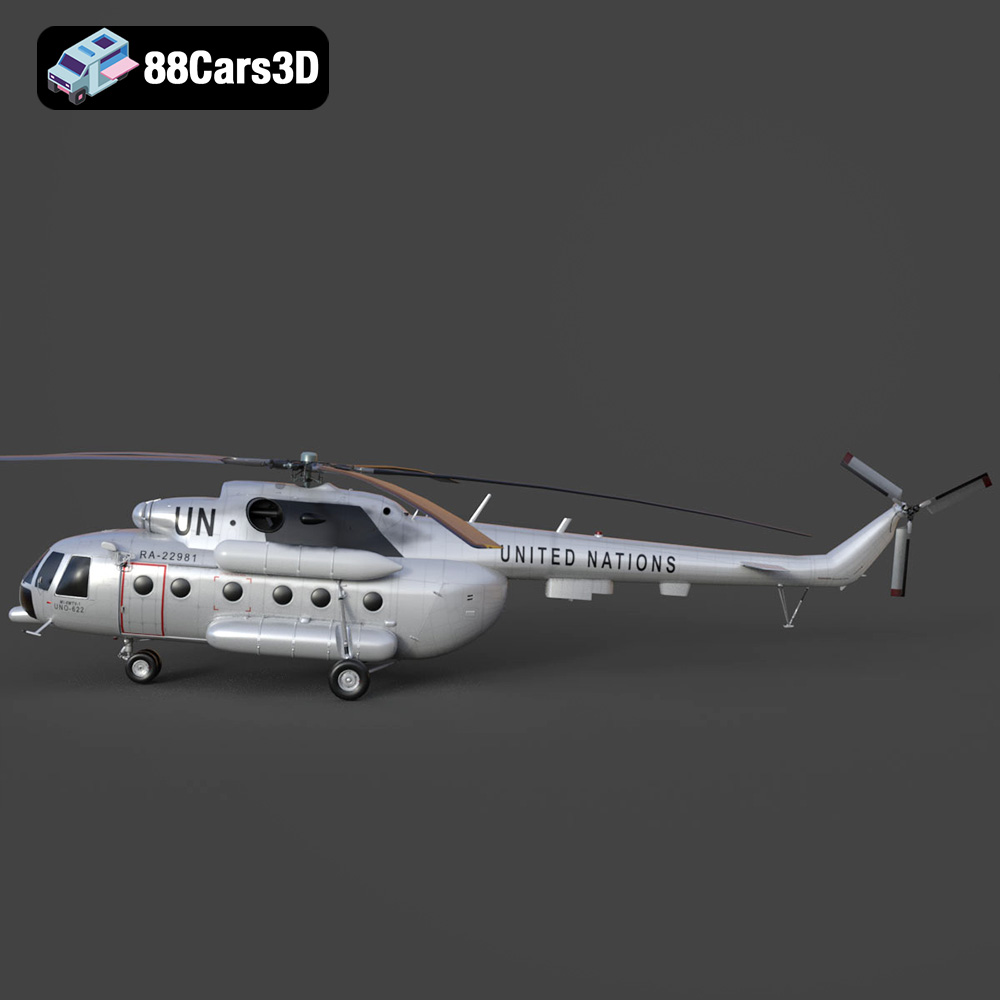
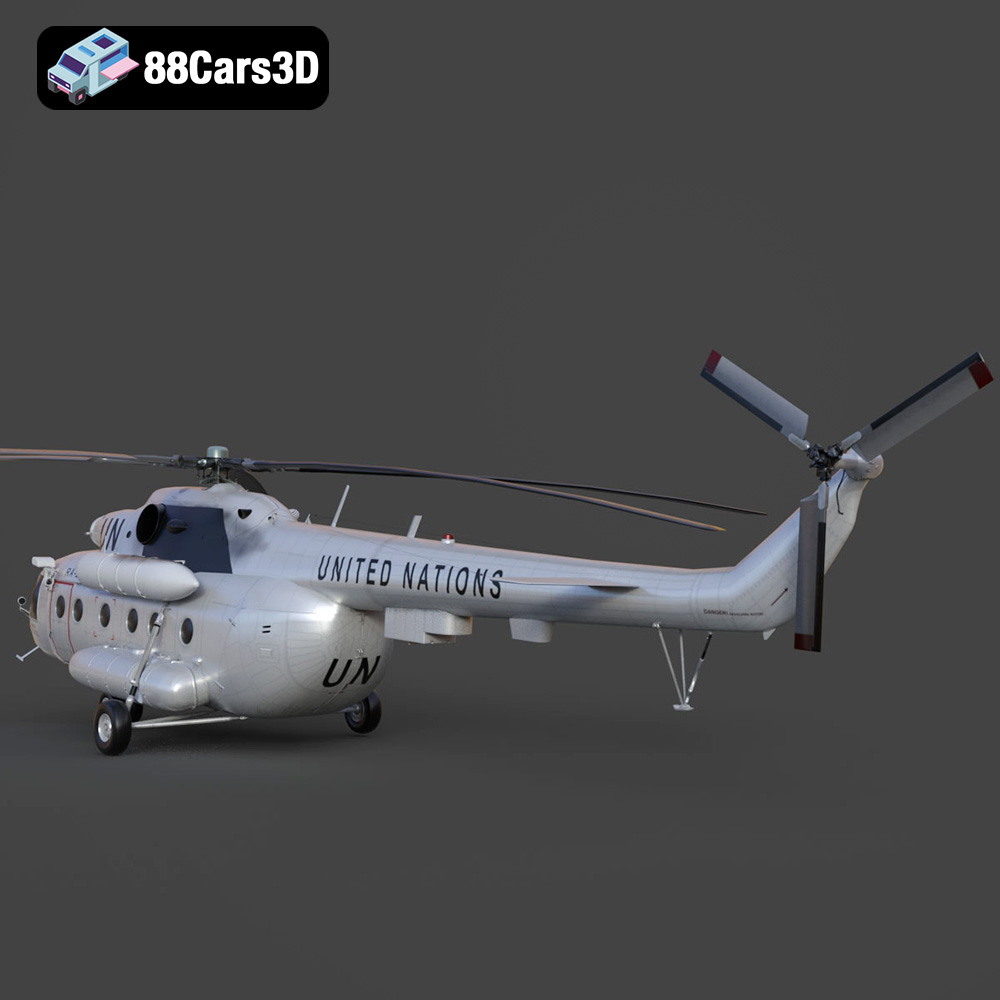
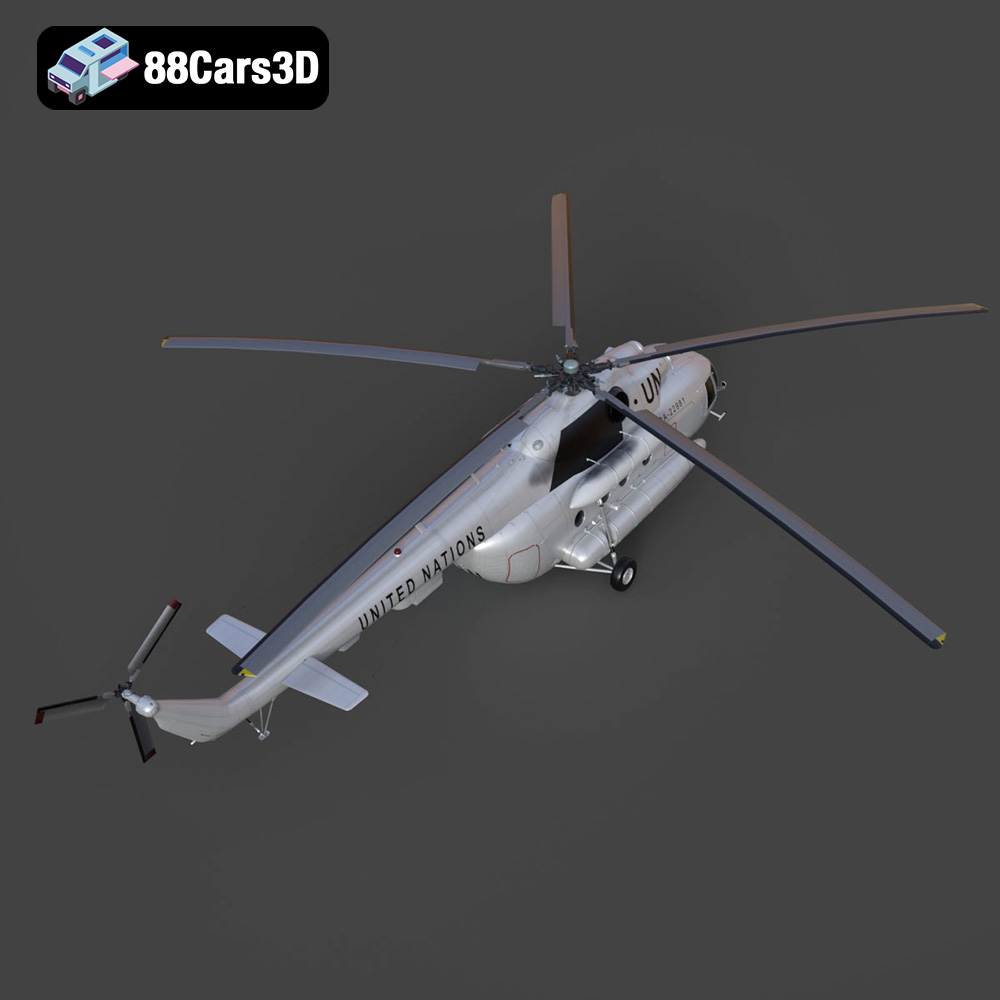
The Mil Mi-8MTV-UN is an iconic, multi-role transport helicopter, globally recognized for its extensive service in humanitarian and peacekeeping missions under the United Nations. This highly detailed 3D model captures the rugged essence of the legendary aircraft, featuring its distinctive white UN livery, prominent markings, robust twin Klimov turboshaft engines, and the signature five-blade main rotor system that has made it a workhorse of international aviation. Perfect for military base scenes, humanitarian aid scenarios, flight simulators, and cinematic renders.
$19.99
3D printing the Mil Mi-8MTV-UN model is a rewarding project that allows you to create a detailed replica of this iconic helicopter. By understanding the different file formats, carefully preparing the model for printing, choosing the right materials and settings, and mastering post-processing techniques, you can achieve stunning results. Remember to experiment, troubleshoot issues, and most importantly, have fun! With the high-quality 3D models available at 88cars3d.com, you can bring your favorite vehicles to life through the power of 3D printing and additive manufacturing.
.aviation
.blend
.fbx
.glb
.helicopter
.max
.obj
.ply
.rendering
.stl
.unreal
game asset
game-ready
helicopter-3d-model
low-poly
mi-8mtv-un
mil
optimized
transport-helicopter
united-nations
vehicle-3d-model
VR/AR