Get 20% OFF All Premium 3D & STL Models!

“`html
3D printing, while a revolutionary technology, often requires a delicate balance between automated processes and manual intervention. One critical aspect where manual control can significantly impact print quality is support structure generation. While slicing software offers automated support generation, these algorithms aren’t always perfect, especially for complex geometries like those found in detailed 3D printable car models. This blog post delves into the art and science of manually adding supports to STL files, empowering you to achieve superior print stability and minimize post-processing efforts. Whether you’re a seasoned 3D printing enthusiast or just starting your journey, mastering manual support placement is a valuable skill that will undoubtedly elevate the quality of your prints, especially when working with intricate designs available on platforms like 88cars3d.com. We’ll explore the reasons for manual support, the tools you’ll need, specific techniques for different scenarios, and how to troubleshoot common issues. Get ready to take control of your 3D printing process and unlock the full potential of your printer.
Automated support generation, while convenient, can sometimes result in over-supported areas, wasting material and leading to difficult removal, or under-supported areas, causing print failures and deformations. Manual support placement allows for targeted support where it’s truly needed, optimizing material usage, improving surface finish, and ensuring structural integrity. Consider the intricate curves of a classic car model – an automatic algorithm might fill the entire wheel well with supports, making removal a nightmare. Manual placement allows you to strategically place supports only under the most critical overhangs, preserving the detail and reducing post-processing time.
By strategically placing supports only where they are necessary, you can significantly reduce the amount of filament or resin used. This not only saves you money but also reduces waste, making your 3D printing process more environmentally friendly. For example, instead of a solid block of support under a wing mirror, you can use a few strategically placed vertical supports.
Over-supporting can lead to blemishes on the printed surface where the supports connect. Manually placed supports allow you to minimize contact points and choose locations where blemishes will be less visible, such as hidden surfaces or areas that will be sanded and painted. Consider the underside of a car chassis – it’s less critical than the visible body panels.
Several software options allow for manual support editing, each with its own strengths and weaknesses. Meshmixer, a free software from Autodesk, is a popular choice due to its robust sculpting and support generation tools. Blender, a powerful open-source 3D modeling software, offers extensive control over mesh editing and support creation. For more advanced users, Netfabb, a commercial software, provides a comprehensive suite of tools for analyzing, repairing, and optimizing STL files for 3D printing.
Meshmixer offers a simple and intuitive interface for adding and editing supports. To add supports, import your STL file, navigate to the “Support Generator” tool, and uncheck “Generate Support.” This will allow you to manually add supports by clicking on the areas that need support. You can adjust the support density, pillar size, and base size to customize the support structure to your specific needs. A common starting point is a pillar diameter of 1.5mm and a base diameter of 4mm for FDM printing with PLA.
Blender provides unparalleled control over support creation. You can create custom support geometries using Blender’s modeling tools and precisely position them on your model. This is particularly useful for complex shapes where standard support structures might not be sufficient. This involves creating a mesh object that acts as a support, then using Blender’s transformation tools to position it exactly where needed. This method is more time-consuming but offers the greatest degree of customization. For example, you could create a branching support structure that mimics a tree, providing support to multiple overhanging features with a single base.
Before diving into manual support placement, it’s crucial to carefully analyze your 3D model and identify areas that require support. Overhangs, bridges, and unsupported islands are prime candidates for support structures. Overhangs are sections of the model that extend outwards without any underlying support, while bridges are horizontal sections spanning between two points. Unsupported islands are isolated sections of the model that are not connected to the main body and require support to prevent them from collapsing during printing. Examining the STL file in your slicing software and rotating the model to view it from different angles will help you identify these critical areas. Look especially closely at areas with angles greater than 45 degrees relative to the build plate, as these are most prone to sagging without support.
The “45-degree rule” is a general guideline that suggests areas with overhangs exceeding 45 degrees from the vertical plane will likely require support. However, this is not a hard and fast rule, as factors such as material, layer height, and print speed can influence the maximum overhang angle that can be printed successfully. For example, printing with a slower speed and lower layer height can sometimes allow you to print steeper overhangs without support. You can experiment with different settings to determine the optimal overhang angle for your specific printer and material.
Bridges are horizontal spans between two supported points. The longer the bridge, the more likely it is to sag in the middle without support. When identifying bridges, consider the distance between the supporting points and the thickness of the bridge. Thicker bridges can often span longer distances without support. Islands are isolated parts of your model not connected to the main body. These almost always require support, as they have nothing to adhere to during the initial layers. A common example on printable car models are free-floating spoilers or intricate side mirrors.
FDM (Fused Deposition Modeling) printing uses a thermoplastic filament that is heated and extruded layer by layer. When manually adding supports for FDM printing, consider the following techniques:
Vertical supports are the most common type of support structure, providing direct support to overhanging areas. Angled braces can be added to increase the stability of vertical supports, especially for tall or slender supports. These braces act like buttresses, preventing the supports from swaying or collapsing during printing. For example, for a tall, thin spoiler, use a vertical support underneath, reinforced with angled braces connecting the support to the main body of the car.
Tree supports are a type of support structure that resembles a tree, with a trunk that branches out to support multiple overhanging areas. Tree supports are more material-efficient than traditional linear supports and can be easier to remove, leaving a cleaner surface finish. Experiment with different tree support settings in your slicing software to find the optimal balance between support strength and material usage. Cura’s tree support options are particularly robust.
Resin printing, also known as stereolithography (SLA) or Digital Light Processing (DLP), uses a liquid resin that is cured by a UV light source. When manually adding supports for resin printing, consider the following techniques:
Resin printing typically uses light, medium, and heavy supports, each designed for different levels of stress. Light supports are used for small overhangs and delicate features, while heavy supports are used for large overhangs and areas that require significant support. Medium supports are used for intermediate areas. Experiment with different support types to find the optimal balance between support strength and ease of removal. A good starting point for a car model is to use light supports for smaller details like door handles, medium supports for overhangs like wheel wells, and heavy supports for the underside of the chassis.
The orientation of your model on the build plate can significantly impact the amount of support required and the success of the print. Angling your model can reduce the size of overhangs and minimize the need for supports. For example, angling a car model at 45 degrees can reduce the size of the overhangs on the front and rear bumpers. Furthermore, angling the model strategically can ensure that supports are placed on less visible surfaces. Platforms like 88cars3d.com offer models designed with print orientation in mind, but fine-tuning is often necessary.
Once your print is complete, the next step is to remove the support structures. For FDM prints, you can use pliers, cutters, or a sharp knife to carefully remove the supports. For resin prints, you can use a razor blade or a specialized support removal tool. Take your time and avoid applying excessive force, as this can damage the printed model. After removing the supports, you can use sandpaper, files, or other tools to refine the surface finish and remove any remaining support marks. Start with coarse grit sandpaper and gradually move to finer grits to achieve a smooth finish.
To minimize support marks, try to place supports in areas that are less visible or easily accessible for post-processing. You can also use a raft or brim to improve bed adhesion and reduce the need for supports on the bottom layer. Another tip is to reduce the contact point between the supports and the model. Some slicing software allows you to adjust the support contact distance, increasing the gap between the support and the model for easier removal. When downloading models from marketplaces such as 88cars3d.com, check the provided documentation for recommended support strategies and post-processing tips.
Sanding is an essential step in post-processing to remove support marks and smooth out the surface of your 3D print. Start with coarse grit sandpaper (e.g., 220 grit) to remove larger imperfections, and then gradually move to finer grits (e.g., 400, 600, 800 grit) to achieve a smooth finish. For resin prints, you can also use wet sanding to prevent the sandpaper from clogging and to achieve a smoother finish. After sanding, you can apply primer and paint to further enhance the appearance of your print. Consider using automotive-grade paints and clear coats for a professional finish on your 3D printed car models.
Even with careful planning and execution, you may encounter issues related to support structures. Here are some common problems and their solutions:
If supports fail during printing, it can lead to print failure or deformation. This can be caused by insufficient support strength, poor bed adhesion, or excessive printing speed. To address this issue, try increasing the support density, adding angled braces to the supports, improving bed adhesion by using a heated bed or applying an adhesive, and reducing the printing speed.
If supports are difficult to remove, it can damage the printed model. This can be caused by excessive support density or small contact points between the supports and the model. To address this issue, try reducing the support density, increasing the contact distance between the supports and the model, or using a dissolvable support material (e.g., PVA for PLA or HIPS for ABS).
If support removal leaves unsightly blemishes on the printed surface, it can detract from the overall appearance of the print. To minimize this issue, try to place supports in less visible areas, reduce the support density, increase the contact distance between the supports and the model, and use fine-grit sandpaper to smooth out the blemishes.
Manually adding supports for 3D printing is a skill that requires practice and attention to detail. By understanding the principles of support generation, analyzing your model carefully, and applying the appropriate techniques, you can achieve superior print stability, minimize material usage, and improve surface finish. Remember to experiment with different settings and techniques to find what works best for your specific printer, material, and model. Whether you are printing intricate car models from 88cars3d.com or other complex designs, mastering manual support placement will elevate your 3D printing capabilities and allow you to create stunning, high-quality prints. Don’t be afraid to experiment with different support structures and post-processing techniques. The key is to practice, learn from your mistakes, and continuously refine your workflow.
“`

Texture: Yes | Material: Yes
Download the highly detailed, game-ready Volkswagen Jetta GLI 2019 3D Model. Features an aggressive honeycomb grille with red accents, sleek aerodynamic profile, and exclusive GLI sport wheels. Includes .blend, .fbx, .obj, .glb, .stl, .ply, .unreal, and .max formats for game development, AR/VR, and rendering.
Price: $19.99

Texture: Yes | Material: Yes
Download the highly detailed, game-ready Vintage Vespa 3D Model. Features iconic rounded monocoque styling, classic saddle, and chrome accents. Includes .blend, .fbx, .obj, .glb, .stl, .ply, .unreal, and .max formats for game development, AR/VR, and rendering.
Price: $19.99

Texture: Yes | Material: Yes
Download the highly detailed, game-ready Vespa GS 150 3D Model. Features elegant aerodynamic curves, classic leg shield, and detailed engine casing. Includes .blend, .fbx, .obj, .glb, .stl, .ply, .unreal, and .max formats for game development, AR/VR, and rendering.
Price: $19.99

Texture: Yes | Material: Yes
Download the highly detailed, game-ready Vespa P200E 3D Model. Features classic vintage styling, accurate step-through frame geometry, and authentic detailing. Includes .blend, .fbx, .obj, .glb, .stl, .ply, .unreal, and .max formats for game development, AR/VR, and rendering.
Price: $19.99

Texture: Yes | Material: Yes
Download the highly detailed, game-ready Ural M67-36-P 1976 3D Model. Features the iconic air-cooled boxer engine, vintage utilitarian styling, and authentic spoked wheels. Includes .blend, .fbx, .obj, .glb, .stl, .ply, .unreal, and .max formats for game development, AR/VR, and rendering.
Price: $19.99
Texture: Yes | Material: Yes
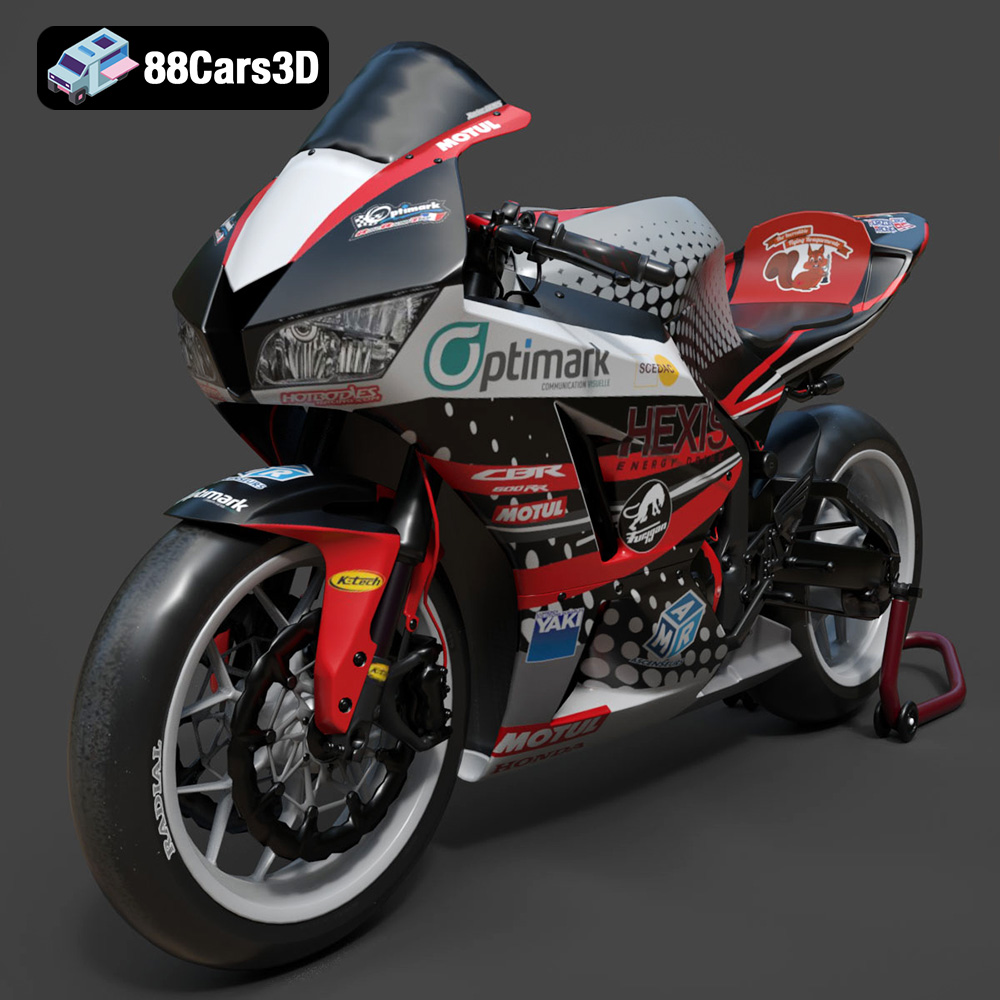
Download the highly detailed, game-ready Honda CBR600RR 3D Model. Features aerodynamic fairings, an iconic center-up exhaust, and an aggressive track-focused stance. Includes .blend, .fbx, .obj, .glb, .stl, .ply, .unreal, and .max formats for game development, AR/VR, and rendering.
Price: $19.99
Texture: Yes | Material: Yes
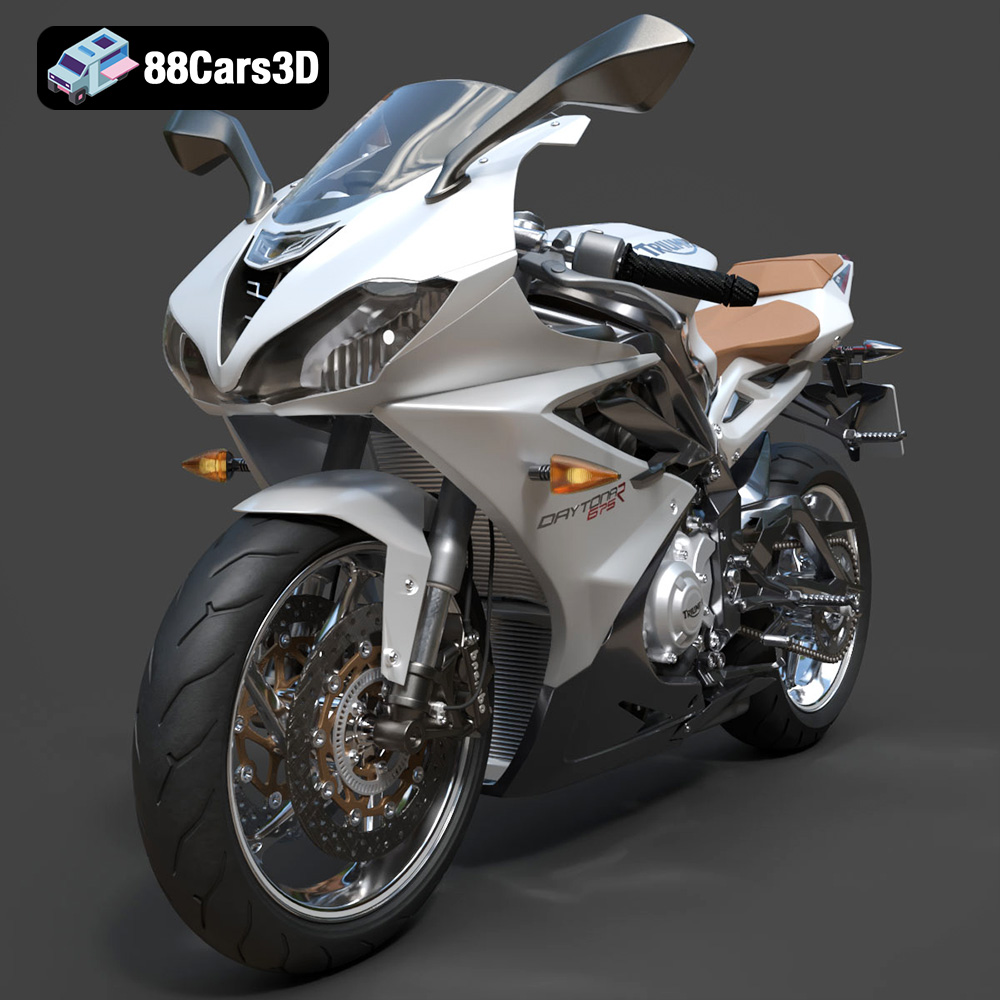
Download the highly detailed, game-ready Triumph Daytona 675R ABS 2015 3D Model. Features aerodynamic sport fairings, a detailed inline-triple engine, and premium Öhlins suspension components. Includes .blend, .fbx, .obj, .glb, .stl, .ply, .unreal, and .max formats for game development, AR/VR, and rendering.
Price: $19.99

Texture: Yes | Material: Yes
Download the highly detailed, game-ready Toyota Tacoma TRD Off-Road 2016 3D Model. Features a rugged exterior, TRD off-road suspension details, and a meticulously crafted interior. Includes .blend, .fbx, .obj, .glb, .stl, .ply, .unreal, and .max formats for game development, AR/VR, and rendering.
Price: $19.99

Texture: Yes | Material: Yes
Download the highly detailed, game-ready Toyota Supra 2020 3D Model. Features aggressive aerodynamic styling, a distinctive double-bubble roof, and accurate B58 engine components. Includes .blend, .fbx, .obj, .glb, .stl, .ply, .unreal, and .max formats for game development, AR/VR, and rendering.
Price: $19.99

Texture: Yes | Material: Yes
Download the highly detailed, game-ready Toyota RAV4 LE 2019 3D Model. Features rugged exterior styling, signature polygonal motif, and a detailed interior. Includes .blend, .fbx, .obj, .glb, .stl, .ply, .unreal, and .max formats for game development, AR/VR, and rendering.
Price: $19.99

