Get 20% OFF All Premium 3D & STL Models!

“`html
The world of 3D printing offers endless possibilities, from creating functional prototypes to crafting intricate works of art. For automotive enthusiasts and model makers, 3D printing printable car models is a particularly exciting avenue. But before you can bring your digital designs to life, you need to understand the critical process of converting polygon-based 3D models into the STL (Stereolithography) file format, the universal language of 3D printers. This conversion is more than just saving a file; it’s about ensuring your model is watertight, optimized for printing, and ready to withstand the scrutiny of your slicer software. In this comprehensive guide, we’ll delve deep into the intricacies of converting polygon models to STL, covering everything from file formats and mesh optimization to software-specific workflows and troubleshooting common issues. Whether you’re a seasoned 3D printing veteran or just starting out, this article will equip you with the knowledge and skills to achieve consistently high-quality prints of your favorite car models and other creations. This is especially important when sourcing models from platforms like 88cars3d.com, where high-quality STL files are readily available, but understanding the underlying principles will help you get the most out of your 3D printing experience. We will explore common issues, discuss repair strategies, and outline best practices to ensure your 3D printed creations are not only accurate but also durable and visually appealing.
Polygon models, commonly found in formats like OBJ and FBX, represent 3D objects as a collection of interconnected polygons, typically triangles or quads. These formats store information about vertex positions, surface normals, and texture coordinates, making them versatile for visual rendering and animation. However, 3D printers require a different kind of data: a precise, watertight surface definition. This is where the STL format comes in. STL represents a 3D object as a collection of triangular facets, defining only the surface geometry. It lacks color, texture, or material information, focusing solely on the shape. This simplicity makes it ideal for 3D printing, as it provides a clear and unambiguous representation of the object’s form. Converting from a polygon model to STL essentially involves tessellating the original surface into triangles and exporting this triangulation as an STL file.
A watertight mesh is absolutely essential for successful 3D printing. A non-watertight mesh contains gaps, holes, or self-intersecting faces, which can confuse the slicer software and lead to printing errors. Imagine trying to fill a leaky bucket – the slicer faces a similar problem when trying to define the inside and outside of a non-watertight object. Slicer software relies on the STL file to define a closed volume, allowing it to accurately calculate the toolpaths for printing. Tools like MeshMixer and Netfabb are invaluable for identifying and repairing non-manifold geometry and closing gaps in your models before converting to STL. For example, MeshMixer’s “Make Solid” tool automatically remeshes the model to create a watertight version. Understanding the difference between manifold and non-manifold geometry is key; manifold geometry ensures every edge is shared by exactly two triangles, defining a closed surface. Non-manifold geometry violates this rule, creating problematic areas for 3D printing.
STL files come in two flavors: ASCII and binary. ASCII STL files are human-readable text files that list the coordinates of each triangle’s vertices and the surface normal. While readable, they are significantly larger than their binary counterparts. Binary STL files encode the same information in a more compact, machine-readable format, resulting in smaller file sizes and faster processing times. For most 3D printing applications, binary STL is the preferred choice. When saving your STL file, always select the binary format to optimize file size and loading speed in your slicer software. The size difference can be substantial, especially for complex models; a binary STL file might be 5-10 times smaller than its ASCII equivalent.
Before you convert your polygon model to STL, several preparation steps are crucial to ensure a successful print. These steps focus on optimizing the mesh for 3D printing, addressing potential issues that could arise during slicing or printing. This stage is critical, especially for complex models with intricate details, such as those available on 88cars3d.com, ensuring that the final printed product meets your expectations. Ignoring these steps can lead to wasted filament, failed prints, and frustration. A little preparation goes a long way in achieving consistently high-quality results.
High-resolution polygon models often contain an unnecessarily large number of polygons, which can increase file size, slow down slicing, and even overwhelm your 3D printer’s processing power. Mesh simplification, also known as decimation, reduces the polygon count while preserving the overall shape of the model. This can significantly improve performance without sacrificing visual quality. Software like Blender and MeshLab offer powerful decimation tools. In Blender, the “Decimate” modifier allows you to reduce the polygon count by a specified ratio or target polygon count. Experiment with different decimation settings to find a balance between polygon reduction and detail preservation. For example, you might be able to reduce a model from 1 million polygons to 200,000 polygons without any noticeable loss of detail.
Ensure your model is scaled to the desired size before converting to STL. Most slicer software can scale models, but it’s best practice to set the correct dimensions in your modeling software to avoid scaling errors later. Also, carefully consider the orientation of your model. The orientation in which you export the STL file will be the default orientation in your slicer. Choose an orientation that minimizes the need for support structures and maximizes bed adhesion. For car models, consider orienting the chassis flat on the build plate for maximum stability. This minimizes the need for supports under the body. For complex overhangs, rotating the model slightly can often reduce the amount of support material required, saving time and material.
Polygon models rely on surface normals to define the direction of the surface. Incorrectly oriented normals can cause issues with shading and can even lead to holes or gaps in the STL file. Ensure all normals are facing outwards, indicating the exterior of the object. Many modeling programs have tools to flip or unify normals. Similarly, checking for non-manifold edges, duplicate faces, and other mesh errors is essential. Tools like Netfabb and MeshMixer excel at identifying and repairing these issues. For example, Netfabb’s automatic repair tool can often fix common mesh errors with a single click. Regularly inspecting your mesh for these issues before converting to STL will save you headaches down the line. Even minor imperfections can lead to significant printing problems.
Numerous software options are available for converting polygon models to STL, each with its own strengths and weaknesses. The best choice depends on your specific needs, skill level, and the complexity of your models. Some software packages focus on ease of use, while others offer advanced features for mesh repair and optimization. Understanding the capabilities of different tools will help you choose the right one for the job. We will explore popular software options and highlight their key features for converting polygon models to STL files for 3D printing. For example, models sourced from 88cars3d.com will need to undergo these checks and modifications, so a proper choice of software is required.
Blender is a powerful, open-source 3D creation suite that includes robust modeling, sculpting, and mesh editing tools. Its versatility makes it an excellent choice for preparing and converting polygon models to STL. Blender allows you to perform a wide range of tasks, from mesh simplification and normal correction to watertightness checks and export to STL format. To export an STL from Blender, simply select the object, go to File -> Export -> Stl (.stl), and choose your desired settings. Use the “Apply Modifiers” option to ensure any modifiers, such as decimation or subdivision surface, are applied to the mesh before exporting. Furthermore, blender is useful when dealing with issues such as overlapping mesh. It also gives more manual control over the repair process than other alternatives.
MeshMixer, from Autodesk, is a free and user-friendly software specifically designed for mesh editing and repair. It excels at identifying and fixing common mesh errors, such as holes, gaps, and self-intersections. MeshMixer’s “Make Solid” tool is particularly useful for creating watertight meshes. To convert a model to STL in MeshMixer, simply import the model, use the repair tools as needed, and then go to File -> Export and select the STL format. Meshmixer can automatically generate support structures, allowing you to optimise your models for minimal waste material.
Other software options include MeshLab, another open-source mesh processing tool with a wide range of filters and algorithms for cleaning and optimizing meshes. FreeCAD is a parametric CAD software that can also import and export STL files, although its strength lies more in creating CAD models from scratch. Cloud-based services like 3D Slash offer simplified mesh editing tools for quick fixes and modifications. The best choice depends on your specific needs and the complexity of your models. For simple models, a basic tool like 3D Slash might suffice. For more complex models requiring extensive repair, MeshMixer or MeshLab might be more appropriate. FreeCAD is useful when you need a CAD based workflow.
Once you have converted your polygon model to STL, the next step is to slice it and prepare it for printing. Slicing software takes the STL file and generates a set of instructions (G-code) that tells your 3D printer how to build the object layer by layer. Optimizing your slicing settings is crucial for achieving high-quality prints and minimizing printing time and material usage. These settings depend heavily on the type of printer you are using (FDM or resin), the material you are printing with, and the desired print quality. Experimentation and fine-tuning are key to achieving the best results.
Layer height is one of the most important slicing parameters. It determines the thickness of each layer, directly affecting print resolution and printing time. Lower layer heights (e.g., 0.1mm) result in smoother surfaces and finer details but increase printing time. Higher layer heights (e.g., 0.3mm) print faster but produce more visible layer lines. The optimal layer height depends on the specific model and the desired balance between quality and speed. For detailed car models, a layer height of 0.1mm to 0.2mm is often a good compromise. For larger, less detailed parts, a layer height of 0.2mm to 0.3mm can save significant time. Consider using adaptive layer height features in your slicer, which automatically adjusts the layer height based on the geometry of the model, optimizing both quality and speed.
Infill refers to the internal structure of the 3D printed object. It determines the strength and weight of the print. Infill density is expressed as a percentage, with 0% being completely hollow and 100% being completely solid. The optimal infill density depends on the intended use of the part. For purely decorative models, a low infill density (e.g., 10-15%) is sufficient. For functional parts that need to withstand stress, a higher infill density (e.g., 25-50%) is recommended. Different infill patterns, such as grid, honeycomb, and gyroid, offer varying degrees of strength and material usage. Gyroid infill, for example, provides excellent strength in all directions with relatively low material usage. The infill pattern and density must be balanced, taking into account material cost, and time to print.
Support structures are temporary structures that support overhangs and bridges during printing. They are essential for printing complex geometries but can also add to printing time and material usage. Slicer software automatically generates support structures, but it’s important to optimize their placement and density. Minimize the amount of support material by carefully orienting your model and adjusting support settings. Consider using tree supports, which are more efficient than traditional linear supports. Experiment with different support densities and overhang angles to find the optimal settings for your printer and material. Removing support structures can sometimes leave blemishes on the surface of the print, so minimize contact area when possible.
The choice of printing material and proper printer calibration are critical factors that influence the final quality of your 3D printed models. Different materials possess distinct properties that make them suitable for various applications. Printer calibration ensures that your printer is accurately extruding material and moving the print head, resulting in dimensionally accurate and structurally sound prints. Both material selection and printer calibration should be considered while preparing the G-Code for any 3D model to achieve optimal results.
FDM (Fused Deposition Modeling) printers use a wide range of thermoplastic filaments, each with its own unique properties. PLA (Polylactic Acid) is a biodegradable, easy-to-print material that is ideal for beginners and decorative models. PETG (Polyethylene Terephthalate Glycol) is stronger and more heat-resistant than PLA, making it suitable for functional parts. ABS (Acrylonitrile Butadiene Styrene) is a durable, impact-resistant material commonly used in automotive applications, but it requires a heated bed and enclosed chamber to prevent warping. Other FDM materials include nylon, TPU (Thermoplastic Polyurethane), and carbon fiber-filled filaments, each offering specialized properties for specific applications. If you are planning to use your printable car models in an outdoor setting, consider using PETG or ABS to ensure long term durability.
Resin printers, such as SLA (Stereolithography), DLP (Digital Light Processing), and MSLA (Masked Stereolithography), use liquid resin that is cured by UV light. Resin printing offers significantly higher resolution and finer details than FDM printing, making it ideal for intricate models and miniatures. Different types of resins are available, each with varying properties such as hardness, flexibility, and heat resistance. Standard resins are suitable for general-purpose printing, while engineering resins offer enhanced mechanical properties. Flexible resins are used for creating flexible parts, and castable resins are used for creating molds for metal casting. Resin printing typically requires more post-processing than FDM printing, including washing and curing.
Proper printer calibration is essential for achieving accurate and reliable prints. This includes calibrating the extruder, bed leveling, and temperature settings. Extruder calibration ensures that your printer is extruding the correct amount of material. Bed leveling ensures that the print bed is perfectly level, allowing for consistent adhesion. Temperature settings must be optimized for the specific material you are using. Most slicer software includes calibration tools and guides to help you fine-tune your printer settings. Regularly calibrating your printer will improve print quality and reduce the likelihood of printing failures. A properly calibrated printer can handle even the most challenging STL files with ease. This is vital for high-detail models, such as those often found on 88cars3d.com, where dimensional accuracy is paramount.
Once your model is printed, post-processing is often necessary to achieve the desired finish and appearance. Post-processing techniques can range from simple tasks like removing support structures to more complex procedures like sanding, painting, and assembly. The specific post-processing steps will depend on the printing material, the intended use of the model, and your personal preferences. Properly executed post-processing can transform a raw 3D print into a polished and professional-looking final product.
The first step in post-processing is typically removing support structures. This can be done manually using tools like pliers, knives, and sandpaper. For FDM prints, carefully snap off the supports, trying to minimize damage to the surface of the print. For resin prints, the supports are often more delicate and can be removed using clippers or by dissolving them in a solvent. After removing the supports, use sandpaper to smooth any remaining blemishes or imperfections. Start with a coarse grit sandpaper and gradually move to finer grits to achieve a smooth surface. Wet sanding can help to reduce dust and improve the finish. Careful sanding can hide the layer lines produced during the printing process.
Painting is a great way to add color and detail to your 3D printed models. Start by priming the surface to provide a good base for the paint. Use acrylic paints or spray paints specifically designed for plastics. Apply multiple thin coats of paint, allowing each coat to dry completely before applying the next. Consider using masking tape to create clean lines and sharp edges. After painting, you can apply a clear coat to protect the paint and add a glossy or matte finish. Other finishing techniques include applying decals, weathering effects, and adding realistic details. For printable car models, consider using automotive paints to achieve a realistic finish.
If your model consists of multiple parts, assembly will be required. Use adhesive to bond the parts together. Cyanoacrylate (super glue) is a common choice for bonding plastic parts. Consider using clamps or jigs to hold the parts in place while the adhesive dries. After assembly, inspect the model for any gaps or imperfections. Fill any gaps with filler or putty and sand smooth. Apply any final touches, such as adding details with paint or decals. Pay attention to the small details, as they can make a big difference in the overall appearance of the model. With careful assembly and finishing, you can transform your 3D printed parts into a cohesive and impressive final product.
Converting polygon 3D models to STL for printing is a multifaceted process that requires a blend of technical knowledge, practical skills, and careful attention to detail. By understanding the nuances of file formats, mesh optimization, slicing parameters, material selection, and post-processing techniques, you can consistently achieve high-quality 3D prints. Remember to prioritize watertight meshes, optimize your slicing settings, and choose the right materials for your specific application. Whether you are printing intricate car models from platforms like 88cars3d.com, functional prototypes, or artistic creations, the principles outlined in this guide will empower you to bring your digital designs to life with confidence. Take the time to experiment with different settings and techniques, and don’t be afraid to learn from your mistakes. 3D printing is a constantly evolving field, and continuous learning is key to mastering the craft. Start today by revisiting your slicing profiles, repairing that troublesome STL, and preparing for your next perfect print.
“`

Texture: Yes | Material: Yes
Download the highly detailed, game-ready Volkswagen Jetta GLI 2019 3D Model. Features an aggressive honeycomb grille with red accents, sleek aerodynamic profile, and exclusive GLI sport wheels. Includes .blend, .fbx, .obj, .glb, .stl, .ply, .unreal, and .max formats for game development, AR/VR, and rendering.
Price: $19.99

Texture: Yes | Material: Yes
Download the highly detailed, game-ready Vintage Vespa 3D Model. Features iconic rounded monocoque styling, classic saddle, and chrome accents. Includes .blend, .fbx, .obj, .glb, .stl, .ply, .unreal, and .max formats for game development, AR/VR, and rendering.
Price: $19.99

Texture: Yes | Material: Yes
Download the highly detailed, game-ready Vespa GS 150 3D Model. Features elegant aerodynamic curves, classic leg shield, and detailed engine casing. Includes .blend, .fbx, .obj, .glb, .stl, .ply, .unreal, and .max formats for game development, AR/VR, and rendering.
Price: $19.99

Texture: Yes | Material: Yes
Download the highly detailed, game-ready Vespa P200E 3D Model. Features classic vintage styling, accurate step-through frame geometry, and authentic detailing. Includes .blend, .fbx, .obj, .glb, .stl, .ply, .unreal, and .max formats for game development, AR/VR, and rendering.
Price: $19.99

Texture: Yes | Material: Yes
Download the highly detailed, game-ready Ural M67-36-P 1976 3D Model. Features the iconic air-cooled boxer engine, vintage utilitarian styling, and authentic spoked wheels. Includes .blend, .fbx, .obj, .glb, .stl, .ply, .unreal, and .max formats for game development, AR/VR, and rendering.
Price: $19.99
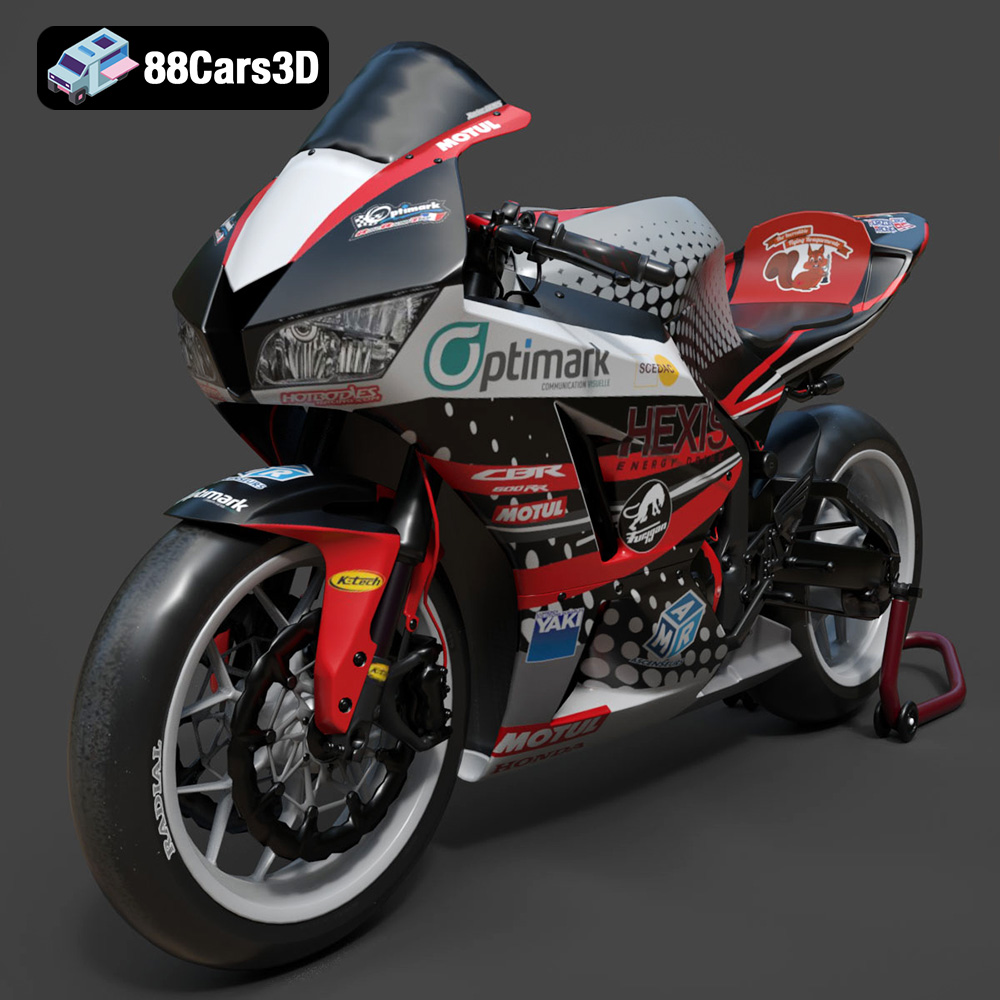
Texture: Yes | Material: Yes
Download the highly detailed, game-ready Honda CBR600RR 3D Model. Features aerodynamic fairings, an iconic center-up exhaust, and an aggressive track-focused stance. Includes .blend, .fbx, .obj, .glb, .stl, .ply, .unreal, and .max formats for game development, AR/VR, and rendering.
Price: $19.99
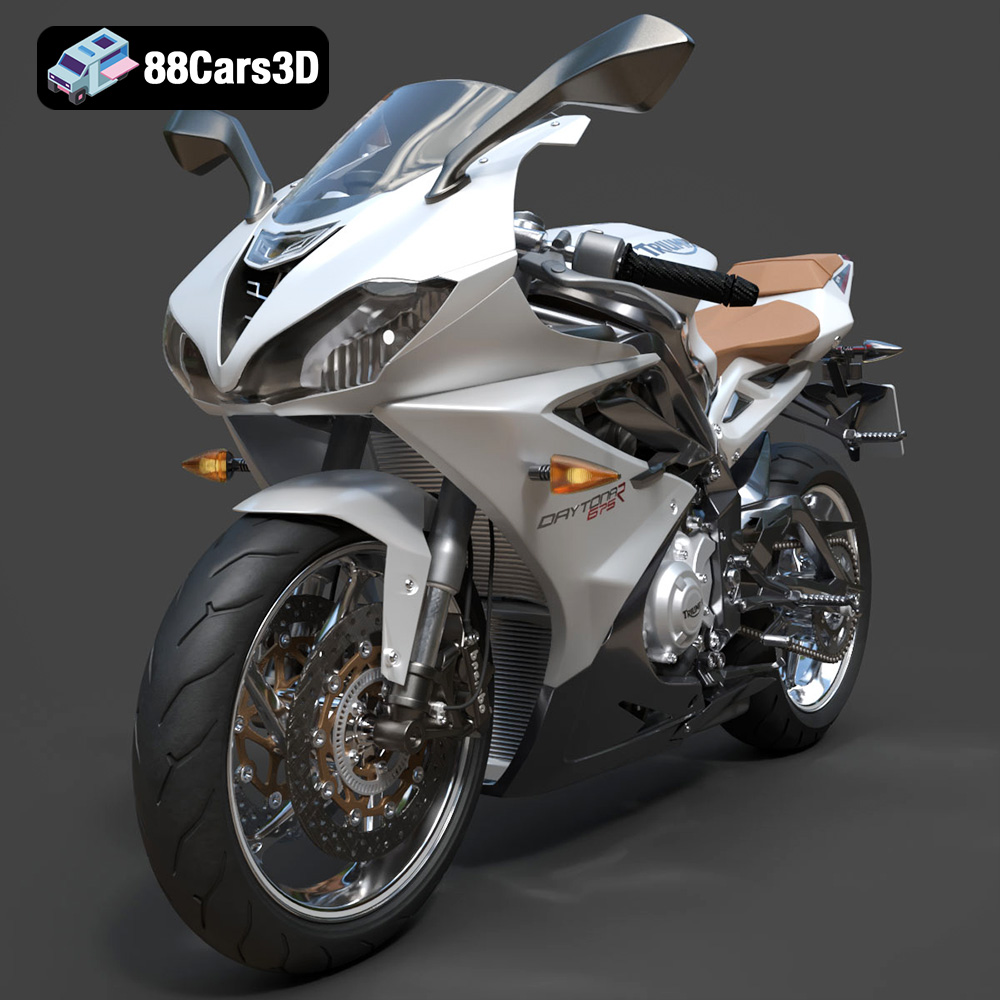
Texture: Yes | Material: Yes
Download the highly detailed, game-ready Triumph Daytona 675R ABS 2015 3D Model. Features aerodynamic sport fairings, a detailed inline-triple engine, and premium Öhlins suspension components. Includes .blend, .fbx, .obj, .glb, .stl, .ply, .unreal, and .max formats for game development, AR/VR, and rendering.
Price: $19.99

Texture: Yes | Material: Yes
Download the highly detailed, game-ready Toyota Tacoma TRD Off-Road 2016 3D Model. Features a rugged exterior, TRD off-road suspension details, and a meticulously crafted interior. Includes .blend, .fbx, .obj, .glb, .stl, .ply, .unreal, and .max formats for game development, AR/VR, and rendering.
Price: $19.99

Texture: Yes | Material: Yes
Download the highly detailed, game-ready Toyota Supra 2020 3D Model. Features aggressive aerodynamic styling, a distinctive double-bubble roof, and accurate B58 engine components. Includes .blend, .fbx, .obj, .glb, .stl, .ply, .unreal, and .max formats for game development, AR/VR, and rendering.
Price: $19.99
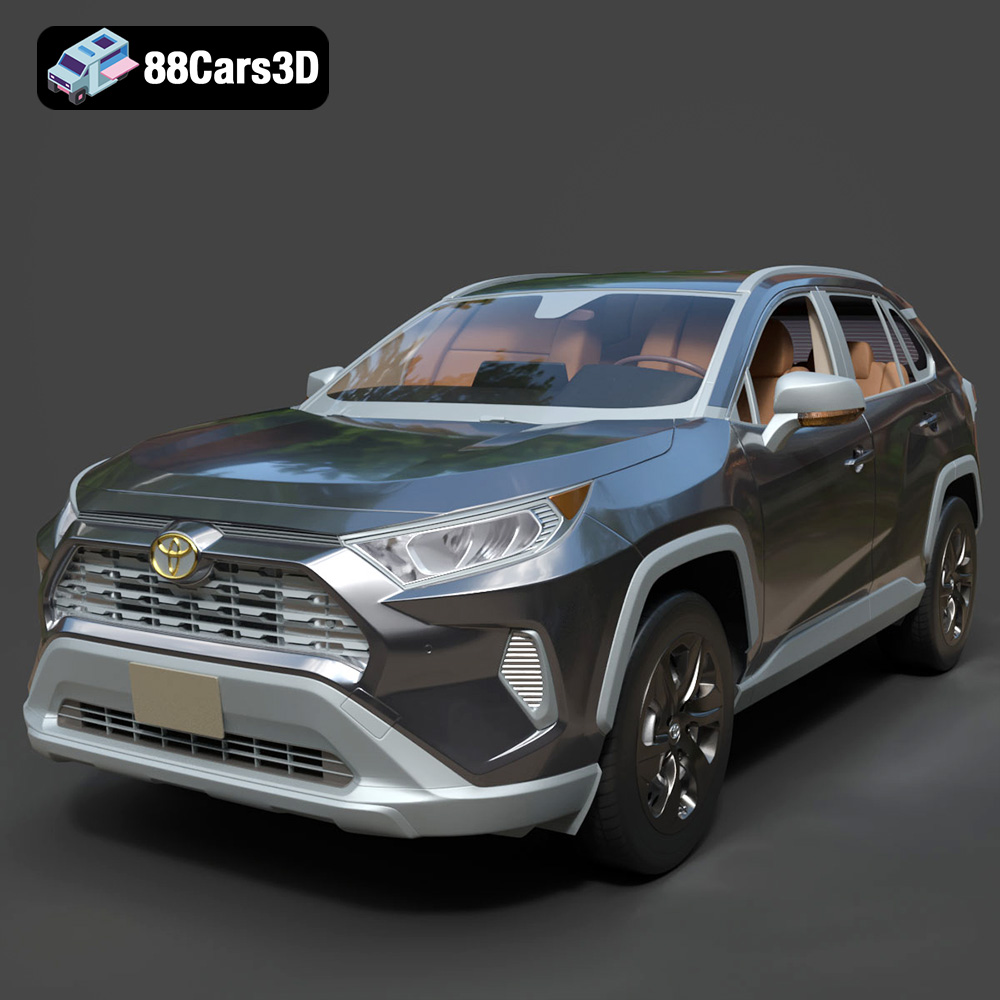
Texture: Yes | Material: Yes
Download the highly detailed, game-ready Toyota RAV4 LE 2019 3D Model. Features rugged exterior styling, signature polygonal motif, and a detailed interior. Includes .blend, .fbx, .obj, .glb, .stl, .ply, .unreal, and .max formats for game development, AR/VR, and rendering.
Price: $19.99

