Get 20% OFF All Premium 3D & STL Models!

“`html
The journey from digital design to physical object via 3D printing can be incredibly rewarding. However, it’s often fraught with potential pitfalls, especially when dealing with STL files. These files, the backbone of 3D printing, are susceptible to errors that can lead to print failures, poor surface quality, or even printer damage. This comprehensive guide will equip you with the knowledge and tools to identify and rectify common STL file errors before they wreak havoc on your 3D printing endeavors. Whether you’re printing intricate automotive models from platforms like 88cars3d.com, functional prototypes, or artistic creations, mastering STL file repair is an essential skill for any serious 3D printing enthusiast. This article will cover the most prevalent STL errors, explain how to detect them, and provide practical solutions using popular software like MeshMixer, Netfabb, and online repair services. By the end of this guide, you’ll be able to ensure that your STL files are print-ready, leading to successful and satisfying 3D printing experiences.
STL files describe the surface geometry of a 3D model using a mesh of triangles. Errors in this mesh, even seemingly minor ones, can cascade into significant problems during the slicing and printing processes. Imagine trying to 3D print a finely detailed car model; any imperfections in the STL file, such as holes or non-manifold edges, can disrupt the precise deposition of material, resulting in a flawed or incomplete print. This is why identifying and addressing these errors upfront is a crucial step to a successful outcome.
Before diving into repair techniques, it’s important to understand the basic structure of an STL file and the common errors that can occur. An STL file represents a 3D object as a collection of interconnected triangles. Each triangle is defined by three vertices and a normal vector that indicates the triangle’s outward-facing direction. The integrity of this mesh is paramount for successful 3D printing.
STL (stereolithography) is a file format native to the stereolithography CAD software created by 3D Systems. It describes a raw, unstructured triangulated surface by the unit normal and vertices (ordered by the right-hand rule) of each triangle. It doesn’t contain any information about color, texture, or material properties. While simple, this representation is sufficient for 3D printers to interpret and build the object layer by layer. The simplicity of the format makes it widely compatible across various 3D printing software and hardware.
Several types of errors can plague STL files, each with its own cause and potential consequences. These errors can arise during the design process, file conversion, or data transfer. Here are some of the most common issues:
These errors can lead to print failures, warping, poor surface finish, and even printer crashes. Therefore, addressing them before printing is essential.
The first step in fixing STL file errors is identifying them. Fortunately, several tools and techniques can help you diagnose problems with your 3D models. Some slicer software even provides basic error detection capabilities, highlighting potential issues before you start the printing process.
Many popular slicer programs, such as Cura and PrusaSlicer, have built-in features that can identify basic STL file errors. When you load an STL file with issues, the slicer may display warnings or highlight problematic areas in red or another contrasting color. These warnings often indicate non-manifold edges, holes, or other common issues. While these built-in features are useful for quick checks, they may not catch all types of errors, especially more subtle ones.
For more comprehensive error detection, dedicated mesh analysis tools like Autodesk MeshMixer and Netfabb are invaluable. These programs offer advanced features for inspecting the STL file’s geometry and identifying a wide range of errors.
When using these tools, pay close attention to the error reports and visualizations they provide. These reports will guide you in identifying the specific types and locations of errors in your STL file. For example, when downloading models from marketplaces such as 88cars3d.com, it’s always a good practice to run them through MeshMixer or Netfabb for a preliminary check.
MeshMixer is a powerful and free tool that can fix a wide range of STL file errors. Its intuitive interface and automated repair functions make it an excellent choice for both beginners and experienced 3D printing enthusiasts. This section will walk you through the process of fixing common STL file errors using MeshMixer.
MeshMixer’s “Make Solid” function is a one-click solution for fixing many common STL file errors. To use it, simply import your STL file into MeshMixer, select “Edit” from the main menu, and then choose “Make Solid.” MeshMixer will automatically analyze the mesh and attempt to repair any identified errors. The “Make Solid” function offers several parameters that you can adjust to fine-tune the repair process. The most important parameters include:
After adjusting these parameters, click “Update” to preview the results. If you’re satisfied with the repair, click “Accept” to save the changes. In many cases, the “Make Solid” function will be sufficient to fix most common STL file errors.
While “Make Solid” can handle many errors automatically, some issues may require manual intervention. MeshMixer provides a range of tools for manually repairing STL files, including:
To use these tools, select the “Sculpt” menu and choose the appropriate tool. Carefully inspect the mesh and identify the areas that need repair. Use the tools to fill holes, erase unwanted triangles, and smooth out any rough edges. When repairing STL files manually, it’s important to work carefully and avoid introducing new errors. Regularly check the mesh for non-manifold edges or other issues.
Autodesk Netfabb is a professional-grade software solution for 3D printing preparation. While it comes with a price tag, it offers unparalleled capabilities for mesh analysis, repair, and optimization. Netfabb’s advanced algorithms and comprehensive toolset make it an excellent choice for complex STL file repairs. If you are working with models with intricate designs, or want to dive deeper into file analysis, Netfabb will be a great choice.
Netfabb’s automatic repair functionality is robust and can fix a wide range of errors with minimal user intervention. To use it, import your STL file into Netfabb and navigate to the “Repair” tab. Click the “Automatic Repair” button to initiate the repair process. Netfabb will analyze the mesh and automatically fix any identified errors. The “Automatic Repair” function offers several options that you can adjust to fine-tune the repair process, including:
For complex STL file errors, Netfabb offers a range of advanced repair techniques. These techniques allow you to precisely control the repair process and address specific issues that may not be fixed by the automatic repair function. Some of the most useful advanced repair techniques include:
Fixing errors is only one part of preparing STL files for 3D printing. Optimizing the file for your specific printer and material is also crucial for achieving the best possible results. This includes adjusting the mesh density, simplifying complex geometries, and ensuring that the model is properly oriented for printing.
Complex STL files with a high triangle count can be challenging to print, especially on lower-end printers. Mesh simplification reduces the number of triangles in the mesh while preserving the overall shape of the model. This can significantly reduce file size and printing time without sacrificing too much detail. MeshMixer and Netfabb both offer powerful mesh simplification tools. When simplifying a mesh, it’s important to strike a balance between reducing the triangle count and preserving the important details of the model. Platforms like 88cars3d.com offer pre-optimized STL files that strike this balance.
The orientation of the model on the print bed can significantly impact the print quality, strength, and printing time. Choosing the optimal orientation can minimize the need for support structures, which can be difficult to remove and may leave blemishes on the printed surface. Consider the following factors when choosing a print orientation:
Support structures are often necessary to support overhangs and other features that cannot be printed directly on the print bed. When generating support structures, it’s important to choose the appropriate type of support and adjust the support settings to optimize for print quality and ease of removal. Common support types include tree supports, linear supports, and raft supports.
The choice of material and printer settings plays a critical role in the success of your 3D printing project. Different materials have different properties and require different printer settings. Understanding these differences is essential for achieving the desired results. For example, printing automotive models often requires materials that can withstand higher temperatures or offer greater durability.
FDM (Fused Deposition Modeling) and resin printing are the two most common 3D printing technologies. FDM printing uses a thermoplastic filament that is heated and extruded through a nozzle to build the object layer by layer. Resin printing uses a liquid resin that is cured by ultraviolet light to create the object. Each technology has its own advantages and disadvantages.
Several key printer settings can significantly impact the quality of your 3D prints. These settings include:
Mastering STL file repair is an indispensable skill for anyone serious about 3D printing. By understanding the structure of STL files, identifying common errors, and utilizing tools like MeshMixer and Netfabb, you can ensure that your 3D models are print-ready and avoid costly print failures. Remember to always inspect your STL files for errors before printing, use automatic repair functions to fix common issues, and manually repair more complex problems. Additionally, optimizing your STL files for your specific printer and material is crucial for achieving the best possible results. Whether you are printing intricate car models from 88cars3d.com or creating functional prototypes, the knowledge and techniques outlined in this guide will empower you to achieve consistent and high-quality 3D prints. Take the time to practice these techniques and experiment with different settings to refine your skills. Happy printing!
“`

Texture: Yes | Material: Yes
Download the highly detailed, game-ready Volkswagen Jetta GLI 2019 3D Model. Features an aggressive honeycomb grille with red accents, sleek aerodynamic profile, and exclusive GLI sport wheels. Includes .blend, .fbx, .obj, .glb, .stl, .ply, .unreal, and .max formats for game development, AR/VR, and rendering.
Price: $19.99

Texture: Yes | Material: Yes
Download the highly detailed, game-ready Vintage Vespa 3D Model. Features iconic rounded monocoque styling, classic saddle, and chrome accents. Includes .blend, .fbx, .obj, .glb, .stl, .ply, .unreal, and .max formats for game development, AR/VR, and rendering.
Price: $19.99

Texture: Yes | Material: Yes
Download the highly detailed, game-ready Vespa GS 150 3D Model. Features elegant aerodynamic curves, classic leg shield, and detailed engine casing. Includes .blend, .fbx, .obj, .glb, .stl, .ply, .unreal, and .max formats for game development, AR/VR, and rendering.
Price: $19.99

Texture: Yes | Material: Yes
Download the highly detailed, game-ready Vespa P200E 3D Model. Features classic vintage styling, accurate step-through frame geometry, and authentic detailing. Includes .blend, .fbx, .obj, .glb, .stl, .ply, .unreal, and .max formats for game development, AR/VR, and rendering.
Price: $19.99

Texture: Yes | Material: Yes
Download the highly detailed, game-ready Ural M67-36-P 1976 3D Model. Features the iconic air-cooled boxer engine, vintage utilitarian styling, and authentic spoked wheels. Includes .blend, .fbx, .obj, .glb, .stl, .ply, .unreal, and .max formats for game development, AR/VR, and rendering.
Price: $19.99
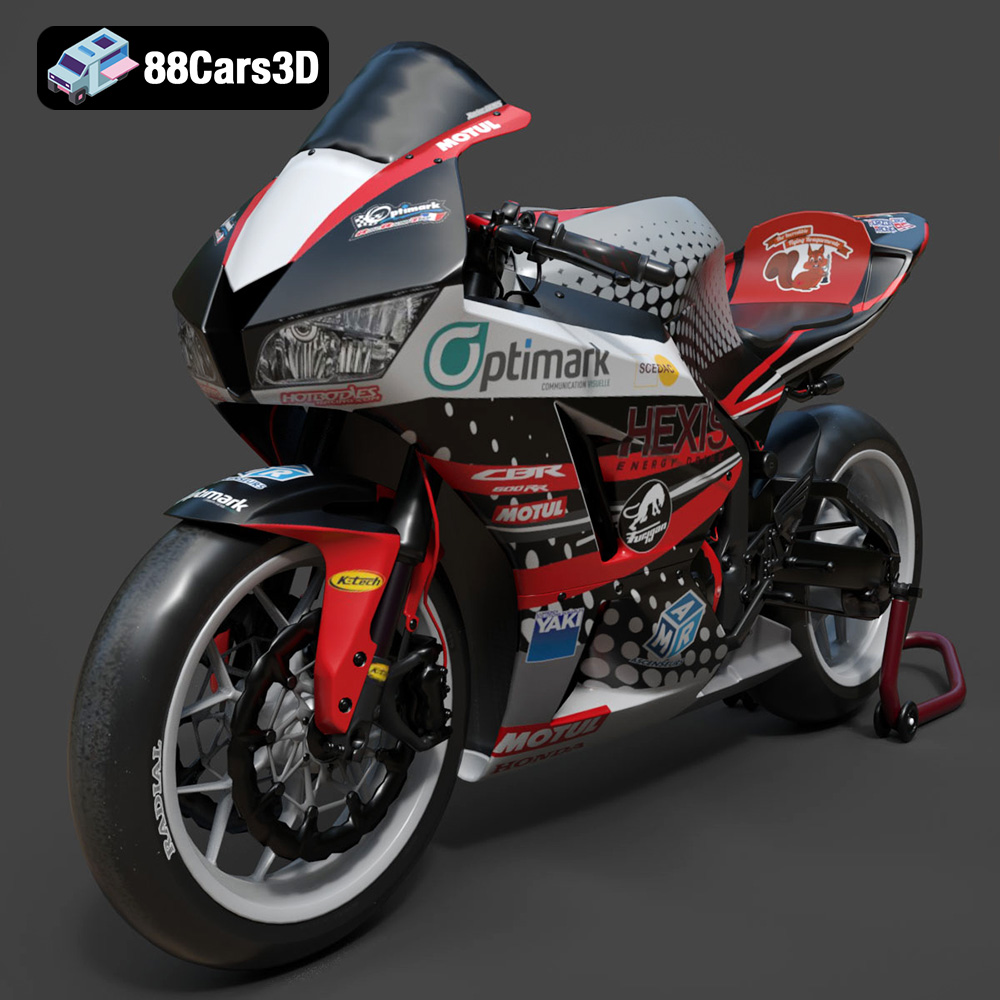
Texture: Yes | Material: Yes
Download the highly detailed, game-ready Honda CBR600RR 3D Model. Features aerodynamic fairings, an iconic center-up exhaust, and an aggressive track-focused stance. Includes .blend, .fbx, .obj, .glb, .stl, .ply, .unreal, and .max formats for game development, AR/VR, and rendering.
Price: $19.99
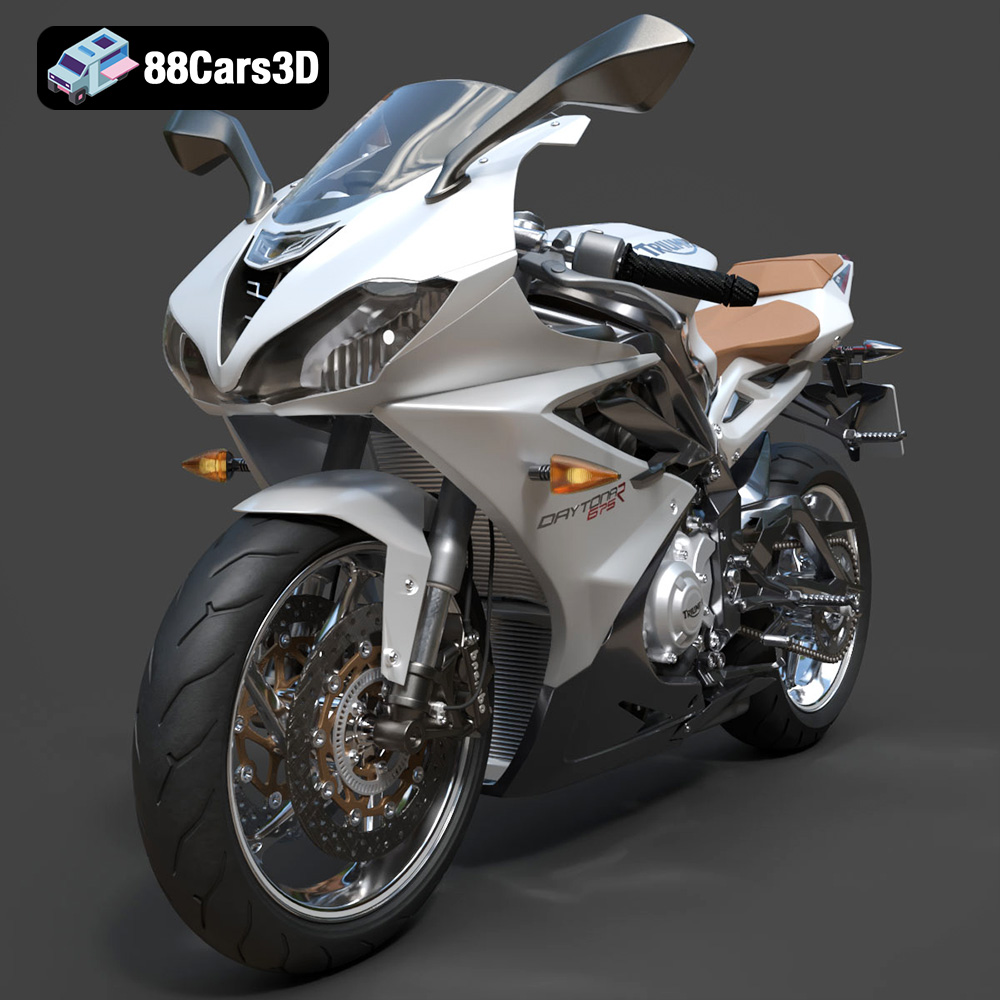
Texture: Yes | Material: Yes
Download the highly detailed, game-ready Triumph Daytona 675R ABS 2015 3D Model. Features aerodynamic sport fairings, a detailed inline-triple engine, and premium Öhlins suspension components. Includes .blend, .fbx, .obj, .glb, .stl, .ply, .unreal, and .max formats for game development, AR/VR, and rendering.
Price: $19.99

Texture: Yes | Material: Yes
Download the highly detailed, game-ready Toyota Tacoma TRD Off-Road 2016 3D Model. Features a rugged exterior, TRD off-road suspension details, and a meticulously crafted interior. Includes .blend, .fbx, .obj, .glb, .stl, .ply, .unreal, and .max formats for game development, AR/VR, and rendering.
Price: $19.99

Texture: Yes | Material: Yes
Download the highly detailed, game-ready Toyota Supra 2020 3D Model. Features aggressive aerodynamic styling, a distinctive double-bubble roof, and accurate B58 engine components. Includes .blend, .fbx, .obj, .glb, .stl, .ply, .unreal, and .max formats for game development, AR/VR, and rendering.
Price: $19.99

Texture: Yes | Material: Yes
Download the highly detailed, game-ready Toyota RAV4 LE 2019 3D Model. Features rugged exterior styling, signature polygonal motif, and a detailed interior. Includes .blend, .fbx, .obj, .glb, .stl, .ply, .unreal, and .max formats for game development, AR/VR, and rendering.
Price: $19.99

