Get 20% OFF All Premium 3D & STL Models!

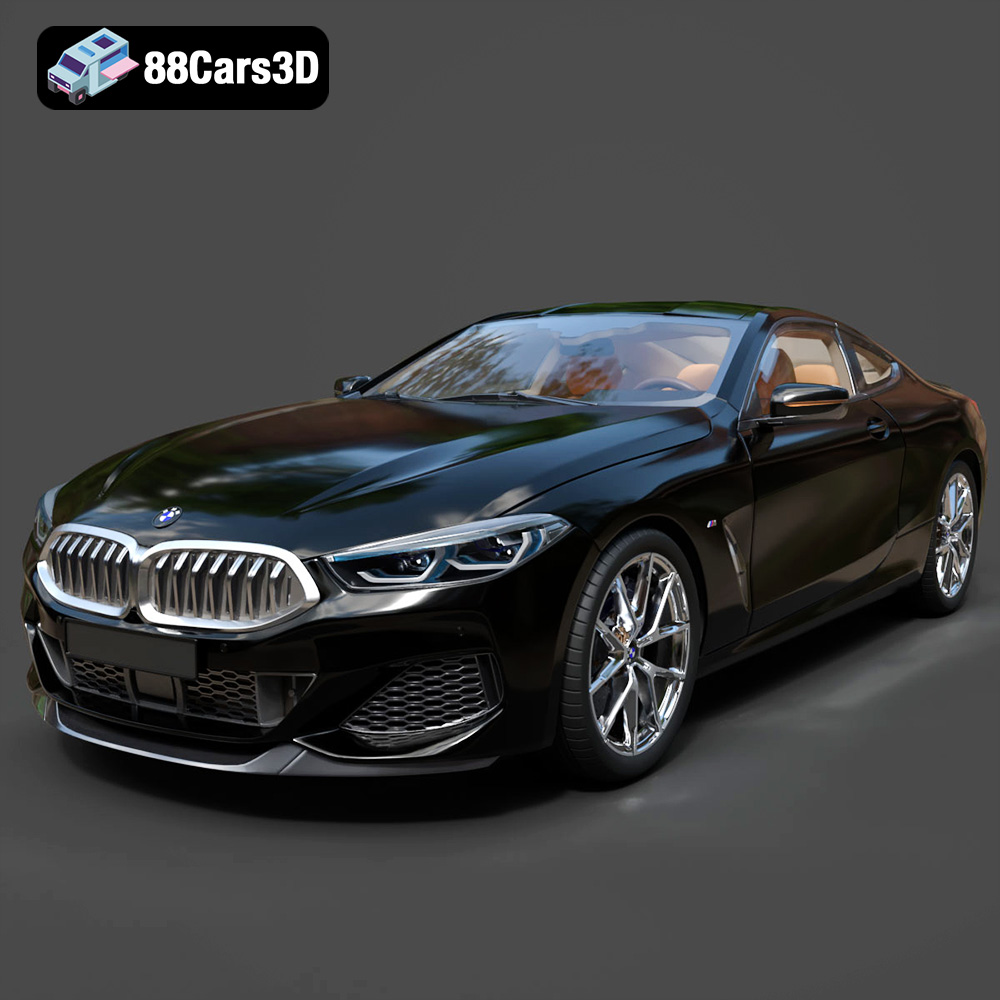
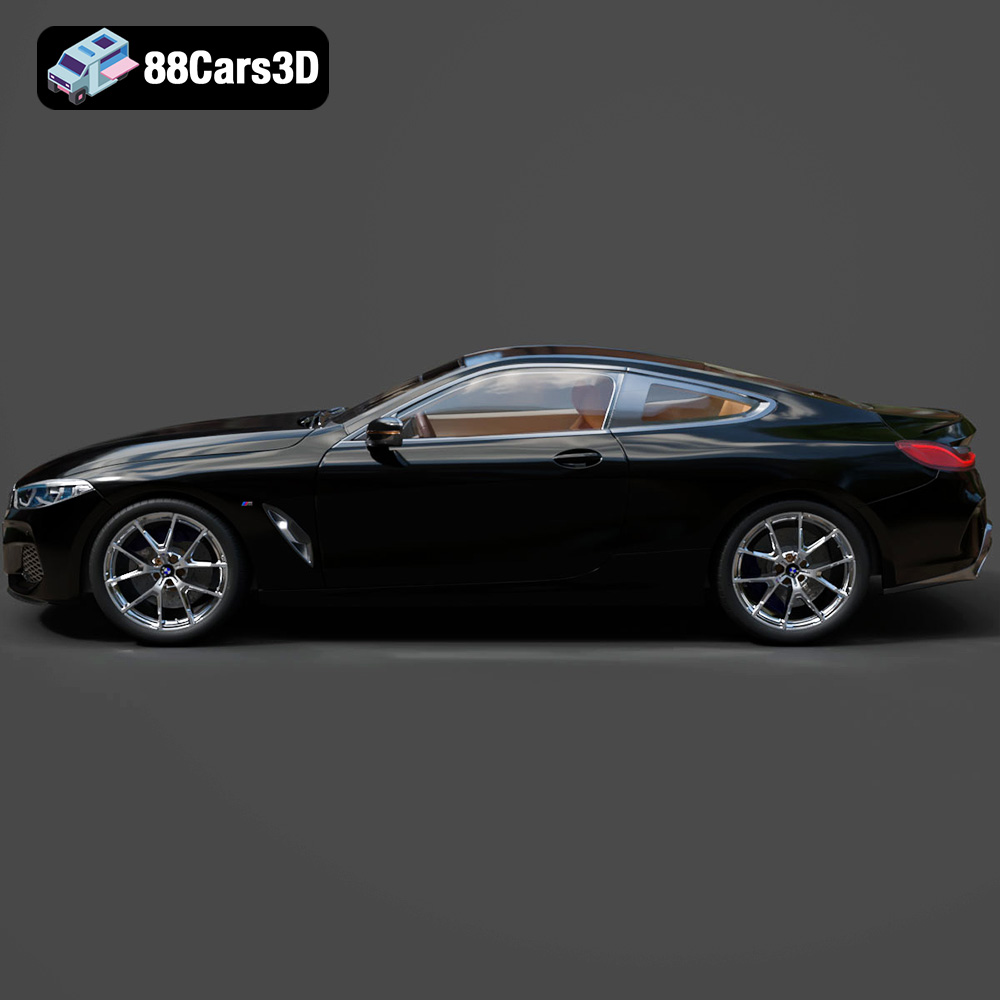
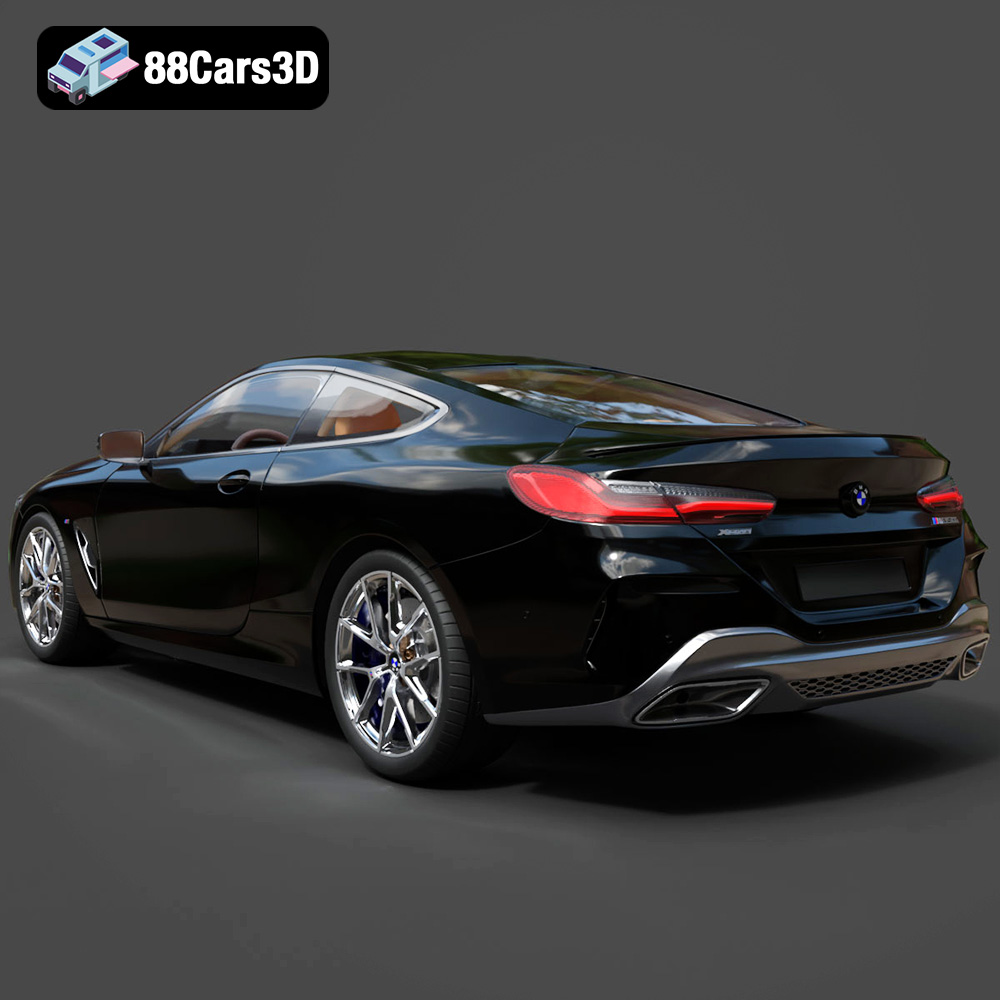
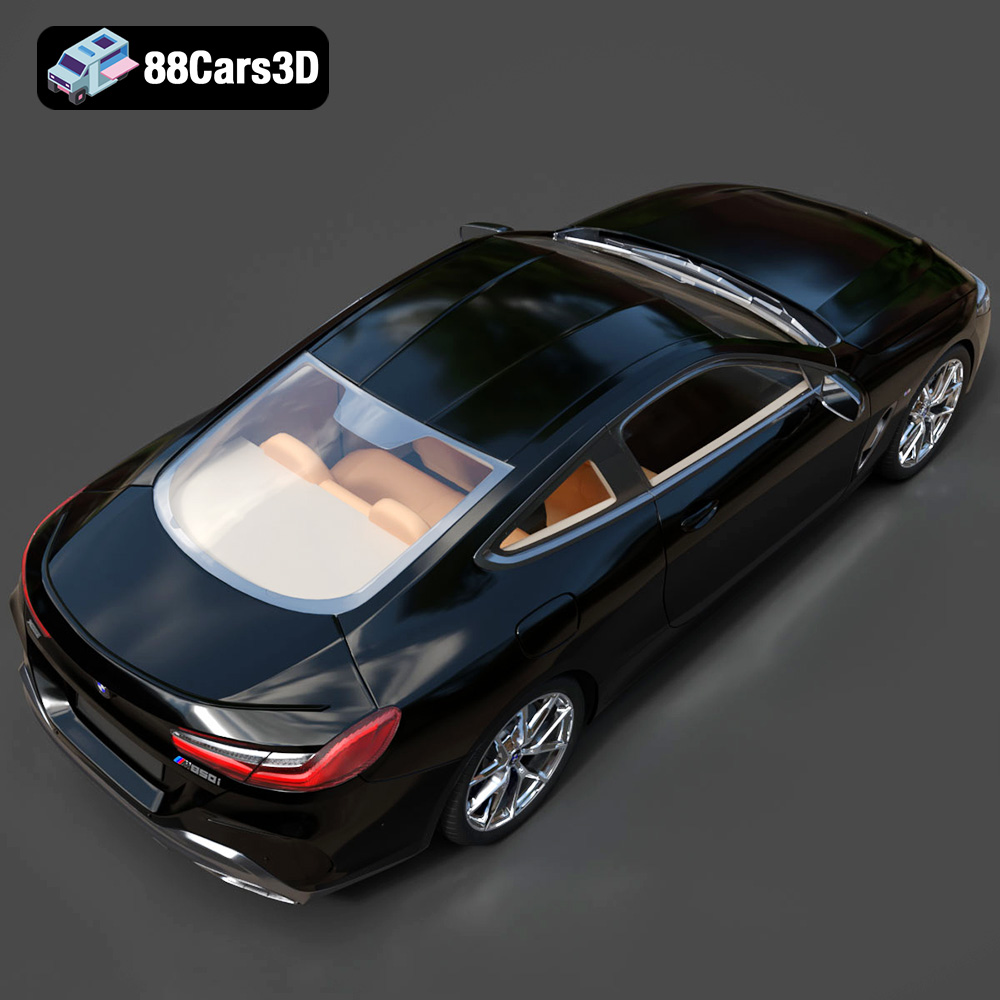
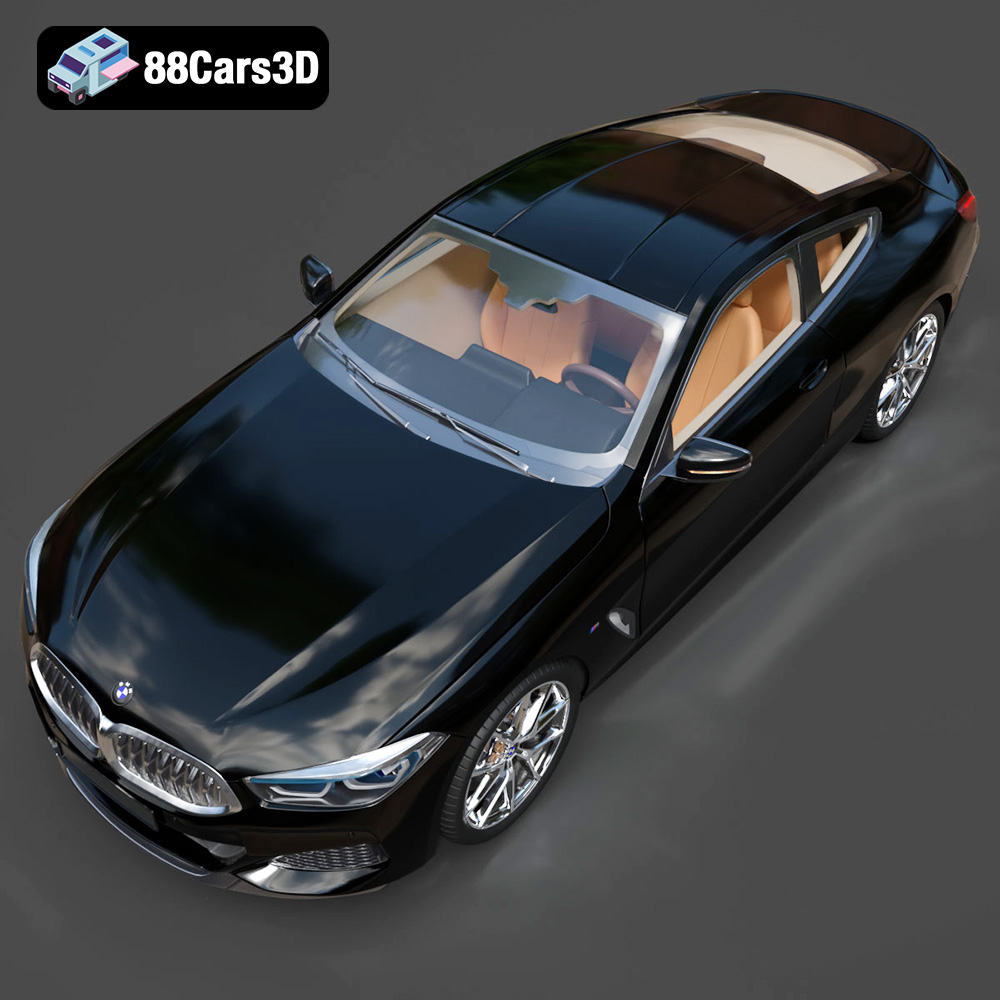
The BMW 8 Series M850i Coupe 2019 is a beautiful car, and bringing a miniature version to life through 3D printing is an exciting project. This guide provides a detailed walkthrough on how to successfully 3D print this stunning model, covering everything from pre-print preparation to post-processing. Whether you’re a seasoned 3D printing enthusiast or just starting, this comprehensive guide will help you achieve impressive results with the BMW 8 Series M850i Coupe 2019 3D model available at 88cars3d.com.
Choosing the right file format is crucial for a successful 3D printing project. While the BMW 8 Series M850i Coupe 2019 3D model comes in various formats, understanding their specific uses and compatibility is key. Here’s a detailed look at the most common formats:
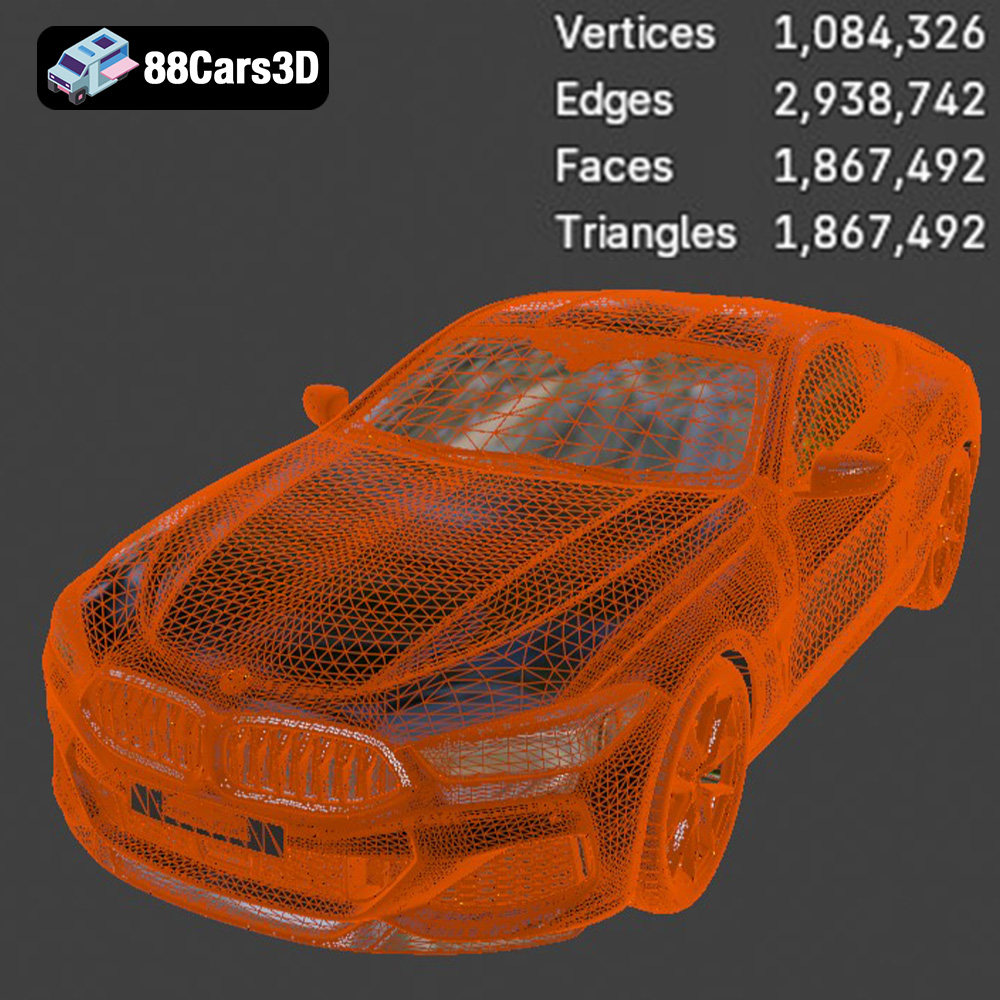
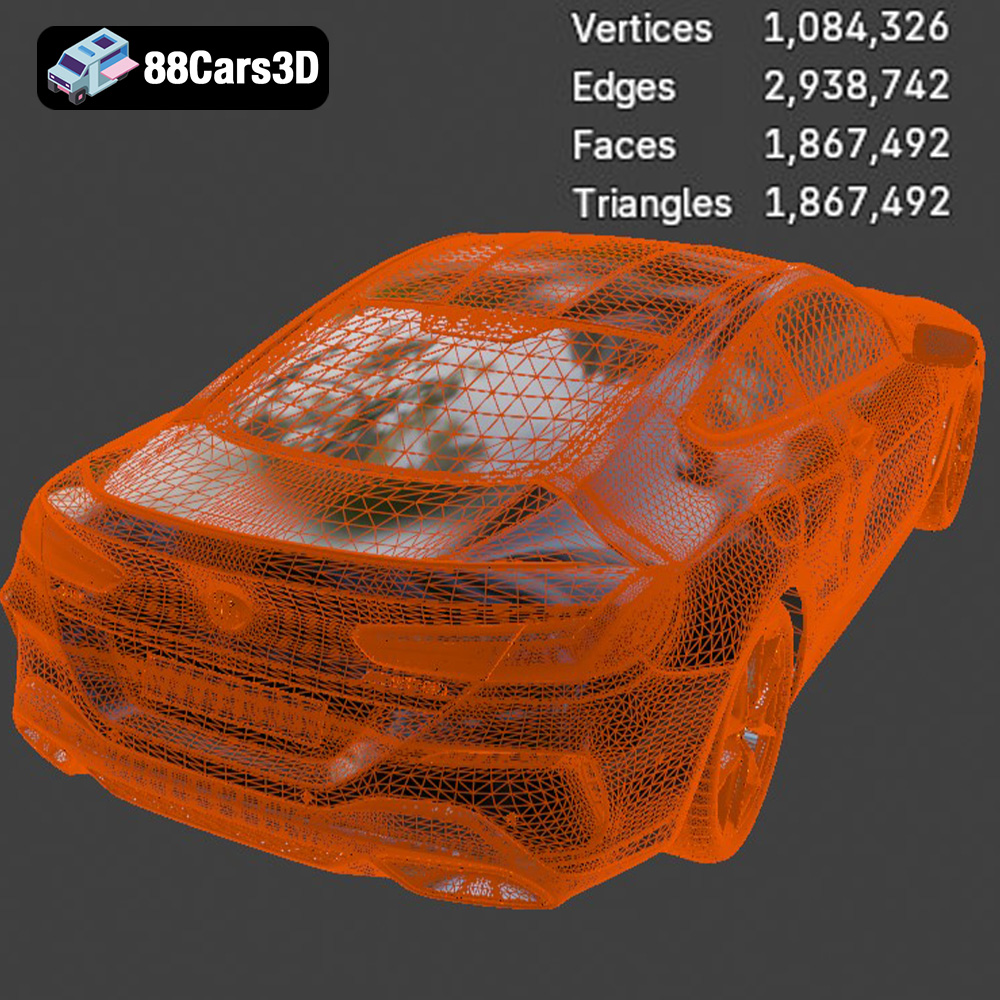
The .stl (Stereolithography) format is the workhorse of 3D printing. It represents the 3D model’s surface geometry as a collection of triangles, forming a mesh. This format is widely supported by almost all slicing software and 3D printers, making it the de facto standard. When working with .stl files, ensure the mesh quality is adequate for your desired print resolution. A higher triangle count results in a smoother surface but can also increase file size and processing time. The .stl format from 88cars3d.com is meticulously prepared, ensuring compatibility and optimal results.
The .obj (Object) format is another common file type, but unlike .stl, it can store color and texture information. While .obj can be used for 3D printing, it’s primarily used for models that require color information, which typically necessitates a multi-material printer or post-processing techniques. For the BMW 8 Series M850i Coupe 2019, the .obj file may contain material definitions which, while not directly printable in full color on most single-extruder printers, can be used as a guide for painting.
The .ply (Polygon File Format) is designed for storing 3D data acquired from 3D scanners. It supports color and texture information and can represent a wider range of geometric primitives than .stl. It can also encode additional properties such as normals and UV coordinates. The .ply format might be useful for reverse engineering or comparison purposes, but generally, .stl is preferable for direct 3D printing due to broader compatibility.
The .blend format is the native file format for Blender, a popular open-source 3D modeling software. This format allows you to directly edit and modify the BMW 8 Series M850i Coupe 2019 model before exporting it for 3D printing. You can adjust the model’s scale, add or remove details, and optimize it for your specific printer. It’s essential to export the final model as an .stl file for 3D printing.
The .fbx (Filmbox) format is primarily used for animation and game development, as it supports animation, skeletons, and other complex data structures. While some advanced slicing software might be able to import .fbx files, it’s generally not the preferred format for 3D printing. If you plan to use the BMW 8 Series M850i Coupe 2019 model in a game engine and then want to print a version, export the model as .stl from the game engine or 3D software.
The .glb (GL Transmission Format Binary) format is designed for efficient transmission and loading of 3D models in web and AR/VR applications. It’s optimized for real-time rendering and can be easily viewed on various devices. While .glb is excellent for previewing the BMW 8 Series M850i Coupe 2019 model in AR before printing, it’s not directly compatible with most 3D printers. You’ll need to convert it to .stl format first.
The .max format is the native file format for 3ds Max, a professional 3D modeling and animation software. Similar to .blend, this format allows you to fully customize the BMW 8 Series M850i Coupe 2019 model. You can modify the geometry, materials, and textures before exporting it as an .stl file for 3D printing.
Ultimately, the .stl format is the most suitable for 3D printing the BMW 8 Series M850i Coupe 2019 model. Ensure the .stl file is properly scaled, oriented, and free of errors before slicing.
Before sending the BMW 8 Series M850i Coupe 2019 3D model to the printer, careful preparation is crucial for a successful outcome. This involves several steps:
The first step is to inspect the .stl file for any potential errors. Use software like MeshLab, Netfabb Basic, or the built-in repair tools in your slicing software (e.g., Cura, Simplify3D) to identify and fix issues such as non-manifold edges, holes, or flipped normals. These errors can cause printing failures or artifacts in the final print. Ensure the model is a closed, watertight mesh. The models available on 88cars3d.com are generally well-prepared, but it’s always a good practice to double-check.
Decide on the desired size of the printed model. Consider the printer’s build volume and the level of detail you want to capture. Scaling can be done within the slicing software. Next, determine the optimal print orientation. For the BMW 8 Series M850i Coupe 2019, printing the car body with the roof facing upwards and the chassis downwards often yields the best results, as it minimizes the need for support structures on visible surfaces. Rotate the model in your slicer to achieve this orientation.
Analyze where support structures are needed. Overhanging parts, such as the side mirrors, spoiler, and parts of the chassis, will require support. Experiment with different support settings in your slicing software to find a balance between support strength and ease of removal. Consider using tree supports or lightweight support options to minimize material usage and potential surface damage.
The choice of material and printer settings significantly impacts the quality and durability of the 3D printed BMW 8 Series M850i Coupe 2019 model.
* **PLA (Polylactic Acid):** PLA is an excellent starting point due to its ease of printing and biodegradability. It’s suitable for models that don’t require high heat resistance or flexibility.
* **PETG (Polyethylene Terephthalate Glycol-modified):** PETG offers better strength, flexibility, and temperature resistance than PLA. It’s a good option if you want a more durable model.
* **ABS (Acrylonitrile Butadiene Styrene):** ABS is known for its high strength and heat resistance, but it’s more challenging to print due to warping issues. It’s suitable for models that will be exposed to higher temperatures.
* **Resin (SLA/DLP):** Resin printers offer exceptional detail and smooth surfaces, making them ideal for small, intricate models. However, resin prints tend to be more brittle and require post-curing.
* **Layer Height:** A layer height of 0.1mm to 0.2mm is recommended for FDM printing to capture the fine details of the BMW 8 Series M850i Coupe 2019. For resin printing, layer heights of 0.025mm to 0.05mm will provide excellent resolution.
* **Infill Density:** An infill density of 15% to 25% is generally sufficient for structural integrity while minimizing material usage. Increase the infill density for parts that require higher strength.
* **Print Speed:** A print speed of 40mm/s to 60mm/s is a good starting point for PLA and PETG. Reduce the speed for more complex sections or when using ABS. Resin printing speeds are dictated by the printer and resin properties.
* **Temperature:** Adjust the temperature according to the filament manufacturer’s recommendations. PLA typically prints between 190°C and 220°C, while PETG prints between 230°C and 250°C.
* **Bed Adhesion:** Ensure good bed adhesion to prevent warping. Use a heated bed (60°C for PLA, 70-80°C for PETG, 100-110°C for ABS) and consider using a raft or brim.
Slicing is the process of converting the 3D model into a set of instructions (G-code) that the 3D printer can understand. Choosing the right slicing software and settings is crucial.
Popular slicing software options include Cura, Simplify3D, PrusaSlicer, and Chitubox (for resin printing). Each software has its strengths and weaknesses, so choose one that fits your needs and experience level.
* **Support Settings:** Fine-tune the support settings to optimize support placement and removal. Experiment with different support densities, angles, and interface layers.
* **Seam Placement:** Control the placement of the Z-seam to minimize its visibility. Aligning the seam along a less noticeable edge of the car can improve the overall appearance.
* **Retraction Settings:** Adjust retraction settings to prevent stringing and oozing, especially when printing with flexible filaments like PETG.
* **Cooling:** Ensure adequate cooling to prevent warping and improve layer adhesion, especially when printing PLA.
* **Variable Layer Height:** Use variable layer height to increase resolution in areas with fine details and decrease it in less critical areas to speed up printing.
* **Adaptive Infill:** Employ adaptive infill patterns to optimize strength and material usage based on the model’s geometry.
* **Manual Supports:** Manually add or remove supports to customize support placement and minimize potential surface damage.
Post-processing is the final step in bringing the 3D printed BMW 8 Series M850i Coupe 2019 to life. It involves removing support structures, smoothing the surface, and adding finishing touches.
Carefully remove support structures using pliers, cutters, or a hobby knife. Take your time to avoid damaging the model’s surface. For soluble support materials (e.g., PVA), dissolve them in water according to the manufacturer’s instructions.
Sand the model’s surface to remove layer lines and imperfections. Start with coarse sandpaper (e.g., 220 grit) and gradually move to finer grits (e.g., 400, 600, 800, 1000 grit) to achieve a smooth finish. For resin prints, wet sanding is often recommended.
Apply a primer coat to prepare the surface for painting. Choose a primer that is compatible with the 3D printing material. After the primer has dried, apply multiple thin coats of paint, allowing each coat to dry before applying the next. Consider using automotive paints for a realistic finish.
If the model consists of multiple parts, assemble them using glue or fasteners. Ensure proper alignment and fit before permanently joining the parts.
Even with careful preparation, 3D printing can sometimes present challenges. Here are some common issues and their solutions:
* **Problem:** The model lifts from the print bed during printing, causing warping.
* **Solution:** Ensure good bed adhesion by using a heated bed, applying an adhesive (e.g., glue stick, hairspray), and leveling the bed properly. Adjust the first layer settings to increase bed adhesion.
* **Problem:** Fine strands of filament are left between different parts of the model.
* **Solution:** Increase retraction distance and speed, decrease printing temperature, and ensure the filament is dry.
* **Problem:** Layers are misaligned, causing a visible shift in the model.
* **Solution:** Check the printer’s belts for tightness, ensure the printer is stable, and reduce printing speed.
* **Problem:** Insufficient filament is extruded, resulting in weak or incomplete layers.
* **Solution:** Increase printing temperature, decrease printing speed, check the nozzle for clogs, and ensure the filament is feeding smoothly.
* **Problem:** The first layer is wider than subsequent layers, creating a flared base.
* **Solution:** Reduce the initial layer temperature, decrease the initial layer flow rate, and ensure the bed is properly leveled.
By following these guidelines, you can successfully 3D print the BMW 8 Series M850i Coupe 2019 model from 88cars3d.com and achieve a stunning result. Remember that patience and experimentation are key to mastering the art of 3D printing.
Experience the exceptional realism of the BMW 8 Series M850i Coupe 2019 3D Model, expertly crafted to bring authentic automotive design to your digital projects. This meticulously built digital asset captures the sophisticated, sporty silhouette and luxurious details of the renowned coupe, providing a stunning visual centerpiece for any scene.
$19.99
.8series
.arvr
.blend
.bmw
.car3dmodel
.coupe
.fbx
.gameasset
.glb
.luxurycar
.m850i
.max
.obj
.ply
.rendering
.simulation
.sportsCar
.stl
.unreal