Get 20% OFF All Premium 3D & STL Models!

“`html
The world of 3D printing offers incredible opportunities for hobbyists and professionals alike, particularly in creating intricate models like those found on platforms like 88cars3d.com. However, the journey from digital design to tangible object often involves a crucial step: cleaning up your STL files. While many CAD programs can generate STL files, they aren’t always perfect for 3D printing. Imperfections in the mesh can lead to print failures, weakened structures, and unsightly blemishes. This comprehensive guide will walk you through the process of cleaning and optimizing STL files using Blender, a powerful and free open-source software. You’ll learn essential techniques to ensure your 3D printed car models, and other projects, come out flawlessly. This guide will cover everything from identifying common STL issues to applying advanced mesh editing techniques. Prepare to elevate your 3D printing game!
In this guide, you’ll discover:
Before diving into Blender, it’s crucial to understand the underlying structure of STL (Stereolithography) files and the common problems that can plague them. STL files represent 3D models as a collection of triangles, where each triangle is defined by its three vertices and a normal vector indicating its outward-facing direction. Issues arise when these triangles are poorly connected, overlapping, or oriented incorrectly.
Non-manifold geometry is a frequent culprit behind 3D printing woes. It refers to situations where the mesh violates certain rules necessary for a solid, printable object. Examples include edges shared by more than two faces (creating self-intersections), faces that don’t form a closed volume (leaving gaps), and zero-thickness faces (creating infinitely thin surfaces). These issues confuse slicer software, often leading to failed prints or structurally weak models. Blender offers tools to identify and correct these errors, ensuring your STL file represents a watertight, printable object. For car models, this could manifest as internal faces within the body or gaps around windows.
While high-resolution meshes with a large number of polygons offer greater detail, they can also bog down your 3D printer and increase printing time significantly. Conversely, a low-resolution mesh can result in a blocky or faceted appearance, especially on curved surfaces. The key is to find a balance that provides sufficient detail while remaining manageable for your printer. Techniques like decimation (reducing the polygon count while preserving overall shape) and remeshing (reconstructing the mesh with a more uniform distribution of polygons) can help optimize mesh density for 3D printing. For car models with intricate details like grills or wheels, balancing polygon count is essential.
Each triangle in an STL file has a normal vector that indicates the direction the surface is facing. Consistent normal orientation is crucial for slicer software to correctly interpret the model’s interior and exterior. Inverted or flipped normals can lead to parts of the model being printed inside-out or with missing sections. Blender provides tools to visualize and correct normal orientations, ensuring that all faces are pointing in the correct direction. This is especially important for complex car model geometries.
Once you understand the common STL file issues, you’re ready to import and navigate your model within Blender. Blender’s interface can seem daunting at first, but mastering a few basic controls will significantly improve your workflow. Remember to download and install the latest version of Blender from blender.org before proceeding.
To import your STL file, go to File > Import > Stl (.stl). Navigate to the location of your STL file and select it. Blender will import the model into the 3D viewport. It’s essential to note that the scale of imported models can vary. You might need to adjust the scale after import to match your intended print size. Platforms like 88cars3d.com often provide scale recommendations for their printable car models.
Mastering the viewport controls is crucial for inspecting and editing your model. Here are some essential controls:
Use these controls to thoroughly examine your model from all angles, looking for potential issues like non-manifold geometry, gaps, or flipped normals. Experiment with different viewport shading modes (Wireframe, Solid, Material Preview) to better visualize the mesh.
Blender has two primary modes for interacting with objects: Object Mode and Edit Mode. Object Mode is used for manipulating the entire object (e.g., moving, rotating, scaling). Edit Mode, accessed by pressing ‘Tab’, allows you to directly manipulate the individual vertices, edges, and faces of the mesh. For cleaning up STL files, you’ll primarily be working in Edit Mode.
Blender offers a suite of powerful tools and modifiers specifically designed for mesh repair and optimization. Understanding how to use these tools effectively is key to preparing your STL files for successful 3D printing.
The “Merge by Distance” tool, accessible in Edit Mode under Mesh > Clean Up > Merge by Distance (or by pressing ‘Alt + M’ and selecting “By Distance”), is invaluable for welding together vertices that are extremely close to each other. This often occurs when importing STL files or after performing boolean operations. By setting a small distance threshold (e.g., 0.001 mm), you can automatically merge these nearly overlapping vertices, simplifying the mesh and resolving potential non-manifold geometry issues. Start with a very small value and increase it incrementally until vertices are merged, but be careful not to merge unintended vertices. For car models, this is particularly useful around fine details like headlights or panel lines.
The “Fill” tool, accessible in Edit Mode by selecting a boundary loop (a series of connected edges surrounding a hole) and pressing ‘F’, allows you to quickly close gaps and holes in your mesh. This is essential for ensuring that your model is watertight and printable. For more complex holes, you may need to manually select edges and create new faces using the ‘F’ key to connect them. Consider using the “Grid Fill” option (search for it via ‘F3’ then typing ‘Grid Fill’) for more controlled and even filling of circular or square openings. For printable car models, use this technique to fix holes in bumpers, undercarriages, or wheel wells.
The “Remesh” modifier is a powerful tool for reconstructing the topology of your mesh, creating a more uniform distribution of polygons and resolving complex geometry issues. It can be particularly useful for fixing self-intersections and creating a smoother surface. Add the Remesh modifier from the Modifier Properties panel. Experiment with different modes (e.g., Voxel, Blocks, Smooth) and settings to achieve the desired result. Be aware that the Remesh modifier can significantly increase the polygon count, so use it judiciously. If the model loses too much detail after remeshing, try increasing the “Octree Depth” (under Voxel mode) or decreasing the “Scale” value (under Blocks mode) for finer results. Applying this to a 3D printable car model can drastically improve surface smoothness.
Addressing non-manifold geometry is arguably the most critical step in preparing STL files for 3D printing. Blender provides several tools to identify and correct these issues, ensuring that your model is a solid, printable object.
The “Select Non-Manifold” tool, found under Select > Select All By Trait > Non Manifold in Edit Mode, is your first line of defense against non-manifold geometry. This tool automatically selects all edges and faces in your mesh that violate manifold rules. Once selected, you can then use other tools like “Merge by Distance,” “Fill,” and manual editing to correct the identified issues. If nothing is selected, try recalculating the normals first (see below).
Incorrect normal orientation can often lead to non-manifold geometry errors. To recalculate normals, select all faces in Edit Mode (press ‘A’) and then go to Mesh > Normals > Recalculate Outside. This will attempt to automatically flip the normals of faces so that they are pointing outwards. You can also manually flip individual normals by selecting the face and going to Mesh > Normals > Flip. Enable “Face Orientation” under Viewport Overlays (the dropdown in the top right of the 3D Viewport) to visualize normal direction – blue means the face is facing outwards, and red means it’s facing inwards. Consistent blue across the model is what you want.
In some cases, automated tools may not be sufficient to fully resolve non-manifold geometry issues. Manual mesh editing, involving the direct manipulation of vertices, edges, and faces, may be necessary. Use tools like the “Knife” tool (press ‘K’) to create new edges, the “Extrude” tool (press ‘E’) to add new faces, and the “Vertex Slide” tool (press ‘Shift + V’) to reposition vertices while maintaining edge connectivity. Be patient and methodical when manually editing the mesh, as even small errors can lead to further problems. Remember to periodically use the “Select Non-Manifold” tool to check your progress.
While high-resolution meshes offer greater detail, they can also significantly increase printing time and strain your 3D printer’s resources. Reducing polygon count without sacrificing essential details is a crucial aspect of STL file optimization. Remember to save a backup copy of your original file before applying any decimation techniques.
The “Decimate” modifier is a powerful tool for reducing the polygon count of your mesh while preserving its overall shape. Add the Decimate modifier from the Modifier Properties panel. There are several modes available:
Experiment with different modes and settings to achieve the desired level of simplification. For car models with complex curves, the “Collapse” mode with the “Preserve UVs” option (if applicable) is often a good choice. Start with a small ratio (e.g., 0.9) and gradually decrease it until you reach a satisfactory balance between detail and polygon count. The “Symmetry” option can be useful to maintain symmetry across the model.
For more targeted polygon reduction, you can manually remove unnecessary edge loops or dissolve individual edges. To remove an edge loop, select it (Alt + Click on an edge) and press ‘Ctrl + X’. To dissolve an edge, select it and press ‘X’ then choose “Dissolve Edges”. Be careful when using these tools, as they can significantly alter the shape of your model. Focus on removing edges and loops in areas with minimal curvature or detail. Avoid removing edges that define important features of the car model, such as panel lines or window frames.
For models where preserving fine details is paramount, you can bake high-resolution details onto a normal map. A normal map is a texture that simulates surface details without actually increasing the polygon count. This technique involves creating a high-resolution version of your model, sculpting intricate details onto it, and then baking those details onto a normal map that is applied to a lower-resolution version of the model. This is a more advanced technique, but it can be highly effective for preserving fine details while optimizing the model for 3D printing. Numerous online tutorials cover baking normal maps in Blender.
Many 3D printable car models are designed as thin shells to minimize material usage and printing time. However, this can result in structurally weak models that are prone to breakage. Adding thickness and reinforcing weak areas is often necessary to ensure the durability of your printed model.
The “Solidify” modifier is a simple and effective way to add uniform thickness to your model. Add the Solidify modifier from the Modifier Properties panel. Adjust the “Thickness” value to the desired wall thickness for your model. A thickness of 1-2 mm is generally sufficient for most 3D printing applications, but this may vary depending on the material and size of your model. The “Even Thickness” option helps to maintain a consistent wall thickness across the model, even in areas with complex curvature. Be careful when applying the Solidify modifier to models with internal cavities or intricate details, as it can sometimes create overlapping geometry. Adding thickness to the body panels of your 3D printable car model will significantly improve its strength.
For areas that are particularly prone to breakage, you can add internal support structures to reinforce them. This can involve adding ribs, gussets, or other geometric features that provide additional support. You can create these support structures manually using Blender’s modeling tools, or you can use specialized plugins that automatically generate internal support structures. The key is to position these support structures in strategic locations where they will provide the most benefit without interfering with the model’s aesthetics. Pay attention to areas such as axles, suspension points, and thin overhangs on your 3D printable car models.
Boolean operations allow you to combine or subtract shapes from your model, which can be useful for creating complex internal structures or adding details. For example, you can use a boolean operation to subtract a cylinder from the interior of a model, creating a hollow cavity. Or, you can use a boolean operation to add a cube to the exterior of a model, creating a raised detail. Add a Boolean Modifier and experiment with “Difference”, “Union”, and “Intersect” options to get the desired results. Be mindful of the potential for creating non-manifold geometry when using boolean operations. After any boolean operation, it’s good practice to use “Merge by Distance” to clean up overlapping vertices.
Once you’ve cleaned and optimized your STL file in Blender, you’re ready to export it and prepare it for slicing. Proper export settings are crucial for ensuring that your model is correctly interpreted by your slicer software.
Go to File > Export > Stl (.stl). In the export settings, ensure that the “Selection Only” option is checked if you only want to export the selected object. The “Apply Modifiers” option will apply all modifiers to the mesh before exporting, which is generally desirable. Pay close attention to the “Scale” value. Ensure that the scale is set to 1.0, unless you have intentionally scaled the model in Blender. Choose a descriptive file name and save the file to a location where you can easily find it.
Before proceeding to slicing, it’s a good idea to verify the exported STL file by importing it back into Blender or another 3D modeling software. This will allow you to check that the model has been exported correctly and that no errors have occurred during the export process. Look for any missing faces, distorted geometry, or other anomalies.
Import your cleaned STL file into your preferred slicing software (e.g., Cura, PrusaSlicer). Choose appropriate printer settings based on your printer, material, and desired print quality. This includes settings such as layer height, infill density, print speed, and support structures. Proper slicing and printer settings are essential for achieving a successful 3D print. Remember to consult your printer’s documentation and experiment with different settings to find what works best for your specific needs.
Cleaning and optimizing STL files using Blender is a crucial step in the 3D printing workflow, especially when working with intricate models from sources like 88cars3d.com. By understanding the underlying structure of STL files, mastering essential Blender tools, and following a systematic approach, you can ensure that your 3D printed car models, and all other projects, come out flawlessly. Remember to address non-manifold geometry, optimize mesh density, add thickness and reinforcement, and export your file with the correct settings.
The journey to 3D printing perfection is a continuous learning process. Don’t be afraid to experiment with different techniques, explore online resources, and seek advice from experienced 3D printing enthusiasts. With practice and perseverance, you’ll be able to overcome any challenges and unlock the full potential of 3D printing. Happy printing!
“`

Texture: Yes | Material: Yes
Download the highly detailed, game-ready Volkswagen Jetta GLI 2019 3D Model. Features an aggressive honeycomb grille with red accents, sleek aerodynamic profile, and exclusive GLI sport wheels. Includes .blend, .fbx, .obj, .glb, .stl, .ply, .unreal, and .max formats for game development, AR/VR, and rendering.
Price: $19.99

Texture: Yes | Material: Yes
Download the highly detailed, game-ready Vintage Vespa 3D Model. Features iconic rounded monocoque styling, classic saddle, and chrome accents. Includes .blend, .fbx, .obj, .glb, .stl, .ply, .unreal, and .max formats for game development, AR/VR, and rendering.
Price: $19.99

Texture: Yes | Material: Yes
Download the highly detailed, game-ready Vespa GS 150 3D Model. Features elegant aerodynamic curves, classic leg shield, and detailed engine casing. Includes .blend, .fbx, .obj, .glb, .stl, .ply, .unreal, and .max formats for game development, AR/VR, and rendering.
Price: $19.99

Texture: Yes | Material: Yes
Download the highly detailed, game-ready Vespa P200E 3D Model. Features classic vintage styling, accurate step-through frame geometry, and authentic detailing. Includes .blend, .fbx, .obj, .glb, .stl, .ply, .unreal, and .max formats for game development, AR/VR, and rendering.
Price: $19.99

Texture: Yes | Material: Yes
Download the highly detailed, game-ready Ural M67-36-P 1976 3D Model. Features the iconic air-cooled boxer engine, vintage utilitarian styling, and authentic spoked wheels. Includes .blend, .fbx, .obj, .glb, .stl, .ply, .unreal, and .max formats for game development, AR/VR, and rendering.
Price: $19.99
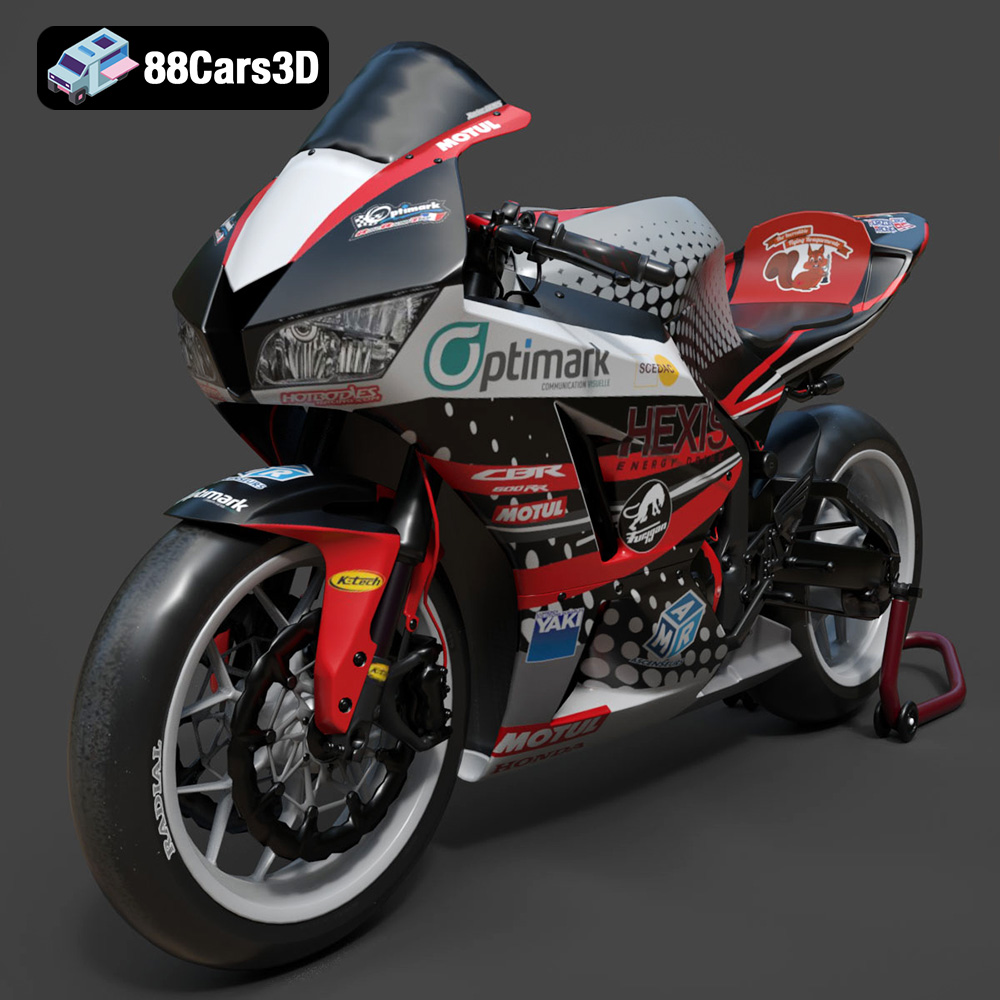
Texture: Yes | Material: Yes
Download the highly detailed, game-ready Honda CBR600RR 3D Model. Features aerodynamic fairings, an iconic center-up exhaust, and an aggressive track-focused stance. Includes .blend, .fbx, .obj, .glb, .stl, .ply, .unreal, and .max formats for game development, AR/VR, and rendering.
Price: $19.99
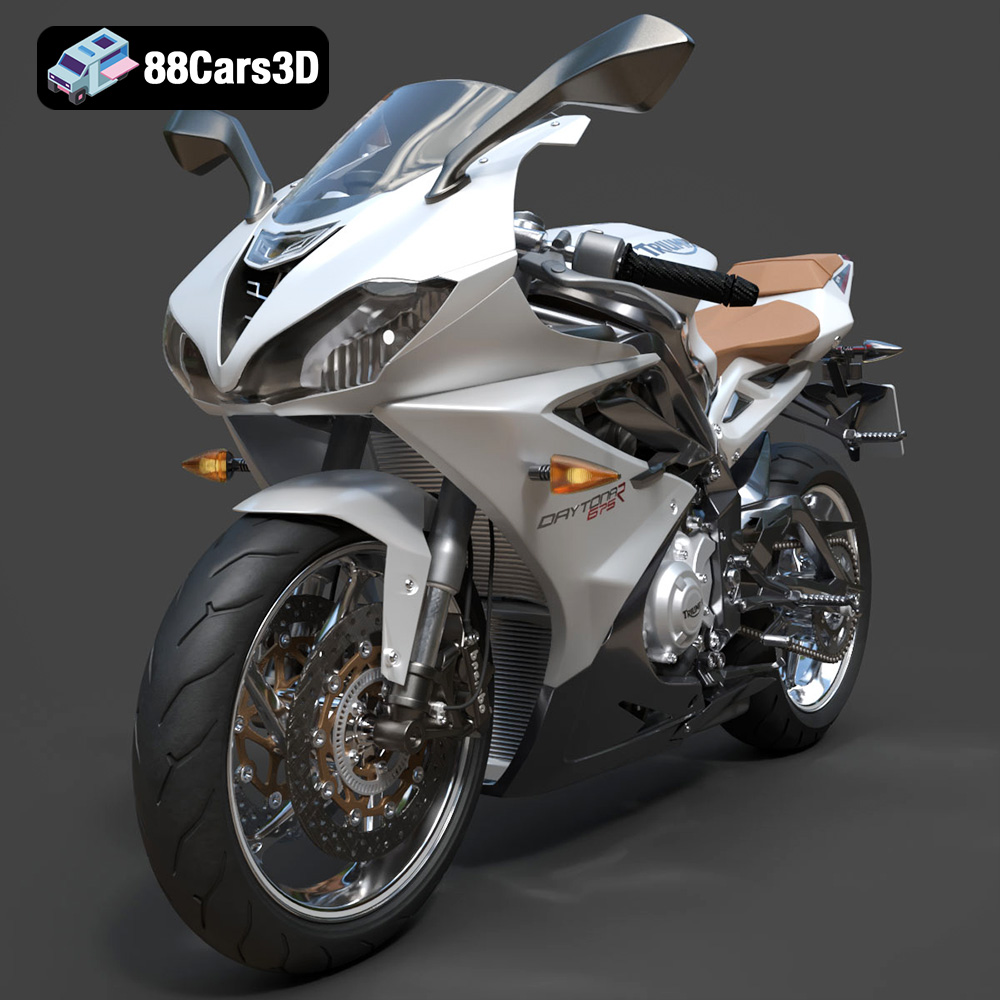
Texture: Yes | Material: Yes
Download the highly detailed, game-ready Triumph Daytona 675R ABS 2015 3D Model. Features aerodynamic sport fairings, a detailed inline-triple engine, and premium Öhlins suspension components. Includes .blend, .fbx, .obj, .glb, .stl, .ply, .unreal, and .max formats for game development, AR/VR, and rendering.
Price: $19.99

Texture: Yes | Material: Yes
Download the highly detailed, game-ready Toyota Tacoma TRD Off-Road 2016 3D Model. Features a rugged exterior, TRD off-road suspension details, and a meticulously crafted interior. Includes .blend, .fbx, .obj, .glb, .stl, .ply, .unreal, and .max formats for game development, AR/VR, and rendering.
Price: $19.99

Texture: Yes | Material: Yes
Download the highly detailed, game-ready Toyota Supra 2020 3D Model. Features aggressive aerodynamic styling, a distinctive double-bubble roof, and accurate B58 engine components. Includes .blend, .fbx, .obj, .glb, .stl, .ply, .unreal, and .max formats for game development, AR/VR, and rendering.
Price: $19.99
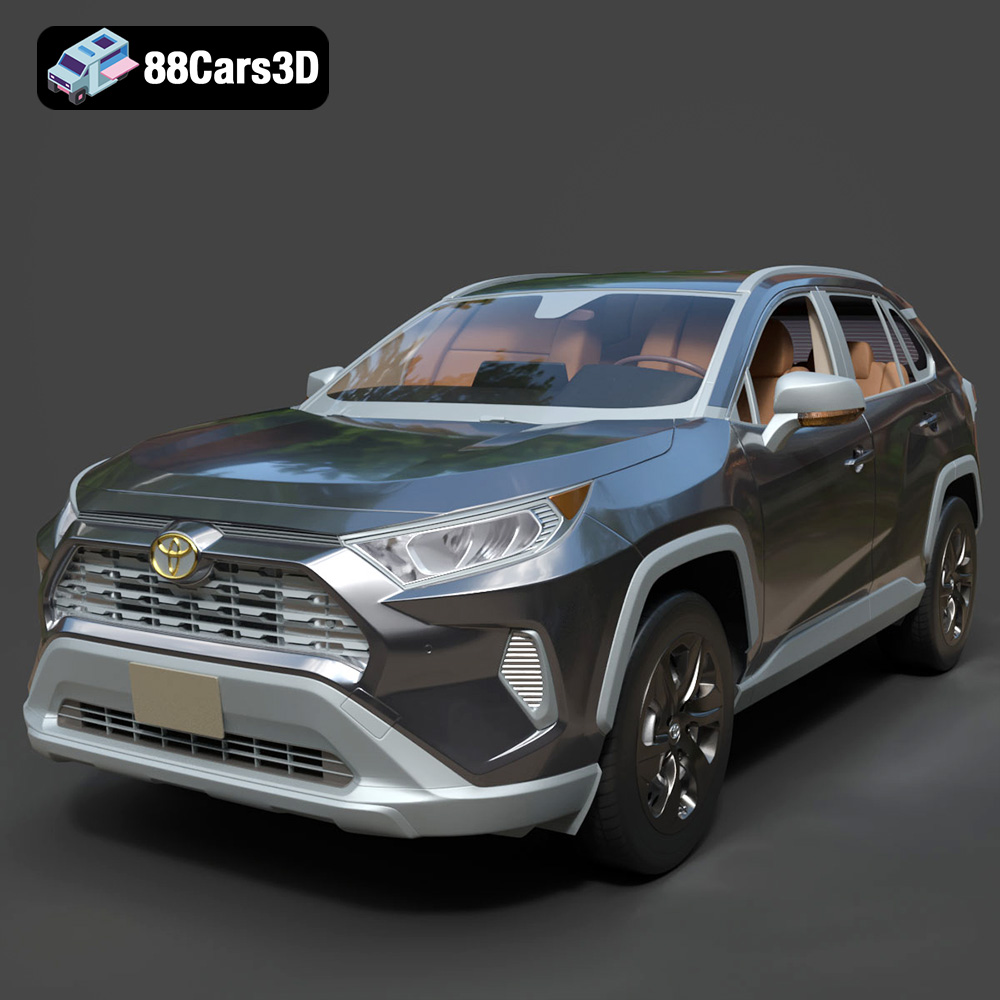
Texture: Yes | Material: Yes
Download the highly detailed, game-ready Toyota RAV4 LE 2019 3D Model. Features rugged exterior styling, signature polygonal motif, and a detailed interior. Includes .blend, .fbx, .obj, .glb, .stl, .ply, .unreal, and .max formats for game development, AR/VR, and rendering.
Price: $19.99

