Get 20% OFF All Premium 3D & STL Models!

“`html
3D printing has revolutionized the way we prototype and create, and platforms like 88cars3d.com offer a vast library of printable car models in STL format. However, the journey from digital model to physical object isn’t always smooth. Often, STL files contain imperfections that can lead to printing failures or subpar results. Fortunately, Blender, a powerful and free open-source 3D creation suite, provides a robust toolkit for cleaning up these files. This article will guide you through the process of repairing and optimizing STL files within Blender, ensuring your 3D printed car models come out perfectly every time. We’ll cover everything from identifying common STL errors to applying advanced repair techniques, ultimately empowering you to achieve professional-quality prints.
Whether you’re a seasoned 3D printing enthusiast or just starting out, understanding STL cleanup is essential. This comprehensive guide will delve into the intricacies of mesh repair, explore various Blender tools, and provide practical tips to prepare your models for optimal printing. By the end of this article, you’ll have the knowledge and skills necessary to confidently tackle any STL file, transforming potentially flawed models into stunning, tangible creations.
The STL (Stereolithography) file format is the industry standard for 3D printing, representing a 3D model as a collection of interconnected triangles. While simple in concept, STLs are prone to various errors that can negatively impact print quality. Before diving into the cleanup process, it’s crucial to understand the anatomy of an STL file and the common issues that arise.
Essentially, an STL file is a list of triangles, each defined by three vertices (points) and a normal vector (which indicates the triangle’s outward-facing direction). These triangles approximate the surface of the 3D model. The denser the mesh (more triangles), the more accurate the representation, but also the larger the file size. For 3D printing, a “watertight” STL is critical; this means the mesh is completely closed with no gaps or holes. Models available on marketplaces such as 88cars3d.com are generally pre-checked, but further optimization can still yield improved results.
The most frequent culprits behind printing problems are non-manifold geometry and holes. Non-manifold geometry refers to edges or faces that are shared by more than two triangles, creating ambiguities in the model’s surface. Holes, as the name suggests, are gaps in the mesh where triangles are missing, preventing the model from being “watertight.” Other common errors include:
Identifying these errors is the first step towards a successful print. Blender offers several tools for visualizing and diagnosing these issues, which we’ll explore in the next section.
With a basic understanding of STL files and potential errors, let’s move on to importing an STL into Blender and using its tools to identify problems. Blender provides several ways to import STL files and a suite of tools to inspect their geometry. This is a crucial step to ensure your printable car models are free of errors before you even begin thinking about 3D printer settings.
To import an STL file into Blender, simply go to File > Import > Stl (.stl). Navigate to the location of your STL file (downloaded from 88cars3d.com, for example) and select it. Blender will import the mesh into the scene. You might need to zoom out or adjust the view to see the entire model.
Blender’s Mesh Analysis tools are invaluable for identifying errors. Activate them by selecting the object, going into Edit Mode (Tab key), then navigating to the Mesh > Analyze menu. Here’s how to use some of the key tools:
Additionally, enabling Backface Culling in the viewport settings (press ‘N’ to open the sidebar, then navigate to Viewport Display) can help you identify inverted normals. If you see parts of the model disappearing or appearing transparent, it indicates that the normals are facing inwards.
Once you’ve identified errors in your STL file, the next step is to repair them. Blender offers a variety of tools for correcting common mesh issues, ranging from simple fixes to more complex operations. Mastering these techniques is essential for ensuring your 3D printed models are structurally sound and visually appealing.
One of the most common tasks is filling holes in the mesh. The Bridge Edge Loops tool is a powerful and straightforward solution. To use it, enter Edit Mode, select the edges surrounding the hole (using Edge Select mode), and then go to Edge > Bridge Edge Loops. Blender will attempt to fill the hole with new faces. You might need to adjust the “Number of Cuts” setting in the tool options (bottom left of the viewport) to control the density of the new mesh. For complex holes, this might require multiple iterations and manual adjustment of the newly created faces.
Inverted normals can be easily fixed by selecting the affected faces (using Face Select mode) and then going to Mesh > Normals > Flip. This will reverse the direction of the normals, ensuring they point outwards. Alternatively, you can try Mesh > Normals > Recalculate Outside. This automatically analyzes the mesh and attempts to orient all normals in the correct direction. For particularly stubborn cases, you can manually select individual faces and flip their normals.
Degenerate and overlapping faces should simply be removed. Enter Edit Mode, use the Select > Select All by Trait > Degenerate Faces tool to select all degenerate faces, then press the Delete key and choose “Faces.” Overlapping faces can be harder to detect visually. The best approach is to use the “Merge by Distance” tool (Mesh > Clean Up > Merge by Distance), which will automatically merge vertices that are very close together, effectively removing overlapping faces. Adjust the distance threshold carefully to avoid accidentally merging valid geometry.
For more complex STL files or severe mesh damage, basic repair techniques might not suffice. Blender’s remeshing and sculpting tools offer more advanced solutions for rebuilding and refining the mesh. These techniques allow you to create a clean, optimized model ready for 3D printing, even from problematic source files.
Remeshing involves completely rebuilding the mesh with a more uniform and well-structured topology. Blender offers several remeshing algorithms, each with its strengths and weaknesses. The Voxel Remesh option (found under the Object Data Properties tab > Remesh) is particularly useful for repairing complex geometry. It converts the mesh into a voxel-based representation and then reconstructs it with a new, cleaner topology. The “Voxel Size” setting controls the resolution of the remeshed model; smaller values result in finer details but also higher polygon counts. Be aware that remeshing will alter the original geometry, so it’s best used when extensive repairs are needed, and absolute fidelity isn’t critical.
Blender’s sculpting tools can be used to refine the details of a remeshed model or to manually repair small imperfections. Enter Sculpt Mode and use tools like the Smooth brush to smooth out rough areas, the Fill brush to fill small holes, and the Grab brush to adjust the overall shape of the model. Sculpting requires a good understanding of Blender’s sculpting tools and techniques, but it can be invaluable for achieving a high-quality final result. A Wacom tablet or similar input device can significantly improve the precision and control of sculpting.
Cleaning up an STL file is only half the battle. The next step is to optimize it for 3D printing. This involves reducing file size, ensuring proper wall thickness, and orienting the model for optimal printability. These optimizations will dramatically improve the quality and efficiency of your prints.
High polygon counts can lead to large file sizes and slow slicing times. Blender’s Decimate modifier (added from the Modifier Properties tab) is a powerful tool for reducing the number of polygons in a mesh while preserving its overall shape. The “Ratio” setting controls the percentage of polygons to keep; lower values result in greater reduction. Experiment with different decimation methods, such as “Collapse” and “Unsubdivide,” to find the best balance between file size and detail. Apply the Decimate modifier after you’ve finished repairing the mesh.
For FDM printing, ensuring proper wall thickness is crucial for structural integrity. Use the Solidify modifier to add thickness to the model. Experiment with the “Thickness” setting to achieve the desired wall thickness (typically 1-2mm). Ensure the “Even Thickness” option is enabled for consistent wall thickness throughout the model. This is particularly important for printable car models to ensure that thin parts like spoilers or mirrors don’t break easily during printing or handling.
The orientation of the model on the print bed can significantly impact print quality and support requirements. Consider factors such as overhangs, surface finish, and structural stability when choosing an orientation. Minimize overhangs to reduce the need for support structures. Orient the model so that the most critical surfaces are facing upwards to achieve the best possible surface finish. For car models, printing with the roof facing upwards often provides the best results for the visible surfaces.
Even with careful preparation, you might encounter issues during the 3D printing process. Understanding common problems and best practices can help you troubleshoot these issues and achieve successful prints. Here are some common problems and tips for resolving them:
Poor bed adhesion can cause the print to detach from the build plate mid-print. Solutions include:
Warping occurs when the corners of the print lift off the bed due to uneven cooling. Solutions include:
Stringing refers to thin strands of filament that form between different parts of the print. Solutions include:
By following these best practices and troubleshooting techniques, you can significantly improve the success rate of your 3D prints. Remember to experiment with different settings and techniques to find what works best for your printer and material.
Cleaning up and optimizing STL files is a crucial step in the 3D printing workflow. By mastering the techniques described in this article, you can ensure that your 3D printed car models, downloaded from platforms like 88cars3d.com, or any other source, come out perfectly every time. From understanding STL file structure and common errors to utilizing Blender’s powerful repair and optimization tools, you now have the knowledge to tackle any challenge. Remember, a well-prepared STL file is the foundation for a successful 3D print.
Start by practicing the basic repair techniques, such as filling holes and correcting inverted normals. Then, explore the more advanced tools like remeshing and sculpting to refine your models further. Don’t be afraid to experiment with different settings and techniques to find what works best for your specific printer and materials. The key to success is patience, persistence, and a willingness to learn. With these skills, you’ll be well on your way to creating stunning, high-quality 3D prints. Now, go forth and bring your digital designs to life!
“`

Texture: Yes | Material: Yes
Download the highly detailed, game-ready Volkswagen Jetta GLI 2019 3D Model. Features an aggressive honeycomb grille with red accents, sleek aerodynamic profile, and exclusive GLI sport wheels. Includes .blend, .fbx, .obj, .glb, .stl, .ply, .unreal, and .max formats for game development, AR/VR, and rendering.
Price: $19.99

Texture: Yes | Material: Yes
Download the highly detailed, game-ready Vintage Vespa 3D Model. Features iconic rounded monocoque styling, classic saddle, and chrome accents. Includes .blend, .fbx, .obj, .glb, .stl, .ply, .unreal, and .max formats for game development, AR/VR, and rendering.
Price: $19.99

Texture: Yes | Material: Yes
Download the highly detailed, game-ready Vespa GS 150 3D Model. Features elegant aerodynamic curves, classic leg shield, and detailed engine casing. Includes .blend, .fbx, .obj, .glb, .stl, .ply, .unreal, and .max formats for game development, AR/VR, and rendering.
Price: $19.99

Texture: Yes | Material: Yes
Download the highly detailed, game-ready Vespa P200E 3D Model. Features classic vintage styling, accurate step-through frame geometry, and authentic detailing. Includes .blend, .fbx, .obj, .glb, .stl, .ply, .unreal, and .max formats for game development, AR/VR, and rendering.
Price: $19.99

Texture: Yes | Material: Yes
Download the highly detailed, game-ready Ural M67-36-P 1976 3D Model. Features the iconic air-cooled boxer engine, vintage utilitarian styling, and authentic spoked wheels. Includes .blend, .fbx, .obj, .glb, .stl, .ply, .unreal, and .max formats for game development, AR/VR, and rendering.
Price: $19.99
Texture: Yes | Material: Yes
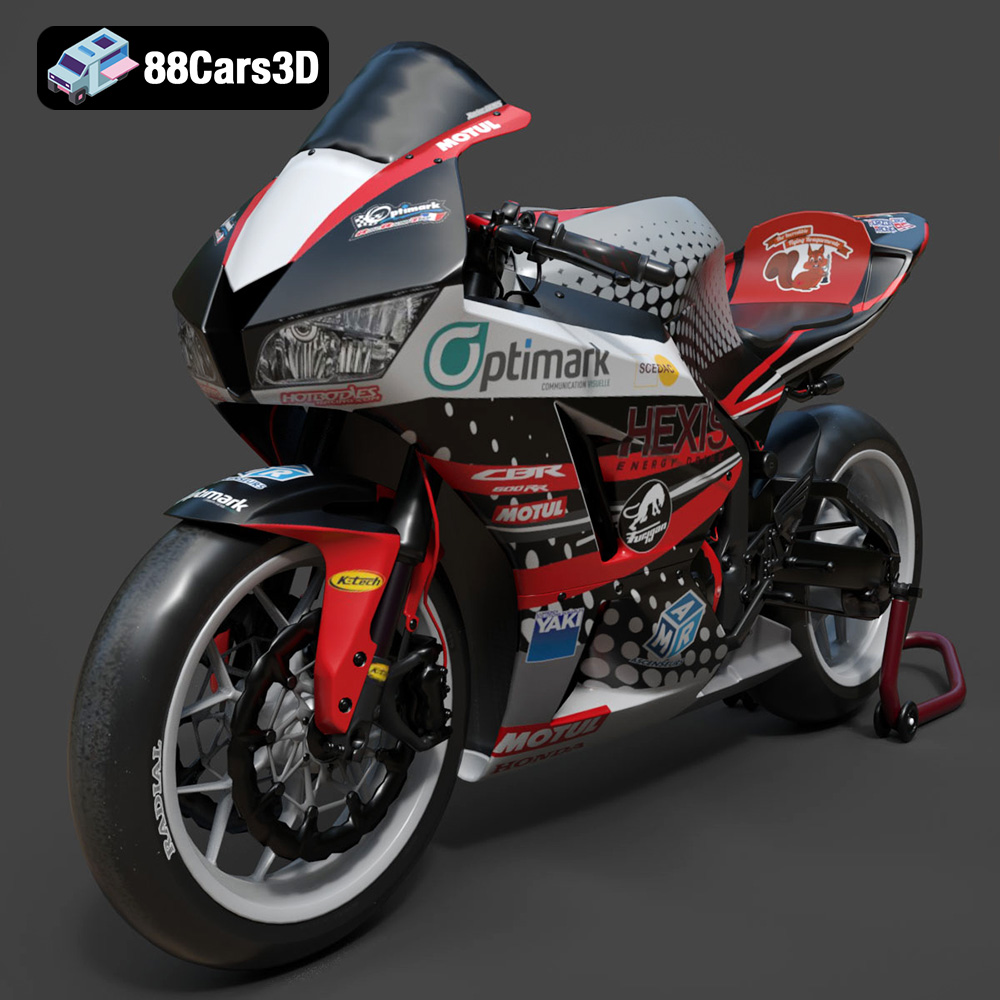
Download the highly detailed, game-ready Honda CBR600RR 3D Model. Features aerodynamic fairings, an iconic center-up exhaust, and an aggressive track-focused stance. Includes .blend, .fbx, .obj, .glb, .stl, .ply, .unreal, and .max formats for game development, AR/VR, and rendering.
Price: $19.99
Texture: Yes | Material: Yes
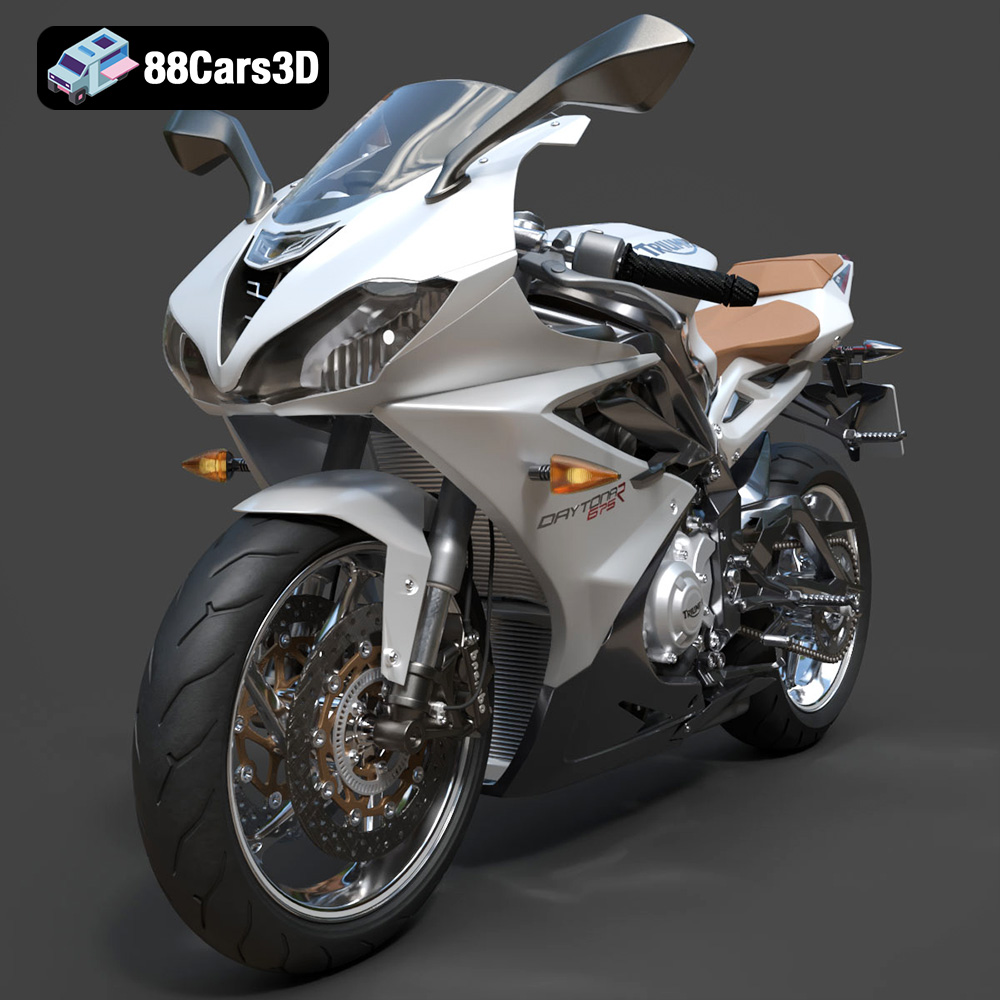
Download the highly detailed, game-ready Triumph Daytona 675R ABS 2015 3D Model. Features aerodynamic sport fairings, a detailed inline-triple engine, and premium Öhlins suspension components. Includes .blend, .fbx, .obj, .glb, .stl, .ply, .unreal, and .max formats for game development, AR/VR, and rendering.
Price: $19.99

Texture: Yes | Material: Yes
Download the highly detailed, game-ready Toyota Tacoma TRD Off-Road 2016 3D Model. Features a rugged exterior, TRD off-road suspension details, and a meticulously crafted interior. Includes .blend, .fbx, .obj, .glb, .stl, .ply, .unreal, and .max formats for game development, AR/VR, and rendering.
Price: $19.99

Texture: Yes | Material: Yes
Download the highly detailed, game-ready Toyota Supra 2020 3D Model. Features aggressive aerodynamic styling, a distinctive double-bubble roof, and accurate B58 engine components. Includes .blend, .fbx, .obj, .glb, .stl, .ply, .unreal, and .max formats for game development, AR/VR, and rendering.
Price: $19.99
Texture: Yes | Material: Yes
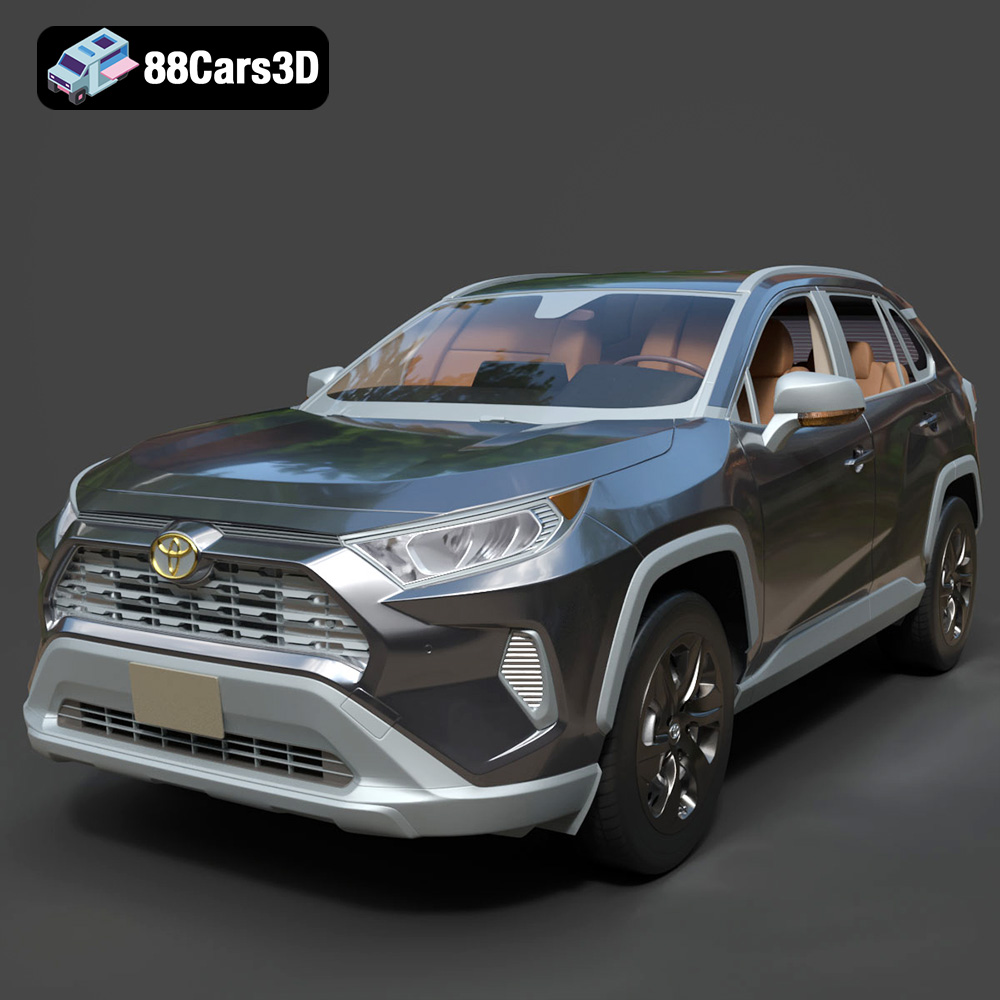
Download the highly detailed, game-ready Toyota RAV4 LE 2019 3D Model. Features rugged exterior styling, signature polygonal motif, and a detailed interior. Includes .blend, .fbx, .obj, .glb, .stl, .ply, .unreal, and .max formats for game development, AR/VR, and rendering.
Price: $19.99

