Get 20% OFF All Premium 3D & STL Models!

“`html
If you’re diving into the world of 3D printing, especially for detailed models like the printable car models available on platforms like 88cars3d.com, understanding STL files is absolutely crucial. STL, which stands for Stereolithography, is the go-to file format for representing 3D surfaces. But what exactly is an STL file, and how does it manage to translate complex shapes into a format your 3D printer can understand? This article breaks down the inner workings of STL files, explaining how they use meshes and triangles to define geometry, and how precision in these files directly impacts the quality of your 3D prints. We’ll explore everything from the basic structure of an STL file to advanced techniques for optimizing STL files for printing, covering both FDM and resin printing considerations.
By the end of this guide, you’ll have a solid grasp of the following:
So, let’s get started and unravel the mysteries behind the STL file format!
At its core, an STL file describes the surface geometry of a 3D object using a collection of triangles. This process is called tessellation, where a complex surface is approximated by a mesh of interconnected triangles. Imagine taking a soccer ball – instead of representing its smooth curves directly, an STL file breaks it down into many flat, triangular panels. The more triangles you use, the closer the approximation will be to the actual curve.
Each triangle in an STL file is defined by three vertices (corner points) and a normal vector. The vertices specify the position of the triangle in 3D space, while the normal vector indicates the direction the triangle is facing. This direction is crucial for determining the “outside” and “inside” of the object, ensuring your 3D printer knows where to deposit material. Without correct normals, you might end up with inverted or inside-out surfaces, leading to printing errors. It’s a good practice to always check the normals of your model before sending the STL to the slicer.
The density of the triangle mesh directly affects the resolution and accuracy of the 3D model. A higher density (more triangles) results in a smoother surface and finer details, but it also increases the file size and processing time. A lower density (fewer triangles) results in a more faceted appearance but reduces file size and computational load. When downloading models from marketplaces such as 88cars3d.com, you’ll often find models offered in varying resolutions to suit different printing needs. For instance, a car model intended for display might benefit from a high-resolution STL, while a prototype for functional testing could use a lower resolution to save time and resources.
STL files come in two main flavors: ASCII and binary. The difference lies in how the data is encoded. Understanding this distinction is important for optimizing file size and compatibility.
ASCII STL files store the triangle data as plain text. This makes them human-readable and easy to inspect with a text editor. However, the verbose nature of text-based storage makes ASCII STL files significantly larger than their binary counterparts. While they are useful for debugging and understanding the file structure, they are generally less efficient for large and complex models.
Binary STL files, on the other hand, store the triangle data in a compact binary format. This results in much smaller file sizes, making them ideal for large and complex models like detailed printable car models. Binary STL files are also processed faster by 3D printing software. The vast majority of modern 3D printing workflows utilize binary STL files due to their efficiency and performance advantages. Most slicing software will automatically handle the conversion if you load an ASCII file. It’s recommended to always use binary STL for 3D printing unless specifically needing to inspect or edit the file using a text editor.
The STL file is just the first step in the 3D printing process. To actually print an object, you need to “slice” the STL file into a series of thin layers that the 3D printer can build one at a time. This slicing process is performed by specialized software, such as Cura, PrusaSlicer, or Simplify3D. The slicer takes the STL file as input and generates a G-code file, which contains the specific instructions for the 3D printer, including nozzle movements, temperature settings, and print speeds.
Layer height is one of the most crucial parameters in slicing. It determines the thickness of each layer and directly affects the print quality and printing time. Smaller layer heights (e.g., 0.1mm) result in smoother surfaces and finer details, but they also increase the printing time. Larger layer heights (e.g., 0.3mm) reduce printing time but result in a more stepped appearance. The optimal layer height depends on the desired print quality, the complexity of the model, and the capabilities of your 3D printer. For highly detailed car models, a smaller layer height is generally recommended to capture intricate details like body lines and trim.
Infill refers to the internal structure of the 3D printed object. Instead of printing a solid object, most 3D prints use an infill pattern to save material and reduce printing time. The infill density determines the percentage of the object’s interior that is filled with material. Higher infill densities (e.g., 50%) result in stronger and heavier objects, while lower infill densities (e.g., 10%) result in weaker and lighter objects. The infill pattern also affects the strength and weight of the object. Common infill patterns include rectilinear, grid, triangular, and gyroid. For functional parts, a higher infill density and a strong infill pattern are generally recommended. For purely aesthetic models, a lower infill density may be sufficient.
STL files can sometimes contain errors that can cause problems during printing. These errors can include:
Fortunately, several software tools are available for repairing STL files. Meshmixer and Netfabb are two popular options. These programs can automatically detect and fix many common STL errors, such as non-manifold geometry, inverted normals, and duplicate triangles. They use algorithms to fill holes, smooth surfaces, and ensure the mesh is watertight and printable. Before printing any STL file, it’s always a good practice to run it through a mesh repair program to ensure it’s free of errors. Most importantly, ensure your STL file is “manifold,” meaning it defines a closed volume without any gaps or self-intersections.
For more complex issues or for fine-tuning the mesh, you can use a 3D modeling program like Blender to manually edit the STL file. Blender allows you to directly manipulate the vertices, edges, and faces of the mesh, giving you complete control over the geometry. However, manual mesh editing requires some skill and experience. It’s important to understand the principles of 3D modeling and mesh topology to avoid introducing new errors. For example, ensuring proper edge loops and avoiding non-planar faces are crucial for creating a clean and printable mesh.
The material you choose for 3D printing significantly impacts the final result. Different materials have different properties, such as strength, flexibility, heat resistance, and surface finish. The ideal material depends on the intended use of the printed object. Equally important are the printer settings, which need to be adjusted to match the chosen material.
For FDM (Fused Deposition Modeling) printing, common materials include PLA (Polylactic Acid), PETG (Polyethylene Terephthalate Glycol), and ABS (Acrylonitrile Butadiene Styrene). PLA is a biodegradable thermoplastic that is easy to print and produces good surface finish. PETG is stronger and more flexible than PLA, and it has better heat resistance. ABS is a strong and durable thermoplastic that is often used for functional parts. When printing with PLA, typical settings include a nozzle temperature of 200-220°C and a bed temperature of 60°C. For PETG, a nozzle temperature of 230-250°C and a bed temperature of 70-80°C are recommended. ABS requires a higher nozzle temperature of 230-260°C and a heated bed of 80-110°C, and it’s often printed in an enclosed chamber to prevent warping. When working with STL files from 88cars3d.com, consider the intended use of your car model. PLA is great for display pieces, while PETG or ABS may be preferable for functional prototypes.
Resin printing, which includes SLA (Stereolithography), DLP (Digital Light Processing), and LCD (Liquid Crystal Display) technologies, uses liquid resin that is cured by UV light. Resin printing offers higher resolution and finer details than FDM printing, making it ideal for intricate models. Different types of resins are available, each with its own properties. Standard resins are suitable for general-purpose printing, while tough resins offer higher strength and impact resistance. Flexible resins are used for creating flexible parts. The printer settings for resin printing depend on the specific resin being used. It’s important to follow the manufacturer’s recommendations for layer height, exposure time, and lifting speed. For detailed car models, resin printing can capture incredibly fine details, such as panel lines and intricate trim.
Support structures are temporary structures that are printed to support overhanging features during the 3D printing process. Without support structures, overhanging parts would collapse or deform. Generating and removing support structures is a critical aspect of 3D printing, especially for complex models like those found on 88cars3d.com.
Most slicing software offers automatic support generation, which automatically places supports where they are needed. However, automatic support generation is not always perfect. It may generate too many supports, making removal difficult, or it may fail to generate enough supports, leading to print failures. Manual support generation allows you to customize the placement and density of supports, giving you more control over the process. This can be particularly useful for complex models where automatic support generation may not be optimal. In Cura, for example, you can use the “Custom Support” plugin to manually add and edit support structures.
Removing support structures can be challenging, especially for delicate models. The best approach depends on the material and the type of support. For PLA and PETG, supports can usually be removed by hand or with pliers. For ABS, supports may be more difficult to remove and may require the use of a solvent like acetone. For resin prints, supports are often more fragile and require careful removal with a sharp knife or scraper. It’s important to take your time and avoid applying too much force, which could damage the printed object. Dissolvable support materials, such as HIPS for ABS or PVA for PLA, can also be used to simplify support removal. These materials dissolve in a solvent, leaving behind a clean and support-free print.
Understanding STL files is fundamental to achieving high-quality 3D prints. This guide has explored the intricacies of STL file structure, from the basic principles of mesh tessellation to advanced techniques for file repair and optimization. We’ve covered the differences between ASCII and binary formats, the importance of mesh density and normals, and the role of slicing in transforming an STL file into a printable G-code. We’ve also discussed common STL file issues and how to repair them using software like Meshmixer and Netfabb. Finally, we’ve explored material selection, printer settings, and support structure generation for both FDM and resin printing.
By applying the knowledge gained in this article, you can confidently prepare STL files for 3D printing and achieve stunning results. Remember to always check your STL files for errors, choose the appropriate material and printer settings, and carefully consider support structure generation. Whether you’re printing intricate car models from 88cars3d.com or creating your own designs, a solid understanding of STL files will empower you to bring your ideas to life with precision and accuracy. Happy printing!
“`

Texture: Yes | Material: Yes
Download the highly detailed, game-ready Volkswagen Jetta GLI 2019 3D Model. Features an aggressive honeycomb grille with red accents, sleek aerodynamic profile, and exclusive GLI sport wheels. Includes .blend, .fbx, .obj, .glb, .stl, .ply, .unreal, and .max formats for game development, AR/VR, and rendering.
Price: $19.99

Texture: Yes | Material: Yes
Download the highly detailed, game-ready Vintage Vespa 3D Model. Features iconic rounded monocoque styling, classic saddle, and chrome accents. Includes .blend, .fbx, .obj, .glb, .stl, .ply, .unreal, and .max formats for game development, AR/VR, and rendering.
Price: $19.99

Texture: Yes | Material: Yes
Download the highly detailed, game-ready Vespa GS 150 3D Model. Features elegant aerodynamic curves, classic leg shield, and detailed engine casing. Includes .blend, .fbx, .obj, .glb, .stl, .ply, .unreal, and .max formats for game development, AR/VR, and rendering.
Price: $19.99

Texture: Yes | Material: Yes
Download the highly detailed, game-ready Vespa P200E 3D Model. Features classic vintage styling, accurate step-through frame geometry, and authentic detailing. Includes .blend, .fbx, .obj, .glb, .stl, .ply, .unreal, and .max formats for game development, AR/VR, and rendering.
Price: $19.99

Texture: Yes | Material: Yes
Download the highly detailed, game-ready Ural M67-36-P 1976 3D Model. Features the iconic air-cooled boxer engine, vintage utilitarian styling, and authentic spoked wheels. Includes .blend, .fbx, .obj, .glb, .stl, .ply, .unreal, and .max formats for game development, AR/VR, and rendering.
Price: $19.99
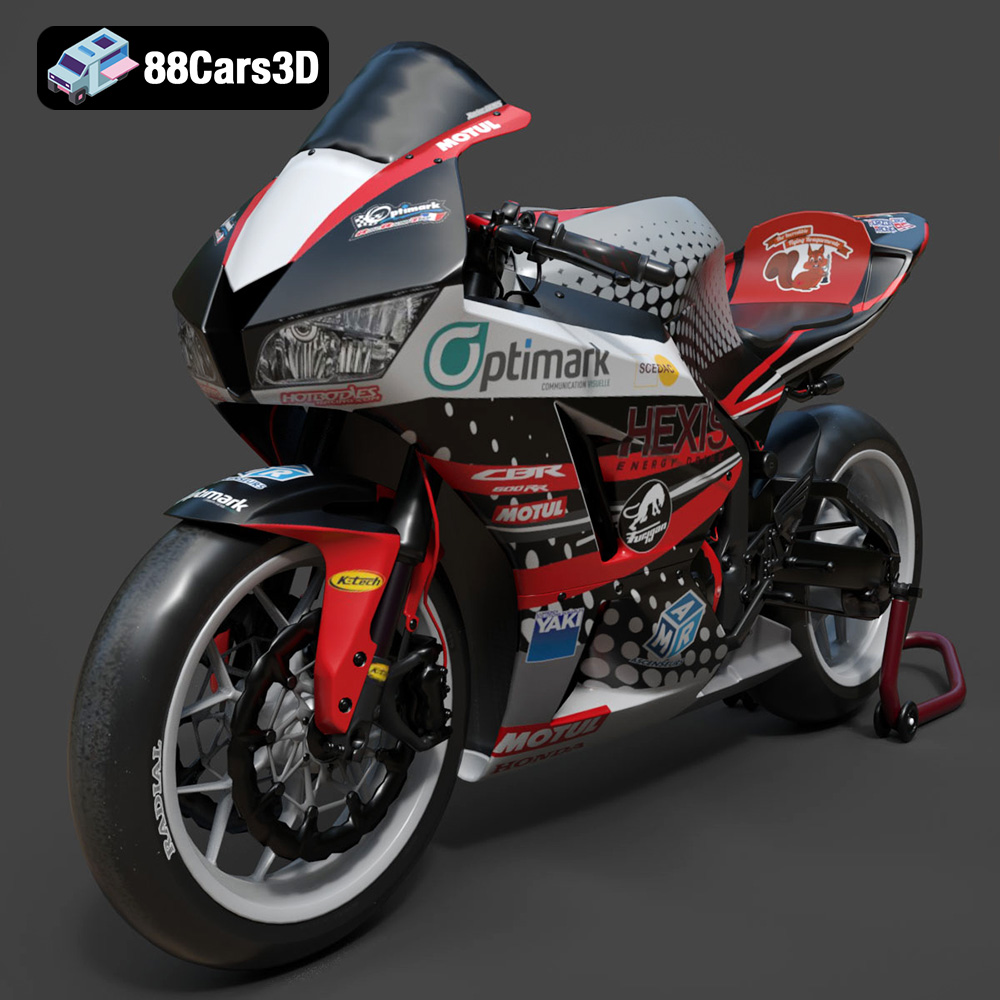
Texture: Yes | Material: Yes
Download the highly detailed, game-ready Honda CBR600RR 3D Model. Features aerodynamic fairings, an iconic center-up exhaust, and an aggressive track-focused stance. Includes .blend, .fbx, .obj, .glb, .stl, .ply, .unreal, and .max formats for game development, AR/VR, and rendering.
Price: $19.99
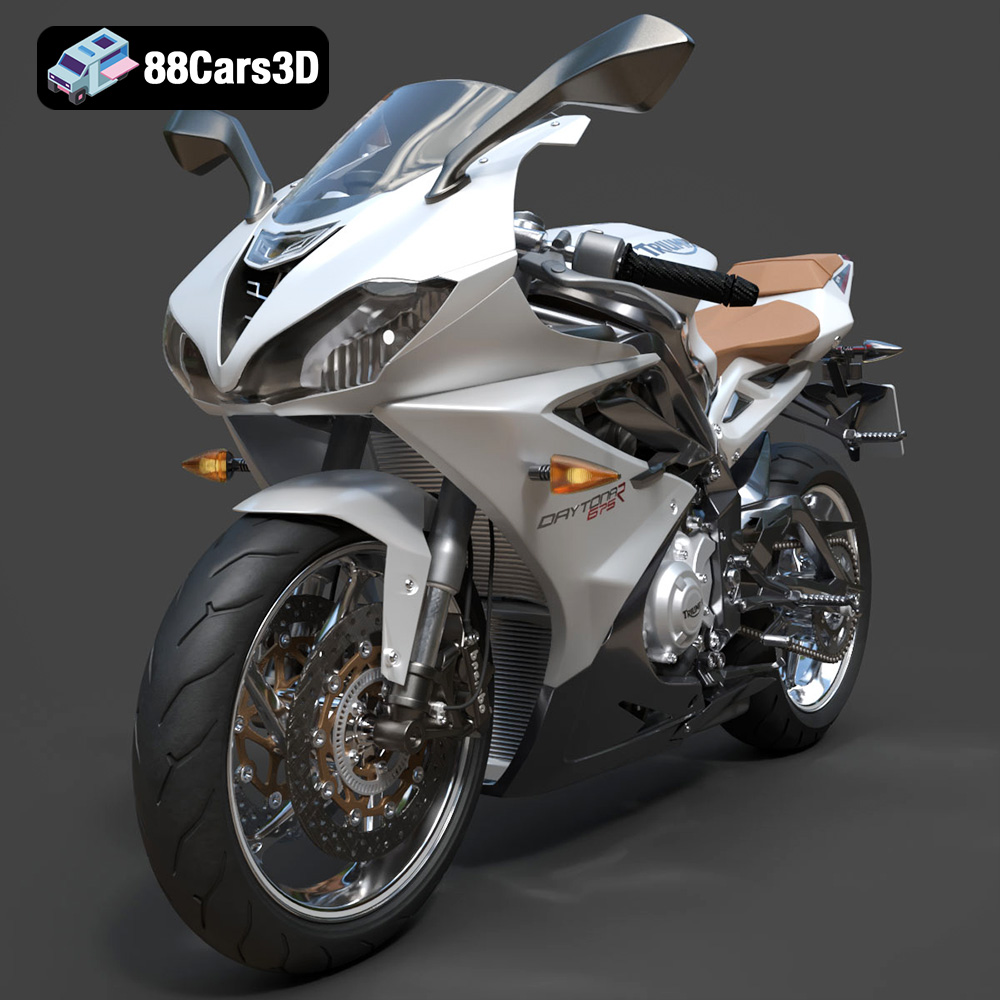
Texture: Yes | Material: Yes
Download the highly detailed, game-ready Triumph Daytona 675R ABS 2015 3D Model. Features aerodynamic sport fairings, a detailed inline-triple engine, and premium Öhlins suspension components. Includes .blend, .fbx, .obj, .glb, .stl, .ply, .unreal, and .max formats for game development, AR/VR, and rendering.
Price: $19.99

Texture: Yes | Material: Yes
Download the highly detailed, game-ready Toyota Tacoma TRD Off-Road 2016 3D Model. Features a rugged exterior, TRD off-road suspension details, and a meticulously crafted interior. Includes .blend, .fbx, .obj, .glb, .stl, .ply, .unreal, and .max formats for game development, AR/VR, and rendering.
Price: $19.99

Texture: Yes | Material: Yes
Download the highly detailed, game-ready Toyota Supra 2020 3D Model. Features aggressive aerodynamic styling, a distinctive double-bubble roof, and accurate B58 engine components. Includes .blend, .fbx, .obj, .glb, .stl, .ply, .unreal, and .max formats for game development, AR/VR, and rendering.
Price: $19.99

Texture: Yes | Material: Yes
Download the highly detailed, game-ready Toyota RAV4 LE 2019 3D Model. Features rugged exterior styling, signature polygonal motif, and a detailed interior. Includes .blend, .fbx, .obj, .glb, .stl, .ply, .unreal, and .max formats for game development, AR/VR, and rendering.
Price: $19.99

