Get 20% OFF All Premium 3D & STL Models!

“`html
If you’re diving into the world of 3D printing, especially when it comes to detailed models like the printable car models available at 88cars3d.com, you’ll quickly encounter the STL file format. STL, short for Stereolithography, is the most commonly used file format for 3D printing. But what exactly *is* an STL file, and how does it work? This comprehensive guide will break down everything you need to know about STL files, from their fundamental structure to how to prepare them for successful 3D printing. We’ll cover mesh topology, slicing parameters, support structure considerations, file repair techniques, and much more, ensuring you’re well-equipped to bring your digital designs to life. Whether you’re a hobbyist, engineer, or automotive enthusiast, understanding STL files is crucial for achieving high-quality 3D prints.
In this guide, you’ll learn:
At its core, an STL file represents a 3D object as a collection of triangles. Think of it like creating a sculpture by gluing together many small, flat triangles. The more triangles, the smoother and more detailed the final object will appear. This approach allows for representing complex shapes using simple geometric primitives. However, it’s crucial to understand how these triangles are defined and organized within the file to ensure successful 3D printing.
Each triangle in an STL file is defined by three vertices (corner points) and a normal vector. The vertices specify the location of the triangle’s corners in 3D space using X, Y, and Z coordinates. The normal vector is a line perpendicular to the surface of the triangle, indicating its orientation (which way it’s facing). This normal vector is critical for determining the “inside” and “outside” of the object, which is essential for slicing software to correctly generate printing paths. A correctly oriented normal vector ensures that the slicer interprets the geometry accurately.
STL files come in two main formats: ASCII and binary. ASCII STL files are human-readable text files, making them easier to inspect and debug manually. However, they are significantly larger in size compared to binary STL files. Binary STL files, on the other hand, store the triangle data in a more compact binary format, resulting in smaller file sizes and faster processing. The vast majority of STL files used in 3D printing are binary due to their efficiency. A typical ASCII STL file for a complex car model could easily be tens or hundreds of megabytes, while the binary equivalent might be only a few megabytes. When downloading models from marketplaces such as 88cars3d.com, you’ll likely be receiving binary STL files for optimal download and processing speed.
Before you can send an STL file to your 3D printer, it’s crucial to prepare it using slicing software. The slicing software takes the 3D model described in the STL file and converts it into a series of instructions (G-code) that your printer can understand. This process involves setting various parameters that influence the print quality, speed, and material usage. Neglecting this preparation can lead to failed prints, weak parts, or poor surface finish.
The first step is to import your STL file into your chosen slicing software (e.g., Cura, PrusaSlicer, Simplify3D). Once imported, carefully consider the orientation of the model on the virtual print bed. The orientation significantly impacts the need for support structures and the overall print quality. For example, minimizing the overhangs reduces the amount of support material required. For car models from 88cars3d.com, consider orienting the model to minimize supports on visible surfaces like the hood and roof. Experimenting with different orientations is often necessary to find the optimal setup.
Several key slicing parameters directly affect the outcome of your 3D print: layer height, infill density, print speed, and temperature. Layer height determines the resolution of the print – smaller layer heights result in smoother surfaces but increase print time. A layer height of 0.1mm to 0.2mm is a good starting point for most FDM printers. Infill density controls the amount of material inside the object, affecting its strength and weight. A density of 20-30% is generally sufficient for decorative models, while functional parts may require higher densities. Print speed should be adjusted based on the material and printer capabilities; starting with 40-60 mm/s is a safe bet. Finally, temperature settings depend on the material being used. PLA typically prints at 200-220°C, while ABS requires higher temperatures around 230-250°C and a heated bed at 80-110°C.
Support structures are temporary structures added to the 3D print to support overhanging features or bridges. Without supports, these features would collapse during printing, resulting in a failed print. The type, placement, and density of support structures are critical factors in achieving a successful and aesthetically pleasing print. Selecting the appropriate support settings requires careful consideration of the model’s geometry and the chosen printing material.
There are several types of support structures available in most slicing software, including tree supports, linear supports, and grid supports. Tree supports are branching structures that use less material and are easier to remove, making them ideal for complex geometries. Linear supports are simple vertical structures suitable for supporting flat overhangs. Grid supports provide a more robust support system but can be more difficult to remove and may leave more noticeable marks on the printed part. Platforms like 88cars3d.com, often design their models with support structure optimization in mind to minimize waste and print time.
Careful placement of support structures is crucial for minimizing their impact on the final print. Focus on supporting only the necessary areas, such as steep overhangs and bridges. Reducing the support density can also save material and reduce printing time. Experiment with different support settings to find the optimal balance between support strength and ease of removal. A support overhang angle of 45 degrees is a good starting point. Consider using support blockers to prevent supports from generating in areas where they are not needed. It’s also a good practice to use a support interface layer, which provides a smoother transition between the support and the model, making removal easier and reducing the risk of damage.
Even with careful preparation, you may encounter issues when 3D printing STL files. These issues can range from mesh errors in the STL file to problems with printer settings or material properties. Identifying and addressing these problems is crucial for achieving successful and high-quality prints. Knowing how to diagnose and fix these issues can save you time, material, and frustration.
One common issue is mesh errors in the STL file, such as non-manifold edges, holes, and self-intersections. These errors can confuse the slicing software and lead to incorrect printing paths or even failed prints. Mesh repair software like MeshMixer or Netfabb can be used to automatically fix these errors. These tools analyze the mesh topology and attempt to repair any inconsistencies. Regularly checking and repairing STL files before printing is a good practice, especially when using files from various sources.
Another common problem is bed adhesion, where the print fails to stick to the print bed. This can be caused by an uneven bed, incorrect bed temperature, or poor first layer settings. Ensure that your print bed is properly leveled and that you are using the correct bed temperature for the material you are printing. Applying an adhesive like glue stick or hairspray can also improve bed adhesion. Warping, where the corners of the print lift off the bed, is often caused by temperature differences between the print and the surrounding environment. Enclosing the printer or using a heated bed can help prevent warping, particularly when printing with ABS.
Choosing the right material and properly calibrating your 3D printer are essential for achieving optimal results with STL files. Different materials have different properties, such as strength, flexibility, and temperature resistance, which make them suitable for different applications. Printer calibration ensures that your printer is accurately extruding the correct amount of material and that the movements are precise. A well-calibrated printer, combined with the appropriate material, will significantly improve the quality and reliability of your 3D prints.
The most common materials for FDM printing are PLA, PETG, and ABS. PLA is a biodegradable thermoplastic that is easy to print and produces good results for most applications. PETG is more durable and heat-resistant than PLA, making it suitable for functional parts. ABS is a strong and heat-resistant material, but it requires higher printing temperatures and a heated bed to prevent warping. For resin printing, common materials include standard resin, tough resin, and flexible resin. Standard resin is suitable for general-purpose printing, while tough resin is more durable and impact-resistant. Flexible resin can be used to create parts with rubber-like properties. Understanding the properties of each material and selecting the appropriate one for your application is crucial for achieving the desired results. If you are printing car models downloaded from 88cars3d.com and plan to paint them, PLA would be a suitable choice. If you plan on using the printed car model, consider PETG or ABS for better durability.
Printer calibration involves adjusting various settings to ensure that your printer is accurately extruding material and moving correctly. Key calibration steps include leveling the print bed, calibrating the extruder E-steps, and adjusting the flow rate. Bed leveling ensures that the nozzle is the correct distance from the bed across the entire printing surface. Calibrating the extruder E-steps ensures that the printer is extruding the correct amount of filament. Adjusting the flow rate fine-tunes the amount of material being extruded. Performing these calibration steps regularly will improve the accuracy and consistency of your 3D prints. Marlin firmware provides tools to easily calibrate the E-steps. You can also print a single-wall cube to check the flow rate and measure the wall thickness with calipers.
Once your 3D print is complete, post-processing techniques can be used to enhance the surface finish, remove support structures, and assemble multiple parts. These techniques can transform a raw 3D print into a polished and professional-looking product. Post-processing can involve sanding, painting, gluing, and applying various coatings to achieve the desired aesthetic and functional properties.
Sanding is a common post-processing technique used to smooth the surface of 3D prints and remove layer lines. Start with coarse sandpaper (e.g., 220 grit) to remove large imperfections, and then gradually move to finer grits (e.g., 400, 600, 800 grit) to achieve a smooth finish. Wet sanding can help reduce friction and prevent the sandpaper from clogging. Chemical smoothing using acetone vapor can also be used to smooth ABS prints, but this requires careful handling and proper ventilation. For PLA prints, various coating materials can be applied to fill in layer lines and create a smooth surface.
Painting is a great way to add color and detail to your 3D prints. Start by applying a primer to the surface to improve paint adhesion. Then, use acrylic or enamel paints to add the desired colors and details. Multiple layers of paint may be required to achieve full coverage. After painting, apply a clear coat to protect the paint and add a glossy or matte finish. Consider using stencils or masking tape to create intricate designs. For car models, masking off different areas before painting can allow for realistic detailing. When printing models from sites like 88cars3d.com, carefully choose paints that are compatible with your chosen printing material to avoid any unwanted reactions or damage.
Mastering the STL file format is fundamental to successful 3D printing. This guide has provided a comprehensive overview of STL file structure, preparation techniques, troubleshooting tips, material selection, and post-processing methods. By understanding these concepts and applying the best practices discussed, you’ll be well-equipped to create high-quality 3D prints for a wide range of applications, from functional prototypes to detailed models. Remember to always check for mesh errors, optimize your slicing parameters, and consider the appropriate support structures for your specific project. With practice and experimentation, you’ll become proficient in using STL files to bring your digital designs to life.
The next steps you can take to further enhance your skills include:
By continually improving your knowledge and skills, you’ll be able to unlock the full potential of 3D printing and create amazing things. Start with a detailed model from 88cars3d.com and put these tips into practice!
“`

Texture: Yes | Material: Yes
Download the highly detailed, game-ready Volvo VNL Tractor Truck 2002 3D Model. Features iconic aerodynamic styling, detailed fifth-wheel coupling, and heavy-duty chassis. Includes .blend, .fbx, .obj, .glb, .stl, .ply, .unreal, and .max formats for game development, AR/VR, and rendering.
Price: $39.99
Texture: Yes | Material: Yes
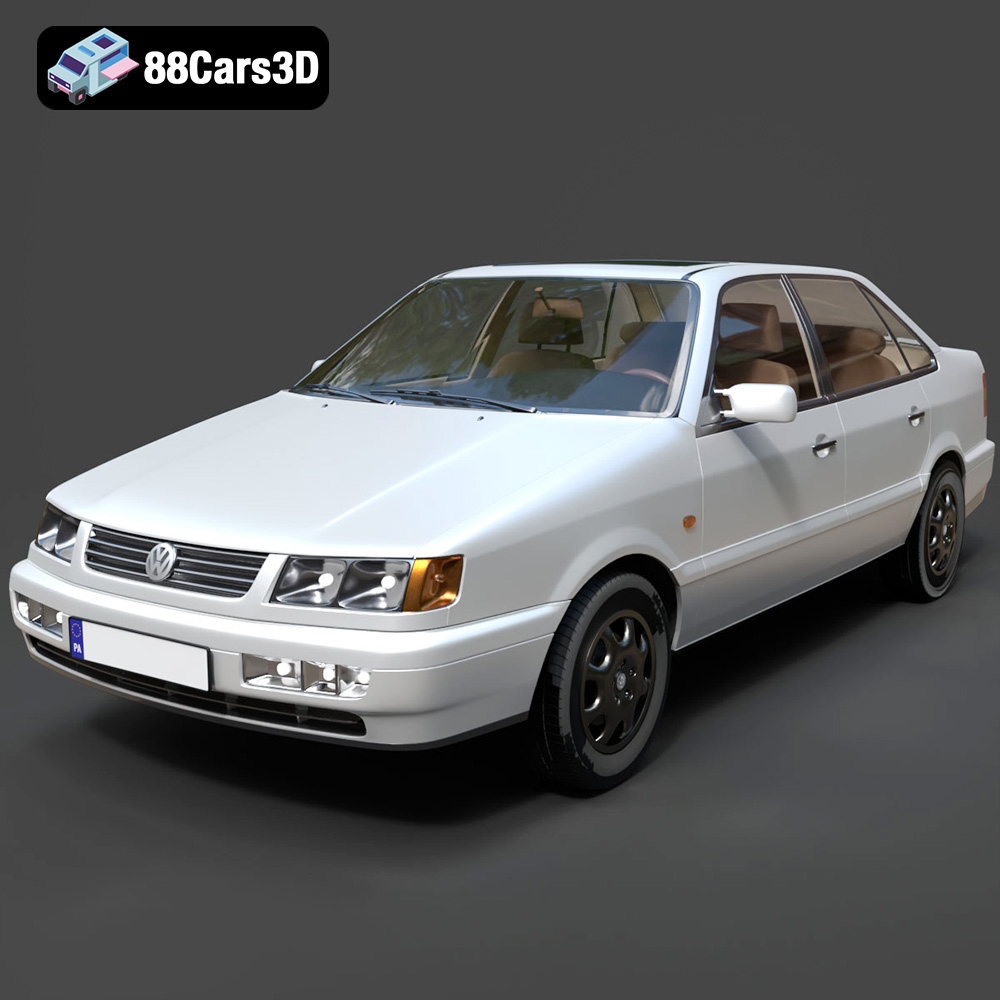
Download the highly detailed, game-ready Volkswagen Passat Mk4 B4 Sedan 1993 3D Model. Features accurate 90s sedan styling, detailed front grille-less fascia, and a classic interior setup. Includes .blend, .fbx, .obj, .glb, .stl, .ply, .unreal, and .max formats for game development, AR/VR, and rendering.
Price: $39.99

Texture: Yes | Material: Yes
Download the highly detailed, game-ready Volkswagen Jetta GLI 2019 3D Model. Features an aggressive honeycomb grille with red accents, sleek aerodynamic profile, and exclusive GLI sport wheels. Includes .blend, .fbx, .obj, .glb, .stl, .ply, .unreal, and .max formats for game development, AR/VR, and rendering.
Price: $39.99

Texture: Yes | Material: Yes
Download the highly detailed, game-ready Vintage Vespa 3D Model. Features iconic rounded monocoque styling, classic saddle, and chrome accents. Includes .blend, .fbx, .obj, .glb, .stl, .ply, .unreal, and .max formats for game development, AR/VR, and rendering.
Price: $39.99

Texture: Yes | Material: Yes
Download the highly detailed, game-ready Vespa GS 150 3D Model. Features elegant aerodynamic curves, classic leg shield, and detailed engine casing. Includes .blend, .fbx, .obj, .glb, .stl, .ply, .unreal, and .max formats for game development, AR/VR, and rendering.
Price: $39.99

Texture: Yes | Material: Yes
Download the highly detailed, game-ready Vespa P200E 3D Model. Features classic vintage styling, accurate step-through frame geometry, and authentic detailing. Includes .blend, .fbx, .obj, .glb, .stl, .ply, .unreal, and .max formats for game development, AR/VR, and rendering.
Price: $39.99

Texture: Yes | Material: Yes
Download the highly detailed, game-ready Ural M67-36-P 1976 3D Model. Features the iconic air-cooled boxer engine, vintage utilitarian styling, and authentic spoked wheels. Includes .blend, .fbx, .obj, .glb, .stl, .ply, .unreal, and .max formats for game development, AR/VR, and rendering.
Price: $39.99
Texture: Yes | Material: Yes
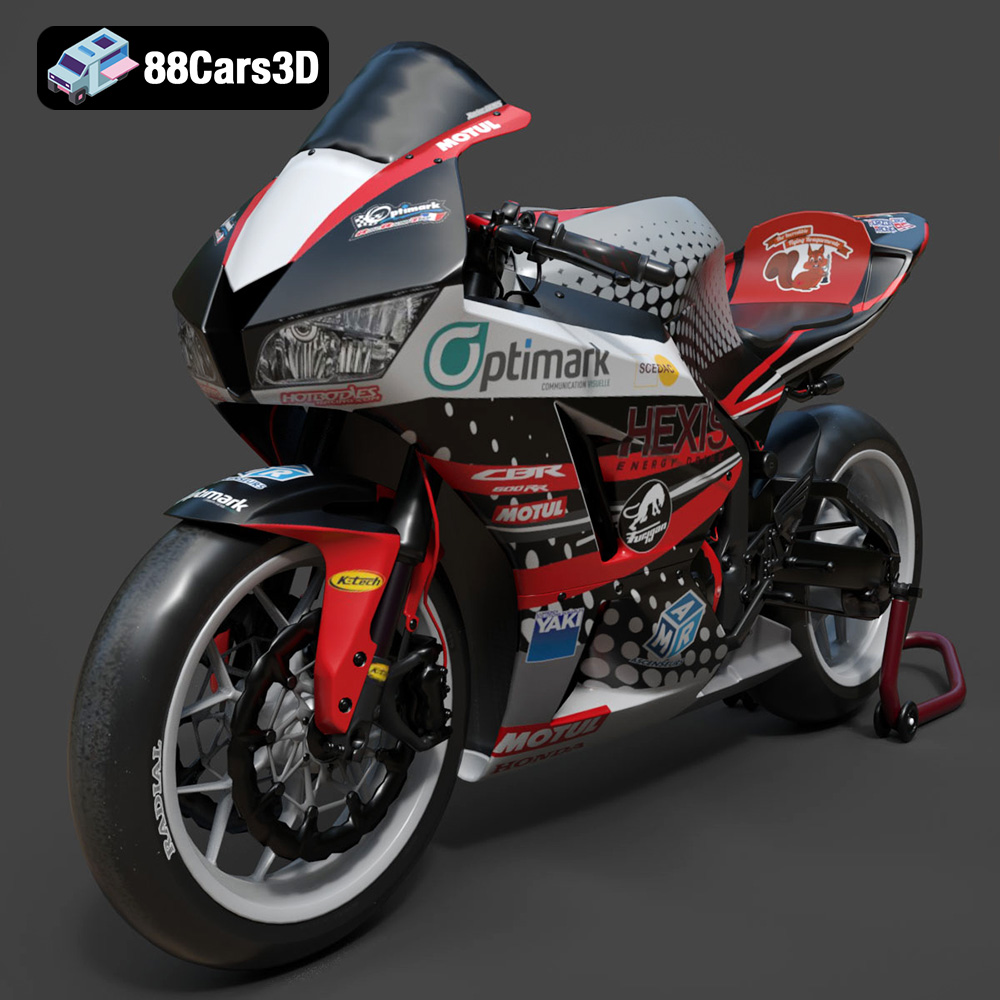
Download the highly detailed, game-ready Honda CBR600RR 3D Model. Features aerodynamic fairings, an iconic center-up exhaust, and an aggressive track-focused stance. Includes .blend, .fbx, .obj, .glb, .stl, .ply, .unreal, and .max formats for game development, AR/VR, and rendering.
Price: $39.99
Texture: Yes | Material: Yes
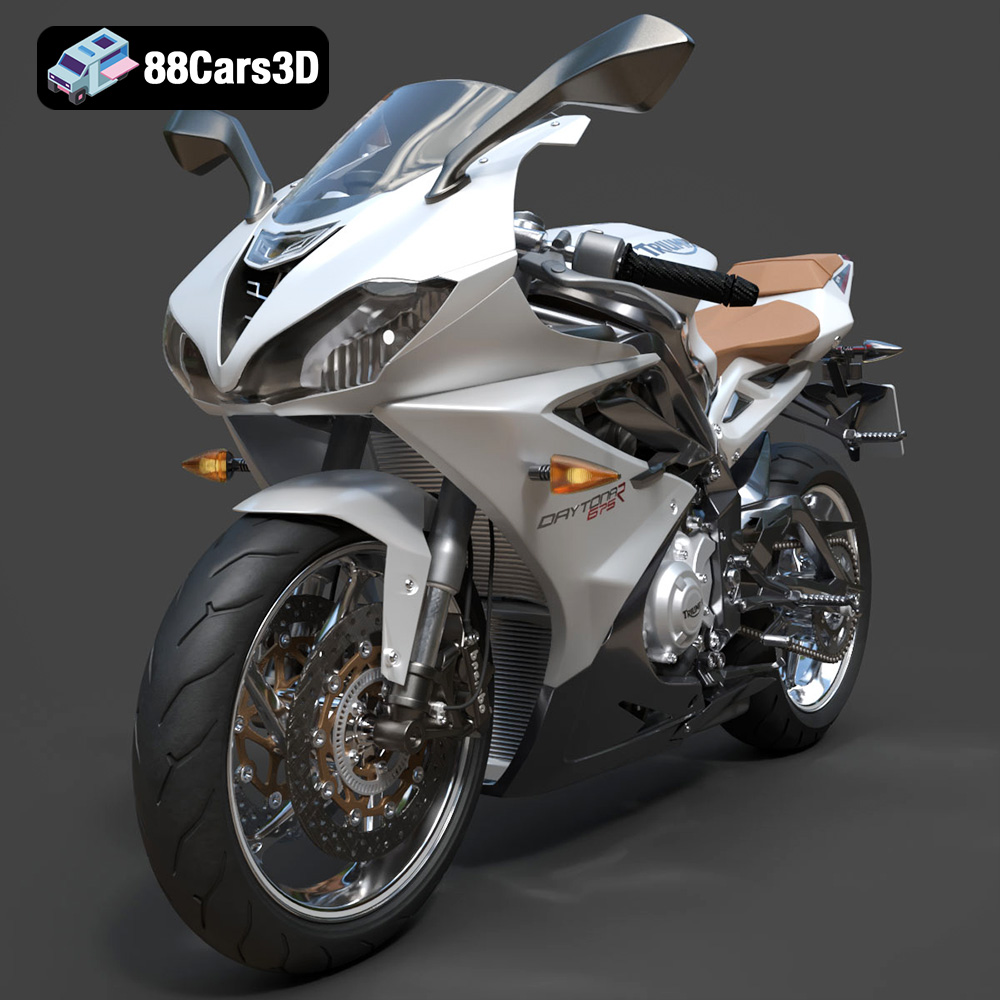
Download the highly detailed, game-ready Triumph Daytona 675R ABS 2015 3D Model. Features aerodynamic sport fairings, a detailed inline-triple engine, and premium Öhlins suspension components. Includes .blend, .fbx, .obj, .glb, .stl, .ply, .unreal, and .max formats for game development, AR/VR, and rendering.
Price: $39.99

Texture: Yes | Material: Yes
Download the highly detailed, game-ready Toyota Tacoma TRD Off-Road 2016 3D Model. Features a rugged exterior, TRD off-road suspension details, and a meticulously crafted interior. Includes .blend, .fbx, .obj, .glb, .stl, .ply, .unreal, and .max formats for game development, AR/VR, and rendering.
Price: $39.99

