Get 20% OFF All Premium 3D & STL Models!

“`html
The world of 3D printing has revolutionized model making, prototyping, and even automotive engineering. For car enthusiasts and hobbyists, this means the ability to create custom wheels, tires, and even full car parts from the comfort of your own home. However, achieving high-quality, functional prints requires a deep understanding of STL file preparation, printer settings, material selection, and post-processing techniques. This guide will walk you through the complete process, from selecting the right STL files to optimizing your print for the best possible results. Whether you’re a seasoned 3D printing expert or just starting out, this comprehensive guide will provide the knowledge and skills you need to bring your automotive visions to life. We’ll cover everything from choosing the right materials like PLA, ABS, PETG, and flexible filaments for tires, to advanced slicing strategies for wheels and complex car body panels. Prepare to dive deep into the intricacies of 3D printing automotive components.
The STL (Stereolithography) file format is the industry standard for 3D printing. It represents the surface geometry of a 3D object using a mesh of triangles. For automotive parts, especially complex designs like wheels and tires, understanding the nuances of STL files is crucial. A well-prepared STL file is the foundation for a successful print.
The number of triangles in an STL file determines its resolution. A higher triangle count results in a smoother surface but also a larger file size, increasing processing time and potentially slowing down your 3D printer. Conversely, a low triangle count can lead to faceted surfaces, especially on curved areas like the sidewalls of a tire or the rounded edges of a wheel. A good balance is crucial. For wheels and tires, consider a triangle count that results in a deviation of less than 0.1mm from the original CAD design. This level of detail typically offers a good compromise between print quality and processing efficiency.
An STL file must represent a “manifold” object, meaning it must be a closed, watertight surface. Non-manifold geometry, such as holes, overlapping faces, or inverted normals, can cause slicing errors and print failures. Before printing, it’s essential to check and repair your STL files using software like Meshmixer, Netfabb, or even the built-in repair tools in slicers like Cura and PrusaSlicer. These tools can automatically identify and fix common issues like flipped normals, small gaps, and intersecting faces. For example, in Netfabb, the “Extended Repair” function can resolve most common STL errors. When downloading models from marketplaces such as 88cars3d.com, you can expect high-quality, pre-repaired STL files, but it’s always a good practice to double-check.
Slicing is the process of converting a 3D model into a series of layers that the 3D printer can understand. The slicer software takes the STL file and generates G-code, the machine language used by the printer. Choosing the correct slicing parameters is critical for achieving the desired print quality, strength, and dimensional accuracy.
Layer height is a primary factor affecting print quality and print time. Smaller layer heights (e.g., 0.1mm or 0.05mm) produce smoother surfaces and finer details, ideal for visible parts like wheels and detailed tire treads. However, smaller layer heights significantly increase print time. Larger layer heights (e.g., 0.2mm or 0.3mm) print faster but result in coarser surfaces. For wheels, a layer height of 0.1mm to 0.15mm is a good starting point. For tires, especially if you want to replicate fine tread patterns, consider even smaller layer heights, down to 0.05mm, especially if using a resin printer. It’s a trade-off between speed and visual fidelity.
Infill refers to the internal structure of the 3D printed part. Infill density, expressed as a percentage, determines how much of the interior space is filled with material. Higher infill densities increase strength and weight but also consume more material and increase print time. For wheels, which need to withstand some stress, a minimum infill density of 20-25% is recommended. For tires, which are typically printed solid with flexible filaments, infill is usually set to 100%. Common infill patterns include rectilinear, grid, triangular, and gyroid. Gyroid infill is known for its excellent strength-to-weight ratio and is a good option for wheels. Consider using adaptive infill, where the infill density varies depending on the structural requirements of different areas of the part. Cura’s adaptive infill feature is particularly useful for optimizing strength while minimizing material usage.
The material you choose significantly impacts the functionality, durability, and appearance of your 3D printed car parts. Different materials offer varying properties in terms of strength, flexibility, heat resistance, and aesthetics. For wheels, tires, and other car parts, several materials are commonly used, each with its pros and cons.
PLA (Polylactic Acid) is a biodegradable thermoplastic known for its ease of printing and low warping tendency. It’s a good choice for initial prototypes and decorative parts. However, PLA has relatively low heat resistance and can deform in hot environments, making it unsuitable for parts exposed to direct sunlight or engine heat. ABS (Acrylonitrile Butadiene Styrene) is a stronger and more heat-resistant thermoplastic than PLA. It’s commonly used for functional parts that require durability and impact resistance. However, ABS is more prone to warping and requires a heated bed and often an enclosure to print successfully. PETG (Polyethylene Terephthalate Glycol-modified) combines the best of both worlds. It’s stronger and more heat-resistant than PLA and easier to print than ABS. PETG is a versatile option for a wide range of automotive parts, including wheels, interior trim, and some body panels. Consider using carbon fiber-reinforced PETG for increased stiffness and strength, especially for wheels.
To create realistic and functional tires, flexible filaments such as TPU (Thermoplastic Polyurethane) and TPE (Thermoplastic Elastomer) are essential. These filaments offer varying degrees of flexibility and rebound, allowing you to create tires that can deform and grip surfaces. TPU is generally easier to print than TPE and offers good abrasion resistance. TPE is typically more flexible and can provide a more realistic tire feel. When printing with flexible filaments, it’s crucial to use a direct drive extruder to minimize filament buckling and ensure consistent extrusion. Reduce print speed to 20-30 mm/s and disable retraction to prevent clogging. Experiment with different shore hardness ratings (e.g., 95A, 85A, 75A) to find the ideal balance between flexibility and durability for your specific application.
Support structures are temporary structures that are printed to support overhanging features of a 3D model. Without supports, these features would collapse during printing. Generating and removing supports can be one of the most challenging aspects of 3D printing, especially for complex geometries like those found in automotive parts.
Most slicer software offers automatic support generation. While convenient, automatic supports may not always be optimal, especially for intricate designs. Manual support placement allows you to fine-tune the support locations, minimize material usage, and improve surface finish. In Cura, you can use the “Support Blocker” tool to prevent supports from being generated in specific areas. In PrusaSlicer, the “Paint-on Supports” feature allows you to precisely paint the areas where you want supports to be generated. Consider using sacrificial layers between the supports and the part to make removal easier. For example, increasing the “Support Z Distance” by 0.1mm can significantly reduce the adhesion between the supports and the part surface.
Removing supports without damaging the part requires patience and the right tools. Start by gently breaking away the larger support structures by hand. For more delicate areas, use small pliers, tweezers, or a hobby knife to carefully remove the supports. After removing the supports, you may need to post-process the part to smooth out any remaining support marks. Sanding, filing, and polishing can be used to achieve a smooth, professional finish. For PLA, you can use a heat gun to gently soften the surface and blend in any imperfections. For ABS, you can use an acetone vapor bath to smooth out the surface. Be careful when using these techniques, as excessive heat or acetone exposure can damage the part. If you are using dissolvable support materials, such as HIPS for ABS or PVA for PLA, follow the manufacturer’s instructions for dissolving the support material.
Proper printer calibration and regular maintenance are essential for achieving consistent and high-quality prints, especially when working with demanding geometries like wheels and tires. A well-calibrated printer ensures accurate dimensions, good layer adhesion, and minimal warping.
A level print bed is crucial for first-layer adhesion. If the bed is not level, the first layer may not stick properly, leading to warping or print failure. Most 3D printers have manual or automatic bed leveling systems. Follow the manufacturer’s instructions to level the bed accurately. In addition to bed leveling, several techniques can improve bed adhesion. Applying a thin layer of glue stick or hairspray to the bed can provide extra grip. Using a heated bed set to the appropriate temperature for the material is also essential (e.g., 60°C for PLA, 100-110°C for ABS). Consider using a brim or raft to increase the surface area of the first layer and prevent warping. A brim is a single-layer outline that surrounds the part, while a raft is a multi-layer platform that the part is printed on. For large or complex parts, a raft is often the best option. Clean the print bed regularly with isopropyl alcohol to remove any oils or contaminants.
Accurate extruder calibration ensures that the correct amount of filament is being extruded. Under-extrusion can lead to weak layer adhesion and gaps in the print, while over-extrusion can cause clogs and poor surface finish. To calibrate the extruder, measure and mark a length of filament (e.g., 100mm) and then extrude that length of filament through the nozzle. Measure the actual length of filament extruded and adjust the extruder steps/mm setting in your printer’s firmware accordingly. Temperature tuning is also crucial for optimal print quality. The ideal printing temperature will vary depending on the material and the printer. Start with the manufacturer’s recommended temperature range and then fine-tune the temperature based on your observations. If you see signs of under-extrusion, increase the temperature slightly. If you see signs of over-extrusion or stringing, decrease the temperature slightly. Use a temperature tower test print to determine the optimal temperature for your filament. Platforms like 88cars3d.com offer print-ready STL files that are designed with typical printer settings in mind, which gives you a great starting point for successful prints. This helps remove some of the guesswork in this crucial step.
Even with careful preparation and meticulous execution, 3D printing failures can still occur. Understanding common failure modes and how to troubleshoot them is essential for achieving consistent results. From warping to layer adhesion problems, a systematic approach to problem-solving can save time and frustration.
Warping is a common problem, especially when printing with materials like ABS. It occurs when the corners of the print lift off the bed due to uneven cooling. To prevent warping, ensure that the bed is level and heated to the appropriate temperature. Use a brim or raft to increase bed adhesion. Enclose the printer to maintain a consistent temperature and prevent drafts. Reduce the print speed for the first layer. If warping persists, try using a different bed adhesive, such as glue stick, hairspray, or specialized bed adhesion sheets. First layer issues can also arise due to improper nozzle height. The nozzle should be close enough to the bed to create a slightly squished first layer, but not so close that it restricts filament flow. Adjust the Z-offset in your printer’s settings to fine-tune the nozzle height.
Layer delamination occurs when the layers of the print do not adhere properly, resulting in a weak or fragile part. This can be caused by insufficient printing temperature, poor bed adhesion, or drafts. Increase the printing temperature to improve layer adhesion. Ensure that the bed is clean and properly leveled. Enclose the printer to prevent drafts. Increase the infill density to improve the strength of the print. Check that your extruder is properly calibrated and that you are not experiencing under-extrusion. For complex car parts, it may be beneficial to design interlocking features or use adhesives to strengthen the joints between different sections of the print.
Post-processing is the final stage of the 3D printing process, where you refine the appearance and functionality of the printed part. Techniques like sanding, painting, and assembly can transform a raw 3D print into a professional-looking finished product. This is especially important for automotive parts, where aesthetics and precision are crucial.
Sanding is used to remove layer lines and other imperfections from the surface of the print. Start with coarse sandpaper (e.g., 220 grit) to remove major imperfections, then gradually move to finer grits (e.g., 400, 600, 800, 1000 grit) to achieve a smooth finish. Wet sanding can help to reduce dust and improve the smoothness of the surface. For complex geometries, use sanding sponges or flexible sanding pads to reach difficult areas. After sanding, you can use a plastic polish to further enhance the smoothness and shine of the surface. For PLA, you can use a heat gun to gently soften the surface and blend in any remaining imperfections. For ABS, you can use an acetone vapor bath to smooth out the surface. Be careful when using these techniques, as excessive heat or acetone exposure can damage the part.
Painting can add color and protection to the 3D printed part. Start by priming the surface to create a smooth base for the paint. Use a primer specifically designed for plastics. Apply several thin coats of paint, allowing each coat to dry completely before applying the next. Use spray paint for a smooth, even finish. For more detailed painting, use brushes and acrylic paints. After painting, you can apply a clear coat to protect the paint and add shine. Consider using automotive-grade paints and clear coats for durability and resistance to weathering. For a professional finish, use multiple coats of clear coat and wet sand between each coat. Assembly is often required for multi-part prints. Use adhesives specifically designed for plastics to bond the parts together. Consider using mechanical fasteners, such as screws or bolts, for added strength. Ensure that the parts are properly aligned before bonding them together.
3D printing wheels, tires, and car parts in STL format is a rewarding but demanding process. By understanding the intricacies of STL files, mastering slicing parameters, selecting the right materials, and employing effective post-processing techniques, you can create high-quality, functional, and visually appealing automotive components. Remember to prioritize printer calibration and maintenance to ensure consistent results. Don’t be afraid to experiment with different settings and materials to find what works best for your specific printer and project. Start with simpler designs and gradually work your way up to more complex geometries. With practice and patience, you can unlock the full potential of 3D printing and bring your automotive visions to life. Platforms like 88cars3d.com offer a wide selection of high-quality STL files for car models and parts, providing a great starting point for your 3D printing journey. The next step is to pick a model, prepare your STL file, calibrate your printer, and start creating!
“`

Texture: Yes | Material: Yes
Download the highly detailed, game-ready Yamaha XV950 Racer 3D Model. Features an aggressive cafe-racer front cowl, detailed air-cooled V-twin engine, and classic retro styling. Includes .blend, .fbx, .obj, .glb, .stl, .ply, .unreal, and .max formats for game development, AR/VR, and rendering.
Price: $19.99

Texture: Yes | Material: Yes
Download the highly detailed, game-ready Volvo VNL Tractor Truck 2002 3D Model. Features iconic aerodynamic styling, detailed fifth-wheel coupling, and heavy-duty chassis. Includes .blend, .fbx, .obj, .glb, .stl, .ply, .unreal, and .max formats for game development, AR/VR, and rendering.
Price: $39.99
Texture: Yes | Material: Yes
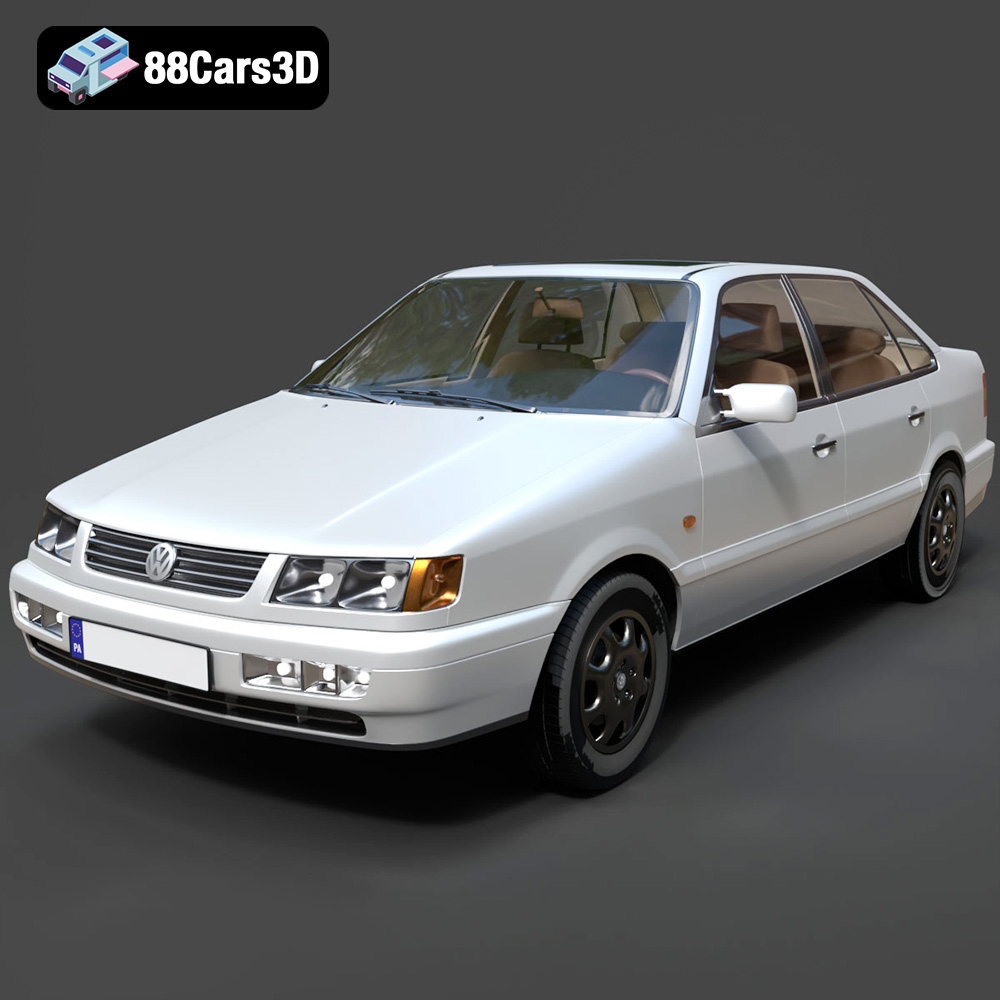
Download the highly detailed, game-ready Volkswagen Passat Mk4 B4 Sedan 1993 3D Model. Features accurate 90s sedan styling, detailed front grille-less fascia, and a classic interior setup. Includes .blend, .fbx, .obj, .glb, .stl, .ply, .unreal, and .max formats for game development, AR/VR, and rendering.
Price: $39.99

Texture: Yes | Material: Yes
Download the highly detailed, game-ready Volkswagen Jetta GLI 2019 3D Model. Features an aggressive honeycomb grille with red accents, sleek aerodynamic profile, and exclusive GLI sport wheels. Includes .blend, .fbx, .obj, .glb, .stl, .ply, .unreal, and .max formats for game development, AR/VR, and rendering.
Price: $39.99

Texture: Yes | Material: Yes
Download the highly detailed, game-ready Vintage Vespa 3D Model. Features iconic rounded monocoque styling, classic saddle, and chrome accents. Includes .blend, .fbx, .obj, .glb, .stl, .ply, .unreal, and .max formats for game development, AR/VR, and rendering.
Price: $39.99

Texture: Yes | Material: Yes
Download the highly detailed, game-ready Vespa GS 150 3D Model. Features elegant aerodynamic curves, classic leg shield, and detailed engine casing. Includes .blend, .fbx, .obj, .glb, .stl, .ply, .unreal, and .max formats for game development, AR/VR, and rendering.
Price: $39.99

Texture: Yes | Material: Yes
Download the highly detailed, game-ready Vespa P200E 3D Model. Features classic vintage styling, accurate step-through frame geometry, and authentic detailing. Includes .blend, .fbx, .obj, .glb, .stl, .ply, .unreal, and .max formats for game development, AR/VR, and rendering.
Price: $39.99

Texture: Yes | Material: Yes
Download the highly detailed, game-ready Ural M67-36-P 1976 3D Model. Features the iconic air-cooled boxer engine, vintage utilitarian styling, and authentic spoked wheels. Includes .blend, .fbx, .obj, .glb, .stl, .ply, .unreal, and .max formats for game development, AR/VR, and rendering.
Price: $39.99
Texture: Yes | Material: Yes
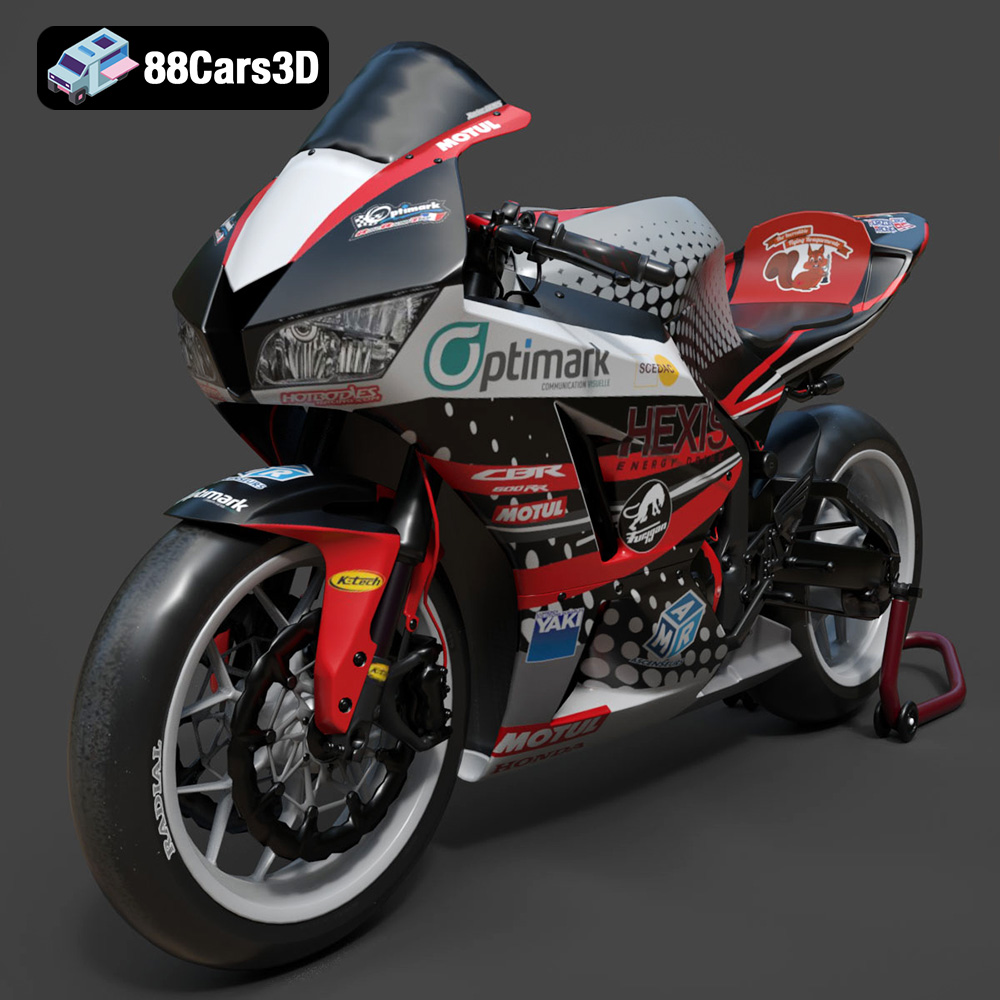
Download the highly detailed, game-ready Honda CBR600RR 3D Model. Features aerodynamic fairings, an iconic center-up exhaust, and an aggressive track-focused stance. Includes .blend, .fbx, .obj, .glb, .stl, .ply, .unreal, and .max formats for game development, AR/VR, and rendering.
Price: $39.99
Texture: Yes | Material: Yes
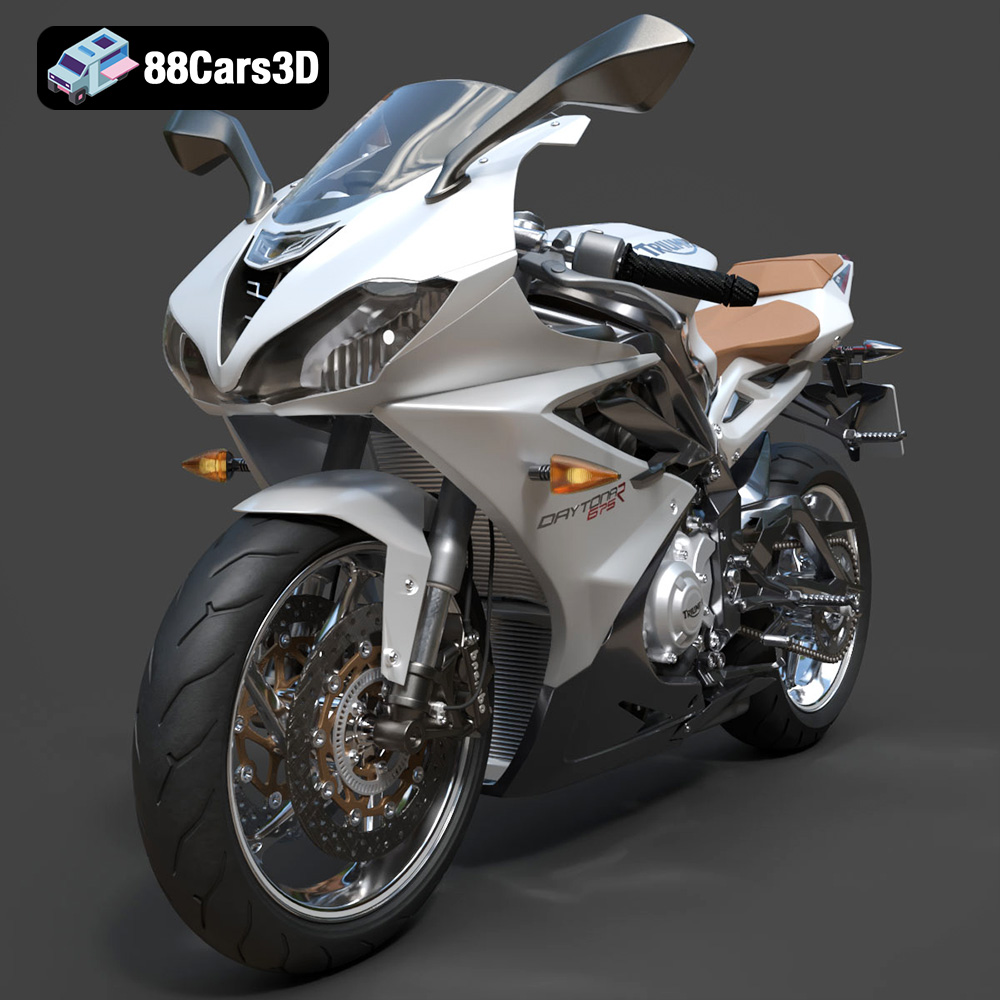
Download the highly detailed, game-ready Triumph Daytona 675R ABS 2015 3D Model. Features aerodynamic sport fairings, a detailed inline-triple engine, and premium Öhlins suspension components. Includes .blend, .fbx, .obj, .glb, .stl, .ply, .unreal, and .max formats for game development, AR/VR, and rendering.
Price: $39.99

