Get 20% OFF All Premium 3D & STL Models!

“`html
The world of 3D printing offers unparalleled freedom to create intricate and complex designs. However, realizing these ambitious visions requires a deep understanding of the process, especially when dealing with STL files containing complex geometries. From the sleek curves of a classic car to the intricate details of a miniature engine, successfully printing these models demands careful planning, precise settings, and a keen eye for potential pitfalls. This guide provides a comprehensive overview of the techniques and best practices necessary to navigate the challenges of printing complex STL files, ensuring successful and high-quality results every time. Whether you’re a seasoned 3D printing enthusiast or a newcomer eager to push the boundaries of your printer, this article will equip you with the knowledge to conquer even the most demanding prints.
In this guide, we’ll delve into the intricacies of STL file structure, explore optimal slicing parameters, master support generation, and uncover post-processing secrets. We will also address common printing failures and show you how to troubleshoot them. Armed with this knowledge, you will be able to download intricate 3D models, like those available on platforms like 88cars3d.com, and bring them to life with confidence.
The STL (Stereolithography) file format is the bedrock of 3D printing, representing a 3D model’s surface as a collection of interconnected triangles. While seemingly simple, the nuances of STL file structure significantly impact the final print quality. A poorly constructed STL file can lead to various printing issues, including surface artifacts, weak points, and even print failures. Therefore, a thorough understanding of STL file characteristics is crucial for successful printing.
Mesh density refers to the number of triangles used to represent the 3D model’s surface. A higher mesh density results in a smoother, more detailed print but also increases the file size and processing time. Conversely, a low mesh density can lead to faceted surfaces and loss of fine details. Finding the right balance is essential. For example, when printing car models from 88cars3d.com, consider the scale of the model. Smaller models require higher mesh density to preserve intricate details like door handles and grilles. A good starting point is to aim for a mesh density that results in triangles no larger than 0.5mm, adjusting based on the model’s complexity and desired quality.
A “manifold” mesh is a closed, watertight surface where every edge is shared by exactly two triangles. Non-manifold geometry, such as holes, self-intersections, or disconnected components, can wreak havoc on the slicing process. Most slicer software can detect and attempt to repair minor mesh errors automatically. However, for significant issues, dedicated mesh repair tools like Meshmixer or Netfabb are invaluable. These tools can identify and fix a wide range of problems, ensuring a clean and printable STL file. Before slicing, always run a mesh analysis in your chosen repair software. Look for indicators like “open edges,” “flipped normals,” and “intersecting faces.” Fixing these issues before printing can save you time, filament, and frustration.
Slicing is the process of converting a 3D model into a series of 2D layers that the 3D printer can understand. The slicing software allows you to control various parameters that directly influence the print’s quality, strength, and overall success. Mastering these parameters is crucial for achieving optimal results, especially when printing complex geometries.
Layer height determines the thickness of each printed layer. A smaller layer height results in smoother surfaces and finer details but increases the print time. A larger layer height prints faster but sacrifices surface quality. The optimal layer height depends on the model’s complexity and the desired level of detail. For FDM printing, a common range is 0.1mm to 0.2mm. When printing detailed car models with intricate bodywork, reducing the layer height to 0.1mm can significantly improve surface finish. Print speed should be adjusted accordingly. Slower print speeds generally improve accuracy and adhesion, especially with small details and overhangs. Experiment to find the sweet spot between speed and quality. As a starting point, try a print speed of 40-60mm/s and adjust based on the results.
Infill refers to the internal structure of the 3D print. Infill density determines how much material is used inside the model, affecting its strength and weight. A higher infill density results in a stronger but heavier and more material-intensive print. The optimal infill density depends on the model’s intended use and the forces it will be subjected to. For purely aesthetic models, like those displayed on a shelf, a low infill density (e.g., 10-15%) is often sufficient. For functional parts that need to withstand stress, a higher infill density (e.g., 25-50%) may be necessary. Infill pattern also plays a role. Common patterns include grid, gyroid, and honeycomb. Gyroid infill offers excellent strength-to-weight ratio and is a good choice for functional parts. Concentric infill can be useful for parts with thin walls, as it provides support and prevents warping.
Support structures are essential for printing overhangs and bridging gaps in complex geometries. Without proper support, these features would simply collapse during printing. Understanding the different types of support structures and how to generate them effectively is crucial for successful 3D printing. The goal is to provide adequate support without compromising the surface quality of the printed part or making removal overly difficult.
Support placement is critical for ensuring that all overhangs are adequately supported without interfering with other parts of the model. Automatic support generation in slicer software can be a good starting point, but manual adjustments are often necessary to optimize support placement and minimize material usage. Consider the angle of overhangs. Overhangs exceeding 45 degrees typically require support. Focus support on areas with significant overhangs or bridging distances. Support density determines how closely spaced the support structures are. Higher support density provides more robust support but also increases material usage and removal difficulty. Lower support density is easier to remove but may not adequately support all overhangs. Experiment with different support densities to find the right balance for your model. For delicate details, consider using thinner support structures with lower density to minimize the risk of damage during removal.
The choice of support material can significantly impact the ease of support removal and the surface quality of the supported areas. Some materials, like HIPS (High Impact Polystyrene) used with ABS, are designed to be dissolved in a solvent, making support removal effortless. However, this requires a dual-extruder printer. For single-extruder printers, breakaway support materials are a good option. These materials are designed to be easily snapped off from the printed part. The support interface is the layer between the support structure and the printed part. Adjusting the interface settings, such as the interface layer height and density, can help optimize support removal and minimize scarring on the printed surface. A small air gap between the support and the model can also facilitate easier removal, but too large a gap can lead to sagging.
The choice of printing material and the corresponding printer settings are crucial for achieving optimal results, especially when dealing with complex geometries. Different materials have different properties and require different settings to print successfully. Understanding these nuances is essential for maximizing print quality and minimizing failures.
FDM (Fused Deposition Modeling) and resin printing (SLA/DLP/LCD) are the two most common 3D printing technologies. FDM printing is generally more affordable and versatile, while resin printing offers higher resolution and smoother surfaces, making it ideal for highly detailed models. For complex car models, resin printing can capture finer details like intricate grilles and badges. However, resin prints tend to be more brittle than FDM prints. FDM printing with materials like PETG can provide a good balance of strength and detail. If you are printing an STL file that requires very fine surface detail and dimensional accuracy, resin is typically the better choice, while FDM is a good option for larger parts or functional prototypes that do not require high visual fidelity.
Temperature, speed, and cooling are critical parameters for both FDM and resin printing. For FDM printing, the nozzle temperature should be set according to the material manufacturer’s recommendations. Too low a temperature can lead to poor layer adhesion, while too high a temperature can cause stringing and warping. Bed adhesion is also crucial. Using a heated bed and applying an adhesive like hairspray or glue stick can help prevent warping. Print speed should be adjusted based on the material and the complexity of the model. Slower speeds generally improve accuracy and adhesion. Cooling is essential for preventing warping and improving surface quality. Use a part cooling fan to cool down each layer as it is printed. For resin printing, exposure time is the key parameter. Adjusting the exposure time based on the resin type and the layer height is crucial for achieving proper curing and preventing print failures. Also, ensure the resin is at the correct temperature and that the build plate is properly leveled.
Even with careful planning and precise settings, printing failures can still occur, especially when dealing with complex STL files. Understanding the common causes of these failures and how to troubleshoot them is essential for becoming a proficient 3D printer. Identifying and addressing issues early can save time, filament, and frustration.
Warping occurs when the printed part lifts off the build plate during printing, often due to uneven cooling or poor bed adhesion. Layer delamination is the separation of layers during printing, typically caused by insufficient heat or poor adhesion. Elephant’s foot is the bulging of the first few layers of the print, often caused by excessive bed adhesion or incorrect Z-offset. To prevent warping, ensure the build plate is clean and level. Use a heated bed and apply an adhesive like hairspray or glue stick. Enclosing the printer can also help maintain a consistent temperature and prevent drafts. To prevent layer delamination, increase the nozzle temperature or reduce the print speed. To correct elephant’s foot, adjust the Z-offset or reduce the initial layer flow rate in your slicer software.
Stringing is the formation of thin strands of filament between different parts of the print, often caused by excessive nozzle temperature or retraction issues. Blobs and zits are small imperfections on the surface of the print, often caused by inconsistent extrusion or retraction. To prevent stringing, reduce the nozzle temperature, increase retraction distance and speed, or enable coasting or wiping settings in your slicer software. To minimize blobs and zits, fine-tune your retraction settings, adjust the extrusion multiplier, or try using a different seam alignment option in your slicer. Ensure the filament is dry and stored properly, as moisture can contribute to these issues. If you are downloading models from marketplaces such as 88cars3d.com, make sure they have been tested for these problems.
Post-processing techniques are essential for refining the printed part and achieving the desired final result. These techniques can range from simple tasks like removing support structures to more complex processes like sanding, painting, and assembly. Proper post-processing can significantly enhance the appearance, functionality, and durability of the printed part.
Support removal is often the first step in post-processing. Carefully remove support structures using pliers, knives, or specialized support removal tools. Be mindful of delicate features and avoid damaging the printed part. After removing supports, you may need to smooth the surface to remove any remaining blemishes. Sanding is a common method for smoothing surfaces. Start with coarse-grit sandpaper and gradually move to finer grits. For resin prints, wet sanding can help prevent dust and improve surface quality. Chemical smoothing, using solvents like acetone or ethyl acetate, can also be used to smooth ABS or PLA prints, but caution is advised, and proper ventilation is necessary. Consider using a rotary tool with polishing attachments for complex surfaces or hard-to-reach areas.
Painting is a great way to add color, detail, and realism to your 3D prints. Prime the printed part before painting to ensure proper adhesion and a smooth finish. Use acrylic paints or model paints for best results. Apply multiple thin coats rather than one thick coat to avoid drips and runs. Consider using masking tape to create clean lines and sharp edges. After painting, apply a clear coat to protect the paint and add a glossy or matte finish. For multi-part models, assembly may be required. Use glue, screws, or other fasteners to join the parts together. Pay attention to alignment and ensure a secure fit. Adding finishing touches like decals, stickers, or weathering effects can further enhance the realism and visual appeal of your 3D prints.
Printing complex geometries in STL files doesn’t have to be a daunting task. By understanding the intricacies of STL file structure, mastering slicing parameters, optimizing support structures, carefully selecting materials, and mastering post-processing techniques, you can overcome the challenges and achieve stunning results. Remember to experiment with different settings and techniques to find what works best for your printer and your specific models. Start with simpler prints to build your skills and confidence, and gradually tackle more complex projects. Don’t be afraid to seek out online resources and communities for guidance and inspiration.
The world of 3D printing is constantly evolving, with new materials, technologies, and techniques emerging all the time. Stay curious, keep learning, and never stop pushing the boundaries of what’s possible. Armed with the knowledge and skills you’ve gained from this guide, you’re well-equipped to tackle even the most demanding 3D printing projects. So, download those intricate models from sites like 88cars3d.com and bring your creative visions to life!
“`

Texture: Yes | Material: Yes
Download the highly detailed, game-ready Yamaha XV950 Racer 3D Model. Features an aggressive cafe-racer front cowl, detailed air-cooled V-twin engine, and classic retro styling. Includes .blend, .fbx, .obj, .glb, .stl, .ply, .unreal, and .max formats for game development, AR/VR, and rendering.
Price: $19.99

Texture: Yes | Material: Yes
Download the highly detailed, game-ready Volvo VNL Tractor Truck 2002 3D Model. Features iconic aerodynamic styling, detailed fifth-wheel coupling, and heavy-duty chassis. Includes .blend, .fbx, .obj, .glb, .stl, .ply, .unreal, and .max formats for game development, AR/VR, and rendering.
Price: $39.99
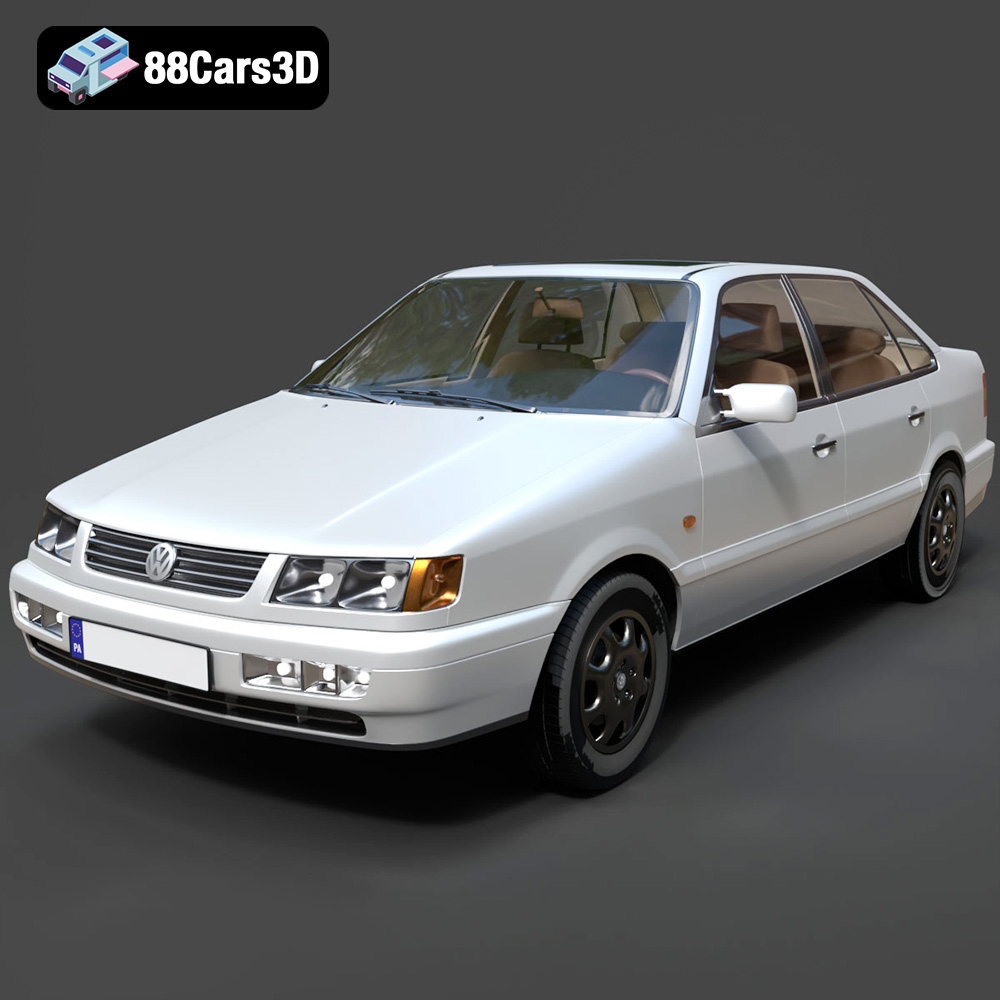
Texture: Yes | Material: Yes
Download the highly detailed, game-ready Volkswagen Passat Mk4 B4 Sedan 1993 3D Model. Features accurate 90s sedan styling, detailed front grille-less fascia, and a classic interior setup. Includes .blend, .fbx, .obj, .glb, .stl, .ply, .unreal, and .max formats for game development, AR/VR, and rendering.
Price: $39.99

Texture: Yes | Material: Yes
Download the highly detailed, game-ready Volkswagen Jetta GLI 2019 3D Model. Features an aggressive honeycomb grille with red accents, sleek aerodynamic profile, and exclusive GLI sport wheels. Includes .blend, .fbx, .obj, .glb, .stl, .ply, .unreal, and .max formats for game development, AR/VR, and rendering.
Price: $39.99

Texture: Yes | Material: Yes
Download the highly detailed, game-ready Vintage Vespa 3D Model. Features iconic rounded monocoque styling, classic saddle, and chrome accents. Includes .blend, .fbx, .obj, .glb, .stl, .ply, .unreal, and .max formats for game development, AR/VR, and rendering.
Price: $39.99

Texture: Yes | Material: Yes
Download the highly detailed, game-ready Vespa GS 150 3D Model. Features elegant aerodynamic curves, classic leg shield, and detailed engine casing. Includes .blend, .fbx, .obj, .glb, .stl, .ply, .unreal, and .max formats for game development, AR/VR, and rendering.
Price: $39.99

Texture: Yes | Material: Yes
Download the highly detailed, game-ready Vespa P200E 3D Model. Features classic vintage styling, accurate step-through frame geometry, and authentic detailing. Includes .blend, .fbx, .obj, .glb, .stl, .ply, .unreal, and .max formats for game development, AR/VR, and rendering.
Price: $39.99

Texture: Yes | Material: Yes
Download the highly detailed, game-ready Ural M67-36-P 1976 3D Model. Features the iconic air-cooled boxer engine, vintage utilitarian styling, and authentic spoked wheels. Includes .blend, .fbx, .obj, .glb, .stl, .ply, .unreal, and .max formats for game development, AR/VR, and rendering.
Price: $39.99
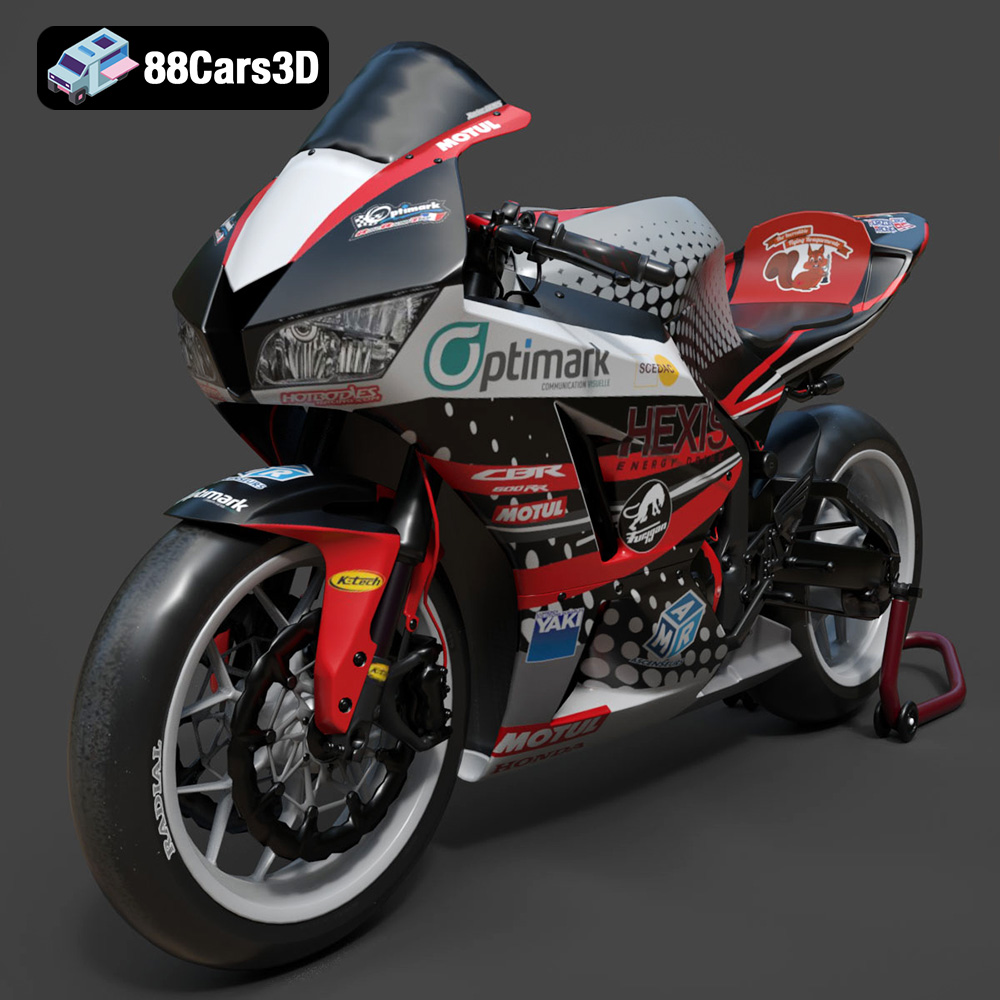
Texture: Yes | Material: Yes
Download the highly detailed, game-ready Honda CBR600RR 3D Model. Features aerodynamic fairings, an iconic center-up exhaust, and an aggressive track-focused stance. Includes .blend, .fbx, .obj, .glb, .stl, .ply, .unreal, and .max formats for game development, AR/VR, and rendering.
Price: $39.99
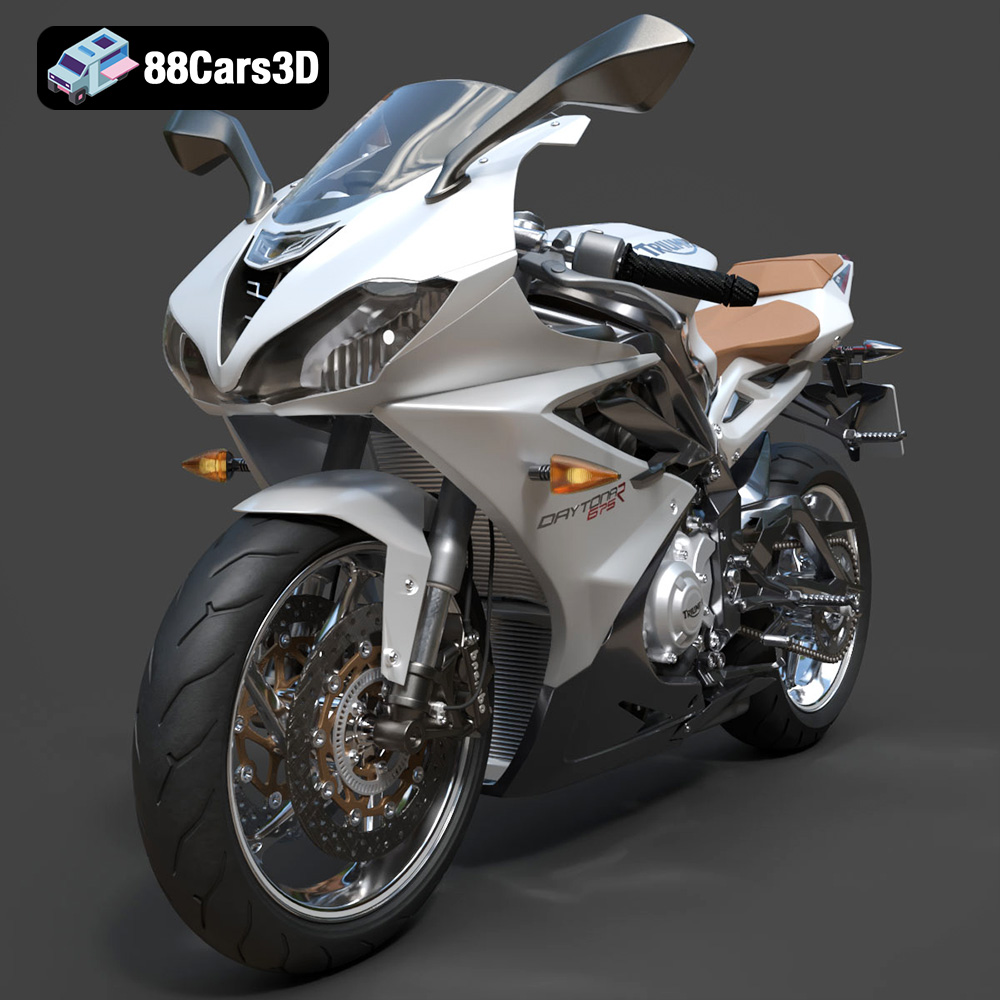
Texture: Yes | Material: Yes
Download the highly detailed, game-ready Triumph Daytona 675R ABS 2015 3D Model. Features aerodynamic sport fairings, a detailed inline-triple engine, and premium Öhlins suspension components. Includes .blend, .fbx, .obj, .glb, .stl, .ply, .unreal, and .max formats for game development, AR/VR, and rendering.
Price: $39.99

