Get 20% OFF All Premium 3D & STL Models!

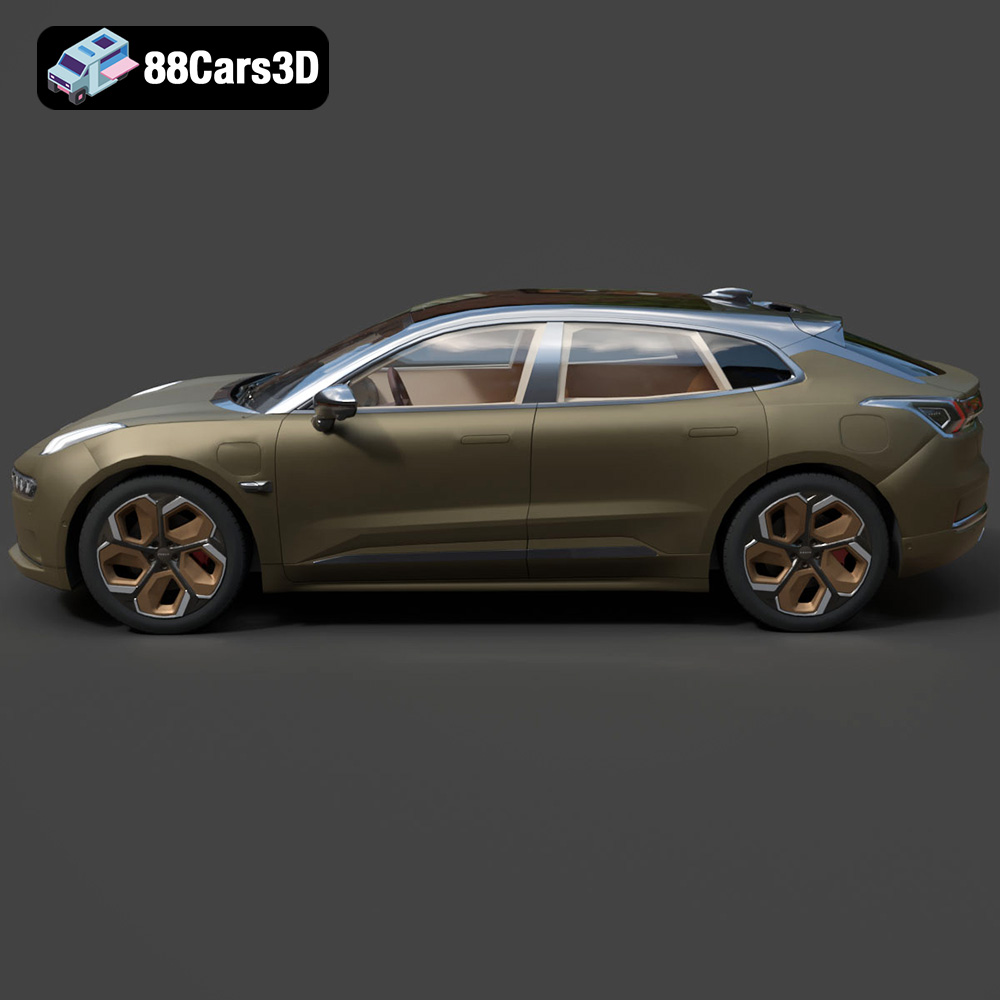
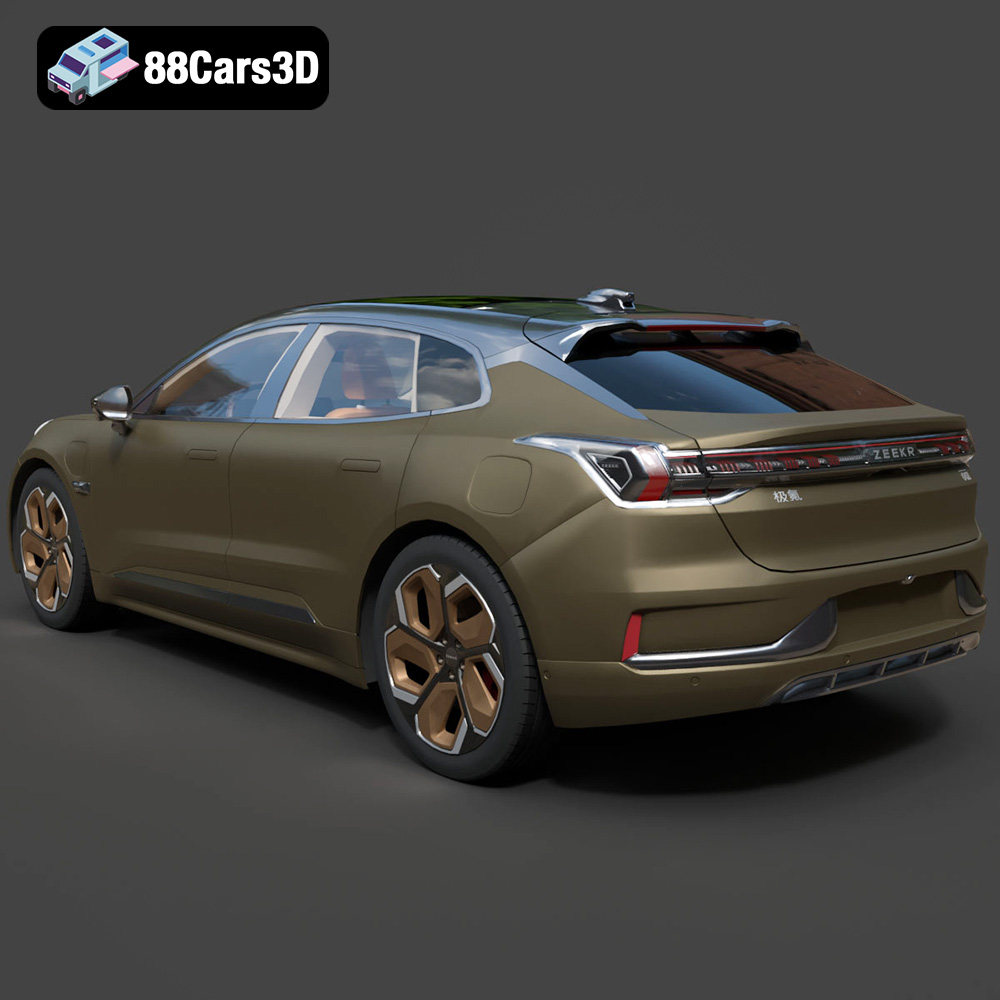
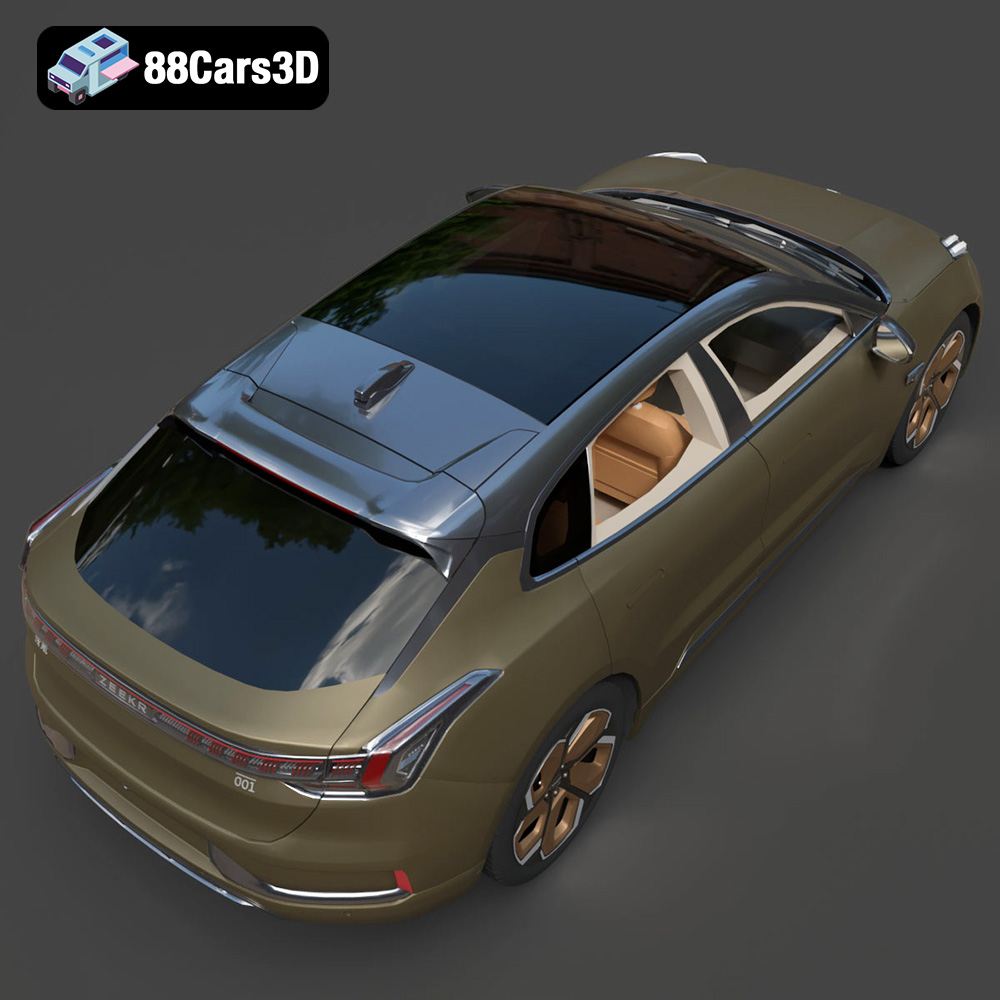
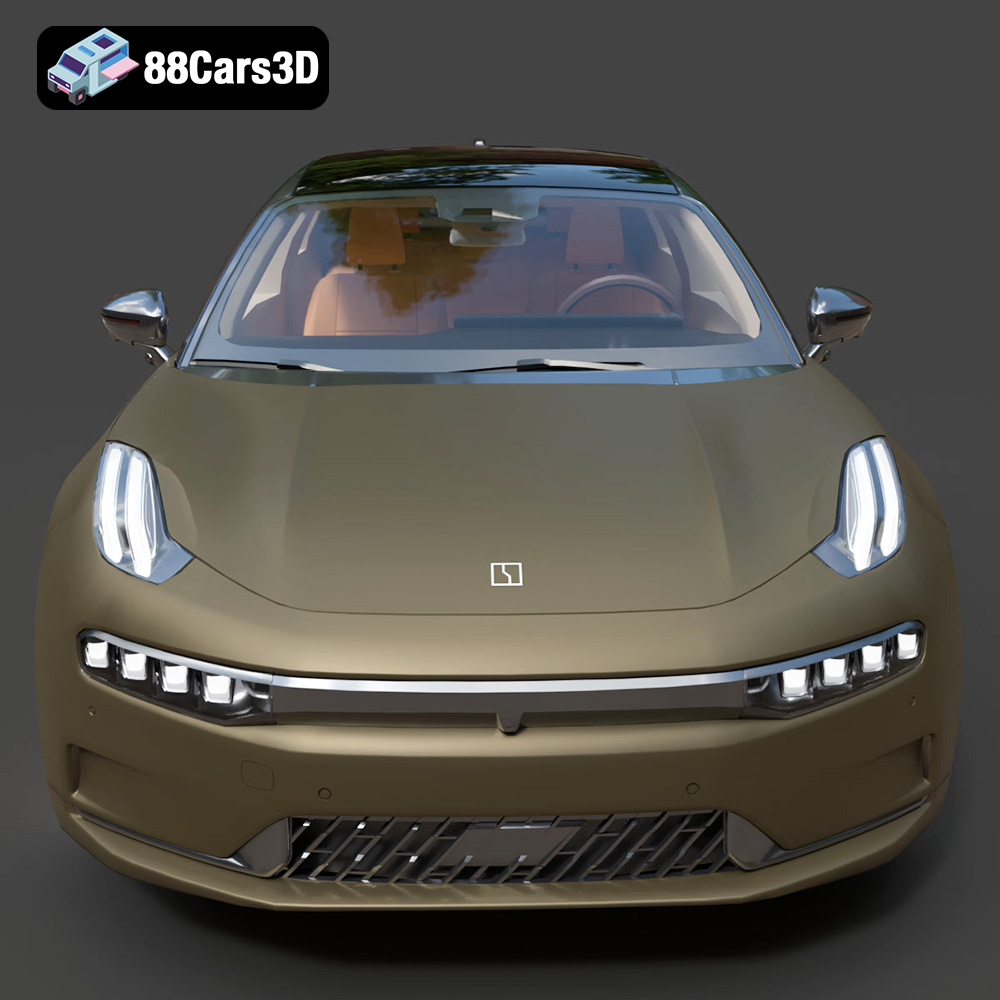
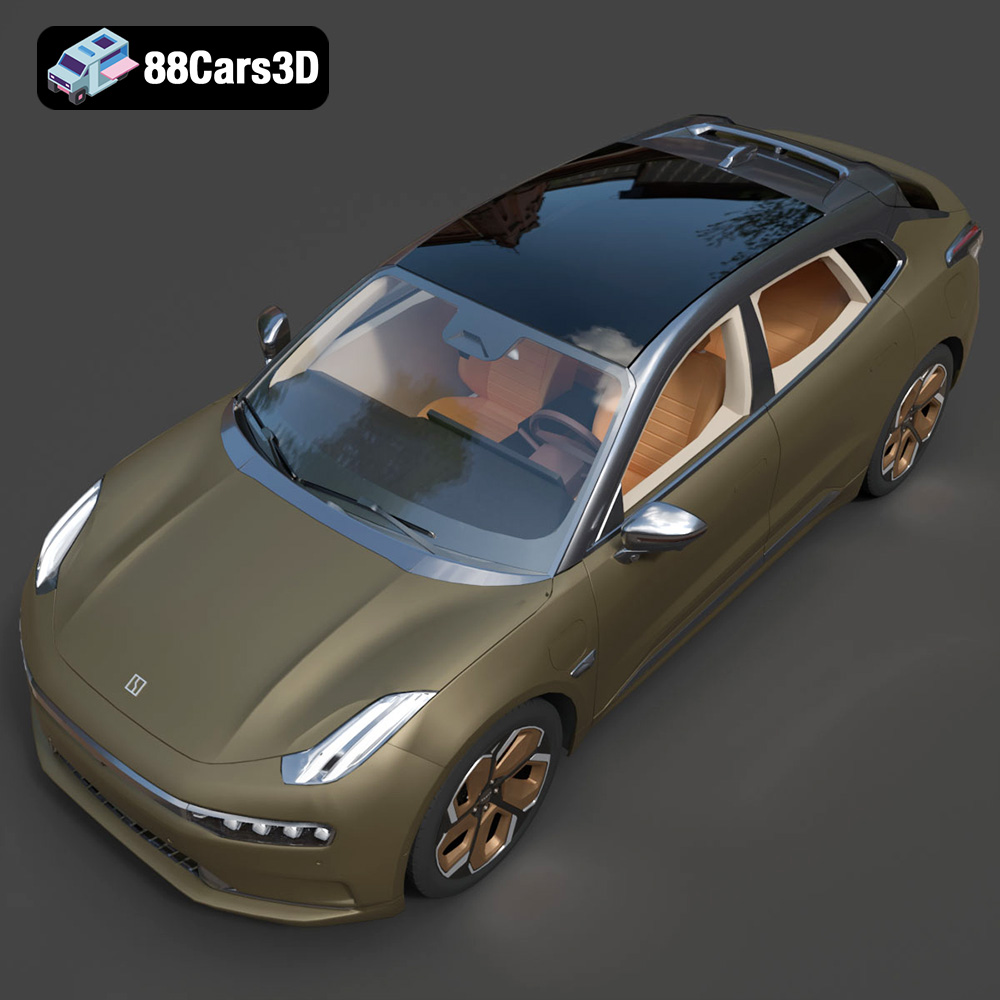
The Zeekr 001 is a striking electric vehicle, and now you can bring it to life in your own home thanks to readily available 3D models. 3D printing the Zeekr 001 3D model offers a unique opportunity to create a detailed replica of this modern shooting brake. This guide will walk you through the entire process, from preparing the STL files to post-processing your finished print. We’ll cover everything you need to know to achieve a high-quality 3D printed model, whether you’re a seasoned maker or just starting out with additive manufacturing.
Selecting the right 3D printer is crucial for a successful print. The level of detail you desire, the size of the model, and your budget will all influence your choice.
Two primary types of 3D printers are commonly used: Fused Deposition Modeling (FDM) and resin printers (SLA or DLP). FDM printers are more accessible and generally less expensive. They work by melting and extruding plastic filament layer by layer. Resin printers, on the other hand, use liquid resin that is cured by UV light. Resin printers are known for their superior detail and smoother surfaces, making them ideal for smaller, more intricate parts of the Zeekr 001 model, but they can be more challenging to use and require more post-processing.
Consider the dimensions of the Zeekr 001 model. If you plan to print the model in one piece, ensure your printer’s build volume is large enough to accommodate it. If not, you’ll need to split the model into smaller parts, which can then be assembled after printing. A larger build volume offers more flexibility but may require a more expensive printer.
Before you can begin printing your Zeekr 001, it’s essential to understand the different file formats available and how they impact the 3D printing process. 88cars3d.com provides a variety of formats for the Zeekr 001 3D model to suit different needs, but some are better suited for 3D printing than others.
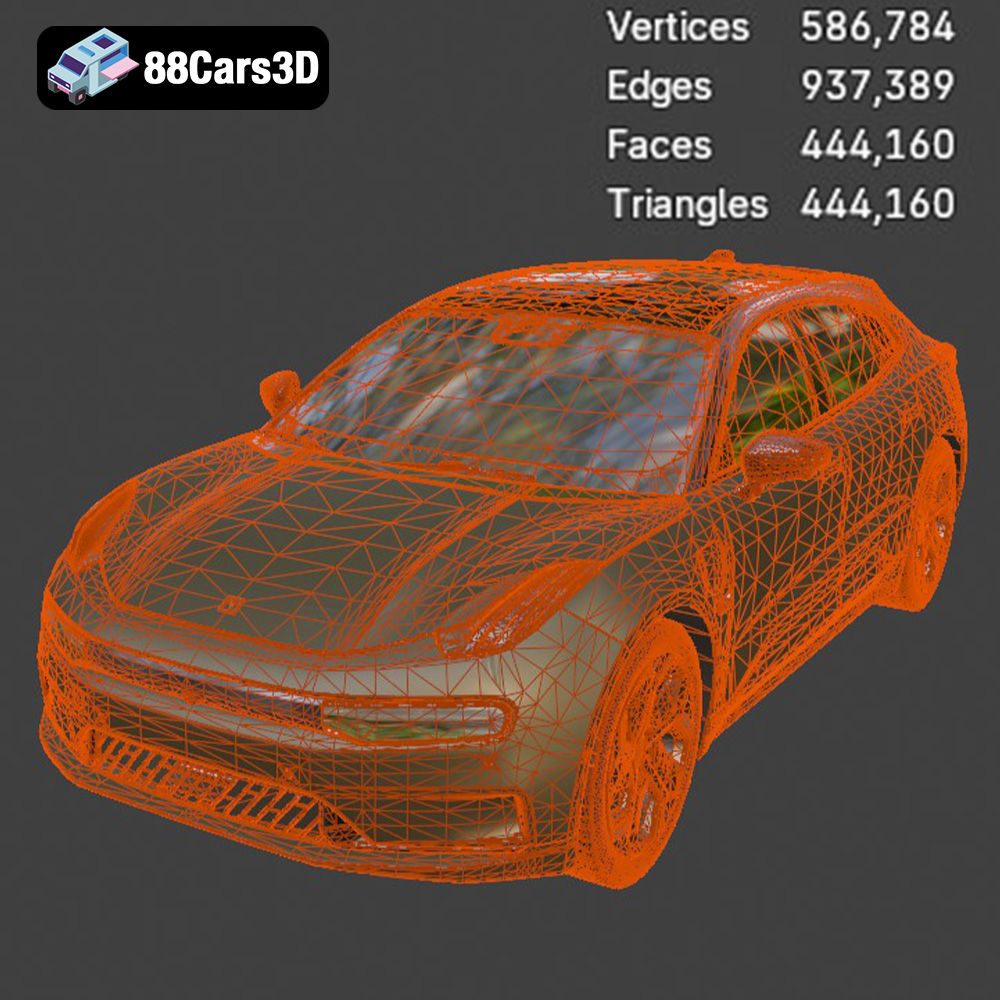
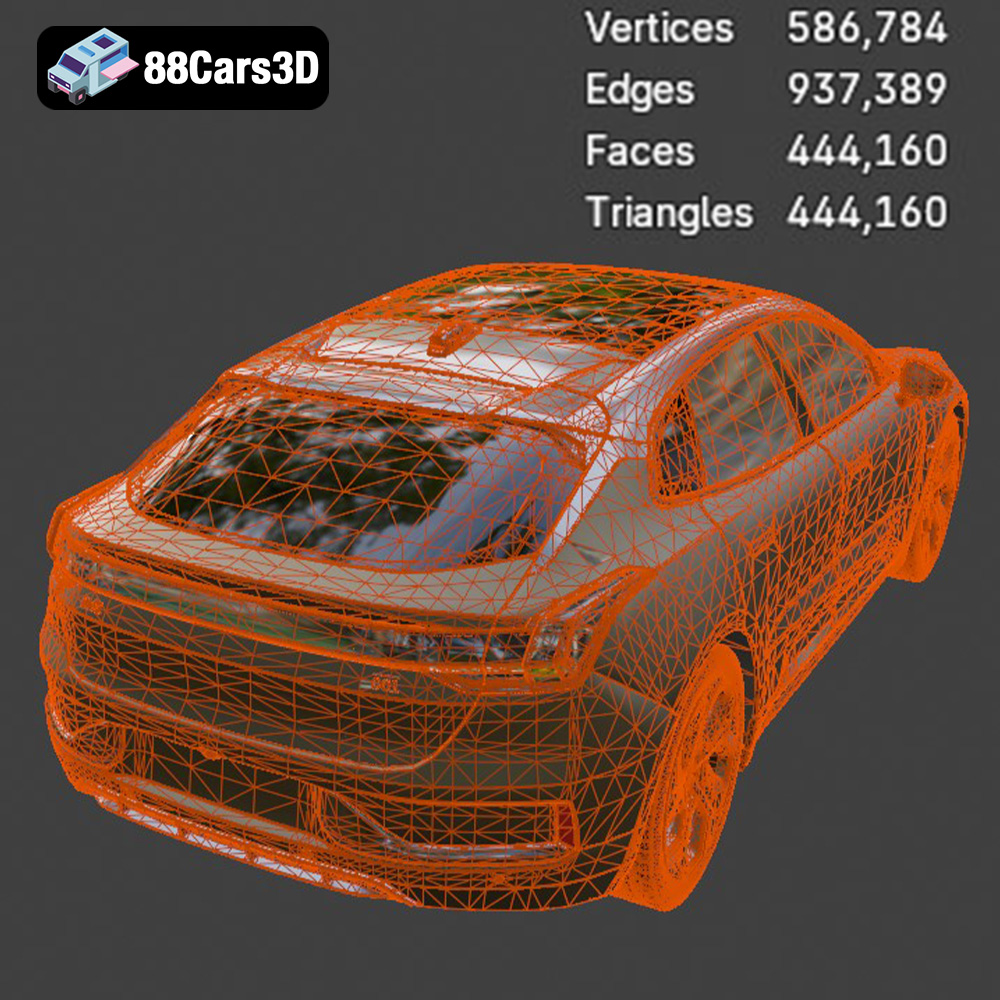
The STL (Stereolithography) format is the workhorse of 3D printing. It represents the surface geometry of a 3D object as a collection of triangles. This simplicity makes it universally compatible with almost all 3D printing software and printers. When you download the Zeekr 001 model from 88cars3d.com for 3D printing, the STL file will be your primary format. However, STL files only contain information about the shape of the object; they do not include color, texture, or material properties. This means that any color or material assignment will need to be done during post-processing. A good STL file will have a well-defined mesh structure, meaning the triangles are evenly distributed and sized appropriately. Avoid STL files with large, stretched triangles or holes in the mesh, as these can lead to printing errors. Slicing software will automatically detect and attempt to repair minor errors in an STL file, but severely damaged meshes may require manual repair using software like Meshmixer or Blender before slicing. For complex models like the Zeekr 001, ensure the STL file is optimized for printing. Check for non-manifold geometry (edges that belong to more than two faces) and self-intersecting faces, as these can cause issues during the slicing process. A properly prepared STL file will result in a smoother, more accurate 3D print.
OBJ is a more versatile format than STL, as it can store color and texture information alongside the geometry. This makes it suitable for colored 3D printing or for applications where visual fidelity is paramount. However, not all 3D printers support colored printing, and OBJ files can be larger and more complex than STL files. Therefore, while the Zeekr 001 OBJ file is great for rendering and visualization, the STL format is usually preferable for 3D printing itself.
PLY (Polygon File Format) is designed to store 3D data acquired from 3D scanners. It supports a wide range of properties, including color, transparency, and normal vectors. While PLY can represent highly detailed models, it is not as widely supported by 3D printing software as STL or OBJ. Therefore, it’s less commonly used for direct 3D printing. If you have a PLY file of the Zeekr 001, you may need to convert it to STL before printing.
The .blend file format is the native format for Blender, a powerful and free 3D modeling software. It contains the entire Blender scene, including the model geometry, materials, textures, lighting, and camera settings. If you’re comfortable with Blender, the .blend file of the Zeekr 001 allows you to fully customize the model before exporting it to STL for 3D printing. You can modify the design, add details, or split the model into smaller parts for easier printing.
FBX (Filmbox) is a proprietary format developed by Autodesk. It’s commonly used for exchanging 3D data between different software applications, particularly in game development and animation. FBX supports a wide range of data, including geometry, materials, textures, animations, and skeletal rigs. While some advanced slicing software might be able to import FBX files, it’s more common to use the STL format for 3D printing the Zeekr 001 model.
GLB (GL Transmission Format Binary) is a file format designed for efficient transmission and loading of 3D models in web and AR/VR applications. It’s a binary format that contains the model geometry, materials, textures, and animations in a single file. GLB is optimized for real-time rendering and is widely supported by web browsers and AR/VR platforms. This format is excellent for previewing the Zeekr 001 model in AR on your phone or tablet before committing to a print.
The .max format is the native format for 3ds Max, another professional 3D modeling and animation software. Similar to .blend, the .max file contains the entire scene, allowing for extensive customization. If you use 3ds Max, you can modify the Zeekr 001 model and export it to STL for 3D printing. However, if you don’t have access to 3ds Max, you likely won’t be able to use this format.
Proper preparation is key to a successful 3D print. This involves using slicing software to convert the 3D model into instructions that the printer can understand.
Slicing software like Cura, Simplify3D, or PrusaSlicer takes your STL file and converts it into G-code, the language that your 3D printer understands. Within the slicer, you’ll need to configure several settings, including layer height, infill density, support structures, and printing speed. For the Zeekr 001, a layer height of 0.1mm to 0.2mm is recommended for a good balance of detail and print time. Infill density determines the internal structure of the print; a higher density results in a stronger but heavier model. For a display model, 15-20% infill is usually sufficient. Support structures are necessary for overhanging parts of the model. Experiment with different support types and densities to find the optimal settings for your printer and material.
Model orientation significantly impacts the quality and strength of the final print. Orient the Zeekr 001 to minimize the need for support structures, especially on visible surfaces. For example, printing the car with the roof facing upwards can reduce the amount of support needed on the body. When supports are necessary, use a support material that is easy to remove or consider using dissolvable support material for a cleaner finish. The Zeekr 001 model will likely require supports under the side mirrors, bumpers, and potentially the roof, depending on the chosen orientation. Be mindful of support placement, as it can affect the surface finish of the printed parts.
Sometimes, STL files may contain errors that can cause printing problems. Slicing software often includes tools to automatically repair minor errors, such as holes or non-manifold edges. If the errors are more significant, you may need to use dedicated mesh repair software like Meshmixer or Netfabb. Scaling the model allows you to adjust its size to fit your needs or the printer’s build volume. Be careful when scaling, as very small details may become unprintable at smaller sizes.
The choice of material impacts the appearance, strength, and durability of your 3D printed Zeekr 001.
PLA (Polylactic Acid) is a popular choice for 3D printing due to its ease of use and biodegradability. It’s available in a wide range of colors and finishes, making it ideal for creating visually appealing models. PLA is relatively strong but can be brittle, so it’s best suited for display models rather than functional parts. It also has a lower melting point than other materials, which can make it susceptible to warping in hot environments.
PETG (Polyethylene Terephthalate Glycol-modified) offers a good balance of strength, flexibility, and heat resistance. It’s more durable than PLA and less prone to warping. PETG is a good choice if you want a model that can withstand some wear and tear. However, it can be more challenging to print than PLA, as it requires higher temperatures and careful bed adhesion.
Resin is the material of choice for achieving high levels of detail and smooth surfaces. Resin printers use liquid resin that is cured by UV light, resulting in parts with excellent resolution. Resin is ideal for printing small, intricate parts of the Zeekr 001, such as the emblems or interior details. However, resin prints can be brittle and require post-curing to achieve their full strength. They also involve working with potentially hazardous chemicals, so proper safety precautions are essential.
Post-processing is the final stage of 3D printing, where you refine and finish your model.
Carefully remove any support structures from the printed parts. Use tools like pliers, cutters, or a sharp knife to avoid damaging the model. Sand down any rough edges or remaining support marks. For resin prints, rinse the parts with isopropyl alcohol to remove any uncured resin.
Sanding is essential for achieving a smooth surface finish. Start with coarse sandpaper and gradually move to finer grits. Wet sanding can help reduce dust and improve the surface quality. For PLA and PETG, you can use filler primer to fill in any remaining imperfections before painting.
Painting can bring your 3D printed Zeekr 001 to life. Use acrylic paints designed for plastic models. Apply thin, even coats and allow them to dry completely between coats. Consider using an airbrush for a more professional finish. If you printed the model in multiple parts, use adhesive to assemble them. Ensure the parts are properly aligned before the adhesive sets.
Even with careful preparation, 3D printing can sometimes present challenges.
Warping occurs when the corners of the print lift off the build plate. This is often caused by poor bed adhesion or temperature fluctuations. Ensure your build plate is properly leveled and clean. Use a bed adhesive like glue stick or hairspray to improve adhesion. Enclosing the printer can help maintain a stable temperature and reduce warping.
Stringing refers to thin strands of plastic that form between different parts of the print. Blobs are excess material that accumulates on the surface. These issues can be caused by incorrect temperature settings, retraction settings, or printing speed. Adjust these parameters in your slicing software to minimize stringing and blobs.
Layer shifting occurs when the print suddenly shifts horizontally. This can be caused by loose belts, stepper motor issues, or obstructions on the print bed. Check the tension of your printer’s belts and ensure the stepper motors are functioning correctly. Clean the print bed and make sure there are no obstructions that could cause the nozzle to snag.
By following these guidelines, you can successfully 3D print a stunning replica of the Zeekr 001. Remember to experiment with different settings and materials to find what works best for your printer and your desired results. And don’t be afraid to seek advice from the online 3D printing community – there’s a wealth of knowledge available to help you overcome any challenges.
Bring stunning realism to your digital projects with the Zeekr 001 3D Model. This digital asset is accurately crafted to replicate the distinctive exterior lines and modern design of the innovative electric vehicle, providing a lifelike representation perfect for professional use.
$39.99
.-001
.arvr
.blend
.car3dmodel
.electriccar
.fbx
.gameasset
.glb
.max
.obj
.ply
.rendering
.shootingbrake
.simulation
.stl
.unreal
.zeekr