Get 20% OFF All Premium 3D & STL Models!

“`html
3D printing has revolutionized manufacturing, prototyping, and hobbyist projects. At the heart of this technology lies the STL file, the de facto standard for representing 3D models. However, simply downloading an STL file and hitting “print” rarely yields optimal results, especially when dealing with intricate models like those found on platforms like 88cars3d.com. This comprehensive guide provides a step-by-step walkthrough of preparing your 3D models for printing, covering everything from file inspection and repair to slicing and printer settings. Whether you’re a seasoned 3D printing enthusiast or a beginner just starting, this guide will equip you with the knowledge and skills to achieve high-quality prints consistently.
In this article, we will delve into the intricacies of STL file preparation, exploring techniques for mesh repair, optimization, support structure design, and slicing parameters tailored for both FDM and resin printing. We’ll cover practical tips and best practices to ensure your 3D printed car models from 88cars3d.com come out looking their absolute best.
The STL (Stereolithography) file format is a triangulated representation of a 3D surface. It essentially approximates the model’s geometry using a network of interconnected triangles. The quality of the STL file directly impacts the final print. A poorly constructed STL can lead to printing artifacts, weak points, and even print failures. Understanding the underlying mesh topology is crucial for successful 3D printing.
The number of triangles in an STL file determines its resolution. A higher triangle count results in a smoother surface but increases file size and processing time. For models with intricate curves, like car bodies, a higher triangle count is generally preferred. However, excessively high triangle counts can overwhelm your slicer and printer. A good starting point is to ensure the curves appear smooth to the naked eye when zoomed in within your 3D modeling or slicing software. Experiment with different export settings to find a balance between detail and performance. STL files from 88cars3d.com are pre-optimized for a balance of detail and printability.
A “manifold” mesh is one that is closed and has a clear inside and outside. Think of it like a completely sealed container. Non-manifold geometry, such as holes, overlapping faces, or self-intersections, can cause significant problems during slicing. The slicer needs to understand what is inside and outside the object to generate toolpaths correctly. “Watertightness” refers to the mesh being completely closed, without any gaps or holes. Before printing, always check your STL for manifold geometry and watertightness. Software like Netfabb Basic and MeshLab can identify and automatically repair many common issues.
Before sending your STL file to the slicer, it’s essential to inspect it for errors and repair any issues. This step significantly improves print quality and reduces the risk of print failures. Several software tools are available for STL inspection and repair, ranging from free and open-source options to commercial solutions.
MeshMixer is a free and powerful tool for manipulating and repairing STL files. It offers a variety of features, including automatic error detection and correction. To repair an STL file in MeshMixer, import the file and select “Analysis” -> “Inspector.” MeshMixer will highlight any errors in the mesh, such as holes, non-manifold edges, and self-intersections. Click the “Auto Repair All” button to automatically fix these issues. Be mindful that automatic repair might slightly alter the model’s geometry, so always visually inspect the repaired mesh.
Autodesk Netfabb Basic (now part of the Autodesk Manufacturing portfolio) provides more advanced repair capabilities. It offers tools for identifying and fixing a wide range of mesh errors, including flipped normals, degenerate triangles, and bridge gaps. The software’s scripting capabilities also allow for batch processing and automated repairs, which can be invaluable when working with multiple files. Netfabb’s “extended repair” script is particularly useful for complex models. Consider using Netfabb’s professional versions for advanced features when handling highly complex models or producing parts for commercial use.
Slicing is the process of converting your 3D model into a set of instructions (G-code) that your 3D printer can understand. The slicer software divides the model into thin horizontal layers and generates the toolpaths for the printer to follow. Choosing the right slicing parameters is critical for achieving optimal print quality, strength, and efficiency.
Layer height is the thickness of each layer in your print. Lower layer heights (e.g., 0.1mm) result in smoother surfaces and finer details, but they also increase print time significantly. Higher layer heights (e.g., 0.3mm) print faster but produce less detailed surfaces. Finding the right balance between layer height and print time depends on the specific model and your desired level of detail. For detailed car models, a layer height of 0.1mm to 0.2mm is generally recommended. As a rule of thumb, for detailed miniatures, reduce layer height at the cost of time; for larger, less detailed models, increase layer height to save time. The key is to experiment to find the ideal setting for your printer and material.
Infill refers to the material inside the 3D printed object. Infill density is the percentage of the object’s volume that is filled with material. A higher infill density results in a stronger and heavier print, but it also consumes more material and increases print time. Infill patterns determine the internal structure of the infill. Common infill patterns include rectilinear, grid, triangle, and gyroid. The choice of infill pattern and density depends on the application. For structural parts, a higher infill density (e.g., 20-30%) and a robust infill pattern (e.g., gyroid or triangle) are recommended. For decorative models, a lower infill density (e.g., 10-15%) and a simpler infill pattern (e.g., rectilinear or grid) may suffice. For car models from 88cars3d.com, consider using a gyroid infill pattern for a good balance of strength and weight savings.
Support structures are temporary structures that are printed to support overhanging features of your 3D model. Without support structures, gravity would cause these features to sag or collapse during printing. Generating and removing support structures is a crucial aspect of preparing 3D models for printing, especially for complex shapes.
Most slicer software offers automatic support generation. The slicer analyzes the model and automatically places supports under overhanging features. While automatic support generation is convenient, it often produces unnecessary supports or poorly placed supports. Manual support generation allows you to precisely control the placement and type of supports, resulting in more efficient printing and easier support removal. In Cura, for example, you can use the “Support Blocker” tool to prevent supports from being generated in specific areas, or the “Custom Support” plugin to add supports manually. Manual support generation is particularly useful for complex models with intricate overhangs. The files on 88cars3d.com are designed to minimize support requirements, but complex models will still benefit from careful support placement.
When printing with multiple extruders, you can use a different material for the support structures. This allows you to use a material that is easier to remove or dissolves in water. For example, PVA (Polyvinyl Alcohol) is a water-soluble support material that is commonly used with PLA. Interface layers are thin layers that are printed between the support structure and the model. These layers provide a smoother surface for the model to rest on and make support removal easier. Using an interface layer with a small air gap can further improve support removal. The ideal settings depend on the materials being used and the complexity of the model. Experimentation is key to finding what works best for your setup.
The choice of material and printer settings significantly affects the final print’s quality, strength, and appearance. Different materials have different properties and require different printer settings. Understanding these factors is crucial for achieving optimal results.
FDM (Fused Deposition Modeling) printing involves extruding a molten filament of thermoplastic material through a nozzle and depositing it layer by layer. Common FDM materials include PLA (Polylactic Acid), ABS (Acrylonitrile Butadiene Styrene), and PETG (Polyethylene Terephthalate Glycol-modified). PLA is a biodegradable material that is easy to print with and is suitable for decorative models. ABS is a stronger and more heat-resistant material that is suitable for functional parts. PETG combines the ease of printing of PLA with the strength and heat resistance of ABS. When printing car models, PETG offers a good balance of properties. Recommended settings: PLA – nozzle temperature 200-220°C, bed temperature 60°C; ABS – nozzle temperature 230-250°C, bed temperature 100-110°C; PETG – nozzle temperature 230-250°C, bed temperature 70-80°C. Adjust these settings based on your specific filament and printer.
Resin printing, also known as stereolithography (SLA) or Digital Light Processing (DLP), involves using a UV light source to cure liquid resin layer by layer. Resin printing offers higher resolution and finer details than FDM printing, making it suitable for intricate models and miniatures. However, resin printing requires more post-processing, including washing and curing the printed parts. There are various types of resins available, each with different properties. Some are more brittle, while others are more flexible and impact-resistant. For car models that require high detail, such as those from 88cars3d.com, resin printing is an excellent choice. Recommended settings: layer height 0.025-0.05mm, exposure time 6-12 seconds (depending on the resin and printer). Always follow the resin manufacturer’s recommendations.
The orientation of your model on the print bed and the quality of bed adhesion significantly impact the success of your print. Choosing the right orientation can minimize support requirements, improve surface finish, and enhance the structural integrity of the part.
Carefully consider the orientation of your model to minimize the need for support structures. Orient the model so that the smallest possible area is touching the print bed. This reduces the amount of material needed for supports and makes support removal easier. For example, orienting a car body with the roof facing down can significantly reduce the number of supports required. However, this might result in a less smooth surface on the roof, so you’ll need to balance support reduction with surface finish considerations.
Poor bed adhesion is a common cause of print failures. Ensure that your print bed is clean and level. Use a bed adhesive, such as hairspray, glue stick, or painter’s tape, to improve bed adhesion. Adjust the Z-offset to ensure that the first layer is properly squished onto the print bed. Too much or too little space between the nozzle and bed will cause adhesion issues. Different materials require different bed adhesion strategies. For example, ABS is prone to warping, so a heated bed and a brim or raft are essential. PLA generally adheres well to a clean, level bed without any additional adhesive. Consider the specific material you are using and adjust your bed adhesion settings accordingly.
Post-processing involves the steps taken after printing to improve the appearance and functionality of the printed part. This can include removing support structures, sanding, painting, and assembling multiple parts.
Carefully remove support structures using tools such as pliers, knives, and sandpaper. Be gentle to avoid damaging the model. For soluble support materials like PVA, simply soak the printed part in water until the supports dissolve. For difficult-to-reach areas, consider using a small brush to scrub away the remaining support material. After removing the supports, use sandpaper to smooth out any rough edges or blemishes.
Sanding is an essential step for achieving a smooth surface finish on 3D printed parts. Start with coarse grit sandpaper (e.g., 220 grit) and gradually work your way up to finer grits (e.g., 400, 600, 800 grit). Wet sanding can help to reduce dust and improve the surface finish. After sanding, prime the part with a suitable primer to create a smooth base for painting. Use multiple thin coats of paint, allowing each coat to dry completely before applying the next. For car models, consider using automotive-grade paints and clear coats for a durable and professional finish.
By meticulously following these steps, you can transform raw STL files into stunning 3D printed creations. The models available at 88cars3d.com offer a fantastic starting point, and with the right preparation and techniques, you can achieve professional-quality results.
Preparing 3D models for printing is a multi-faceted process that requires careful attention to detail. From understanding STL file structure and mesh topology to choosing the right slicing parameters and materials, each step plays a crucial role in determining the final outcome. By mastering the techniques outlined in this guide, you can significantly improve the quality, strength, and appearance of your 3D printed parts. Remember to inspect and repair your STL files, choose appropriate slicing parameters, generate effective support structures, select the right material, optimize print orientation and bed adhesion, and perform thorough post-processing. With practice and experimentation, you’ll be able to confidently tackle even the most complex 3D printing projects and bring your creations to life. Now that you have a foundational understanding, explore the detailed models at 88cars3d.com, apply these techniques, and start creating!
“`

Texture: Yes | Material: Yes
Download the highly detailed, game-ready Yamaha YZF-R125 EU 3D Model. Features an aggressive aerodynamic fairing, twin LED headlights, and a detailed 125cc engine block. Includes .blend, .fbx, .obj, .glb, .stl, .ply, .unreal, and .max formats for game development, AR/VR, and rendering.
Price: $19.99

Texture: Yes | Material: Yes
Download the highly detailed, game-ready Yamaha R1 3D Model. Features aggressive aerodynamic fairings, a detailed crossplane inline-4 engine, and track-focused suspension geometry. Includes .blend, .fbx, .obj, .glb, .stl, .ply, .unreal, and .max formats for game development, AR/VR, and rendering.
Price: $19.99

Texture: Yes | Material: Yes
Download the highly detailed, game-ready Yamaha XV950 Racer 3D Model. Features an aggressive cafe-racer front cowl, detailed air-cooled V-twin engine, and classic retro styling. Includes .blend, .fbx, .obj, .glb, .stl, .ply, .unreal, and .max formats for game development, AR/VR, and rendering.
Price: $19.99

Texture: Yes | Material: Yes
Download the highly detailed, game-ready Volvo VNL Tractor Truck 2002 3D Model. Features iconic aerodynamic styling, detailed fifth-wheel coupling, and heavy-duty chassis. Includes .blend, .fbx, .obj, .glb, .stl, .ply, .unreal, and .max formats for game development, AR/VR, and rendering.
Price: $39.99
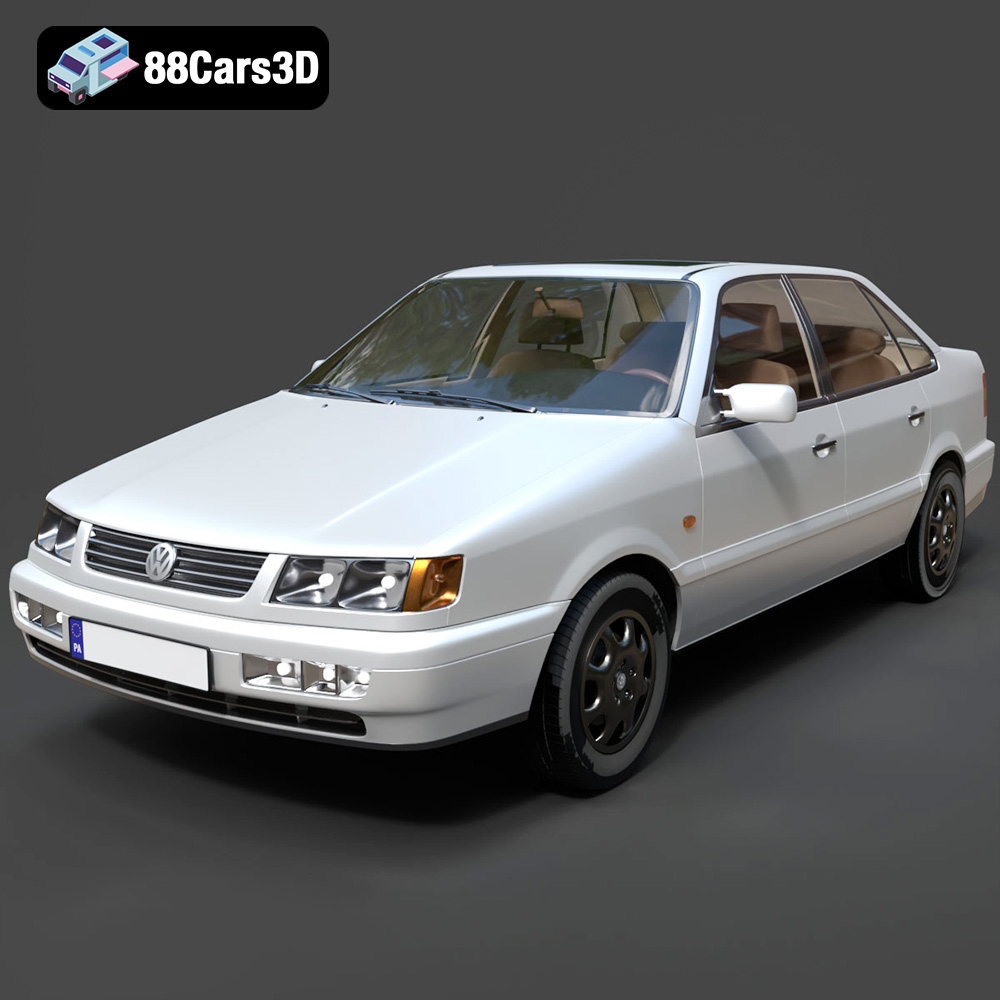
Texture: Yes | Material: Yes
Download the highly detailed, game-ready Volkswagen Passat Mk4 B4 Sedan 1993 3D Model. Features accurate 90s sedan styling, detailed front grille-less fascia, and a classic interior setup. Includes .blend, .fbx, .obj, .glb, .stl, .ply, .unreal, and .max formats for game development, AR/VR, and rendering.
Price: $39.99

Texture: Yes | Material: Yes
Download the highly detailed, game-ready Volkswagen Jetta GLI 2019 3D Model. Features an aggressive honeycomb grille with red accents, sleek aerodynamic profile, and exclusive GLI sport wheels. Includes .blend, .fbx, .obj, .glb, .stl, .ply, .unreal, and .max formats for game development, AR/VR, and rendering.
Price: $39.99

Texture: Yes | Material: Yes
Download the highly detailed, game-ready Vintage Vespa 3D Model. Features iconic rounded monocoque styling, classic saddle, and chrome accents. Includes .blend, .fbx, .obj, .glb, .stl, .ply, .unreal, and .max formats for game development, AR/VR, and rendering.
Price: $39.99

Texture: Yes | Material: Yes
Download the highly detailed, game-ready Vespa GS 150 3D Model. Features elegant aerodynamic curves, classic leg shield, and detailed engine casing. Includes .blend, .fbx, .obj, .glb, .stl, .ply, .unreal, and .max formats for game development, AR/VR, and rendering.
Price: $39.99

Texture: Yes | Material: Yes
Download the highly detailed, game-ready Vespa P200E 3D Model. Features classic vintage styling, accurate step-through frame geometry, and authentic detailing. Includes .blend, .fbx, .obj, .glb, .stl, .ply, .unreal, and .max formats for game development, AR/VR, and rendering.
Price: $39.99

Texture: Yes | Material: Yes
Download the highly detailed, game-ready Ural M67-36-P 1976 3D Model. Features the iconic air-cooled boxer engine, vintage utilitarian styling, and authentic spoked wheels. Includes .blend, .fbx, .obj, .glb, .stl, .ply, .unreal, and .max formats for game development, AR/VR, and rendering.
Price: $39.99

