Get 20% OFF All Premium 3D & STL Models!

“`html
So, you’ve found an incredible 3D model of a classic car on 88cars3d.com, or perhaps you’ve designed your own masterpiece. Now, you’re faced with a critical decision: which file format should you use for 3D printing? The options – STL, OBJ, and FBX – each have their strengths and weaknesses, and understanding these differences is crucial for a successful print. This comprehensive guide will delve into the technical intricacies of each format, explore the optimal settings for slicing, examine the best uses for different scenarios, and provide you with the knowledge to make informed decisions, ensuring your 3D printing projects are a resounding success. Whether you’re printing detailed scale models, functional prototypes, or artistic sculptures, the right file format can make all the difference.
STL (Stereolithography) is the workhorse of 3D printing. Born in the late 1980s, it remains the most widely supported file format across various 3D printers and slicing software. STL files represent 3D geometry as a collection of triangles, defining only the surface of the object. Think of it as a digital skin wrapped around your design. This simplicity is both its strength and its limitation. While easy to process and universally compatible, STL files lack information about color, texture, or material properties.
An STL file essentially consists of a list of triangles, each defined by three vertices (corners) and a normal vector (pointing outwards from the surface). The format can be either ASCII (human-readable) or binary (more compact). Binary STL is generally preferred due to its smaller file size and faster processing. The mesh topology, or how these triangles are connected, significantly impacts print quality. A poorly designed mesh with gaps, overlaps, or non-manifold edges can lead to printing errors. When downloading models from marketplaces such as 88cars3d.com, ensure they have been pre-validated for manifold geometry.
Advantages:
Disadvantages:
OBJ (Object) files offer a step up from STL in terms of complexity and functionality. Developed by Wavefront Technologies, OBJ files can store color and texture information, making them ideal for models with intricate visual details. Unlike STL, which only represents the surface, OBJ files can define both the surface geometry and the texture mapping coordinates, allowing for realistic renderings. OBJ files are also more flexible in how they represent geometry, supporting both polygonal faces (like STL) and free-form curves and surfaces.
OBJ files consist of two main parts: the .obj file, which contains the geometric data, and the .mtl file (Material Template Library), which defines the color, texture, and other material properties. The .obj file lists the vertices, faces, and texture coordinates, while the .mtl file specifies the appearance of each material used in the model. The .mtl file uses a simple text-based format to define parameters like ambient color (Ka), diffuse color (Kd), specular color (Ks), and texture maps (map_Kd, map_bump).
While most consumer-grade 3D printers do not support multi-material printing directly from OBJ files, the material definitions within the file can be used to guide post-processing techniques like painting. By identifying different material regions in the OBJ file, you can apply different colors or textures to specific parts of the printed model, enhancing its visual appeal. For advanced multi-material printing, more sophisticated file formats and printer capabilities are required.
FBX (Filmbox) is a proprietary file format developed by Autodesk, primarily designed for animation and game development. While not as universally supported in 3D printing as STL or OBJ, FBX files offer a rich set of features that can be beneficial in specific scenarios. FBX files can store not only geometric data, color, and texture information, but also animations, skeletal rigs, and other scene data. This makes them particularly useful for models that are intended to be animated or used in interactive applications.
FBX files use a complex binary format that can store a wide range of data types, including meshes, textures, materials, animations, cameras, and lights. The format supports both ASCII and binary encoding, with binary being the more common choice due to its smaller file size and faster loading times. The hierarchical structure of FBX files allows for complex relationships between different objects in the scene, making it possible to create intricate animations and simulations.
Directly printing from FBX files is generally not possible with most 3D printers. Instead, you’ll need to convert the FBX file to a more 3D printing-friendly format like STL or OBJ. This can be done using various 3D modeling software packages, such as Blender, 3ds Max, or Maya. When converting, be sure to simplify the mesh and remove any unnecessary data, such as animations or skeletal rigs, to reduce file size and improve printability. Pay special attention to mesh repair, ensuring that the resulting STL file is manifold and free of errors.
No matter which file format you choose, the slicing process is crucial for achieving high-quality 3D prints. Slicing software takes your 3D model and converts it into a series of instructions (G-code) that the 3D printer can understand. The slicing parameters, such as layer height, infill density, and print speed, directly impact the print quality, strength, and overall appearance of the final product. Different file formats may require slightly different slicing strategies to optimize print results.
STL files are generally the easiest to slice due to their simple geometric structure. Here are some recommended slicing parameters for STL files:
For example, when printing an STL model of a car from 88cars3d.com, a layer height of 0.15mm and an infill density of 20% would provide a good balance between detail and print time.
While most 3D printers cannot directly print color information from OBJ files, the material definitions can still be useful for post-processing. Here are some considerations for slicing OBJ files:
Since FBX files typically need to be converted to STL or OBJ before slicing, the conversion process is critical. Here are some tips for converting and slicing FBX files:
Even with the best slicing parameters, 3D printing can be prone to errors. Understanding how file formats can contribute to these issues is essential for effective troubleshooting. Common problems include warping, delamination, stringing, and failed supports. Addressing these issues often involves adjusting slicing settings, improving bed adhesion, or repairing the 3D model itself.
Warping and delamination (layers separating) are common issues with STL files, especially when printing with materials like ABS. These problems are often caused by uneven cooling, which can lead to internal stresses and deformation. Here’s how to mitigate these issues:
OBJ files, especially those with complex geometries, can sometimes contain mesh errors that lead to gaps or holes in the printed model. These errors can be difficult to detect but can significantly impact the structural integrity and appearance of the print. Strategies include:
Converting FBX files to STL or OBJ can sometimes introduce errors, particularly if the original FBX file contains complex animations or skeletal rigs. Common issues include:
To address these issues, simplify the FBX file before converting, use a high-quality conversion tool, and carefully inspect the resulting STL or OBJ file for errors.
Regardless of the file format you choose, proper file preparation and mesh repair are essential for successful 3D printing. This involves checking for errors, simplifying the mesh, optimizing the orientation, and adding necessary support structures. Several software tools are available to help with these tasks, including Meshmixer, Netfabb, and Blender.
Meshmixer is a free and powerful tool for mesh editing and repair. It can automatically detect and fix common mesh errors, such as holes, gaps, and non-manifold edges. Meshmixer also offers tools for simplifying the mesh, reducing the polygon count without significantly affecting the appearance of the model. To repair a mesh in Meshmixer:
Netfabb is a professional-grade software package for mesh analysis, repair, and optimization. It offers a wide range of tools for identifying and correcting complex mesh errors, including self-intersections, flipped normals, and non-manifold geometry. Netfabb also provides advanced features for optimizing the mesh for 3D printing, such as hollowing and lattice generation. While Netfabb is a paid software, it offers a free trial version that can be used for basic mesh repair tasks.
Proper print orientation and support structure placement are critical for achieving high-quality 3D prints. Orienting the model to minimize the need for supports can reduce material waste and improve surface quality. Supports are necessary for overhangs greater than 45 degrees, but they can leave marks on the printed surface. Consider using adaptive support structures, which provide more support where needed and less where it’s not.
In conclusion, the choice between STL, OBJ, and FBX depends on your specific 3D printing needs. STL remains the most universally compatible and widely used format, ideal for simple geometric models. OBJ offers the advantage of storing color and texture information, making it suitable for visually rich models. FBX, while primarily designed for animation, can be useful for complex scenes but requires conversion to a more print-friendly format. Ultimately, understanding the strengths and weaknesses of each format, combined with proper slicing techniques and mesh repair, is crucial for achieving successful and high-quality 3D prints. Platforms like 88cars3d.com offer print-ready STL files, saving you time and effort in file preparation. So, experiment, learn, and refine your workflow to unlock the full potential of your 3D printer.
“`

Texture: Yes | Material: Yes
Download the highly detailed, game-ready Yamaha YZF-R125 EU 3D Model. Features an aggressive aerodynamic fairing, twin LED headlights, and a detailed 125cc engine block. Includes .blend, .fbx, .obj, .glb, .stl, .ply, .unreal, and .max formats for game development, AR/VR, and rendering.
Price: $19.99

Texture: Yes | Material: Yes
Download the highly detailed, game-ready Yamaha R1 3D Model. Features aggressive aerodynamic fairings, a detailed crossplane inline-4 engine, and track-focused suspension geometry. Includes .blend, .fbx, .obj, .glb, .stl, .ply, .unreal, and .max formats for game development, AR/VR, and rendering.
Price: $19.99

Texture: Yes | Material: Yes
Download the highly detailed, game-ready Yamaha XV950 Racer 3D Model. Features an aggressive cafe-racer front cowl, detailed air-cooled V-twin engine, and classic retro styling. Includes .blend, .fbx, .obj, .glb, .stl, .ply, .unreal, and .max formats for game development, AR/VR, and rendering.
Price: $19.99

Texture: Yes | Material: Yes
Download the highly detailed, game-ready Volvo VNL Tractor Truck 2002 3D Model. Features iconic aerodynamic styling, detailed fifth-wheel coupling, and heavy-duty chassis. Includes .blend, .fbx, .obj, .glb, .stl, .ply, .unreal, and .max formats for game development, AR/VR, and rendering.
Price: $39.99
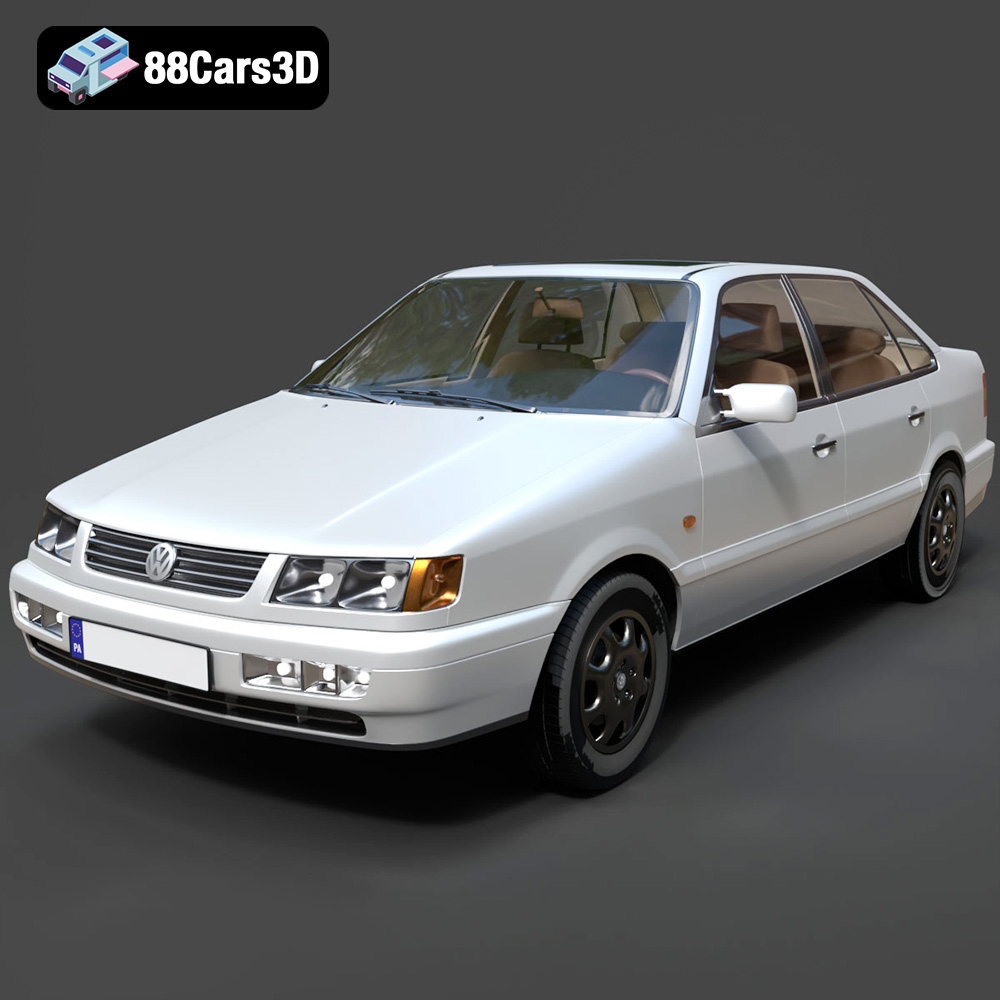
Texture: Yes | Material: Yes
Download the highly detailed, game-ready Volkswagen Passat Mk4 B4 Sedan 1993 3D Model. Features accurate 90s sedan styling, detailed front grille-less fascia, and a classic interior setup. Includes .blend, .fbx, .obj, .glb, .stl, .ply, .unreal, and .max formats for game development, AR/VR, and rendering.
Price: $39.99

Texture: Yes | Material: Yes
Download the highly detailed, game-ready Volkswagen Jetta GLI 2019 3D Model. Features an aggressive honeycomb grille with red accents, sleek aerodynamic profile, and exclusive GLI sport wheels. Includes .blend, .fbx, .obj, .glb, .stl, .ply, .unreal, and .max formats for game development, AR/VR, and rendering.
Price: $39.99

Texture: Yes | Material: Yes
Download the highly detailed, game-ready Vintage Vespa 3D Model. Features iconic rounded monocoque styling, classic saddle, and chrome accents. Includes .blend, .fbx, .obj, .glb, .stl, .ply, .unreal, and .max formats for game development, AR/VR, and rendering.
Price: $39.99

Texture: Yes | Material: Yes
Download the highly detailed, game-ready Vespa GS 150 3D Model. Features elegant aerodynamic curves, classic leg shield, and detailed engine casing. Includes .blend, .fbx, .obj, .glb, .stl, .ply, .unreal, and .max formats for game development, AR/VR, and rendering.
Price: $39.99

Texture: Yes | Material: Yes
Download the highly detailed, game-ready Vespa P200E 3D Model. Features classic vintage styling, accurate step-through frame geometry, and authentic detailing. Includes .blend, .fbx, .obj, .glb, .stl, .ply, .unreal, and .max formats for game development, AR/VR, and rendering.
Price: $39.99

Texture: Yes | Material: Yes
Download the highly detailed, game-ready Ural M67-36-P 1976 3D Model. Features the iconic air-cooled boxer engine, vintage utilitarian styling, and authentic spoked wheels. Includes .blend, .fbx, .obj, .glb, .stl, .ply, .unreal, and .max formats for game development, AR/VR, and rendering.
Price: $39.99

