Get 20% OFF All Premium 3D & STL Models!

“`html
3D printing has revolutionized manufacturing, prototyping, and even the hobbyist world. At the heart of this technology lies the process of slicing, which transforms a 3D model into a set of instructions that your printer can understand. A properly sliced STL file is the foundation for a successful and high-quality 3D print. Conversely, improper slicing can lead to defects, wasted filament, and overall frustration. This comprehensive guide will delve into the intricacies of STL slicing, covering everything from file preparation to advanced slicing parameters, ensuring you achieve exceptional results with your 3D printed projects. Whether you are printing intricate car models from platforms like 88cars3d.com, functional prototypes, or artistic creations, understanding the nuances of slicing is paramount. We’ll explore best practices, software-specific techniques, and common troubleshooting tips to elevate your 3D printing game. Get ready to transform your digital designs into tangible reality with confidence!
Before diving into slicing software, it’s crucial to grasp the fundamentals of STL (Stereolithography) files and their underlying structure. An STL file represents a 3D object as a collection of triangles, approximating the surface geometry. The density and arrangement of these triangles significantly impact the final print quality. Understanding mesh topology is key to optimizing your models for 3D printing.
The number of triangles used to represent a 3D model directly affects its resolution and smoothness. A higher triangle count results in a more detailed and accurate representation of the original design, but also increases file size and processing time. Conversely, a lower triangle count can lead to a faceted or blocky appearance, especially on curved surfaces. Striking the right balance is essential for optimal print quality and efficiency. Consider the specific details of your model when adjusting triangle density. For example, a detailed car model from 88cars3d.com would benefit from a higher triangle count compared to a simple geometric shape.
A manifold mesh is a fundamental requirement for successful 3D printing. A manifold mesh is watertight, meaning that it defines a closed volume without any holes, self-intersections, or non-manifold edges (edges shared by more than two faces). Non-manifold geometry can confuse slicing software, leading to errors and printing failures. Before slicing, always inspect your STL file for any mesh errors using software like Netfabb, Meshmixer, or even built-in repair tools within your slicing software. These tools can automatically identify and fix common issues like holes, inverted normals, and overlapping faces. Correcting mesh errors is a critical step in ensuring a smooth and successful print.
Selecting the appropriate slicing software and configuring the optimal settings are crucial steps in achieving high-quality 3D prints. Numerous slicing software options are available, each with its own strengths and weaknesses. Popular choices include Cura, PrusaSlicer, Simplify3D, and IdeaMaker. The best choice depends on your printer, experience level, and specific needs. Once you’ve chosen your software, understanding the critical settings is paramount.
Layer height is arguably the most important setting in slicing software. It determines the thickness of each layer of material deposited by the 3D printer. Lower layer heights result in smoother surfaces and finer details, but also increase print time. Higher layer heights are faster but produce less detailed prints with more visible layer lines. The optimal layer height depends on the desired print quality and the specific capabilities of your printer. For example, printing a miniature car model with intricate details would benefit from a lower layer height, such as 0.1mm or even 0.05mm, while a larger, less detailed object could be printed at a higher layer height, like 0.2mm or 0.3mm.
Infill refers to the internal structure of a 3D printed object. Infill density determines the amount of material used inside the print, affecting its strength, weight, and print time. A higher infill density results in a stronger but heavier print, while a lower infill density is faster and uses less material but may compromise structural integrity. Infill patterns also play a significant role. Common patterns include grid, honeycomb, gyroid, and rectilinear. The best infill pattern depends on the object’s intended use and load-bearing requirements. For most applications, a density of 15-25% with a gyroid or honeycomb pattern provides a good balance of strength and print time. For functional parts that require high strength, consider increasing the infill density to 50% or higher.
Support structures are temporary scaffolding used to support overhanging features during the 3D printing process. Without supports, these features would sag or collapse due to gravity. Properly generating and removing support structures is essential for achieving clean and accurate prints. Different slicing software offers various support generation algorithms, each with its own advantages and disadvantages.
There are two primary types of support structures: tree supports and linear supports. Tree supports branch out from the build plate, providing support only where needed and minimizing material usage. They are generally easier to remove and leave fewer marks on the printed object. Linear supports, on the other hand, are straight columns that provide more robust support but can be more difficult to remove and may leave more noticeable marks. The choice between tree and linear supports depends on the geometry of the model and the desired print quality. For intricate car models from 88cars3d.com with complex overhangs, tree supports are often the preferred choice.
Several settings can be adjusted to make support removal easier. Increasing the support Z distance (the gap between the support structure and the supported surface) reduces the adhesion between the support and the print, making it easier to break away. However, increasing the Z distance too much can compromise the support’s effectiveness. Using a lower support density also makes removal easier but may weaken the support structure. Experimenting with different support settings and observing the results is the best way to optimize support generation for your specific printer and materials. Another useful technique is to use a support interface, which creates a thin, easily removable layer between the support structure and the printed object.
The choice of material and printer-specific settings significantly impacts the final print quality and success rate. Different materials have different properties and require different printing parameters. Understanding the characteristics of each material and how to adjust your printer settings accordingly is crucial for achieving optimal results.
FDM (Fused Deposition Modeling) and resin printing (SLA/DLP) are the two most common 3D printing technologies. FDM printing uses thermoplastic filaments, while resin printing uses liquid resins that are cured by UV light. FDM printers are generally more affordable and versatile, while resin printers offer higher resolution and finer details. The choice between FDM and resin depends on your budget, desired print quality, and the specific application. For example, FDM printing is well-suited for larger, functional parts, while resin printing is ideal for intricate miniatures and jewelry. When using FDM, you will need to calibrate your nozzle temperature, bed temperature, and print speed to achieve optimal layer adhesion and minimize warping. For resin printing, you’ll need to adjust the exposure time, lift speed, and bottom layer settings to ensure proper adhesion and prevent delamination.
PLA (Polylactic Acid) is a biodegradable thermoplastic known for its ease of use and low printing temperature. It is a popular choice for beginners and hobbyists. PETG (Polyethylene Terephthalate Glycol-modified) is a stronger and more flexible alternative to PLA, with better temperature resistance. ABS (Acrylonitrile Butadiene Styrene) is a durable thermoplastic commonly used for functional parts and automotive components. However, it requires a heated bed and good ventilation due to its higher printing temperature and potential for warping. Resins come in various formulations, each with its own properties, such as standard resin, tough resin, and flexible resin. The choice of resin depends on the desired strength, flexibility, and impact resistance of the printed object. When printing with different materials, it’s essential to consult the manufacturer’s recommendations for optimal printing parameters and adjust your printer settings accordingly. Furthermore, each material reacts differently to support structures; softer materials may require more delicate support removal techniques.
Even with careful preparation and optimal settings, 3D printing can sometimes present challenges. Understanding common printing problems and how to troubleshoot them is essential for minimizing frustration and maximizing success. From adhesion issues to warping and delamination, knowing how to identify and resolve these problems will save you time and material.
Poor bed adhesion is one of the most common causes of printing failures. If the first layer does not properly adhere to the build plate, the print is likely to detach and warp. Ensuring that the bed is properly leveled is the first step in addressing adhesion issues. Most 3D printers have manual or automatic bed leveling systems. Follow the manufacturer’s instructions to properly level the bed. Other factors that can affect bed adhesion include bed temperature, print speed, and the use of adhesion aids like glue stick, hairspray, or painter’s tape. Increasing the bed temperature and reducing the initial layer print speed can improve adhesion. Experimenting with different adhesion aids may also be necessary to find the best solution for your specific printer and material.
Warping occurs when the corners of a print lift off the build plate due to uneven cooling and contraction. Delamination refers to the separation of layers during printing. Elephant’s foot is a phenomenon where the bottom layers of a print are squished outward, creating a wider base. Warping can be minimized by using a heated bed, printing in an enclosure, and using a brim or raft. Delamination can be caused by insufficient layer adhesion, which can be addressed by increasing the printing temperature, reducing the print speed, and ensuring proper bed adhesion. Elephant’s foot can be reduced by adjusting the initial layer height and flow rate.
While a properly sliced and printed model is a great start, post-processing techniques can significantly enhance the final appearance and functionality of your 3D printed objects. From removing support structures to sanding, painting, and assembly, these techniques can transform a raw print into a polished masterpiece. Many of the detailed printable car models available on marketplaces such as 88cars3d.com benefit greatly from careful post-processing.
The first step in post-processing is typically removing the support structures. Use a sharp knife, pliers, or side cutters to carefully detach the supports from the printed object. Take care not to damage the surface of the print. After removing the supports, sanding is often necessary to smooth out any remaining imperfections and layer lines. Start with a coarse grit sandpaper and gradually move to finer grits to achieve a smooth finish. Wet sanding can also help to minimize dust and improve the surface quality. For resin prints, consider using isopropyl alcohol to remove any uncured resin residue. Chemical smoothing techniques, such as vapor smoothing, can also be used to create an even smoother surface, but these techniques require caution and proper ventilation.
Painting is a great way to add color and detail to your 3D printed objects. Use acrylic paints or spray paints specifically designed for plastics. Apply multiple thin coats for a smooth and even finish. Masking techniques can be used to create intricate patterns and designs. For multi-part models, assembly may be required. Use glue or epoxy to join the parts together. Finishing touches, such as adding decals, weathering effects, or clear coats, can further enhance the realism and appearance of your 3D printed creations. A clear coat not only protects the paint but can also provide a glossy or matte finish depending on the chosen product.
Mastering the art of STL slicing is paramount for achieving high-quality 3D prints. This comprehensive guide has covered essential aspects, from understanding STL file structure and optimizing slicing parameters to troubleshooting common issues and applying post-processing techniques. Remember that experimentation is key – each printer, material, and model presents unique challenges and opportunities for optimization. By carefully considering layer height, infill density, support structures, and material properties, you can unlock the full potential of your 3D printer and bring your digital designs to life with exceptional precision and detail. Remember to always check your STL files for errors before printing and don’t be afraid to adjust your settings based on the results you see. With a solid understanding of these principles, you’ll be well-equipped to tackle even the most complex 3D printing projects and consistently achieve professional-quality results. Now, go forth and transform your digital visions into tangible realities!
“`

Texture: Yes | Material: Yes
Download the highly detailed, game-ready Yamaha YZF-R125 EU 3D Model. Features an aggressive aerodynamic fairing, twin LED headlights, and a detailed 125cc engine block. Includes .blend, .fbx, .obj, .glb, .stl, .ply, .unreal, and .max formats for game development, AR/VR, and rendering.
Price: $19.99

Texture: Yes | Material: Yes
Download the highly detailed, game-ready Yamaha R1 3D Model. Features aggressive aerodynamic fairings, a detailed crossplane inline-4 engine, and track-focused suspension geometry. Includes .blend, .fbx, .obj, .glb, .stl, .ply, .unreal, and .max formats for game development, AR/VR, and rendering.
Price: $19.99

Texture: Yes | Material: Yes
Download the highly detailed, game-ready Yamaha XV950 Racer 3D Model. Features an aggressive cafe-racer front cowl, detailed air-cooled V-twin engine, and classic retro styling. Includes .blend, .fbx, .obj, .glb, .stl, .ply, .unreal, and .max formats for game development, AR/VR, and rendering.
Price: $19.99

Texture: Yes | Material: Yes
Download the highly detailed, game-ready Volvo VNL Tractor Truck 2002 3D Model. Features iconic aerodynamic styling, detailed fifth-wheel coupling, and heavy-duty chassis. Includes .blend, .fbx, .obj, .glb, .stl, .ply, .unreal, and .max formats for game development, AR/VR, and rendering.
Price: $39.99
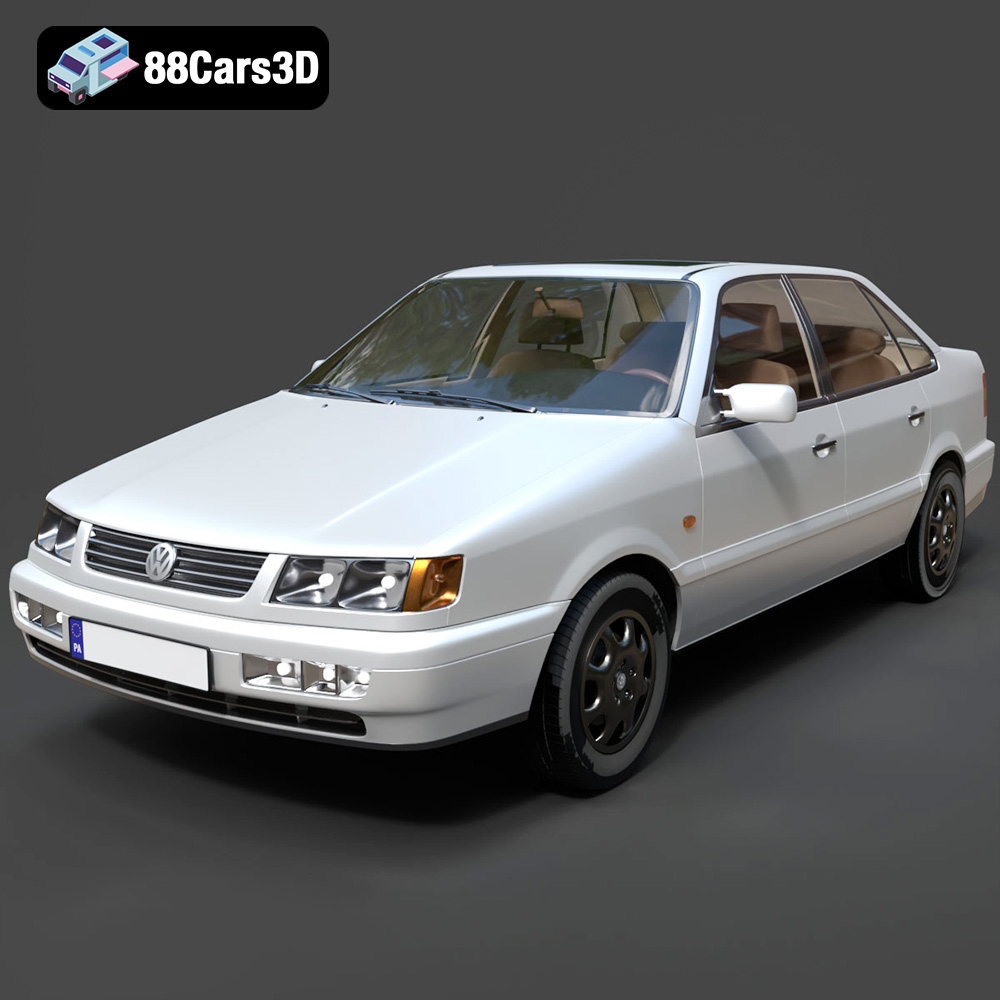
Texture: Yes | Material: Yes
Download the highly detailed, game-ready Volkswagen Passat Mk4 B4 Sedan 1993 3D Model. Features accurate 90s sedan styling, detailed front grille-less fascia, and a classic interior setup. Includes .blend, .fbx, .obj, .glb, .stl, .ply, .unreal, and .max formats for game development, AR/VR, and rendering.
Price: $39.99

Texture: Yes | Material: Yes
Download the highly detailed, game-ready Volkswagen Jetta GLI 2019 3D Model. Features an aggressive honeycomb grille with red accents, sleek aerodynamic profile, and exclusive GLI sport wheels. Includes .blend, .fbx, .obj, .glb, .stl, .ply, .unreal, and .max formats for game development, AR/VR, and rendering.
Price: $39.99

Texture: Yes | Material: Yes
Download the highly detailed, game-ready Vintage Vespa 3D Model. Features iconic rounded monocoque styling, classic saddle, and chrome accents. Includes .blend, .fbx, .obj, .glb, .stl, .ply, .unreal, and .max formats for game development, AR/VR, and rendering.
Price: $39.99

Texture: Yes | Material: Yes
Download the highly detailed, game-ready Vespa GS 150 3D Model. Features elegant aerodynamic curves, classic leg shield, and detailed engine casing. Includes .blend, .fbx, .obj, .glb, .stl, .ply, .unreal, and .max formats for game development, AR/VR, and rendering.
Price: $39.99

Texture: Yes | Material: Yes
Download the highly detailed, game-ready Vespa P200E 3D Model. Features classic vintage styling, accurate step-through frame geometry, and authentic detailing. Includes .blend, .fbx, .obj, .glb, .stl, .ply, .unreal, and .max formats for game development, AR/VR, and rendering.
Price: $39.99

Texture: Yes | Material: Yes
Download the highly detailed, game-ready Ural M67-36-P 1976 3D Model. Features the iconic air-cooled boxer engine, vintage utilitarian styling, and authentic spoked wheels. Includes .blend, .fbx, .obj, .glb, .stl, .ply, .unreal, and .max formats for game development, AR/VR, and rendering.
Price: $39.99

