Get 20% OFF All Premium 3D & STL Models!

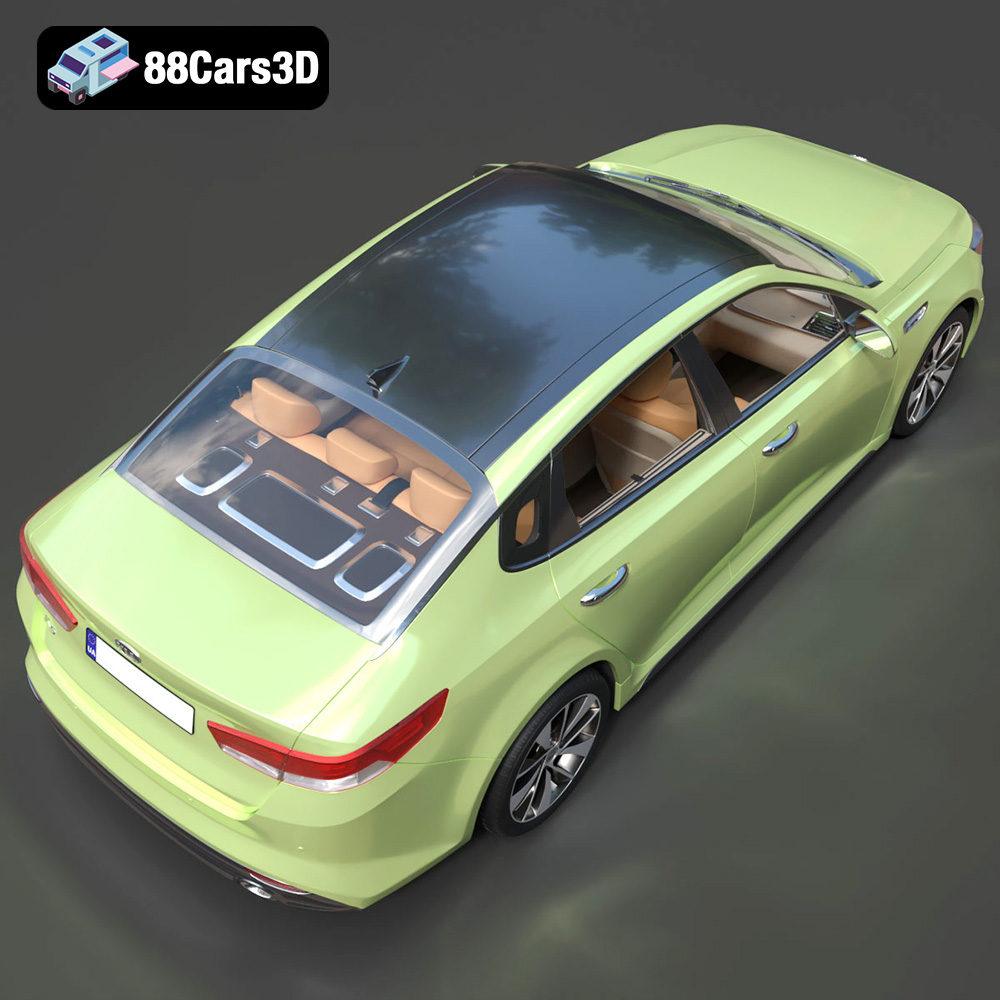
The Kia K5 MX 2016 is a sleek and stylish sedan, and now you can bring a piece of that automotive excellence to life with 3D printing. Thanks to the high-quality 3D model available on 88cars3d.com, enthusiasts and hobbyists alike can create a tangible replica of this iconic vehicle. This comprehensive guide will walk you through every step of the 3D printing process, from preparing the STL files to applying the finishing touches, ensuring a stunning and accurate result. Whether you’re a seasoned 3D printing veteran or just starting your journey, this guide will provide the knowledge and insights you need to successfully 3D print your own Kia K5 MX 2016 model.
Before diving into the printing process itself, it’s crucial to understand the different file formats in which 3D models are distributed. While the Kia K5 MX 2016 model from 88cars3d.com comes in multiple formats, not all are equally suitable for 3D printing. Let’s examine the key formats and their implications for additive manufacturing:
The STL (Stereolithography) file format is the undisputed king of 3D printing. It represents the surface geometry of a 3D object as a collection of triangles. This format is universally supported by virtually all slicing software and 3D printers, making it the most reliable choice for printing. However, STL files only contain mesh data, meaning they don’t include color, texture, or material information.
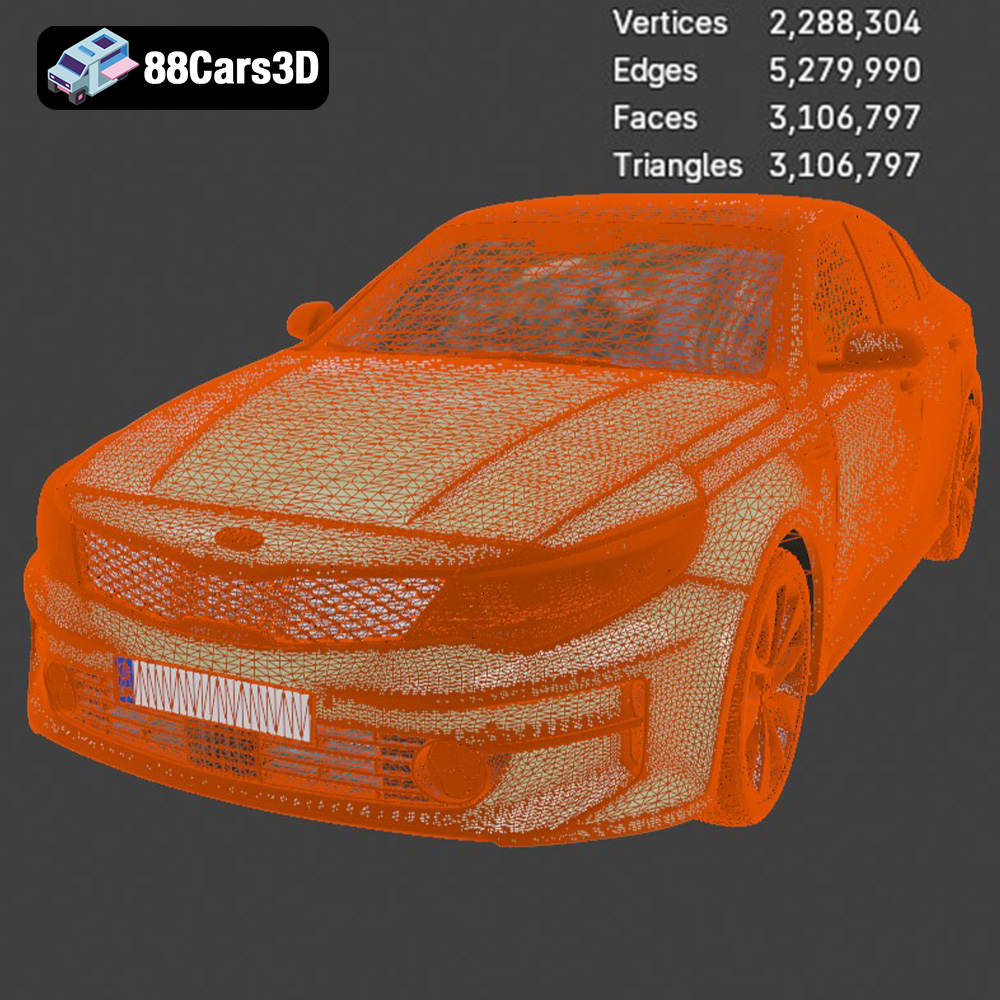
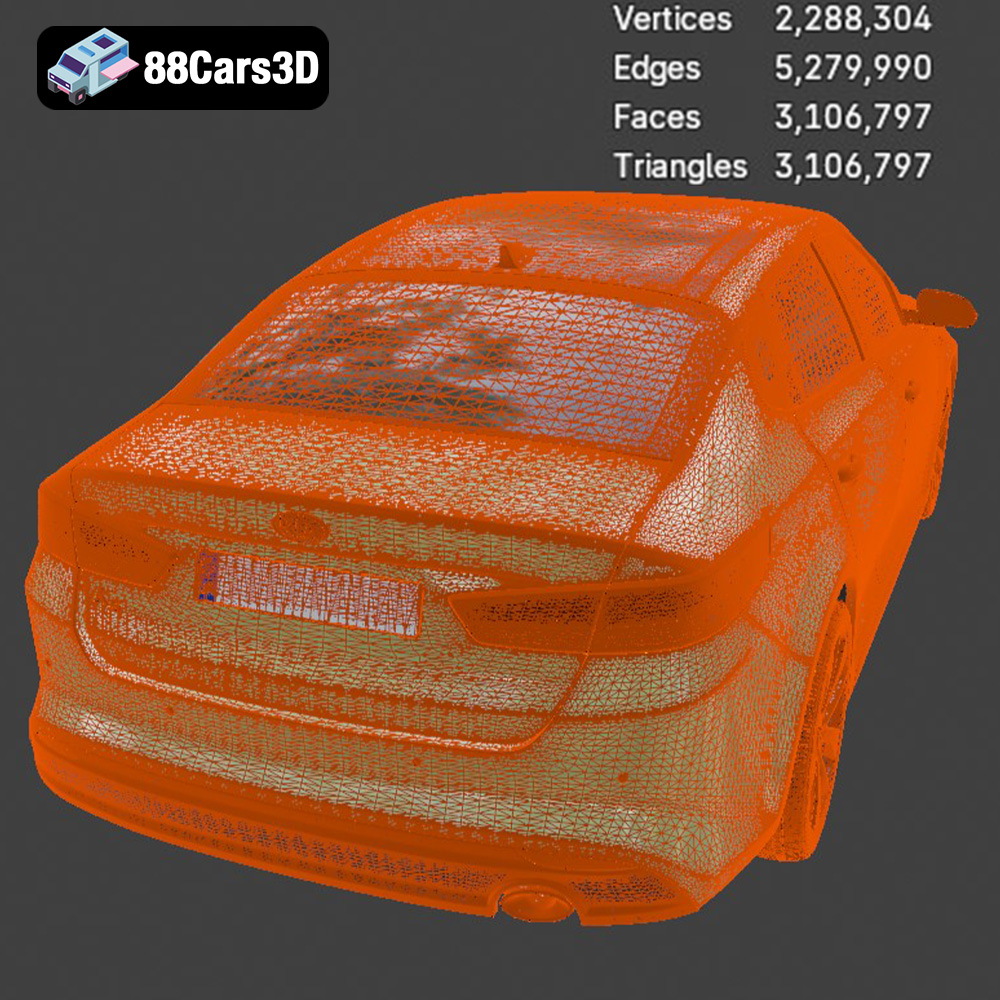
When working with STL files, it’s crucial to ensure the mesh quality is adequate for your desired level of detail. A higher number of triangles results in a smoother surface but also increases the file size and processing time. Most slicing software allows you to adjust the mesh resolution during import. The STL provided by 88cars3d.com is already optimized for printing, but it’s always a good idea to inspect it for any potential issues like non-manifold edges or holes, which can cause printing errors. Mesh repair tools, available in software like MeshMixer or Netfabb, can help resolve these issues.
OBJ is another widely supported 3D model format that, unlike STL, can store color and texture information. This makes it suitable for 3D printing models with multiple colors, provided your printer supports multi-material or multi-color printing. However, OBJ files are generally larger than STL files due to the additional texture data.
While OBJ is supported by many slicing software, it’s primarily used for visualization and rendering rather than direct 3D printing, especially if you’re using a standard single-extruder printer. If you intend to print in a single color, converting the OBJ to STL might be preferable for ease of use.
PLY, or Polygon File Format, is designed for storing 3D data acquired from 3D scanners. It’s known for its ability to represent complex geometry with high precision, making it suitable for applications like reverse engineering and cultural heritage preservation. While PLY files can be used for 3D printing, they are less common than STL due to their larger file size and the potential for compatibility issues with some slicing software.
The .blend format is the native file format for Blender, a popular open-source 3D modeling software. It contains the entire Blender scene, including the model, materials, textures, lighting, and camera settings. This format is incredibly useful for customizing the Kia K5 MX 2016 model before exporting it for 3D printing. You can modify the geometry, add details, or even create variations of the original design. However, you’ll need Blender installed to open and edit .blend files. Before 3D printing, the model must be exported from Blender as an STL file.
FBX (Filmbox) is a proprietary file format developed by Autodesk and widely used in the gaming and animation industries. It supports the transfer of 3D models, animations, and materials between different software applications. While some advanced slicing software may support importing FBX files, it’s generally not the preferred format for 3D printing due to its complexity and potential compatibility issues. For optimal results, it’s recommended to convert the FBX file to STL before slicing.
GLB is a binary file format that represents 3D models in a compact and efficient manner. It’s commonly used for displaying 3D models on the web and in augmented reality (AR) applications. GLB files can contain the model’s geometry, textures, and animations. While not directly used for 3D printing, GLB files can be helpful for previewing the Kia K5 MX 2016 model in AR to get a better sense of its size and appearance before committing to printing it.
Similar to .blend for Blender, .max is the native format for 3ds Max. It contains a complete project, including models, textures, and scene settings. You can customize the model using 3ds Max but must export to STL for printing.
In summary, for 3D printing the Kia K5 MX 2016 model, the STL format is your best bet. Ensure the mesh quality is sufficient, and use mesh repair tools if necessary. The other formats can be useful for customization, previewing, or importing into specific software, but ultimately, you’ll need an STL file to feed into your slicing software.
Before sending the Kia K5 MX 2016 STL file to your 3D printer, several crucial steps ensure a successful and high-quality print. This preparation stage involves inspecting the model, making necessary repairs, choosing the right orientation, and configuring your slicing software.
First, load the STL file into a mesh editing program like MeshMixer, Netfabb, or even the built-in tools of some slicers. Carefully examine the model for any errors, such as:
* **Non-manifold geometry:** These are edges or faces that don’t properly connect, leading to holes or gaps in the model.
* **Inverted normals:** These are faces that are pointing in the wrong direction, causing rendering and printing issues.
* **Holes and gaps:** These can occur due to errors in the modeling process or during file conversion.
Use the repair tools within your chosen software to automatically fix these issues. These tools can often identify and resolve common problems with a single click. Pay close attention to areas with intricate details or sharp corners, as these are more prone to errors.
The orientation of the model on the print bed significantly impacts print quality, support requirements, and overall printing time. For the Kia K5 MX 2016, consider these factors:
* **Minimize overhangs:** Overhangs are parts of the model that extend beyond the previous layer without support. Excessive overhangs can lead to sagging or warping. Orient the model to minimize the need for support structures in critical areas like the roof and hood.
* **Maximize detail:** Certain orientations can better showcase fine details, like the grille or the car’s emblems. Experiment with different rotations to find the optimal balance between support requirements and detail preservation.
* **Reduce print time:** Orienting the model to minimize the Z-height (the vertical dimension) can significantly reduce the overall print time.
Once you’ve determined the optimal orientation, you’ll need to add support structures to support any overhanging features. Most slicing software offers automatic support generation, but it’s often necessary to manually adjust the settings to ensure adequate support without wasting material. Consider using tree supports, which are more efficient and easier to remove than traditional linear supports.
Your slicing software (e.g., Cura, PrusaSlicer, Simplify3D) is responsible for converting the 3D model into a set of instructions that your printer can understand. Key settings to configure include:
* **Layer height:** A smaller layer height results in a smoother surface finish but increases print time. A layer height of 0.1mm to 0.2mm is a good starting point for the Kia K5 MX 2016.
* **Infill density:** Infill is the internal structure of the model. A higher infill density increases strength but also consumes more material. For a display model, an infill density of 15-20% is usually sufficient.
* **Print speed:** Slower print speeds generally improve print quality, especially for intricate details. Experiment with different speeds to find the optimal balance between quality and time.
* **Temperature:** Set the nozzle and bed temperatures according to the filament manufacturer’s recommendations.
* **Retraction:** Proper retraction settings prevent stringing and oozing during printing.
The choice of material plays a critical role in the final appearance and durability of your 3D printed Kia K5 MX 2016 model. Several factors should influence your decision, including the desired aesthetic, functional requirements, and printer capabilities.
PLA is a biodegradable thermoplastic derived from renewable resources like cornstarch or sugarcane. It’s known for its ease of use, low printing temperature, and minimal warping, making it an excellent choice for beginners. PLA also comes in a wide range of colors and finishes, allowing for creative customization.
However, PLA has some limitations. It’s relatively brittle and has a low heat resistance, meaning it can soften or deform in hot environments. Therefore, PLA is best suited for display models that won’t be subjected to high temperatures or significant stress.
PETG is a modified version of PET (the plastic used in water bottles) that offers improved strength, flexibility, and heat resistance compared to PLA. It’s also more resistant to chemicals and UV light. PETG is a good all-around choice for 3D printing the Kia K5 MX 2016, offering a balance between ease of use and durability.
While PETG is generally more forgiving than ABS, it can still be prone to stringing if the retraction settings are not properly configured. It also requires a slightly higher printing temperature than PLA.
ABS is a petroleum-based thermoplastic known for its high strength, impact resistance, and heat resistance. It’s commonly used in automotive parts and other demanding applications. If you want a 3D printed Kia K5 MX 2016 model that can withstand some wear and tear or exposure to higher temperatures, ABS is a good choice.
However, ABS is more challenging to print than PLA or PETG. It requires a higher printing temperature and is prone to warping, especially on larger models. An enclosure is often necessary to maintain a stable temperature and prevent drafts.
For incredibly detailed models, resin printing (SLA or DLP) offers superior results compared to FDM printing. Resin printers use liquid resin that is cured by UV light, allowing for much finer layer heights and intricate details. If you want to capture every nuance of the Kia K5 MX 2016’s design, resin printing is the way to go.
However, resin printing also has its drawbacks. Resin printers are typically more expensive than FDM printers, and the resin itself can be costly. Resin printing also requires more post-processing, including washing and curing the printed part.
Here are some suggested print settings for 3D printing the Kia K5 MX 2016 using different materials:
**PLA:**
* Layer height: 0.15-0.2mm
* Infill density: 15-20%
* Nozzle temperature: 200-220°C
* Bed temperature: 60°C
* Print speed: 40-60mm/s
* Supports: As needed, use tree supports for easier removal.
**PETG:**
* Layer height: 0.2mm
* Infill density: 20-25%
* Nozzle temperature: 230-250°C
* Bed temperature: 70-80°C
* Print speed: 40-50mm/s
* Supports: As needed, use tree supports.
**ABS:**
* Layer height: 0.2mm
* Infill density: 20-25%
* Nozzle temperature: 230-250°C
* Bed temperature: 100-110°C
* Print speed: 40-50mm/s
* Supports: As needed, use a raft for better adhesion.
**Resin:**
* Layer height: 0.025-0.05mm
* Exposure time: Refer to resin manufacturer’s recommendations.
* Lift speed: Adjust based on printer and resin.
* Supports: Carefully place supports to minimize scarring.
Remember to always calibrate your printer and test your settings before printing the entire Kia K5 MX 2016 model.
Once the printing is complete, the real fun begins! Post-processing is the process of cleaning, refining, and finishing the 3D printed part to achieve the desired aesthetic and functional properties.
The first step is to carefully remove the support structures from the model. Use pliers, flush cutters, or a hobby knife to gently detach the supports, being careful not to damage the surface of the part. For resin prints, the supports are typically more fragile and require extra care.
Once the supports are removed, you may need to clean up any remaining remnants or imperfections. Use a file, sandpaper, or a deburring tool to smooth out any rough edges or blemishes.
Sanding is an essential step in achieving a smooth and professional finish. Start with coarse-grit sandpaper (e.g., 220 grit) to remove any major imperfections, and then gradually move to finer grits (e.g., 400, 600, 800 grit) to smooth out the surface. Wet sanding can help to reduce dust and improve the sanding process.
For a truly smooth finish, consider using a chemical smoothing agent like acetone (for ABS) or a smoothing pen (for PLA). However, exercise caution when using chemical smoothing agents, as they can damage the part if used improperly.
Priming is an important step before painting, as it helps to create a uniform surface for the paint to adhere to. Use a spray primer designed for plastics and apply several thin coats, allowing each coat to dry completely before applying the next.
Once the primer is dry, you can begin painting the model. Use acrylic paints or model paints designed for plastics. Apply thin coats of paint, allowing each coat to dry completely before applying the next. Multiple thin coats are better than one thick coat, as they reduce the risk of drips and runs.
For added realism, consider using masking tape to create clean lines and apply different colors to specific areas of the model.
If the Kia K5 MX 2016 model is printed in multiple parts, you’ll need to assemble them using glue or fasteners. Use a strong adhesive designed for plastics and carefully align the parts before bonding them together.
Even with careful preparation and planning, 3D printing can sometimes present challenges. Here are some common issues and their solutions:
* **Warping:** This occurs when the printed part lifts off the print bed due to uneven cooling. Ensure the bed is properly leveled and heated, and use a brim or raft to improve adhesion.
* **Stringing:** This is caused by excess filament oozing from the nozzle during travel moves. Increase retraction distance and speed, and lower the nozzle temperature.
* **Layer separation:** This occurs when the layers of the print don’t properly adhere to each other. Increase the nozzle temperature and decrease the print speed.
* **Support failure:** This happens when the support structures collapse during printing. Increase the support density and thickness, and ensure the supports are properly attached to the model.
By understanding these common issues and their solutions, you’ll be well-equipped to overcome any challenges that may arise during the 3D printing process. Remember that the Kia K5 MX 2016 3D model from 88cars3d.com is designed for optimal printing results, but even the best models can benefit from careful preparation and troubleshooting.
Discover unparalleled detail with the Kia K5 MX 2016 3D Model, engineered to deliver exceptional realism and precision. This model captures the sleek exterior lines and the fully modeled interior of the dynamic sedan, making it an outstanding digital asset for demanding projects. Built with clean geometry and professional-grade polygon structuring, this 3D vehicle includes realistic materials and textures designed for seamless integration. The meticulous attention to detail ensures it holds up perfectly under close-up shots and complex lighting scenarios. Whether you are working on game development, automotive rendering, AR/VR experiences, or professional visualization, this versatile model provides the exact technical specifications needed for a smooth workflow across various platforms.
$39.99
.arvr
.blend
.car3dmodel
.fbx
.gameasset
.glb
.k5
.kia
.max
.mx
.obj
.ply
.rendering
.sedan
.simulation
.stl
.unreal