Get 20% OFF All Premium 3D & STL Models!

“`html
3D printing has revolutionized how we create, prototype, and manufacture objects. From intricate figurines to functional parts, the possibilities are endless. However, the journey from a digital 3D model to a tangible print isn’t always smooth. A successful print hinges on proper preparation of your 3D model, particularly the STL file. This comprehensive guide will walk you through the essential steps to prepare your models for 3D printing, ensuring optimal results, especially when working with detailed printable car models from platforms like 88cars3d.com. We’ll cover everything from understanding STL file structure to advanced slicing techniques, catering to both beginners and experienced makers. Whether you’re using FDM or resin printing, this guide will equip you with the knowledge to confidently bring your digital designs to life.
The STL (stereolithography) file format is the industry standard for 3D printing. It represents the surface geometry of a 3D object as a collection of triangles. While seemingly simple, understanding the nuances of STL files and mesh topology is crucial for print success.
Mesh topology refers to the arrangement and connectivity of triangles in an STL file. A well-formed mesh should be:
Problems like non-manifold geometry, incorrect normals, and self-intersections are common in downloaded or complex models. If you are working with high-quality STL files from sites like 88cars3d.com you are less likely to encounter these errors, but checking is always a good practice.
Before sending your model to the slicer, it’s vital to inspect it for errors. Several software tools can help:
When inspecting, pay attention to areas with sharp corners, thin walls, or intricate details, as these are more prone to errors. For example, a detailed car model might have issues around the side mirrors or the grille.
Slicing is the process of converting your 3D model into a series of layers that the 3D printer can understand. The slicing software takes your STL file and generates G-code, a language that instructs the printer’s movements, temperature, and other parameters. Selecting the right slicing parameters is critical for achieving the desired print quality, strength, and speed.
Layer height is the thickness of each individual layer of your print. A smaller layer height results in a smoother surface finish and higher resolution, but it also increases print time significantly. A larger layer height prints faster but sacrifices detail. Common layer heights for FDM printing range from 0.05mm (ultra-fine detail) to 0.3mm (fast printing). For resin printing, layer heights typically range from 0.025mm to 0.05mm.
Infill is the internal structure of your 3D print. Infill density determines how solid the object is. A higher infill density increases strength and weight but also consumes more filament and increases print time. Common infill densities range from 10% (hollow) to 100% (solid). Infill pattern also affects strength and print time. Common patterns include:
For printable car models, a moderate infill density (20-30%) with a honeycomb or gyroid pattern is often sufficient for aesthetic purposes. If the model is intended for functional use or load-bearing applications, increase the infill density accordingly.
Support structures are temporary scaffolding that provides stability to overhanging features during printing. Without supports, gravity would cause these features to collapse. Proper support generation and removal are crucial for a clean and successful print, especially for complex geometries.
There are several types of support structures, each with its own advantages and disadvantages:
The choice of support type depends on the geometry of the model, the material being used, and the desired print quality. For intricate car models, tree supports are often preferred because they can reach complex overhangs with minimal contact area, reducing the risk of damaging the surface during removal.
Several settings control the generation and behavior of support structures:
Experiment with these settings to find the optimal balance between support strength and ease of removal. A good starting point is a support overhang angle of 45 degrees, a support density of 15-20%, and a small support Z distance (e.g., 0.1mm). When downloading models from marketplaces such as 88cars3d.com, pre-supported versions of files are often available. These can save considerable time and effort.
The orientation of your model on the print bed can significantly impact print quality, strength, and the amount of support material required. Proper bed adhesion is essential to prevent warping or detachment during printing. Choosing the correct orientation is a vital part of preparing your STL files.
Consider these factors when choosing the print orientation:
Poor bed adhesion is a common cause of print failures. Here are several techniques to improve it:
For larger models or materials prone to warping, a raft is often the best choice. Before starting a print, ensure that the first layer is properly adhering to the bed. The lines of filament should be slightly squished and evenly spaced.
Choosing the right material and calibrating your 3D printer are essential for achieving consistent and reliable results. Different materials have different properties, and each printer has its own unique characteristics. You will need to select the best material for your 3D printed cars.
Common 3D printing materials include:
For printable car models, PLA is a good choice for beginners due to its ease of printing. PETG offers improved durability and heat resistance. Resin is ideal for highly detailed models where surface finish is critical.
A well-calibrated printer ensures accurate and consistent prints. Key calibration steps include:
Regular maintenance is also important. Clean the nozzle, lubricate moving parts, and check for loose screws or belts. A well-maintained printer will produce more reliable and consistent prints.
Post-processing is the finishing touch that transforms a raw 3D print into a polished and presentable object. Common post-processing techniques include sanding, painting, and assembly.
Sanding removes layer lines and imperfections from the surface of the print. Start with a coarse grit sandpaper (e.g., 220 grit) and gradually move to finer grits (e.g., 400, 600, 800, 1000 grit). Wet sanding can help to reduce dust and improve the surface finish. For resin prints, start with even finer grits. For example, a layer height of 0.02mm will produce less stepping, so sanding can start with a finer grit.
Painting adds color and protects the surface of the print. Apply a primer coat to improve adhesion and create a uniform base. Use acrylic paints for PLA and PETG, and enamel paints for ABS. Apply multiple thin coats for a smooth and even finish. Consider using an airbrush for more precise and detailed painting. After painting, apply a clear coat to protect the paint and add a glossy or matte finish.
Many 3D models, especially complex ones like printable car models, consist of multiple parts that need to be assembled. Use glue (e.g., super glue or epoxy) to join the parts together. Pay attention to alignment and ensure that the parts fit snugly. Add details such as decals, stickers, or other embellishments to enhance the realism of the model.
Tips for Post-Processing:
Preparing 3D models for printing is a multi-faceted process that requires careful attention to detail. By understanding STL file structure, optimizing slicing parameters, generating effective support structures, choosing the right print orientation, selecting appropriate materials, and mastering post-processing techniques, you can significantly improve the quality and reliability of your 3D prints. Remember to inspect your STL files for errors, experiment with different settings, and continuously refine your workflow. Platforms like 88cars3d.com offer a wide variety of high-quality printable car models, providing an excellent starting point for honing your 3D printing skills. Now, armed with this comprehensive guide, you’re well-equipped to tackle your next 3D printing project with confidence and achieve outstanding results.
“`

Texture: Yes | Material: Yes
Download the highly detailed, game-ready Yamaha YZF-R125 EU 3D Model. Features an aggressive aerodynamic fairing, twin LED headlights, and a detailed 125cc engine block. Includes .blend, .fbx, .obj, .glb, .stl, .ply, .unreal, and .max formats for game development, AR/VR, and rendering.
Price: $19.99

Texture: Yes | Material: Yes
Download the highly detailed, game-ready Yamaha R1 3D Model. Features aggressive aerodynamic fairings, a detailed crossplane inline-4 engine, and track-focused suspension geometry. Includes .blend, .fbx, .obj, .glb, .stl, .ply, .unreal, and .max formats for game development, AR/VR, and rendering.
Price: $19.99

Texture: Yes | Material: Yes
Download the highly detailed, game-ready Yamaha XV950 Racer 3D Model. Features an aggressive cafe-racer front cowl, detailed air-cooled V-twin engine, and classic retro styling. Includes .blend, .fbx, .obj, .glb, .stl, .ply, .unreal, and .max formats for game development, AR/VR, and rendering.
Price: $19.99

Texture: Yes | Material: Yes
Download the highly detailed, game-ready Volvo VNL Tractor Truck 2002 3D Model. Features iconic aerodynamic styling, detailed fifth-wheel coupling, and heavy-duty chassis. Includes .blend, .fbx, .obj, .glb, .stl, .ply, .unreal, and .max formats for game development, AR/VR, and rendering.
Price: $39.99
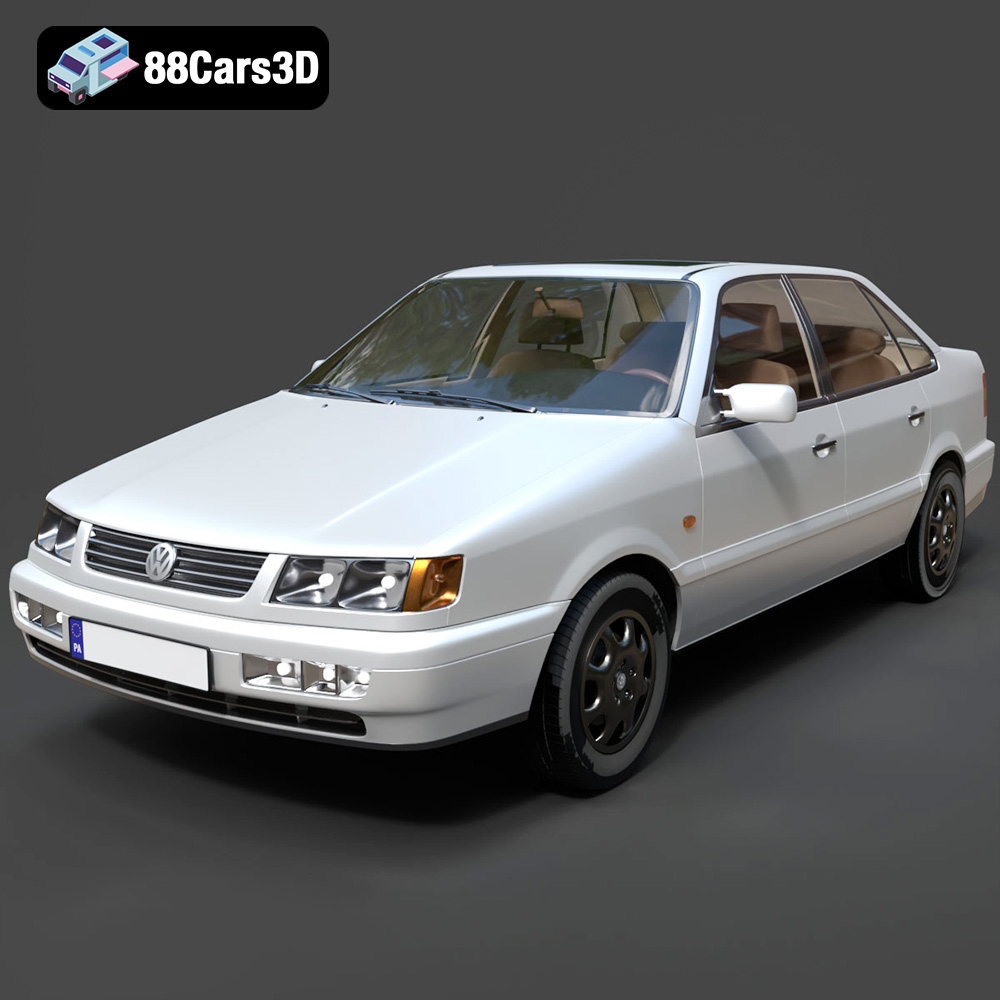
Texture: Yes | Material: Yes
Download the highly detailed, game-ready Volkswagen Passat Mk4 B4 Sedan 1993 3D Model. Features accurate 90s sedan styling, detailed front grille-less fascia, and a classic interior setup. Includes .blend, .fbx, .obj, .glb, .stl, .ply, .unreal, and .max formats for game development, AR/VR, and rendering.
Price: $39.99

Texture: Yes | Material: Yes
Download the highly detailed, game-ready Volkswagen Jetta GLI 2019 3D Model. Features an aggressive honeycomb grille with red accents, sleek aerodynamic profile, and exclusive GLI sport wheels. Includes .blend, .fbx, .obj, .glb, .stl, .ply, .unreal, and .max formats for game development, AR/VR, and rendering.
Price: $39.99

Texture: Yes | Material: Yes
Download the highly detailed, game-ready Vintage Vespa 3D Model. Features iconic rounded monocoque styling, classic saddle, and chrome accents. Includes .blend, .fbx, .obj, .glb, .stl, .ply, .unreal, and .max formats for game development, AR/VR, and rendering.
Price: $39.99

Texture: Yes | Material: Yes
Download the highly detailed, game-ready Vespa GS 150 3D Model. Features elegant aerodynamic curves, classic leg shield, and detailed engine casing. Includes .blend, .fbx, .obj, .glb, .stl, .ply, .unreal, and .max formats for game development, AR/VR, and rendering.
Price: $39.99

Texture: Yes | Material: Yes
Download the highly detailed, game-ready Vespa P200E 3D Model. Features classic vintage styling, accurate step-through frame geometry, and authentic detailing. Includes .blend, .fbx, .obj, .glb, .stl, .ply, .unreal, and .max formats for game development, AR/VR, and rendering.
Price: $39.99

Texture: Yes | Material: Yes
Download the highly detailed, game-ready Ural M67-36-P 1976 3D Model. Features the iconic air-cooled boxer engine, vintage utilitarian styling, and authentic spoked wheels. Includes .blend, .fbx, .obj, .glb, .stl, .ply, .unreal, and .max formats for game development, AR/VR, and rendering.
Price: $39.99

