Get 20% OFF All Premium 3D & STL Models!

“`html
3D printing offers incredible possibilities, especially for automotive enthusiasts who dream of creating their own miniature car collections. Platforms like 88cars3d.com offer a fantastic selection of printable car models in STL format. However, even with high-quality models, you might occasionally encounter issues with STL files that prevent successful printing. These issues often manifest as “broken” meshes, containing errors like holes, non-manifold edges, or self-intersections. These imperfections can lead to print failures, weak parts, or simply a poor final product. Fortunately, powerful and free software like Meshmixer and Netfabb Basic are available to diagnose and repair these STL files, ensuring your 3D printed car models look their absolute best. This comprehensive guide will walk you through the process of identifying and fixing common STL mesh errors using these essential tools, enabling you to achieve flawless prints every time.
In this article, you’ll learn how to:
Before diving into the repair process, it’s crucial to understand the types of errors you might encounter in an STL file. These errors can arise from various sources, including issues during the original model creation, data corruption during transfer, or even subtle imperfections in the conversion process. Identifying these errors early on is key to choosing the right repair strategy.
Non-manifold geometry is one of the most frequent causes of printing issues. A manifold mesh is essentially one that can be “sealed,” meaning it defines a closed volume. Non-manifold geometry, on the other hand, includes edges that are connected to more than two faces, or faces that share the same edge and point in the same direction. Imagine trying to fill a container with a hole in it – that’s what a non-manifold mesh is like for a 3D printer. These areas confuse slicing software, leading to missing layers, unexpected voids, and ultimately, a failed print. Think of internal floating faces or edges that connect to more than two polygons.
Holes and gaps in the mesh are exactly what they sound like: missing sections of the model’s surface. These can range from tiny pinholes to significant gaps that completely break the model’s watertightness. Holes often occur where complex geometry intersects or where features have been poorly defined. When slicing a model with holes, the slicer may interpret the open area as either solid or empty, leading to unpredictable results. Small holes, less than 0.5mm, can sometimes be ignored depending on your printer settings, but larger holes will invariably cause problems.
Self-intersections occur when one part of the mesh intersects with another part of the same mesh. This can happen when surfaces overlap or when the model’s geometry is incorrectly defined. Self-intersections can be incredibly difficult for slicing software to handle. The slicer may try to print overlapping layers, leading to a jumbled mess of filament or resin. Identifying self-intersections visually can be challenging, which is why dedicated mesh repair tools are essential.
Meshmixer, a free software from Autodesk, is a powerful and user-friendly tool for manipulating and repairing 3D meshes. Its automatic repair tools are particularly effective for fixing common STL errors. However, Meshmixer also offers a range of manual editing tools for more complex issues.
The “Make Solid” function in Meshmixer is often the first line of defense against STL errors. To use it, first import your STL file into Meshmixer. Then, navigate to the “Edit” menu and select “Make Solid.” This function attempts to create a watertight, manifold mesh from the input model. You can adjust the “Solid Type” and “Accuracy” parameters to fine-tune the repair process. A higher accuracy setting will attempt to preserve more of the original detail but may take longer to process. Experiment with the settings to find the best balance between repair quality and processing time. For example, if you are printing a car model with intricate details, you might want to prioritize accuracy even if it means a longer processing time. After the “Make Solid” process, it is crucial to visually inspect the model to ensure all errors have been addressed effectively.
For more stubborn errors that automatic repair cannot fix, Meshmixer’s sculpting tools provide a manual approach. The “Sculpt” tool allows you to push, pull, and smooth the mesh to correct imperfections. The “Brush” settings are particularly important here. The “Size” controls the area of effect, while the “Strength” determines how much the brush modifies the mesh. Use a small brush size and low strength for fine adjustments. The “Smooth” brush is invaluable for blending areas that have been repaired or for removing small bumps and imperfections. Consider the layer height you will be using on your 3D printer. Using the smooth brush to remove imperfections smaller than this height may not be necessary and can remove valuable detail. Another useful tool is the “Fill Hole” function, which can be used to close small gaps in the mesh. This tool intelligently connects edges to create a smooth surface, often providing a better result than simply bridging the gap with new triangles.
Netfabb Basic (now part of Autodesk Fusion 360) is another excellent software for analyzing and repairing STL files. It provides more detailed diagnostics and repair options than Meshmixer, making it suitable for more complex mesh problems. Netfabb Basic is a robust tool for both beginners and experienced users.
Netfabb Basic excels at identifying and diagnosing mesh errors. After importing your STL file, use the “Analysis” function to check for common problems like holes, flipped triangles, and self-intersections. Netfabb Basic provides a detailed report of the identified errors, along with their locations on the model. This detailed analysis is invaluable for understanding the specific issues affecting your STL file. The software also allows you to visualize the errors in different colors, making it easier to pinpoint the problematic areas. For example, you might see holes highlighted in red and flipped triangles in blue. This visual representation helps you prioritize the repair process and focus on the most critical issues first.
Netfabb Basic offers a range of automated repair scripts that can automatically fix many common STL errors. These scripts can be accessed through the “Repair” function. The “Standard Repair” script is a good starting point, as it attempts to fix a wide range of common issues. However, you can also choose more specific scripts to address particular problems, such as “Close All Holes” or “Remove Self-Intersections.” Experiment with different scripts to find the one that works best for your model. After running a repair script, always double-check the model to ensure that the errors have been fixed correctly and that no new problems have been introduced. Sometimes, automated repairs can inadvertently create new imperfections, so careful inspection is essential. Platforms like 88cars3d.com often design their models with these repair functions in mind, but it’s always good practice to double check before you print.
Repairing the mesh is only the first step. To ensure a successful 3D print, it’s also crucial to optimize the STL file for your specific printer and material. This involves adjusting parameters like print orientation, support structure generation, and slicing settings.
The orientation of your model on the print bed can significantly impact print quality and support structure requirements. Ideally, you want to orient the model in a way that minimizes the need for support structures, as supports can leave blemishes on the finished print. However, you also need to ensure that the model has adequate bed adhesion to prevent warping or detachment during printing. For car models, consider orienting the body with the roof facing upwards to minimize supports on the more visible areas. If the model has a large, flat base, orient it directly on the print bed for maximum adhesion. Applying a brim or raft can also improve bed adhesion, especially for materials like ABS that are prone to warping. Experiment with different orientations and support settings to find the optimal configuration for your model and printer.
Slicing parameters like layer height, infill density, and print speed directly affect the quality and strength of your 3D prints. Lower layer heights result in smoother surfaces but increase print time. For car models, a layer height of 0.1mm to 0.2mm is generally recommended for a good balance between detail and speed. Infill density affects the strength and weight of the model. A higher infill density results in a stronger but heavier print. For most car models, an infill density of 15% to 25% is sufficient. Print speed should be adjusted based on your printer and material. Slower speeds generally result in higher quality prints, but increase print time. Experiment with different speeds to find the optimal setting for your printer. Be sure to select the appropriate material profile in your slicing software to ensure that the printer uses the correct temperature and other settings for your chosen material. For example, PLA typically requires a bed temperature of 60°C and a nozzle temperature of 200°C, while ABS requires a bed temperature of 100°C and a nozzle temperature of 230°C.
Even after repairing your STL file, you might still encounter printing issues. Understanding these issues and how to address them is crucial for achieving successful prints.
Warping occurs when the printed part cools unevenly, causing it to lift off the print bed. This is especially common with materials like ABS. To prevent warping, ensure that your print bed is properly leveled and heated. Apply a bed adhesion aid like glue stick or hairspray. Enclosing your printer can also help to maintain a consistent temperature and prevent warping. If warping persists, try increasing the brim size or adding a raft. A brim is a single-layer outline around the base of the model that increases the surface area in contact with the print bed. A raft is a multi-layer platform that is printed underneath the model to provide a more stable base. When downloading models from marketplaces such as 88cars3d.com, it is worth checking if they have tips for avoiding warping with that specific model.
Layer delamination occurs when the layers of the 3D print do not properly adhere to each other, resulting in a weak and brittle print. This can be caused by several factors, including insufficient nozzle temperature, poor bed adhesion, or drafts in the printing environment. To address layer delamination, try increasing the nozzle temperature by 5-10°C. Ensure that your print bed is properly leveled and heated. Enclosing your printer can also help to prevent drafts and maintain a consistent temperature. You might also try increasing the infill overlap percentage in your slicing software. This parameter controls how much the infill overlaps with the perimeter walls, improving adhesion between the layers.
Let’s look at a couple of practical scenarios involving repairing STL files of car models sourced from platforms like 88cars3d.com:
Imagine you’ve downloaded an STL file of a classic sports car. Upon inspection, you notice a small hole in one of the wheel arches. This hole, though small, will likely cause issues during printing. Using Meshmixer, you can use the “Fill Hole” tool to close the gap. First, select the boundary edges of the hole. Then, adjust the “Fill Type” to “Minimal Fill” to create a smooth, seamless surface. Finally, use the “Smooth” brush to blend the repaired area with the surrounding geometry. This quick repair ensures a clean and professional-looking wheel arch on your finished print.
A detailed grille design, common on many car models, can sometimes suffer from non-manifold geometry. This might manifest as missing sections or overlapping surfaces. Using Netfabb Basic, you can run the “Standard Repair” script to automatically correct these issues. The script will identify and fix the non-manifold edges, ensuring that the grille is a watertight, printable mesh. After the repair, carefully inspect the grille to ensure that the details have been preserved and that no new errors have been introduced. If necessary, use the manual editing tools to fine-tune the repair and restore any lost detail.
Repairing broken STL meshes is an essential skill for any 3D printing enthusiast, especially those passionate about creating detailed car models. By mastering the techniques outlined in this guide, you’ll be well-equipped to tackle common STL errors and achieve flawless prints every time. Remember to utilize the powerful and free tools like Meshmixer and Netfabb Basic to diagnose and repair your files. Pay close attention to print orientation, slicing parameters, and material settings to optimize your prints for your specific printer and material. With a little practice and patience, you’ll be able to transform even the most problematic STL files into stunning 3D printed car models. So, download your favorite car model STL file, fire up your chosen software, and start experimenting! The road to perfect 3D printed car models starts with a well-prepared and repaired mesh.
“`

Texture: Yes | Material: Yes
Download the highly detailed, game-ready Yamaha YZF-R125 EU 3D Model. Features an aggressive aerodynamic fairing, twin LED headlights, and a detailed 125cc engine block. Includes .blend, .fbx, .obj, .glb, .stl, .ply, .unreal, and .max formats for game development, AR/VR, and rendering.
Price: $19.99

Texture: Yes | Material: Yes
Download the highly detailed, game-ready Yamaha R1 3D Model. Features aggressive aerodynamic fairings, a detailed crossplane inline-4 engine, and track-focused suspension geometry. Includes .blend, .fbx, .obj, .glb, .stl, .ply, .unreal, and .max formats for game development, AR/VR, and rendering.
Price: $19.99

Texture: Yes | Material: Yes
Download the highly detailed, game-ready Yamaha XV950 Racer 3D Model. Features an aggressive cafe-racer front cowl, detailed air-cooled V-twin engine, and classic retro styling. Includes .blend, .fbx, .obj, .glb, .stl, .ply, .unreal, and .max formats for game development, AR/VR, and rendering.
Price: $19.99

Texture: Yes | Material: Yes
Download the highly detailed, game-ready Volvo VNL Tractor Truck 2002 3D Model. Features iconic aerodynamic styling, detailed fifth-wheel coupling, and heavy-duty chassis. Includes .blend, .fbx, .obj, .glb, .stl, .ply, .unreal, and .max formats for game development, AR/VR, and rendering.
Price: $39.99
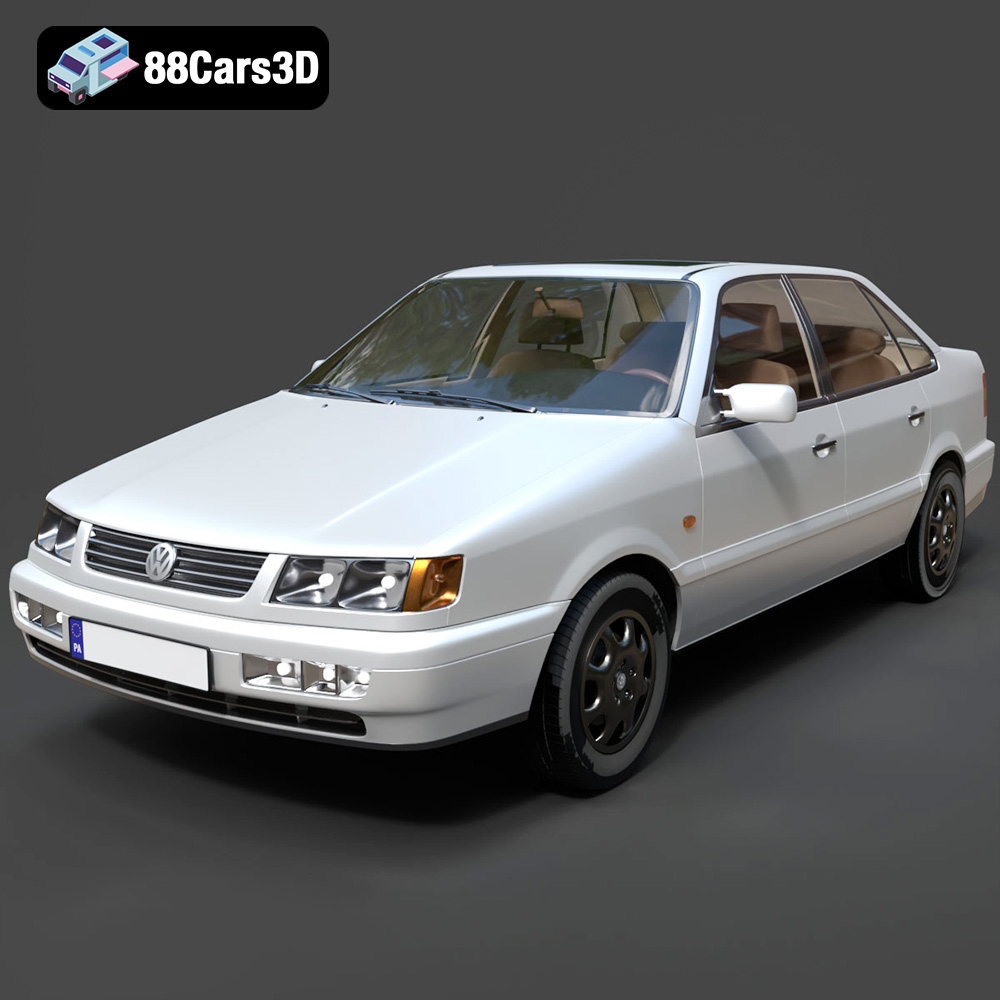
Texture: Yes | Material: Yes
Download the highly detailed, game-ready Volkswagen Passat Mk4 B4 Sedan 1993 3D Model. Features accurate 90s sedan styling, detailed front grille-less fascia, and a classic interior setup. Includes .blend, .fbx, .obj, .glb, .stl, .ply, .unreal, and .max formats for game development, AR/VR, and rendering.
Price: $39.99

Texture: Yes | Material: Yes
Download the highly detailed, game-ready Volkswagen Jetta GLI 2019 3D Model. Features an aggressive honeycomb grille with red accents, sleek aerodynamic profile, and exclusive GLI sport wheels. Includes .blend, .fbx, .obj, .glb, .stl, .ply, .unreal, and .max formats for game development, AR/VR, and rendering.
Price: $39.99

Texture: Yes | Material: Yes
Download the highly detailed, game-ready Vintage Vespa 3D Model. Features iconic rounded monocoque styling, classic saddle, and chrome accents. Includes .blend, .fbx, .obj, .glb, .stl, .ply, .unreal, and .max formats for game development, AR/VR, and rendering.
Price: $39.99

Texture: Yes | Material: Yes
Download the highly detailed, game-ready Vespa GS 150 3D Model. Features elegant aerodynamic curves, classic leg shield, and detailed engine casing. Includes .blend, .fbx, .obj, .glb, .stl, .ply, .unreal, and .max formats for game development, AR/VR, and rendering.
Price: $39.99

Texture: Yes | Material: Yes
Download the highly detailed, game-ready Vespa P200E 3D Model. Features classic vintage styling, accurate step-through frame geometry, and authentic detailing. Includes .blend, .fbx, .obj, .glb, .stl, .ply, .unreal, and .max formats for game development, AR/VR, and rendering.
Price: $39.99

Texture: Yes | Material: Yes
Download the highly detailed, game-ready Ural M67-36-P 1976 3D Model. Features the iconic air-cooled boxer engine, vintage utilitarian styling, and authentic spoked wheels. Includes .blend, .fbx, .obj, .glb, .stl, .ply, .unreal, and .max formats for game development, AR/VR, and rendering.
Price: $39.99

