Get 20% OFF All Premium 3D & STL Models!

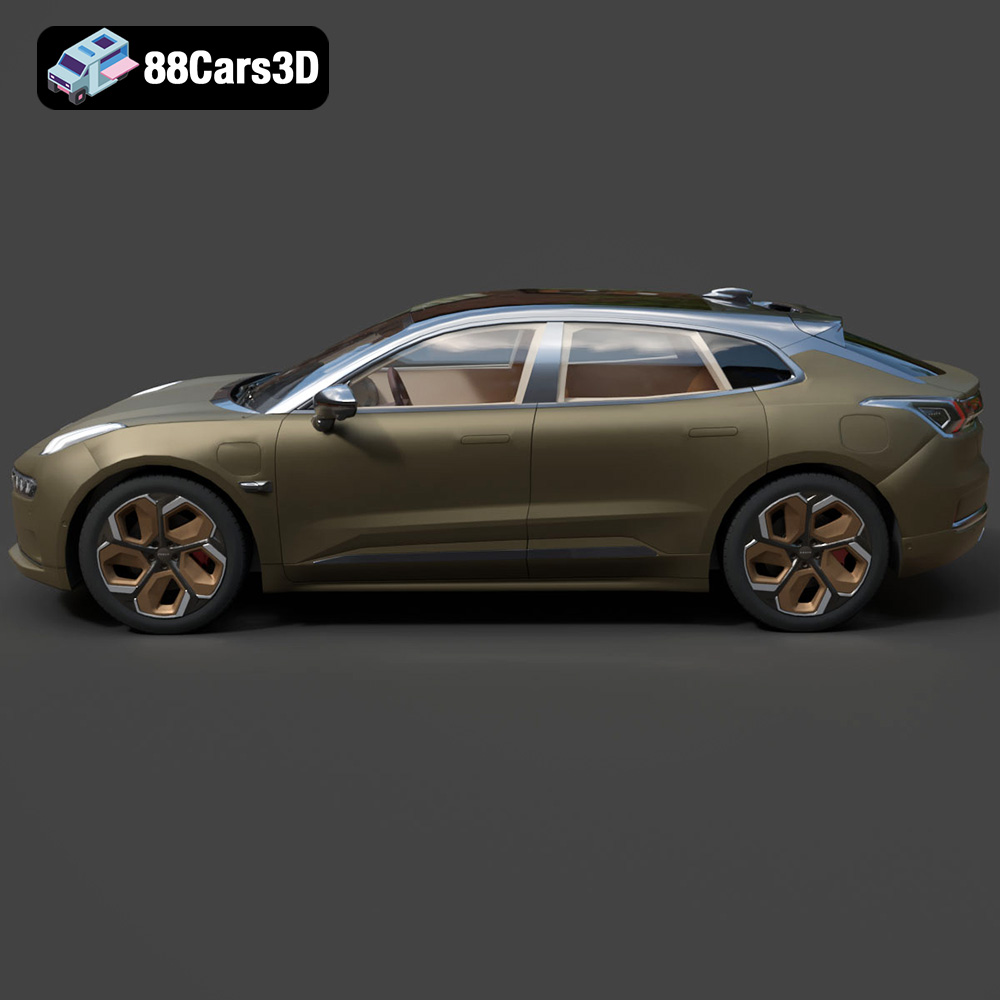
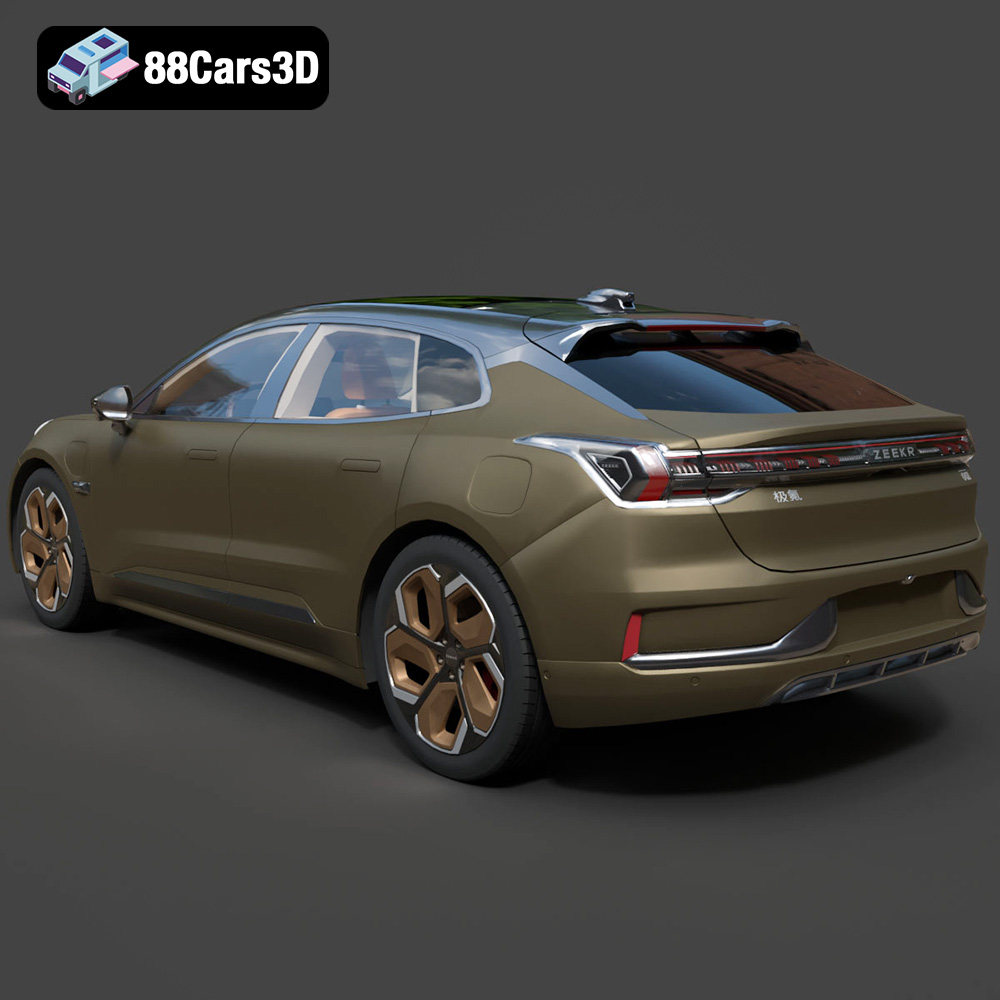
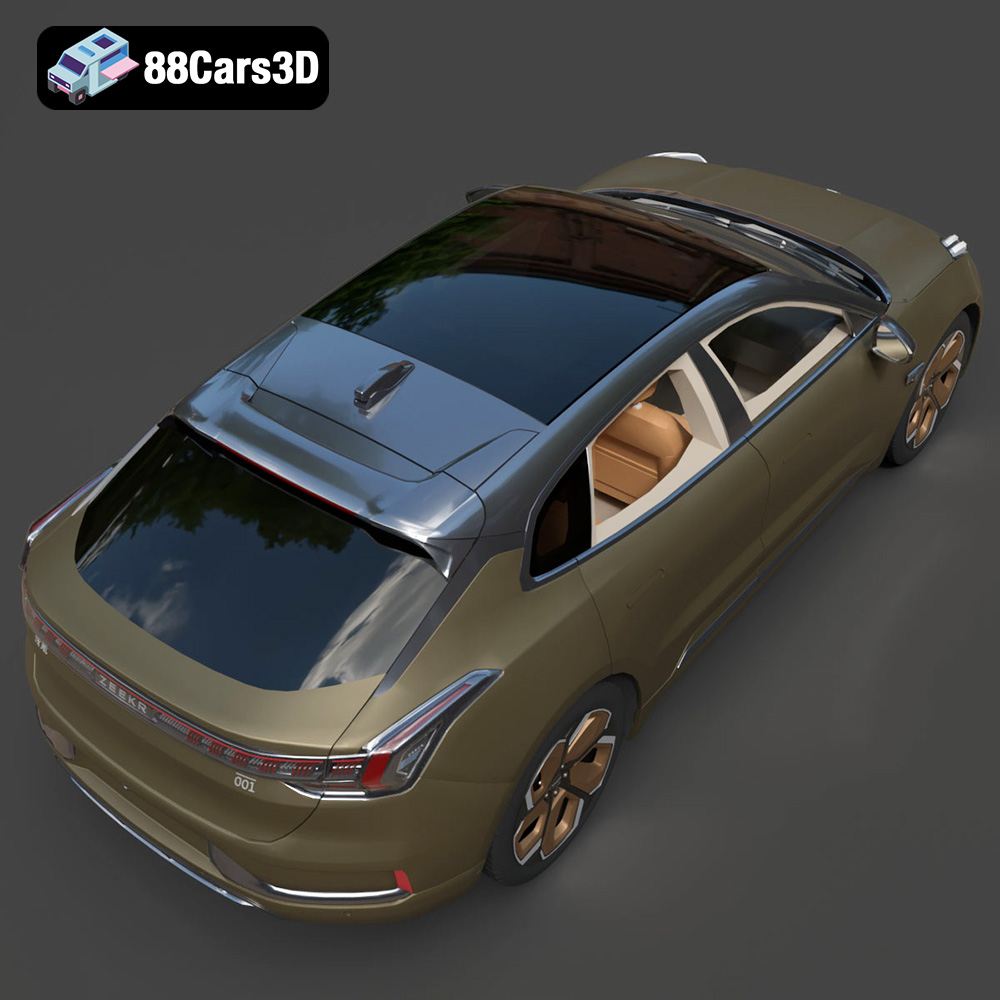
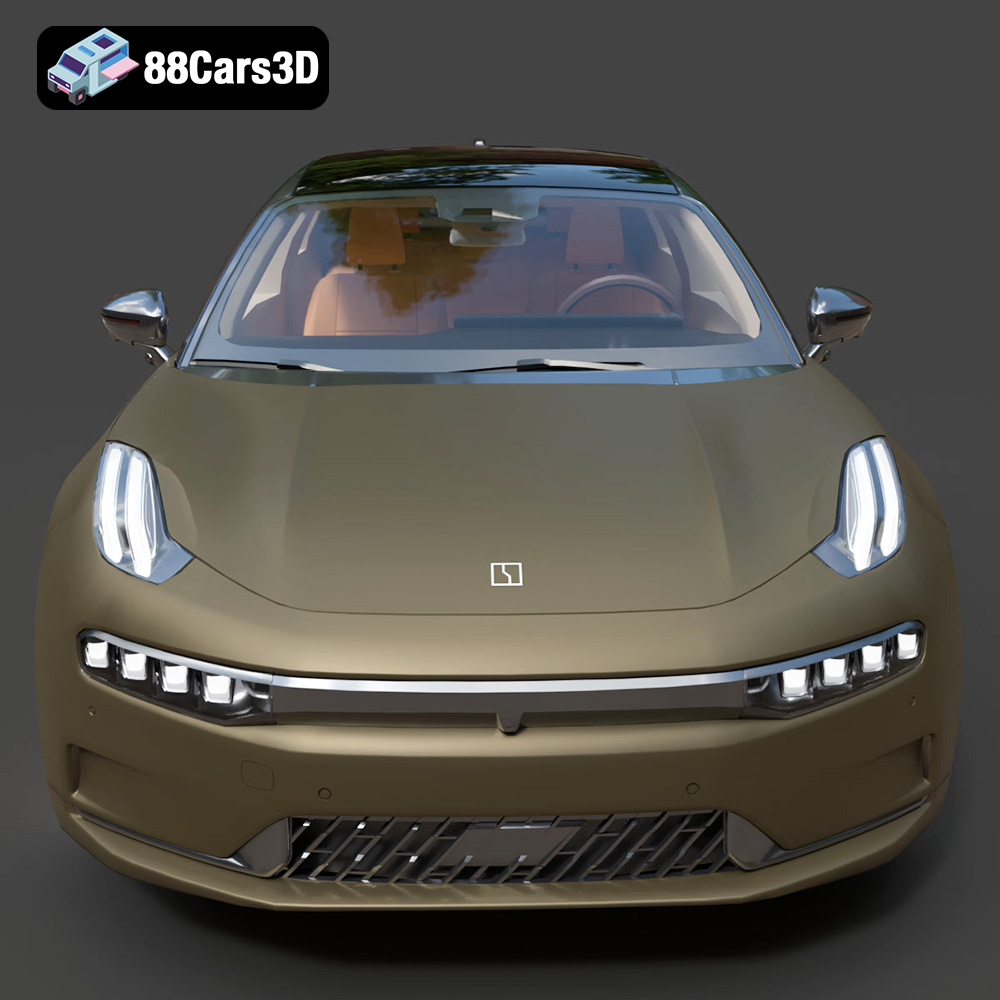
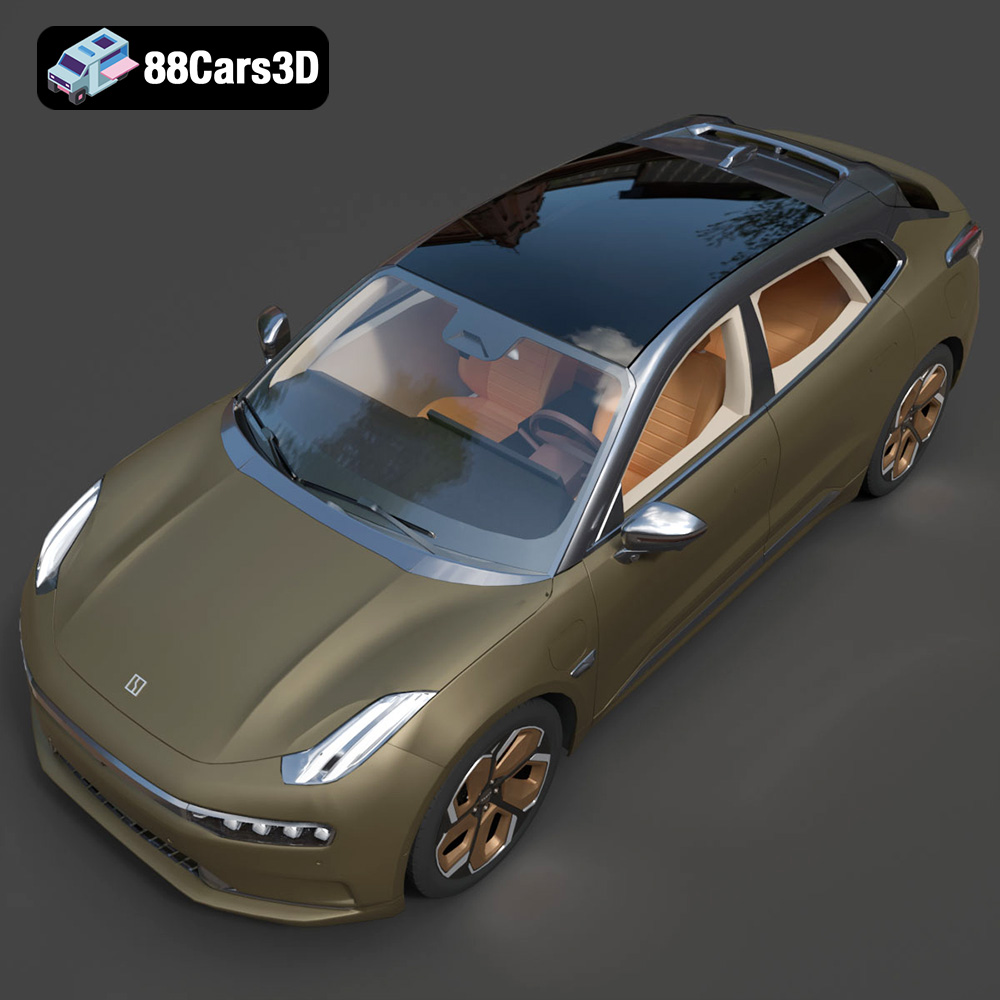
The Zeekr 001, with its sleek lines and innovative design, has captured the attention of car enthusiasts worldwide. Now, thanks to the detailed 3D model available at 88cars3d.com, you can bring this impressive electric shooting brake to life through the magic of 3D printing. This comprehensive guide will walk you through every step of the process, from preparing the model to post-processing the final print, ensuring you achieve a stunning replica of the Zeekr 001. Whether you’re a seasoned 3D printing veteran or just starting out, this article provides the knowledge to successfully create your own Zeekr 001 model.
Choosing the right file format is crucial for a successful 3D printing experience. The Zeekr 001 3D model from 88cars3d.com is provided in multiple formats to cater to various applications. Let’s break down the most common ones and how they relate to 3D printing:
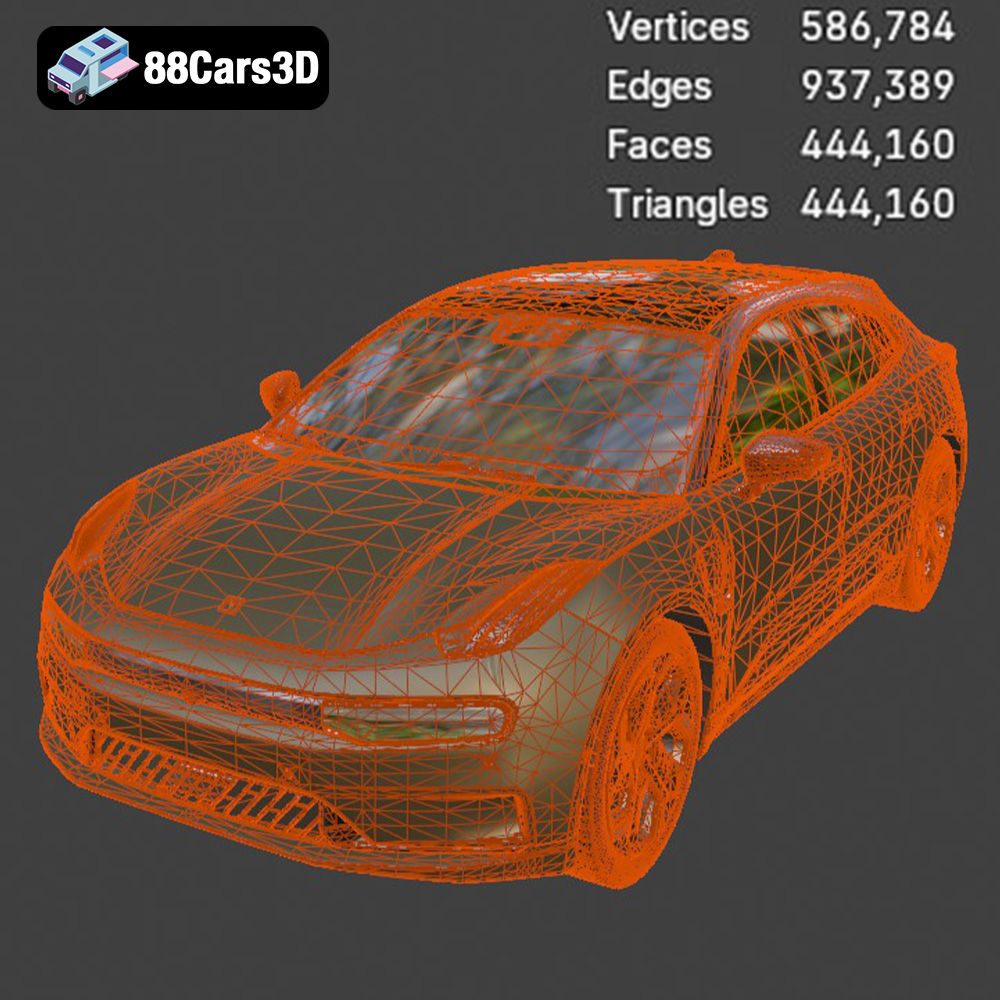
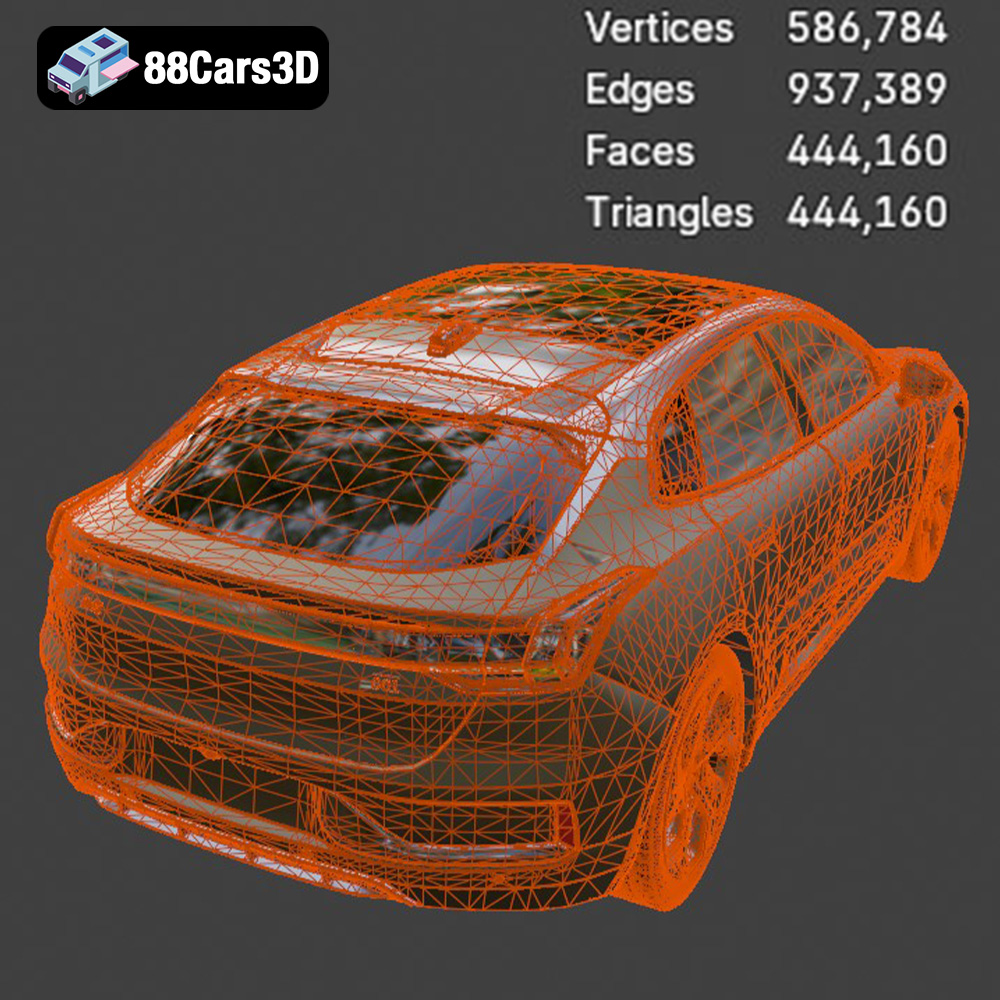
The .STL (Stereolithography) format is the undisputed industry standard for 3D printing. It represents the surface geometry of a 3D object as a collection of triangles. Because it’s a mesh-only format, it doesn’t contain information about color, texture, or materials. This simplicity makes it universally compatible with slicing software and 3D printers. When preparing the Zeekr 001 model for 3D printing, the STL file will be your primary choice. It’s important to inspect the STL file for any mesh errors (holes, non-manifold geometry) before slicing. Most slicing programs offer built-in repair tools, or you can use dedicated mesh repair software like MeshMixer or Netfabb.
The .OBJ format is another widely supported 3D model format. Unlike STL, OBJ can store color and texture information, which is beneficial if you plan to paint your 3D printed Zeekr 001 model after printing. However, for the actual 3D printing process, you’ll typically still rely on the geometry data within the OBJ file. While the textures themselves won’t be 3D printed (unless you have a multi-material printer), having them as a reference during post-processing can be very helpful for accurate painting and detailing.
The .PLY (Polygon File Format) is designed to store 3D data acquired from 3D scanners. It’s capable of representing highly detailed meshes with color information per vertex. While it can be used for 3D printing, the resulting file size can be significantly larger compared to STL, and the level of detail might not be fully realized on all 3D printers, especially those with lower resolutions. It may be useful if you need the highest possible level of geometric detail when printing the Zeekr 001.
The .BLEND format is the native file format for Blender, a popular open-source 3D modeling software. If you want to modify the Zeekr 001 model before 3D printing, such as adding custom details, simplifying the geometry, or splitting it into smaller parts for easier printing, the .BLEND file provides the most flexibility. Once you’ve made your changes in Blender, you’ll need to export the model as an STL file for 3D printing.
The .FBX (Filmbox) format is commonly used for exchanging 3D data between different software applications, particularly in game development. While it can contain material information, it’s not typically used directly for 3D printing. You would generally use the FBX file to import the Zeekr 001 model into a 3D modeling program or slicing software, then export it as an STL file for printing.
The .GLB format is a binary file format that stores 3D models with textures and animations. It’s often used for displaying 3D models in augmented reality (AR) applications. While you can’t directly 3D print a GLB file, it’s excellent for previewing the Zeekr 001 model in a real-world setting before committing to a print, helping you visualize the size and appearance.
The .MAX format is the native file format for 3ds Max, a professional 3D modeling and animation software. Similar to the .BLEND file, if you have access to 3ds Max, you can use the .MAX file to modify the Zeekr 001 model before exporting it as an STL file for 3D printing.
For the Zeekr 001, the STL format is the recommended choice for 3D printing due to its universal compatibility and simplicity. Ensure the STL file is clean, watertight, and free of errors before proceeding to the slicing stage.
Before you send the Zeekr 001 STL file to your 3D printer, there are crucial preparation steps to ensure a high-quality print.
* **Mesh Analysis:** Open the STL file in a mesh editing software like MeshMixer or Netfabb. These programs can identify and automatically repair common issues such as non-manifold edges, holes, and flipped normals. These imperfections can lead to printing errors or a structurally weak final product.
* **Watertightness:** Ensure the model is “watertight,” meaning it has no gaps or holes in its surface. This is essential for slicing software to correctly generate the internal structure (infill) and supports.
* **Orientation Assessment:** Carefully examine the model’s orientation. Consider overhangs, areas that might require significant support, and the overall aesthetics of the finished print. The initial orientation can greatly impact the print time, material usage, and surface quality. For the Zeekr 001, printing with the roof facing upwards might reduce the need for supports on the body, but could require supports for the wheels and side mirrors.
* **Choosing a Slicer:** Select a slicing software that is compatible with your 3D printer. Popular options include Cura, PrusaSlicer, Simplify3D, and others. Each offers different features and levels of control over the printing process.
* **Setting the Scale:** Determine the desired scale of your Zeekr 001 model. Consider the build volume of your printer and the level of detail you want to achieve. Scaling down the model will reduce print time and material usage, but it may also sacrifice finer details.
* **Support Generation:** Decide on the type and placement of supports. Automatic support generation can be a good starting point, but manual adjustments are often necessary to optimize support placement and minimize their impact on the surface finish. For the Zeekr 001, pay close attention to supporting the overhangs of the roof, bumpers, and side mirrors.
The material you choose significantly impacts the final appearance, strength, and durability of your 3D printed Zeekr 001.
* **Pros:** PLA (Polylactic Acid) is a biodegradable thermoplastic known for its ease of use and relatively low printing temperature. It’s a great choice for beginners due to its excellent adhesion and minimal warping. PLA is also available in a wide range of colors.
* **Cons:** PLA is not as strong or heat-resistant as other materials. It can become brittle over time, especially when exposed to UV light. It’s not ideal for parts that will be subjected to high stress or high temperatures.
* **Recommended Settings:** Print temperature: 190-220°C, Bed temperature: 60°C, Print speed: 50-60 mm/s.
* **Pros:** PETG (Polyethylene Terephthalate Glycol-modified) offers a good balance of strength, flexibility, and heat resistance. It’s more durable than PLA and less prone to warping than ABS. PETG also has good chemical resistance.
* **Cons:** PETG can be stringy during printing, requiring careful adjustment of retraction settings. It also requires a slightly higher printing temperature than PLA.
* **Recommended Settings:** Print temperature: 220-250°C, Bed temperature: 70-80°C, Print speed: 40-50 mm/s.
* **Pros:** Resin 3D printing (SLA/DLP) offers unparalleled detail and a smooth surface finish, making it ideal for creating highly accurate replicas of the Zeekr 001. Resin parts are also typically stronger and more durable than FDM prints.
* **Cons:** Resin printing requires specialized equipment and post-processing steps, including washing and curing. Resins can also be expensive and require careful handling due to their toxicity. Build volumes on resin printers are often smaller than FDM printers.
* **Recommended Settings:** Follow the resin manufacturer’s recommended settings for exposure time, layer height, and other parameters.
Fine-tuning your printer settings is crucial for achieving a successful and aesthetically pleasing 3D print of the Zeekr 001.
* **Layer Height:** Lower layer heights (e.g., 0.1mm – 0.15mm) result in smoother surfaces and finer details, but they also increase print time. Higher layer heights (e.g., 0.2mm – 0.3mm) are faster but may compromise surface quality.
* **Initial Layer Height:** A slightly thicker initial layer can improve adhesion to the build plate.
* **Balancing Speed and Quality:** Consider the overall size of the Zeekr 001 model and the desired level of detail when choosing your layer height. For a detailed model, a lower layer height is recommended.
* **Infill Density:** The infill density determines the internal strength and weight of the print. A higher infill density (e.g., 20-30%) will create a stronger but heavier model, while a lower infill density (e.g., 10-15%) will be lighter but potentially weaker.
* **Infill Pattern:** Different infill patterns offer varying levels of strength and material usage. Common patterns include grid, honeycomb, and gyroid. Gyroid infill provides excellent strength-to-weight ratio. For the Zeekr 001, a moderate infill density (15-20%) with a gyroid pattern should provide sufficient strength without adding excessive weight.
* **Support Type:** Choose the appropriate support type based on the model’s geometry and the printer’s capabilities. Tree supports are often a good choice for complex models with overhangs as they use less material and are easier to remove.
* **Support Density and Angle:** Adjust the support density and angle to optimize support strength and ease of removal.
* **Build Plate Adhesion:** Ensure good adhesion to the build plate to prevent warping or detachment during printing. Use a brim or raft if necessary.
Post-processing is the final stage in bringing your 3D printed Zeekr 001 to perfection.
* **Careful Support Removal:** Use tools like pliers, cutters, or a deburring tool to carefully remove support structures. Take your time to avoid damaging the model’s surface.
* **Sanding and Smoothing:** Sand the surface of the model to remove any imperfections or layer lines. Start with coarse sandpaper and gradually move to finer grits for a smoother finish. Wet sanding can help reduce dust and improve the surface finish.
* **Filling and Priming:** Fill any gaps or imperfections with putty or filler. Once dry, sand the filled areas smooth and apply a primer coat to prepare the model for painting.
* **Choosing Paints:** Select paints that are compatible with the material you used to print the Zeekr 001. Acrylic paints are a good choice for PLA and PETG, while specialized paints are available for resin prints.
* **Applying Multiple Coats:** Apply multiple thin coats of paint for a smooth and even finish. Allow each coat to dry completely before applying the next.
* **Adding Details:** Use masking tape, stencils, or fine-tipped brushes to add details such as headlights, taillights, and logos. Consider using metallic paints for realistic accents.
* **Gluing Parts Together:** If the Zeekr 001 model was printed in multiple parts, carefully glue them together using a suitable adhesive. Ensure proper alignment before the glue sets.
* **Finishing Touches:** Add any final details, such as clear coats, decals, or custom modifications.
Even with careful preparation, you may encounter some common 3D printing issues.
* **Causes:** Warping occurs when the first layer of the print detaches from the build plate due to uneven cooling or poor adhesion.
* **Solutions:** Ensure the build plate is clean and level. Use a heated bed and adjust the bed temperature. Apply a layer of adhesive (e.g., glue stick or hairspray) to the build plate. Use a brim or raft to increase adhesion.
* **Causes:** Stringing occurs when molten filament leaks from the nozzle during travel moves.
* **Solutions:** Adjust retraction settings (distance and speed). Lower the printing temperature. Increase travel speed. Ensure the filament is dry.
* **Causes:** Layer shifting occurs when the print head moves unexpectedly during printing, resulting in misaligned layers.
* **Solutions:** Check the belts and pulleys for tightness. Ensure the printer is stable and not subject to vibrations. Reduce printing speed. Check the stepper motor drivers for proper calibration.
* **Causes:** Elephant’s foot is the term for when the first layer is wider than subsequent layers, creating a flared base.
* **Solutions:** Reduce the initial layer temperature. Decrease the flow rate for the first layer. Ensure the bed is properly leveled.
By following these steps and tips, you can successfully 3D print a stunning replica of the Zeekr 001 using the high-quality STL files available at 88cars3d.com.
Bring stunning realism to your digital projects with the Zeekr 001 3D Model. This digital asset is accurately crafted to replicate the distinctive exterior lines and modern design of the innovative electric vehicle, providing a lifelike representation perfect for professional use.
$39.99
.-001
.arvr
.blend
.car3dmodel
.electriccar
.fbx
.gameasset
.glb
.max
.obj
.ply
.rendering
.shootingbrake
.simulation
.stl
.unreal
.zeekr