Get 20% OFF All Premium 3D & STL Models!

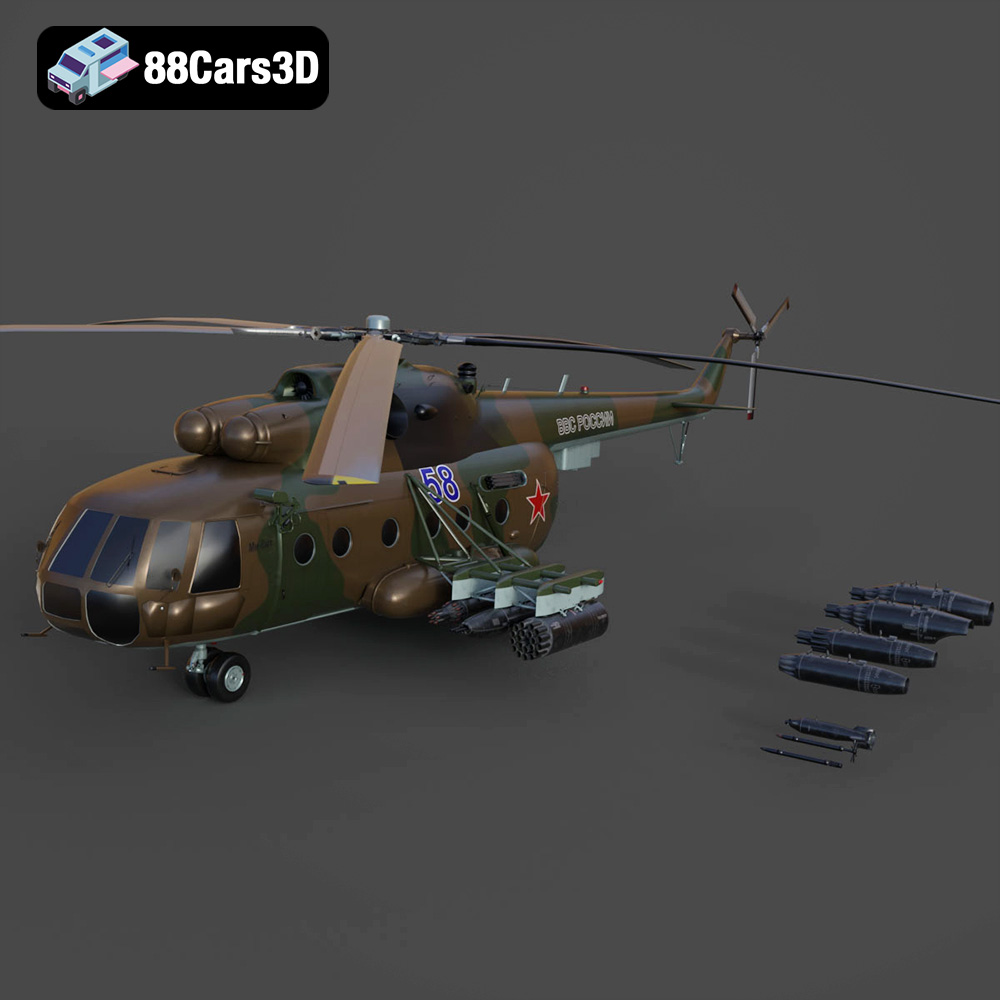
The Mil Mi-8MT helicopter is a true workhorse, known around the world for its reliability and versatility. Now, thanks to 88cars3d.com, you can bring this iconic aircraft to life with a detailed 3D model optimized for various applications, including, crucially, 3D printing. This guide will walk you through the entire process of 3D printing the Mil Mi-8MT, from pre-print preparation to post-processing techniques, ensuring a successful and satisfying project. We’ll cover material choices, printer settings, and troubleshooting tips to help you create a stunning replica.
Before you even think about firing up your 3D printer, you need to ensure the model is properly prepared. This involves several key steps: examining the files, repairing any errors, and choosing the right scale and orientation.
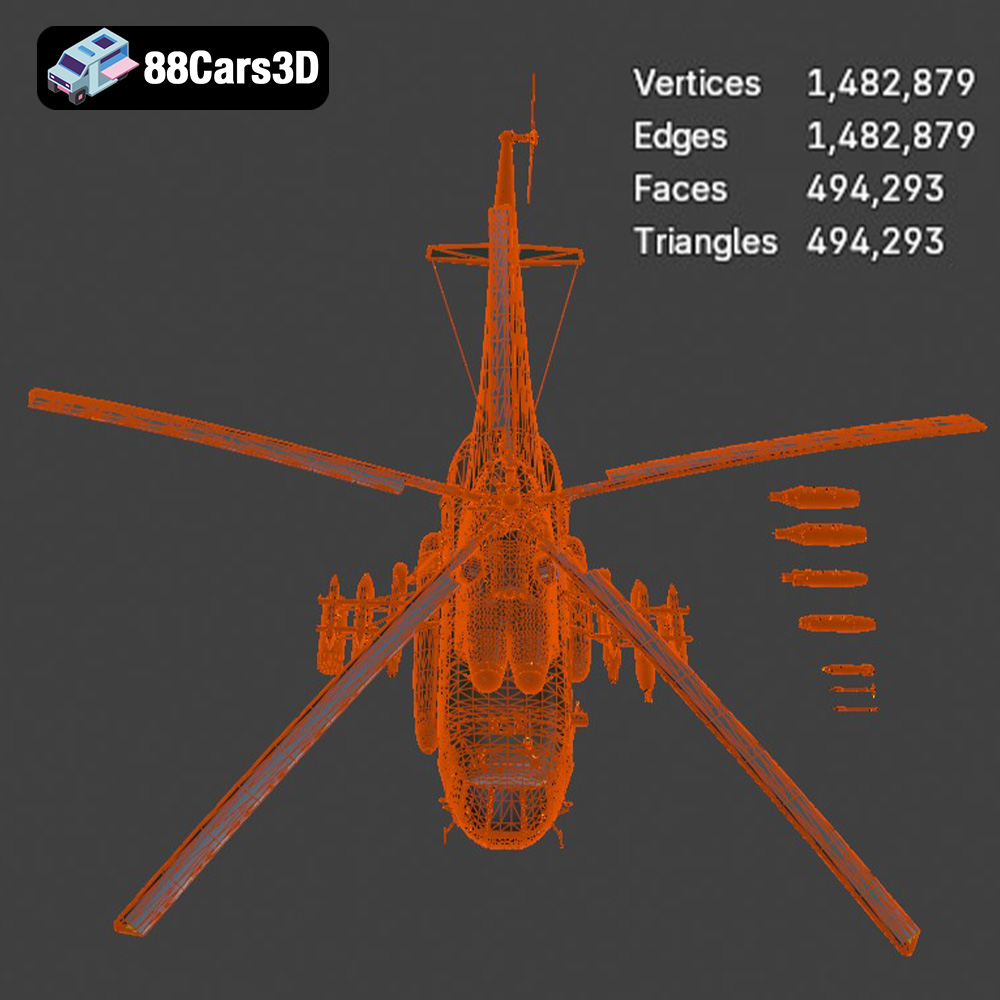
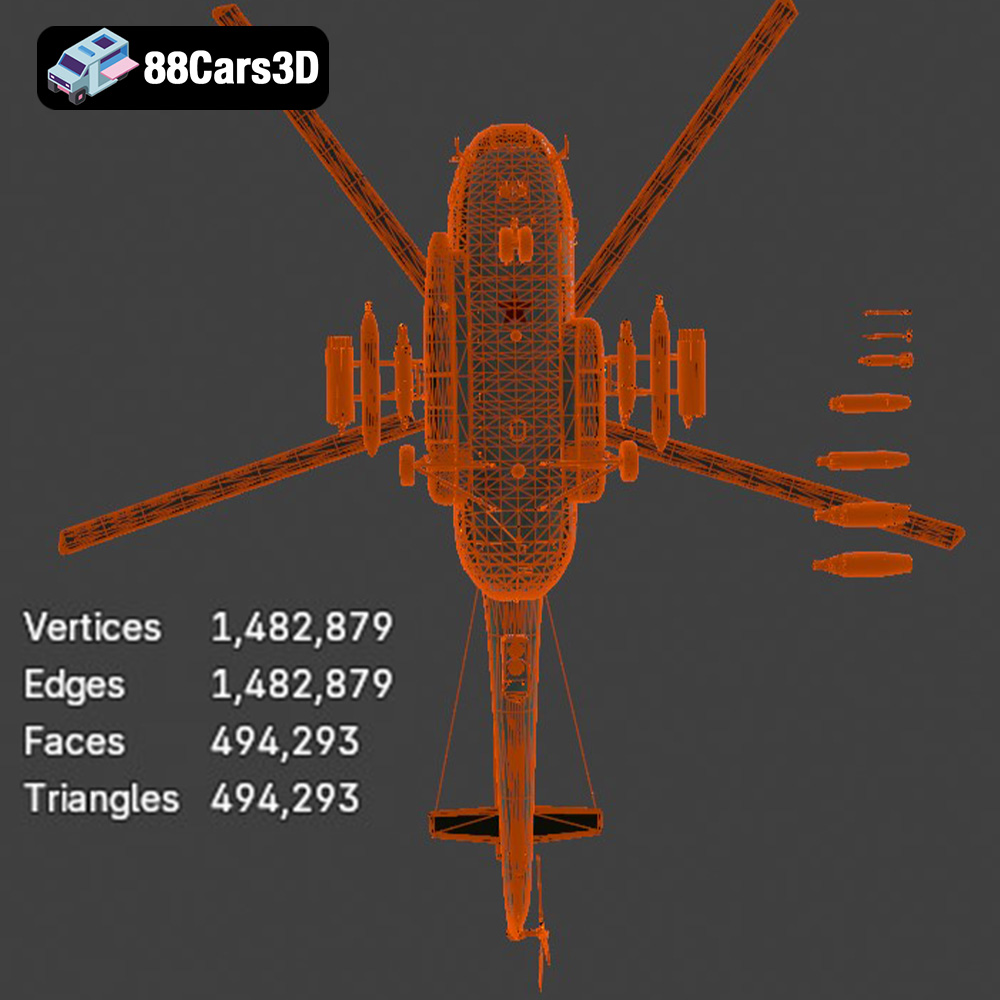
The Mil Mi-8MT model from 88cars3d.com includes an STL file, which is the standard format for 3D printing. Begin by opening the STL file in a mesh viewing or editing program. Inspect the model for any obvious errors, such as holes in the mesh, non-manifold edges, or flipped normals. These issues can lead to print failures. The model’s high triangle count (~120,000) suggests a good level of detail, but it’s worth verifying that the mesh is clean and well-defined, especially around intricate features like the rotors and landing gear.
If you identify any mesh errors, use a mesh repair tool like MeshLab, Netfabb Basic (Autodesk), or the built-in repair features of your slicing software. These tools can automatically identify and fix common problems. Pay close attention to the areas highlighted during the inspection phase. Make sure all the parts are “watertight” with no gaps or holes. Even small imperfections can lead to print errors. It’s better to be safe than sorry, and ensuring the model is free of errors is a critical step for successful 3D printing.
The recommended scales for the Mil Mi-8MT are 1:35, 1:48, and 1:72. Choose a scale that suits your printer’s build volume and your desired level of detail. Keep in mind that a larger scale will result in a larger print time and material usage. Once you’ve selected a scale, consider the optimal print orientation. The fuselage should ideally be printed at an angle to maximize structural integrity, as the product description suggests. This will help prevent warping and ensure a strong, stable print. The rotors, landing gear, and other detailed parts should be printed separately and may require different orientations to minimize support material usage and maximize detail resolution.
Choosing the right file format is critical for successful 3D printing. While the Mil Mi-8MT model from 88cars3d.com includes a variety of formats, the STL file is the most commonly used and universally compatible for additive manufacturing. Understanding the nuances of each format will help you make informed decisions about which to use and how to prepare them for printing.
The STL (stereolithography) file format is the workhorse of 3D printing. It represents the surface geometry of a 3D object as a collection of triangles. The simplicity of this format makes it incredibly versatile and compatible with virtually all 3D printers and slicing software. However, STL files have limitations. They only store surface geometry, meaning they don’t contain information about color, texture, or materials. This can be a drawback if you want to print a multi-colored model directly.
For the Mil Mi-8MT model, the STL file provides the basic shape and structure of the helicopter. This is the file you’ll primarily use in your slicing software to generate the G-code instructions for your printer. The quality of the STL file is directly related to the detail and accuracy of the final print. A high-resolution STL file with a large number of triangles will capture more intricate details than a low-resolution one. However, a very high triangle count can also increase file size and processing time in your slicing software.
OBJ (object) files are another common 3D model format. Unlike STL, OBJ files can store color and texture information, making them suitable for printing models with multiple colors or complex surface finishes. However, not all 3D printers support direct color printing from OBJ files. You might need specialized hardware and software to take advantage of this capability.
For the Mil Mi-8MT, the OBJ file could potentially be used to apply different colors or camouflage patterns to the model. However, unless you have a color 3D printer, you’ll likely still rely on the STL file for the basic printing process and then apply paint or other finishing techniques to achieve the desired color scheme.
PLY (polygon) files are designed for storing 3D data acquired from scanning devices or generated through advanced modeling techniques. PLY files can store not only geometry but also color, texture coordinates, normals, and other properties. This makes them ideal for representing highly detailed and complex shapes.
While PLY files can be used for 3D printing, they are not as widely supported as STL or OBJ files. Slicing software compatibility might be limited, and you might need to convert the PLY file to STL before printing. The Mil Mi-8MT model may benefit from being represented as a PLY file if you intend to use a very high-resolution 3D printer and want to capture every minute detail of the helicopter’s design.
BLEND files are the native file format for Blender, a popular open-source 3D modeling software. BLEND files contain the entire Blender scene, including the model’s geometry, textures, materials, lighting, and animation data. This format is extremely versatile because it allows you to fully customize the model before exporting it for printing.
For the Mil Mi-8MT, the BLEND file allows you to modify the model in Blender, perhaps to add your own details, simplify certain parts, or prepare the model specifically for 3D printing. You can then export the modified model as an STL file for printing. Working with the BLEND file requires some familiarity with Blender.
FBX (Filmbox) is a proprietary file format developed by Autodesk for interoperability between different 3D software packages. FBX files can store geometry, textures, materials, animation, and other scene data. This makes them a versatile format for exchanging 3D assets between different applications.
While FBX files are not directly used for 3D printing, they can be imported into some slicing software packages that support advanced features like material assignment. However, most slicing software still relies on the STL format for generating G-code. The FBX file of the Mil Mi-8MT model can be useful if you plan to use the model in other 3D applications or game engines.
GLB (GL Transmission Format Binary) is a file format designed for efficient transmission and loading of 3D models in web and mobile applications. GLB files are often used for augmented reality (AR) applications, as they allow users to preview 3D models in their real-world environment before committing to a purchase or a print.
The GLB file of the Mil Mi-8MT model allows you to visualize the helicopter in AR using a compatible app on your smartphone or tablet. This can be helpful for assessing the model’s size and appearance before printing. However, GLB files are not directly used for 3D printing.
MAX files are the native file format for 3ds Max, another popular 3D modeling software. MAX files contain the entire 3ds Max project, including the model’s geometry, textures, materials, lighting, and animation data. Similar to BLEND files, MAX files allow you to fully customize the model before exporting it for printing.
If you’re familiar with 3ds Max, the MAX file of the Mil Mi-8MT model allows you to modify the model and prepare it specifically for 3D printing.
The choice of material will significantly impact the final appearance, strength, and durability of your 3D printed Mil Mi-8MT. The ideal material depends on your specific needs and the capabilities of your 3D printer.
PLA (polylactic acid) is a popular thermoplastic known for its ease of use and biodegradability. It’s a great choice for beginners as it prints at relatively low temperatures and doesn’t require a heated bed (although a heated bed is recommended). PLA is also available in a wide range of colors, making it easy to achieve the desired aesthetic for your Mil Mi-8MT. However, PLA is not particularly heat-resistant or durable, so it’s best suited for models that won’t be exposed to high temperatures or significant stress. PLA is a good option for display models and prototypes.
PETG (polyethylene terephthalate glycol-modified) is a more durable and heat-resistant alternative to PLA. It’s also relatively easy to print, although it may require slightly higher temperatures and careful bed adhesion. PETG offers good strength and flexibility, making it suitable for parts that need to withstand some stress, such as the landing gear of the Mil Mi-8MT. PETG is a good all-around material for functional parts and models that will be handled frequently.
If you want to capture the finest details of the Mil Mi-8MT, resin printing is the way to go. Resin printers use liquid photopolymer resins that are cured by UV light, resulting in incredibly smooth surfaces and high resolution. This is especially important for intricate features like the rotors, cockpit details, and exhaust system. However, resin printing can be more complex and requires careful handling of the resin, as well as post-processing steps like washing and curing. Resin prints are also generally more brittle than FDM prints, so they may not be suitable for parts that need to withstand significant stress. The product description specifically recommends resin printing for fine details.
Other materials, such as ABS, nylon, and polycarbonate, can also be used to 3D print the Mil Mi-8MT. However, these materials require more advanced printing setups and are not recommended for beginners.
Slicing software is essential for converting your 3D model into instructions that your printer can understand. It allows you to control various print settings that will impact the final result.
Popular slicing software options include Cura, Simplify3D, PrusaSlicer, and ideaMaker. Each software has its own strengths and weaknesses, so experiment to find one that suits your needs and printer. Some slicing software also includes mesh repair tools, which can be helpful for fixing any errors in the STL file.
* **Layer Height:** A lower layer height (e.g., 0.04-0.12 mm) will result in smoother surfaces and finer details, which is crucial for the Mil Mi-8MT. However, it will also increase print time.
* **Infill Density:** The recommended infill density is 20-30%. This provides a good balance between strength and weight. Increase the infill density for parts that need to be particularly strong, such as the landing gear mounts.
* **Wall Thickness:** The recommended wall thickness is 1.2-2.0 mm. This will ensure that the walls of the model are strong enough to withstand stress and prevent warping.
* **Support Structures:** Support structures are necessary for overhanging parts, such as the rotors and landing gear. Use a support pattern that is easy to remove and doesn’t leave excessive marks on the model.
* **Print Speed:** A slower print speed will generally result in better print quality, especially for detailed parts.
* **Temperature Settings:** Refer to the material manufacturer’s recommendations for optimal printing temperatures.
The orientation of the model on the print bed can significantly impact print quality and strength. As recommended, print the fuselage at an angle to maximize structural integrity. Orient the rotors and other detailed parts to minimize support material usage and maximize detail resolution.
Post-processing is the final stage in the 3D printing process, and it involves cleaning up the print, removing support structures, and applying any desired finishing touches.
Carefully remove the support structures using pliers, a hobby knife, or other suitable tools. Be gentle to avoid damaging the model. If necessary, use sandpaper to smooth any rough edges or marks left by the supports.
Sanding is essential for achieving a smooth surface finish, especially if you’re using FDM printing. Start with a coarse grit sandpaper and gradually move to finer grits. For resin prints, you can use wet sanding to achieve an even smoother finish.
Apply a primer to the model to prepare it for painting. This will help the paint adhere better and create a more uniform finish. Choose a primer that is compatible with the material you used to print the model. Once the primer is dry, you can paint the model with the desired colors and camouflage patterns. Consider using stencils or masking tape to create accurate markings. The product description suggests considering authentic military camouflage or civilian livery finishes.
If you printed the model in multiple parts, assemble them using glue or other suitable fasteners. Ensure that all parts fit together properly and are securely attached.
Even with careful preparation, you may encounter some issues during the 3D printing process. Here are some common problems and their solutions:
* **Warping:** Warping occurs when the corners of the print lift off the print bed. This can be caused by poor bed adhesion, inadequate bed temperature, or drafts in the room. To prevent warping, ensure that the print bed is clean and level, use a heated bed, and avoid drafts.
* **Stringing:** Stringing occurs when thin strands of filament are left between parts of the print. This can be caused by high printing temperatures, slow retraction speeds, or excessive oozing. To prevent stringing, lower the printing temperature, increase the retraction speed, and ensure that the filament is dry.
* **Layer Separation:** Layer separation occurs when the layers of the print do not adhere properly. This can be caused by low printing temperatures, inadequate layer adhesion, or a dirty print bed. To prevent layer separation, increase the printing temperature, use a bed adhesive, and ensure that the print bed is clean.
* **Elephant Foot:** This occurs when the first layer is overly squished and wider than subsequent layers. Adjust initial layer height and flow settings in your slicer.
By carefully preparing the model, choosing the right materials, optimizing your printer settings, and following these post-processing techniques, you can create a stunning 3D printed Mil Mi-8MT helicopter that you’ll be proud to display. The model from 88cars3d.com provides a fantastic starting point for this exciting project. With patience and attention to detail, you can bring this iconic aircraft to life!
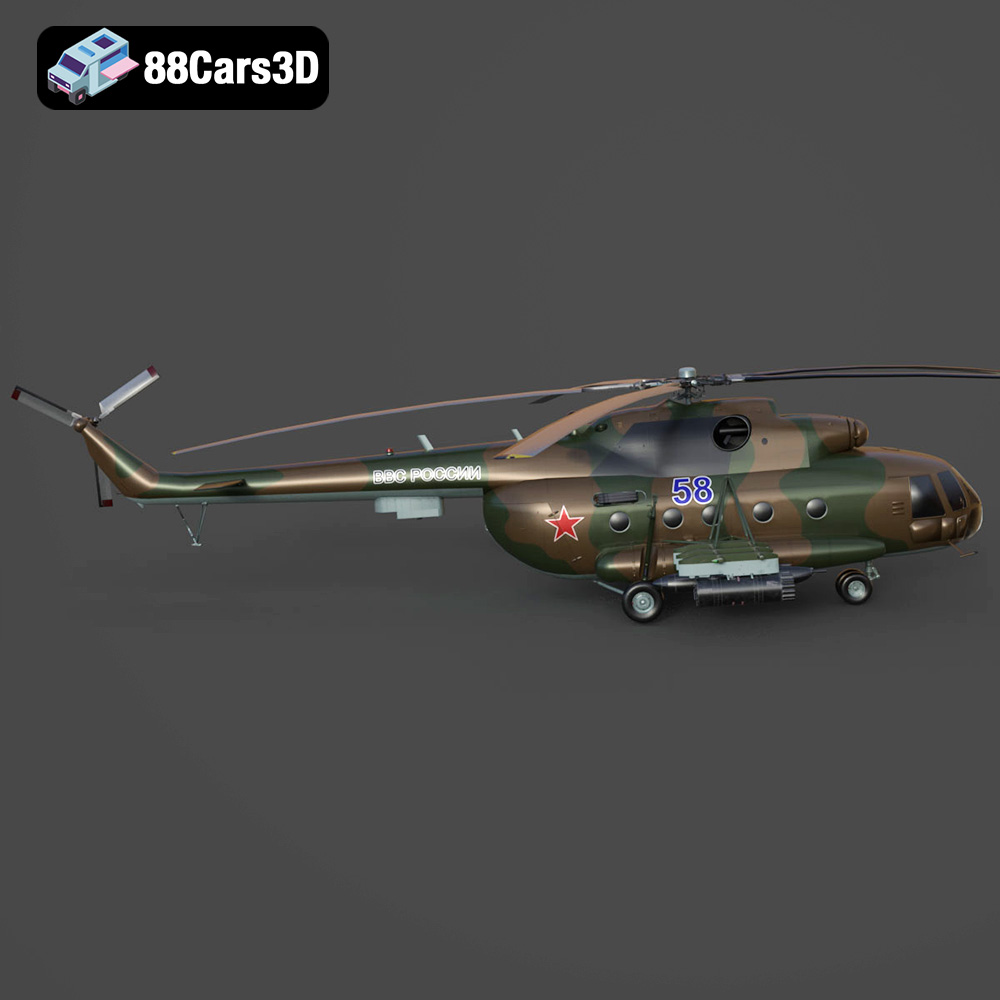
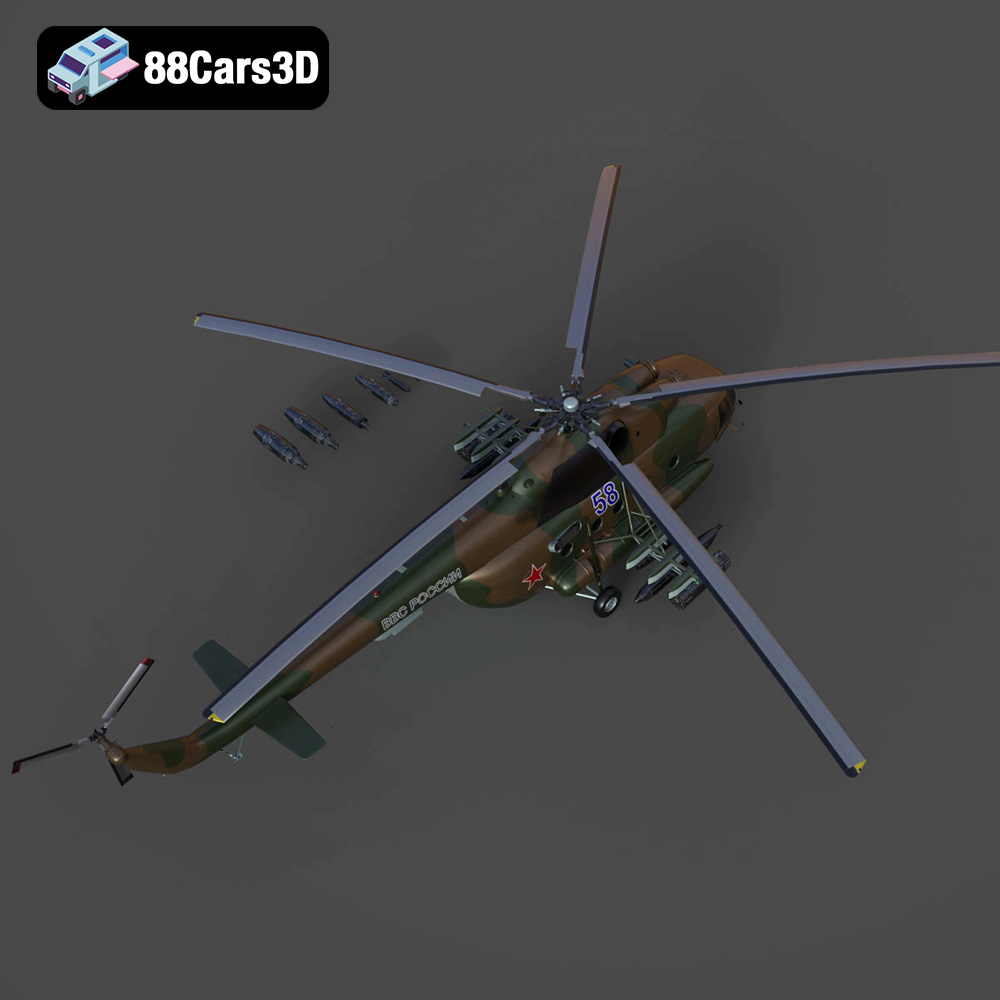
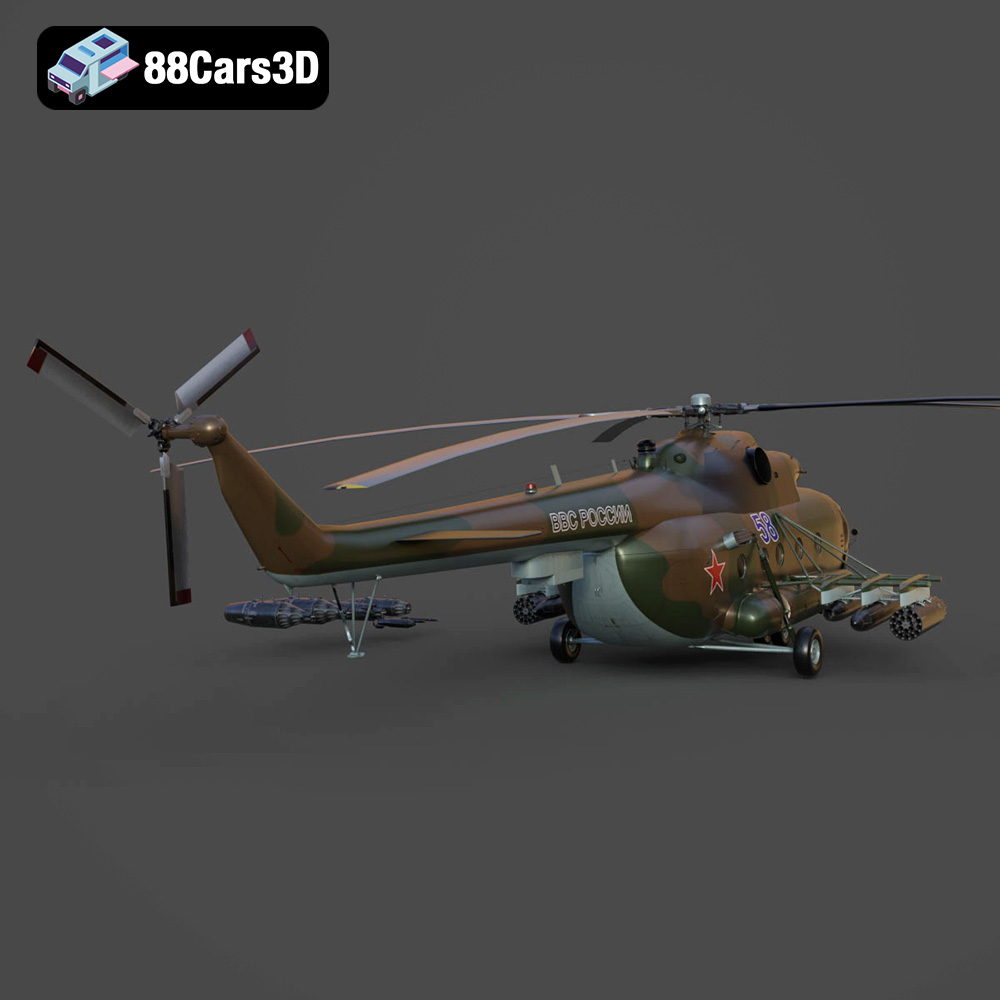
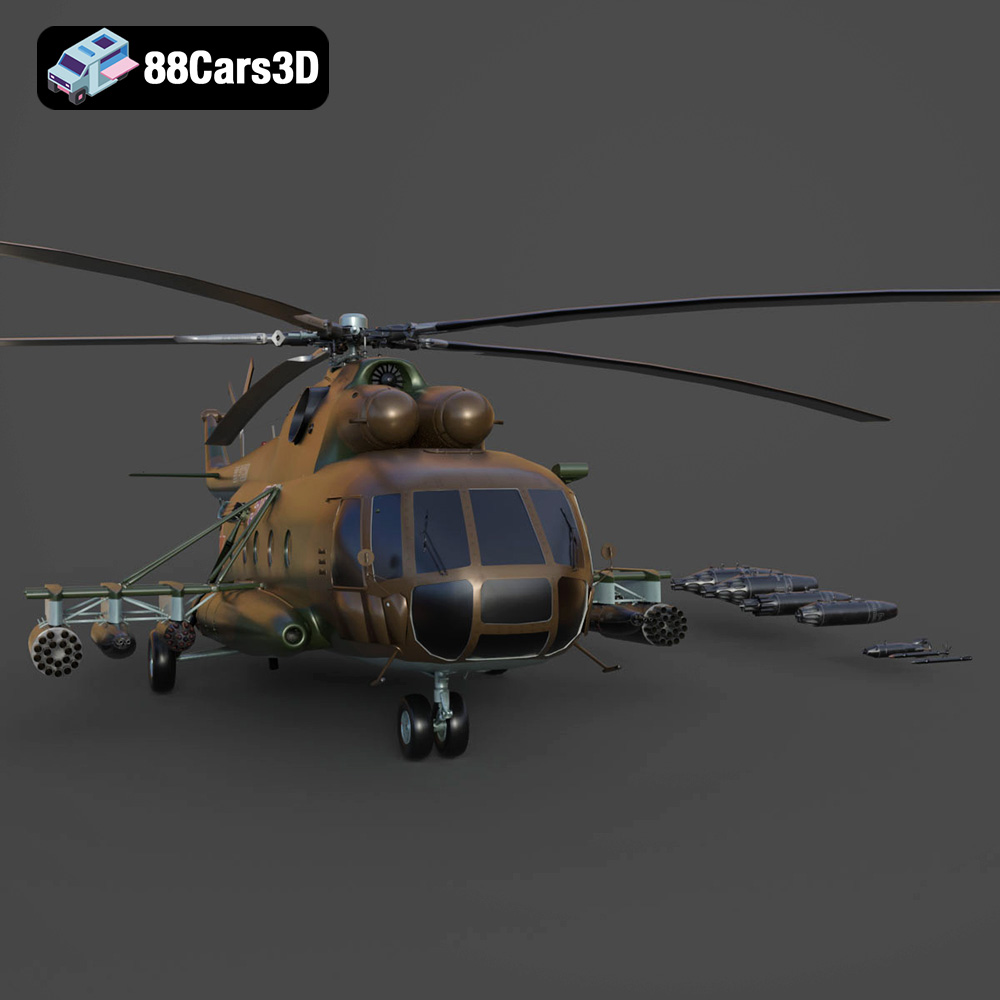
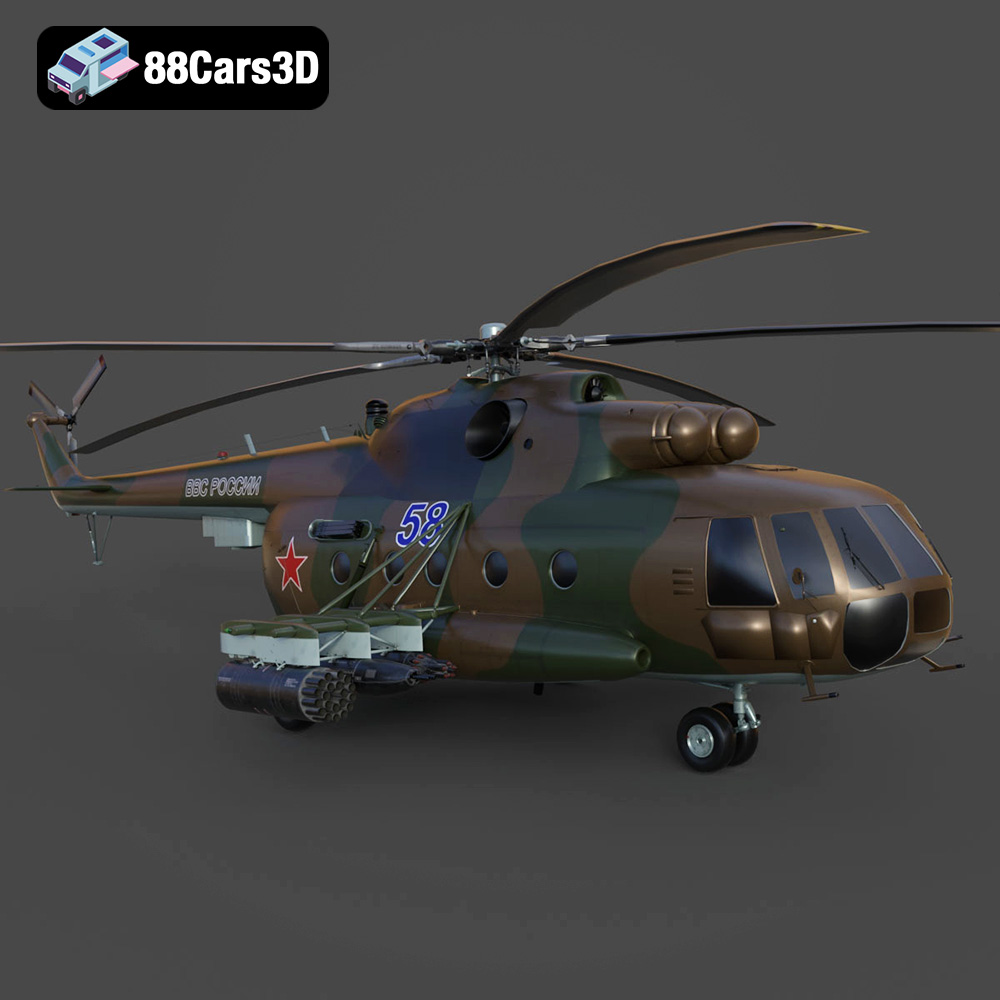
The Mil Mi-8MT is a legendary medium twin-turbine transport helicopter, renowned for its ruggedness, versatility, and widespread military and civilian use across the globe. This iconic rotorcraft features distinctive top-mounted TV3-117MT turboshaft engines, a robust airframe, an intricate exhaust system, and its recognizable five-blade main rotor. Perfect for military flight simulators, action-adventure game environments, cinematic rendering, and historical aviation visualizations.
$39.99
.blend
.fbx
.glb
.helicopter
.max
.obj
.ply
.rendering
.stl
.unreal
game asset
game-ready
helicopter-3d-model
low-poly
mi-8mt
mil
military-helicopter
optimized
transport-helicopter
VR/AR