Get 20% OFF All Premium 3D & STL Models!

“`html
The world of 3D printing offers incredible possibilities, especially for automotive enthusiasts looking to create detailed scale models. Platforms like 88cars3d.com provide a fantastic resource for high-quality, printable car models in STL format. However, even the best STL files can sometimes contain errors that lead to printing failures. These imperfections, often invisible to the naked eye, can range from minor gaps and holes to more significant issues like non-manifold geometry. Fortunately, robust software solutions like Meshmixer and Netfabb are available to diagnose and repair these problems, ensuring a successful and satisfying print. This guide will delve into the intricacies of identifying and fixing broken STL meshes, empowering you to bring your favorite car models to life with confidence.
In this comprehensive guide, you’ll learn how to diagnose common STL file errors, understand the importance of mesh integrity, and master the techniques for repairing broken meshes using Meshmixer and Netfabb. We’ll cover specific workflows, explore software settings, and provide practical tips for achieving optimal results. By the end of this article, you’ll be well-equipped to tackle even the most challenging mesh repair scenarios, guaranteeing flawless 3D prints of your automotive masterpieces.
Before diving into the repair process, it’s crucial to understand the structure of STL files and the common errors that can occur. An STL (Stereolithography) file represents a 3D object as a collection of interconnected triangles. Each triangle is defined by three vertices (points) and a normal vector that indicates the direction the triangle is facing. While seemingly simple, this structure is prone to various issues that can compromise printability.
An STL file essentially creates a surface representation of a 3D model using numerous small triangles. The smaller and more numerous the triangles, the smoother and more detailed the final 3D print will be. Each triangle is defined by the coordinates of its three vertices (X, Y, Z) and a normal vector. This vector is crucial as it determines the “outside” of the triangle and helps the slicing software understand the object’s geometry. The file itself is typically stored in either ASCII or binary format, with binary being the more common and efficient option.
Several types of errors can plague STL files, leading to print failures. These include:
These errors can manifest in various ways during printing, such as missing layers, incorrect infill, or even complete print failures. Addressing these issues before printing is essential for achieving a successful outcome, especially when printing intricate automotive models.
Meshmixer is a free and powerful software tool from Autodesk designed specifically for manipulating and repairing 3D meshes. Its intuitive interface and robust repair tools make it an excellent choice for fixing broken STL files. This section will guide you through the process of repairing STL files using Meshmixer.
The first step is to import your STL file into Meshmixer. Once imported, it’s crucial to analyze the mesh for errors. Meshmixer provides a built-in “Inspector” tool for this purpose. To use it, go to “Analysis” -> “Inspector.” The Inspector will automatically identify and mark problematic areas with colored spheres. Red spheres indicate the most severe errors, such as non-manifold edges, while yellow and green spheres represent less critical issues like small gaps or disconnected components.
One of Meshmixer’s most effective repair tools is the “Make Solid” function. This feature attempts to automatically convert a complex, potentially flawed mesh into a watertight, solid model. To access it, go to “Edit” -> “Make Solid.” A dialog box will appear with several options. Experiment with the settings to achieve the best result for your specific model. Key parameters include:
After adjusting the settings, click “Update” to preview the changes. If the result is satisfactory, click “Accept” to apply the changes. This process often resolves many common STL errors, particularly non-manifold geometry and small holes.
In some cases, automated repair tools may not be sufficient, and manual editing becomes necessary. Meshmixer offers a variety of tools for manual mesh manipulation, including:
When using these tools, it’s crucial to work carefully and pay attention to the mesh topology. Avoid creating new non-manifold edges or self-intersections. After making any manual edits, run the “Inspector” again to ensure that no new errors have been introduced.
Autodesk Netfabb is a professional-grade software solution for additive manufacturing, offering advanced tools for mesh repair, optimization, and build preparation. While Netfabb is a paid software, its powerful features and precise control make it a valuable asset for serious 3D printing enthusiasts. Netfabb provides more granular control over mesh repair compared to Meshmixer and is particularly useful for complex and intricate models.
Similar to Meshmixer, the first step in Netfabb is to import the STL file. Once imported, Netfabb provides a comprehensive diagnostic tool to identify errors. Navigate to “Analysis” -> “Analyze” and select the “Extended Repair” option. This will perform a thorough analysis of the mesh and highlight any errors in a detailed report. The report will list the number of holes, inverted normals, self-intersections, and other issues, providing a clear overview of the mesh’s condition.
Netfabb offers an “Automatic Repair” script that attempts to fix common STL errors with minimal user intervention. To run the script, right-click on the part in the project tree and select “Repair” -> “Automatic Repair.” A dialog box will appear with several options. The default settings often provide good results, but you can customize the repair process by adjusting parameters such as:
After adjusting the settings, click “Execute” to run the script. Netfabb will automatically attempt to repair the mesh and generate a report summarizing the changes made.
For more complex or specific repairs, Netfabb provides a range of manual editing tools that offer precise control over the mesh. These tools include:
Netfabb also includes powerful tools for remeshing, which involves creating a new mesh with a different topology. This can be useful for simplifying complex meshes or improving the overall quality of the mesh. When using manual editing tools, it’s essential to maintain a consistent mesh density and avoid creating new errors. Regularly run the diagnostic tool to ensure that the mesh remains valid and printable.
Repairing broken STL files is only one part of the equation. Optimizing the file for 3D printing is equally important for achieving high-quality results. This involves considering factors such as file size, mesh density, and orientation.
Large STL files with high mesh densities can consume significant processing power and increase slicing time. Reducing the file size and mesh density can improve performance without significantly impacting print quality. Tools like Meshmixer and Netfabb offer decimation features that reduce the number of triangles in the mesh while preserving the overall shape. Experiment with different decimation ratios to find a balance between file size and detail. A good starting point is to aim for a file size under 100MB for most models. Remember to always keep a copy of the original high-resolution STL file before decimating.
The orientation of the model on the print bed can significantly impact print quality, support requirements, and print time. Consider the following factors when orienting your model:
Experiment with different orientations in your slicing software to find the optimal configuration for your specific model. Slicers often have features that can automatically suggest optimal orientations.
Slicing parameters play a critical role in the final print quality. Key parameters to consider include:
When downloading models from marketplaces such as 88cars3d.com, ensure the recommended print settings are considered and adapted to your specific printer and filament. Understanding these parameters and how they affect the print outcome is crucial for achieving successful and high-quality 3D prints.
Even after repairing and optimizing your STL file, printing problems can still arise. Understanding the common issues related to mesh integrity and how to troubleshoot them is essential for a smooth printing process.
Warping occurs when the corners or edges of the print lift off the print bed during printing. This is often caused by poor bed adhesion or uneven cooling. To address warping, try the following:
Consider the material you’re using. ABS, for example, is more prone to warping than PLA and may require higher bed temperatures and a fully enclosed printer.
Missing layers or inconsistent extrusion can be caused by a variety of factors, including:
Check the filament diameter setting in your slicer software. If it’s incorrect, it can cause under-extrusion and weak prints.
Support structure failures can lead to drooping overhangs and incomplete prints. To address this, consider the following:
Carefully consider the support removal process. Using the correct tools and techniques can prevent damage to the printed part.
Repairing broken STL meshes is a fundamental skill for any 3D printing enthusiast, especially when working with intricate models like printable car models. By understanding the structure of STL files, diagnosing common errors, and mastering the techniques for repairing meshes using tools like Meshmixer and Netfabb, you can significantly improve your print success rate. Remember to optimize your files for 3D printing by reducing file size, orienting the model appropriately, and choosing the right slicing parameters. Furthermore, be prepared to troubleshoot common printing problems related to mesh integrity and to refine your techniques through experimentation and continuous learning.
Platforms like 88cars3d.com offer print-ready STL files, but even these can sometimes benefit from a quick check and potential repair. By following the guidelines and workflows outlined in this guide, you’ll be well-equipped to tackle any mesh repair challenge and bring your favorite automotive models to life with exceptional detail and accuracy. The next step is to download a model, inspect it carefully, and practice the repair techniques you’ve learned. With patience and persistence, you’ll master the art of mesh repair and unlock the full potential of your 3D printer.
“`

Texture: Yes | Material: Yes
Download the highly detailed, game-ready Ford GT 2005 3D Model. Features signature aerodynamic bodylines, mid-mounted supercharged V8 detailing, and iconic racing stripes. Includes .blend, .fbx, .obj, .glb, .stl, .ply, .unreal, and .max formats for game development, AR/VR, and rendering.
Price: $19.99

Texture: Yes | Material: Yes
Download the highly detailed, game-ready Yamaha YZF-R125 EU 3D Model. Features an aggressive aerodynamic fairing, twin LED headlights, and a detailed 125cc engine block. Includes .blend, .fbx, .obj, .glb, .stl, .ply, .unreal, and .max formats for game development, AR/VR, and rendering.
Price: $19.99

Texture: Yes | Material: Yes
Download the highly detailed, game-ready Yamaha R1 3D Model. Features aggressive aerodynamic fairings, a detailed crossplane inline-4 engine, and track-focused suspension geometry. Includes .blend, .fbx, .obj, .glb, .stl, .ply, .unreal, and .max formats for game development, AR/VR, and rendering.
Price: $19.99

Texture: Yes | Material: Yes
Download the highly detailed, game-ready Yamaha XV950 Racer 3D Model. Features an aggressive cafe-racer front cowl, detailed air-cooled V-twin engine, and classic retro styling. Includes .blend, .fbx, .obj, .glb, .stl, .ply, .unreal, and .max formats for game development, AR/VR, and rendering.
Price: $19.99

Texture: Yes | Material: Yes
Download the highly detailed, game-ready Volvo VNL Tractor Truck 2002 3D Model. Features iconic aerodynamic styling, detailed fifth-wheel coupling, and heavy-duty chassis. Includes .blend, .fbx, .obj, .glb, .stl, .ply, .unreal, and .max formats for game development, AR/VR, and rendering.
Price: $39.99
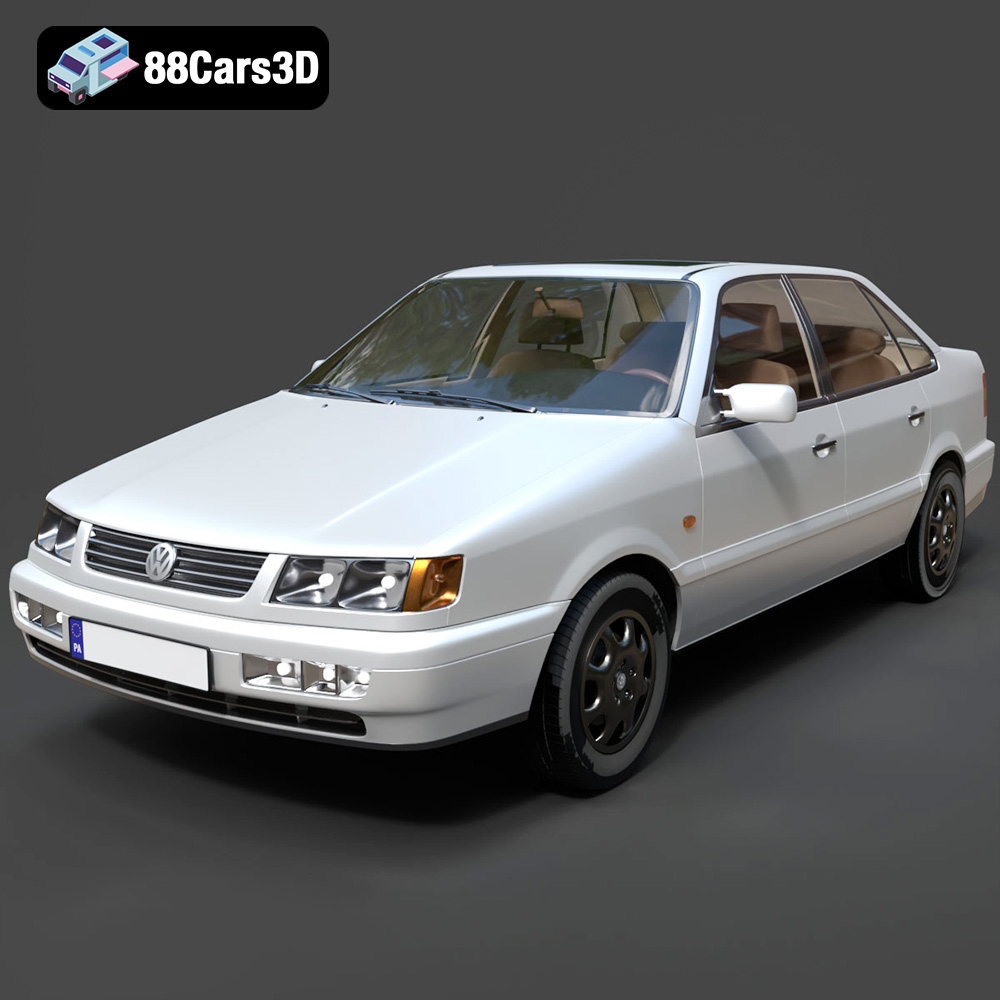
Texture: Yes | Material: Yes
Download the highly detailed, game-ready Volkswagen Passat Mk4 B4 Sedan 1993 3D Model. Features accurate 90s sedan styling, detailed front grille-less fascia, and a classic interior setup. Includes .blend, .fbx, .obj, .glb, .stl, .ply, .unreal, and .max formats for game development, AR/VR, and rendering.
Price: $39.99

Texture: Yes | Material: Yes
Download the highly detailed, game-ready Volkswagen Jetta GLI 2019 3D Model. Features an aggressive honeycomb grille with red accents, sleek aerodynamic profile, and exclusive GLI sport wheels. Includes .blend, .fbx, .obj, .glb, .stl, .ply, .unreal, and .max formats for game development, AR/VR, and rendering.
Price: $39.99

Texture: Yes | Material: Yes
Download the highly detailed, game-ready Vintage Vespa 3D Model. Features iconic rounded monocoque styling, classic saddle, and chrome accents. Includes .blend, .fbx, .obj, .glb, .stl, .ply, .unreal, and .max formats for game development, AR/VR, and rendering.
Price: $39.99

Texture: Yes | Material: Yes
Download the highly detailed, game-ready Vespa GS 150 3D Model. Features elegant aerodynamic curves, classic leg shield, and detailed engine casing. Includes .blend, .fbx, .obj, .glb, .stl, .ply, .unreal, and .max formats for game development, AR/VR, and rendering.
Price: $39.99

Texture: Yes | Material: Yes
Download the highly detailed, game-ready Vespa P200E 3D Model. Features classic vintage styling, accurate step-through frame geometry, and authentic detailing. Includes .blend, .fbx, .obj, .glb, .stl, .ply, .unreal, and .max formats for game development, AR/VR, and rendering.
Price: $39.99

