Get 20% OFF All Premium 3D & STL Models!

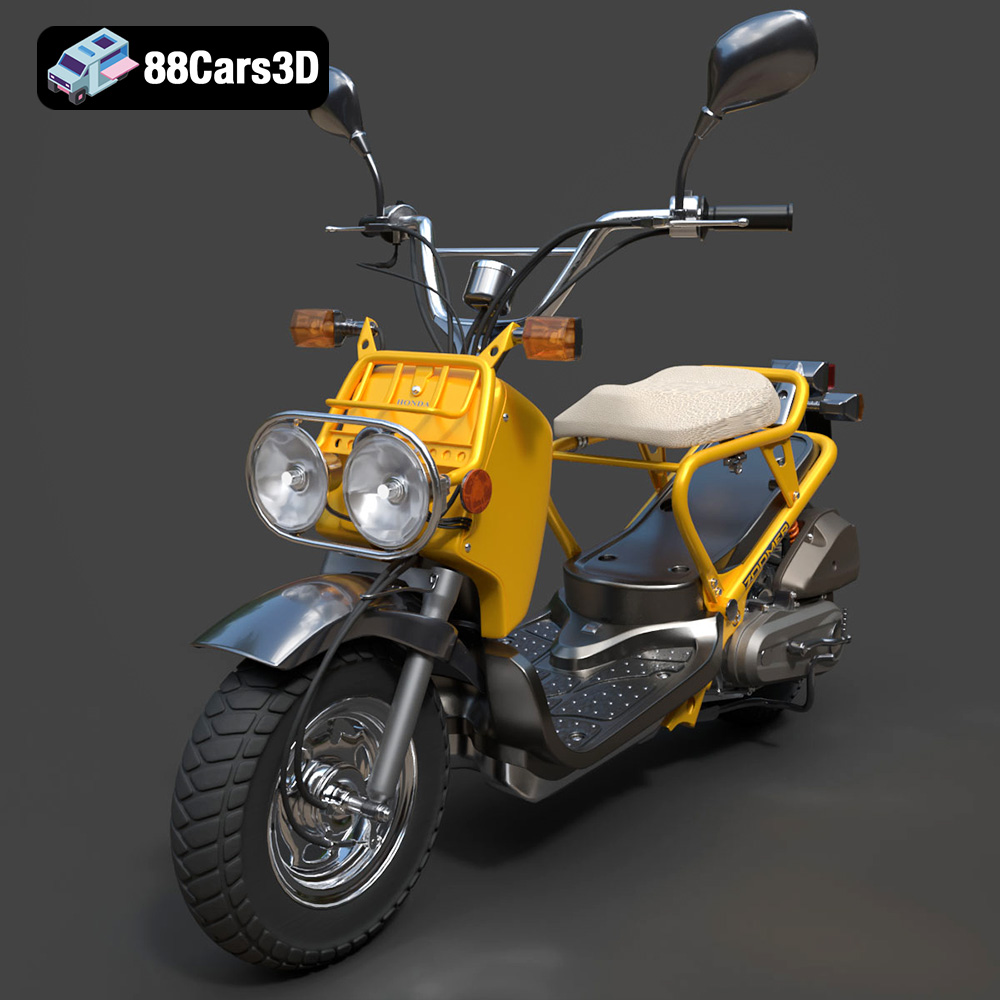
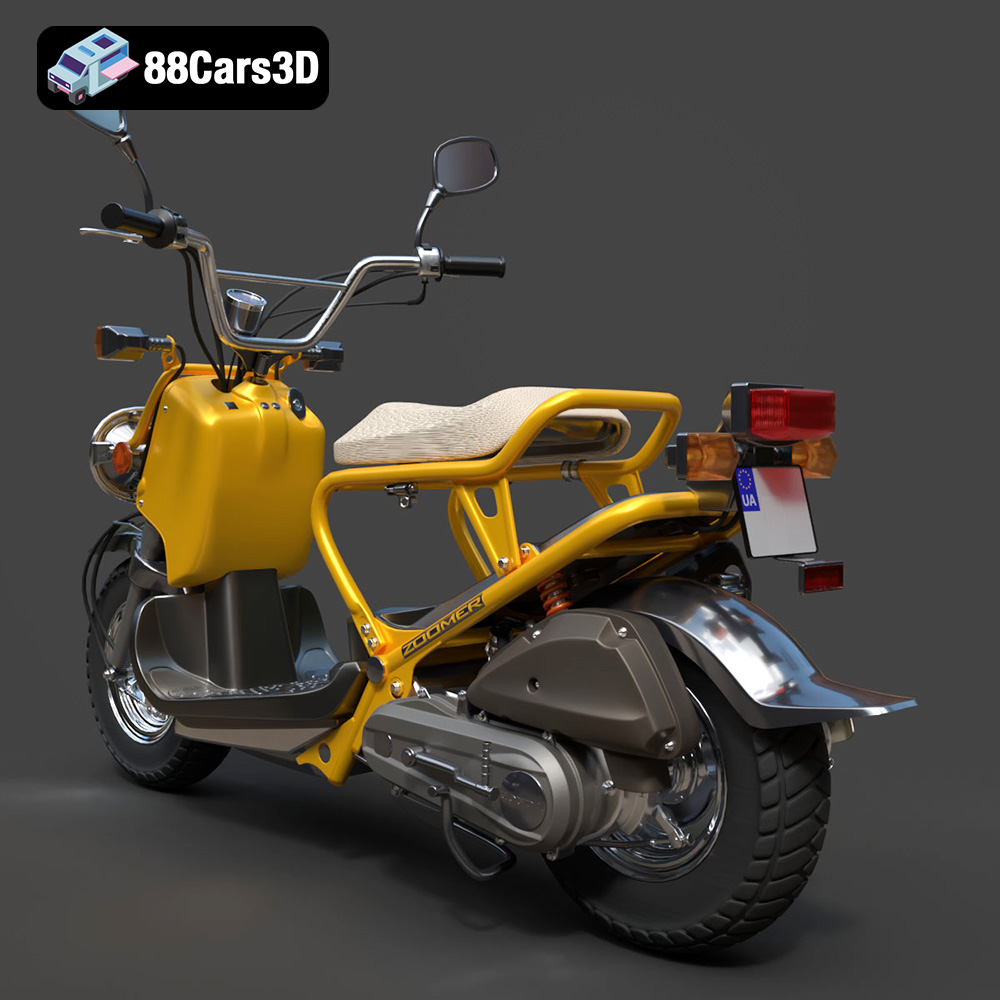
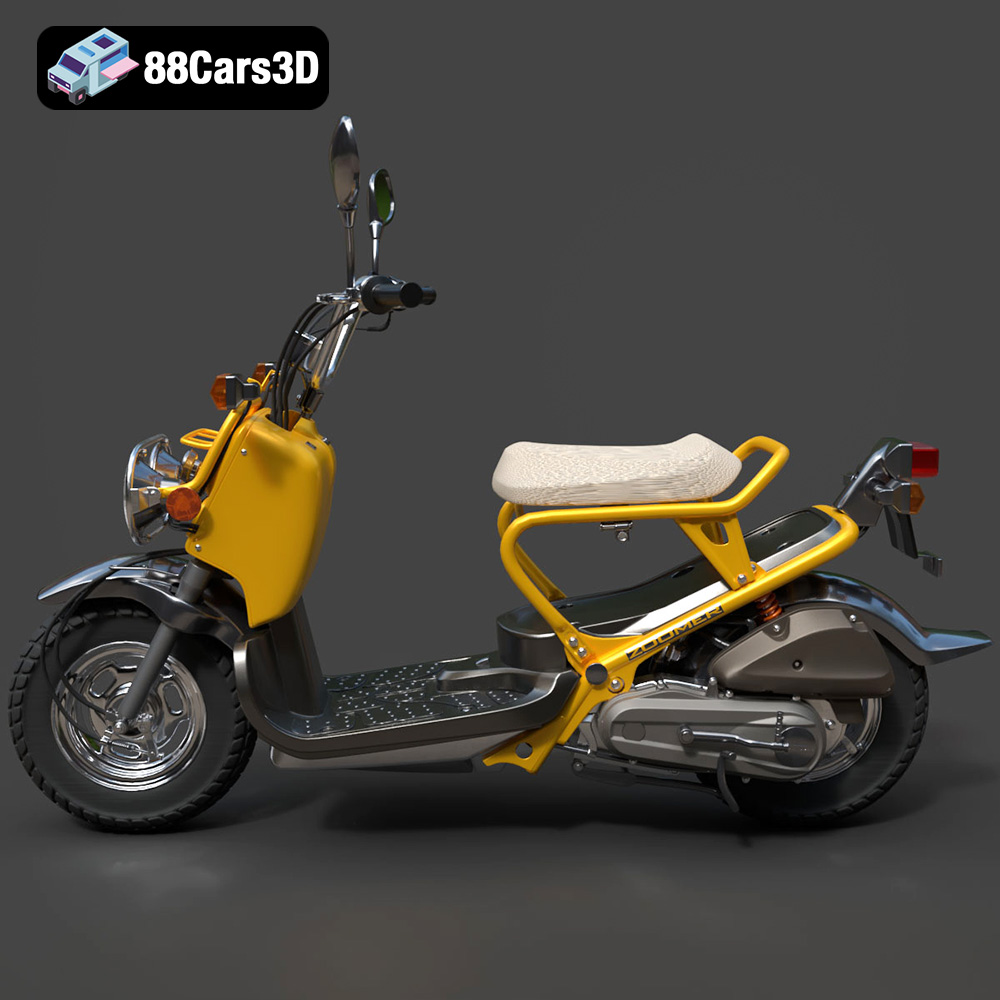
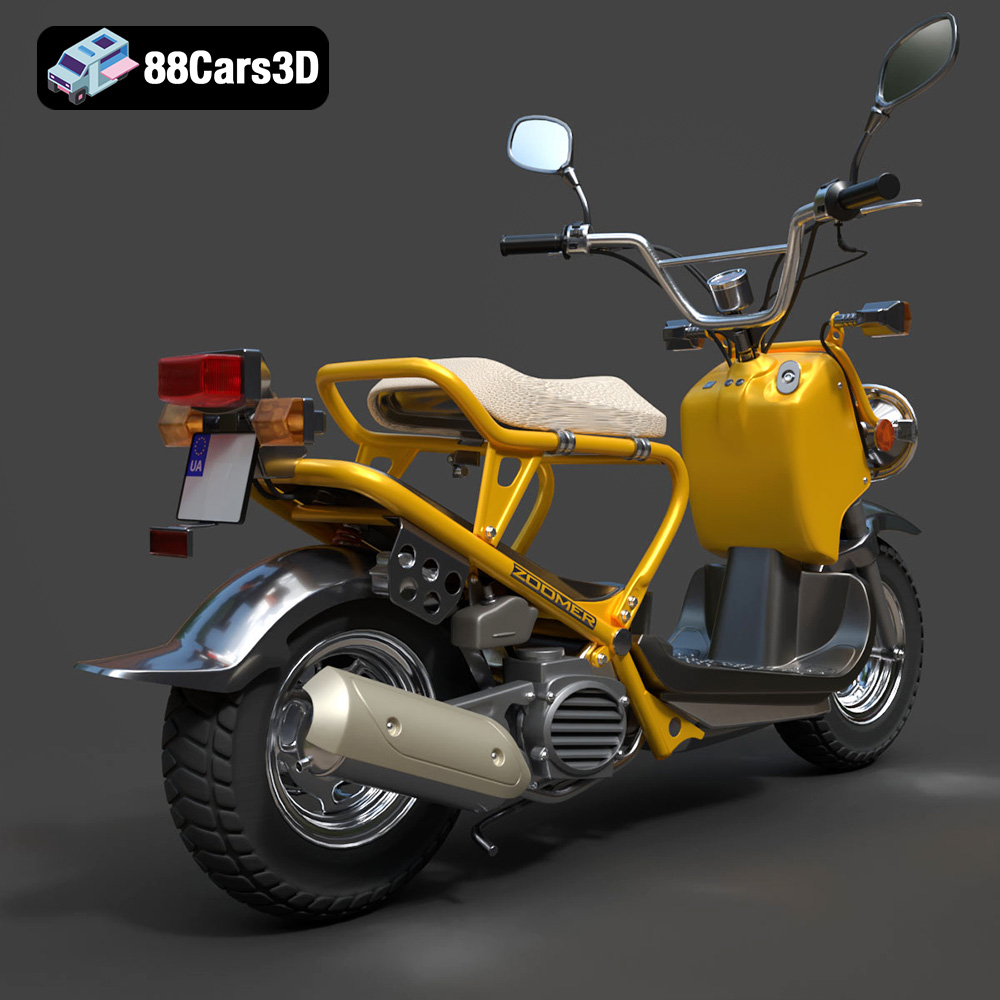
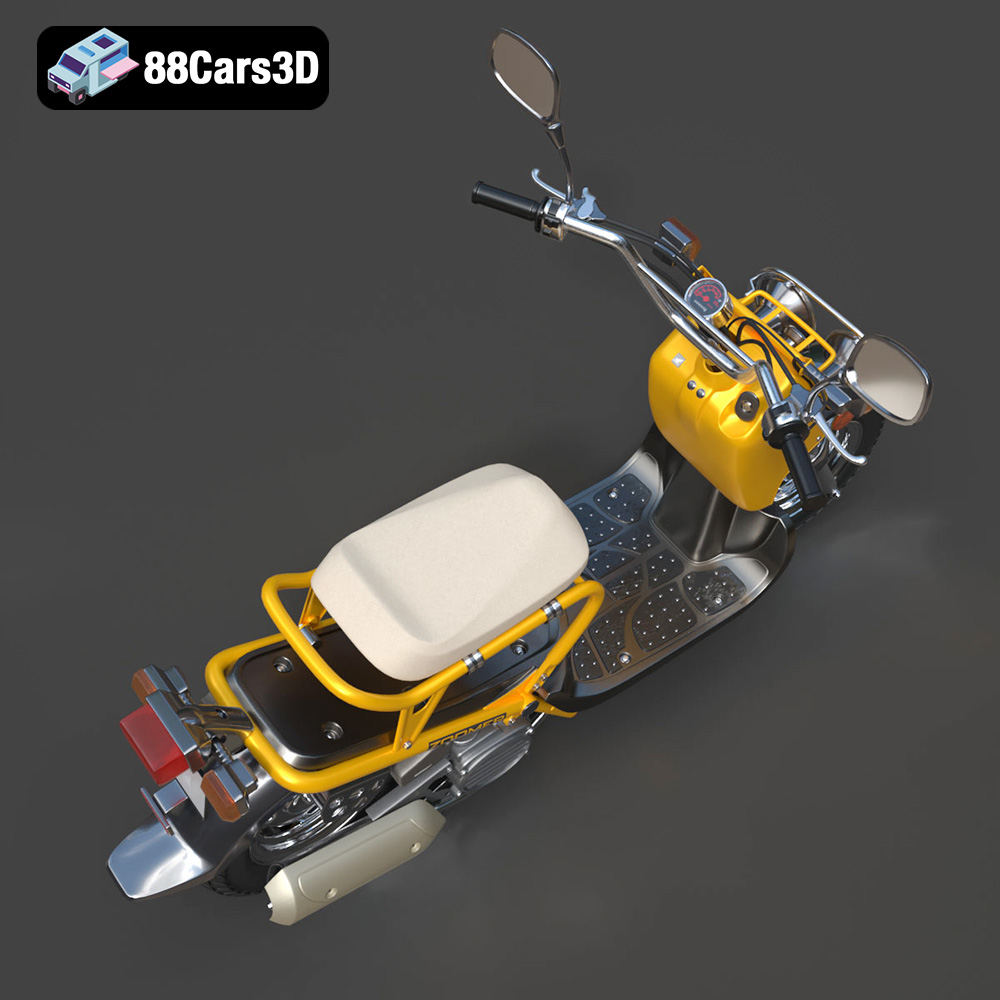
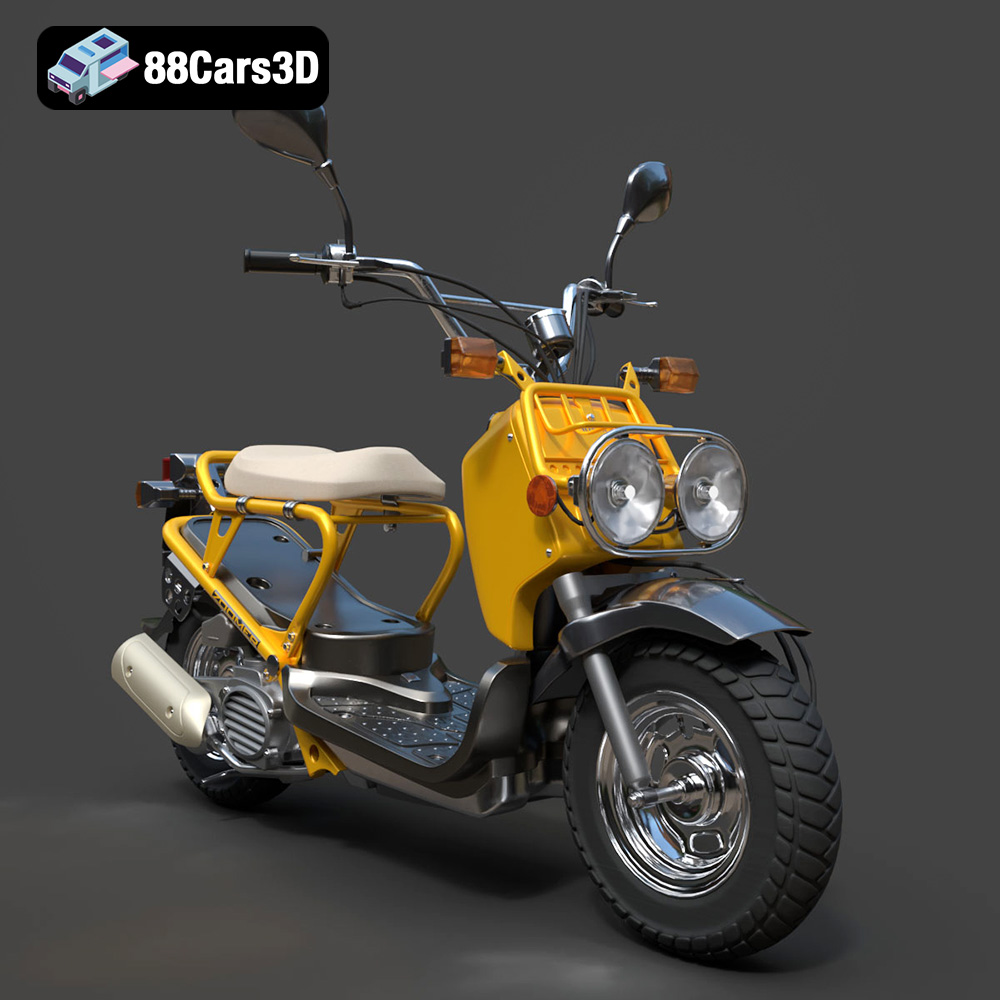
The Honda Zoomer 50, with its distinctive rugged design, is a perfect subject for 3D printing. Bringing this iconic scooter to life as a physical model allows you to appreciate its unique aesthetics up close. This guide will walk you through the entire process of 3D printing the Honda Zoomer 50 2005 3D model from 88cars3d.com, covering everything from pre-print preparation to post-processing techniques. We’ll explore optimal printer settings, material choices, and troubleshooting tips to ensure a successful and rewarding 3D printing experience.
Selecting the appropriate 3D printer is crucial for achieving high-quality results. The complexity and level of detail in the Honda Zoomer 50 model will influence your choice. Two main types of 3D printers are commonly used: Fused Deposition Modeling (FDM) and Stereolithography (SLA).
FDM printers are a popular choice due to their affordability and ease of use. They work by extruding thermoplastic filaments layer by layer to build the object.
* **Pros:** Lower cost, wider range of materials (PLA, ABS, PETG), larger build volumes.
* **Cons:** Layer lines are visible, lower resolution compared to SLA, may require more post-processing.
For the Honda Zoomer 50, an FDM printer with a nozzle size of 0.4mm or smaller is recommended to capture finer details. Consider printers like the Ender 3 S1 Pro or Prusa i3 MK3S+ for reliable performance.
SLA printers use resin and UV light to create objects. They offer higher resolution and smoother surfaces compared to FDM printers.
* **Pros:** High detail, smooth surfaces, excellent for small and intricate parts.
* **Cons:** Higher cost, limited material choices (resin), smaller build volumes, requires more post-processing (cleaning and curing).
If you prioritize exceptional detail and a smooth finish for your Honda Zoomer 50 model, an SLA printer such as the Elegoo Mars 4 or Anycubic Photon Mono X is a great option.
Choosing the correct file format is crucial for a seamless 3D printing experience. Different file formats cater to various needs, from simple prototyping to complex visualizations. Understanding their strengths and weaknesses will ensure optimal results when 3D printing the Honda Zoomer 50.
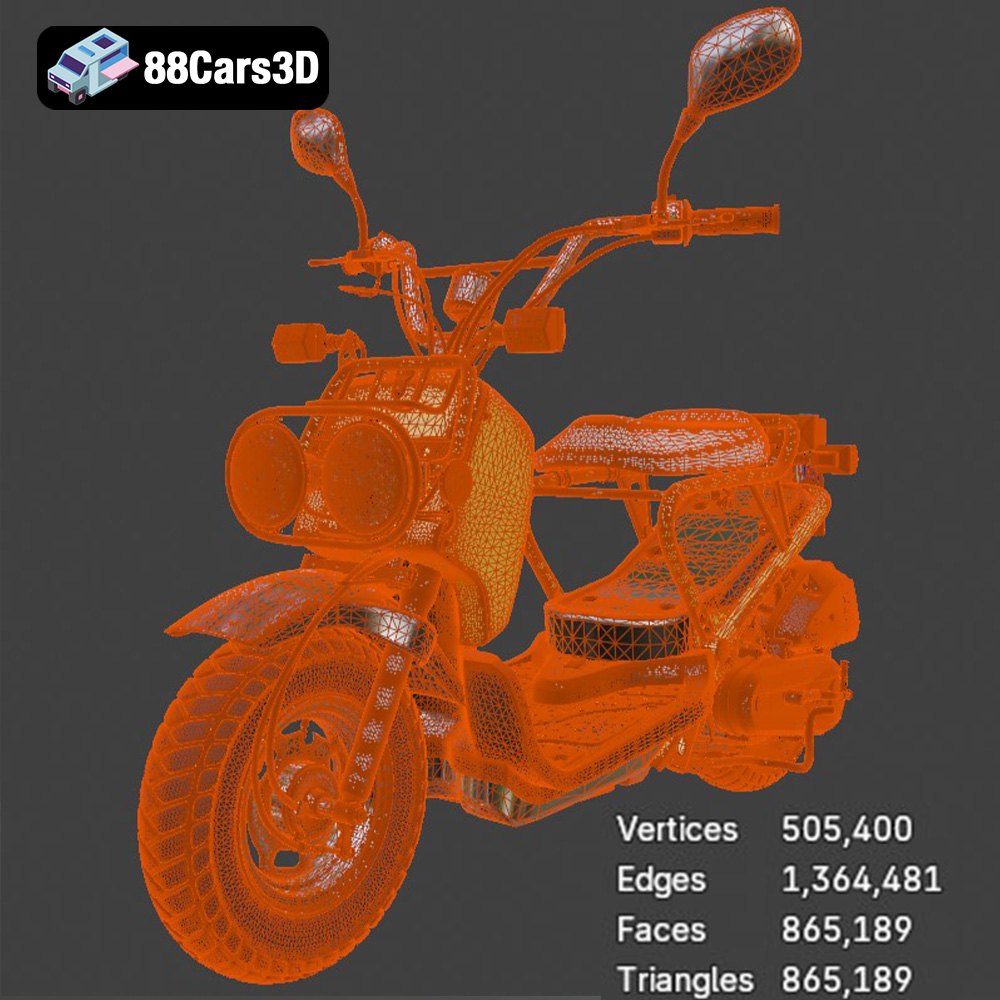
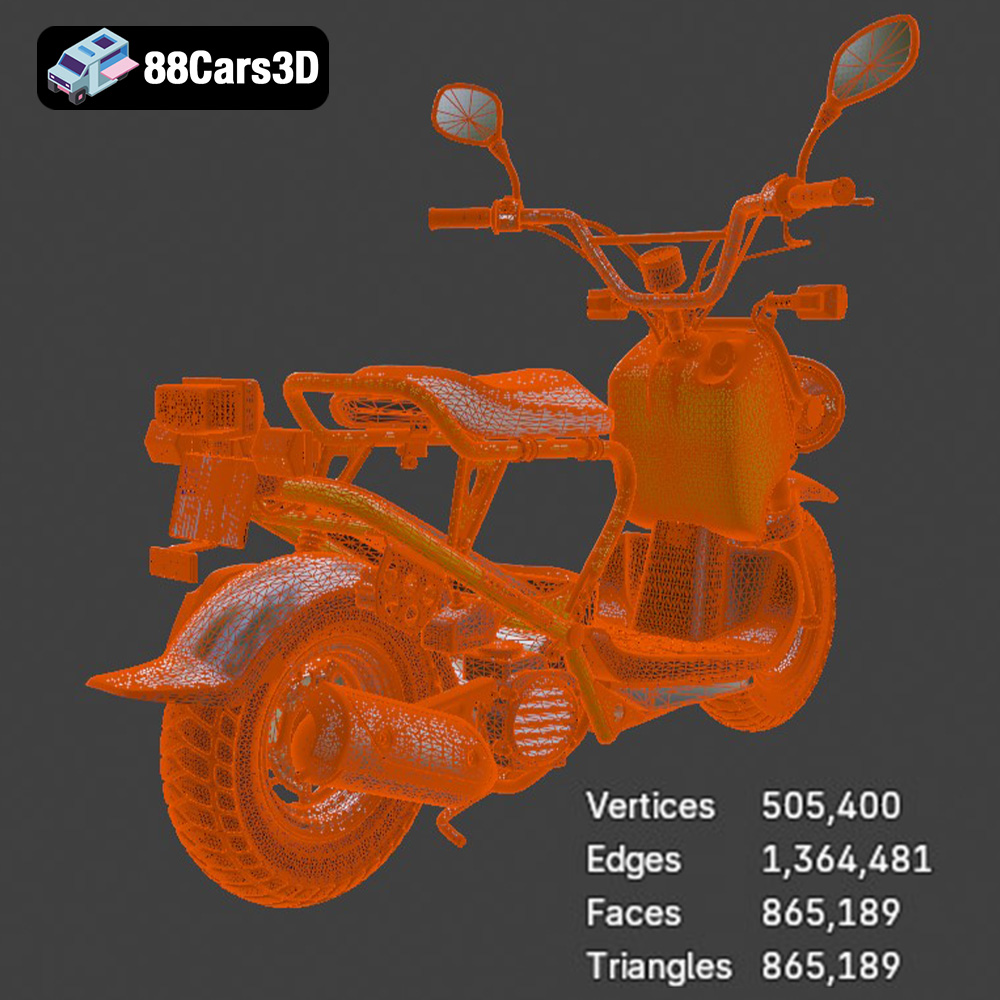
The STL (Stereolithography) file format is the de facto standard for 3D printing. It represents the surface geometry of a 3D object as a collection of triangles, forming a mesh. The simplicity and widespread compatibility of STL files make them ideal for 3D printing applications. However, STL files only store geometric data; they do not include information about color, texture, or materials. This means that any color or texture information from the original model will be lost when exporting to STL. The resolution of an STL file is determined by the number of triangles used to represent the surface. Higher triangle counts result in smoother surfaces but also larger file sizes. When preparing the Honda Zoomer 50 model for 3D printing, ensure that the STL file has sufficient resolution to capture the fine details without making the file excessively large. Most slicing software programs handle STL files efficiently, making them the go-to choice for 3D printing.
OBJ files are a more versatile format than STL, as they can store color and texture information in addition to geometric data. This makes them suitable for applications where visual appearance is important, such as rendering and visualization. However, OBJ files are generally larger than STL files and may not be as widely supported by all 3D printing software.
PLY (Polygon File Format) is another format that can store color and texture information, as well as other properties such as normals and transparency. PLY files are often used for storing 3D scanned data and can handle very high levels of detail.
BLEND files are specific to Blender, a popular open-source 3D modeling software. They contain the entire Blender scene, including the model geometry, materials, textures, lighting, and camera settings. While BLEND files are not directly compatible with 3D printing software, they are useful for making modifications to the Honda Zoomer 50 model before exporting it to a printable format like STL.
FBX (Filmbox) is a proprietary file format developed by Autodesk for interoperability between different 3D software packages. It can store geometric data, materials, textures, animations, and other scene information. While FBX files are not typically used directly for 3D printing, they can be imported into some slicing software programs that support color printing or multi-material printing.
GLB files are a binary file format that can store 3D models, textures, and animations in a single file. They are often used for displaying 3D models on the web and in augmented reality (AR) applications. While GLB files are not directly used for 3D printing, they can be useful for previewing the Honda Zoomer 50 model in AR before printing to get a better sense of its size and appearance.
MAX files are specific to 3ds Max, another popular 3D modeling software package. Like BLEND files, MAX files contain the entire 3ds Max scene and are useful for making modifications to the Honda Zoomer 50 model before exporting it to a printable format.
**Recommendation:** For 3D printing the Honda Zoomer 50, the **.stl** format is the most suitable due to its widespread compatibility and simplicity. Ensure the STL file has sufficient resolution to capture the model’s details.
Before sending the STL file to your 3D printer, you need to prepare it using slicing software. This process converts the 3D model into a series of instructions that the printer can understand.
Popular slicing software options include:
* **Cura:** A free and open-source slicer with a user-friendly interface and extensive settings.
* **PrusaSlicer:** Another free and open-source slicer known for its advanced features and precise control.
* **Simplify3D:** A commercial slicer with a wide range of customization options and excellent support.
Import the Honda Zoomer 50 STL file into your chosen slicer and proceed with the following steps.
Proper model orientation is critical for minimizing support material and achieving optimal print quality. Consider these factors when orienting the Honda Zoomer 50:
* **Minimize overhangs:** Position the model to reduce the amount of unsupported areas. Overhangs require support structures, which can be difficult to remove and may leave blemishes on the surface.
* **Consider aesthetics:** Orient the model to place visually important surfaces facing upwards, as these will typically have the best finish.
* **Optimize for strength:** If the printed model will be subjected to stress, orient it so that the layers are aligned with the direction of force.
Generate support structures as needed to support overhangs and prevent warping. Use adjustable support settings to minimize the amount of support material used and make removal easier. Cura’s tree supports or PrusaSlicer’s organic supports can be particularly helpful for complex models like the Honda Zoomer 50.
You may want to scale the Honda Zoomer 50 model to your desired size. Keep in mind that scaling the model up will increase print time and material usage, while scaling it down may result in a loss of detail.
Consider hollowing the model to reduce material consumption and print time, especially for larger prints. Leave a small hole in a hidden area of the model to allow for resin to drain out (if using resin printing) or to prevent pressure buildup during printing.
The choice of material and printer settings significantly impacts the final result.
* **PLA (Polylactic Acid):** An excellent choice for beginners due to its ease of printing and biodegradability. PLA is suitable for non-functional parts and aesthetic models.
* **PETG (Polyethylene Terephthalate Glycol):** Offers improved strength and heat resistance compared to PLA. PETG is a good option for parts that need to withstand some stress or higher temperatures.
* **ABS (Acrylonitrile Butadiene Styrene):** A strong and durable material, but requires higher printing temperatures and a heated bed. ABS is suitable for functional parts and models that need to withstand high impact.
* **Resin:** Ideal for SLA printers, resin provides exceptional detail and smooth surfaces. However, resin prints are typically more brittle than FDM prints.
For the Honda Zoomer 50, PLA or PETG are recommended for FDM printing, while standard or engineering resins are suitable for SLA printing.
* **Layer Height:** A smaller layer height results in a smoother surface finish but increases print time. A layer height of 0.1mm to 0.2mm is recommended for FDM printing the Honda Zoomer 50. For SLA printing, a layer height of 0.025mm to 0.05mm will provide excellent detail.
* **Infill Density:** Infill density affects the strength and weight of the model. A higher infill density results in a stronger but heavier print. For most parts of the Honda Zoomer 50, an infill density of 15% to 20% is sufficient. Increase the infill density for parts that require more strength.
* **Print Speed:** Printing too fast can lead to poor print quality. A print speed of 40mm/s to 60mm/s is recommended for FDM printing. For SLA printing, follow the resin manufacturer’s recommendations.
* **Temperature:** Set the nozzle and bed temperatures according to the material manufacturer’s recommendations. PLA typically prints at 200°C to 220°C with a bed temperature of 60°C, while PETG prints at 230°C to 250°C with a bed temperature of 70°C to 80°C.
Post-processing is an essential step in achieving a professional-looking 3D printed model.
Carefully remove support structures using pliers or a hobby knife. Be patient and avoid damaging the model. Sand the surface to remove any blemishes or layer lines. Start with coarse sandpaper (150-200 grit) and gradually move to finer grits (400-600 grit) for a smooth finish.
Apply a primer to the model to create a uniform surface for painting. Use spray paint or acrylic paints to add color and details. Consider using stencils or masking tape for complex designs. Apply a clear coat to protect the paint and add a glossy or matte finish.
If the Honda Zoomer 50 model consists of multiple parts, assemble them using glue or screws. Ensure that the parts fit together properly before applying adhesive.
Even with careful preparation, you may encounter some challenges during the 3D printing process.
Warping occurs when the corners of the model lift off the build plate. This is often caused by poor bed adhesion or temperature fluctuations. To prevent warping:
* Use a heated bed.
* Apply an adhesive such as glue stick or hairspray to the build plate.
* Enclose the printer to maintain a consistent temperature.
Stringing occurs when strands of filament are left between different parts of the model. This is typically caused by excessive retraction or high printing temperatures. To prevent stringing:
* Adjust the retraction settings in your slicing software.
* Lower the printing temperature.
* Ensure that the filament is dry.
Layer shifting occurs when the layers of the model are misaligned. This can be caused by loose belts, vibrations, or a clogged nozzle. To prevent layer shifting:
* Tighten the belts on your 3D printer.
* Place the printer on a stable surface.
* Clean or replace the nozzle.
By understanding these common issues and their solutions, you can significantly improve your 3D printing success rate.
The detailed Honda Zoomer 50 2005 3D model available at 88cars3d.com is a great test of your 3D printing skills. With patience and the right approach, you can create a stunning replica of this iconic scooter.
3D printing the Honda Zoomer 50 2005 3D model is a rewarding project that combines technical skills with creative expression. By carefully selecting the right 3D printer, preparing the model with appropriate slicing software, choosing suitable materials, and mastering post-processing techniques, you can achieve exceptional results. Remember to pay close attention to model orientation, support structures, and printer settings to minimize printing issues and maximize print quality. The STL files from 88cars3d.com are a great starting point. Happy printing!
Discover the realistic Honda Zoomer 50 2005 3D Model, meticulously crafted to represent the iconic rugged scooter. This model delivers unparalleled precision, making it an excellent choice for detailed visualizations and dynamic projects.
$39.99
.arvr
.blend
.car3dmodel
.fbx
.gameasset
.glb
.honda
.max
.moped
.motorcycle
.obj
.ply
.rendering
.scooter
.simulation
.stl
.unreal
.zoomer50