Get 20% OFF All Premium 3D & STL Models!
“`html
The world of 3D printing relies heavily on digital models, and these models are stored and transferred in various file formats. Among the most common are STL, OBJ, and FBX. While all three can represent 3D geometry, they differ significantly in their capabilities and suitability for different 3D printing applications. Understanding these differences is crucial for achieving optimal print quality and efficient workflows. This comprehensive guide will delve into the technical details of each format, explore their strengths and weaknesses, and help you determine which one is best suited for your specific 3D printing needs, especially when working with intricate models like printable car models available from platforms like 88cars3d.com.
In this article, you will learn about:
STL (Stereolithography) is arguably the most widely used file format in 3D printing. Its simplicity and widespread support make it a reliable choice for many applications. However, its limitations can become apparent when dealing with complex models requiring color or texture information. STL files represent 3D geometry as a collection of triangles, defining only the surface of the object. This simplicity makes them relatively small and easy to process, but also limits their ability to store additional data.
At its core, an STL file is a list of triangles. Each triangle is defined by its three vertices, each with three coordinates (x, y, z). The file also stores a normal vector for each triangle, indicating the direction the triangle is facing. This information is crucial for determining the inside and outside of the object. The format’s reliance on triangles can sometimes lead to faceted appearances in curved surfaces, especially at lower resolutions. Increasing the number of triangles improves the smoothness but also increases the file size and processing time. For example, a simple cube might be represented by 12 triangles (two per face), while a complex car model from 88cars3d.com could easily contain hundreds of thousands or even millions of triangles.
The main advantages of STL include its widespread compatibility with 3D printing software and hardware, its relatively small file size (for simple models), and its ease of processing. However, STL also has significant disadvantages. It cannot store color or texture information, making it unsuitable for full-color 3D printing. It also does not support metadata like material properties or manufacturing instructions. Furthermore, STL files can sometimes contain errors such as gaps, overlaps, or inverted normals, which can cause problems during slicing and printing. These errors often require repair using specialized software like Meshmixer or Netfabb. When working with STL files, it’s critical to verify their integrity before sending them to the printer.
OBJ (Object) is a more versatile file format than STL, offering support for color, texture, and more complex geometry. While still based on polygonal representation, OBJ can handle more sophisticated data, making it suitable for applications where visual fidelity is important. This makes it a better choice than STL for models that require detailed surface finishes or intricate designs. OBJ files store geometric information, texture coordinates, surface normals, and material properties, allowing for a richer representation of the 3D object.
OBJ files often come with a companion MTL (Material Template Library) file. The MTL file defines the material properties of the object, such as color, shininess, and texture maps. The OBJ file references the MTL file to assign these properties to different parts of the model. This separation of geometry and material information allows for greater flexibility in editing and manipulating the appearance of the object. For instance, you could easily change the color of a car model downloaded from 88cars3d.com by modifying the MTL file without altering the underlying geometry.
While STL remains the dominant format for basic 3D printing, OBJ is increasingly used in applications where color and texture are important, such as prototyping, visualization, and creating decorative objects. Some 3D printers support direct printing from OBJ files, especially those capable of multi-material or full-color printing. However, it’s important to note that not all slicing software fully supports OBJ’s material properties. Some slicers may ignore color information or require specific settings to correctly interpret texture maps. When using OBJ files, it’s crucial to test your slicing settings and verify that the resulting G-code accurately represents the intended appearance of the model. OBJ is particularly useful when you need to showcase design concepts with realistic textures and colors before final production.
FBX (Filmbox) is a proprietary file format developed by Autodesk, primarily used for animation and game development. However, its robust features and widespread support make it a viable option for certain 3D printing applications, particularly those involving complex assemblies or animations. FBX files can store not only geometry and materials but also animations, rigs, and other scene data, making them a powerful tool for exchanging 3D assets between different software packages. While it may not be the go-to format for basic 3D printing, its capabilities shine when dealing with intricate models or collaborative workflows.
One of the key strengths of FBX is its ability to store animation data. This includes keyframe animations, skeletal rigs, and blend shapes. While animation is not directly relevant to most static 3D prints, the ability to store this data can be useful for creating interactive models or simulations. For example, you could use an FBX file to represent a car model with working suspension or doors, even if the final 3D print will be a static representation of that model. This capability also aids in the design and visualization phase, allowing for dynamic previews of how the model will function.
FBX can be advantageous for models comprised of multiple parts intended for assembly after printing. The FBX file can maintain the spatial relationships between these parts, simplifying the assembly process and ensuring accurate alignment. This is especially beneficial when printing complex mechanisms or articulated figures. Furthermore, FBX supports metadata and custom properties, allowing you to embed additional information about the model, such as material specifications, manufacturing instructions, or part numbers. This metadata can be invaluable for managing and tracking complex projects involving multiple team members or manufacturing steps. While STL focuses on the final printable mesh, FBX provides a comprehensive container for all aspects of the 3D model’s lifecycle. However, note that using FBX in a standard FDM slicing workflow requires exporting to STL or OBJ first.
Regardless of the file format you choose, proper slicing is essential for achieving high-quality 3D prints. Slicing software converts the 3D model into a series of layers that the 3D printer can understand and execute. Different slicing software packages offer various settings and features that can significantly impact the final print result. Understanding how these settings interact with different file formats is crucial for optimizing your 3D printing workflow.
Popular slicing software packages like Cura, PrusaSlicer, and Simplify3D offer a wide range of settings for controlling the printing process. These settings include layer height, infill density, print speed, temperature, support structures, and bed adhesion. When working with STL files, it’s important to pay attention to the mesh resolution. Low-resolution STL files can result in faceted surfaces, while high-resolution files can increase processing time. For OBJ files, ensure that your slicing software correctly interprets the material properties and texture maps. You may need to adjust settings to ensure that colors are accurately reproduced or that textures are properly applied. Although FBX files aren’t typically directly sliced, understanding how each slicer handles the resulting STL or OBJ files after FBX conversion remains paramount. Consider these software specifics during export from FBX.
Support structures are often necessary to print overhanging features or complex geometries. Slicing software automatically generates these support structures based on the model’s geometry and the chosen print orientation. Different slicing software packages offer different algorithms for generating support structures, each with its own strengths and weaknesses. Some algorithms create dense, robust supports that are easy to remove, while others generate sparse, fragile supports that are more difficult to remove but consume less material. Optimizing support structures is a critical aspect of 3D printing, as it can significantly impact the print quality, material consumption, and post-processing time. Consider using adaptive support settings to vary support density based on the overhang angle. This reduces material usage and simplifies removal. When dealing with detailed models from 88cars3d.com, careful support placement is crucial to avoid damaging delicate features during removal.
3D models, especially those downloaded from online sources, can sometimes contain errors that can cause problems during slicing and printing. These errors can include gaps, overlaps, inverted normals, and non-manifold geometry. Repairing these errors is essential for ensuring a successful print. Fortunately, several software tools are available for repairing and optimizing 3D meshes.
Meshmixer and Netfabb are two popular software packages for repairing and optimizing 3D meshes. Meshmixer is a free tool from Autodesk that offers a wide range of features for editing and repairing STL files. It can automatically detect and fix common errors, such as holes, gaps, and inverted normals. Netfabb is a more professional-grade tool that offers advanced features for mesh analysis, repair, and optimization. It can also be used to prepare models for specific 3D printing processes. These tools are invaluable for ensuring that your models are print-ready and free of errors. Before printing a complex model, always run it through a mesh repair tool to identify and fix any potential problems.
A manifold mesh is a mesh where every edge is shared by exactly two faces, and the mesh is closed and without self-intersections. 3D printers require manifold meshes to accurately interpret the model’s geometry. Non-manifold geometry can cause slicing errors, printing failures, or unexpected results. Mesh repair tools can automatically identify and fix non-manifold edges, ensuring that the mesh is suitable for 3D printing. When working with STL files, it’s particularly important to ensure that the mesh is manifold, as STL does not inherently enforce this requirement. Remember to always check your 3D model for manifoldness before attempting to print. A simple test is to use the “Inspect” function in Meshmixer. If it highlights edges, these are likely non-manifold.
The best file format for your 3D printing needs depends on several factors, including the complexity of the model, the desired level of detail, the printing technology being used, and the software you have available. While STL remains the most common and widely supported format, OBJ and FBX offer advantages in certain situations.
STL is a good choice for simple models that do not require color or texture information. Its widespread compatibility makes it a reliable option for most 3D printing applications. If you are printing a basic prototype or a functional part, STL is often the simplest and most efficient choice. Many platforms like 88cars3d.com primarily offer STL files for their ease of use and universal compatibility. STL’s small file size and fast processing times also make it suitable for situations where speed and efficiency are paramount.
OBJ is a better choice for models that require color, texture, or more complex geometry. Its ability to store material properties makes it suitable for creating visually appealing prototypes or decorative objects. If you are printing a model with intricate surface details or multiple colors, OBJ provides the necessary features to accurately represent the model’s appearance. OBJ’s compatibility with a wide range of modeling and texturing software also makes it a versatile choice for artists and designers.
FBX is ideal for complex assemblies, animations, or collaborative workflows. Its ability to store animation data and metadata makes it a powerful tool for managing and tracking complex projects. While not as directly applicable to standard FDM printing workflows, FBX shines during the design, visualization, and pre-processing stages, particularly when dealing with multi-part assemblies. While it requires exporting to another format for printing, its robust capabilities make it an invaluable asset for professionals in the 3D printing industry.
Choosing the right file format is crucial for successful 3D printing. STL offers simplicity and broad compatibility, OBJ adds color and texture capabilities, and FBX provides advanced features for animation and complex assemblies. Understanding the strengths and weaknesses of each format will allow you to make informed decisions and optimize your 3D printing workflow. By considering factors such as model complexity, desired level of detail, printing technology, and software availability, you can select the format that best meets your specific needs. Ultimately, mastering the nuances of these file formats will empower you to create high-quality 3D prints with greater efficiency and precision.
Next steps:
“`
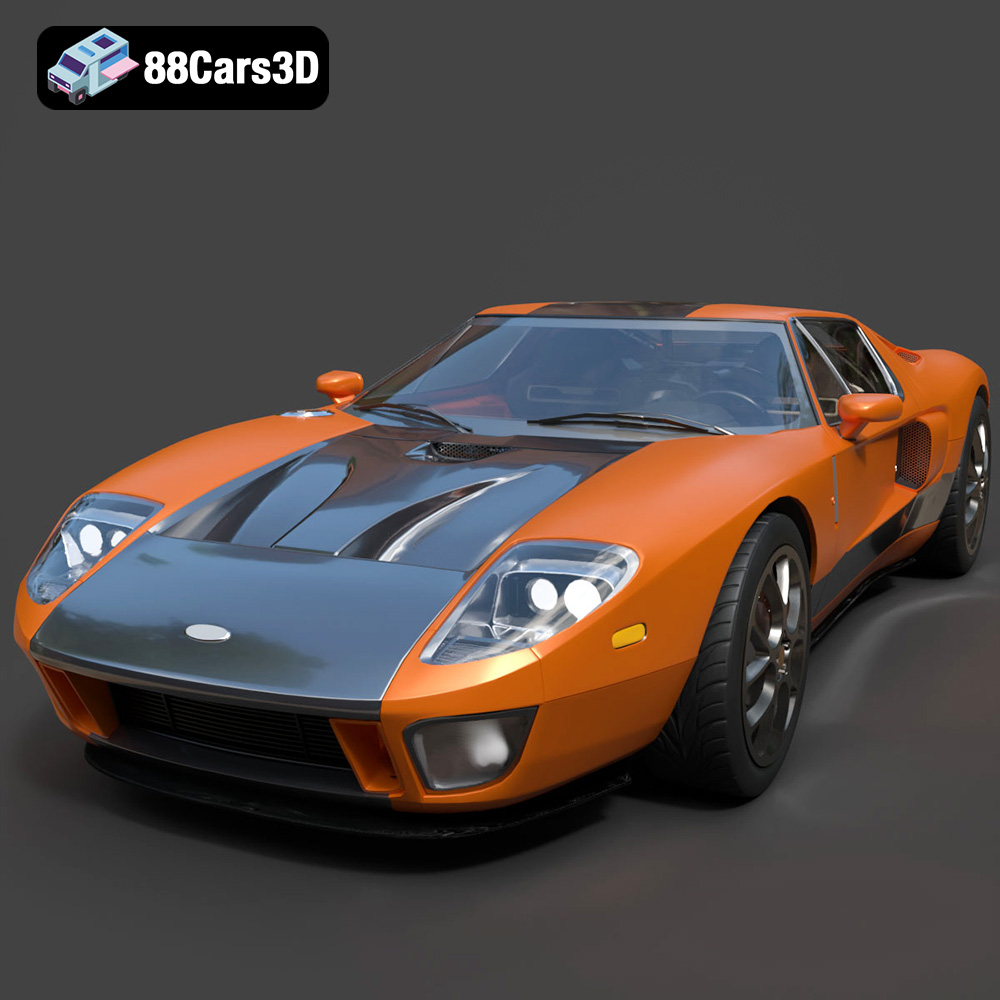
Texture: Yes | Material: Yes
Download the highly detailed, game-ready Ford GT 2005 3D Model. Features signature aerodynamic bodylines, mid-mounted supercharged V8 detailing, and iconic racing stripes. Includes .blend, .fbx, .obj, .glb, .stl, .ply, .unreal, and .max formats for game development, AR/VR, and rendering.
Price: $19.99
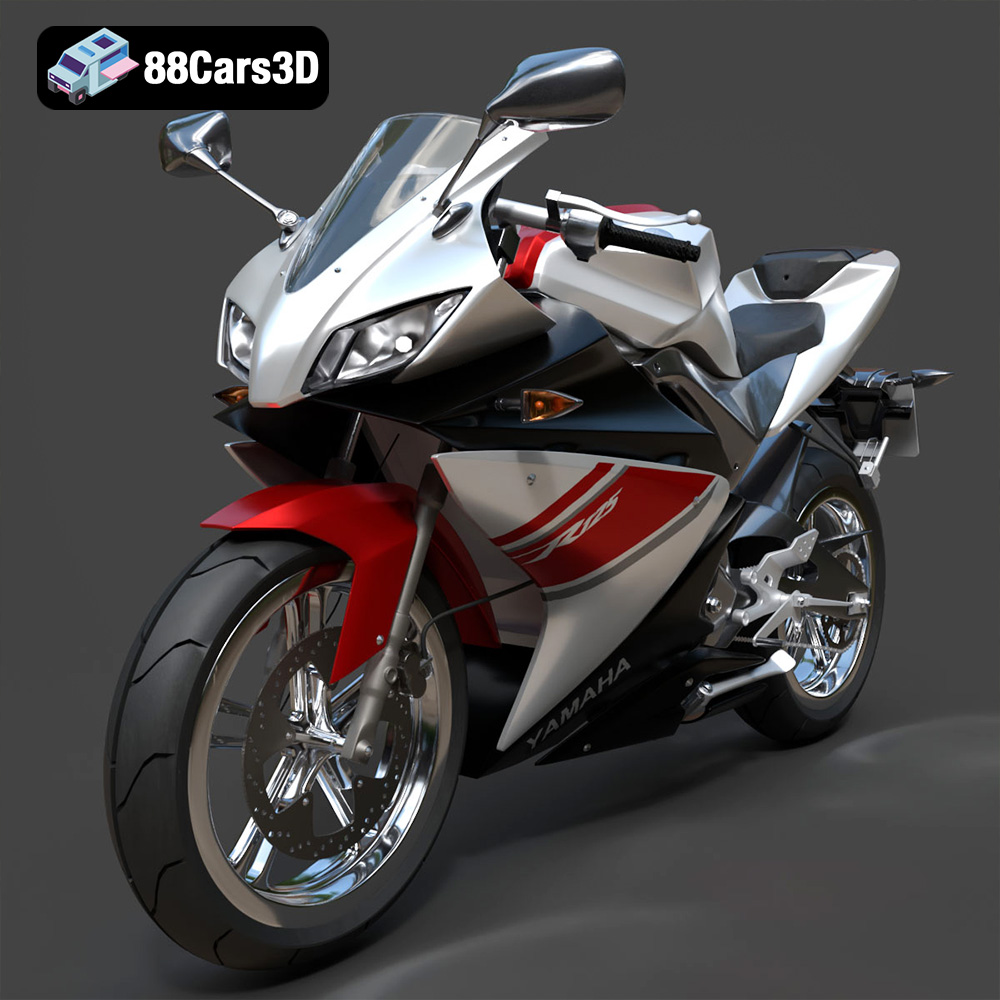
Texture: Yes | Material: Yes
Download the highly detailed, game-ready Yamaha YZF-R125 EU 3D Model. Features an aggressive aerodynamic fairing, twin LED headlights, and a detailed 125cc engine block. Includes .blend, .fbx, .obj, .glb, .stl, .ply, .unreal, and .max formats for game development, AR/VR, and rendering.
Price: $19.99
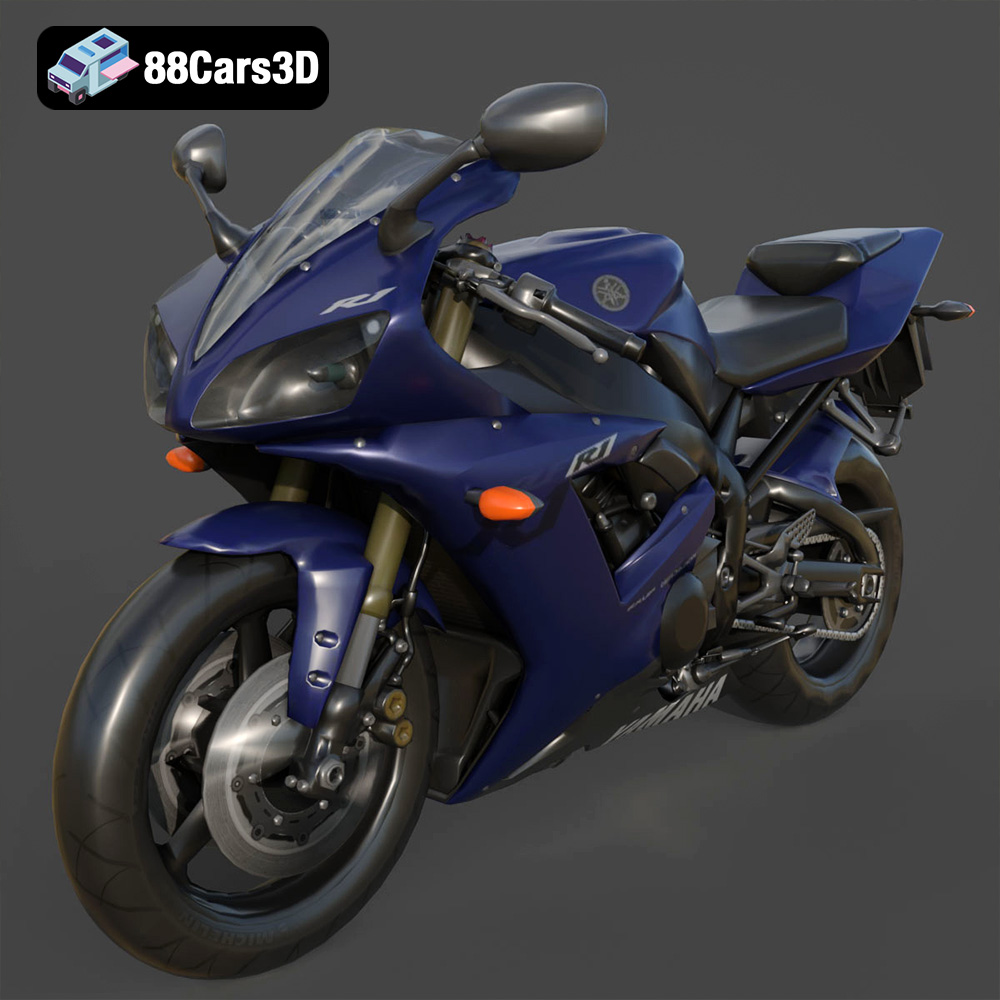
Texture: Yes | Material: Yes
Download the highly detailed, game-ready Yamaha R1 3D Model. Features aggressive aerodynamic fairings, a detailed crossplane inline-4 engine, and track-focused suspension geometry. Includes .blend, .fbx, .obj, .glb, .stl, .ply, .unreal, and .max formats for game development, AR/VR, and rendering.
Price: $19.99
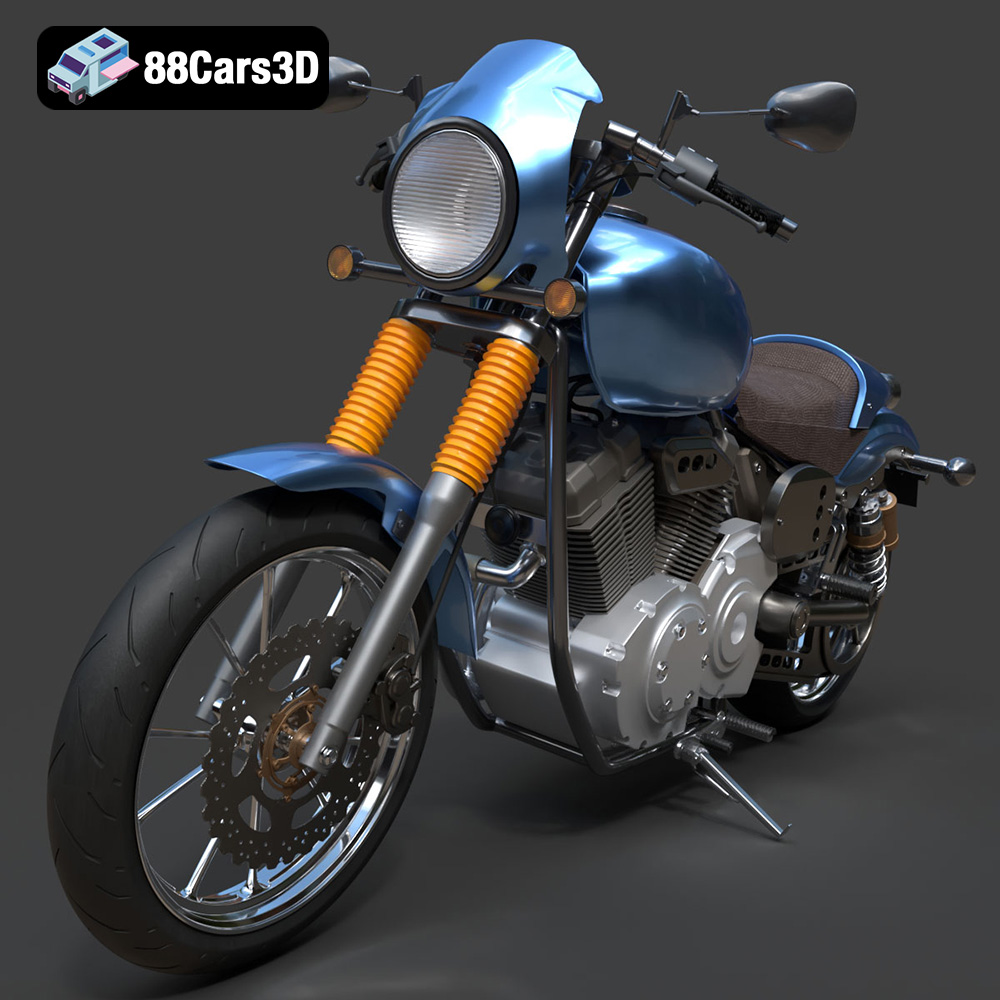
Texture: Yes | Material: Yes
Download the highly detailed, game-ready Yamaha XV950 Racer 3D Model. Features an aggressive cafe-racer front cowl, detailed air-cooled V-twin engine, and classic retro styling. Includes .blend, .fbx, .obj, .glb, .stl, .ply, .unreal, and .max formats for game development, AR/VR, and rendering.
Price: $19.99

Texture: Yes | Material: Yes
Download the highly detailed, game-ready Volvo VNL Tractor Truck 2002 3D Model. Features iconic aerodynamic styling, detailed fifth-wheel coupling, and heavy-duty chassis. Includes .blend, .fbx, .obj, .glb, .stl, .ply, .unreal, and .max formats for game development, AR/VR, and rendering.
Price: $39.99
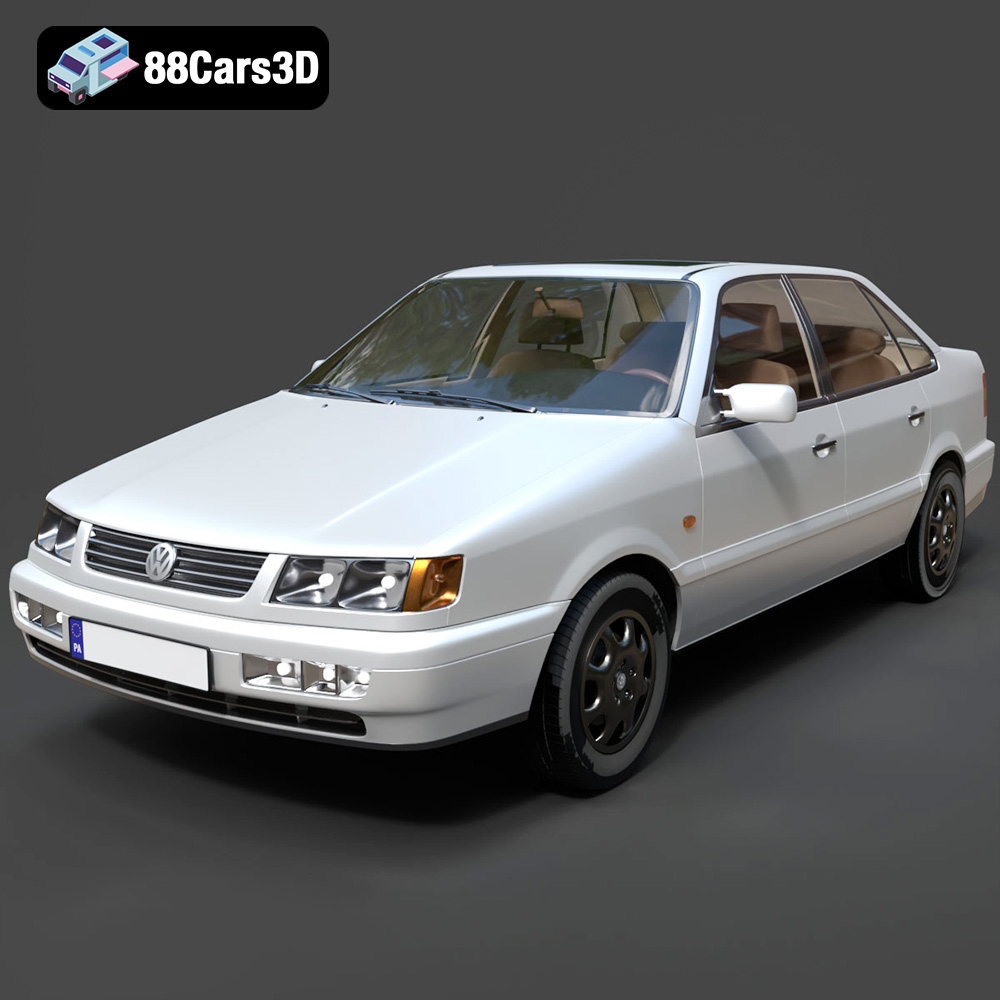
Texture: Yes | Material: Yes
Download the highly detailed, game-ready Volkswagen Passat Mk4 B4 Sedan 1993 3D Model. Features accurate 90s sedan styling, detailed front grille-less fascia, and a classic interior setup. Includes .blend, .fbx, .obj, .glb, .stl, .ply, .unreal, and .max formats for game development, AR/VR, and rendering.
Price: $39.99

Texture: Yes | Material: Yes
Download the highly detailed, game-ready Volkswagen Jetta GLI 2019 3D Model. Features an aggressive honeycomb grille with red accents, sleek aerodynamic profile, and exclusive GLI sport wheels. Includes .blend, .fbx, .obj, .glb, .stl, .ply, .unreal, and .max formats for game development, AR/VR, and rendering.
Price: $39.99
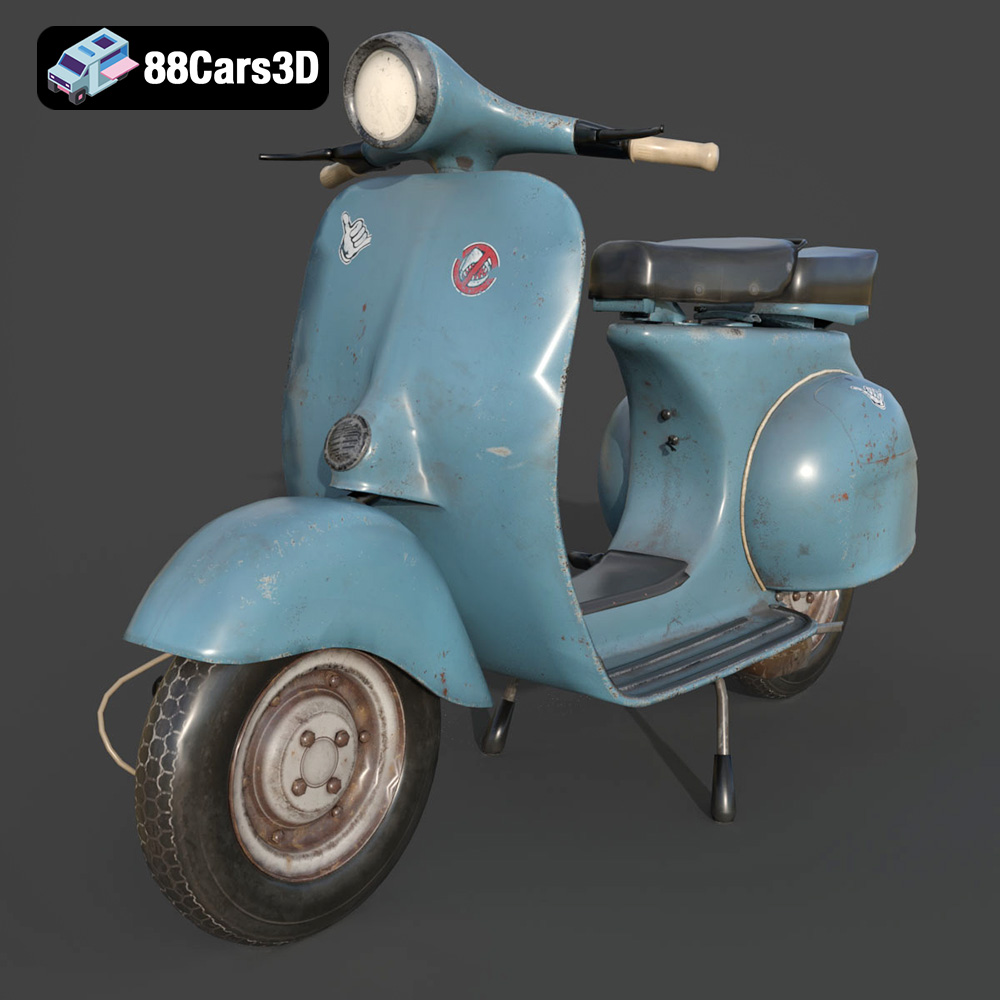
Texture: Yes | Material: Yes
Download the highly detailed, game-ready Vintage Vespa 3D Model. Features iconic rounded monocoque styling, classic saddle, and chrome accents. Includes .blend, .fbx, .obj, .glb, .stl, .ply, .unreal, and .max formats for game development, AR/VR, and rendering.
Price: $39.99

Texture: Yes | Material: Yes
Download the highly detailed, game-ready Vespa GS 150 3D Model. Features elegant aerodynamic curves, classic leg shield, and detailed engine casing. Includes .blend, .fbx, .obj, .glb, .stl, .ply, .unreal, and .max formats for game development, AR/VR, and rendering.
Price: $39.99
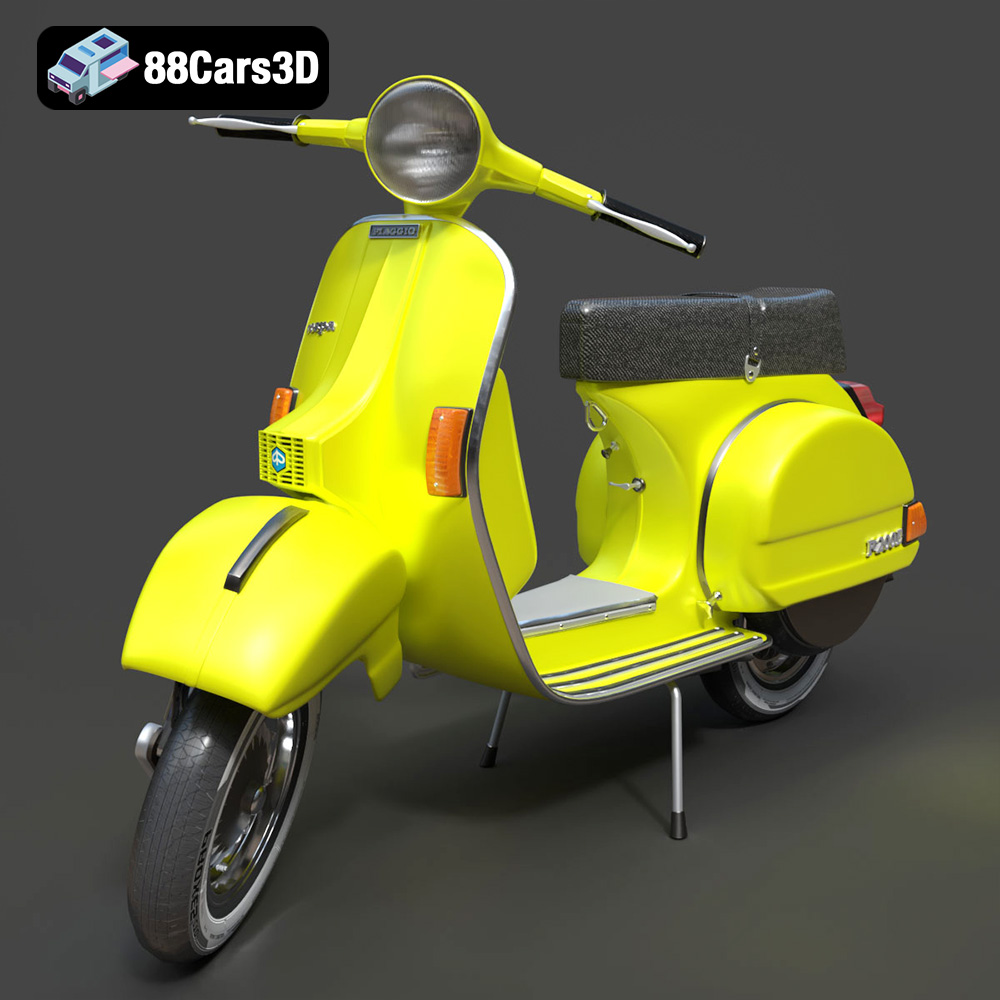
Texture: Yes | Material: Yes
Download the highly detailed, game-ready Vespa P200E 3D Model. Features classic vintage styling, accurate step-through frame geometry, and authentic detailing. Includes .blend, .fbx, .obj, .glb, .stl, .ply, .unreal, and .max formats for game development, AR/VR, and rendering.
Price: $39.99

