Get 20% OFF All Premium 3D & STL Models!

“`html
3D printing, while revolutionary, often requires careful planning and execution to achieve optimal results. One of the most critical aspects of successful 3D printing, especially for complex geometries like printable car models available on platforms like 88cars3d.com, is the strategic implementation of support structures. While automatic support generation in slicing software is convenient, manual support placement offers unparalleled control, allowing you to optimize print stability, minimize material waste, and ensure a cleaner final product. This guide will delve deep into the art and science of adding supports manually, covering everything from understanding mesh topology to advanced slicing techniques.
In this comprehensive guide, we’ll explore the advantages of manual support placement, the tools and techniques involved, and best practices for achieving superior print quality. Whether you’re using FDM or resin printing, mastering manual support strategies will significantly enhance your ability to bring intricate 3D models to life.
While automated support generation is readily available in most slicing software, it often falls short in providing optimal support for complex geometries. Manual support placement offers several key advantages:
The need for supports arises from the fundamental limitation of 3D printing: the inability to print “in mid-air.” Overhangs, which are sections of the model that extend beyond the layer below without direct support, require support structures to prevent sagging or collapse. The critical angle refers to the maximum angle at which a printer can reliably print an overhang without support. This angle depends on the printer, material, layer height, and printing speed. Typically, angles exceeding 45 degrees require support.
Printable car models, especially those from 88cars3d.com, often feature complex curves, intricate details, and significant overhangs. Common areas requiring support include wheel arches, spoilers, mirrors, and areas under the chassis. Careful examination of the STL file in your slicing software will reveal these critical areas. Look for red or highlighted sections that indicate unsupported overhangs.
Several software tools can be used for manual support generation, each with its own strengths and weaknesses. Here’s an overview of some popular options:
Autodesk Meshmixer is a free, powerful tool ideal for preparing STL files for 3D printing, including adding manual supports. Its intuitive interface and robust support generation tools make it a favorite among hobbyists and professionals alike.
Blender, a professional-grade 3D modeling software, offers unparalleled control over support structure design. While it has a steeper learning curve than Meshmixer, its advanced features make it ideal for creating highly customized supports.
Many slicing software packages, such as Cura and PrusaSlicer, offer basic manual support editing capabilities. While not as advanced as Meshmixer or Blender, these features can be useful for making minor adjustments to automatically generated supports or adding a few strategic supports.
Here’s a detailed workflow for adding supports manually using Meshmixer, a popular and free software option:
Open Meshmixer and import the STL file of your chosen car model from 88cars3d.com. Rotate the model to identify overhangs and areas requiring support. Use the “Analysis” tools to highlight unsupported areas.
Navigate to the “Analysis” menu and select “Generate Support.” This will open the support generation dialog box. Initially, it might automatically generate supports, which you can then refine.
Adjust the following parameters to optimize the support structure:
This is the core of manual support generation. Use the “Add Support” and “Erase Support” tools to fine-tune the support structure. Focus on:
Zoom in and rotate the model frequently to ensure that you haven’t missed any critical areas. Don’t be afraid to experiment with different support placements to find the optimal configuration.
Once you are satisfied with the support structure, click “Generate Support” to finalize the support generation process. Then, export the model as an STL file, ensuring that the “Include Support” option is selected.
Even with well-placed manual supports, proper slicing parameters are crucial for a successful print. Here’s a breakdown of key settings:
A lower layer height (e.g., 0.1mm) will generally result in a smoother surface finish, but it will also increase print time. A higher layer height (e.g., 0.2mm) will print faster but may compromise surface quality. Similarly, slower print speeds can improve print quality and reduce the risk of warping or layer adhesion issues.
Infill density affects the strength and weight of the printed part. For most car models, an infill density of 15-20% is sufficient. The infill pattern can also impact print quality. Rectilinear, gyroid, or honeycomb patterns are commonly used.
Proper temperature settings are crucial for layer adhesion and preventing warping. The optimal temperature will depend on the material being used. Good bed adhesion is essential for preventing the print from detaching from the build platform during printing.
The choice of material will significantly impact the final result. Common materials for 3D printing car models include PLA, PETG, and ABS.
PLA is a biodegradable thermoplastic that is easy to print and offers good dimensional accuracy. It is a good choice for beginners and for models that don’t require high heat resistance.
PETG offers a good balance of strength, durability, and ease of printing. It is more heat-resistant than PLA and is a good choice for functional parts or models that will be exposed to higher temperatures.
ABS is a strong and heat-resistant thermoplastic that is commonly used in automotive applications. However, it is more difficult to print than PLA or PETG and requires a heated bed and enclosure to prevent warping.
After printing, you may need to perform some post-processing steps to achieve the desired finish. These steps may include:
Even with careful planning and execution, printing issues can still arise. Here are some common problems and their solutions:
Warping occurs when the printed part detaches from the build platform during printing. This is often caused by inadequate bed adhesion or temperature fluctuations. To prevent warping:
Layer adhesion issues occur when the layers of the printed part do not bond together properly. This can be caused by low nozzle temperature, high print speed, or inadequate cooling. To improve layer adhesion:
Stringing occurs when thin strands of filament are left behind as the nozzle moves between different parts of the print. This can be caused by high nozzle temperature, slow retraction speed, or excessive travel distance. To reduce stringing:
By understanding these common issues and their solutions, you can improve your 3D printing success rate and create high-quality models from platforms like 88cars3d.com.
Mastering manual support placement is a crucial skill for any 3D printing enthusiast, especially when working with complex models like the printable car models available on 88cars3d.com. By understanding the principles of overhangs, utilizing the right software tools, optimizing slicing parameters, and employing effective post-processing techniques, you can significantly enhance the quality, stability, and aesthetics of your 3D printed creations.
The key takeaways from this guide include:
Take the time to experiment with different support placements, slicing settings, and post-processing techniques to find what works best for your printer, materials, and desired outcome. With practice and patience, you’ll be able to create stunning 3D printed car models that you can be proud of.
“`
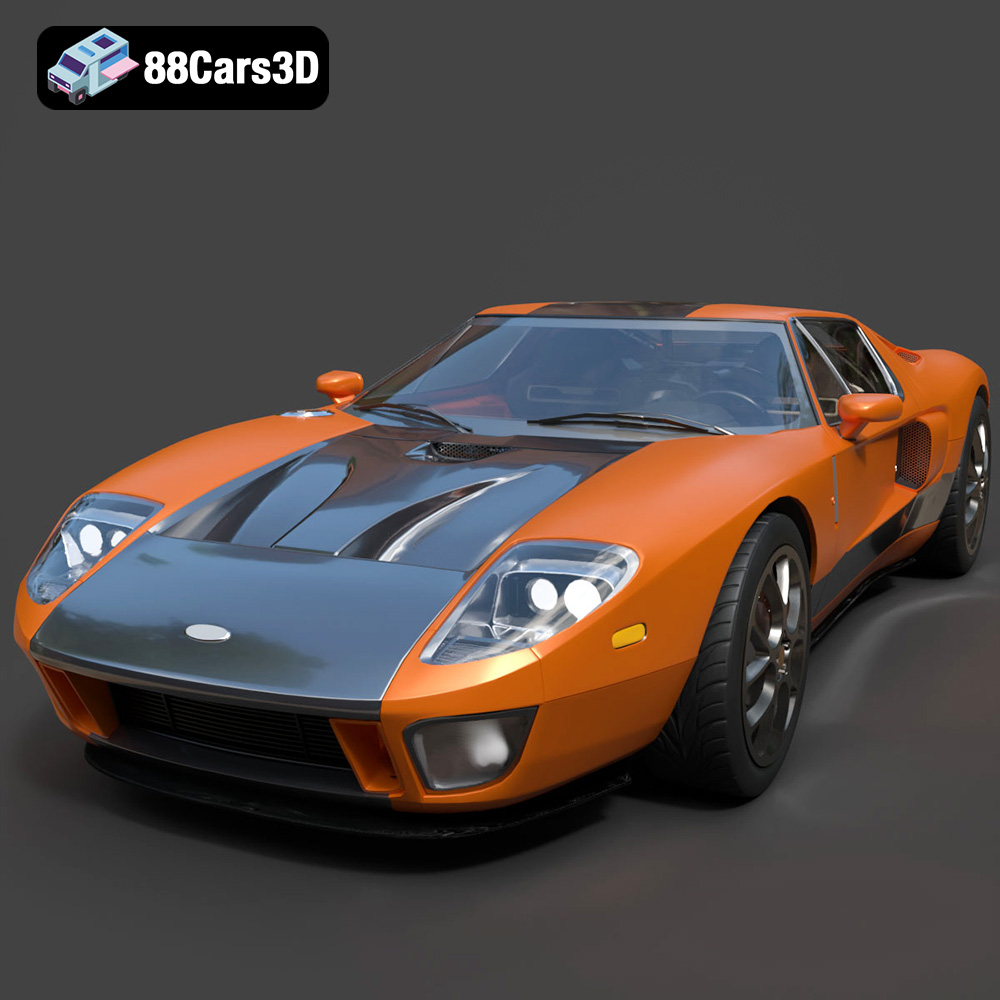
Texture: Yes | Material: Yes
Download the highly detailed, game-ready Ford GT 2005 3D Model. Features signature aerodynamic bodylines, mid-mounted supercharged V8 detailing, and iconic racing stripes. Includes .blend, .fbx, .obj, .glb, .stl, .ply, .unreal, and .max formats for game development, AR/VR, and rendering.
Price: $19.99

Texture: Yes | Material: Yes
Download the highly detailed, game-ready Yamaha YZF-R125 EU 3D Model. Features an aggressive aerodynamic fairing, twin LED headlights, and a detailed 125cc engine block. Includes .blend, .fbx, .obj, .glb, .stl, .ply, .unreal, and .max formats for game development, AR/VR, and rendering.
Price: $19.99

Texture: Yes | Material: Yes
Download the highly detailed, game-ready Yamaha R1 3D Model. Features aggressive aerodynamic fairings, a detailed crossplane inline-4 engine, and track-focused suspension geometry. Includes .blend, .fbx, .obj, .glb, .stl, .ply, .unreal, and .max formats for game development, AR/VR, and rendering.
Price: $19.99

Texture: Yes | Material: Yes
Download the highly detailed, game-ready Yamaha XV950 Racer 3D Model. Features an aggressive cafe-racer front cowl, detailed air-cooled V-twin engine, and classic retro styling. Includes .blend, .fbx, .obj, .glb, .stl, .ply, .unreal, and .max formats for game development, AR/VR, and rendering.
Price: $19.99

Texture: Yes | Material: Yes
Download the highly detailed, game-ready Volvo VNL Tractor Truck 2002 3D Model. Features iconic aerodynamic styling, detailed fifth-wheel coupling, and heavy-duty chassis. Includes .blend, .fbx, .obj, .glb, .stl, .ply, .unreal, and .max formats for game development, AR/VR, and rendering.
Price: $39.99
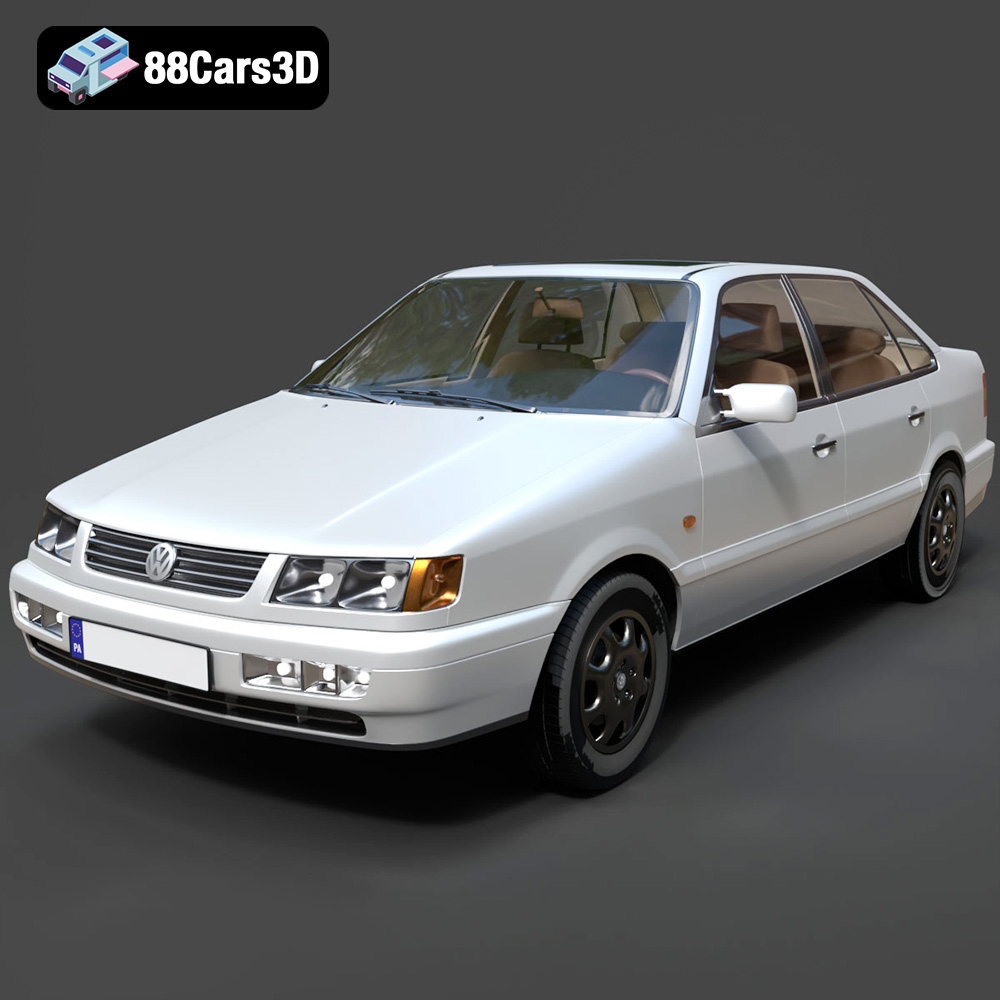
Texture: Yes | Material: Yes
Download the highly detailed, game-ready Volkswagen Passat Mk4 B4 Sedan 1993 3D Model. Features accurate 90s sedan styling, detailed front grille-less fascia, and a classic interior setup. Includes .blend, .fbx, .obj, .glb, .stl, .ply, .unreal, and .max formats for game development, AR/VR, and rendering.
Price: $39.99

Texture: Yes | Material: Yes
Download the highly detailed, game-ready Volkswagen Jetta GLI 2019 3D Model. Features an aggressive honeycomb grille with red accents, sleek aerodynamic profile, and exclusive GLI sport wheels. Includes .blend, .fbx, .obj, .glb, .stl, .ply, .unreal, and .max formats for game development, AR/VR, and rendering.
Price: $39.99

Texture: Yes | Material: Yes
Download the highly detailed, game-ready Vintage Vespa 3D Model. Features iconic rounded monocoque styling, classic saddle, and chrome accents. Includes .blend, .fbx, .obj, .glb, .stl, .ply, .unreal, and .max formats for game development, AR/VR, and rendering.
Price: $39.99

Texture: Yes | Material: Yes
Download the highly detailed, game-ready Vespa GS 150 3D Model. Features elegant aerodynamic curves, classic leg shield, and detailed engine casing. Includes .blend, .fbx, .obj, .glb, .stl, .ply, .unreal, and .max formats for game development, AR/VR, and rendering.
Price: $39.99

Texture: Yes | Material: Yes
Download the highly detailed, game-ready Vespa P200E 3D Model. Features classic vintage styling, accurate step-through frame geometry, and authentic detailing. Includes .blend, .fbx, .obj, .glb, .stl, .ply, .unreal, and .max formats for game development, AR/VR, and rendering.
Price: $39.99

